
Data Entry Interface DEI ELPA 21 Screener ELPA

- Slides: 23
Data Entry Interface (DEI) ELPA 21 Screener ELPA 21 Summative Training Module January 13, 2020 This presentation contains a script in the notes section. If you are accessing this information with a screen reader, be sure you are reading the notes section as well as the text contained in the slides.
Module Objectives After viewing this presentation, you should be able to: § Understand what the Data Entry Interface is and how to access it § Enter student screener responses into the DEI § Use the different features available in the DEI 2
How the DEI Is Used The DEI can be used: § To record ELPA 21 responses to the speaking test for students who take the test on paper forms. § To enter ELPA 21 student responses for students taking the test on paper forms. 3
Confirming Student Settings in TIDE § TIDE is the “home” for all student data and accommodations. § Before a TA can enter data for a student into the DEI, that student’s record should be checked in TIDE to ensure that the correct flag has been set for a paper form. § Domain exemptions must be marked in TIDE prior to paper testing and data entry. 4
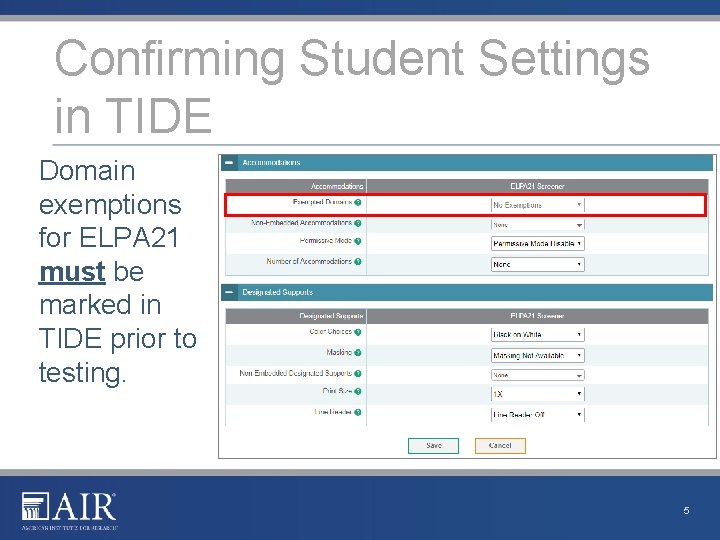
Confirming Student Settings in TIDE pt 2 Domain exemptions for ELPA 21 must be marked in TIDE prior to testing. 5
Confirming Student Settings in TIDE 2 § For Braille, Presentation must be set to Braille under Embedded Accommodations. 6
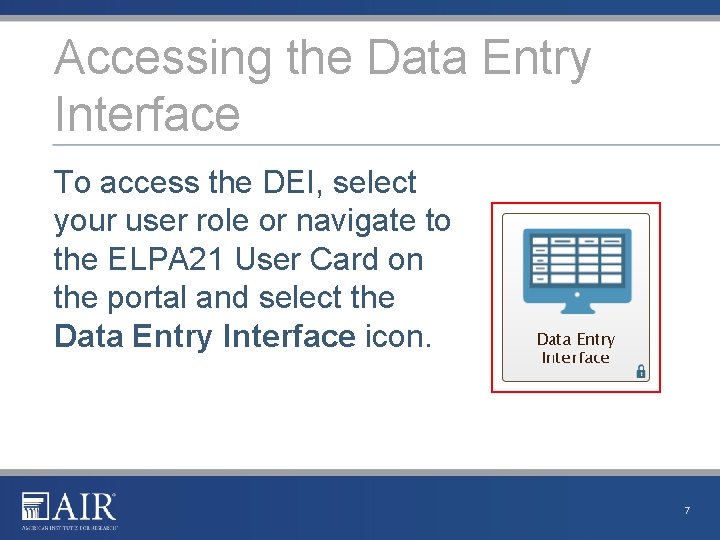
Accessing the Data Entry Interface To access the DEI, select your user role or navigate to the ELPA 21 User Card on the portal and select the Data Entry Interface icon. 7
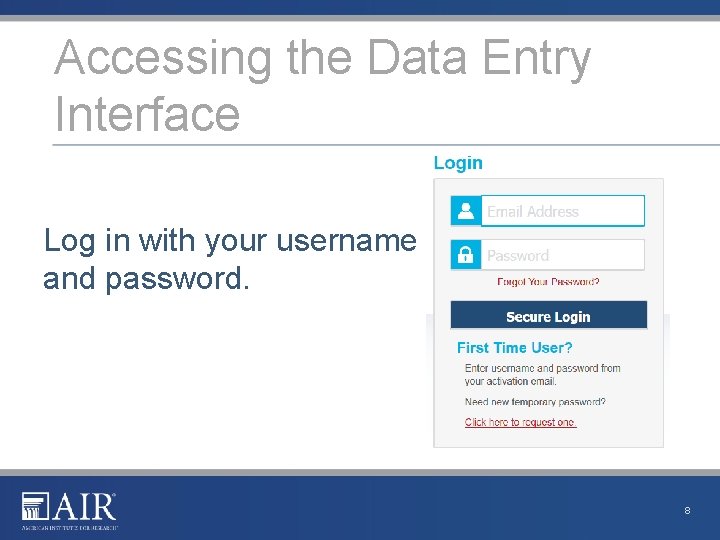
Accessing the Data Entry Interface Log in with your username and password. 8
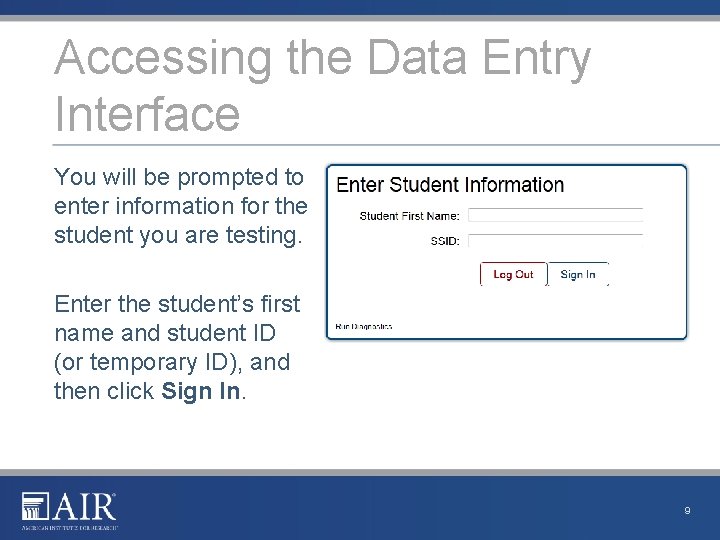
Accessing the Data Entry Interface pt 2 You will be prompted to enter information for the student you are testing. Enter the student’s first name and student ID (or temporary ID), and then click Sign In. 9
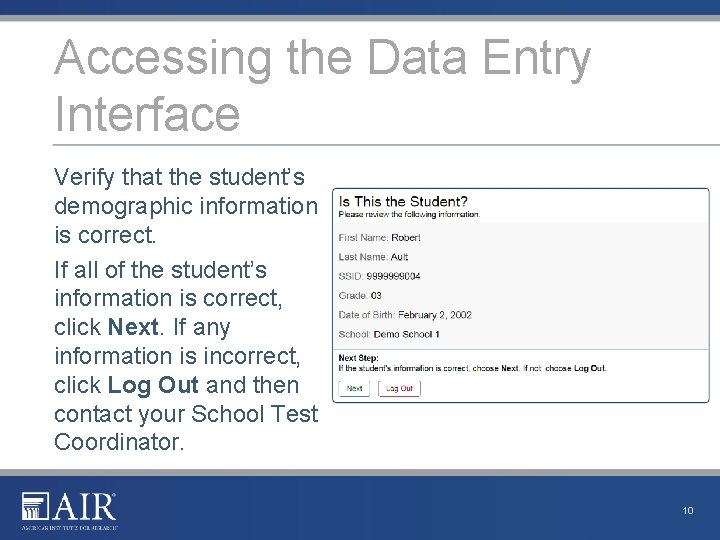
Accessing the Data Entry Interface pt 3 Verify that the student’s demographic information is correct. If all of the student’s information is correct, click Next. If any information is incorrect, click Log Out and then contact your School Test Coordinator. 10
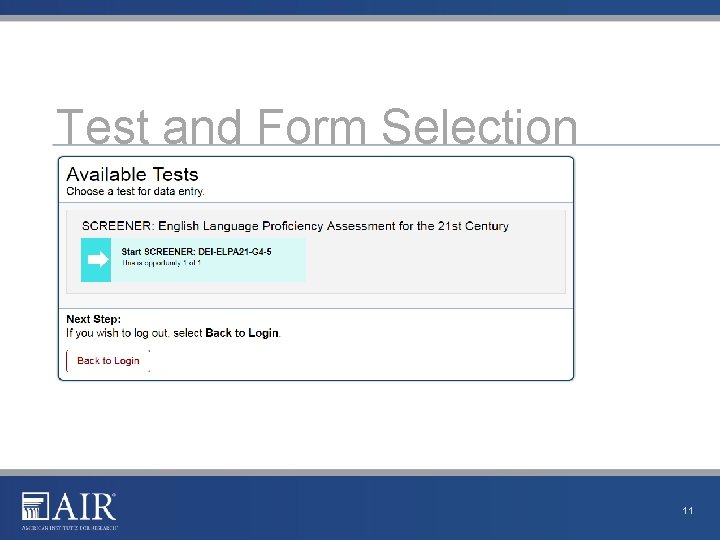
Test and Form Selection 11
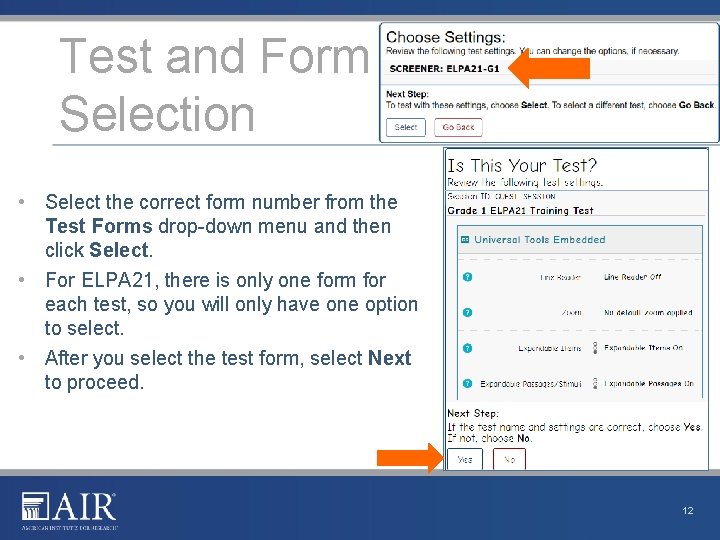
Test and Form Selection • Select the correct form number from the Test Forms drop-down menu and then click Select. • For ELPA 21, there is only one form for each test, so you will only have one option to select. • After you select the test form, select Next to proceed. 12
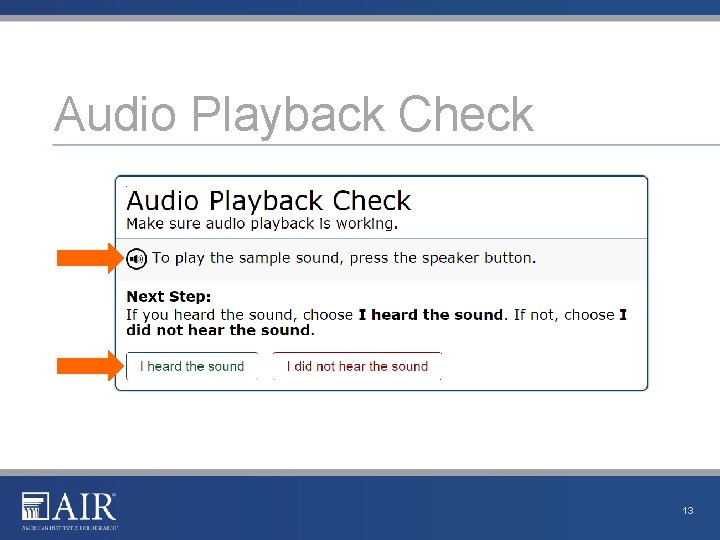
Audio Playback Check 13
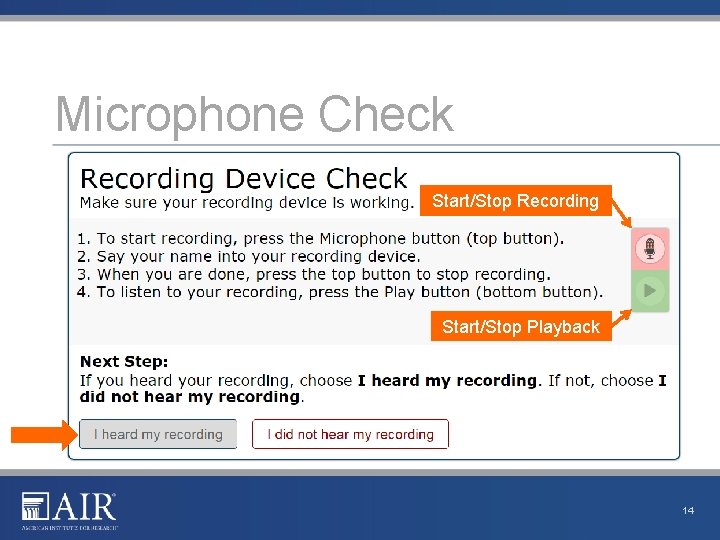
Microphone Check Start/Stop Recording Start/Stop Playback 14
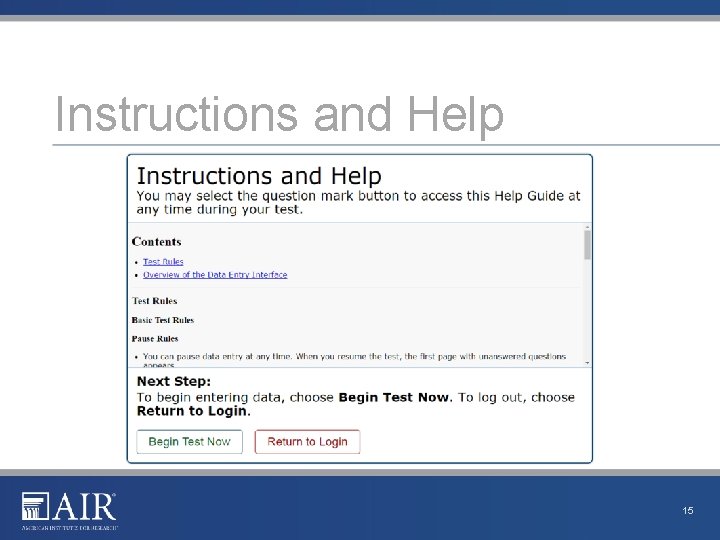
Instructions and Help 15
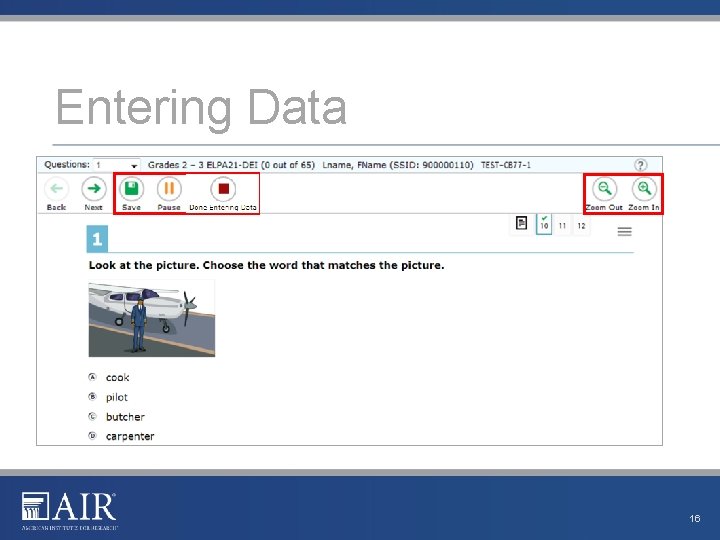
Entering Data pt 2 16
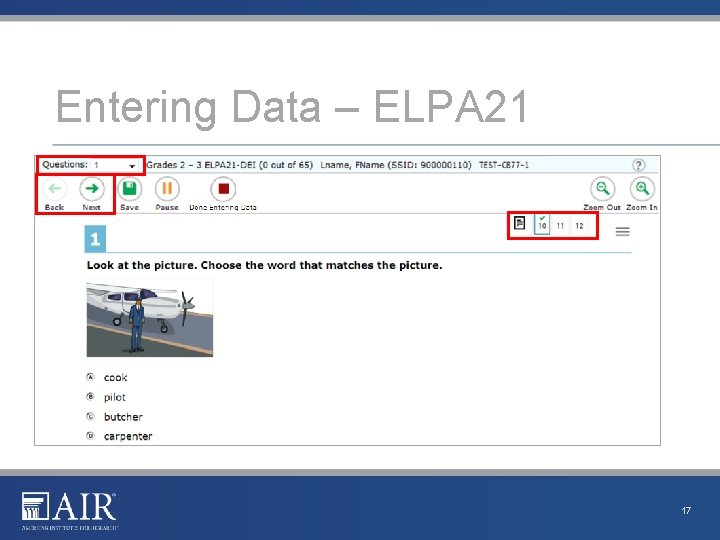
Entering Data – ELPA 21 17
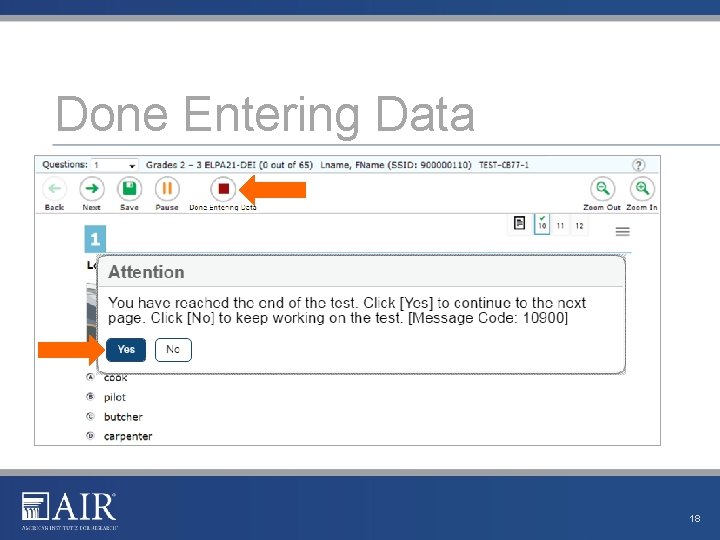
Done Entering Data 18
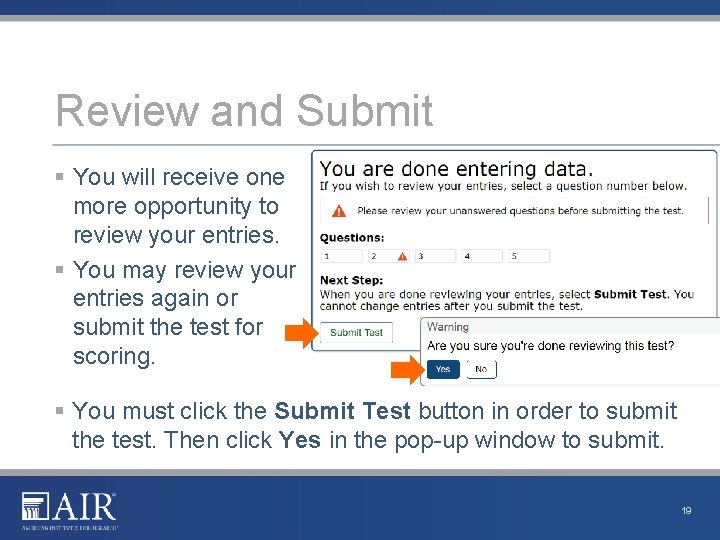
Review and Submit § You will receive one more opportunity to review your entries. § You may review your entries again or submit the test for scoring. § You must click the Submit Test button in order to submit the test. Then click Yes in the pop-up window to submit. 19
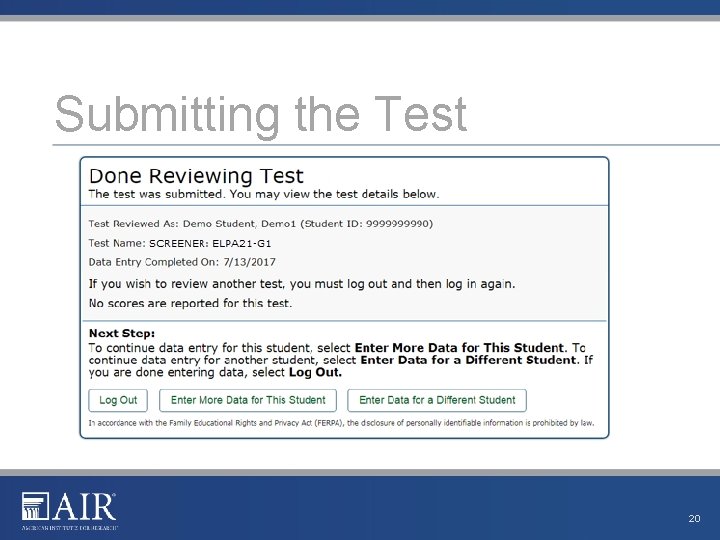
Submitting the Test 20
Helpful Hints § You may skip items that the student has not answered by clicking the Next button. § Questions may appear differently in the DEI from how they appear in the paper test booklets: § Instead of circling a letter, you may need to click on a word or image. § Instead of drawing a line between two objects, you may need to drag and drop one object on top of the other. § Instead of filling in a blank, you may need to choose an answer from a dropdown list. § For a test with domain exemptions to be scored correctly, the exempted domain(s) must be selected in TIDE, and all the questions in this domain must be skipped while the test being transcribed into the DEI. If any questions are answered in a domain, it will be scored and reported, even if the student is exempted from that domain in TIDE. 21
Thank You! For additional information, consult the WCAP Portal Resources page, which contains: § Important Announcements § DEI User Guide § ELPA 21 Test Administration Manual For further assistance, please consult your School Test Coordinator or District Assessment Coordinator. 22
Revision Log Updates to the module after January 13, 2020 are noted below. Section Slide Description of Change Revision Date 23