
DATA AND HARDWARE PROTECTION Unit 9 Objectives Create
DATA AND HARDWARE PROTECTION Unit 9
Objectives ■ ■ ■ Create a strong password Identify types of malware Identify network connection risks Describe social engineering Describe various ways to protect your PC Understand types of backups Determine a schedule for backing up data Backup & restore files and folders Clean and maintain a computer Protect a computer from theft and damage Buy or upgrade a computer
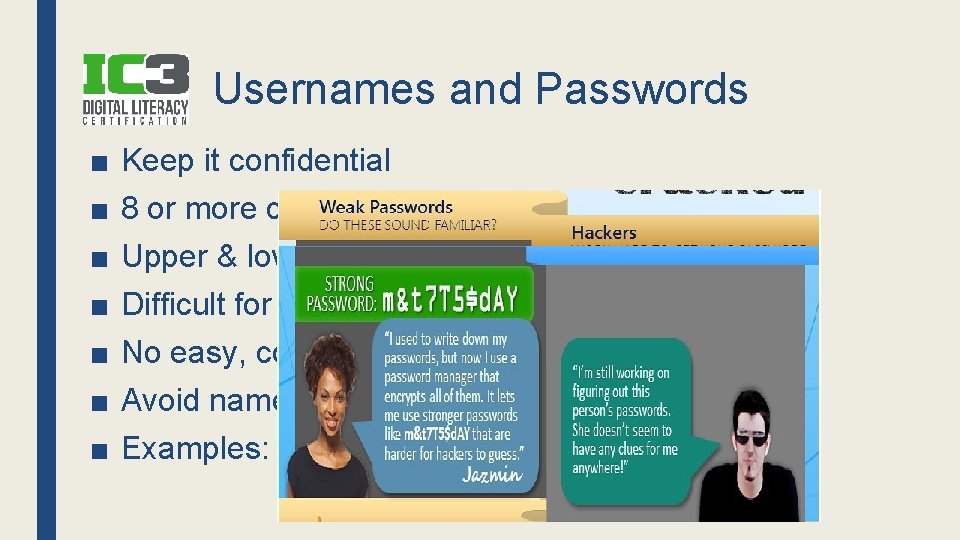
Usernames and Passwords ■ ■ ■ ■ Keep it confidential 8 or more characters Upper & lower case letters, numbers, symbols Difficult for someone to guess No easy, common words Avoid names, address parts, birthdates Examples:
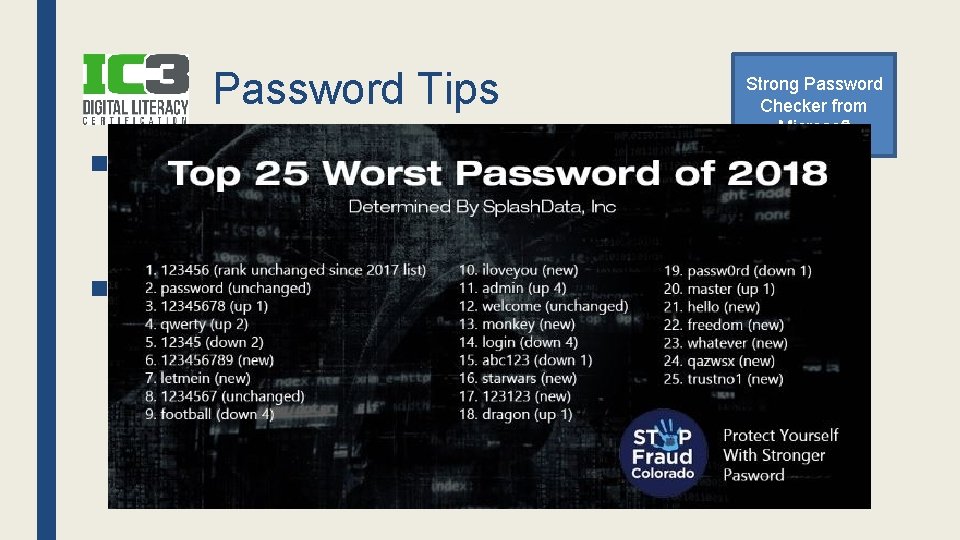
Password Tips ■ Most common password is…password – Also 123456 ■ Tips & Advice: Strong Password Checker from Microsoft

Identifying Risks- Malware ■ Virus- program written to cause disruption – Attached to a file or email & spreads ■ Worm- copies itself across network & slows it down ■ Trojan Horse- looks like something good, but isn’t & allows a hacker in ■ Spyware- secretly placed & gathers personal info; monitors your activity ■ Adware- display ads
Identifying Risks- Network Connections ■ Wired Connections – Usually connecting to school or business net is safe – Public wired network could be unsafe (like a hotel) ■ Don’t know if their network has up-to-date A/V, is secure or who is connected ■ Wireless Connections – Public Wi-Fi are more dangerous, with or without a passphrase/encryption (anyone can connect) – May not be secure and you don’t know who else is connected ■ Set it in Windows as a PUBLIC network (most secure)
Identifying Risks- Public Computers ■ Protect your privacy & personal accounts – There is no login in a library PC – Whoever comes after you can see your history, cookies, etc. ■ Before you leave: – – Log out of your online accounts Clear history & cookies Do not allow browser to store your passwords At school, log out of your account
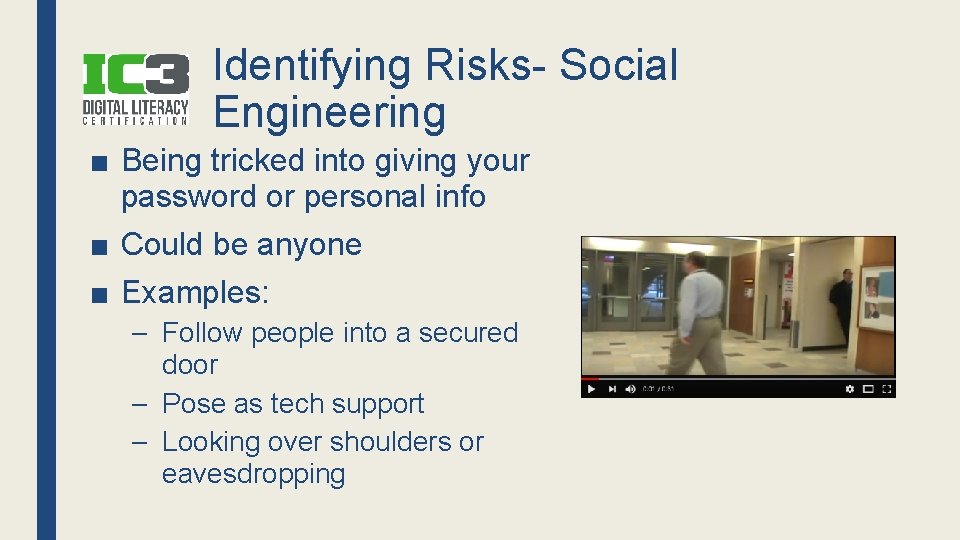
Identifying Risks- Social Engineering ■ Being tricked into giving your password or personal info ■ Could be anyone ■ Examples: – Follow people into a secured door – Pose as tech support – Looking over shoulders or eavesdropping
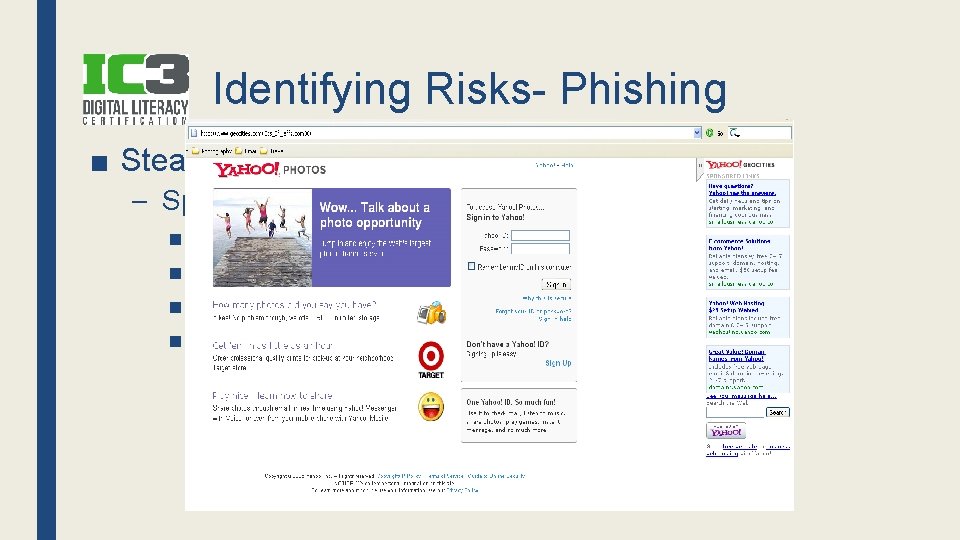
Identifying Risks- Phishing ■ Steals your personal info – Spoofed sites & emails ■ ■ Emails that appear to come from original source Asks you to change password Link takes you to copied site User collects your info
Review- 3 Q & Try This ■ Where do viruses usually come in? – Through attachment in email ■ What kind of threat would looking over your shoulder to steal your password be? – Social engineering ■ What attack comes in your email asking you to confirm your password through a fake website? – Phishing ■ Try this: Phishing IQ Test
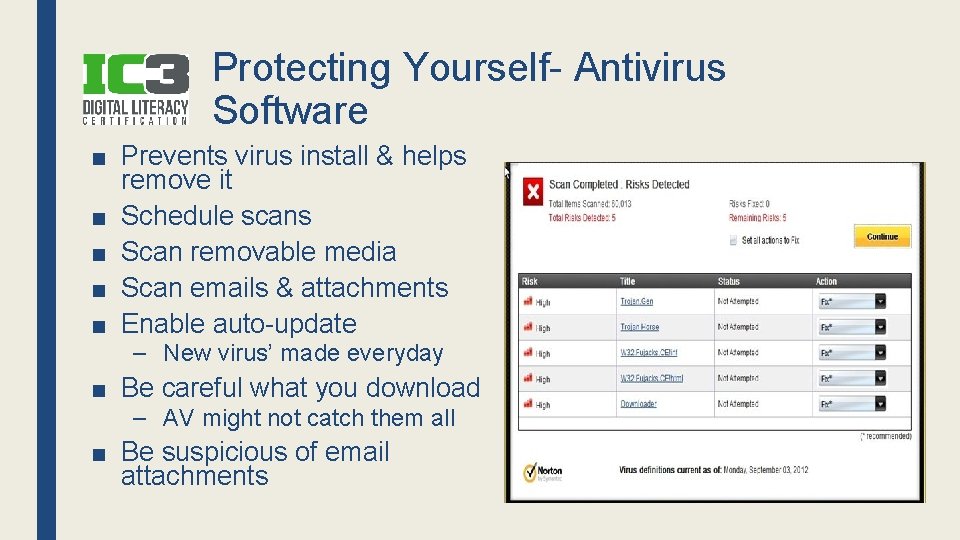
Protecting Yourself- Antivirus Software ■ Prevents virus install & helps remove it ■ Schedule scans ■ Scan removable media ■ Scan emails & attachments ■ Enable auto-update – New virus’ made everyday ■ Be careful what you download – AV might not catch them all ■ Be suspicious of email attachments

Protecting Yourself- Firewalls ■ Filters data going in/out of your PC & network – Checks against rules to allow or deny ■ Firewall software on PC ■ Firewall hardware at edge of network
Protecting Yourself- Monitoring Software ■ Track & record activity like logins, performance, all PC activity, etc. ■ Admins can track hacker logins & attempts ■ Account compromised? Contact Tech Support ASAP ■ School & work computer are NOT your private property! – What you do on them may not be private
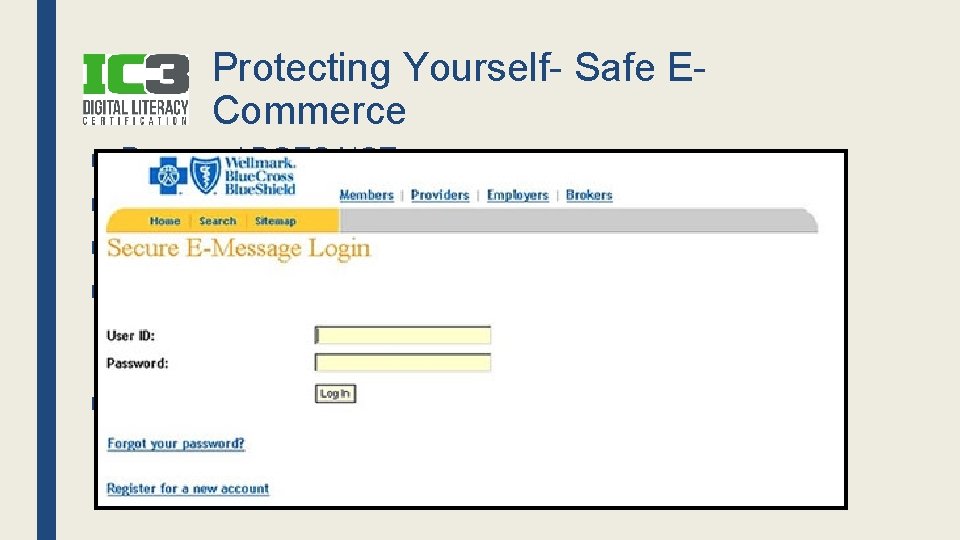
Protecting Yourself- Safe ECommerce ■ Password DOES NOT mean secure ■ Shop with well-known online companies ■ Make sure website is secure (HTTPS) ■ Secure Socket Layer (SSL & TLS) – Encrypts the data (credit card #’s, etc. ) – URL will begin with https: // ■ Log Off after leaving site – Why?
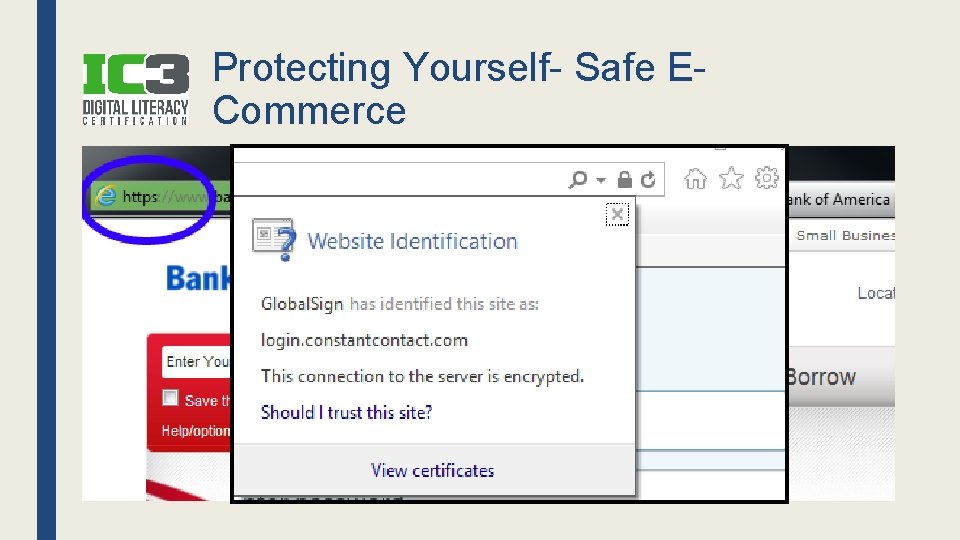
Protecting Yourself- Safe ECommerce
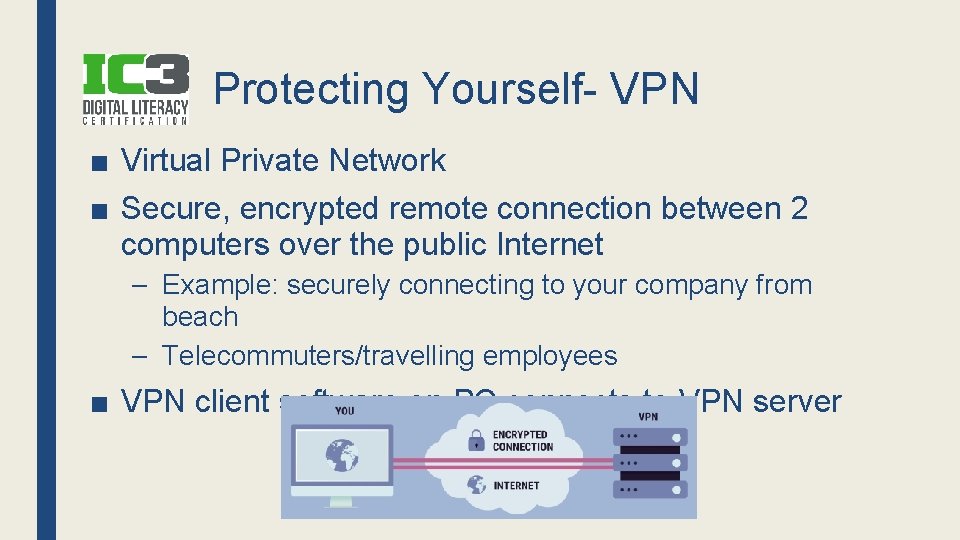
Protecting Yourself- VPN ■ Virtual Private Network ■ Secure, encrypted remote connection between 2 computers over the public Internet – Example: securely connecting to your company from beach – Telecommuters/travelling employees ■ VPN client software on PC connects to VPN server
Review- 3 Q ■ What 2 things should you look for to make sure a website is secure? – Https & the lock ■ What can allow specific programs through to your PC or could block all incoming connections? – Firewall ■ What software should you have that can prevent most known viruses and/or remove them? – Anti-virus software
Backup and Restore ■ What files are important to you? ■ Your data is very valuable ■ Backup to Cloud, External HD ■ Backup using Cloud, File History or Backup &
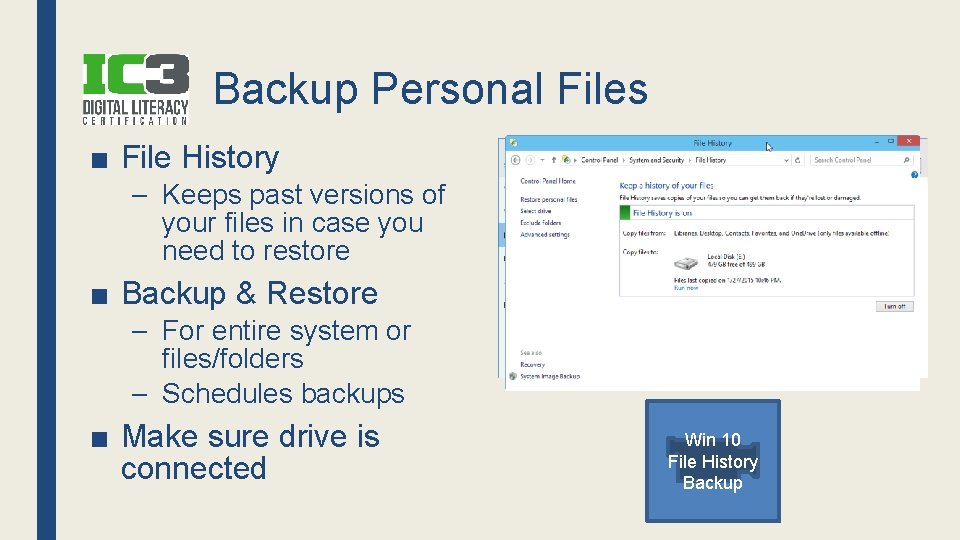
Backup Personal Files ■ File History – Keeps past versions of your files in case you need to restore ■ Backup & Restore – For entire system or files/folders – Schedules backups ■ Make sure drive is connected Win 10 File History Backup
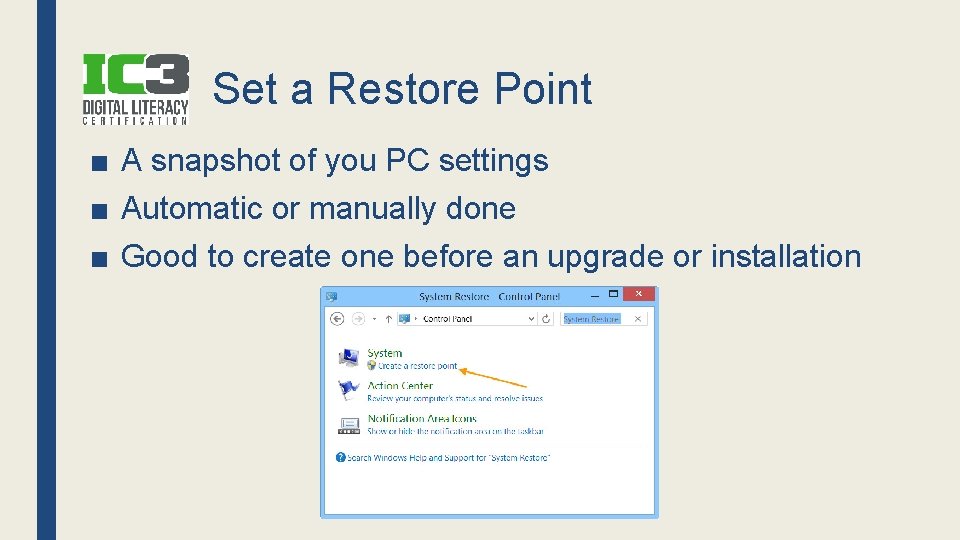
Set a Restore Point ■ A snapshot of you PC settings ■ Automatic or manually done ■ Good to create one before an upgrade or installation
Refresh and Reset Options ■ When things go bad… ■ Refresh – Fresh install of Windows and KEEPS YOUR FILES & SETTINGS ■ Reset – Fresh install of Windows and REMOVES EVERYTHING ■ Mobile Devices – Factory reset removes everything – Done before you donate phone – Remember to take your SIM card!
System Image ■ Image= Windows, Programs, Settings & Files as they are – Used if entire drive stops working – The system image must be saved on a hard drive – Create a repair disc to boot PC & begin the process Win 10 Image Backup Mac Time Machine
Review- 3 Q ■ What feature in Windows can you turn on to keep previous versions of files in case you need to revert to one? – File History ■ What feature gives you a fresh install of Windows but deletes your files and programs? – Reset ■ Before you donate your phone, what should you do? – Perform a factory reset to delete your files
Why Keep the PC Healthy? ■ How much do computers cost? ■ You want to protect your investment ■ Easy to maintain – Keep it physically clean – Protecting it from bad software – Protect/Backup your files
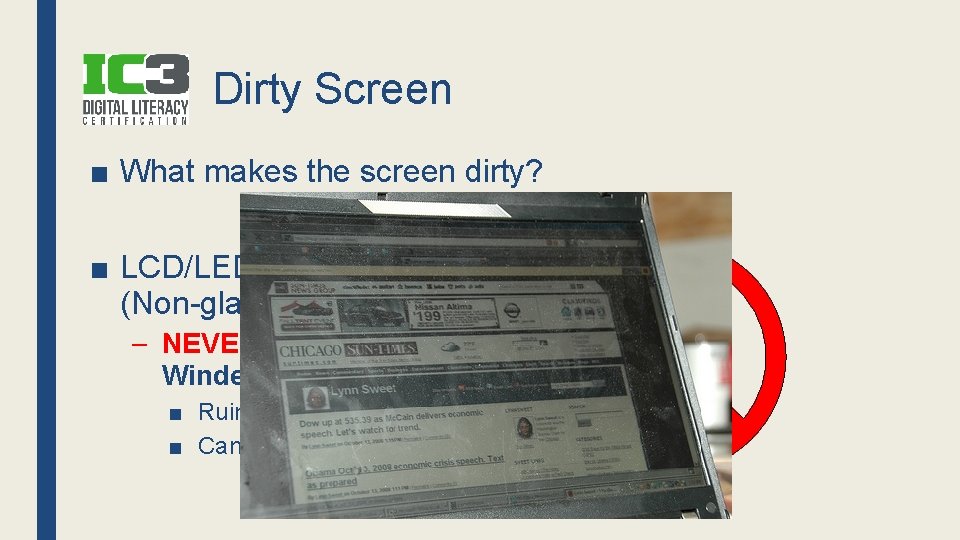
Dirty Screen ■ What makes the screen dirty? ■ LCD/LED screens (Non-glass) – NEVER spray liquid or Windex! ■ Ruins the anti-glare coating ■ Can leak into monitor
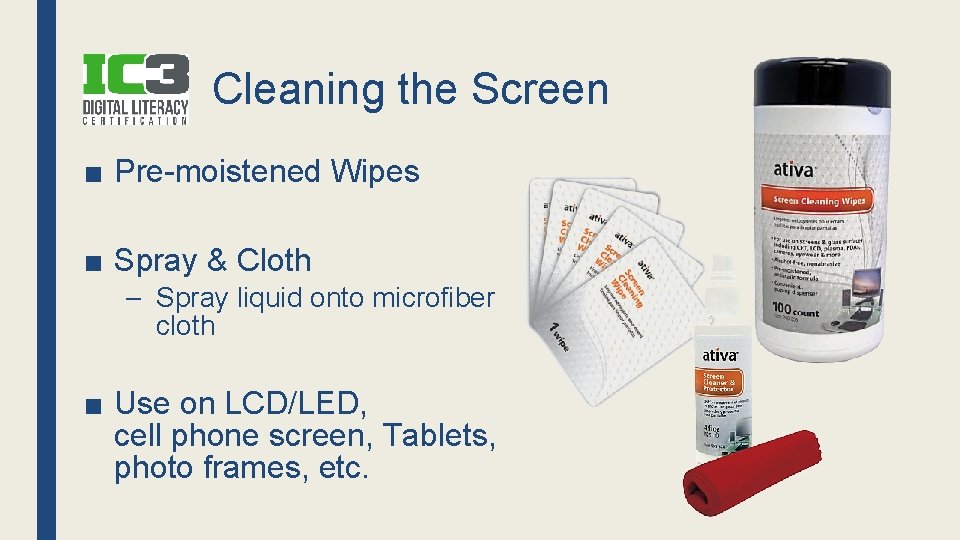
Cleaning the Screen ■ Pre-moistened Wipes ■ Spray & Cloth – Spray liquid onto microfiber cloth ■ Use on LCD/LED, cell phone screen, Tablets, photo frames, etc.
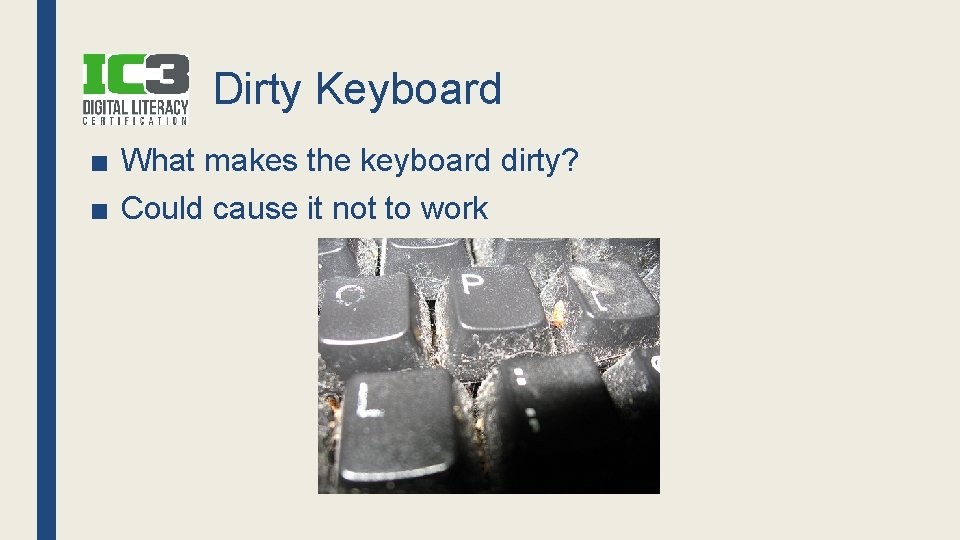
Dirty Keyboard ■ What makes the keyboard dirty? ■ Could cause it not to work
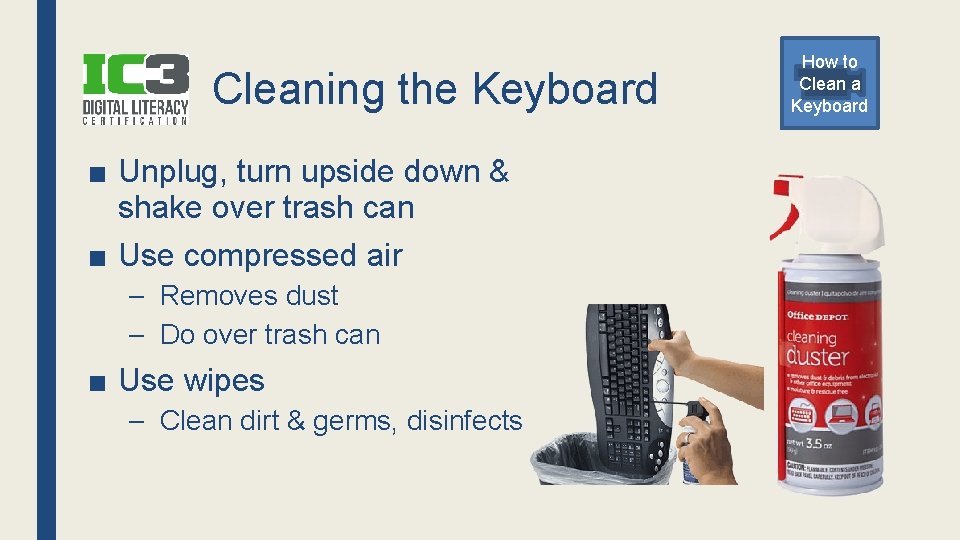
Cleaning the Keyboard ■ Unplug, turn upside down & shake over trash can ■ Use compressed air – Removes dust – Do over trash can ■ Use wipes – Clean dirt & germs, disinfects How to Clean a Keyboard
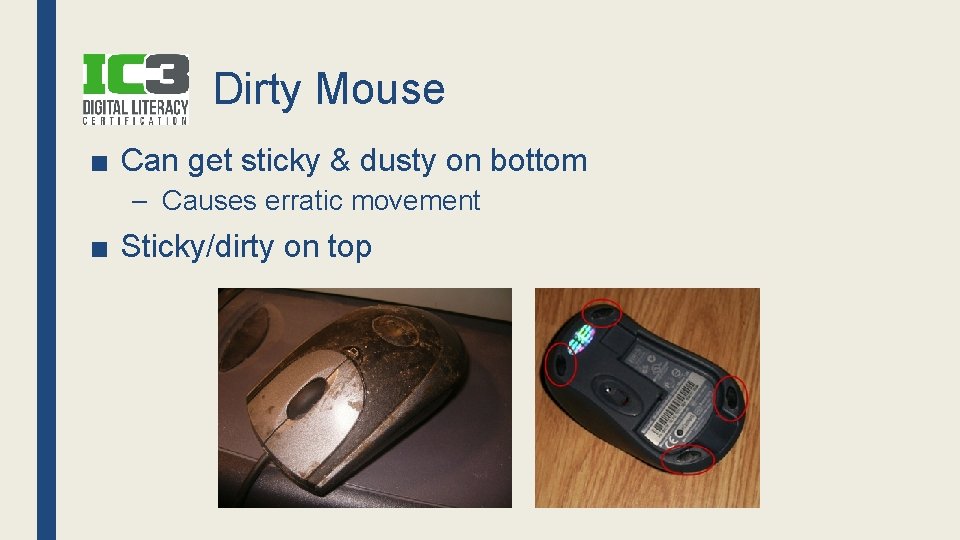
Dirty Mouse ■ Can get sticky & dusty on bottom – Causes erratic movement ■ Sticky/dirty on top
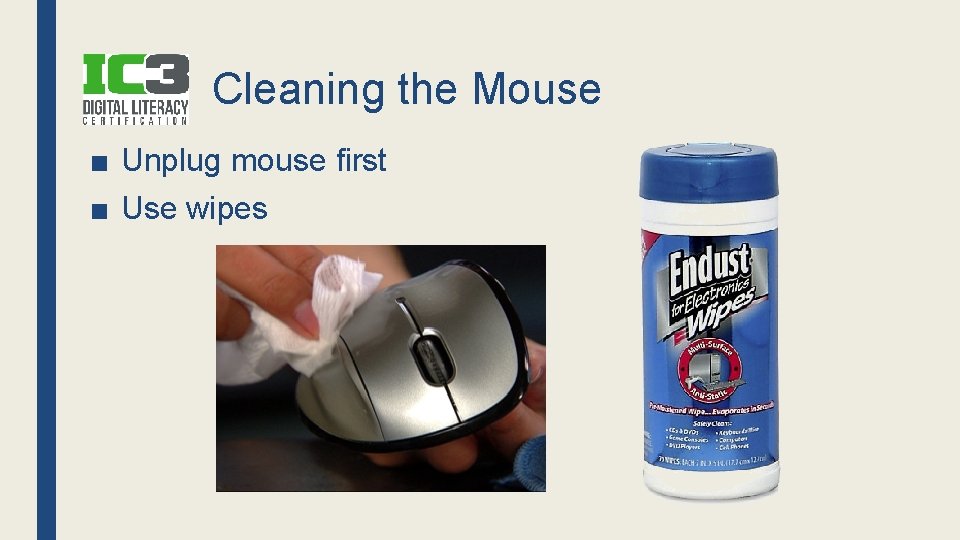
Cleaning the Mouse ■ Unplug mouse first ■ Use wipes
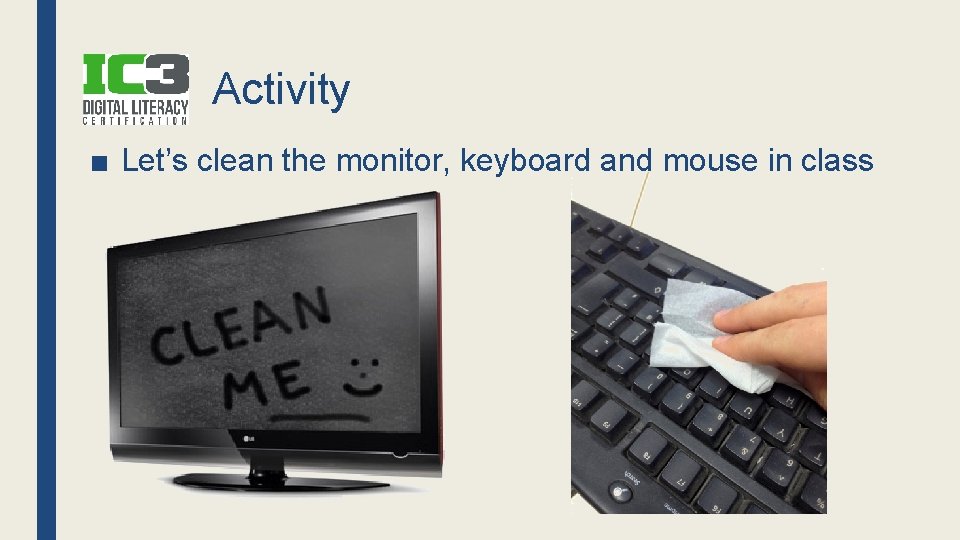
Activity ■ Let’s clean the monitor, keyboard and mouse in class
Review- 3 Q ■ Your laptop screen is dirty. Why should you NOT use Windex to clean it? – Ruins the anti-glare coating & can leak inside ■ What can be used to get food particles & dust out of your keyboard? – Compressed air ■ When cleaning an LCD screen with a liquid pump spray, how do you apply the spray? – Spray onto the cloth
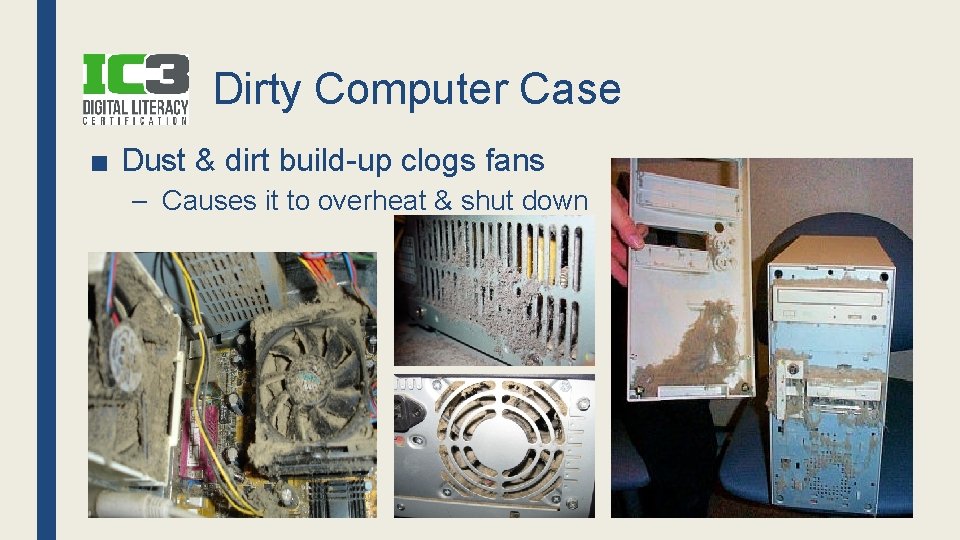
Dirty Computer Case ■ Dust & dirt build-up clogs fans – Causes it to overheat & shut down
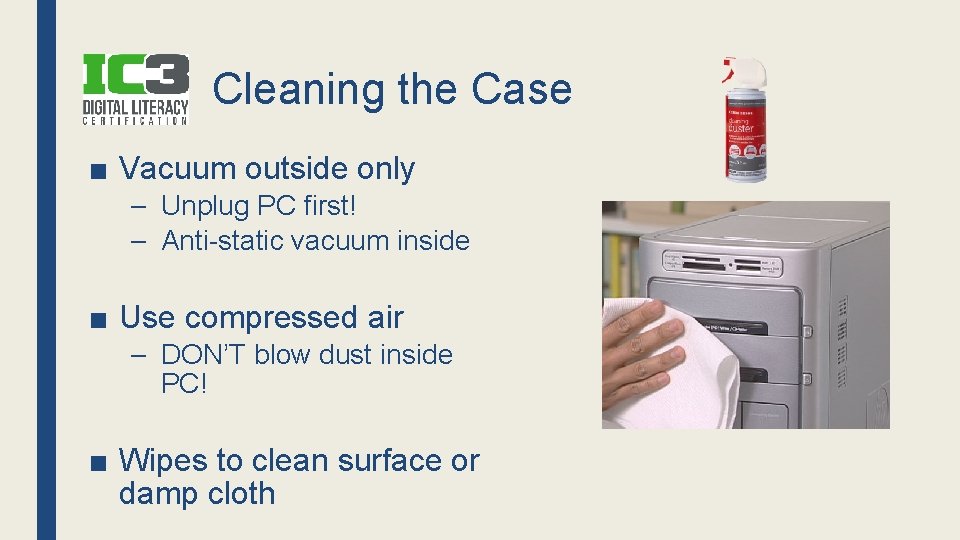
Cleaning the Case ■ Vacuum outside only – Unplug PC first! – Anti-static vacuum inside ■ Use compressed air – DON’T blow dust inside PC! ■ Wipes to clean surface or damp cloth

Cleaning Your Devices ■ Keep the laptop, tablet & phone clean Cleaning Your Laptop
Review- 3 Q ■ How can dust damage your computer? – Clogs up fans; causes overheating ■ Vacuuming the inside of a computer with a regular vacuum cleaner can cause what kind of damage? – Static electricity can damage components ■ When using compressed air to clean dust from computer fans, how should you do this? – Blow dust outside of the computer, not in
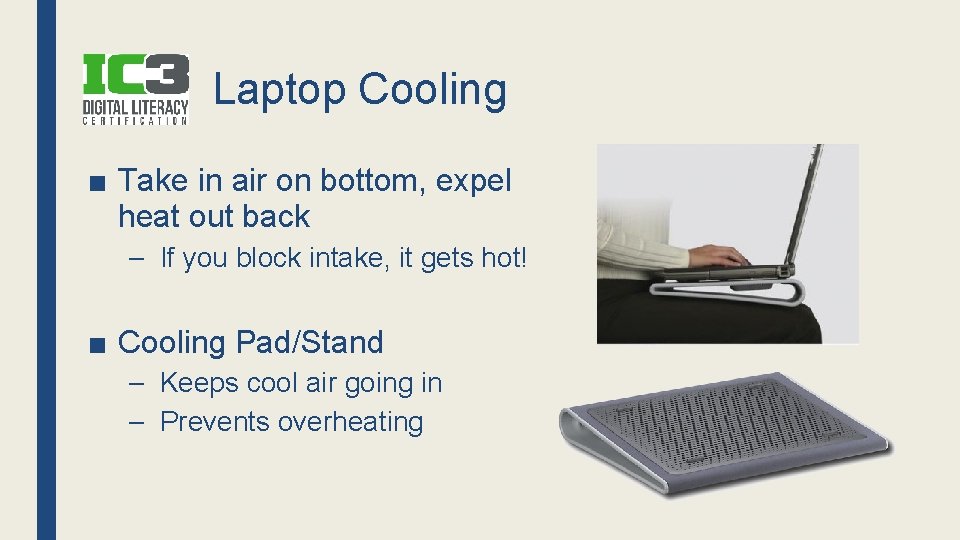
Laptop Cooling ■ Take in air on bottom, expel heat out back – If you block intake, it gets hot! ■ Cooling Pad/Stand – Keeps cool air going in – Prevents overheating
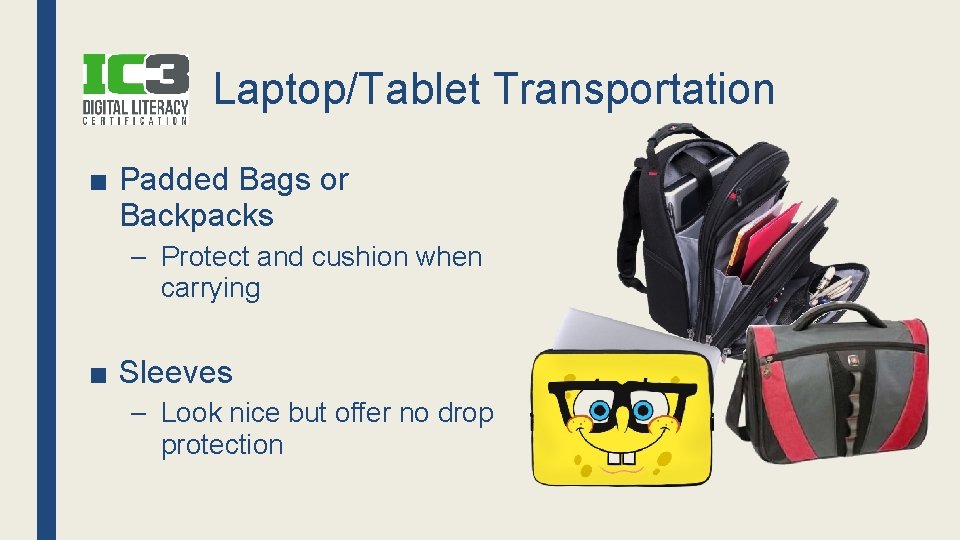
Laptop/Tablet Transportation ■ Padded Bags or Backpacks – Protect and cushion when carrying ■ Sleeves – Look nice but offer no drop protection
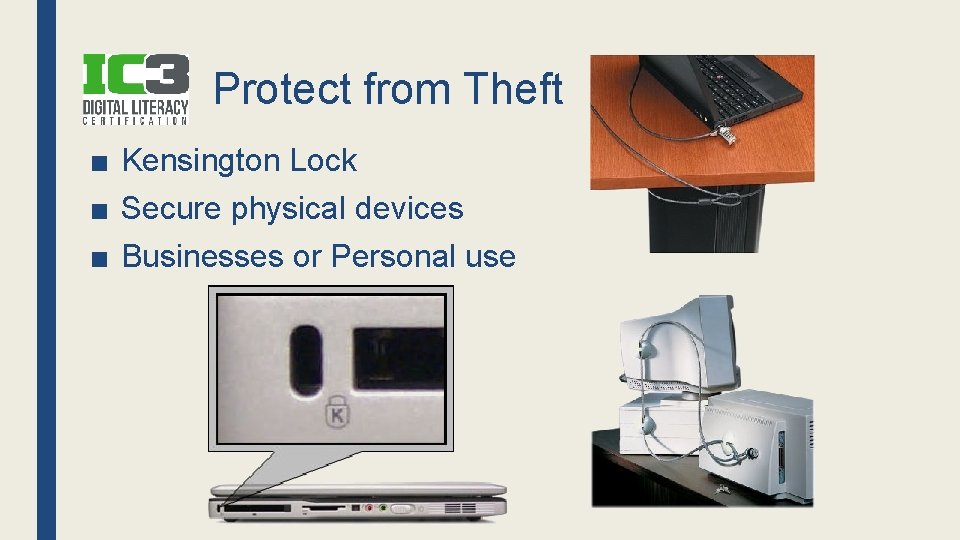
Protect from Theft ■ Kensington Lock ■ Secure physical devices ■ Businesses or Personal use
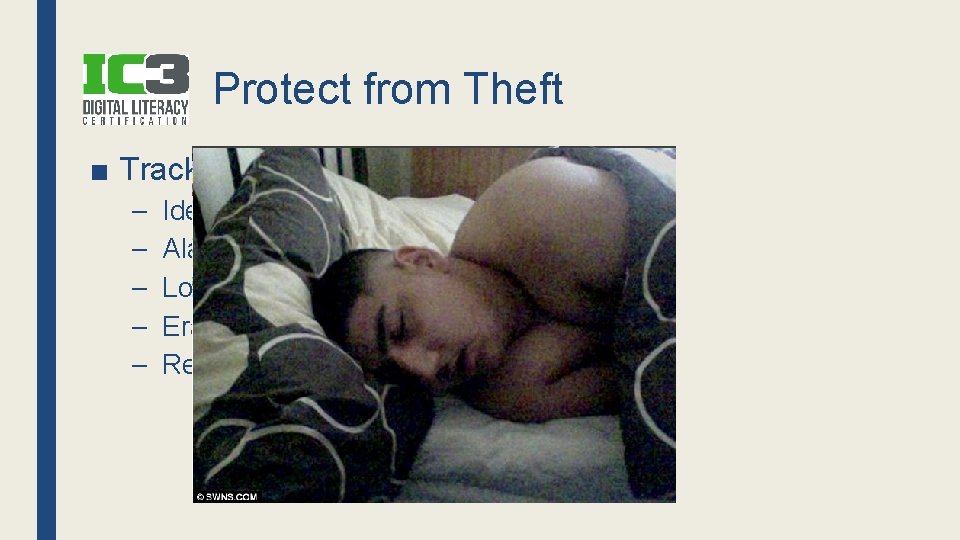
Protect from Theft ■ Tracking Software – – – Identify location of computer Alarm sounds Lock device remotely Erase data remotely Remote camera activation
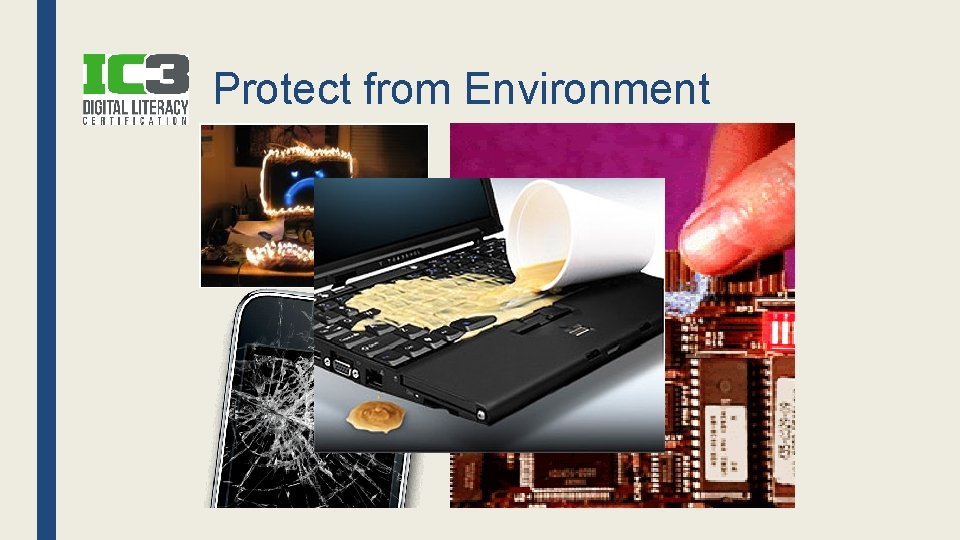
Protect from Environment
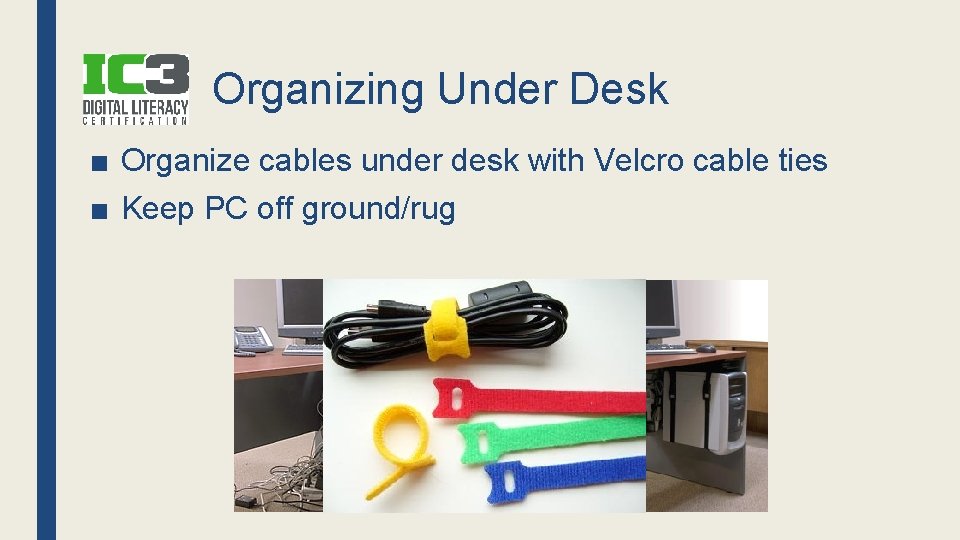
Organizing Under Desk ■ Organize cables under desk with Velcro cable ties ■ Keep PC off ground/rug
Project ■ Shop for maintenance accessories
Review- 4 Q ■ Before you vacuum any dust from the outside of a PC, what should you do? – Power down & unplug the PC ■ When dust clogs fans, what could happen? – PC overheats ■ The outside of a PC case can be wiped with what two things? – Cleaning wipes or damp cloth ■ What can be put under a laptop to keep it cool? – Cooling pad
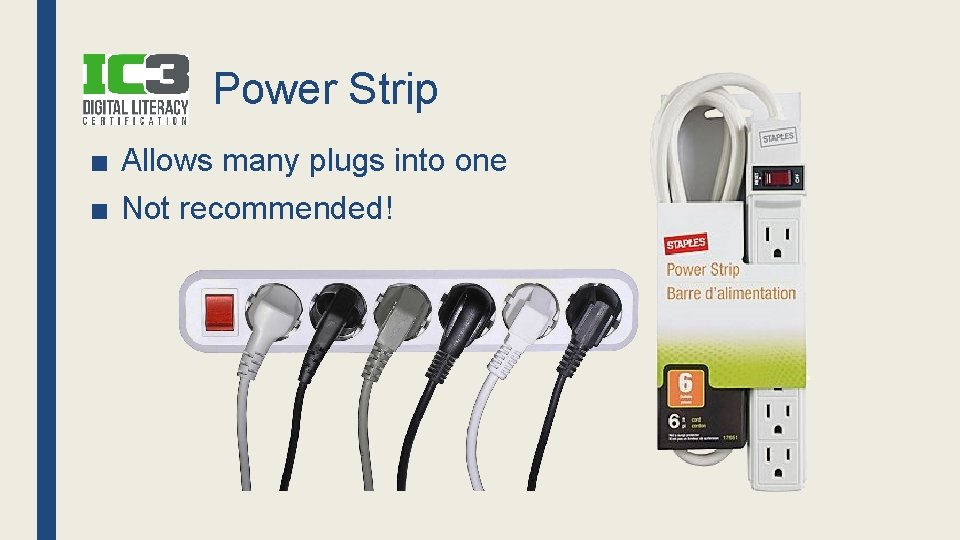
Power Strip ■ Allows many plugs into one ■ Not recommended!
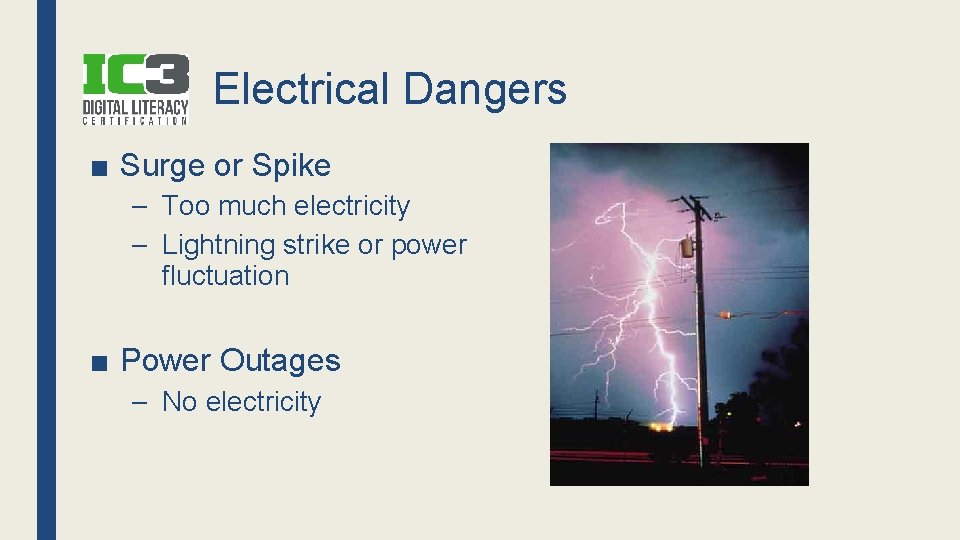
Electrical Dangers ■ Surge or Spike – Too much electricity – Lightning strike or power fluctuation ■ Power Outages – No electricity
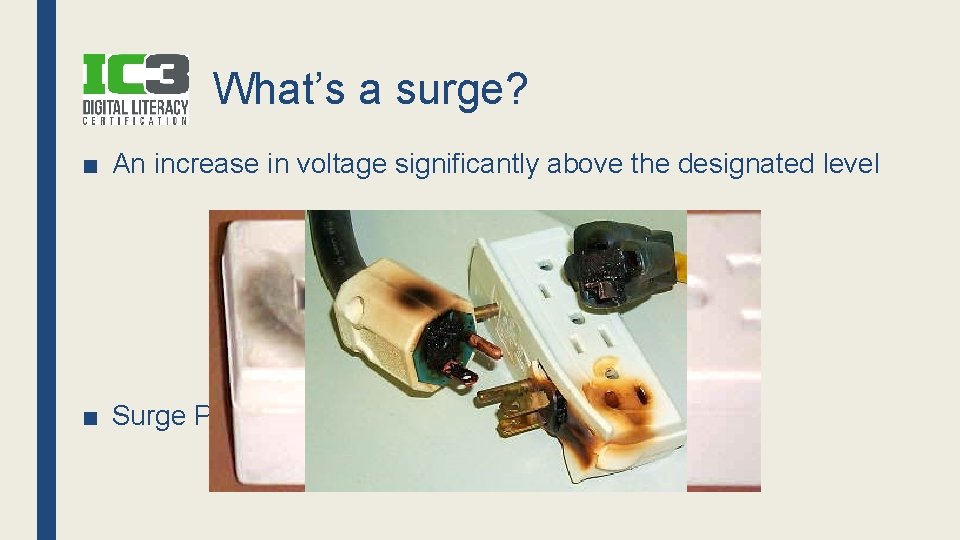
What’s a surge? ■ An increase in voltage significantly above the designated level ■ Surge Protector diverts extra voltage like a valve
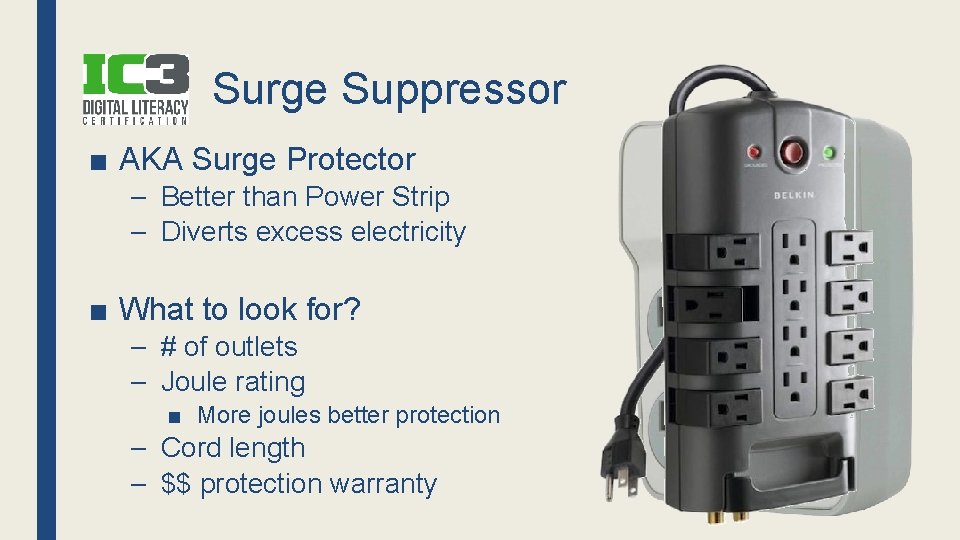
Surge Suppressor ■ AKA Surge Protector – Better than Power Strip – Diverts excess electricity ■ What to look for? – # of outlets – Joule rating ■ More joules better protection – Cord length – $$ protection warranty
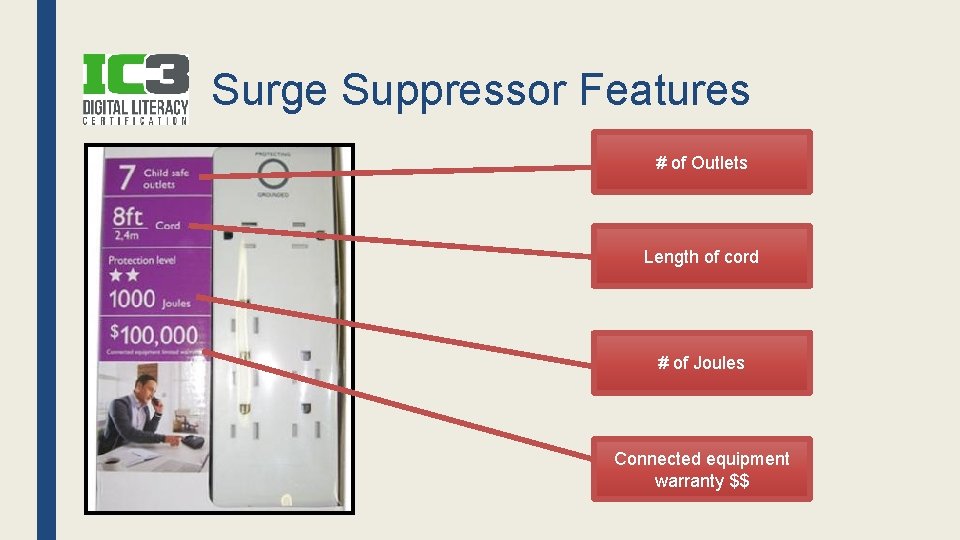
Surge Suppressor Features # of Outlets Length of cord # of Joules Connected equipment warranty $$
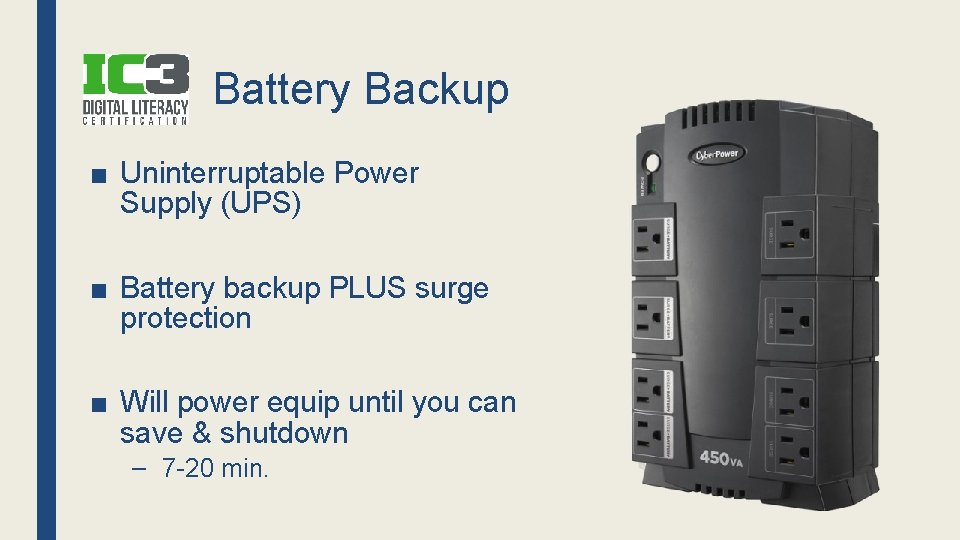
Battery Backup ■ Uninterruptable Power Supply (UPS) ■ Battery backup PLUS surge protection ■ Will power equip until you can save & shutdown – 7 -20 min.
Projects ■ Find a single outlet surge protector for your laptop ■ Find a 6 -8 outlet surge protector (strip or wall) for computers with at least 2500 joules ■ Find a surge/UPS strip with at least 10 minutes of backup time ■ Comparing Surge Protectors Handout (group) ■ Surge Protector Homework Handout
Review- 3 Q ■ To protect against stronger types of electricity, what feature should you look for in a surge protector? – Joules ■ What surge protector feature describes the replacement of devices in case of a surge? – Connected equipment warranty ■ What device gives you time to save your files in the event of a power outage? – UPS
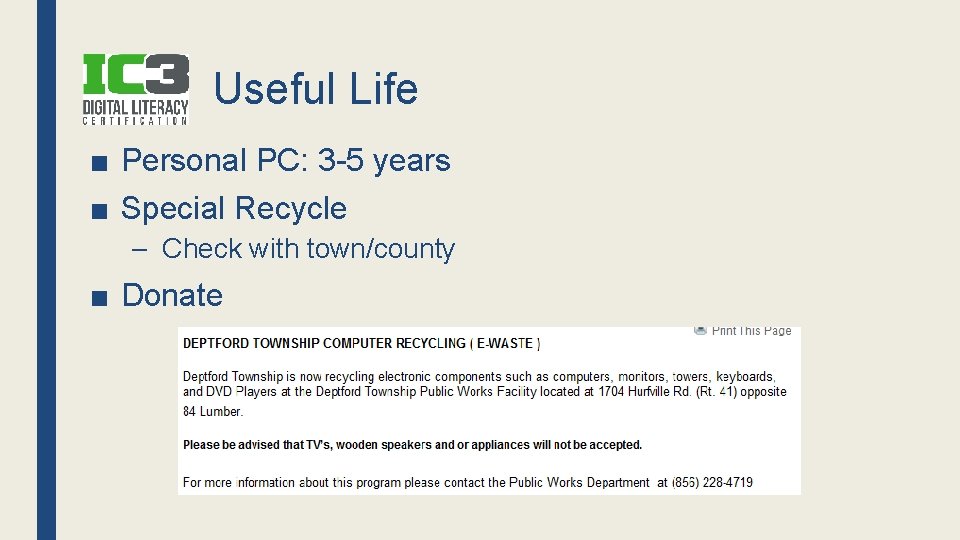
Useful Life ■ Personal PC: 3 -5 years ■ Special Recycle – Check with town/county ■ Donate
Support & Warranty Product Support Product Warranty ■ Tech support (for the hardware, not OS) ■ Written guarantee for a time period ■ Company will help you troubleshoot ■ If product doesn’t work, manufacturer will repair/replace ■ Free for a time period ■ Normal wear & tear ■ Then, may charge per call/per hour ■ Does NOT cover damage you do
DATA AND HARDWARE PROTECTION Unit 9
- Slides: 55