
CYBER SECURITY Objectives 1 Shield yourself and our
CYBER SECURITY
Objectives 1. Shield yourself and our organization from cyber attacks. 2. Identifying and reporting when we are attacked. 3. Learn the latest tricks that cyber attackers are using. 4. How to spot and defend against cyber attack tricks.
Recognizing Social Engineering Attacks
• Cyber attackers pretend to be someone or something that you know and trust. – These attacks can occur online, through email, over the phone, or in person. – Tricks such as: • Click-bait – free downloads, contests. • Watering Hole Attacks – attacking sites that are visited by their target group by inserting a threat on the website. (Walmart, Facebook) • Ransomware – holds your files or part of your system for ransom. • Phishing/Spear Phishing – fooling people into handing over money or information.
What Can You Do? 1. Slow down, ask questions. 2. Be suspicious if someone asks you for information that they should not have access to. 3. Be suspicious if they use confusing or technical terms. 4. Be suspicious if they create a tremendous sense of urgency. 5. Hang up or ignore the message and contact the Help Desk, Human Resources or appropriate department.
Question? Social engineering attacks can come in many forms. Which is not a social engineering attack? 1. People using a lot of confusing or technical terms to get information they should not have access to. 2. People creating a sense of urgency to get information they should not have access to. 3. People offering to pay money to gain access to information they should not have access to.
Email & Messaging Attacks
• The most common type of email/messaging attack is called phishing. – Phishing is the attempt to obtain sensitive information such as usernames, passwords, credit card details, account numbers, by masquerading as a trustworthy entity. – Tricks such as: • Email asking to verify personal information. • False web links. • Mimic legitimate and reputable company – using an official logo, color schemes, etc… • Require an immediate/quick response. • Review an attachment.
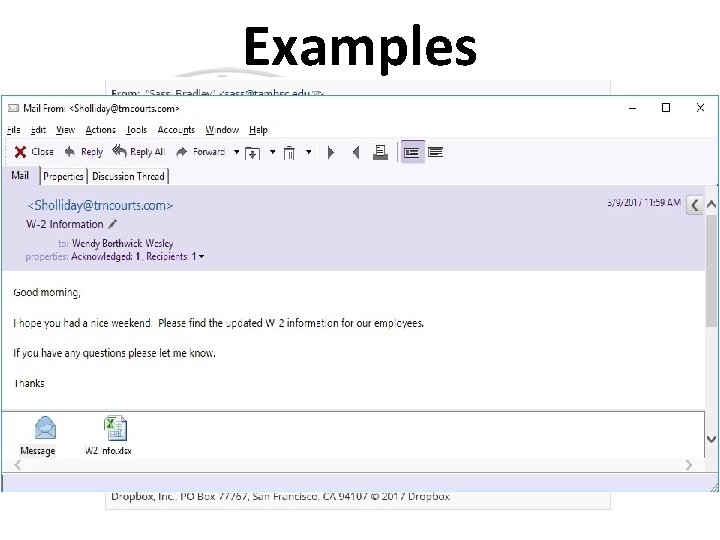
Examples
What Can You Do? 1. Beware any email that begins with Dear Customer, or has a sense of urgency. 2. Beware any email asking for personal information. 3. Check the email address. 4. Check for grammar or spelling mistakes. 5. Hover your mouse over any links to confirm that the destination displayed matches the destination in the email. 6. Only open attachments that you were expecting. If in doubt call the sender.
Question? Which method are cyber attackers most likely to use for phishing attacks? 1. Only email, as it allows the criminal to send attachments. 2. Any messaging channel, including email, text messages and instant messaging. 3. Complicated malware, as it enables cyber attackers to bypass antivirus software.

Browser Attacks
• Browsers are primary targets by cyber attackers. – This is due to compromised websites, ads, email, and software flaws in the browser. – Tricks such as: • Redirecting to a corrupted website. • False web links. • Pop up ads that misdirect to an infected site. • Bugs in browser plug–ins.
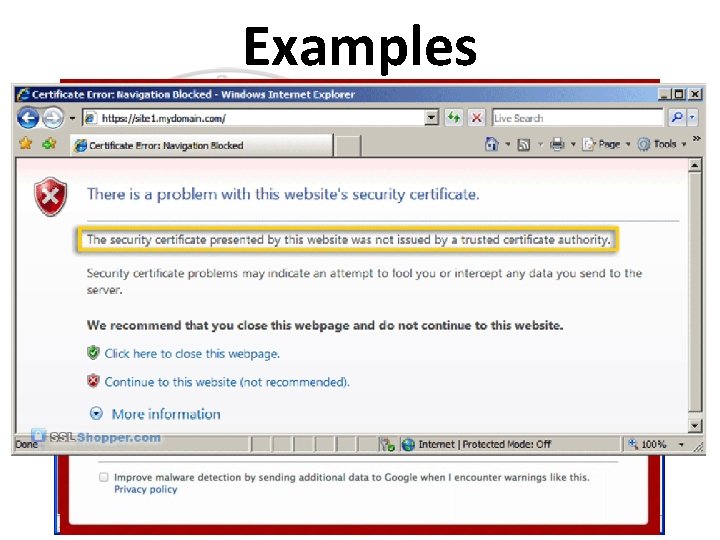
Examples
What Can You Do? 1. Always use the latest version of your browser. 2. Do not connect to websites when you receive a warning. 3. Before entering personal information – check that the website begins with https and has a padlock (sign of encryption). 4. Only install plug-ins/add-ons in your browser if you absolutely need them. 5. When you are finished with a website, remember to log off.
Question? What should you do to keep your browser more secure? 1. Ensure your browser and plug-ins are updated and running the latest version. 2. Ensure you browse only websites that are encrypted and that you trust. 3. Use a website scanner to verify the integrity of a website before visiting it.

Social Media Networks
• Social media makes it easy for someone to watch and learn what you are doing. – Social media attacks range from impersonation attacks, scams, distributing malware (viruses) and executing phishing attacks. – Tricks such as: • Third party applications containing viruses. • Hacking into a person’s account and pretending to be your friend. • Using personal information about your job, family, friends and interests to gain sensitive information or to steal your identity.
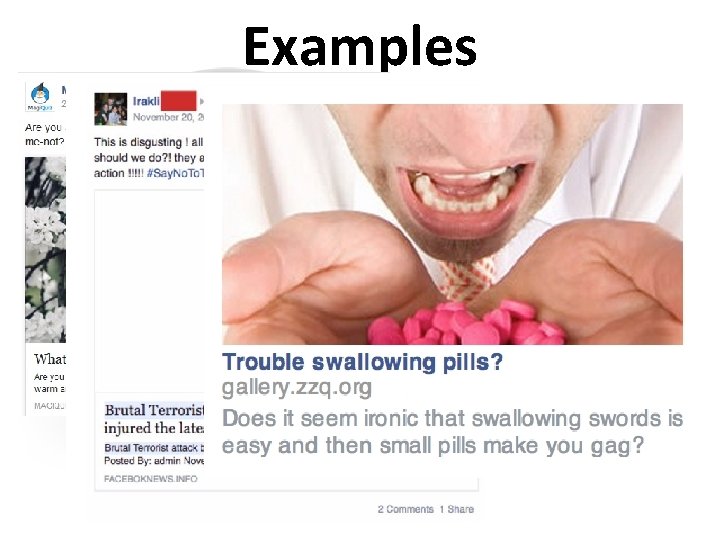
Examples
What Can You Do? 1. Protect each account with a strong and unique password. 2. Use a different password for each account. 3. Use two step verification if available. 4. Assume any information you post will become public. 5. Only install applications from trusted sources and install the apps that you need. 6. Don’t click on quizzes, weird links or site links that you are not familiar with.
Question? Your friend has posted information about your job, your family and your social plans. What would a cyber attacker most likely use this information for? 1. Stealing your job. 2. Selling your information to other governments. 3. Stealing your identity.
Mobile Devices
• Mobile devices store a lot of personal and sensitive information. Contacts, photo’s, text messages, and online activity. – Mobile device attacks can happen via email, messaging or online. – Tricks such as: • Third party applications containing viruses. • Hacking into a person’s account via wi-fi. • Messages or email requesting sensitive information or asking you to click a link.
What Can You Do? 1. Keep track of your mobile devices at all times. 2. Protect each device with a screen lock. 3. Enable remote wiping if it is available. 4. Download applications from trusted sources. If the application requires excessive permissions do not install it. 5. Use the latest operating system available and keep it updated. 6. Choose secure networks when using wi-fi.
Question? What is one of the most important steps you can take to ensure your mobile device is secure? 1. Ensure your mobile device is encrypting all communication, including emails and text messages. 2. Ensure your mobile device is not accessible via Bluetooth or any other file sharing software. 3. Ensure your mobile device and apps are all running the latest, most up-to-date versions of their software.
Password Security
• Passwords help secure your identity, your personal information and our organization. – Tricks such as: • Hacking accounts by answering personal questions using information found on social media sites. • Malicious software found on public computers that can capture all of your keystrokes.
What Can You Do? 1. Do not use passwords that use information that is widely known about you, like your birthday or child’s name. 2. Do not use simple passwords like 12345 or Abcd 1. 3. Use a pass phrase like Where. Is. My. Coff 33. 4. Use numbers and symbols. 5. Use a different and unique password for each of your accounts.
What Can You Do? 6. Never share your password with anyone else, including fellow employees. 7. Do not use public computers (hotels) to log into a work or bank account. They may be infected and are easily hacked. 8. Log out of applications after your are finished.
Question? Which is the stronger password? 1. e. Xtra. ZZZs! 2. ILove. Cats! 3. Patrick 23
Encryption
• Encryption is a process that protects your information by making it unreadable or unusable by anyone that does not have the key. – Encryption protects the information on your device if you lose it or secures your credit card information when you make a purchase. – When information is not encrypted it is called plaintext. This means anyone can read or access it. – Encrypting information converts it into a nonreadable format called cipher-text. Encryption uses mathmatical formulas and a unique key to convert your information into cipher-text. A common key would be a password.
• Items that can be encrypted include: – Laptops – Phones – Instant Messaging – Electronic files (Word, Excel) – Browser connections – Social Networking sites
What Can You Do? 1. Password protect your devices. 2. Send confidential documents encrypted with a password. 3. Only use sites with security and have https if entering personal information (banking sites, shopping).
Question? What is information that has been encrypted called? 1. Secret-text. 2. Cipher-text. 3. Plain-text.
Working Remotely
• Working remotely allows the user to leave the office and work at other locations. – Tricks such as: • Stealing unattended devices. • Hackers are able to use wi-fi to capture transmitted information sent through the internet. • Using USB devices to spread malware.
What Can You Do? 1. Only use resources provided by our organization. Please do not use personal devices while working remotely, unless you have prior approval. 2. Only authorized individuals can have access to any system used for work. Please do not let children, guests or family members have access or use these devices. 3. Enable a password lock on your device.
What Can You Do? 4. Do not leave a device unattended. Always keep track of your device. You are more likely to lose your device than have it stolen. 5. When connecting a device to public wi-fi, remember that other people may be able to monitor your online activity. 6. Only install software that has been approved by our organization. 7. Do not allow others to connect other devices to your laptop.
Question? When can you use your personal devices when working remotely? 1. After installing the latest security tools. 2. When authorized by management. 3. When your personal device is new.
Physical Security
• It is easier for someone to physically steal our information than it is to steal it digitally. – An attacker may enter our organization by pretending to be a contractor, technician or building employee. Then silently steal confidential documents as they visit employees desks. – Tricks such as: • Pretend to be an employee and sneak in with other employees. • Enter through unsecured doors, left open for easier access.
What Can You Do? 1. Do no leave any secured doors open. 2. Escort anyone with out proper identification to the front desk. 3. Do not allow someone to enter behind you that you do not know. 4. Shred confidential documents or dispose of in secured bins. 5. Do not share passcodes with nonemployees. 6. Double check that you have all of your devices with you when you travel.
Question? Which of the following are secure options for disposing of confidential documents? 1. Either shred the documents in a shredder or dispose of them in secure bins designed for collecting sensitive data. 2. Either shred the documents in a shredder or take them home to burn in your fireplace. 3. Either shred the documents or store the documents in locked cabinets.
Protecting Your Personal Computer
• Just like your work computer, your personal computer is also a target. – Tricks such as: • Messages requesting sensitive information or asking you to click a link. • Third party applications may contain viruses. • False web links • Bugs in browser plug-ins.
What Can You Do? 1. Always be sure that your devices have the latest patches installed and are running the latest versions of any installed programs. 2. The simplest way to do this is to enable automatic updates on your computer. 3. Ensure browsers and plug-ins are up to date. 4. Make sure you are using updated antivirus software.
What Can You Do? 5. Protect all devices with a screen lock. 6. Back up photo’s and valuable documents. 7. Consider using your browser in private mode to help protect your online privacy. When your browser is in privacy mode it does not record what websites you visit. 8. Before entering personal information – check that the website begins with https and has a padlock (sign of encryption).
Question? Which of the following is one of the easiest ways to ensure your computer is always updated? 1. Use browser plug-ins. 2. Install an application firewall. 3. Enable automatic updating.
Hacked
• Cyber criminals are extremely persistent. The faster your realize you have been hacked and the faster you notify someone, the less damage cyber criminals can do. – Indicators that you have been hacked: • Antivirus alert. • Browser takes you to unwanted websites or unwanted websites open. • Passwords no longer work. • Friend/co-workers receiving odd messages from your Facebook, Twitter or email accounts. • You think you may have accidentally clicked on or installed suspicious software.
What Can You Do? 1. DO NOT attempt to fix the problem yourself. 2. Stop using the computer immediately. 3. Contact the Help Desk immediately. 4. Do not wait for the problem to get worse. 5. Relate what happened accurately. Do not be ashamed to admit that you may have clicked on something.
Question? Which of the following steps should you take if you suspect your system has been compromised? 1. Report the problem to the Help Desk. 2. Search the internet for what steps you should take to fix the problem. 3. Continue using your system until the problem gets worse.

Cloud Services
• Cloud computing is the use of an outside service provider to store, manage or process our data. Documents are saved via the internet. – Examples are Google Docs, Dropbox, Microsoft One Drive and Apple’s i. Cloud. – Tricks such as: • Third party applications may contain viruses. • Hacking into a person’s account and sharing a compromised file. • Using personal information about your job, family, friends and interests to gain sensitive information or to steal your identity.
What Can You Do? 1. When using for work, get permission before using any Cloud technologies. 2. Use only organization approved vendors. 3. Follow our policies on what can and can not be stored in the Cloud and whom you can share it with. 4. Beware the type of data you are storing in the Cloud. Some data is protected legal, regulatory or contractual obligations. 5. Secure work related data by never copying or storing it to a personal Cloud account.
What Can You Do? 6. Do not access any personal Cloud accounts from work computers or devices. 7. Use a unique password for each of your Cloud accounts. 8. Configure your account to not share any information or any files with anyone. 9. Then only share specific file with specific people who have authorization and need to know that information.
Question? What should you do when signing up for a new Cloud service? 1. Use your organizational email address to show the service is for business use. 2. Make sure you get prior permission to do so. 3. Use a company credit card to subscribe to the service.
Health Insurance Portability & Accountability Act (HIPAA)
• HIPAA governs the use, transfer and disclosure of health related information. – One of the requirements of HIPAA is the protection of Protected Health Information (PHI). – PHI is defined as any piece of health information that can identify an individual. Such as a medical record, street address or phone number. – Established in 1996, and updated in 2009 with the American Recovery and Reinvestment Act. That act included the Health Information Technology for Economic Clinical Health Act (HITECH). – HITECH created the Electronic Health Records Incentive program (EHR) as well as the HIPAA Breach Notification Rule. – A breach means that information obtained, accessed, used, or disclosed leads to a compromise of security or privacy of that data related to PHI.
What Can You Do? 1. Use the same security steps as previously mentioned. 2. Only share patient data with authorized personnel who have a need to know it. 3. Obtain individual’s written authorization for any use or disclosure of PHI that is not for direct care or treatment. 4. Follow the rule of minimum necessary use and disclosure. 5. Secure files when not in use.
Question? Which of the following would be an example of protected health information, also known as PHI? 1. Healthcare newsletters. 2. Social media posts. 3. Medical Records.
Privacy
• We all share a responsibility to help maintain the privacy of others. Especially, when we handle their personal information. – Personal information includes: • Social Security number or Tax ID number • Financial information • Educational records • Aspects of their health or medical records • Home address or phone number
What Can You Do? 1. Limit the amount of personal information that you collect, use and share. 2. Only share personal information with authorized users that have a need to know. 3. Store personal information only on authorized and secure systems. 4. Personal information should not be kept longer than necessary. Securely archive or destroy information when it is no longer needed.
Question? Which of the following is an example of personal information that should be secured appropriately? 1. A list of judges posted on our organization’s public website. 2. A person’s completed employment application. 3. A person’s name and address listed on their social media website.
For Tech Help… • CALL: AOC Help Desk (800) 448 -7980 (615) 532 -9503
Upon Completion Please Send an Email to: infosec@tncourts. gov Please type “Complete” within the subject line
- Slides: 68