
CUSTOMER SERVICE CAREER ACCOUNT BOILERKEY PHISHING SPAM RESOURCES
CUSTOMER SERVICE CAREER ACCOUNT BOILERKEY PHISHING & SPAM RESOURCES FOR FACULTY New Employee Orientation ITa. P Services offered and how to stay safe online Information Technology QUESTIONS?
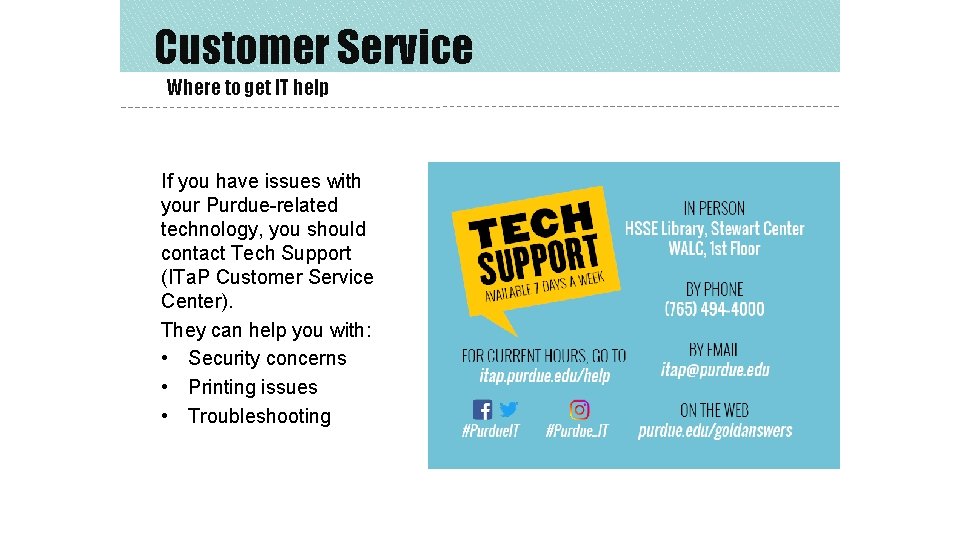
Customer Service Where to get IT help If you have issues with your Purdue-related technology, you should contact Tech Support (ITa. P Customer Service Center). They can help you with: • Security concerns • Printing issues • Troubleshooting
Career Account Email, login and password TO ACCESS YOUR EMAIL: • Use Outlook on your desktop • In a web browser, use https: //outlook. office 365. com • To set up your email on a mobile device, refer to ITa. P’s knowledgebase at purdue. edu/goldanswers Remember: Purdue will never ask for your username and password via email or over the phone. If you receive a suspicious email, forward it as an attachment to abuse@purdue. edu. PASSWORD INFORMATION: • Your password will expire after 365 days. • If you forget your password, it can be reset by answering challenge questions. • Use strong passwords, 12 to 14 characters in length with a mix of numbers, symbols, capital letters, and lower-case letters. • Avoid obvious things like names, birthdays or dictionary words.
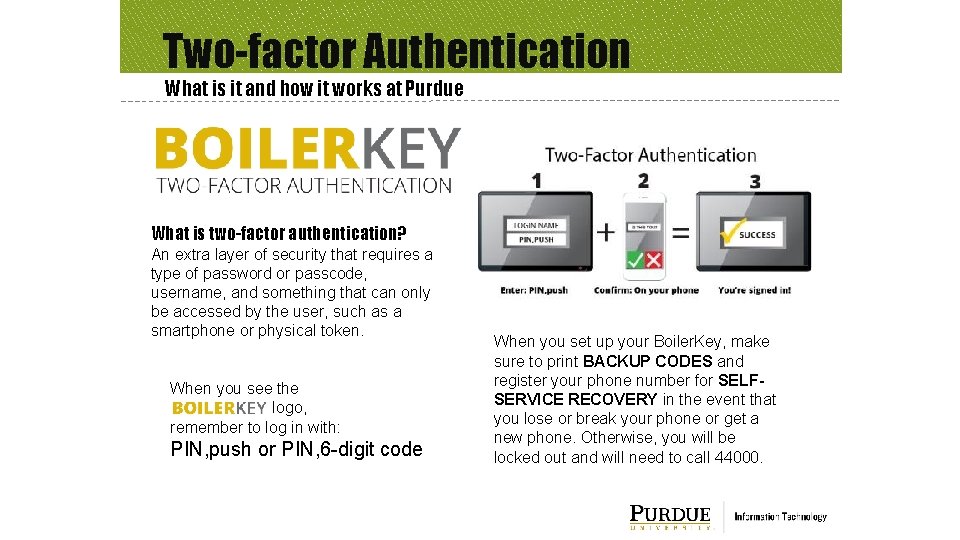
Two-factor Authentication What is it and how it works at Purdue What is two-factor authentication? An extra layer of security that requires a type of password or passcode, username, and something that can only be accessed by the user, such as a smartphone or physical token. When you see the logo, remember to log in with: PIN, push or PIN, 6 -digit code When you set up your Boiler. Key, make sure to print BACKUP CODES and register your phone number for SELFSERVICE RECOVERY in the event that you lose or break your phone or get a new phone. Otherwise, you will be locked out and will need to call 44000.
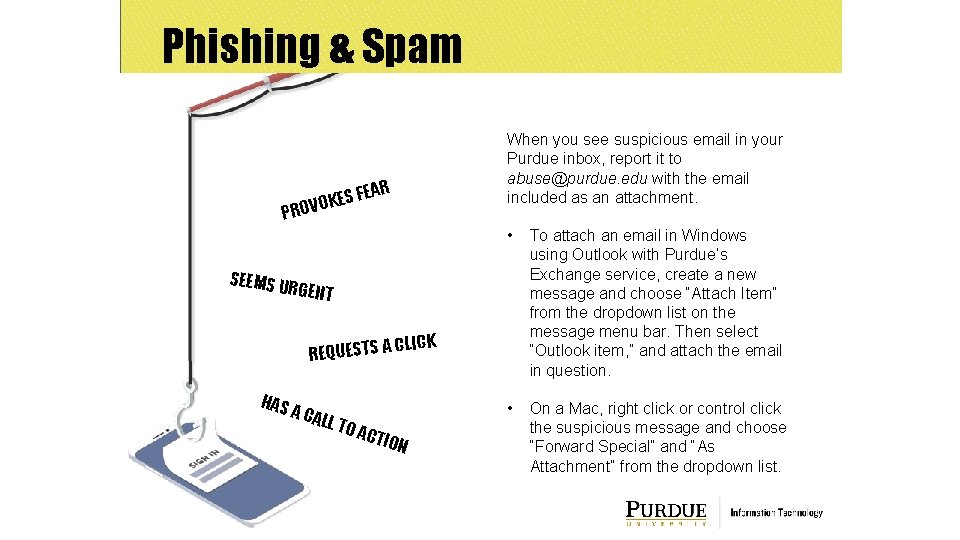
Phishing & Spam When you see suspicious email in your Purdue inbox, report it to abuse@purdue. edu with the email included as an attachment. R FEA S E K O V PRO • To attach an email in Windows using Outlook with Purdue’s Exchange service, create a new message and choose “Attach Item” from the dropdown list on the message menu bar. Then select “Outlook item, ” and attach the email in question. • On a Mac, right click or control click the suspicious message and choose “Forward Special” and “As Attachment” from the dropdown list. SEEMS U RGENT REQUESTS A HAS A CA LL TO ACTI CLICK ON
IT Resources for Faculty A quick overview ITa. P Research Computing (RCAC): • Community Cluster Program – high-performance computing clusters in which faculty can buy their own capacity and share idle capacity • Active and archival research data storage – numerous options for almost any research need • Scientific Solutions Group – consulting on using and optimizing research computing resources • Envision Center – blends technology and art to assist with data visualization and analysis, virtual and augmented reality simulations, and media such as animations and publication-quality stills Contact rcac-help@purdue. edu to learn more
- Slides: 6