
CUNYFIRST OTPS BUDGET ACCOUNT CATEGORIES CUNYFIRST requires all
CUNYFIRST OTPS BUDGET ACCOUNT CATEGORIES CUNYFIRST requires all OTPS transactions to be budgeted in one of the 6 corresponding categories. The categories are as follows: 1) 80120 Supplies & Materials 2) 80121 Travel 3) 80122 Contractual Services 4) 80123 Equipment Acquisition 5) 80124 Fringe Benefits (i. e. Honorariums, Merit Award) 6) 80125 Indirect Costs Your purchase transaction will not be processed, unless there is sufficient budget allocation in the corresponding category. CUNYFIRST does not have pool budgeting. 1
STEPS TO COMPLETE BEFORE PURCHASE Before you begin your request to purchase as a Requestor, please follow the steps provided below: • Know your CUNYFIRST Department number. • Verify your balance by Checking Budget balances. • If the balance is insufficient or negative, please complete the CUNYFIRST OTPS Budget Transfer Form provided. Your request will not be processed unless there is sufficient budget in the proper account. 1) Complete the Budget Transfer form properly using your Department Name & Code as well as the Account Name & Code. 2) Determine the amount to transfer based on your current needs and any anticipated needs for the balance of the year. 3) Make sure the transfer amount (From & To) is balanced as it must equal zero. 4) Email the completed form to: Budget. Office@mec. cuny. edu 5) Once the budget transfer is made, you will be notified. 2
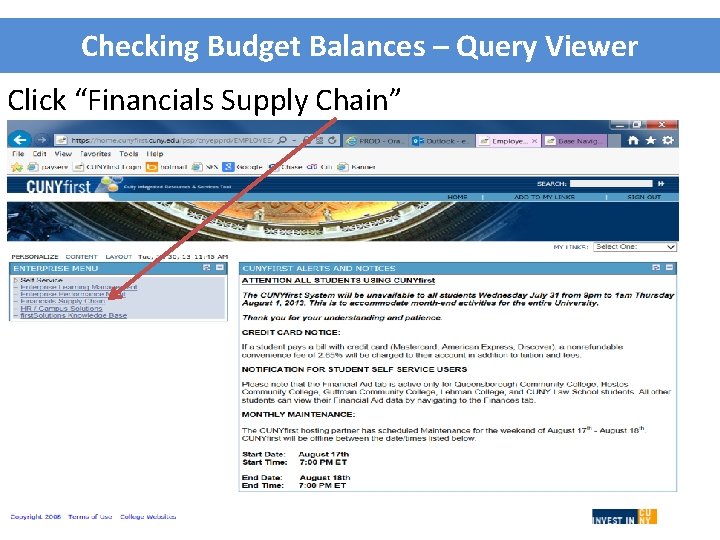
Checking Budget Balances – Query Viewer Click “Financials Supply Chain” 3
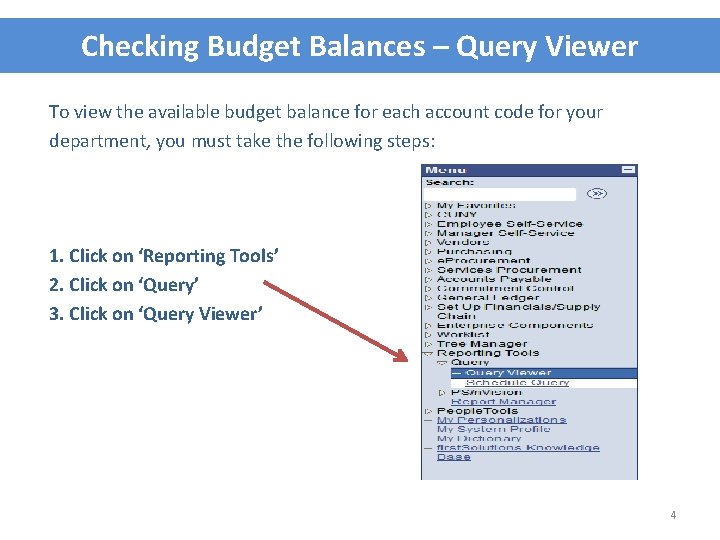
Checking Budget Balances – Query Viewer To view the available budget balance for each account code for your department, you must take the following steps: 1. Click on ‘Reporting Tools’ 2. Click on ‘Query’ 3. Click on ‘Query Viewer’ 4
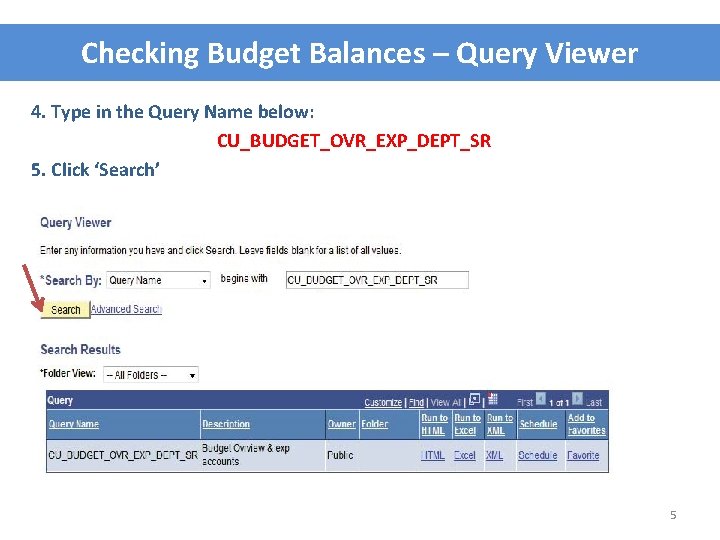
Checking Budget Balances – Query Viewer 4. Type in the Query Name below: CU_BUDGET_OVR_EXP_DEPT_SR 5. Click ‘Search’ 5
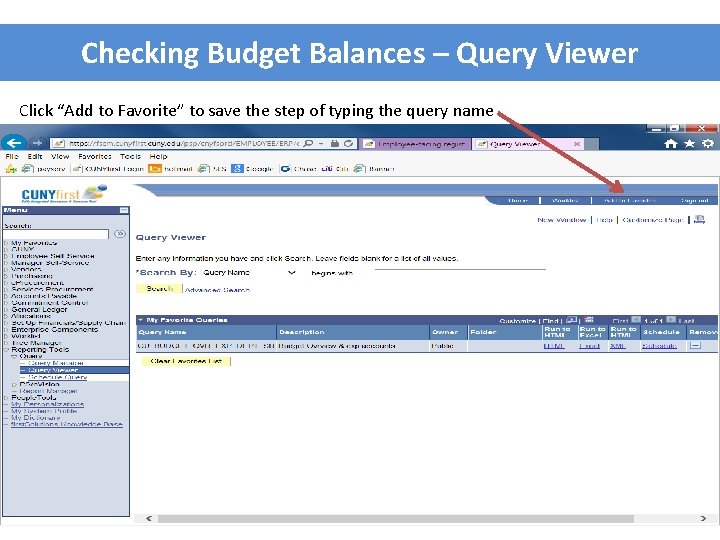
Checking Budget Balances – Query Viewer Click “Add to Favorite” to save the step of typing the query name 6
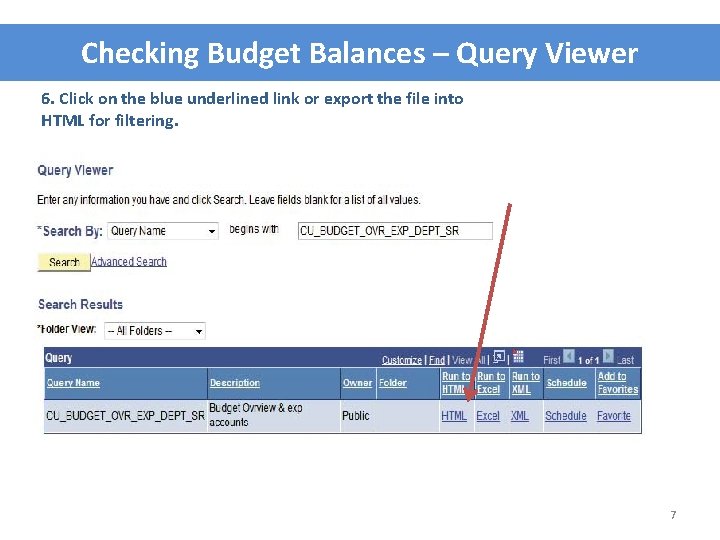
Checking Budget Balances – Query Viewer 6. Click on the blue underlined link or export the file into HTML for filtering. 7
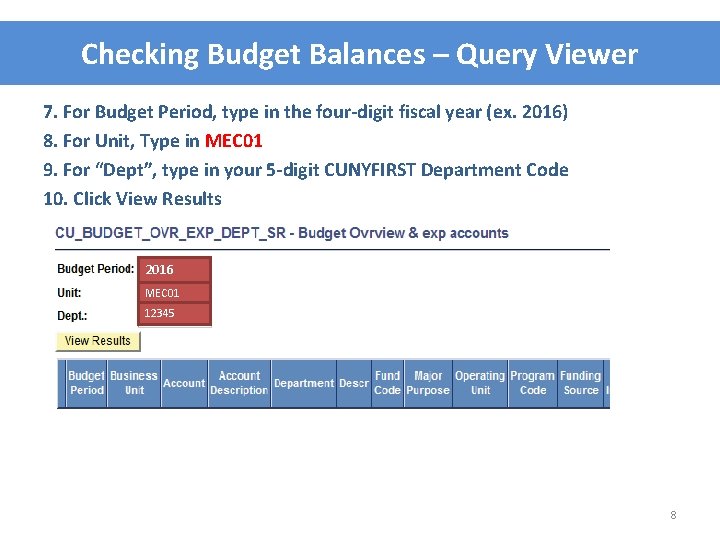
Checking Budget Balances – Query Viewer 7. For Budget Period, type in the four-digit fiscal year (ex. 2016) 8. For Unit, Type in MEC 01 9. For “Dept”, type in your 5 -digit CUNYFIRST Department Code 10. Click View Results 2016 MEC 01 12345 8
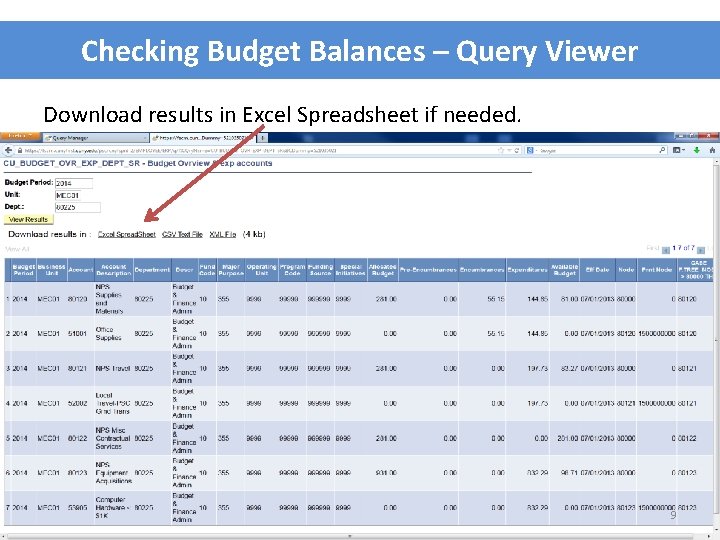
Checking Budget Balances – Query Viewer Download results in Excel Spreadsheet if needed. 9
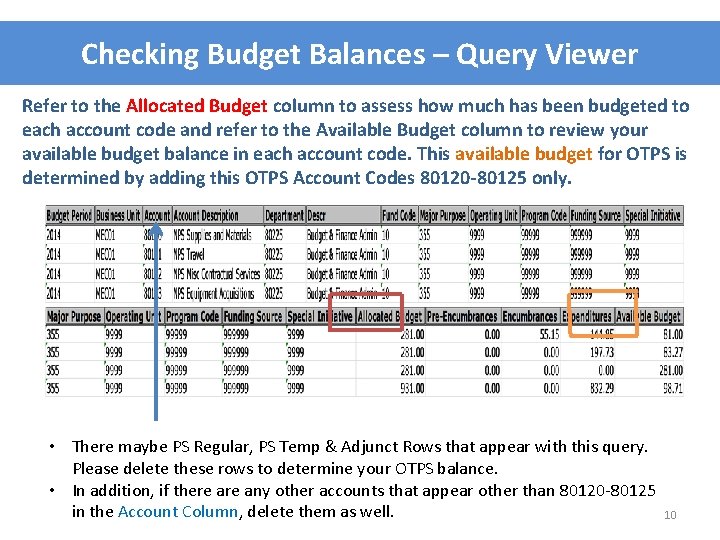
Checking Budget Balances – Query Viewer Refer to the Allocated Budget column to assess how much has been budgeted to each account code and refer to the Available Budget column to review your available budget balance in each account code. This available budget for OTPS is determined by adding this OTPS Account Codes 80120 -80125 only. • There maybe PS Regular, PS Temp & Adjunct Rows that appear with this query. Please delete these rows to determine your OTPS balance. • In addition, if there any other accounts that appear other than 80120 -80125 in the Account Column, delete them as well. 10
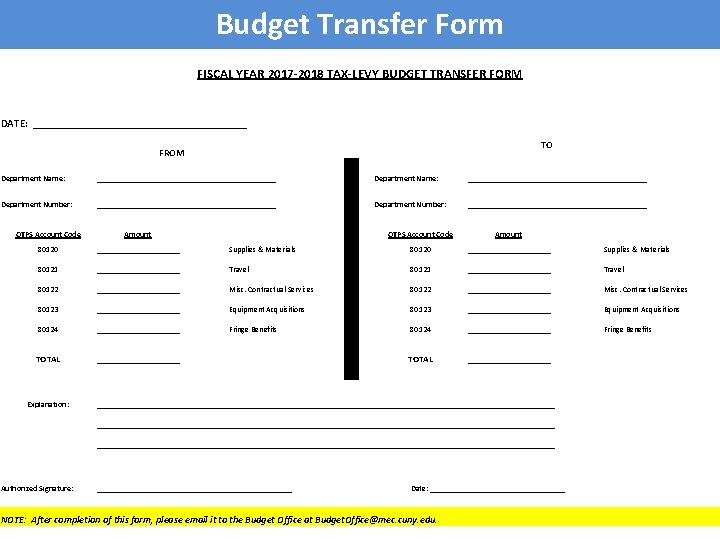
Budget Transfer Form FISCAL YEAR 2017 -2018 TAX-LEVY BUDGET TRANSFER FORM DATE: ____________________ TO FROM Department Name: _____________________________________________ Department Number: _____________________________________________ OTPS Account Code Amount 80120 _____________________ Supplies & Materials 80121 _____________________ Travel 80122 _____________________ Misc. Contractual Services 80123 _____________________ Equipment Acquisitions 80124 _____________________ Fringe Benefits TOTAL _____________________ Explanation: ___________________________________________________________________________________________________________________ Authorized Signature: _________________________ Date: _________________ NOTE: After completion of this form, please email it to the Budget Office at Budget. Office@mec. cuny. edu. 11
- Slides: 11