
CUBIT FastStart Tutorial 25 Usability Tools Advanced Custom
CUBIT™ Fast-Start Tutorial 25. Usability Tools (Advanced)
Custom Toolbars
Custom Toolbars • Convenient access to frequent tasks as toolbar buttons • Run favorite CUBIT™ commands • Play specific scripts • Shortcuts to specific command panels • Share with colleagues • Import and export toolbars and supporting files.
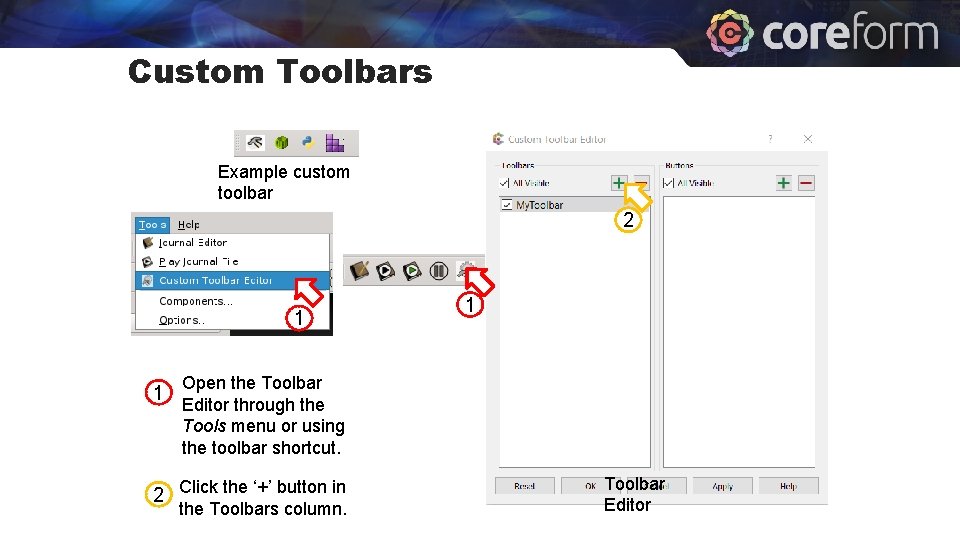
Custom Toolbars Example custom toolbar 2 1 1 1 Open the Toolbar Editor through the Tools menu or using the toolbar shortcut. 2 Click the ‘+’ button in the Toolbars column. Toolbar Editor
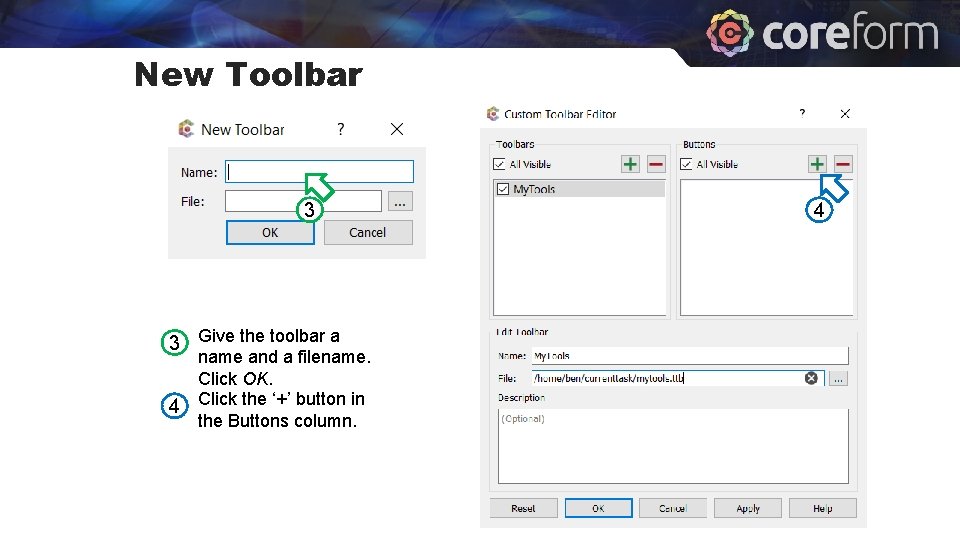
New Toolbar 3 3 Give the toolbar a 4 name and a filename. Click OK. Click the ‘+’ button in the Buttons column. 4
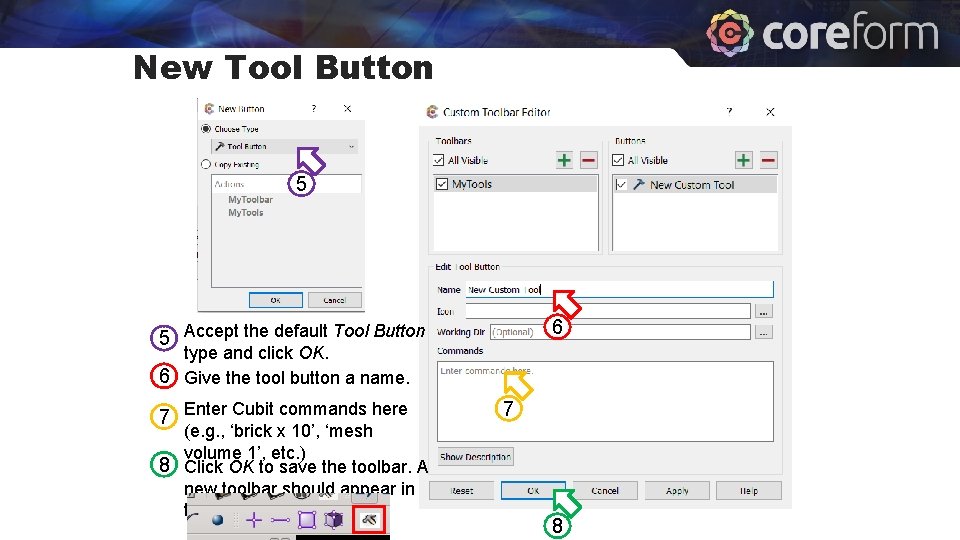
New Tool Button 5 6 5 Accept the default Tool Button type and click OK. 6 Give the tool button a name. 7 Enter Cubit commands here (e. g. , ‘brick x 10’, ‘mesh volume 1’, etc. ) 8 Click OK to save the toolbar. A new toolbar should appear in the GUI. 7 8
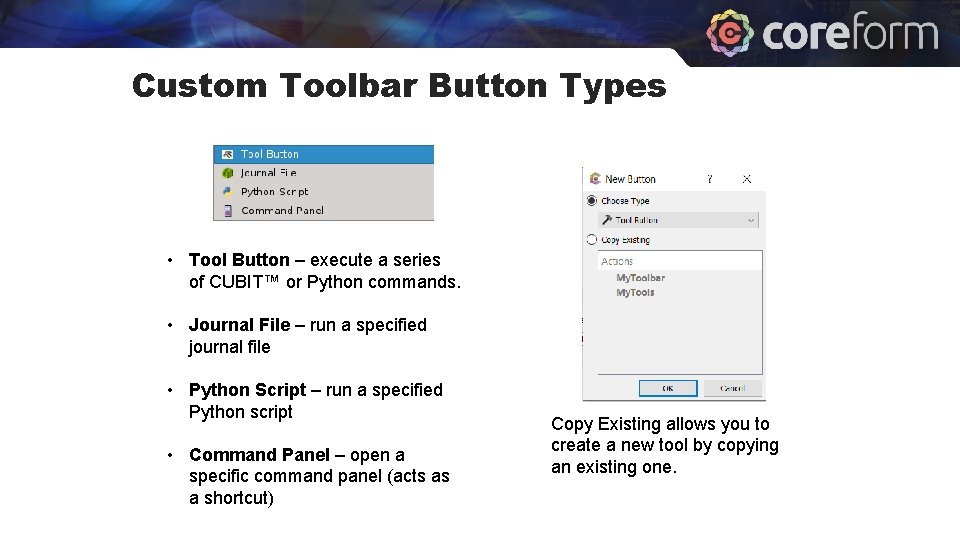
Custom Toolbar Button Types • Tool Button – execute a series of CUBIT™ or Python commands. • Journal File – run a specified journal file • Python Script – run a specified Python script • Command Panel – open a specific command panel (acts as a shortcut) Copy Existing allows you to create a new tool by copying an existing one.

Tool Button Tool display name. Tool icon file. If unspecified, uses the default icon Working Dir – changes the working directory during tool execution. Upon completion, the original working directory is restored. Cubit commands to run. To run Python commands, the first line should be ‘#!python’. Browse Files
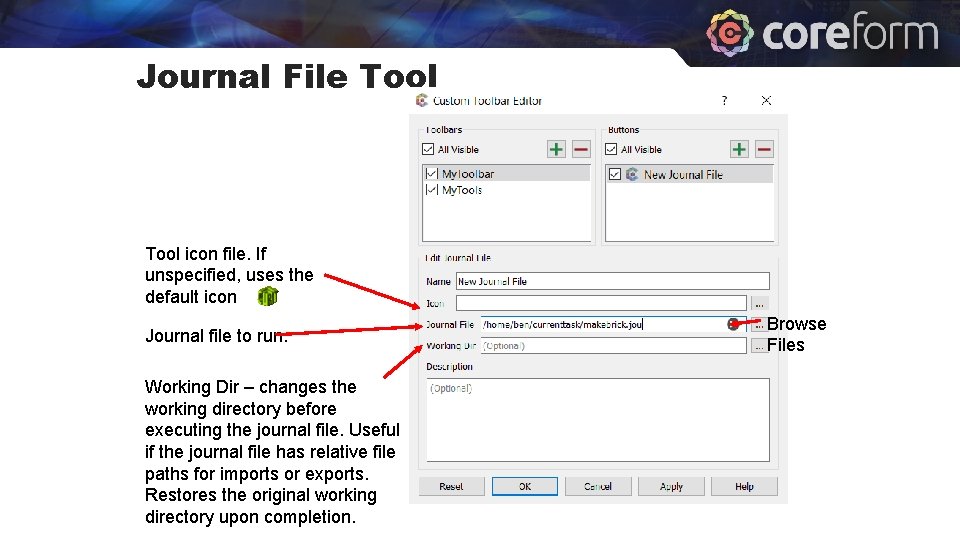
Journal File Tool icon file. If unspecified, uses the default icon Journal file to run. Working Dir – changes the working directory before executing the journal file. Useful if the journal file has relative file paths for imports or exports. Restores the original working directory upon completion. Browse Files
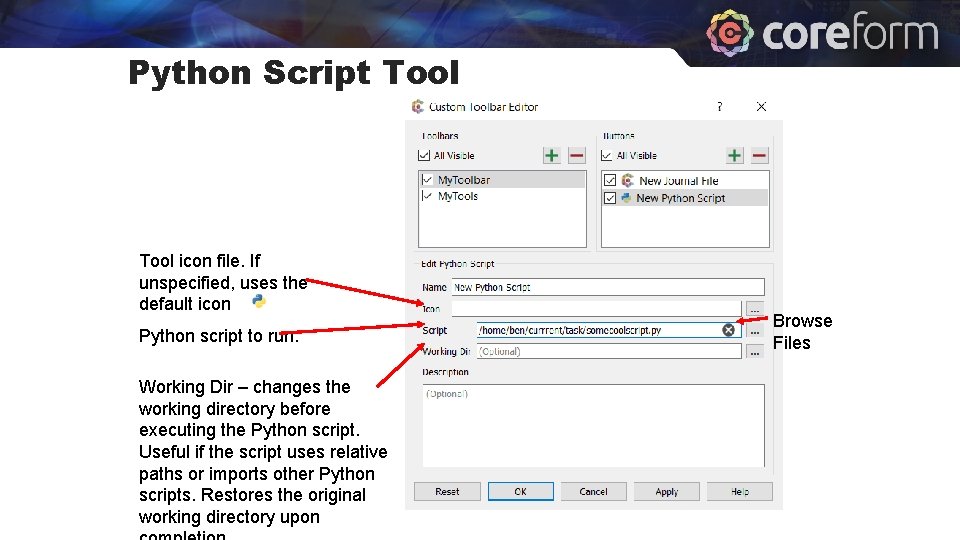
Python Script Tool icon file. If unspecified, uses the default icon Python script to run. Working Dir – changes the working directory before executing the Python script. Useful if the script uses relative paths or imports other Python scripts. Restores the original working directory upon Browse Files
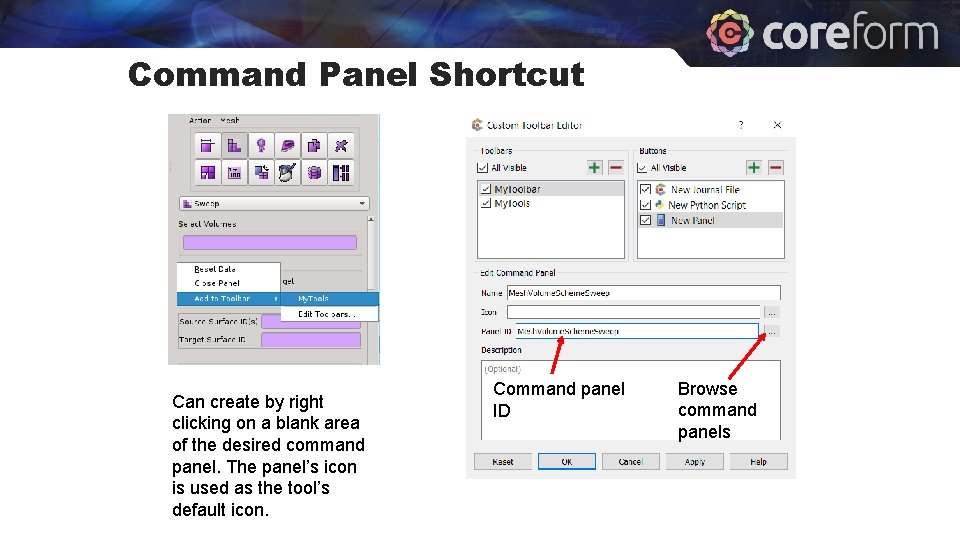
Command Panel Shortcut Can create by right clicking on a blank area of the desired command panel. The panel’s icon is used as the tool’s default icon. Command panel ID Browse command panels
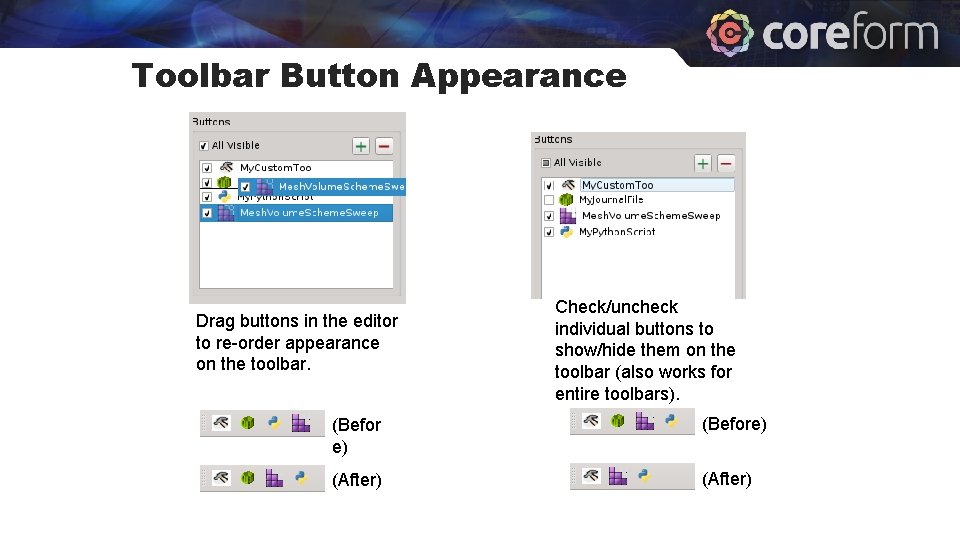
Toolbar Button Appearance Drag buttons in the editor to re-order appearance on the toolbar. Check/uncheck individual buttons to show/hide them on the toolbar (also works for entire toolbars). (Befor e) (Before) (After)
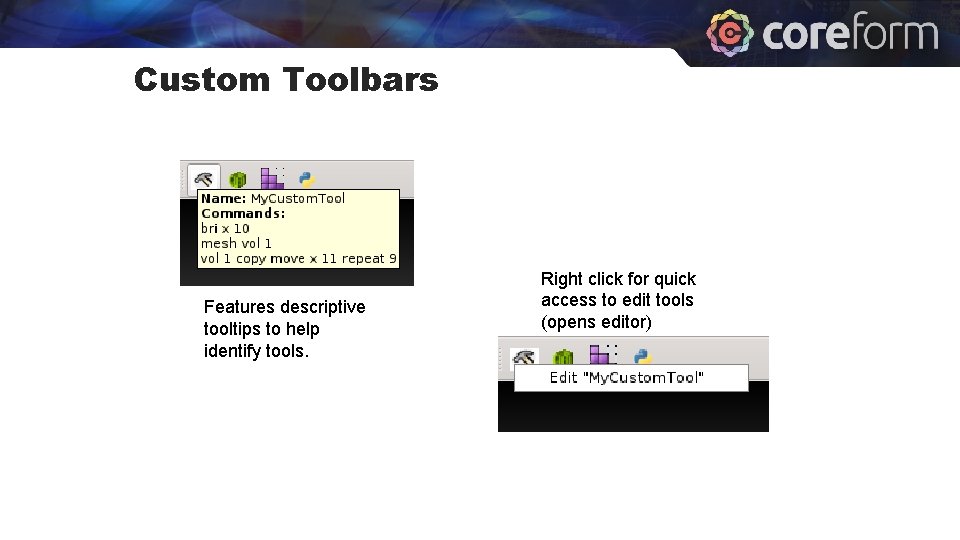
Custom Toolbars Features descriptive tooltips to help identify tools. Right click for quick access to edit tools (opens editor)
Custom Toolbars Exercise 1. Create a new Tool button 2. Enter the commands: mesh volume all draw volume with not is_meshed 3. Save the toolbar button. 4. Import the model “schemes. sat” 5. Click the new tool button to run the commands
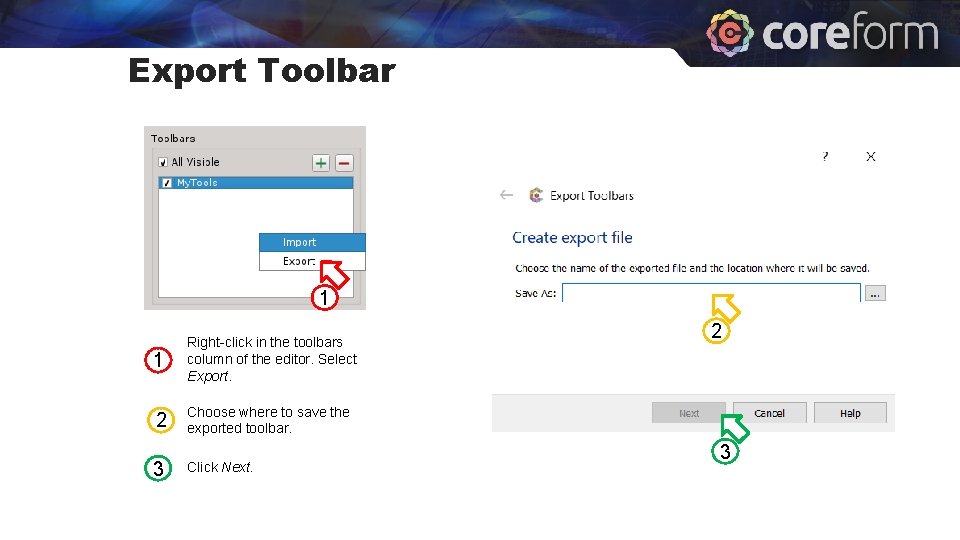
Export Toolbar 1 1 Right-click in the toolbars column of the editor. Select Export. 2 Choose where to save the exported toolbar. 3 Click Next. 2 3
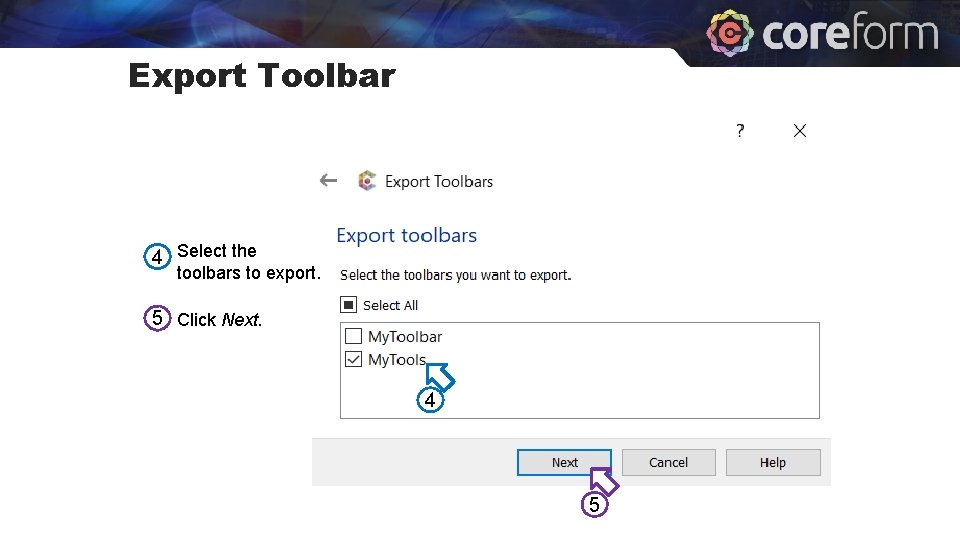
Export Toolbar 4 Select the toolbars to export. 5 Click Next. 4 5
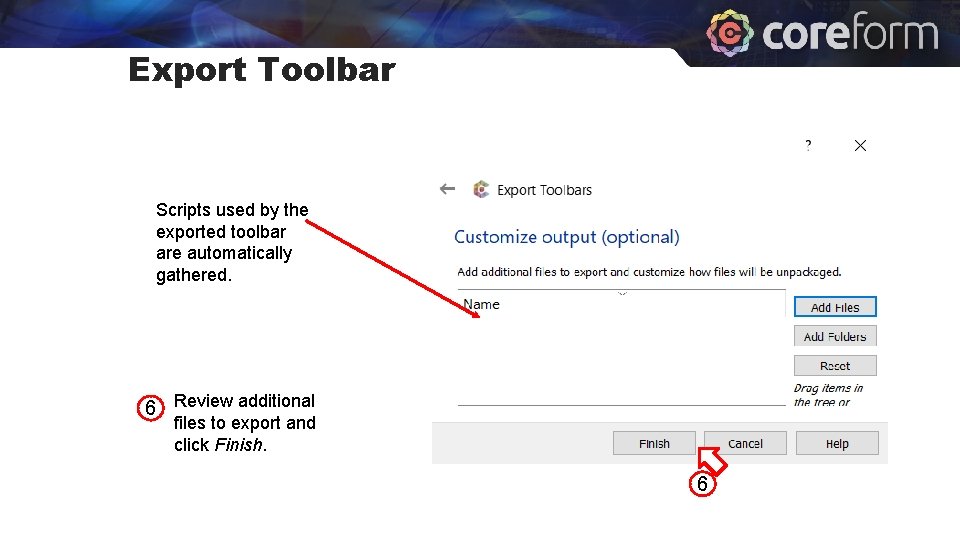
Export Toolbar Scripts used by the exported toolbar are automatically gathered. 6 Review additional files to export and click Finish. 6
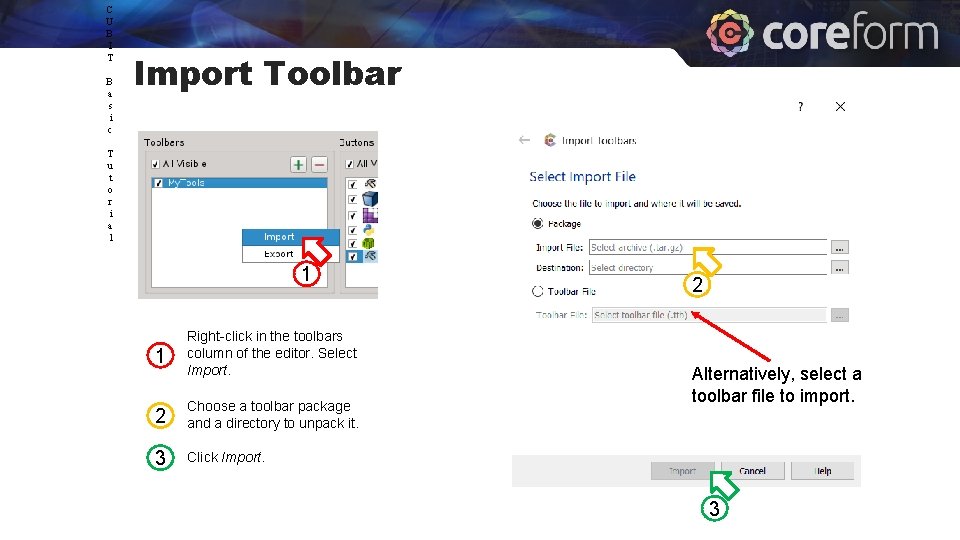
C U B I T B a s i c Import Toolbar T u t o r i a l 1 1 Right-click in the toolbars column of the editor. Select Import. 2 Choose a toolbar package and a directory to unpack it. 3 Click Import. 2 Alternatively, select a toolbar file to import. 3
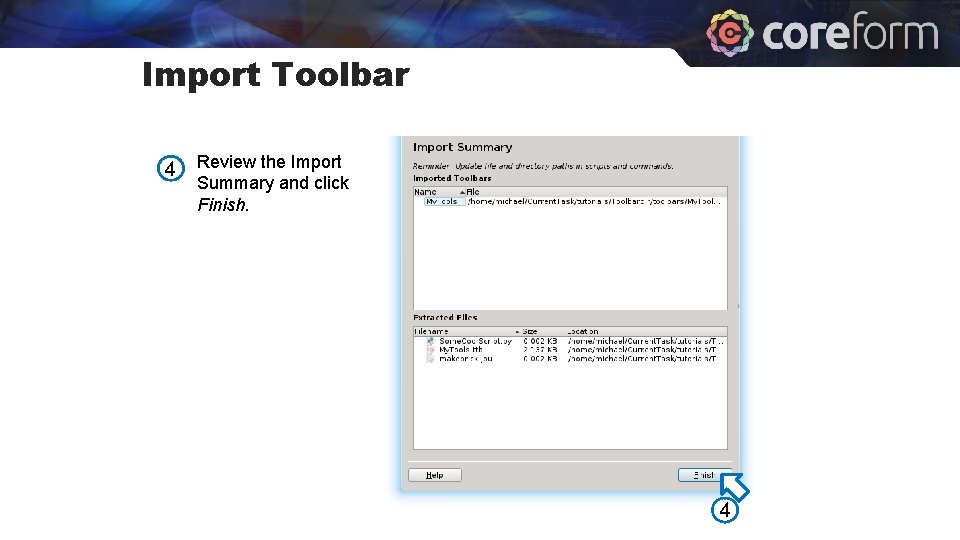
Import Toolbar 4 Review the Import Summary and click Finish. 4

Extended Selection
Extended Selection • Gives users the ability to use more complex selection tools. • Can create new selection filters using Python • Start with a larger selection and narrow it down based on some user-defined criteria
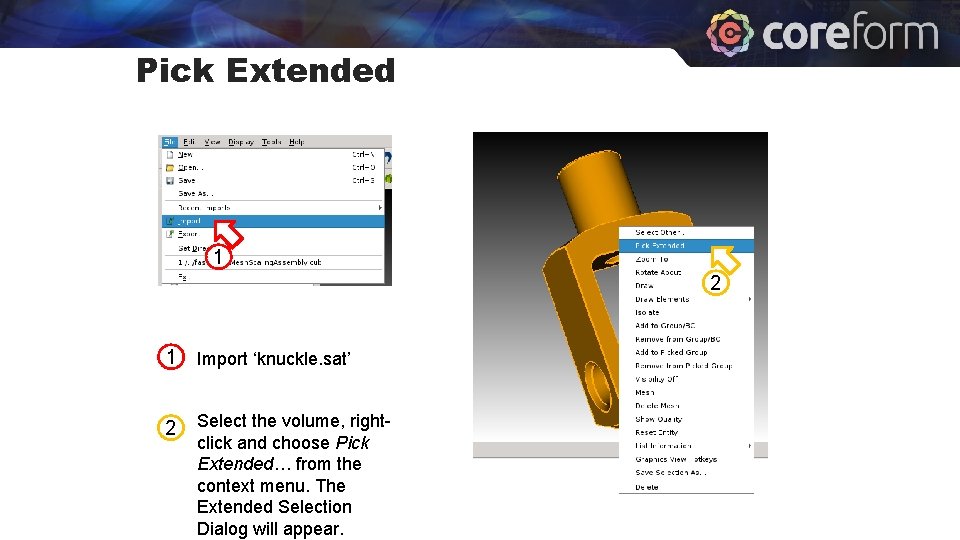
Pick Extended 1 2 1 Import ‘knuckle. sat’ 2 Select the volume, rightclick and choose Pick Extended… from the context menu. The Extended Selection Dialog will appear.
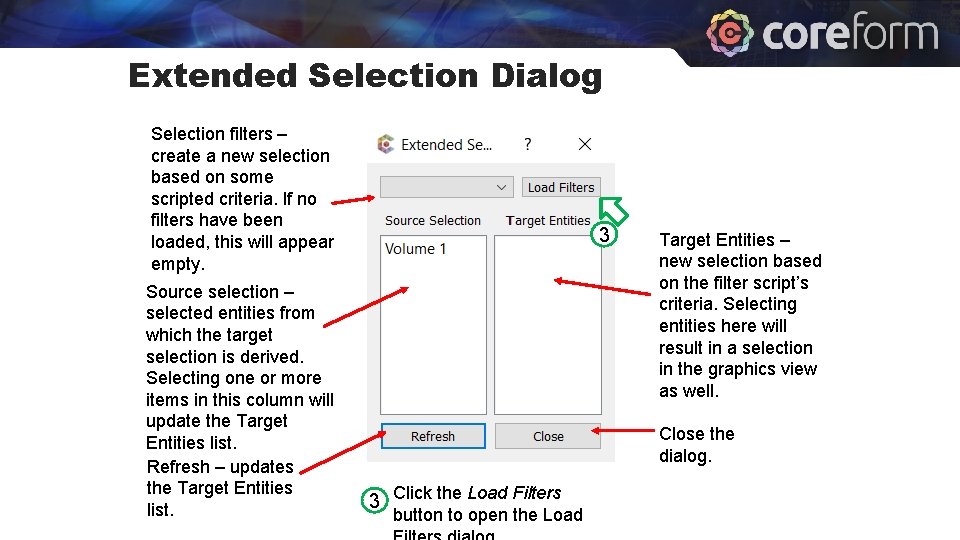
Extended Selection Dialog Selection filters – create a new selection based on some scripted criteria. If no filters have been loaded, this will appear empty. Source selection – selected entities from which the target selection is derived. Selecting one or more items in this column will update the Target Entities list. Refresh – updates the Target Entities list. 3 Target Entities – new selection based on the filter script’s criteria. Selecting entities here will result in a selection in the graphics view as well. Close the dialog. 3 Click the Load Filters button to open the Load
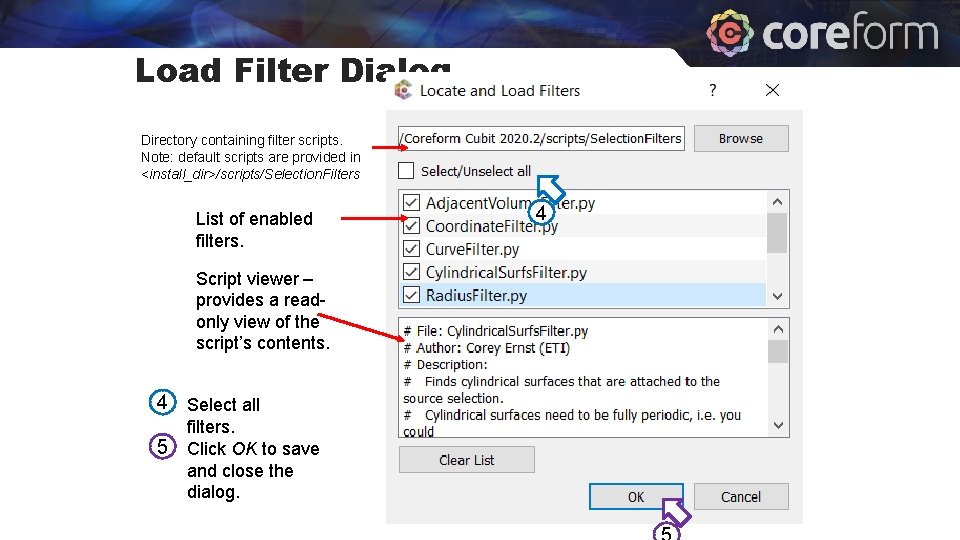
Load Filter Dialog Directory containing filter scripts. Note: default scripts are provided in <install_dir>/scripts/Selection. Filters List of enabled filters. Script viewer – provides a readonly view of the script’s contents. 4 Select all 5 filters. Click OK to save and close the dialog. 4
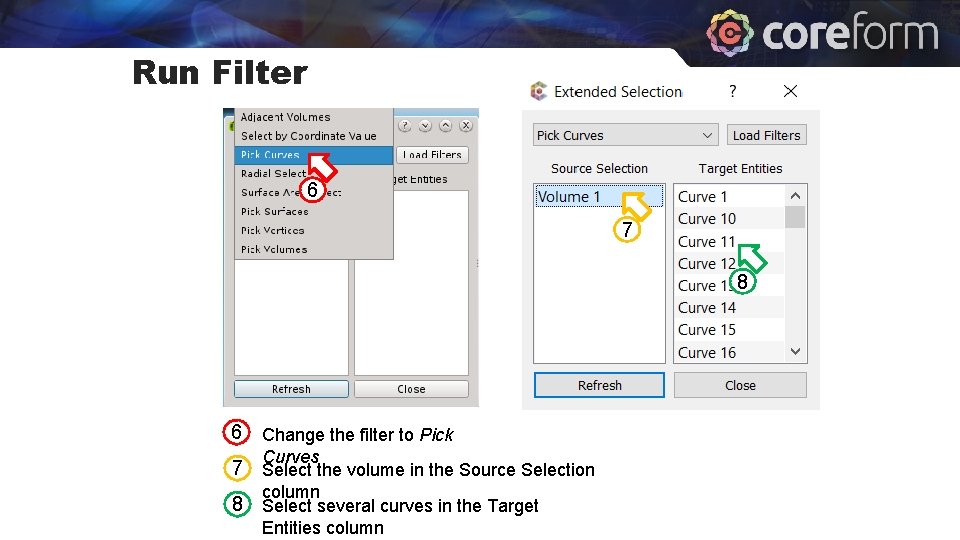
Run Filter 6 7 8 6 Change the filter to Pick Curves 7 Select the volume in the Source Selection column 8 Select several curves in the Target Entities column
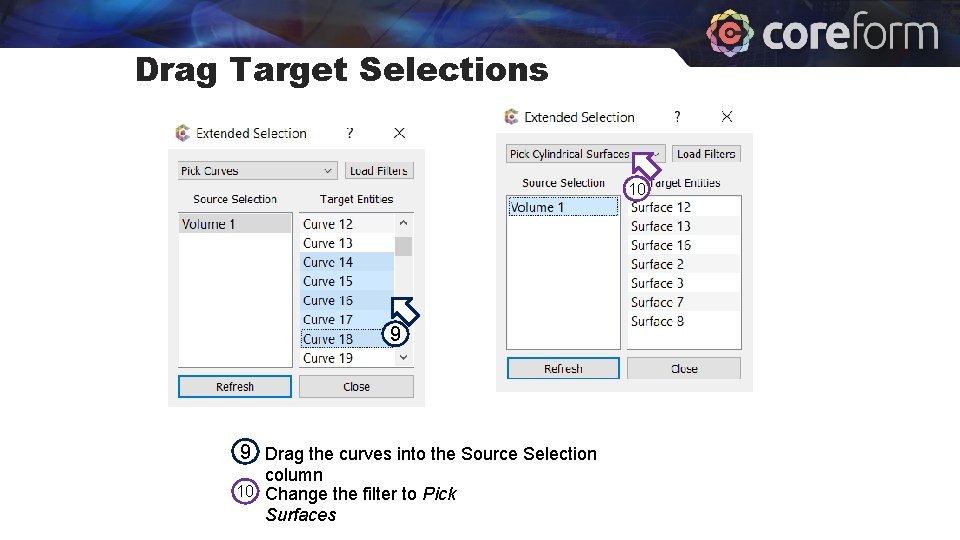
Drag Target Selections 10 9 9 Drag the curves into the Source Selection column 10 Change the filter to Pick Surfaces
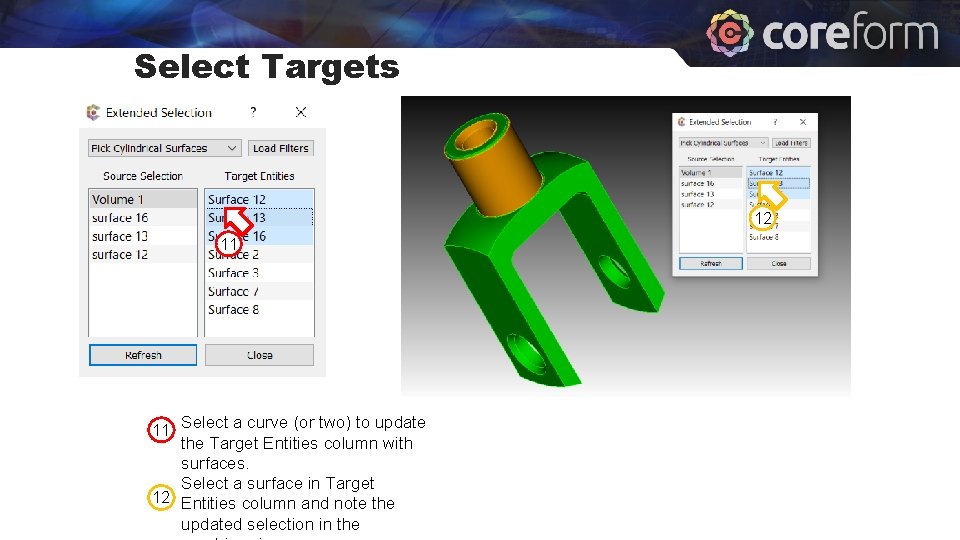
Select Targets 12 11 11 Select a curve (or two) to update the Target Entities column with surfaces. Select a surface in Target 12 Entities column and note the updated selection in the
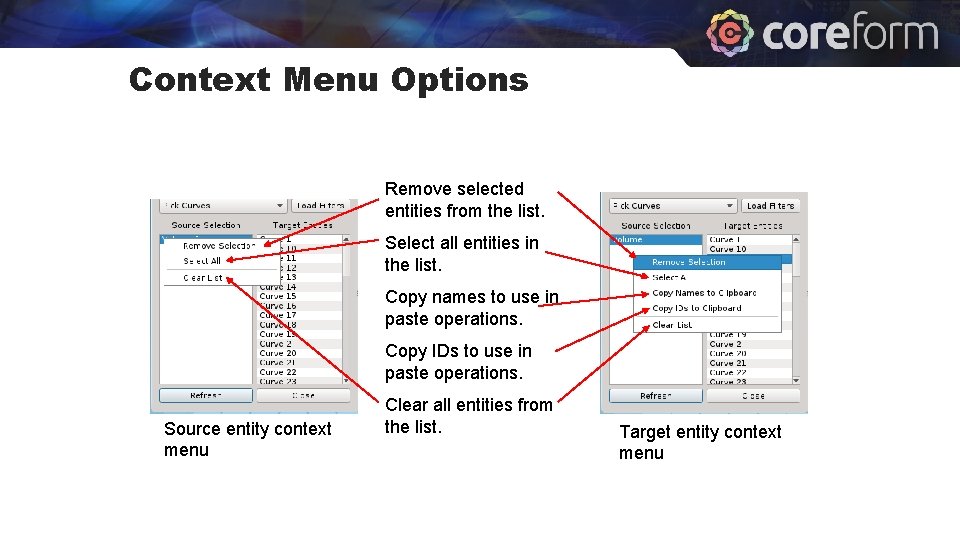
Context Menu Options Remove selected entities from the list. Select all entities in the list. Copy names to use in paste operations. Copy IDs to use in paste operations. Source entity context menu Clear all entities from the list. Target entity context menu
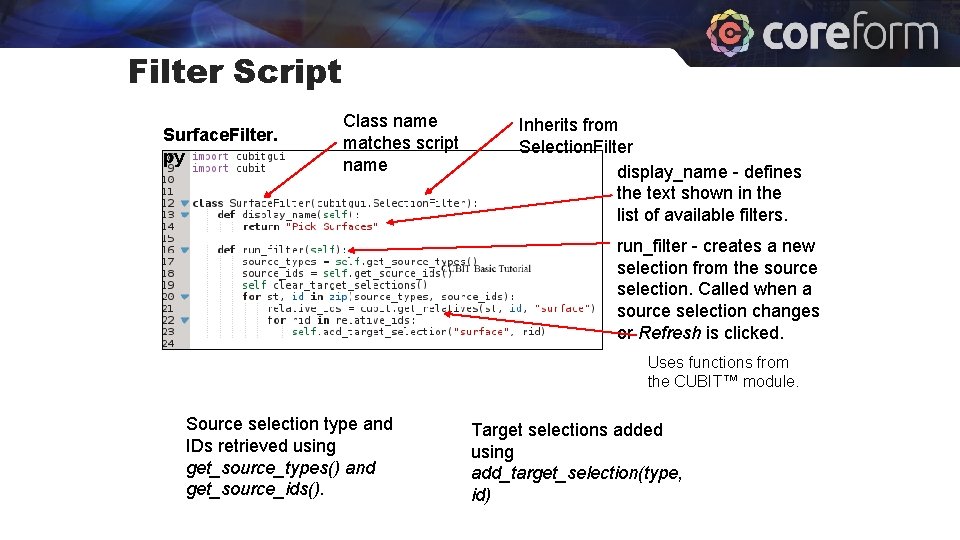
Filter Script Surface. Filter. py Class name matches script name Inherits from Selection. Filter display_name - defines the text shown in the list of available filters. run_filter - creates a new selection from the source selection. Called when a source selection changes or Refresh is clicked. Uses functions from the CUBIT™ module. Source selection type and IDs retrieved using get_source_types() and get_source_ids(). Target selections added using add_target_selection(type, id)
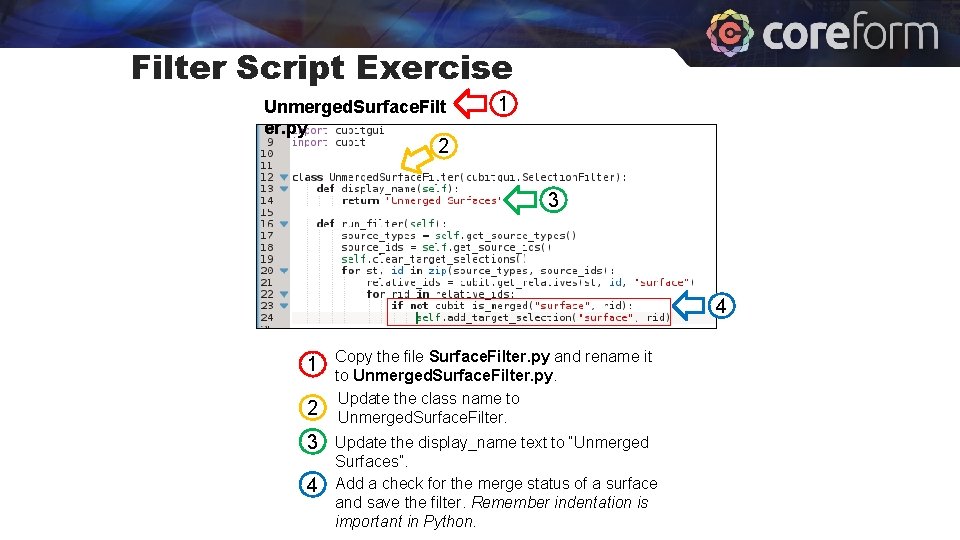
Filter Script Exercise Unmerged. Surface. Filt er. py 1 2 3 4 Copy the file Surface. Filter. py and rename it to Unmerged. Surface. Filter. py. Update the class name to Unmerged. Surface. Filter. Update the display_name text to “Unmerged Surfaces”. Add a check for the merge status of a surface and save the filter. Remember indentation is important in Python.
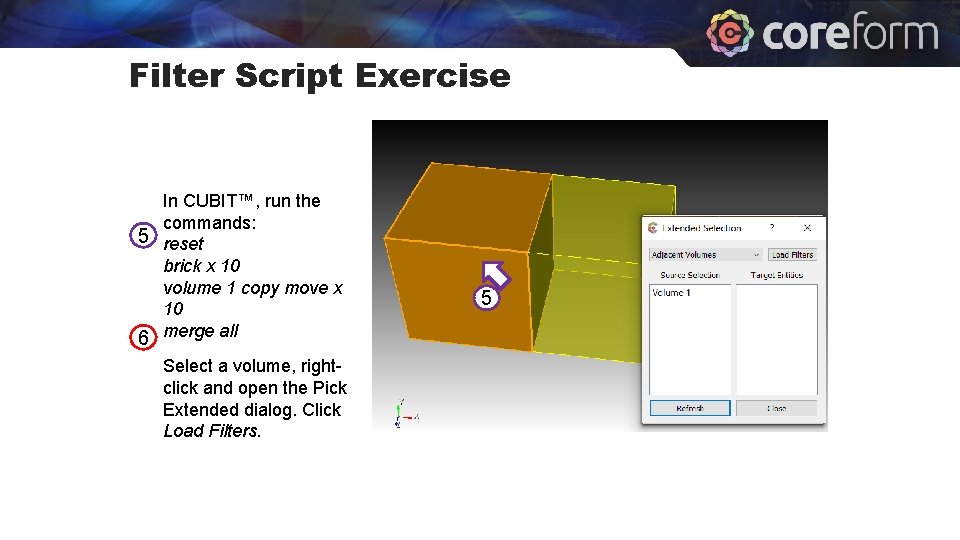
Filter Script Exercise In CUBIT™, run the commands: 5 reset brick x 10 volume 1 copy move x 10 6 merge all Select a volume, rightclick and open the Pick Extended dialog. Click Load Filters. 5 6
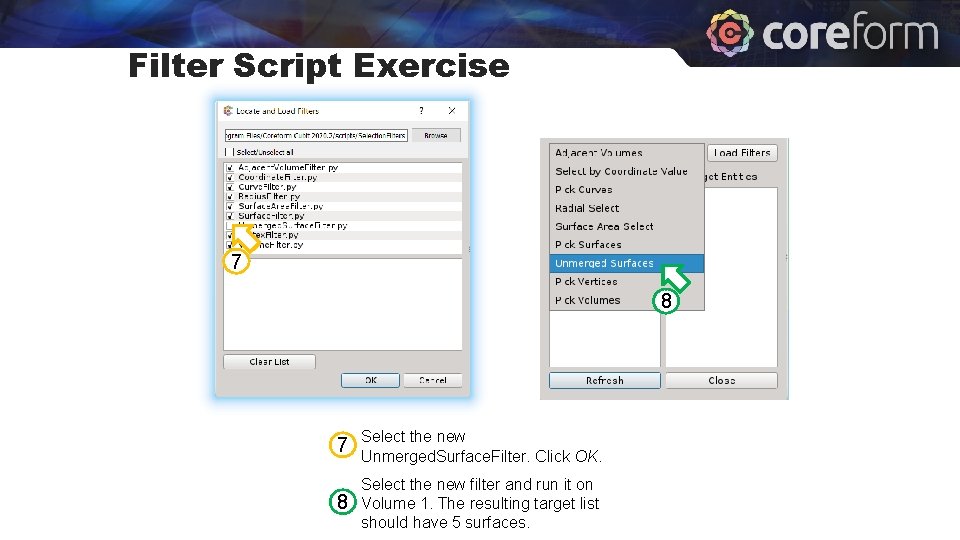
Filter Script Exercise 7 8 7 Select the new Unmerged. Surface. Filter. Click OK. 8 Select the new filter and run it on Volume 1. The resulting target list should have 5 surfaces.
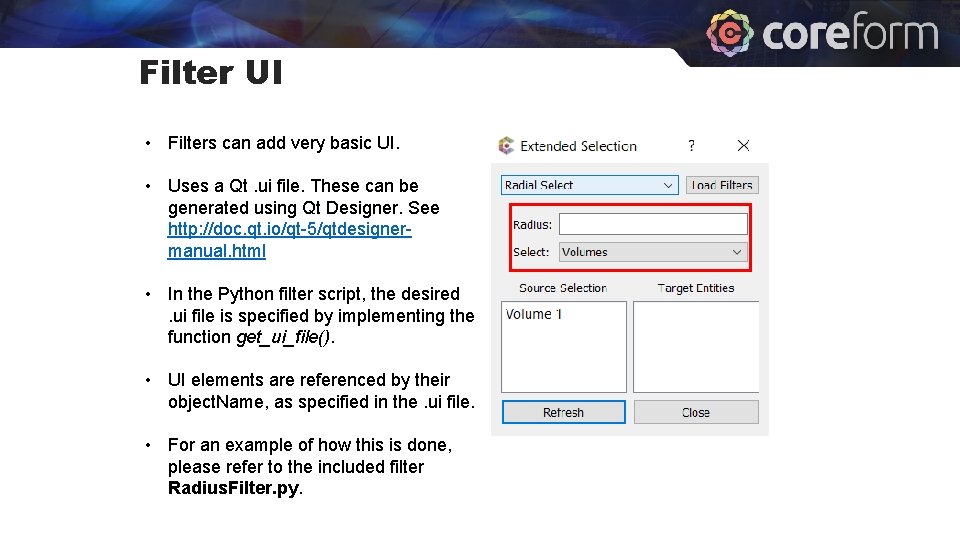
Filter UI • Filters can add very basic UI. • Uses a Qt. ui file. These can be generated using Qt Designer. See http: //doc. qt. io/qt-5/qtdesignermanual. html • In the Python filter script, the desired. ui file is specified by implementing the function get_ui_file(). • UI elements are referenced by their object. Name, as specified in the. ui file. • For an example of how this is done, please refer to the included filter Radius. Filter. py.
- Slides: 33