
CUBIT FastStart Tutorial 24 Mesh Scaling Mesh Scaling

CUBIT™ Fast-Start Tutorial 24. Mesh Scaling
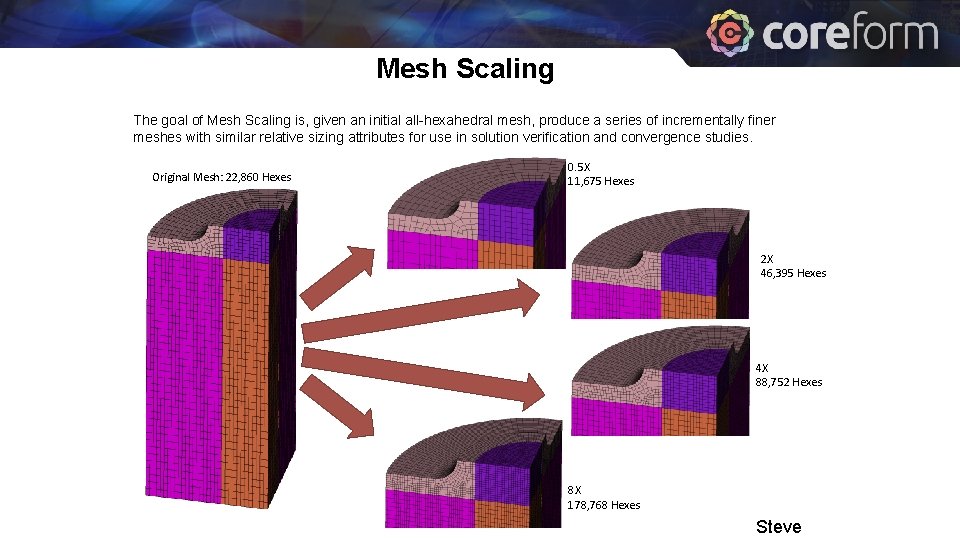
Mesh Scaling The goal of Mesh Scaling is, given an initial all-hexahedral mesh, produce a series of incrementally finer meshes with similar relative sizing attributes for use in solution verification and convergence studies. Original Mesh: 22, 860 Hexes 0. 5 X 11, 675 Hexes 2 X 46, 395 Hexes 4 X 88, 752 Hexes 8 X 178, 768 Hexes Steve
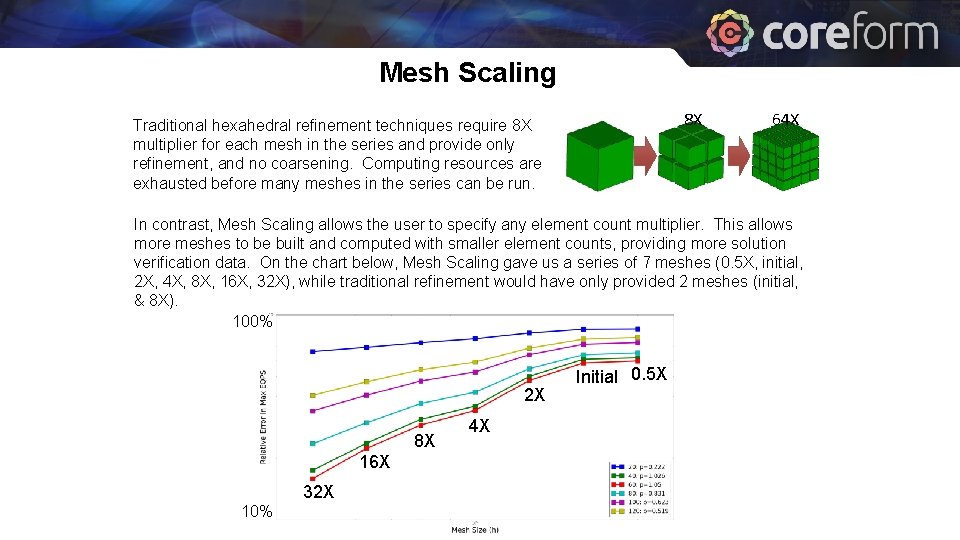
Mesh Scaling 8 X Traditional hexahedral refinement techniques require 8 X multiplier for each mesh in the series and provide only refinement, and no coarsening. Computing resources are exhausted before many meshes in the series can be run. 64 X In contrast, Mesh Scaling allows the user to specify any element count multiplier. This allows more meshes to be built and computed with smaller element counts, providing more solution verification data. On the chart below, Mesh Scaling gave us a series of 7 meshes (0. 5 X, initial, 2 X, 4 X, 8 X, 16 X, 32 X), while traditional refinement would have only provided 2 meshes (initial, & 8 X). 100% 2 X 8 X 16 X 32 X 10% 4 X Initial 0. 5 X
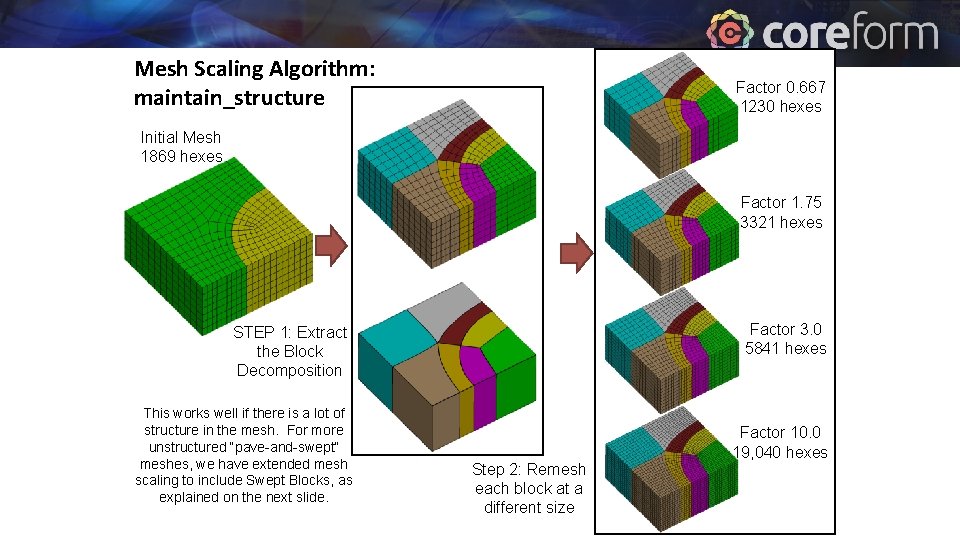
Mesh Scaling Algorithm: maintain_structure Factor 0. 667 1230 hexes Initial Mesh 1869 hexes Factor 1. 75 3321 hexes Factor 3. 0 5841 hexes STEP 1: Extract the Block Decomposition This works well if there is a lot of structure in the mesh. For more unstructured “pave-and-swept” meshes, we have extended mesh scaling to include Swept Blocks, as explained on the next slide. Step 2: Remesh each block at a different size Factor 10. 0 19, 040 hexes
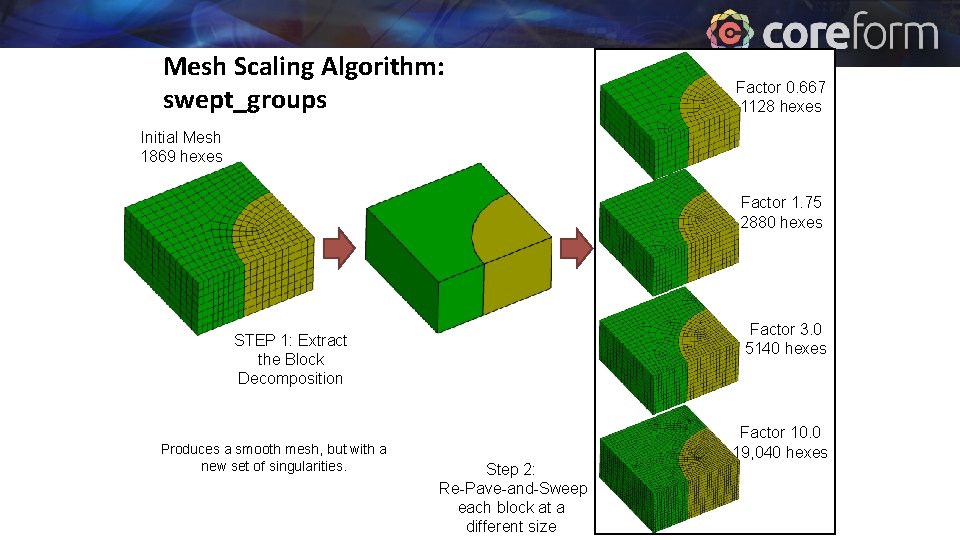
Mesh Scaling Algorithm: swept_groups Factor 0. 667 1128 hexes Initial Mesh 1869 hexes Factor 1. 75 2880 hexes Factor 3. 0 5140 hexes STEP 1: Extract the Block Decomposition Produces a smooth mesh, but with a new set of singularities. Step 2: Re-Pave-and-Sweep each block at a different size Factor 10. 0 19, 040 hexes
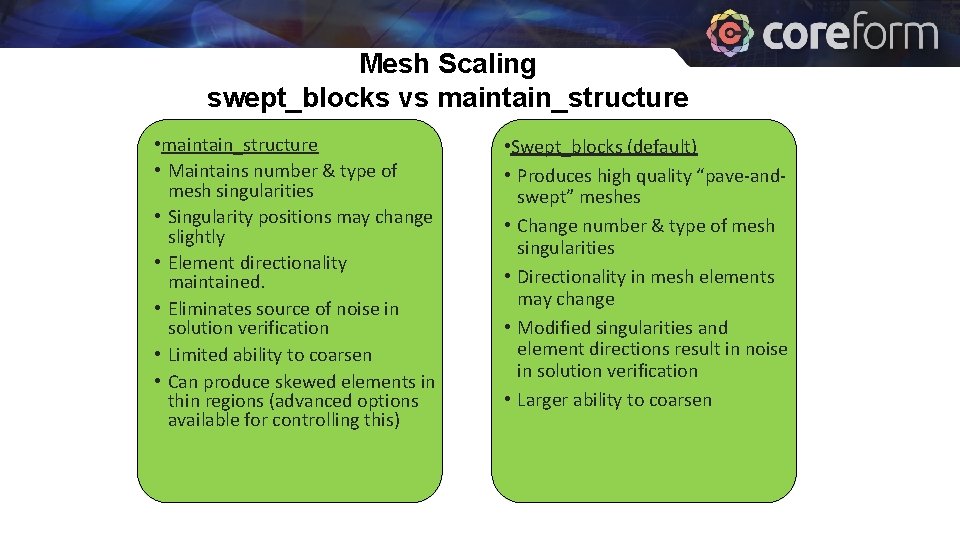
Mesh Scaling swept_blocks vs maintain_structure • Maintains number & type of mesh singularities • Singularity positions may change slightly • Element directionality maintained. • Eliminates source of noise in solution verification • Limited ability to coarsen • Can produce skewed elements in thin regions (advanced options available for controlling this) • Swept_blocks (default) • Produces high quality “pave-andswept” meshes • Change number & type of mesh singularities • Directionality in mesh elements may change • Modified singularities and element directions result in noise in solution verification • Larger ability to coarsen
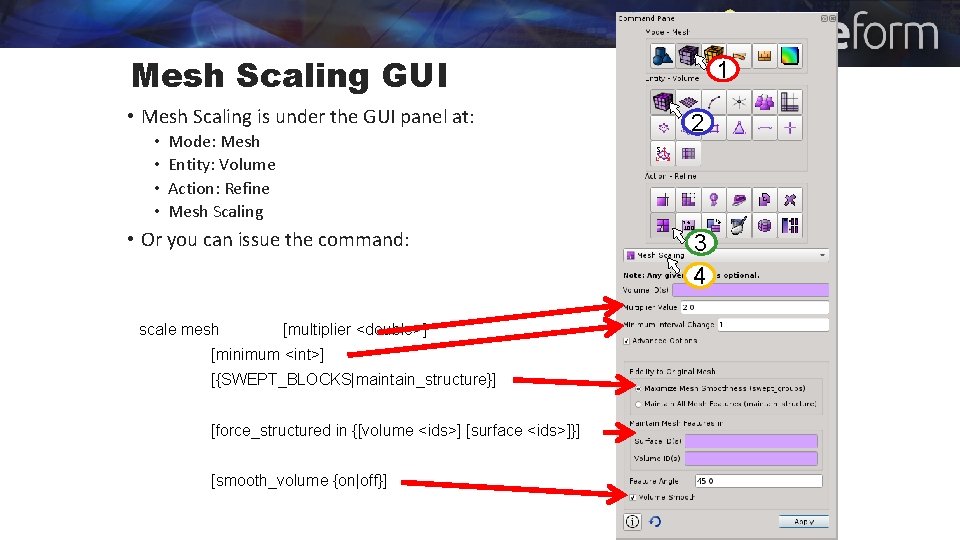
Mesh Scaling GUI • Mesh Scaling is under the GUI panel at: • • Mode: Mesh Entity: Volume Action: Refine Mesh Scaling • Or you can issue the command: scale mesh [multiplier <double>] [minimum <int>] [{SWEPT_BLOCKS|maintain_structure}] [force_structured in {[volume <ids>] [surface <ids>]}] [smooth_volume {on|off}] 1 2 3 4
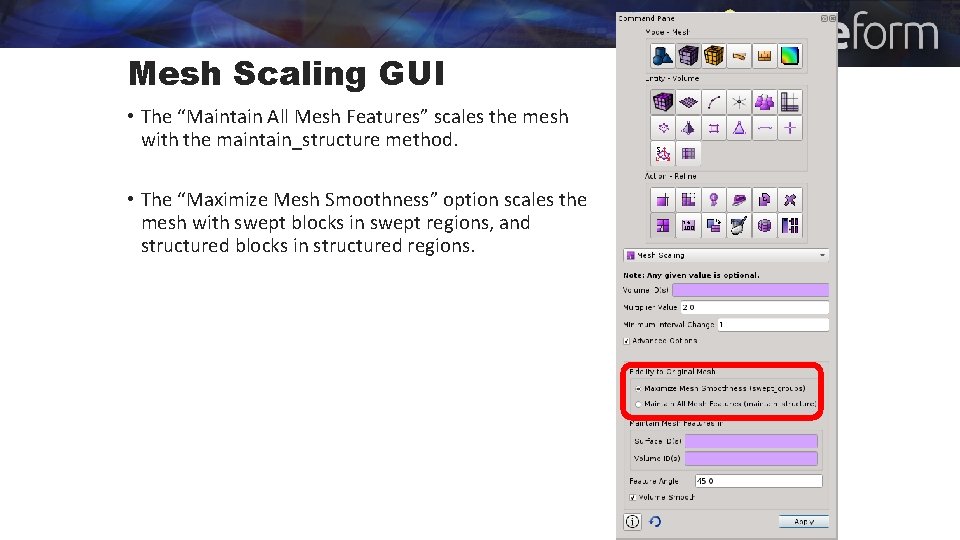
Mesh Scaling GUI • The “Maintain All Mesh Features” scales the mesh with the maintain_structure method. • The “Maximize Mesh Smoothness” option scales the mesh with swept blocks in swept regions, and structured blocks in structured regions.
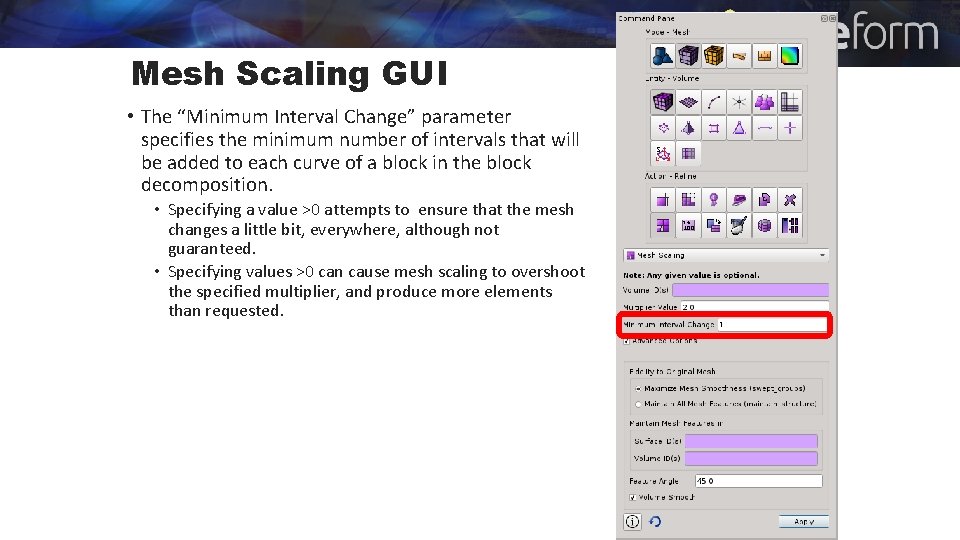
Mesh Scaling GUI • The “Minimum Interval Change” parameter specifies the minimum number of intervals that will be added to each curve of a block in the block decomposition. • Specifying a value >0 attempts to ensure that the mesh changes a little bit, everywhere, although not guaranteed. • Specifying values >0 can cause mesh scaling to overshoot the specified multiplier, and produce more elements than requested.
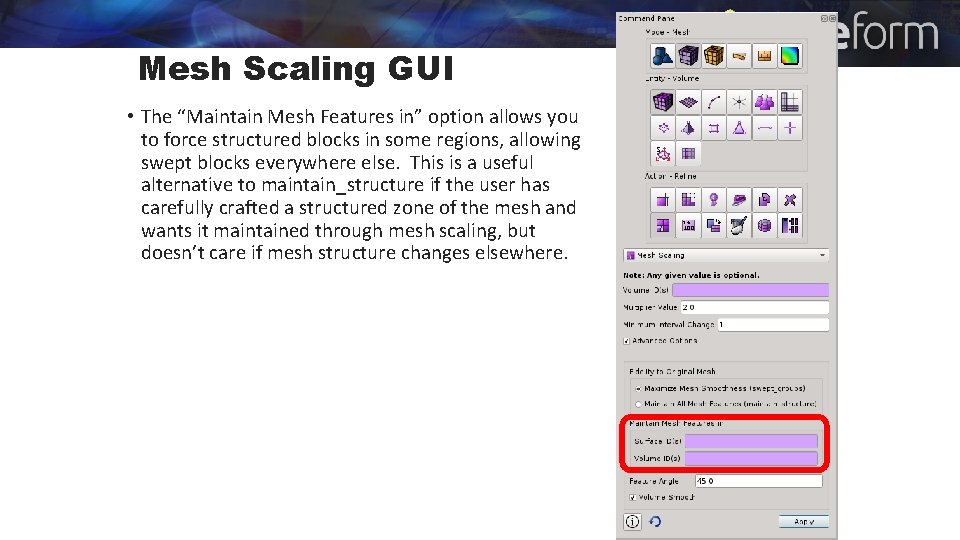
Mesh Scaling GUI • The “Maintain Mesh Features in” option allows you to force structured blocks in some regions, allowing swept blocks everywhere else. This is a useful alternative to maintain_structure if the user has carefully crafted a structured zone of the mesh and wants it maintained through mesh scaling, but doesn’t care if mesh structure changes elsewhere.
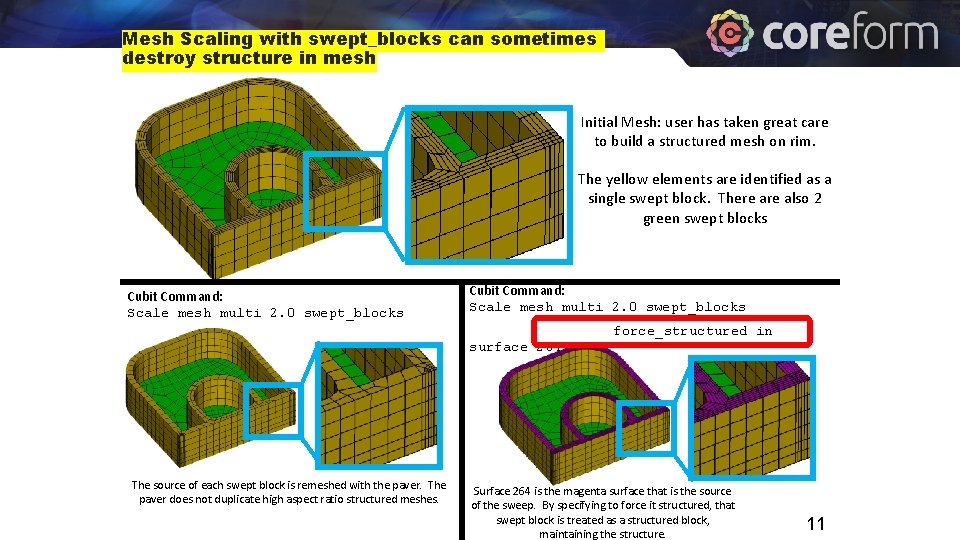
Mesh Scaling with swept_blocks can sometimes destroy structure in mesh Initial Mesh: user has taken great care to build a structured mesh on rim. The yellow elements are identified as a single swept block. There also 2 green swept blocks Cubit Command: Scale mesh multi 2. 0 swept_blocks force_structured in surface 264 The source of each swept block is remeshed with the paver. The paver does not duplicate high aspect ratio structured meshes. Surface 264 is the magenta surface that is the source of the sweep. By specifying to force it structured, that swept block is treated as a structured block, maintaining the structure. 11
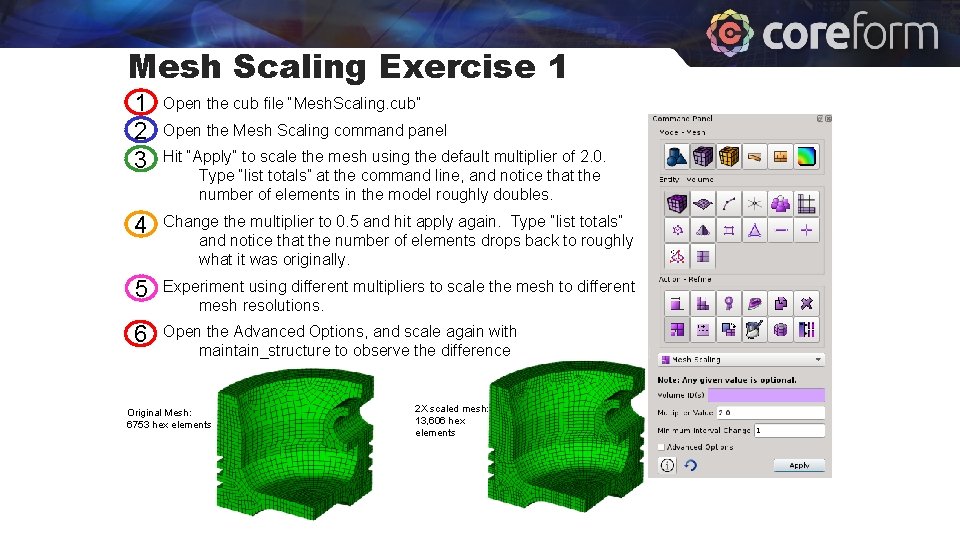
Mesh Scaling Exercise 1 1 2 3 Open the cub file “Mesh. Scaling. cub” 4 Change the multiplier to 0. 5 and hit apply again. Type “list totals” and notice that the number of elements drops back to roughly what it was originally. 5 Experiment using different multipliers to scale the mesh to different mesh resolutions. 6 Open the Advanced Options, and scale again with maintain_structure to observe the difference Open the Mesh Scaling command panel Hit “Apply” to scale the mesh using the default multiplier of 2. 0. Type “list totals” at the command line, and notice that the number of elements in the model roughly doubles. Original Mesh: 6753 hex elements 2 X scaled mesh: 13, 606 hex elements
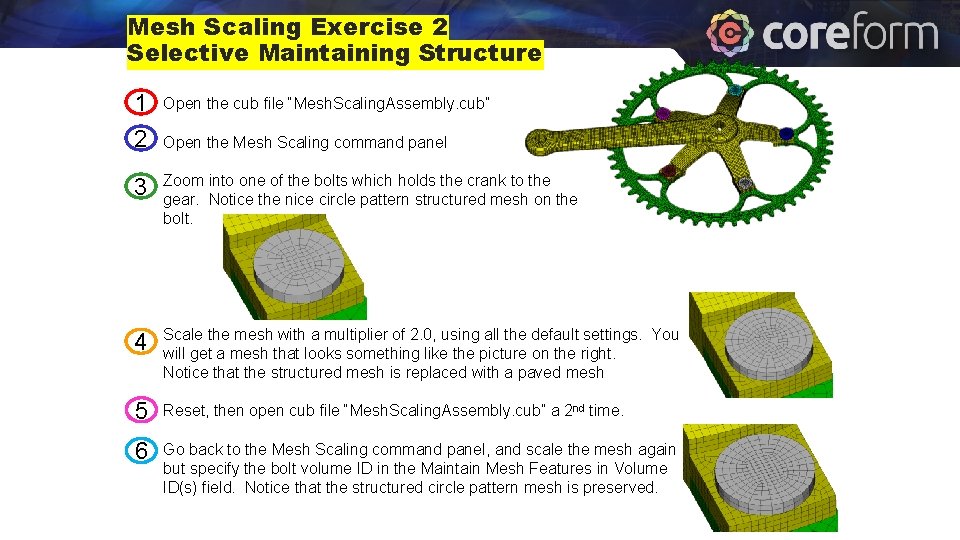
Mesh Scaling Exercise 2 Selective Maintaining Structure 1 Open the cub file “Mesh. Scaling. Assembly. cub” 2 Open the Mesh Scaling command panel 3 Zoom into one of the bolts which holds the crank to the gear. Notice the nice circle pattern structured mesh on the bolt. 4 Scale the mesh with a multiplier of 2. 0, using all the default settings. You will get a mesh that looks something like the picture on the right. Notice that the structured mesh is replaced with a paved mesh 5 Reset, then open cub file “Mesh. Scaling. Assembly. cub” a 2 nd time. 6 Go back to the Mesh Scaling command panel, and scale the mesh again but specify the bolt volume ID in the Maintain Mesh Features in Volume ID(s) field. Notice that the structured circle pattern mesh is preserved.
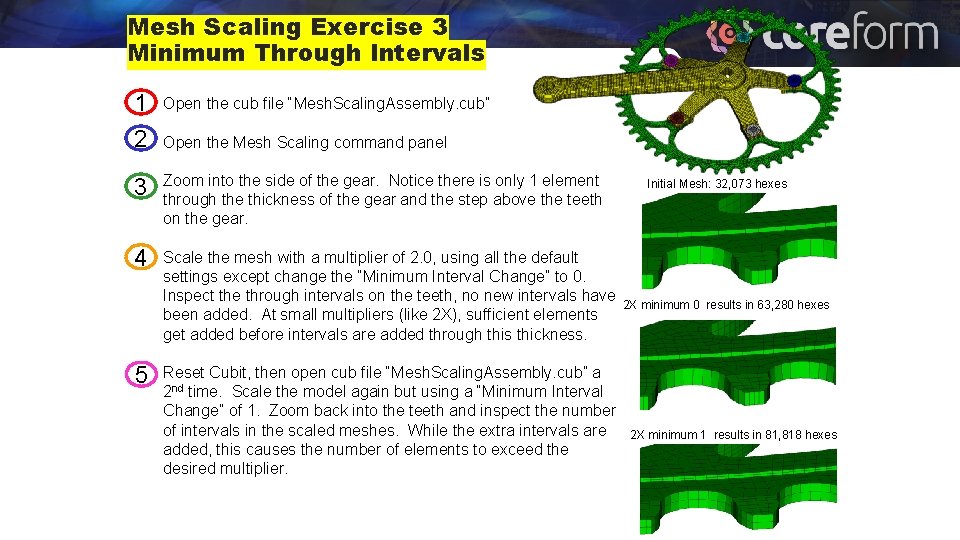
Mesh Scaling Exercise 3 Minimum Through Intervals 1 Open the cub file “Mesh. Scaling. Assembly. cub” 2 Open the Mesh Scaling command panel 3 Zoom into the side of the gear. Notice there is only 1 element through the thickness of the gear and the step above the teeth on the gear. 4 Scale the mesh with a multiplier of 2. 0, using all the default settings except change the “Minimum Interval Change” to 0. Inspect the through intervals on the teeth, no new intervals have been added. At small multipliers (like 2 X), sufficient elements get added before intervals are added through this thickness. 5 Reset Cubit, then open cub file “Mesh. Scaling. Assembly. cub” a 2 nd time. Scale the model again but using a “Minimum Interval Change” of 1. Zoom back into the teeth and inspect the number of intervals in the scaled meshes. While the extra intervals are added, this causes the number of elements to exceed the desired multiplier. Initial Mesh: 32, 073 hexes 2 X minimum 0 results in 63, 280 hexes 2 X minimum 1 results in 81, 818 hexes
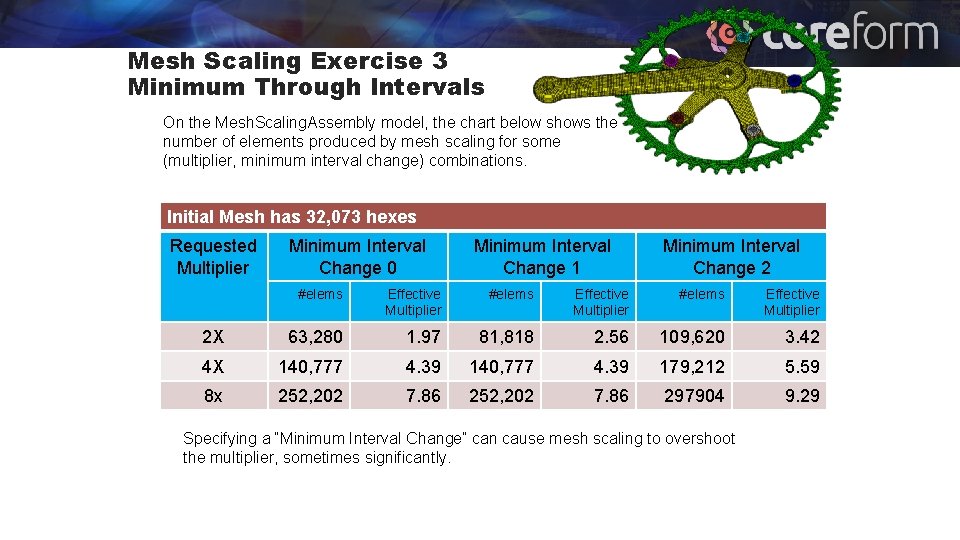
Mesh Scaling Exercise 3 Minimum Through Intervals On the Mesh. Scaling. Assembly model, the chart below shows the number of elements produced by mesh scaling for some (multiplier, minimum interval change) combinations. Initial Mesh has 32, 073 hexes Requested Multiplier Minimum Interval Change 0 Minimum Interval Change 1 Minimum Interval Change 2 #elems Effective Multiplier 2 X 63, 280 1. 97 81, 818 2. 56 109, 620 3. 42 4 X 140, 777 4. 39 179, 212 5. 59 8 x 252, 202 7. 86 297904 9. 29 Specifying a “Minimum Interval Change” can cause mesh scaling to overshoot the multiplier, sometimes significantly.
- Slides: 15