
CUBIT FastStart Tutorial 12 Geometry for Sweeping II
CUBIT™ Fast-Start Tutorial 12. Geometry for Sweeping II
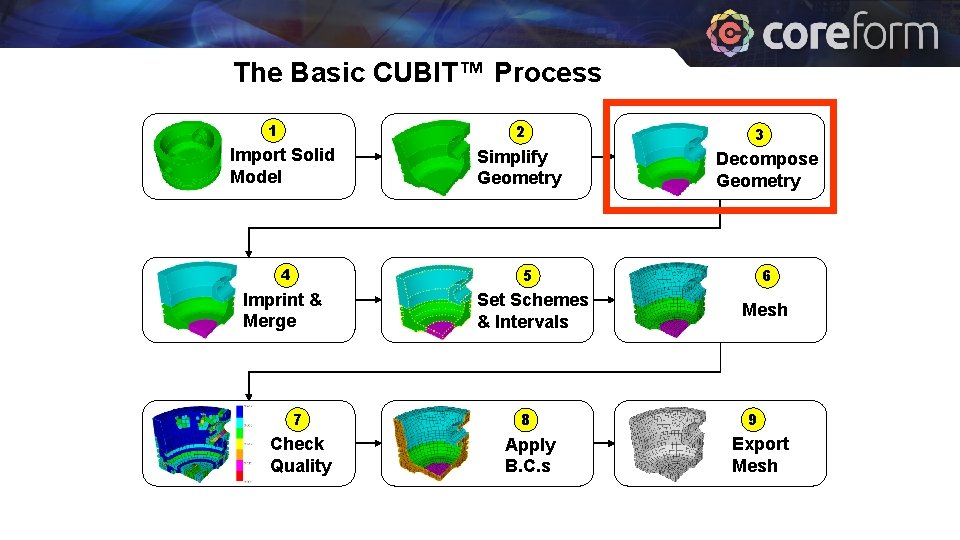
The Basic CUBIT™ Process 1 2 Import Solid Model 4 Simplify Geometry 3 Decompose Geometry 5 Imprint & Merge Set Schemes & Intervals 7 8 Check Quality Apply B. C. s 6 Mesh 9 Export Mesh
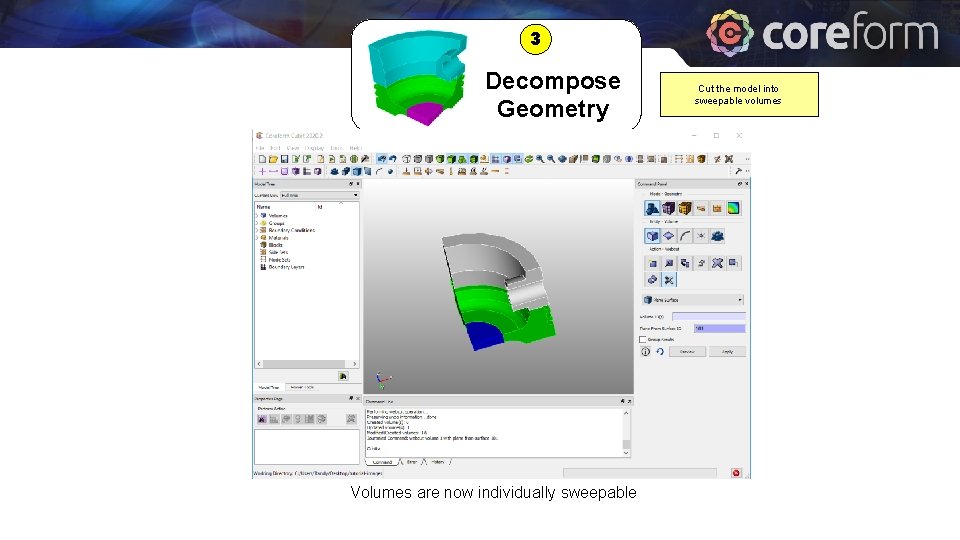
3 Decompose Geometry sweep direction 2 n 1 ep swe ctio dire sweep direction 3 Volumes are now individually sweepable Cut the model into sweepable volumes
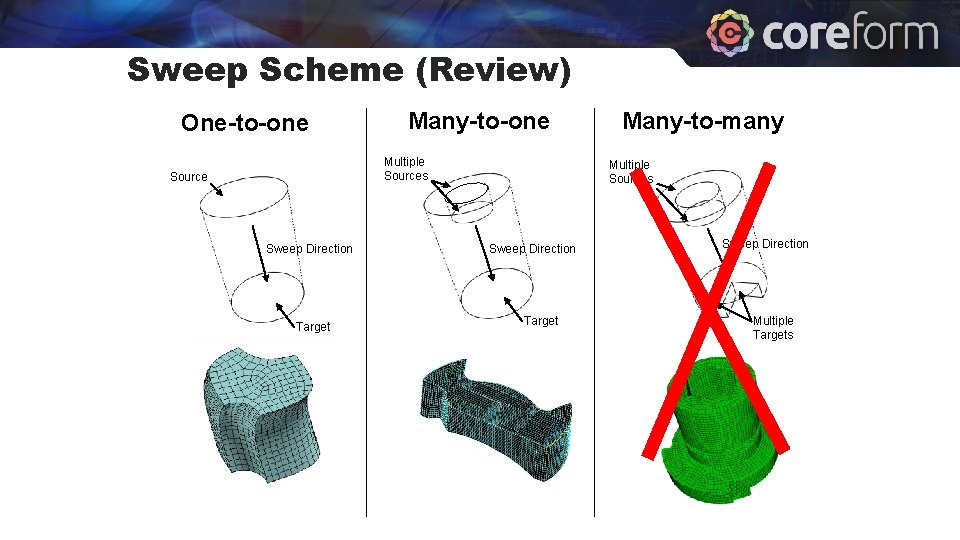
Sweep Scheme (Review) One-to-one Many-to-one Multiple Sources Source Sweep Direction Target Many-to-many Multiple Sources Sweep Direction Target Sweep Direction Multiple Targets
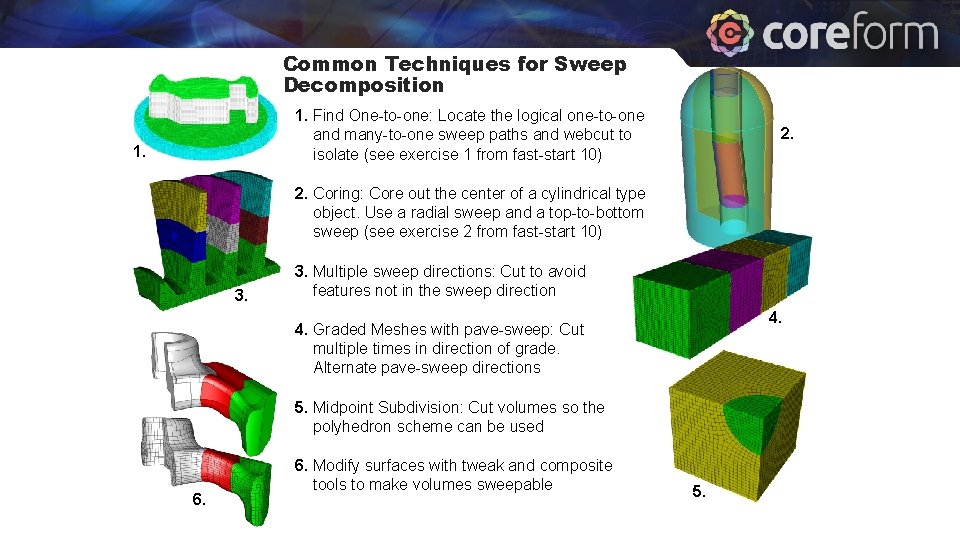
Common Techniques for Sweep Decomposition 1. Find One-to-one: Locate the logical one-to-one and many-to-one sweep paths and webcut to isolate (see exercise 1 from fast-start 10) 1. 2. Coring: Core out the center of a cylindrical type object. Use a radial sweep and a top-to-bottom sweep (see exercise 2 from fast-start 10) 3. Multiple sweep directions: Cut to avoid features not in the sweep direction 4. Graded Meshes with pave-sweep: Cut multiple times in direction of grade. Alternate pave-sweep directions 5. Midpoint Subdivision: Cut volumes so the polyhedron scheme can be used 6. Modify surfaces with tweak and composite tools to make volumes sweepable 5.
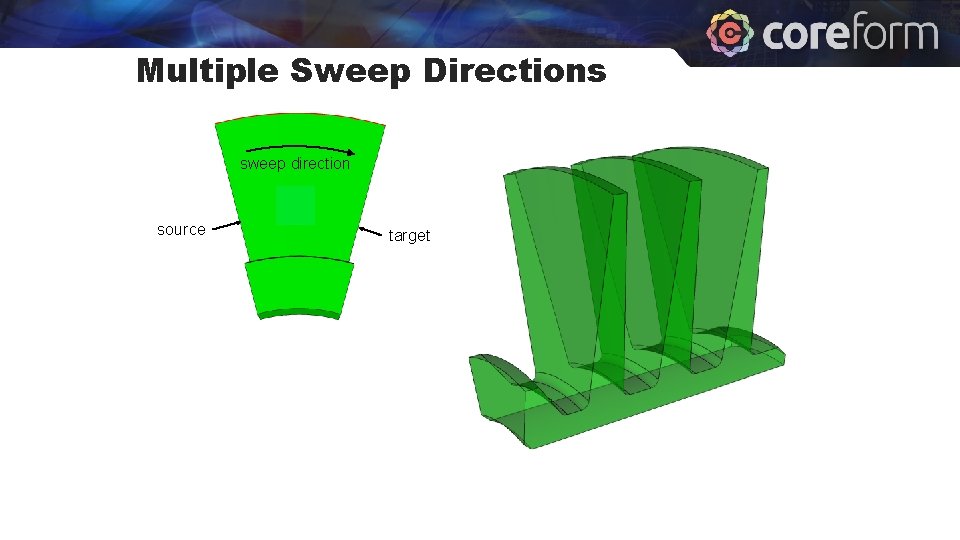
Multiple Sweep Directions sweep direction source target
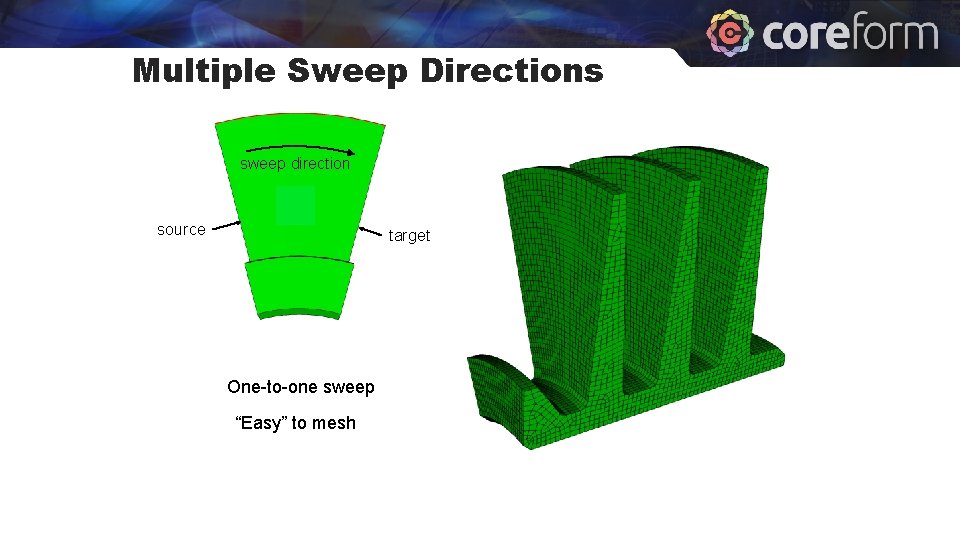
Multiple Sweep Directions sweep direction source target One-to-one sweep “Easy” to mesh
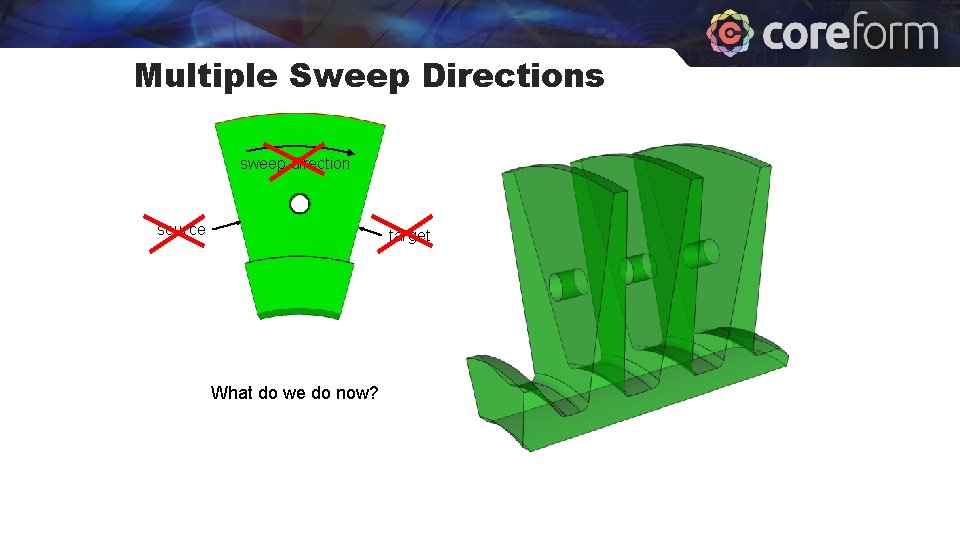
Multiple Sweep Directions sweep direction source target What do we do now?
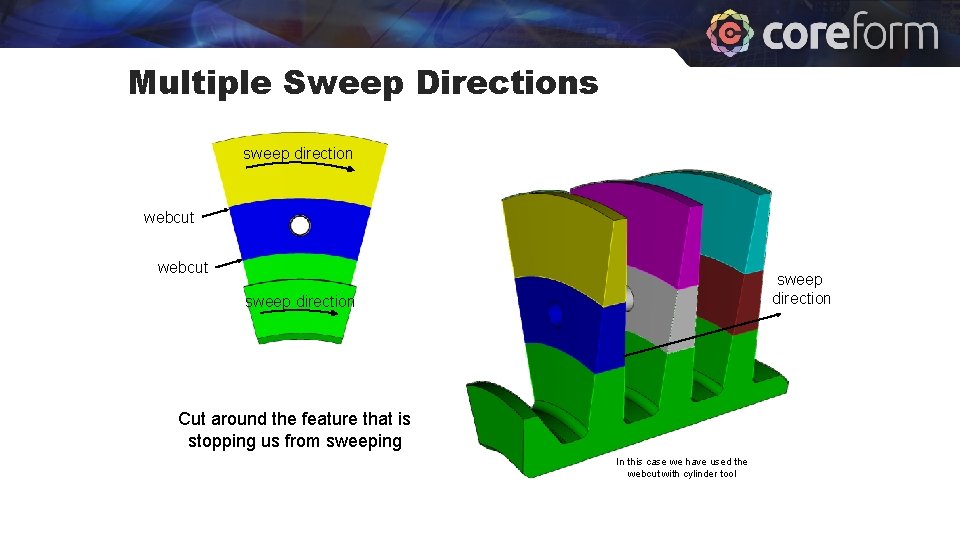
Multiple Sweep Directions sweep direction webcut sweep direction Cut around the feature that is stopping us from sweeping In this case we have used the webcut with cylinder tool
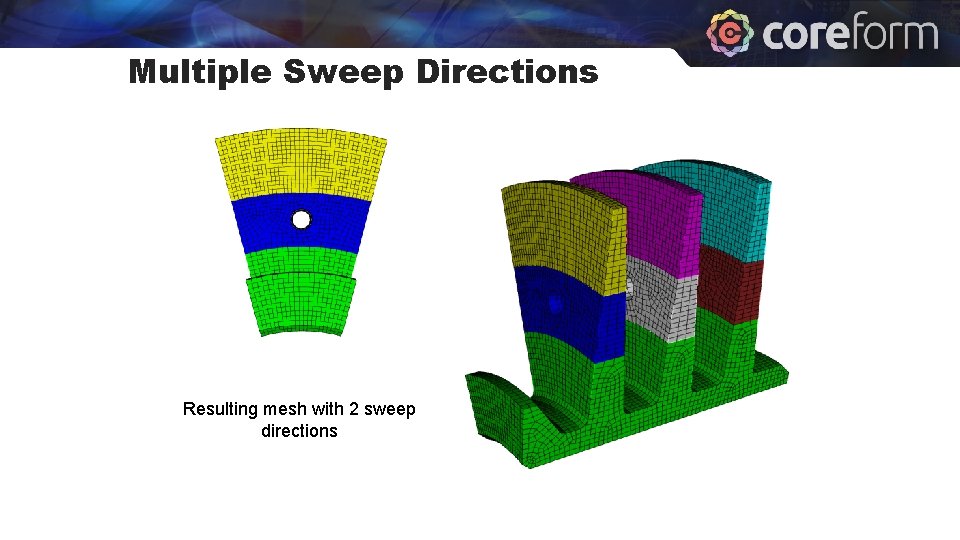
Multiple Sweep Directions Resulting mesh with 2 sweep directions
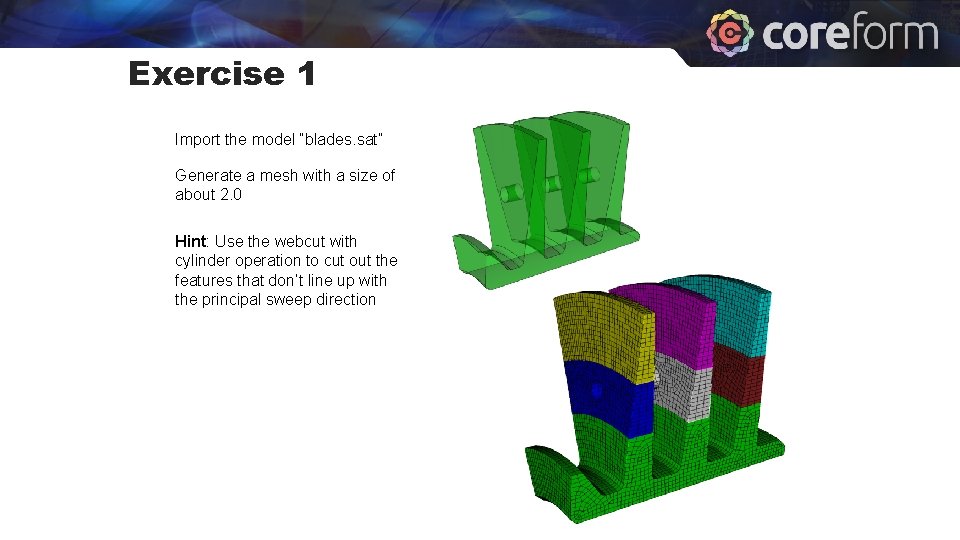
Exercise 1 Import the model “blades. sat” Generate a mesh with a size of about 2. 0 Hint: Use the webcut with cylinder operation to cut out the features that don’t line up with the principal sweep direction
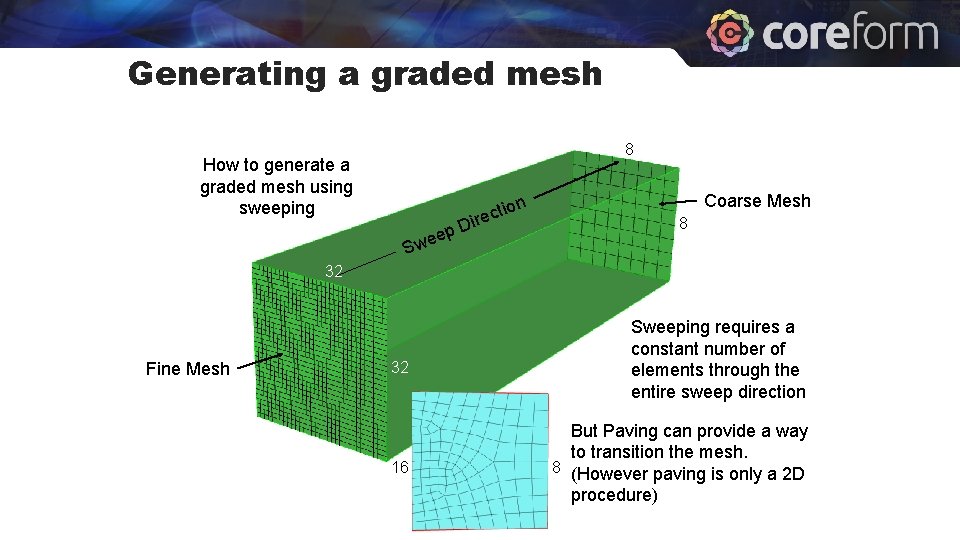
Generating a graded mesh 8 How to generate a graded mesh using sweeping p wee D on i t c ire Coarse Mesh 8 S 32 Fine Mesh 32 16 Sweeping requires a constant number of elements through the entire sweep direction But Paving can provide a way to transition the mesh. 8 (However paving is only a 2 D procedure)
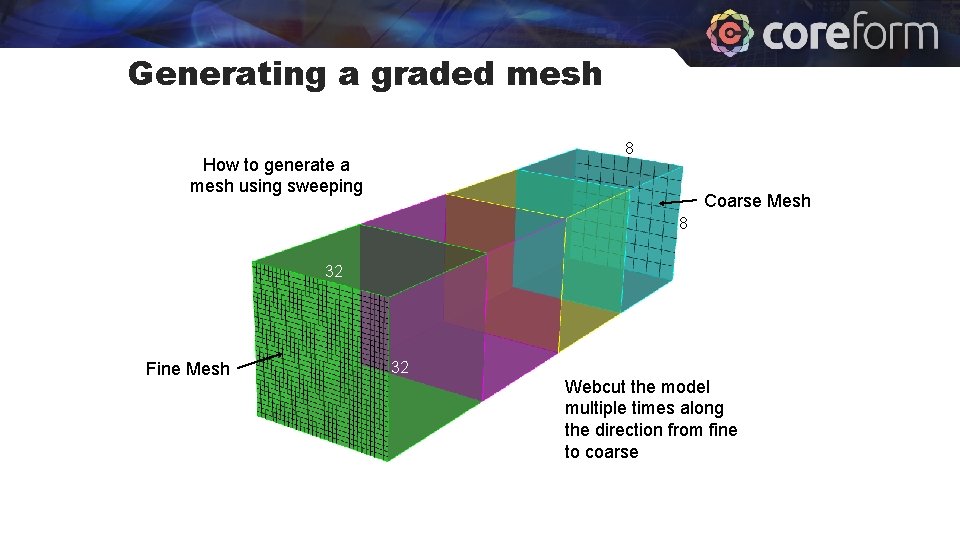
Generating a graded mesh 8 How to generate a mesh using sweeping Coarse Mesh 8 32 Fine Mesh 32 Webcut the model multiple times along the direction from fine to coarse
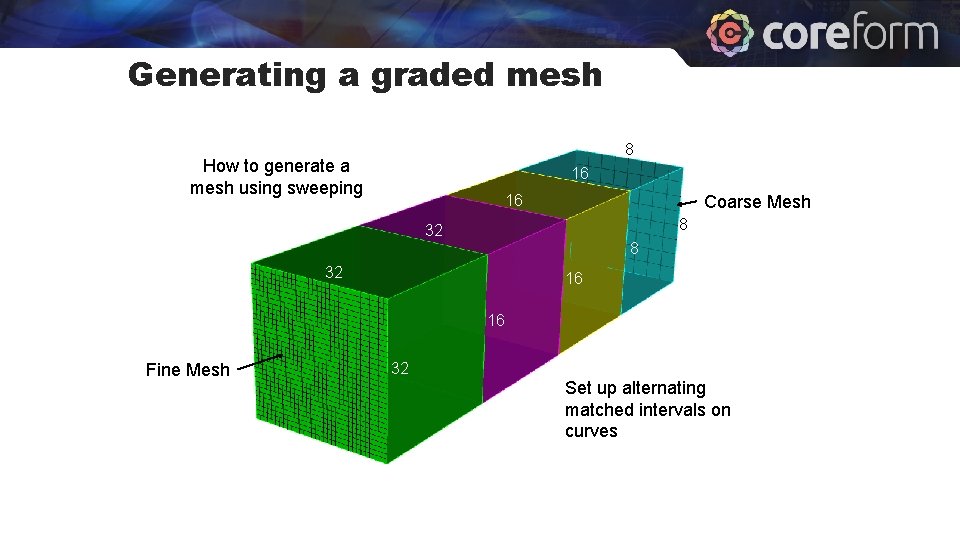
Generating a graded mesh 8 How to generate a mesh using sweeping 16 16 Coarse Mesh 8 32 16 16 Fine Mesh 32 Set up alternating matched intervals on curves
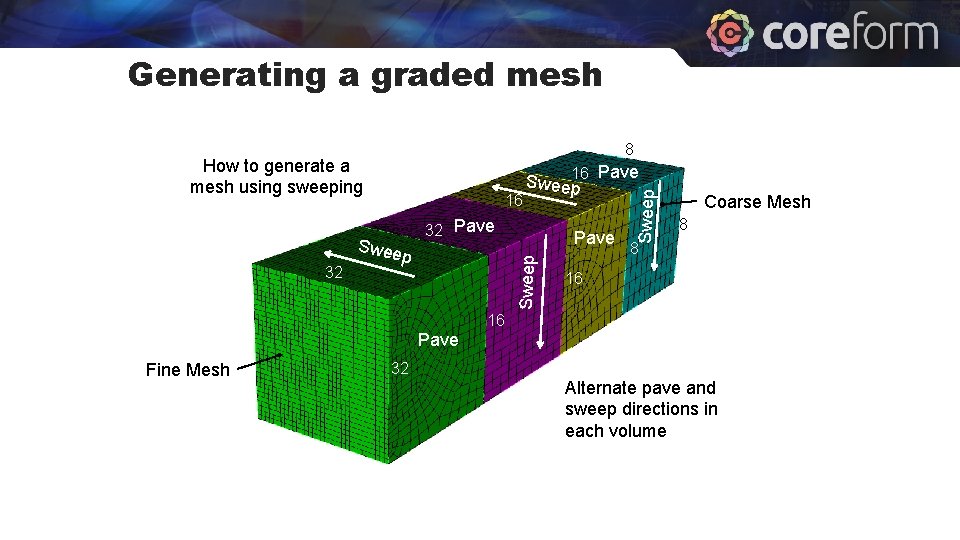
Generating a graded mesh 8 16 32 Pave Swee p Pave Sweep 32 Sweep 16 Sweep How to generate a mesh using sweeping Coarse Mesh 8 8 16 16 Pave Fine Mesh 32 Alternate pave and sweep directions in each volume
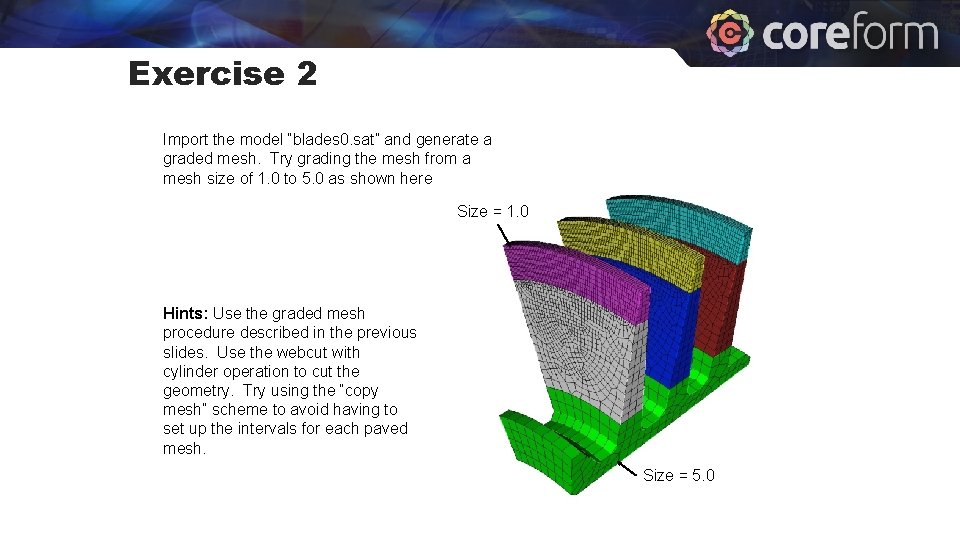
Exercise 2 Import the model “blades 0. sat” and generate a graded mesh. Try grading the mesh from a mesh size of 1. 0 to 5. 0 as shown here Size = 1. 0 Hints: Use the graded mesh procedure described in the previous slides. Use the webcut with cylinder operation to cut the geometry. Try using the “copy mesh” scheme to avoid having to set up the intervals for each paved mesh. Size = 5. 0
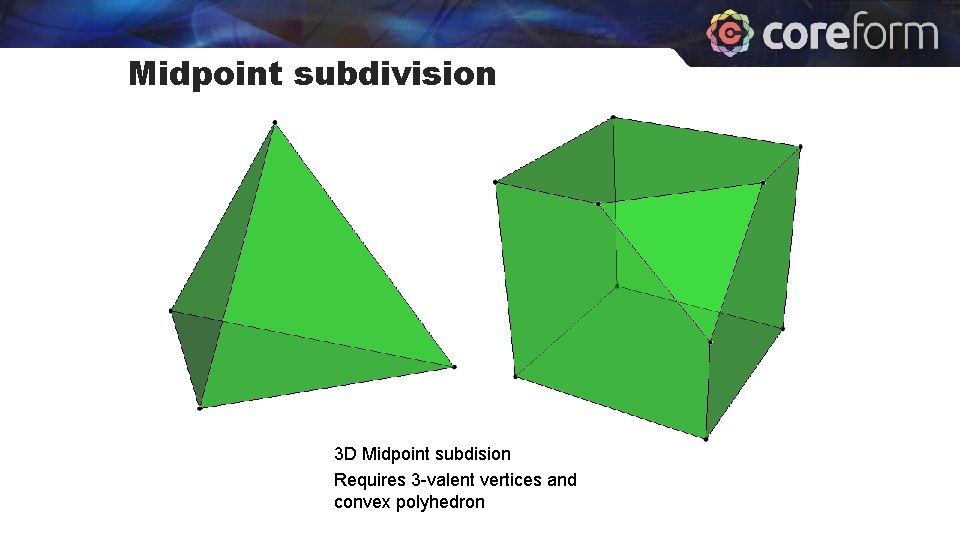
Midpoint subdivision 3 D Midpoint subdision Requires 3 -valent vertices and convex polyhedron
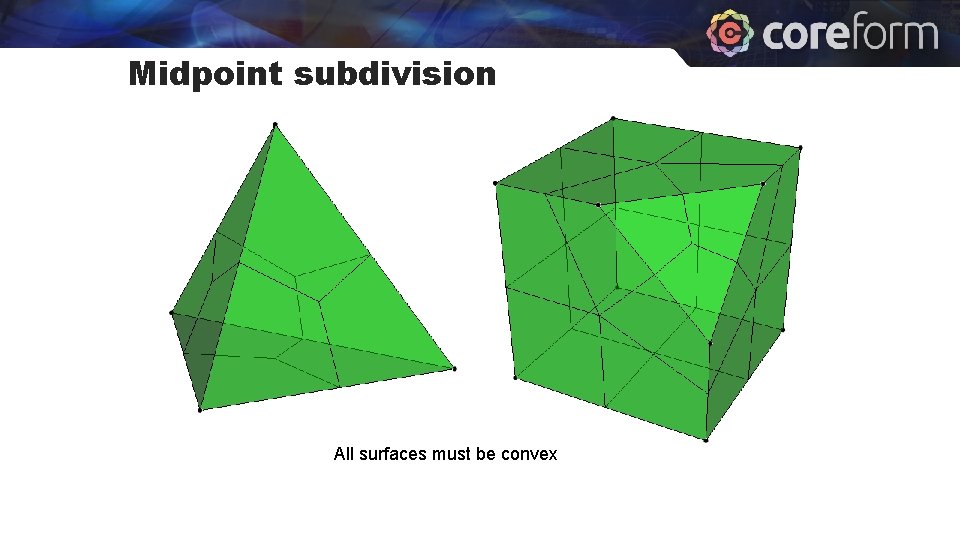
Midpoint subdivision All surfaces must be convex
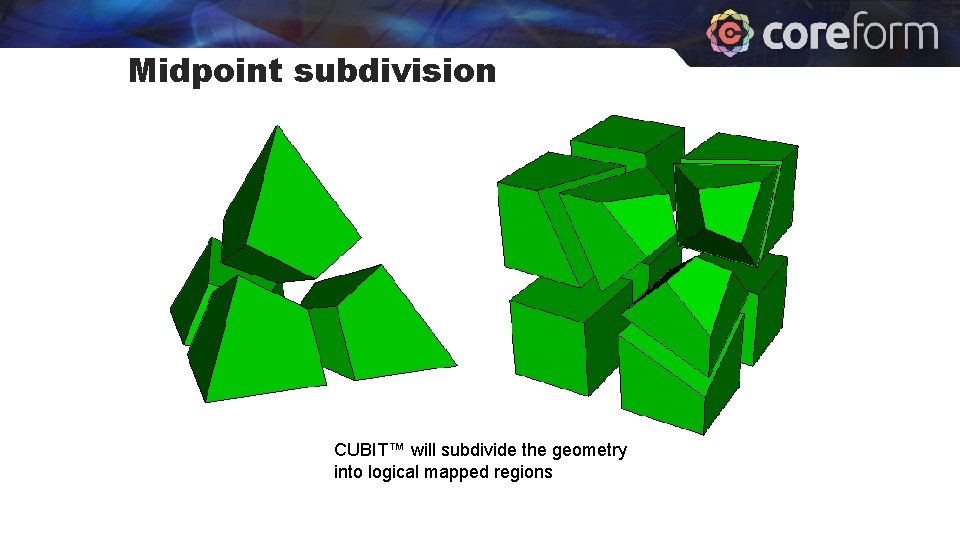
Midpoint subdivision CUBIT™ will subdivide the geometry into logical mapped regions
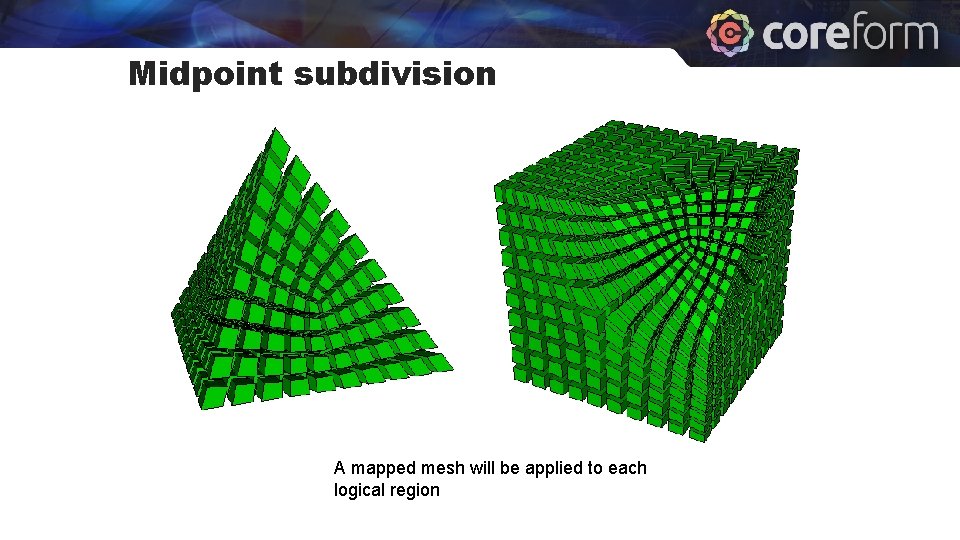
Midpoint subdivision A mapped mesh will be applied to each logical region
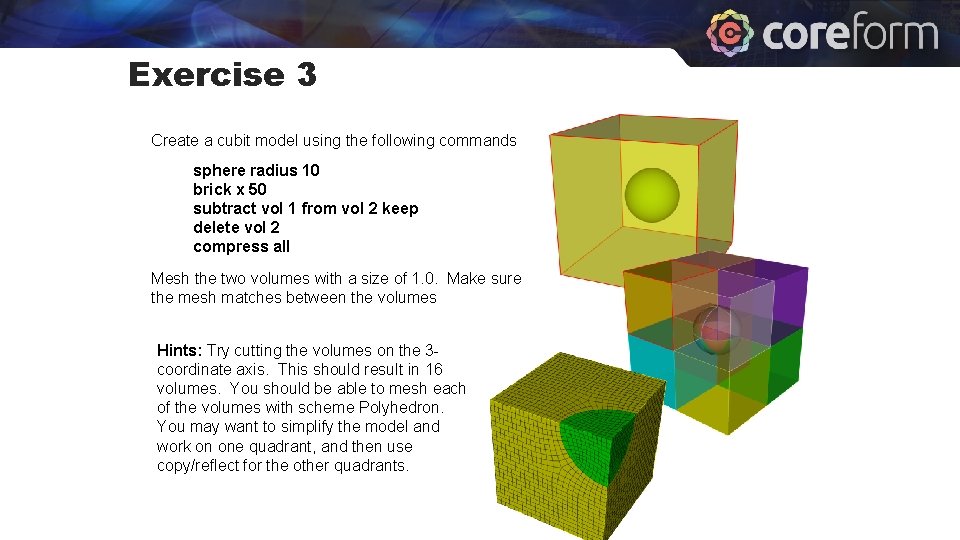
Exercise 3 Create a cubit model using the following commands sphere radius 10 brick x 50 subtract vol 1 from vol 2 keep delete vol 2 compress all Mesh the two volumes with a size of 1. 0. Make sure the mesh matches between the volumes Hints: Try cutting the volumes on the 3 coordinate axis. This should result in 16 volumes. You should be able to mesh each of the volumes with scheme Polyhedron. You may want to simplify the model and work on one quadrant, and then use copy/reflect for the other quadrants.
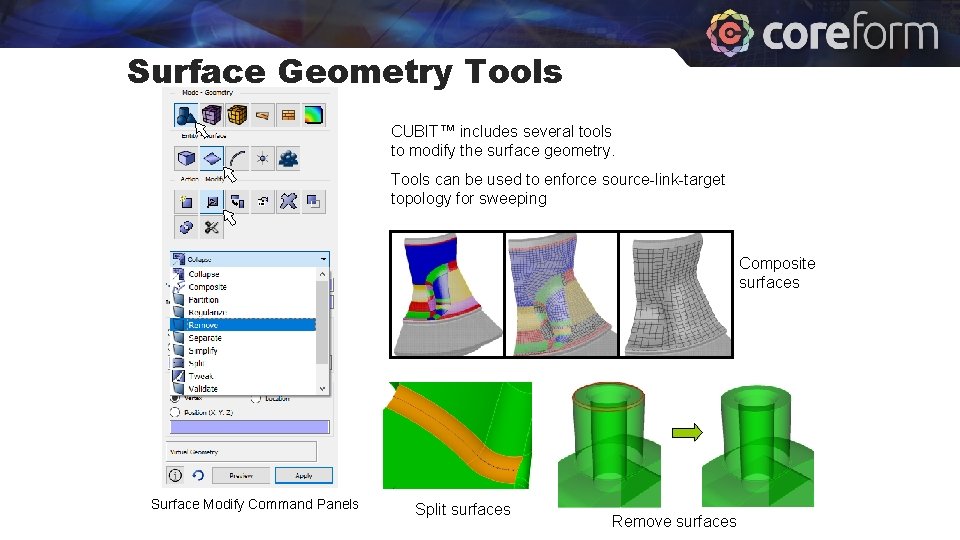
Surface Geometry Tools CUBIT™ includes several tools to modify the surface geometry. Tools can be used to enforce source-link-target topology for sweeping Composite surfaces Surface Modify Command Panels Split surfaces Remove surfaces
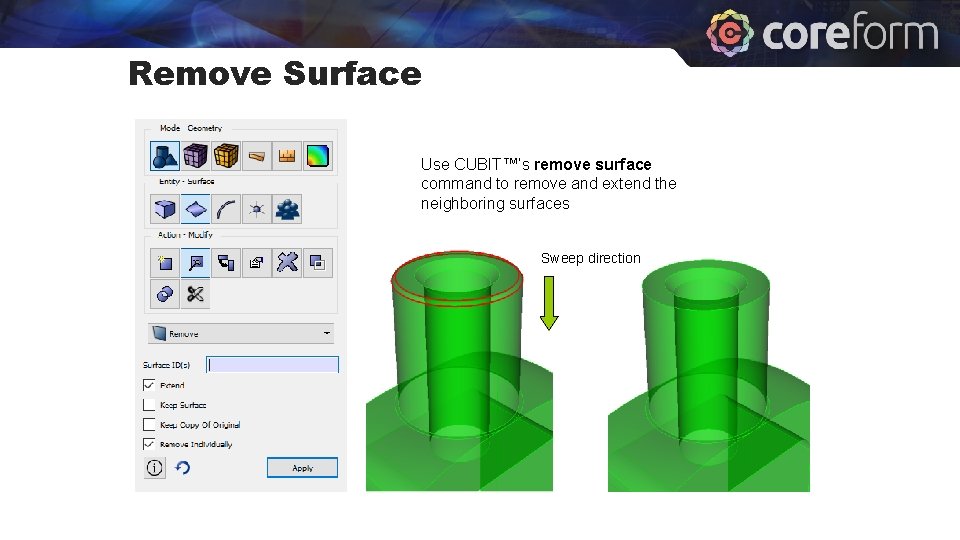
Remove Surface Use CUBIT™’s remove surface command to remove and extend the neighboring surfaces Sweep direction
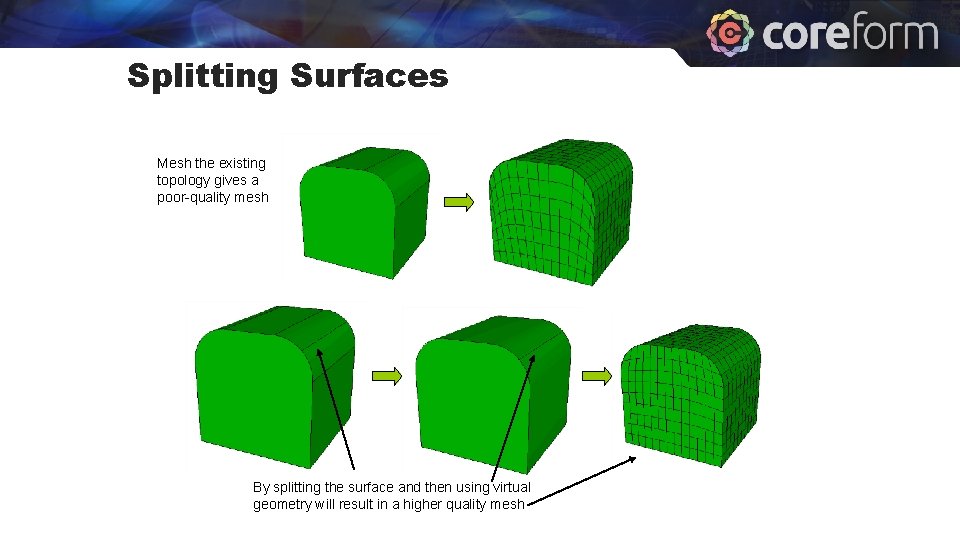
Splitting Surfaces Mesh the existing topology gives a poor-quality mesh By splitting the surface and then using virtual geometry will result in a higher quality mesh
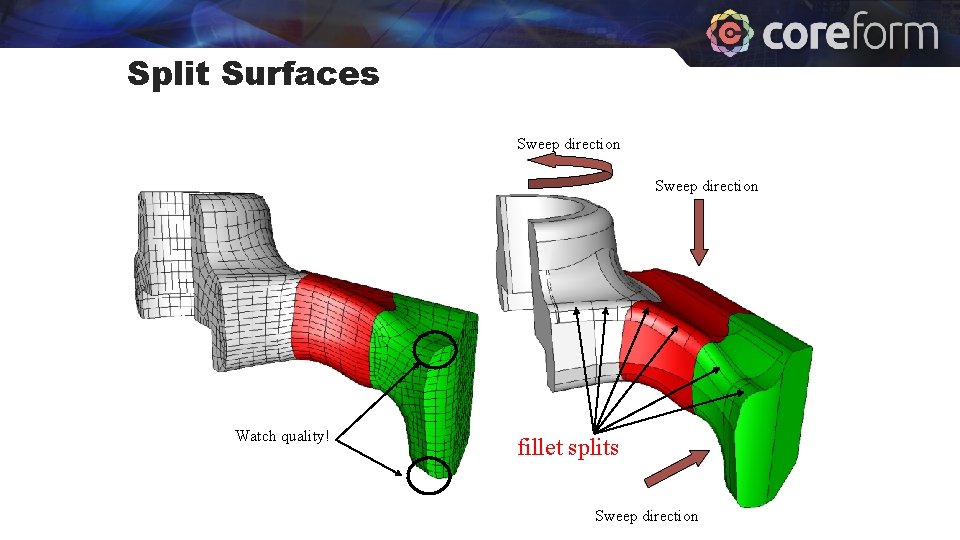
Split Surfaces Sweep direction Watch quality! fillet splits Sweep direction
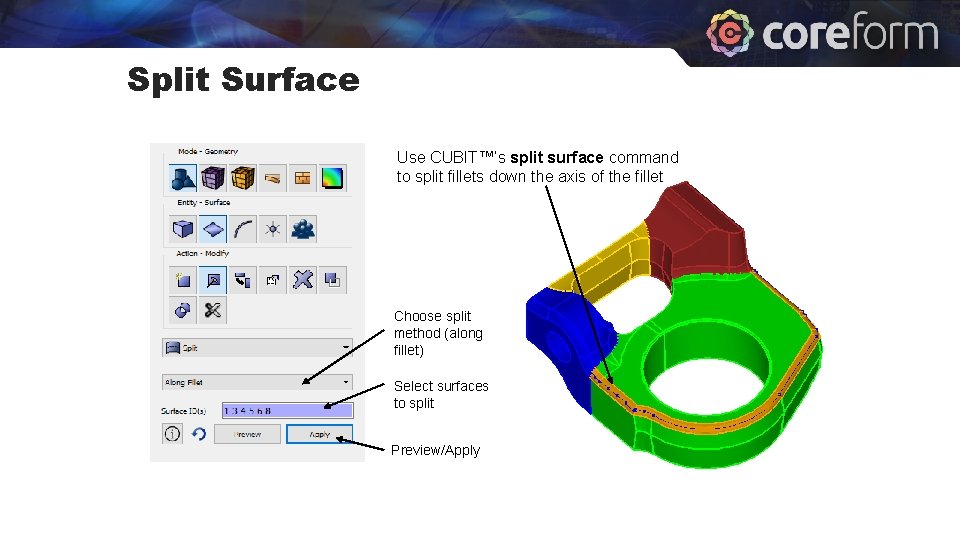
Split Surface Use CUBIT™’s split surface command to split fillets down the axis of the fillet Choose split method (along fillet) Select surfaces to split Preview/Apply
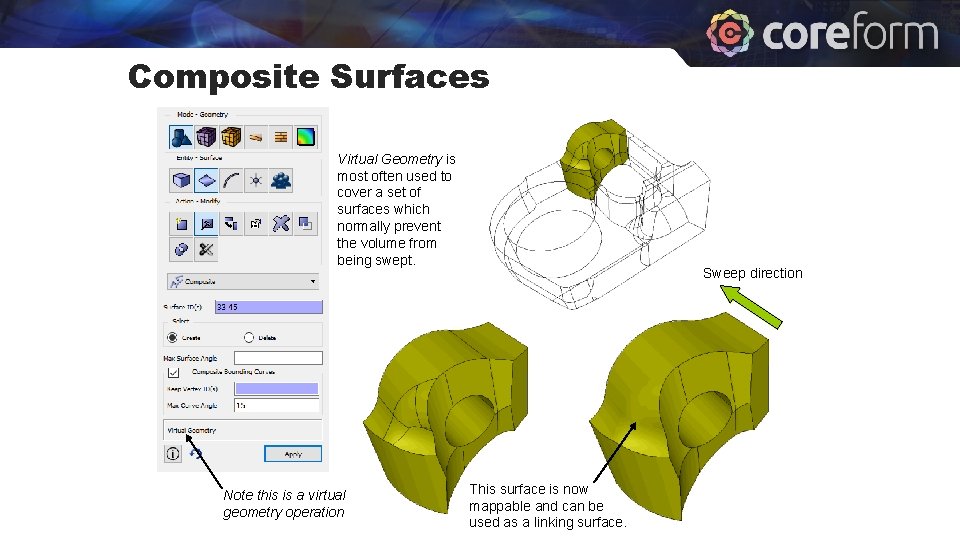
Composite Surfaces Virtual Geometry is most often used to cover a set of surfaces which normally prevent the volume from being swept. Note this is a virtual geometry operation Sweep direction This surface is now mappable and can be used as a linking surface.
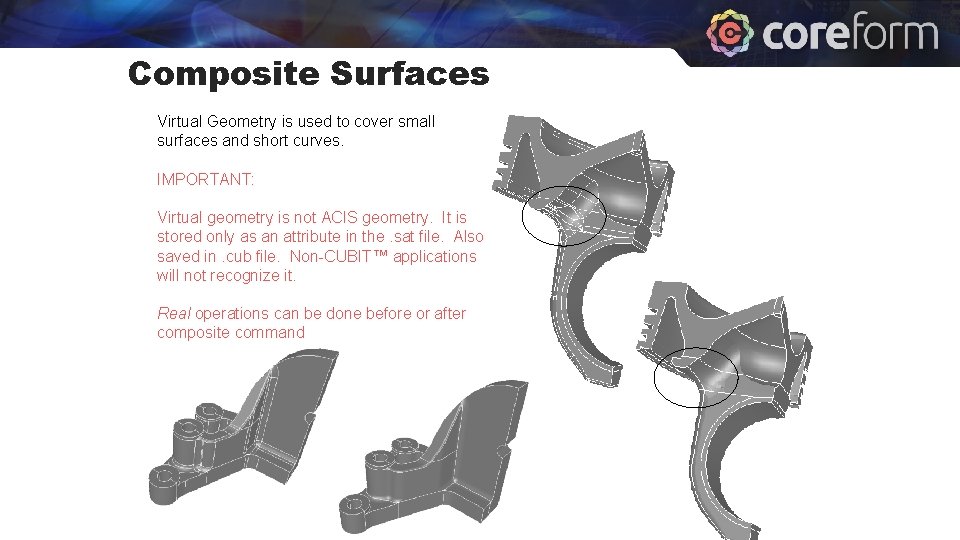
Composite Surfaces Virtual Geometry is used to cover small surfaces and short curves. IMPORTANT: Virtual geometry is not ACIS geometry. It is stored only as an attribute in the. sat file. Also saved in. cub file. Non-CUBIT™ applications will not recognize it. Real operations can be done before or after composite command
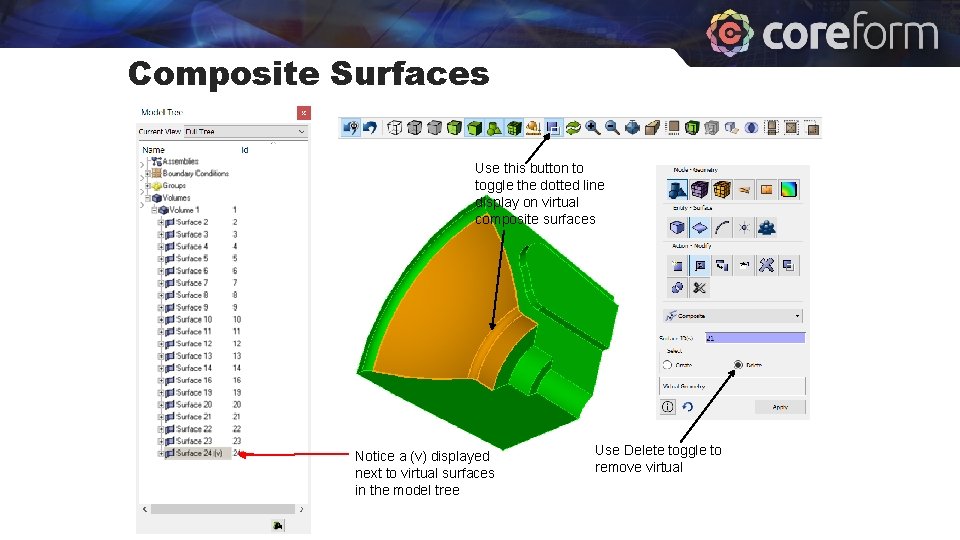
Composite Surfaces Use this button to toggle the dotted line display on virtual composite surfaces Notice a (v) displayed next to virtual surfaces in the model tree Use Delete toggle to remove virtual
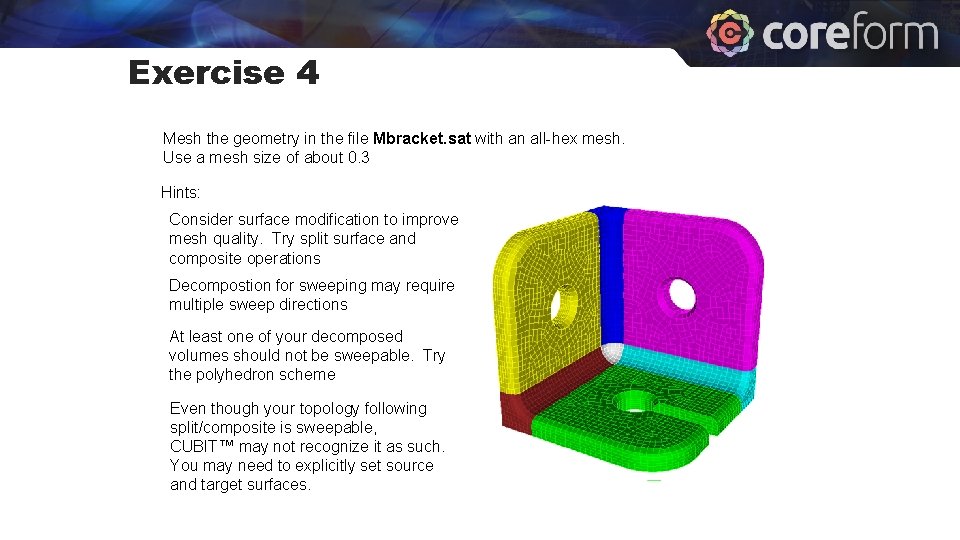
Exercise 4 Mesh the geometry in the file Mbracket. sat with an all-hex mesh. Use a mesh size of about 0. 3 Hints: Consider surface modification to improve mesh quality. Try split surface and composite operations Decompostion for sweeping may require multiple sweep directions At least one of your decomposed volumes should not be sweepable. Try the polyhedron scheme Even though your topology following split/composite is sweepable, CUBIT™ may not recognize it as such. You may need to explicitly set source and target surfaces.
- Slides: 30