
CUBIT FastStart Tutorial 11 Mesh Control Mesh Sizing
CUBIT™ Fast-Start Tutorial 11. Mesh Control
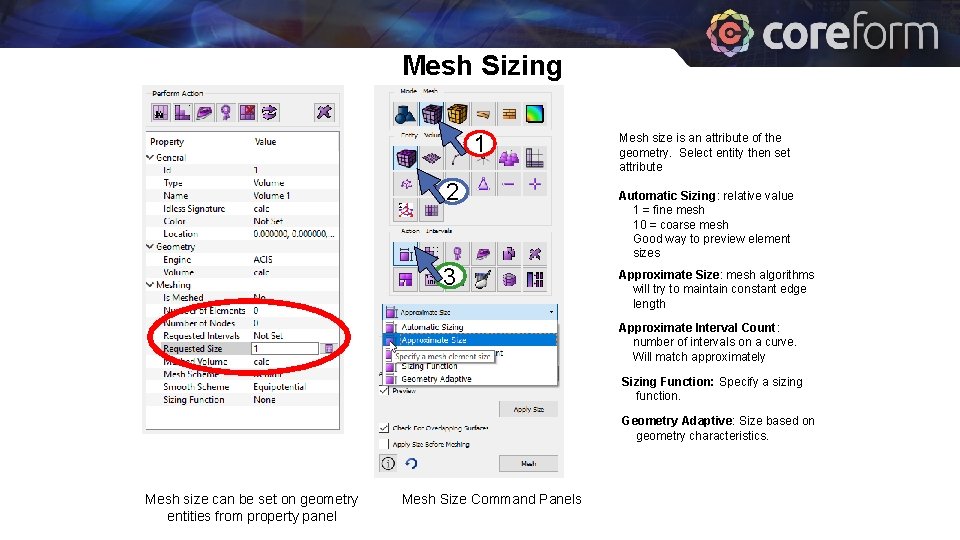
Mesh Sizing 1 2 3 Mesh size is an attribute of the geometry. Select entity then set attribute Automatic Sizing: relative value 1 = fine mesh 10 = coarse mesh Good way to preview element sizes Approximate Size: mesh algorithms will try to maintain constant edge length Approximate Interval Count: number of intervals on a curve. Will match approximately Sizing Function: Specify a sizing function. Geometry Adaptive: Size based on geometry characteristics. Mesh size can be set on geometry entities from property panel Mesh Size Command Panels
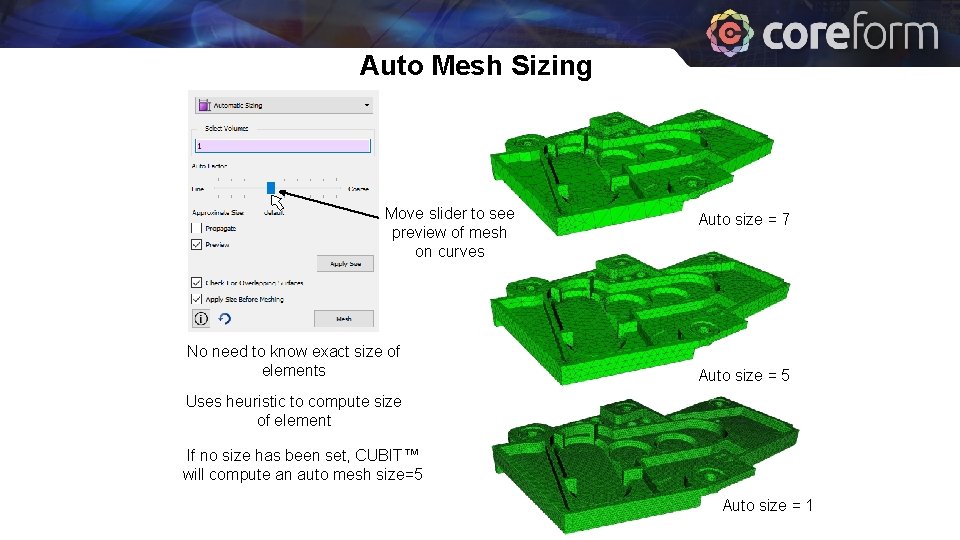
Auto Mesh Sizing Move slider to see preview of mesh on curves No need to know exact size of elements Auto size = 7 Auto size = 5 Uses heuristic to compute size of element If no size has been set, CUBIT™ will compute an auto mesh size=5 Auto size = 1
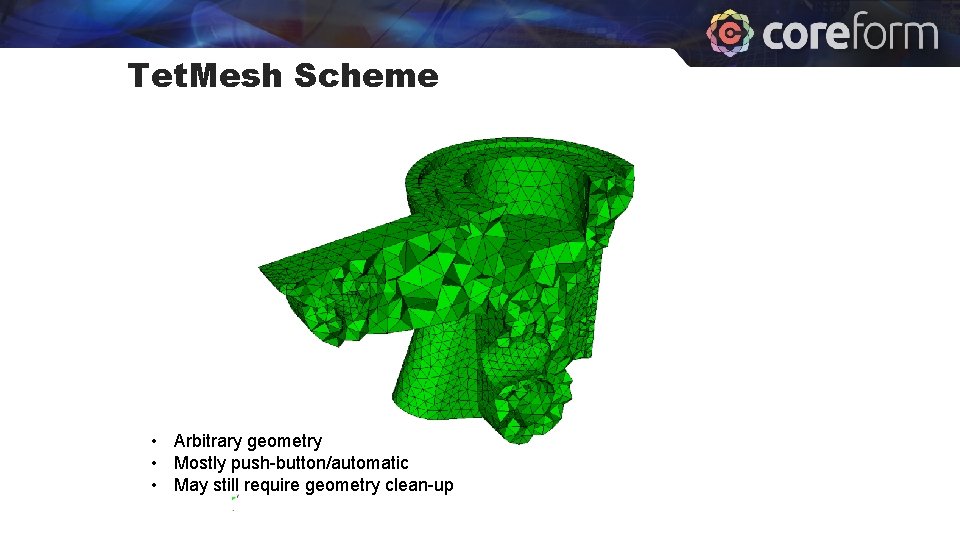
Tet. Mesh Scheme • Arbitrary geometry • Mostly push-button/automatic • May still require geometry clean-up
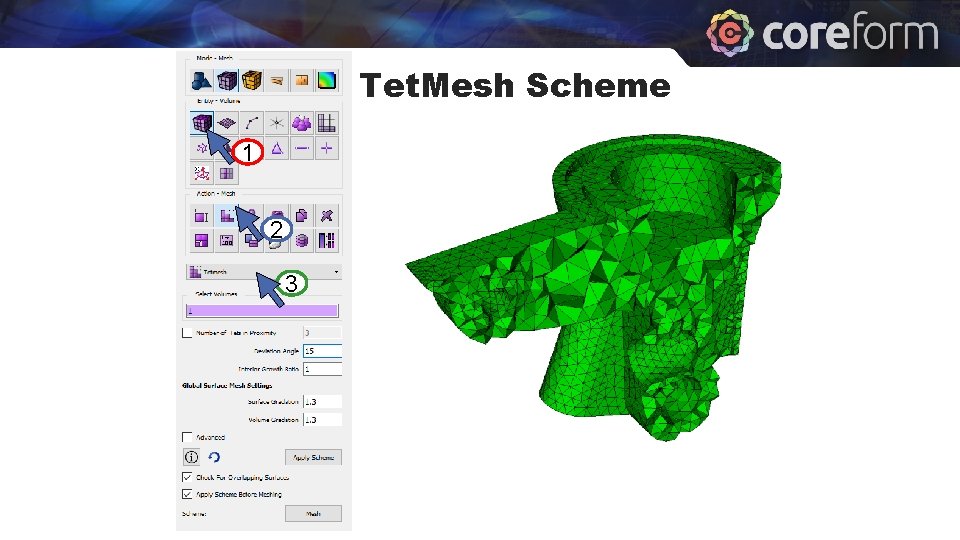
Tet. Mesh Scheme 1 2 3
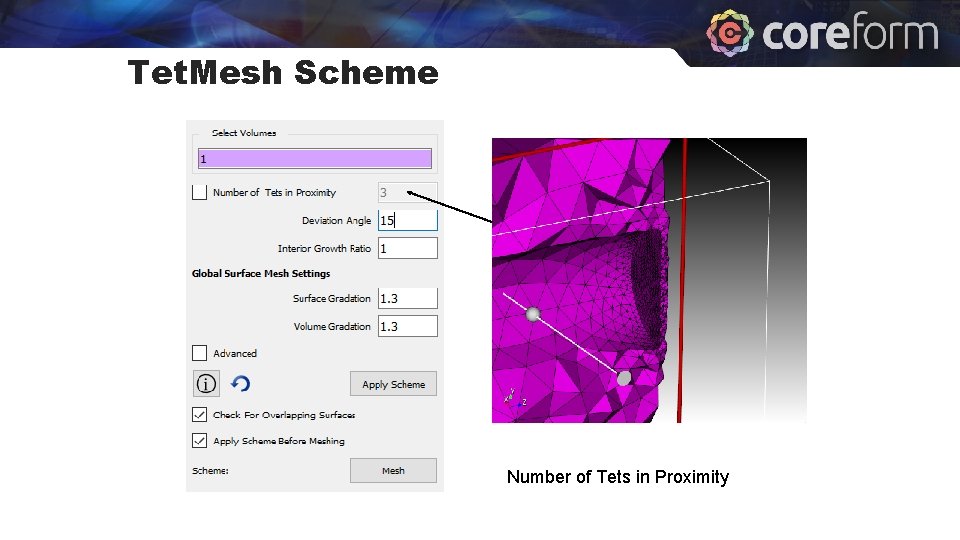
Tet. Mesh Scheme Number of Tets in Proximity

Tet. Mesh Scheme Deviation Angle (Geometry Approximation Angle)
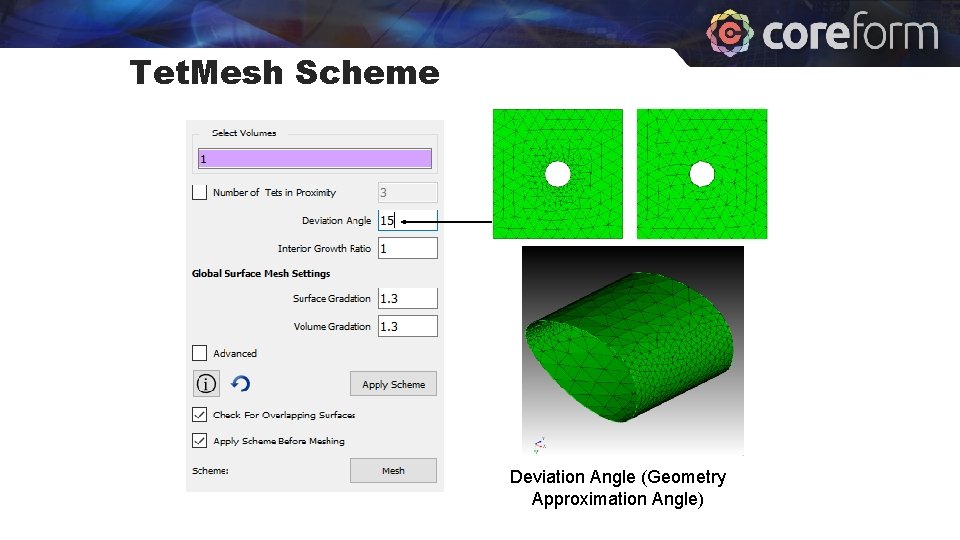
Tet. Mesh Scheme Deviation Angle (Geometry Approximation Angle)
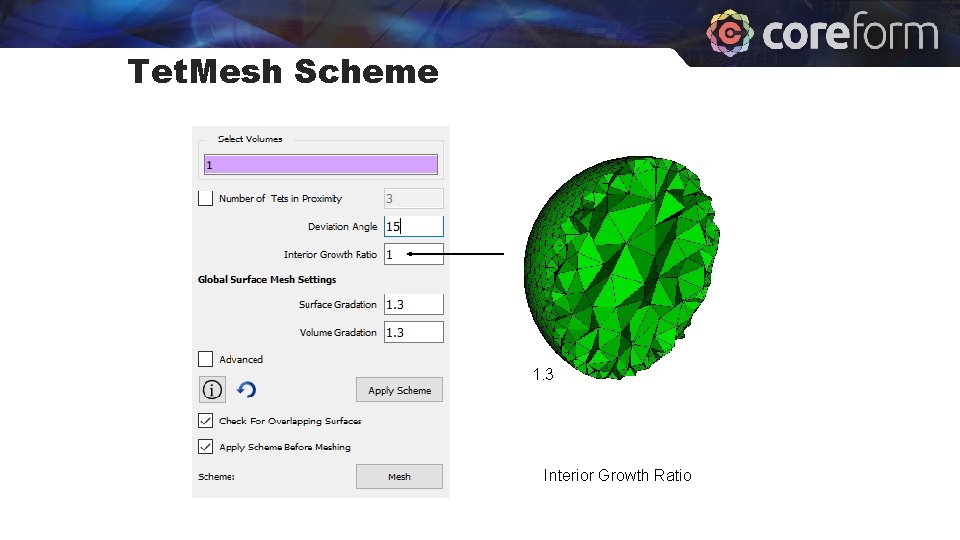
Tet. Mesh Scheme 1. 0 1. 3 Interior Growth Ratio
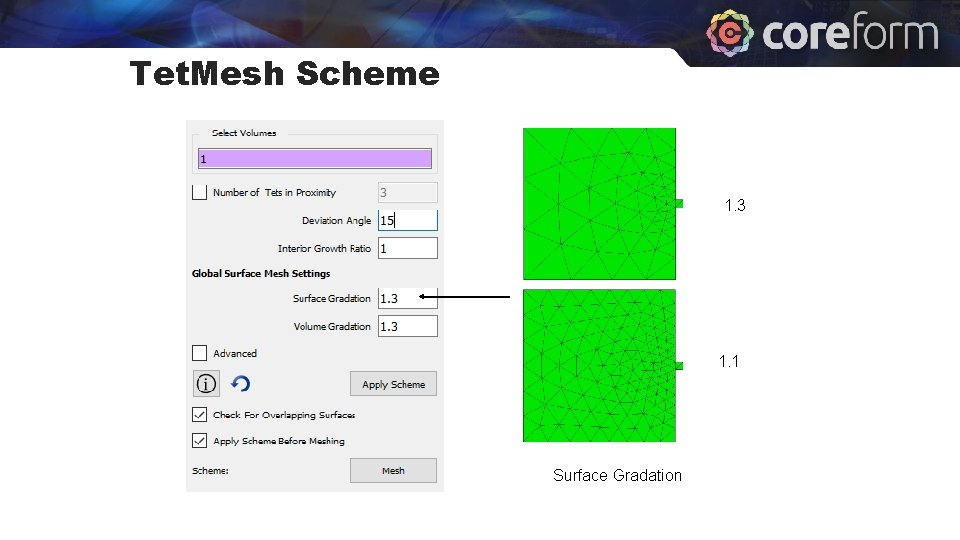
Tet. Mesh Scheme 1. 3 1. 1 Surface Gradation
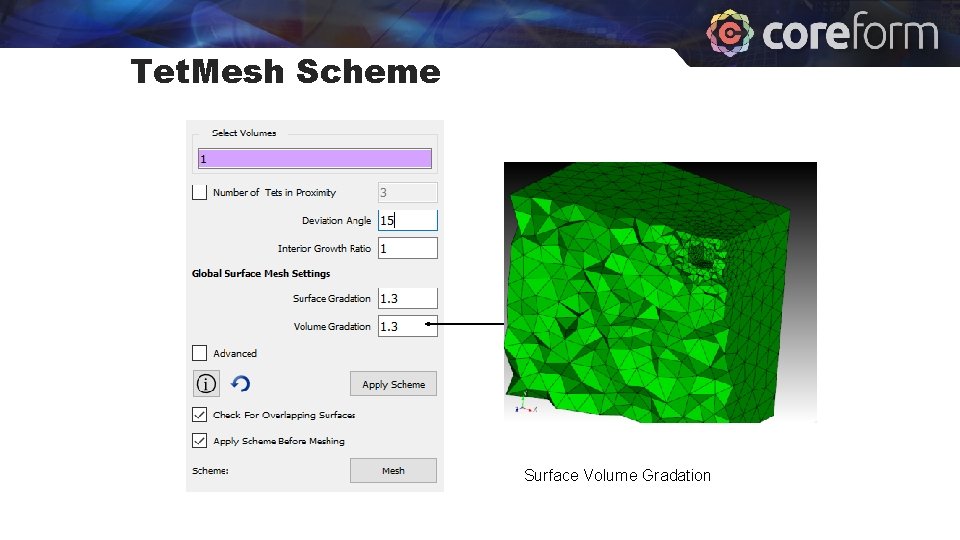
Tet. Mesh Scheme Surface Volume Gradation
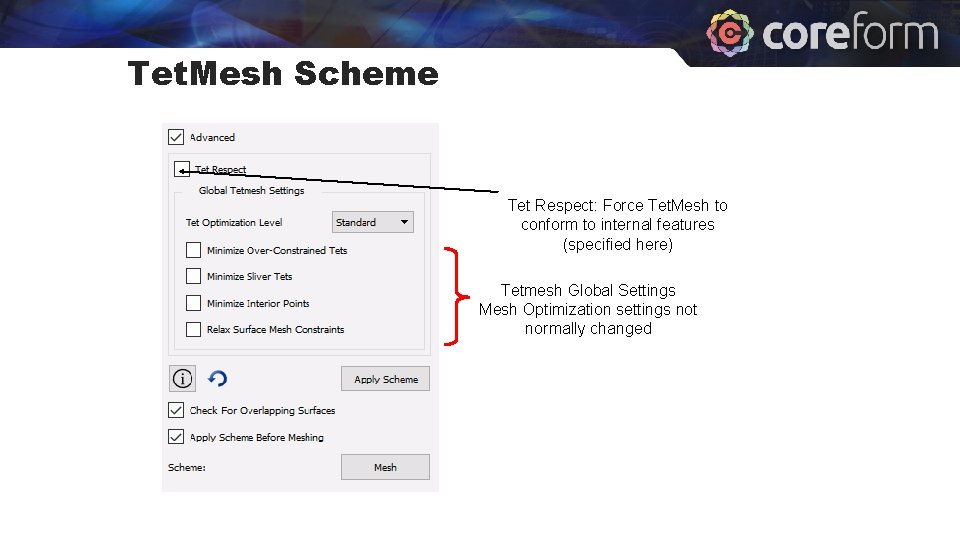
Tet. Mesh Scheme Tet Respect: Force Tet. Mesh to conform to internal features (specified here) Tetmesh Global Settings Mesh Optimization settings not normally changed

Tri. Mesh Scheme: Settings on Volume (Tet. Mesh Scheme) are by default propagated to surfaces Normally no reason to set Trimesh Scheme separately 1 2 Deviation Angle 3 4 Surface Gradation
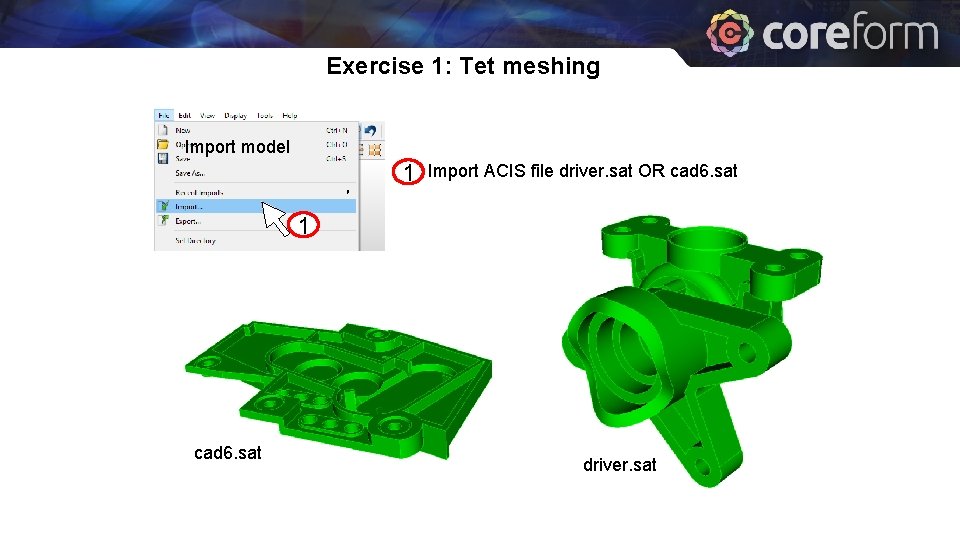
Exercise 1: Tet meshing Import model 1 Import ACIS file driver. sat OR cad 6. sat 1 cad 6. sat driver. sat
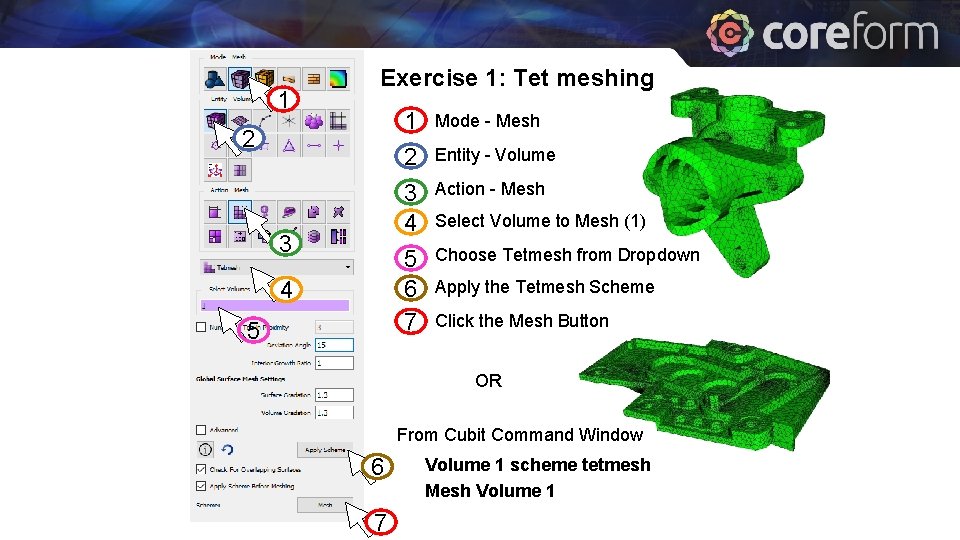
1 Exercise 1: Tet meshing 2 3 4 5 1 Mode - Mesh 2 3 4 Entity - Volume 5 6 7 Choose Tetmesh from Dropdown Action - Mesh Select Volume to Mesh (1) Apply the Tetmesh Scheme Click the Mesh Button OR From Cubit Command Window 6 7 Volume 1 scheme tetmesh Mesh Volume 1
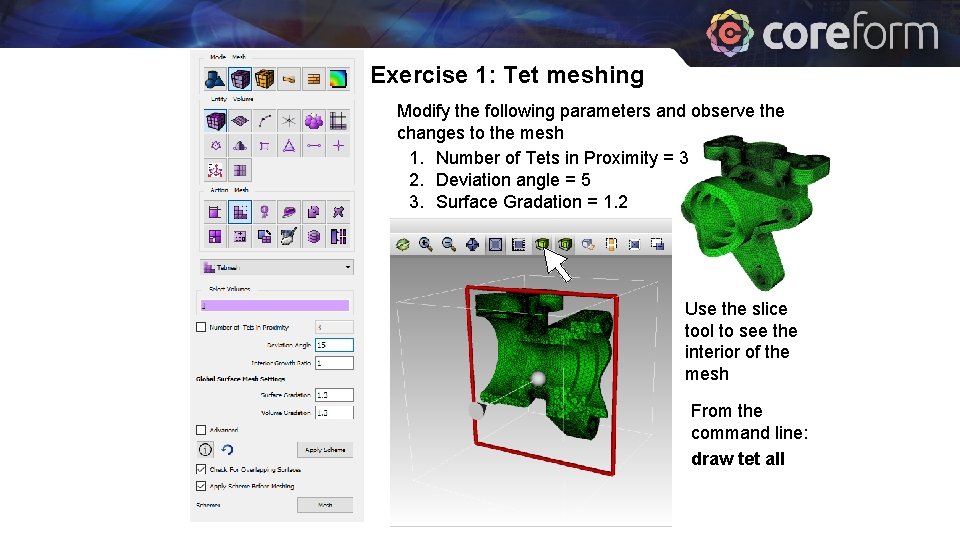
Exercise 1: Tet meshing Modify the following parameters and observe the changes to the mesh 1. Number of Tets in Proximity = 3 2. Deviation angle = 5 3. Surface Gradation = 1. 2 Use the slice tool to see the interior of the mesh From the command line: draw tet all
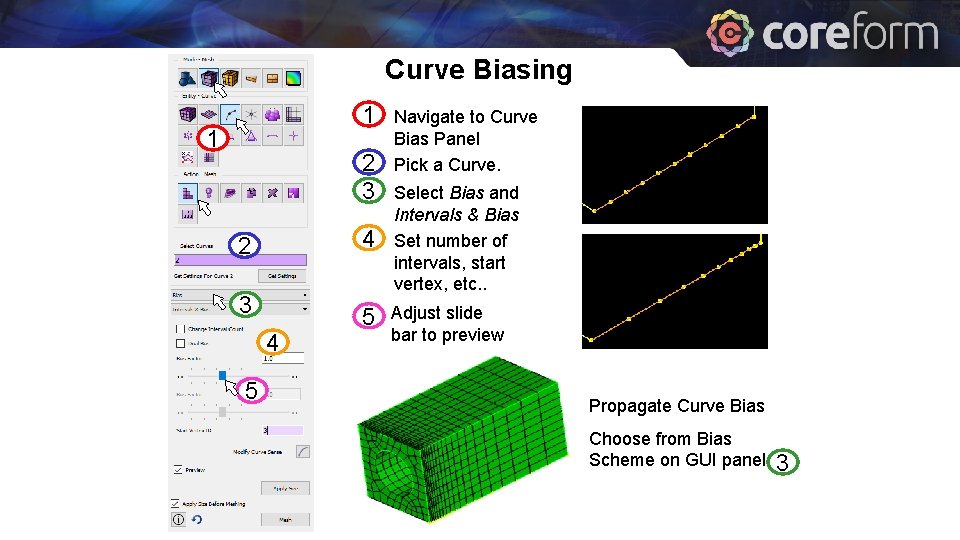
Curve Biasing 1 1 2 3 2 4 3 5 4 5 Navigate to Curve Bias Panel Pick a Curve. Select Bias and Intervals & Bias Set number of intervals, start vertex, etc. . Adjust slide bar to preview biased mesh. Propagate Curve Bias Choose from Bias Scheme on GUI panel 3
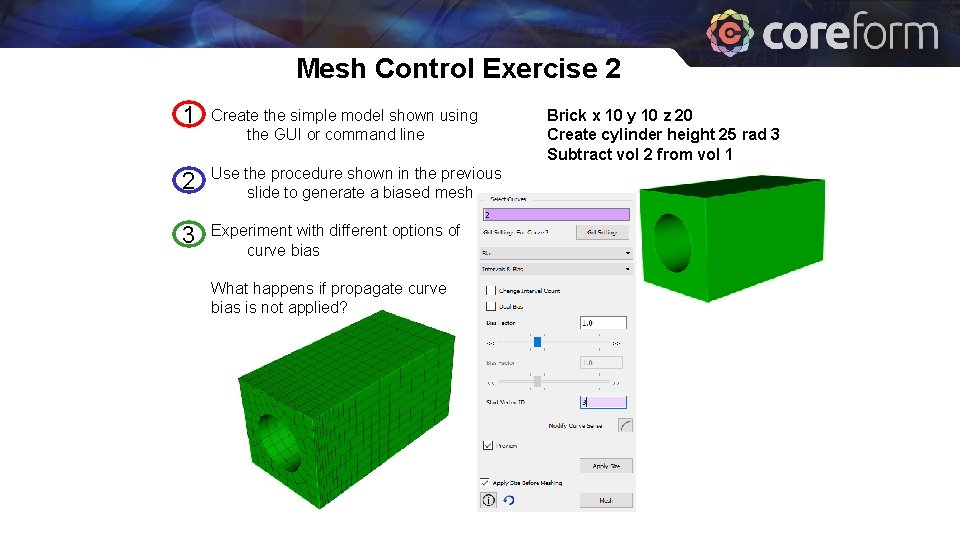
Mesh Control Exercise 2 1 Create the simple model shown using the GUI or command line 2 Use the procedure shown in the previous slide to generate a biased mesh 3 Experiment with different options of curve bias What happens if propagate curve bias is not applied? Brick x 10 y 10 z 20 Create cylinder height 25 rad 3 Subtract vol 2 from vol 1
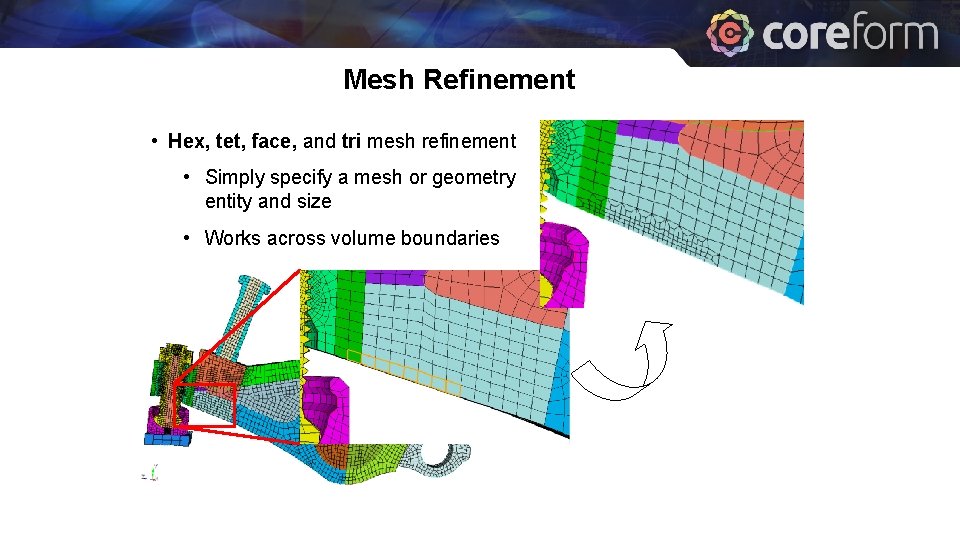
Mesh Refinement • Hex, tet, face, and tri mesh refinement • Simply specify a mesh or geometry entity and size • Works across volume boundaries
![Mesh Refinement Refine {Node|Edge|Tri|Face|Tet|Hex} <range> [Num. Split <int = 1>|Size <double> [Bias <double>]] [Depth](http://slidetodoc.com/presentation_image_h2/6e6d15dcfa3c2a81c3d0c4588fbb5238/image-20.jpg "Mesh Refinement Refine {Node|Edge|Tri|Face|Tet|Hex} <range> [Num. Split <int = 1>|Size <double> [Bias <double>]] [Depth")
Mesh Refinement Refine {Node|Edge|Tri|Face|Tet|Hex} <range> [Num. Split <int = 1>|Size <double> [Bias <double>]] [Depth <int>|Radius <double>] [Sizing_Function] [no_smooth] Refine {Vertex|Curve|Surface|Volume} <range> [Num. Split <int = 1>|Size <double> [Bias <double>]] [Depth <int>|Radius <double>] [Sizing_Function] [no_smooth]

Mesh Control Exercise 3 1 Use the same model you created for exercise 2 and reset the volume 2 Use the refine surface command panel to generate a graded hex mesh. Try an element depth of 5. 3 Reset the volume, generate a tet mesh and use the same tool to generate a graded tet mesh Graded hex mesh using element depth 5 applied twice Graded tet mesh using element depth 5 applied twice
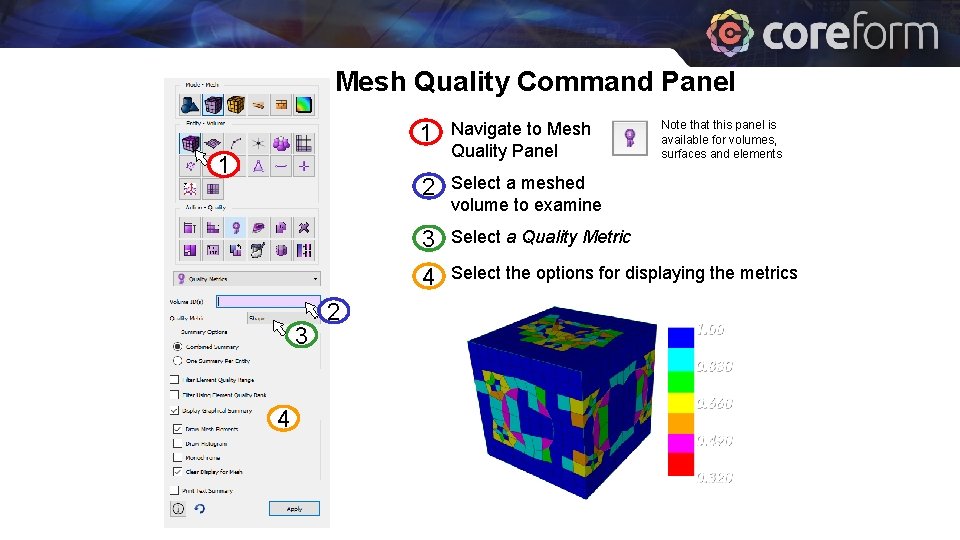
Mesh Quality Command Panel 1 3 4 2 Note that this panel is available for volumes, surfaces and elements 1 Navigate to Mesh Quality Panel 2 Select a meshed volume to examine 3 Select a Quality Metric 4 Select the options for displaying the metrics
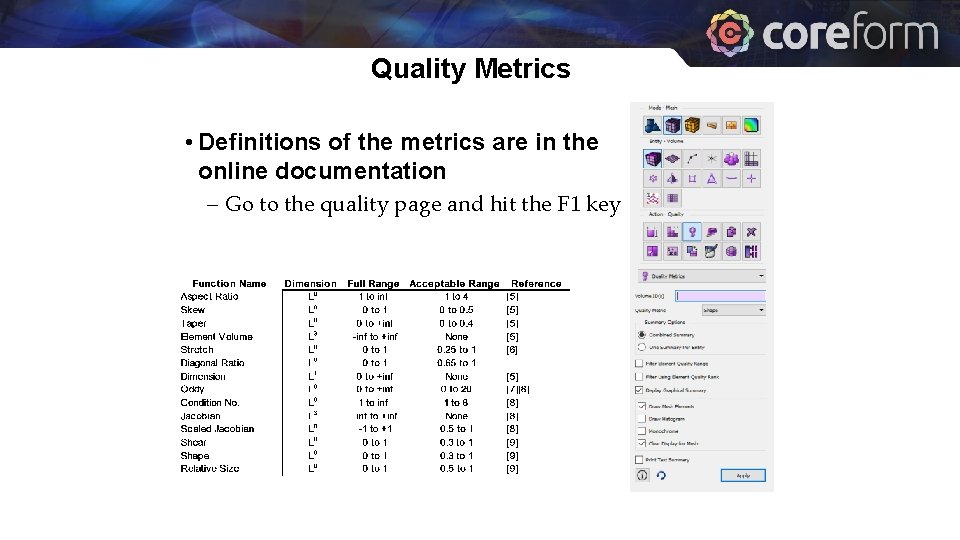
Quality Metrics • Definitions of the metrics are in the online documentation – Go to the quality page and hit the F 1 key

Automatic Mesh Quality Checks • Quality is automatically computed after every meshing or smoothing operation • Always check output window following meshing CUBIT> Mesh Volume 1 ERROR: >>>> Negative Jacobian Hex Element Generated! <<<<< Check Mesh Quality. CUBIT> Mesh Volume 1 WARNING: >>>> Poorly-shaped Hex Element Generated! <<<<< Check Mesh Quality • Use smoothing, cleanup or modify the geometry to improve quality before using mesh with poor quality in an analysis • Poor quality may be acceptable if located where physics is not as important. Engineering judgment needed.

Mesh Quality Select Options (or Preferences on Mac) menu to define quality metric(s) to use and the minimum and maximum criteria
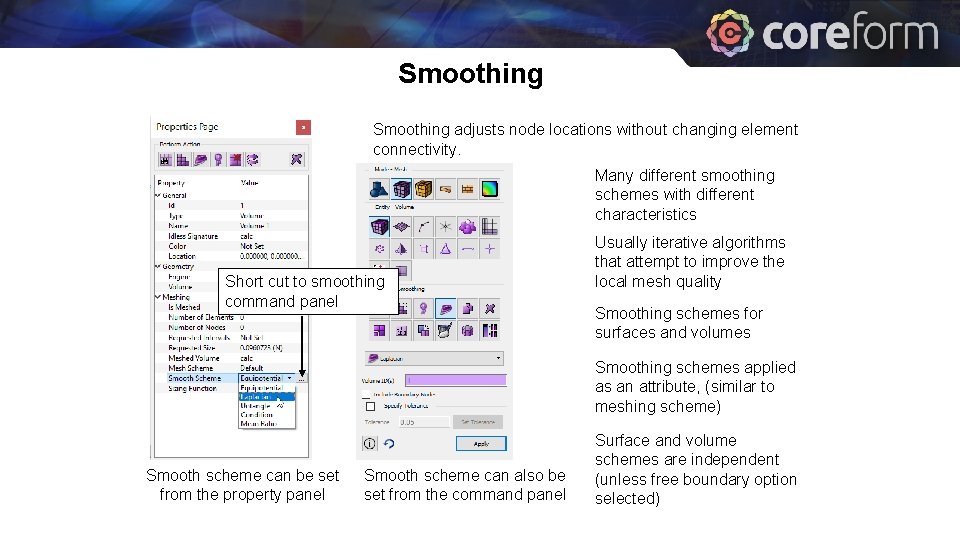
Smoothing adjusts node locations without changing element connectivity. Many different smoothing schemes with different characteristics Short cut to smoothing command panel Usually iterative algorithms that attempt to improve the local mesh quality Smoothing schemes for surfaces and volumes Smoothing schemes applied as an attribute, (similar to meshing scheme) Smooth scheme can be set from the property panel Smooth scheme can also be set from the command panel Surface and volume schemes are independent (unless free boundary option selected)
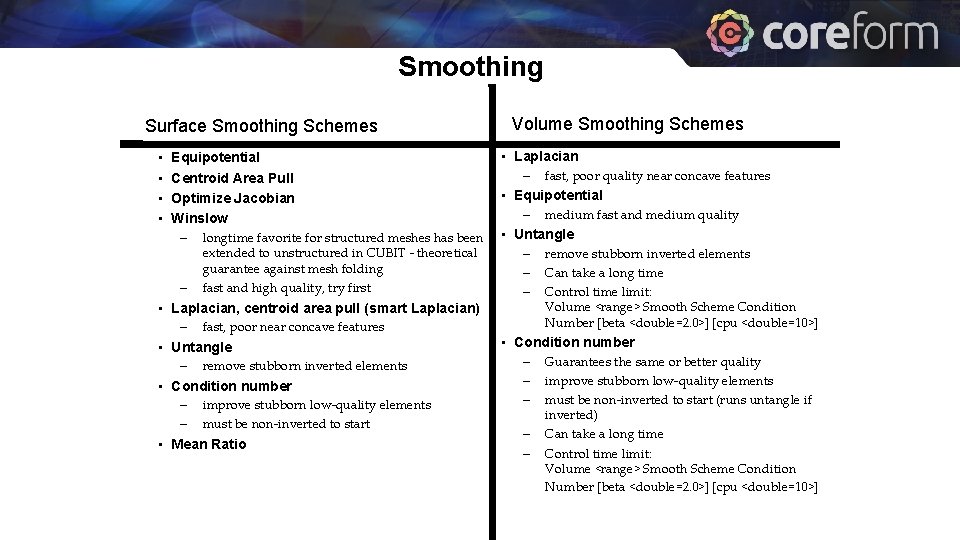
Smoothing Surface Smoothing Schemes • • Equipotential Centroid Area Pull Optimize Jacobian Winslow – longtime favorite for structured meshes has been – extended to unstructured in CUBIT - theoretical guarantee against mesh folding fast and high quality, try first • Laplacian, centroid area pull (smart Laplacian) – fast, poor near concave features • Untangle – remove stubborn inverted elements • Condition number – – improve stubborn low-quality elements must be non-inverted to start • Mean Ratio Volume Smoothing Schemes • Laplacian – fast, poor quality near concave features • Equipotential – medium fast and medium quality • Untangle – – – remove stubborn inverted elements Can take a long time Control time limit: Volume <range> Smooth Scheme Condition Number [beta <double=2. 0>] [cpu <double=10>] • Condition number – – – Guarantees the same or better quality improve stubborn low-quality elements must be non-inverted to start (runs untangle if inverted) Can take a long time Control time limit: Volume <range> Smooth Scheme Condition Number [beta <double=2. 0>] [cpu <double=10>]

Mesh Control Exercise 4 1 2 3 Open cub file “graft. cub” 4 Filter the mesh based on an upper limit of. 4 and a lower limit of 0 and redraw the mesh. 5 6 7 Draw the shape quality histogram for volume 1. 8 9 Set the 3 D filter in the tool bar. Navigate to the volume mesh quality panel Draw the mesh quality of volume 1 using the shape metric. Smooth volume 1 using mean ratio. Draw the mesh quality of volume 1 using the shape metric and the same filter as before. Select one of the poorly shaped elements and examine the properties panel. 4 3
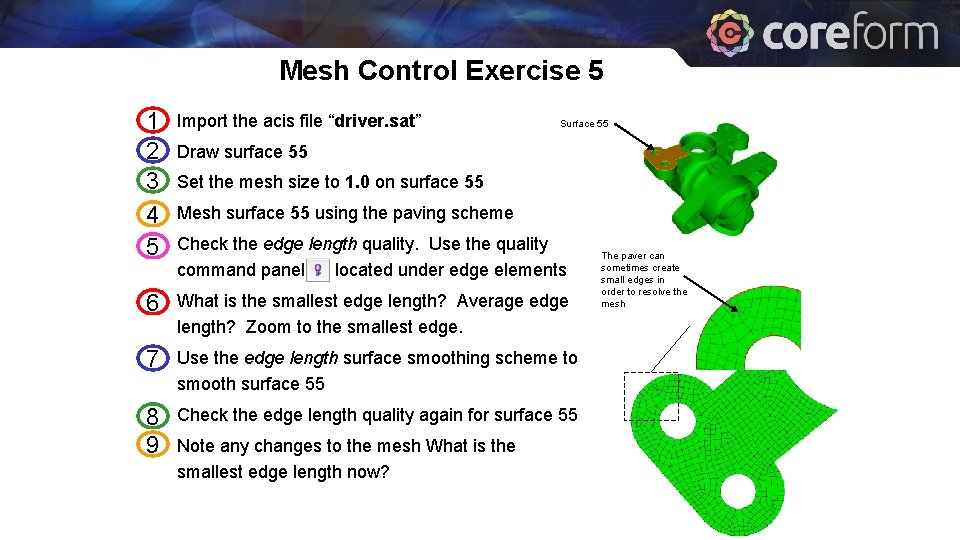
Mesh Control Exercise 5 1 2 3 4 5 Import the acis file “driver. sat” 6 What is the smallest edge length? Average edge length? Zoom to the smallest edge. 7 Use the edge length surface smoothing scheme to smooth surface 55 8 9 Check the edge length quality again for surface 55 Surface 55 Draw surface 55 Set the mesh size to 1. 0 on surface 55 Mesh surface 55 using the paving scheme Check the edge length quality. Use the quality command panel located under edge elements Note any changes to the mesh What is the smallest edge length now? The paver can sometimes create small edges in order to resolve the mesh
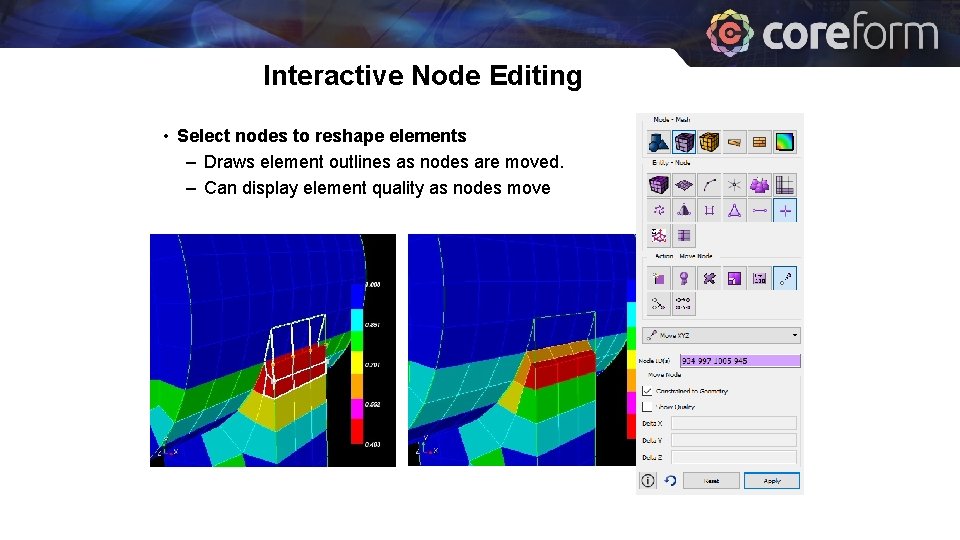
Interactive Node Editing • Select nodes to reshape elements – Draws element outlines as nodes are moved. – Can display element quality as nodes move
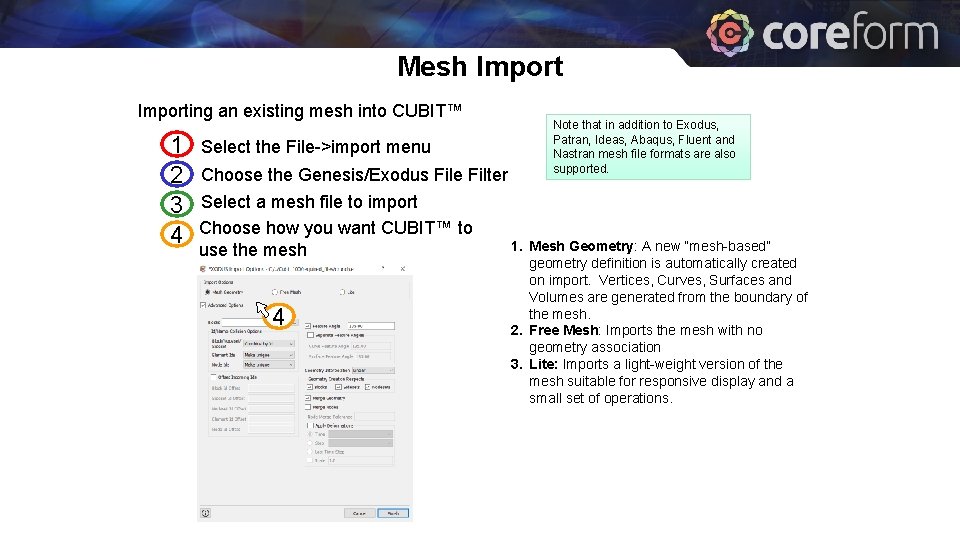
Mesh Importing an existing mesh into CUBIT™ 1 2 3 4 Select the File->import menu Choose the Genesis/Exodus File Filter Select a mesh file to import Choose how you want CUBIT™ to use the mesh 4 Note that in addition to Exodus, Patran, Ideas, Abaqus, Fluent and Nastran mesh file formats are also supported. 1. Mesh Geometry: A new “mesh-based” geometry definition is automatically created on import. Vertices, Curves, Surfaces and Volumes are generated from the boundary of the mesh. 2. Free Mesh: Imports the mesh with no geometry association 3. Lite: Imports a light-weight version of the mesh suitable for responsive display and a small set of operations.

Free Mesh Geometry Mesh Owned By Geometry Mesh Traditionally this is the only way mesh could exist in CUBIT™.
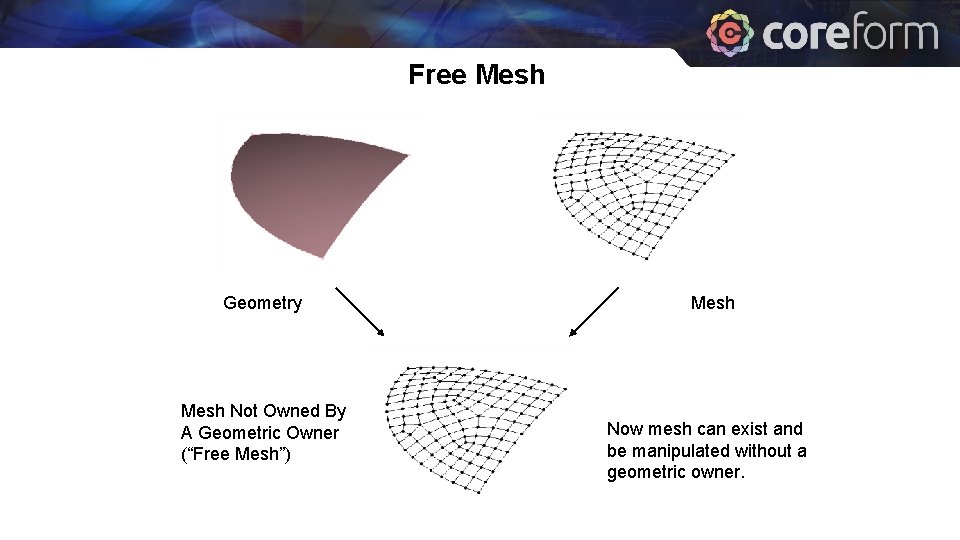
Free Mesh Geometry Mesh Not Owned By A Geometric Owner (“Free Mesh”) Mesh Now mesh can exist and be manipulated without a geometric owner.
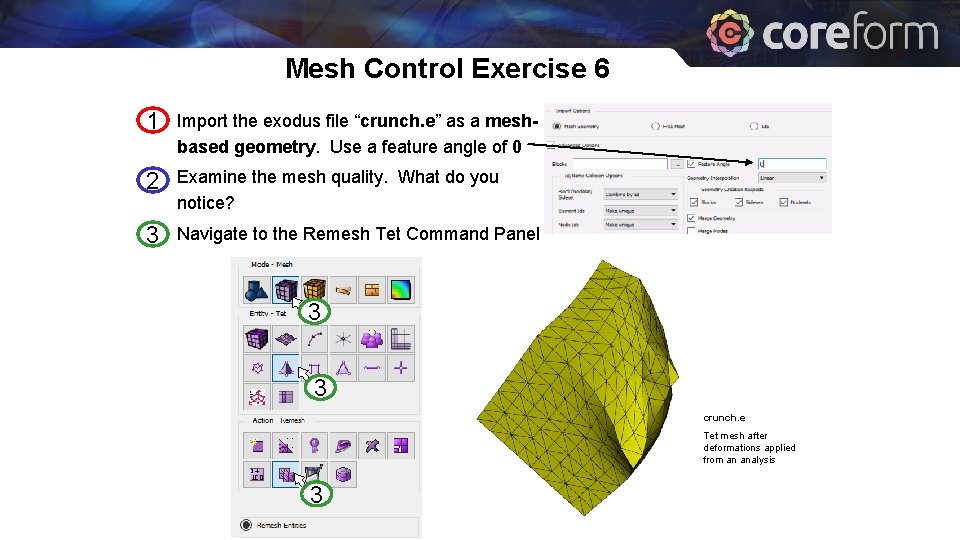
Mesh Control Exercise 6 1 Import the exodus file “crunch. e” as a meshbased geometry. Use a feature angle of 0 2 Examine the mesh quality. What do you notice? 3 Navigate to the Remesh Tet Command Panel 3 3 crunch. e Tet mesh after deformations applied from an analysis 3
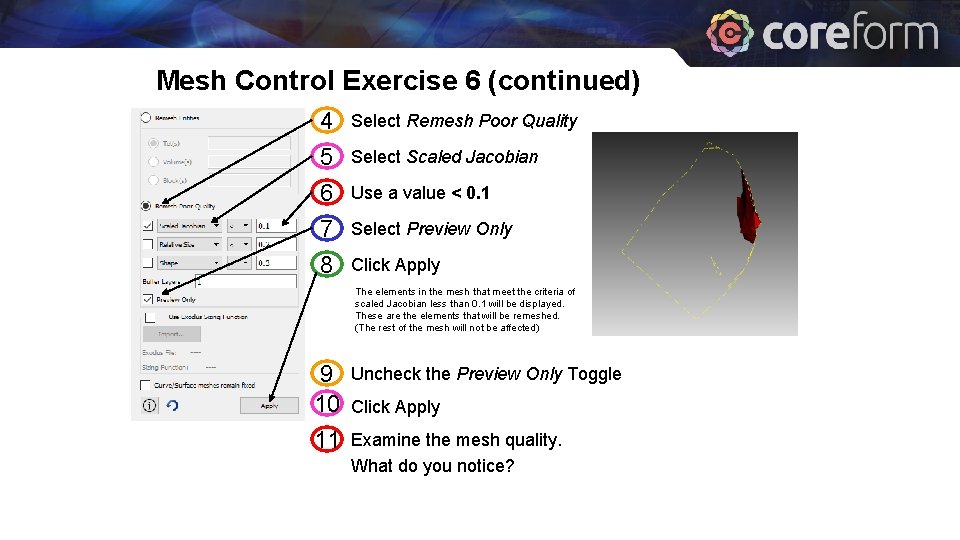
Mesh Control Exercise 6 (continued) 4 Select Remesh Poor Quality 5 6 7 Select Scaled Jacobian 8 Click Apply Use a value < 0. 1 Select Preview Only The elements in the mesh that meet the criteria of scaled Jacobian less than 0. 1 will be displayed. These are the elements that will be remeshed. (The rest of the mesh will not be affected) 9 10 11 Uncheck the Preview Only Toggle Click Apply Examine the mesh quality. What do you notice?
- Slides: 35