
CSStudio Display Builder Tutorial presented Spring 2017 EPICS
CS-Studio Display Builder Tutorial presented: Spring 2017 EPICS Collaboration Meeting at KURRI, Osaka, Japan Kay Kasemir (kasemir@ornl. gov)
Overview • Display Builder replaces OPI Builder (BOY) in CS-Studio – – – Built on Eclipse plugin framework as both a user interface and IDE Editor perspective to create user interfaces Runtime perspective to interact with user interfaces Backward compatible (mostly), can import. opi files and save as. bob 30+ widget types at this time • • Simple data read/write widgets like gauges and input fields Complex interactive widgets like custom graphs or a web browser Structural and design widgets like text labels, images, and groups Customize widgets for your site using widget style classes – Scripting support for custom behaviors – Integrated with other CS-Studio tools, e. g. data browser
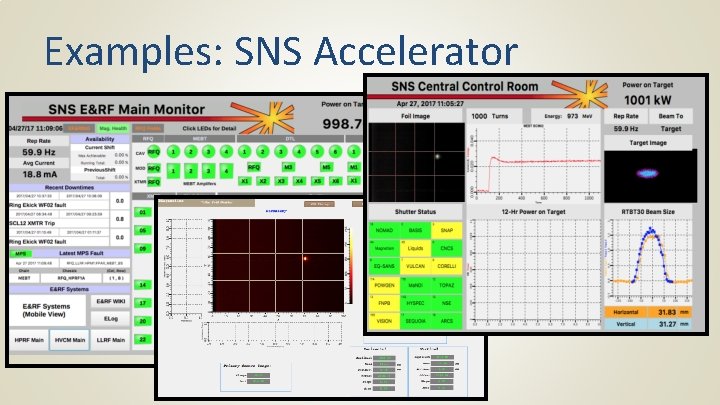
Examples: SNS Accelerator
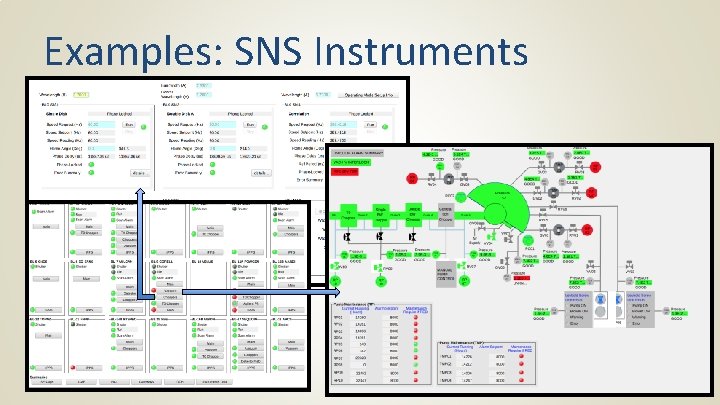
Examples: SNS Instruments
CS-Studio • • Display Builder is a component of the Control System Studio CS-Studio is an extension of the Eclipse IDE – http: //controlsystemstudio. org/ – https: //eclipse. org/ide/ • • • CS-studio can be downloaded from the location above, or through one of the site specific download areas Like Eclipse IDE, CS-Studio will run on any Windows/Linux/OSX with a supported version of Java This tutorial is based on a redhat virtual machine image running the SNS version of CS-Studio
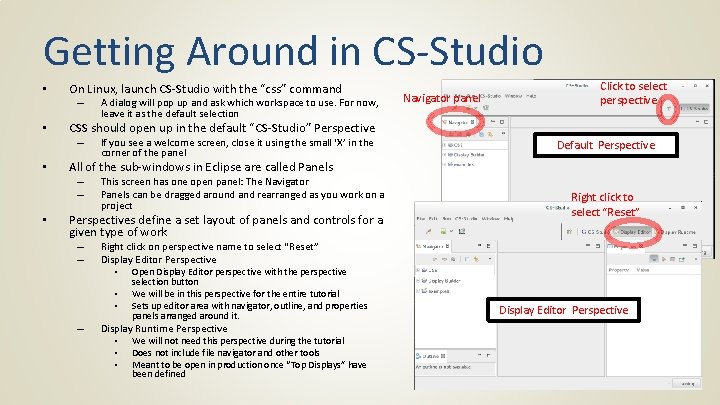
Getting Around in CS-Studio • On Linux, launch CS-Studio with the “css” command – • If you see a welcome screen, close it using the small ‘X’ in the corner of the panel Default Perspective All of the sub-windows in Eclipse are called Panels – – • Click to select perspective CSS should open up in the default “CS-Studio” Perspective – • A dialog will pop up and ask which workspace to use. For now, leave it as the default selection Navigator panel This screen has one open panel: The Navigator Panels can be dragged around and rearranged as you work on a project Perspectives define a set layout of panels and controls for a given type of work – – Right click on perspective name to select “Reset” Display Editor Perspective • Open Display Editor perspective with the perspective • • – Right click to select “Reset” selection button We will be in this perspective for the entire tutorial Sets up editor area with navigator, outline, and properties panels arranged around it. Display Runtime Perspective • We will not need this perspective during the tutorial • Does not include file navigator and other tools • Meant to be open in production once “Top Displays” have been defined Display Editor Perspective
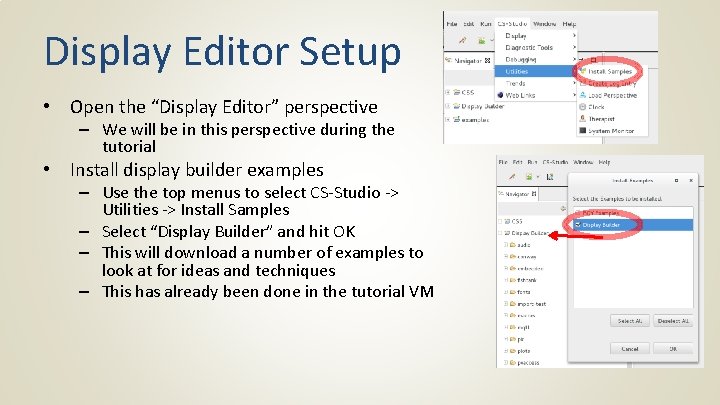
Display Editor Setup • Open the “Display Editor” perspective – We will be in this perspective during the tutorial • Install display builder examples – Use the top menus to select CS-Studio -> Utilities -> Install Samples – Select “Display Builder” and hit OK – This will download a number of examples to look at for ideas and techniques – This has already been done in the tutorial VM
Display Editor: Basics • Focus on function: Edit and Run displays connected to PVs • Common control system elements should be as easy as 1 -2 -3: 1. 2. 3. Drag and drop a “Text Update” widget onto your display in the editor Assign an EPICS process variable (PV) to your widget in the editor Hit “Run” and see your display in the runtime What you will get for less than 5 minutes effort: ü ü PV value as text PV severity reflected in border color PV name and value shown in tool-tip Indication of‘disconnected’state via a pink border
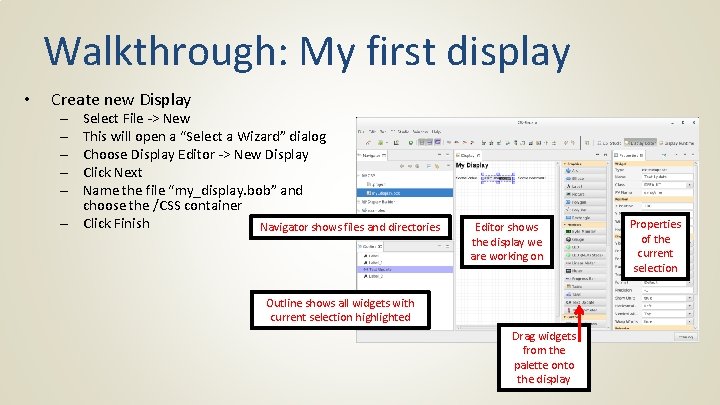
Walkthrough: My first display • Create new Display Select File -> New This will open a “Select a Wizard” dialog Choose Display Editor -> New Display Click Next Name the file “my_display. bob” and choose the /CSS container – Click Finish Navigator shows files and directories – – – Editor shows the display we are working on Outline shows all widgets with current selection highlighted Drag widgets from the palette onto the display Properties of the current selection
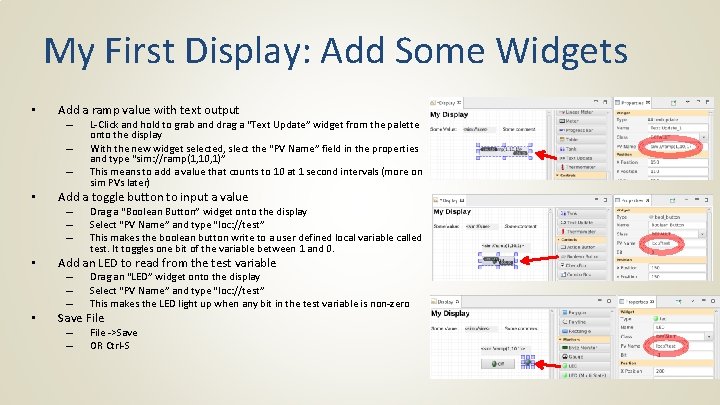
My First Display: Add Some Widgets • Add a ramp value with text output – – – • Add a toggle button to input a value – – – • Drag a “Boolean Button” widget onto the display Select “PV Name” and type “loc: //test” This makes the boolean button write to a user defined local variable called test. It toggles one bit of the variable between 1 and 0. Add an LED to read from the test variable – – – • L-Click and hold to grab and drag a “Text Update” widget from the palette onto the display With the new widget selected, slect the “PV Name” field in the properties and type “sim: //ramp(1, 10, 1)” This means to add a value that counts to 10 at 1 second intervals (more on sim PVs later) Drag an “LED” widget onto the display Select “PV Name” and type “loc: //test” This makes the LED light up when any bit in the test variable is non-zero Save File – – File ->Save OR Ctrl-S
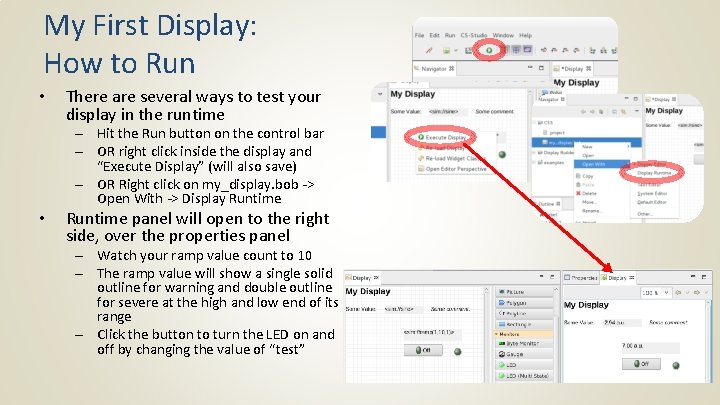
My First Display: How to Run • There are several ways to test your display in the runtime – Hit the Run button on the control bar – OR right click inside the display and “Execute Display” (will also save) – OR Right click on my_display. bob -> Open With -> Display Runtime • Runtime panel will open to the right side, over the properties panel – Watch your ramp value count to 10 – The ramp value will show a single solid outline for warning and double outline for severe at the high and low end of its range – Click the button to turn the LED on and off by changing the value of “test”
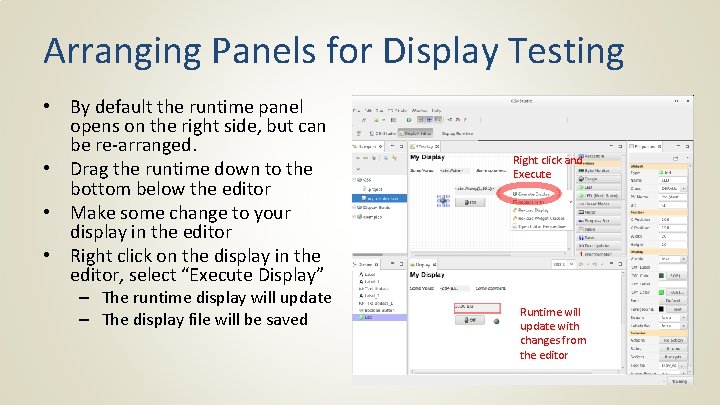
Arranging Panels for Display Testing • By default the runtime panel opens on the right side, but can be re-arranged. • Drag the runtime down to the bottom below the editor • Make some change to your display in the editor • Right click on the display in the editor, select “Execute Display” – The runtime display will update – The display file will be saved Right click and Execute Runtime will update with changes from the editor
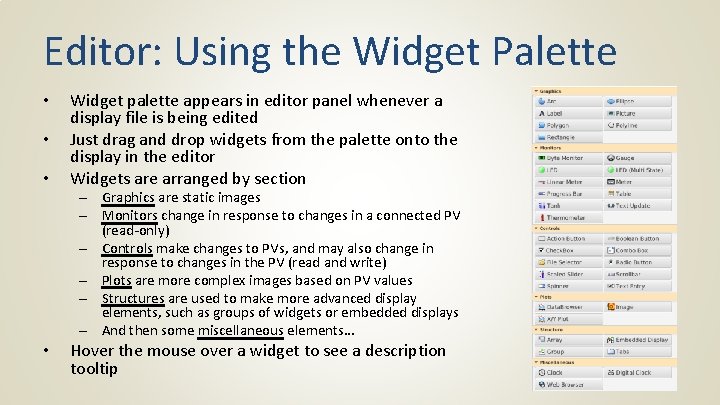
Editor: Using the Widget Palette • • • Widget palette appears in editor panel whenever a display file is being edited Just drag and drop widgets from the palette onto the display in the editor Widgets are arranged by section – Graphics are static images – Monitors change in response to changes in a connected PV (read-only) – Controls make changes to PVs, and may also change in response to changes in the PV (read and write) – Plots are more complex images based on PV values – Structures are used to make more advanced display elements, such as groups of widgets or embedded displays – And then some miscellaneous elements… • Hover the mouse over a widget to see a description tooltip
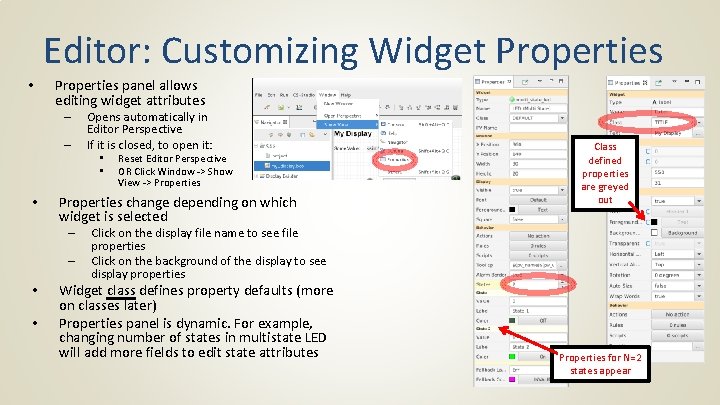
Editor: Customizing Widget Properties • Properties panel allows editing widget attributes – – Opens automatically in Editor Perspective If it is closed, to open it: • • • Properties change depending on which widget is selected – – • • Reset Editor Perspective OR Click Window -> Show View -> Properties Class defined properties are greyed out Click on the display file name to see file properties Click on the background of the display to see display properties Widget class defines property defaults (more on classes later) Properties panel is dynamic. For example, changing number of states in multistate LED will add more fields to edit state attributes Properties for N=2 states appear
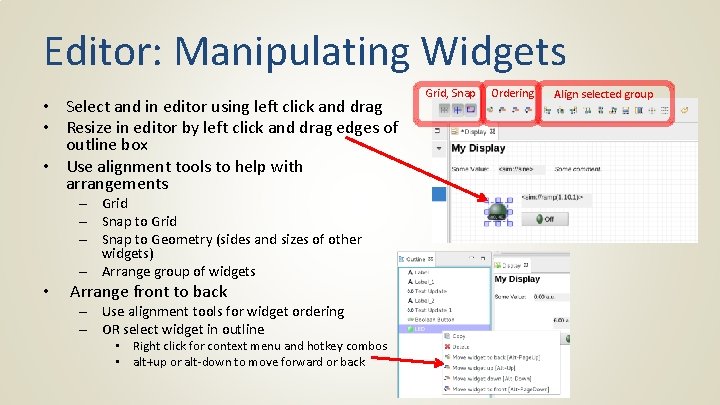
Editor: Manipulating Widgets • Select and in editor using left click and drag • Resize in editor by left click and drag edges of outline box • Use alignment tools to help with arrangements – Grid – Snap to Geometry (sides and sizes of other widgets) – Arrange group of widgets • Arrange front to back – Use alignment tools for widget ordering – OR select widget in outline • Right click for context menu and hotkey combos • alt+up or alt-down to move forward or back Grid, Snap Ordering Align selected group
PV Names and Examples • ca: //some_pv_name – EPICS Channel Access PV • some_pv_name – Typically same, since “ca: //” is the default • sim: //sine – Simulated PV. Read online help for details • loc: //x(4) – Local PV. Read online help for details • pva: //x – EPICS V 4 pv. Access
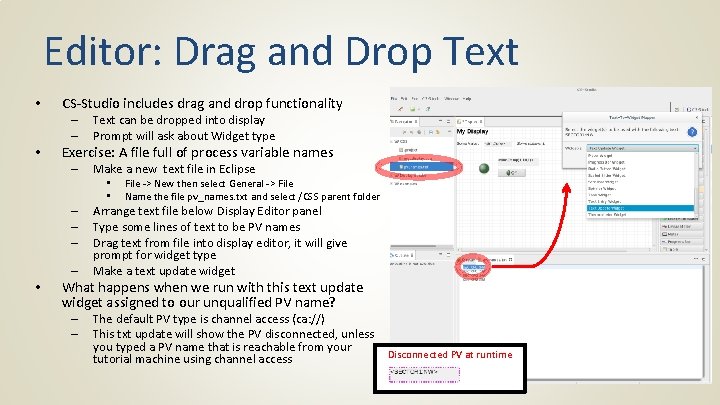
Editor: Drag and Drop Text • CS-Studio includes drag and drop functionality – – • Text can be dropped into display Prompt will ask about Widget type Exercise: A file full of process variable names – Make a new text file in Eclipse • • – – • File -> New then select General -> File Name the file pv_names. txt and select /CSS parent folder Arrange text file below Display Editor panel Type some lines of text to be PV names Drag text from file into display editor, it will give prompt for widget type Make a text update widget What happens when we run with this text update widget assigned to our unqualified PV name? – – The default PV type is channel access (ca: //) This txt update will show the PV disconnected, unless you typed a PV name that is reachable from your Disconnected PV at runtime tutorial machine using channel access
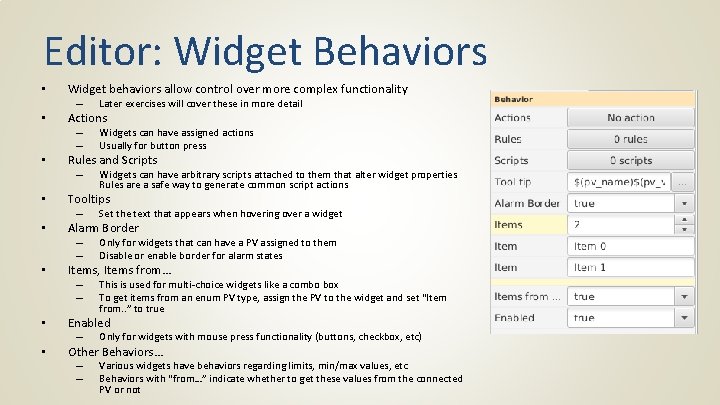
Editor: Widget Behaviors • Widget behaviors allow control over more complex functionality – • Actions – – • Set the text that appears when hovering over a widget Alarm Border – – • Widgets can have arbitrary scripts attached to them that alter widget properties Rules are a safe way to generate common script actions Tooltips – • Widgets can have assigned actions Usually for button press Rules and Scripts – • Later exercises will cover these in more detail Only for widgets that can have a PV assigned to them Disable or enable border for alarm states Items, Items from… – – This is used for multi-choice widgets like a combo box To get items from an enum PV type, assign the PV to the widget and set “Item from. . ” to true • Enabled • Other Behaviors… – – – Only for widgets with mouse press functionality (buttons, checkbox, etc) Various widgets have behaviors regarding limits, min/max values, etc Behaviors with “from…” indicate whether to get these values from the connected PV or not
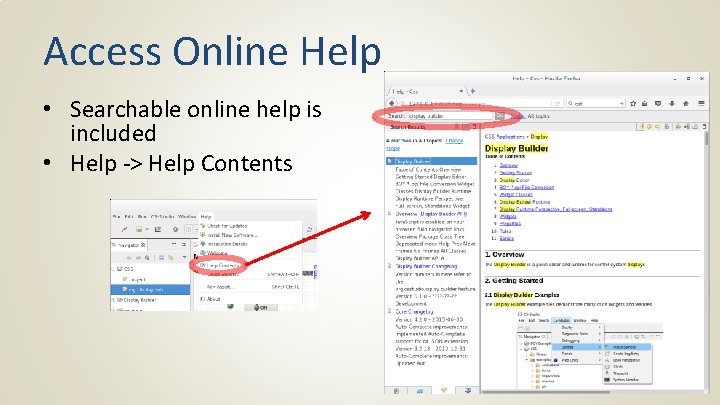
Access Online Help • Searchable online help is included • Help -> Help Contents
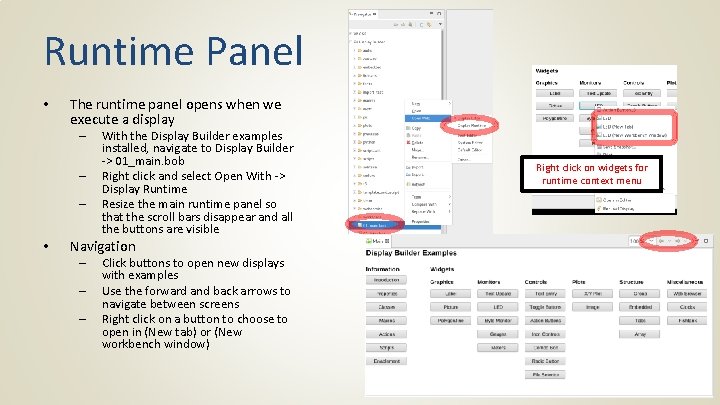
Runtime Panel • The runtime panel opens when we execute a display – – – • With the Display Builder examples installed, navigate to Display Builder -> 01_main. bob Right click and select Open With -> Display Runtime Resize the main runtime panel so that the scroll bars disappear and all the buttons are visible Navigation – – – Click buttons to open new displays with examples Use the forward and back arrows to navigate between screens Right click on a button to choose to open in (New tab) or (New workbench window) Right click on widgets for runtime context menu
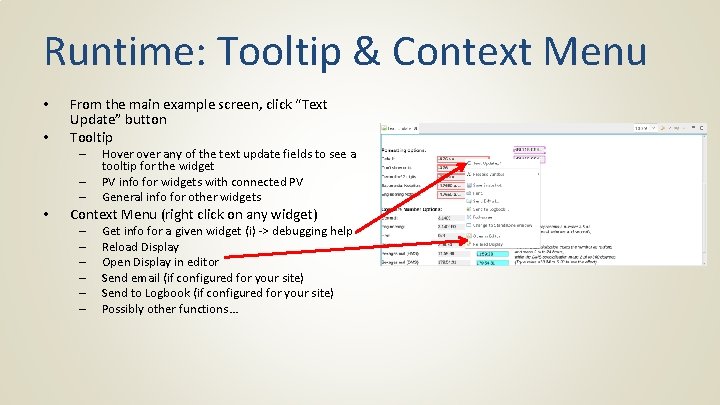
Runtime: Tooltip & Context Menu • • From the main example screen, click “Text Update” button Tooltip – – – • Hover any of the text update fields to see a tooltip for the widget PV info for widgets with connected PV General info for other widgets Context Menu (right click on any widget) – – – Get info for a given widget (i) -> debugging help Reload Display Open Display in editor Send email (if configured for your site) Send to Logbook (if configured for your site) Possibly other functions…
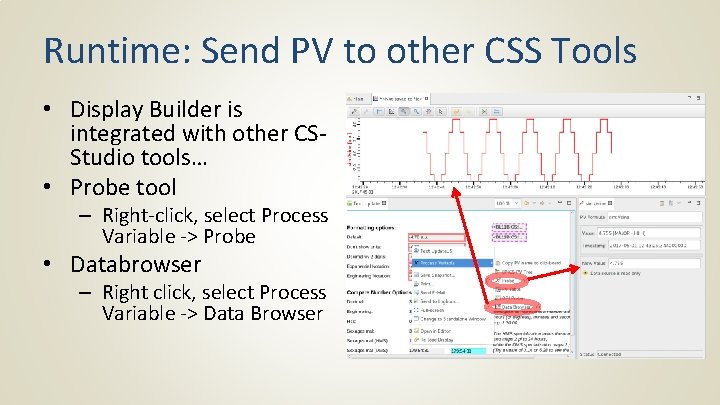
Runtime: Send PV to other CSS Tools • Display Builder is integrated with other CSStudio tools… • Probe tool – Right-click, select Process Variable -> Probe • Databrowser – Right click, select Process Variable -> Data Browser
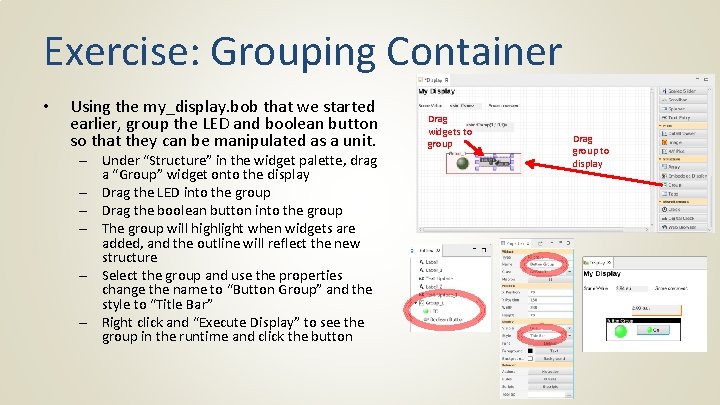
Exercise: Grouping Container • Using the my_display. bob that we started earlier, group the LED and boolean button so that they can be manipulated as a unit. – Under “Structure” in the widget palette, drag a “Group” widget onto the display – Drag the LED into the group – Drag the boolean button into the group – The group will highlight when widgets are added, and the outline will reflect the new structure – Select the group and use the properties change the name to “Button Group” and the style to “Title Bar” – Right click and “Execute Display” to see the group in the runtime and click the button Drag widgets to group Drag group to display
Exercise: Macros and Containers • Display Builder supports macros – – – Notate as $(macro) or ${macro} Can be used for any widget property Often used as PV name or partial PV name • • Utility of this comes from building a display using macros, then making several instances of this display with different macro definitions Macros can be defined at various levels, and are resolved in the following precedence: – – – • ${pv} ${pvprefix}_setpoint Preferences Open. Display. Action Embedded. Widget Display. Model Group. Widget For the next exercise: – – Make a new display (“sub_display. bob”) using macros for widget properties Add two embedded displays to “my_display. bob” with different macro definitions for sub display widgets
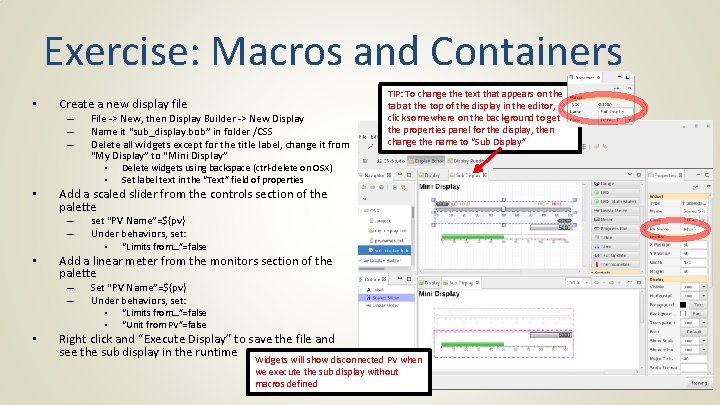
Exercise: Macros and Containers • Create a new display file – – – • Add a scaled slider from the controls section of the palette – – • set “PV Name”=${pv} Under behaviors, set: • “Limits from…”=false Add a linear meter from the monitors section of the palette – – • File -> New, then Display Builder -> New Display Name it “sub_display. bob” in folder /CSS Delete all widgets except for the title label, change it from “My Display” to “Mini Display” • Delete widgets using backspace (ctrl-delete on OSX) • Set label text in the “Text” field of properties TIP: To change the text that appears on the tab at the top of the display in the editor, click somewhere on the background to get the properties panel for the display, then change the name to “Sub Display” Set “PV Name”=${pv} Under behaviors, set: • “Limits from…”=false • “Unit from PV”=false Right click and “Execute Display” to save the file and see the sub display in the runtime Widgets will show disconnected PV when we execute the sub display without macros defined
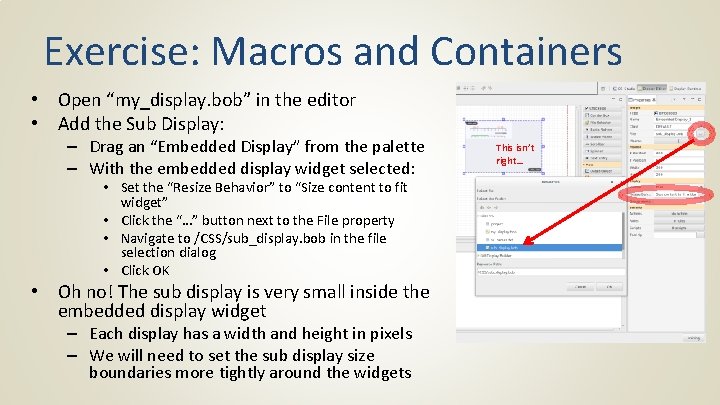
Exercise: Macros and Containers • Open “my_display. bob” in the editor • Add the Sub Display: – Drag an “Embedded Display” from the palette – With the embedded display widget selected: • Set the “Resize Behavior” to “Size content to fit widget” • Click the “…” button next to the File property • Navigate to /CSS/sub_display. bob in the file selection dialog • Click OK • Oh no! The sub display is very small inside the embedded display widget – Each display has a width and height in pixels – We will need to set the sub display size boundaries more tightly around the widgets This isn’t right…
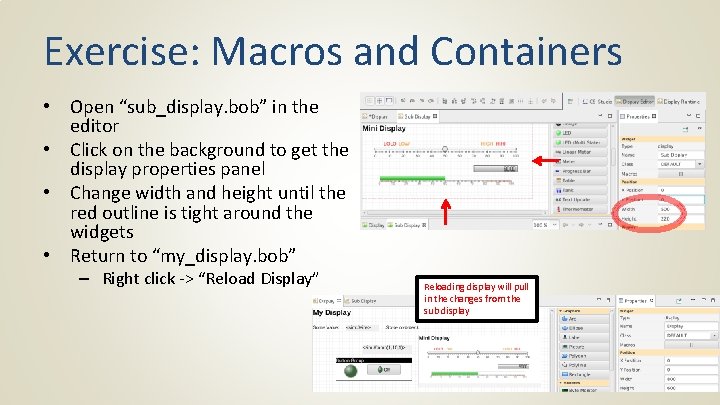
Exercise: Macros and Containers • Open “sub_display. bob” in the editor • Click on the background to get the display properties panel • Change width and height until the red outline is tight around the widgets • Return to “my_display. bob” – Right click -> “Reload Display” Reloading display will pull in the changes from the sub display
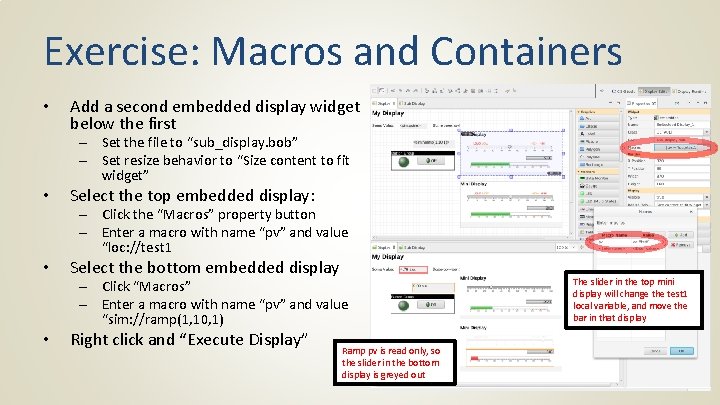
Exercise: Macros and Containers • Add a second embedded display widget below the first – Set the file to “sub_display. bob” – Set resize behavior to “Size content to fit widget” • Select the top embedded display: – Click the “Macros” property button – Enter a macro with name “pv” and value “loc: //test 1 • Select the bottom embedded display – Click “Macros” – Enter a macro with name “pv” and value “sim: //ramp(1, 10, 1) • Right click and “Execute Display” Ramp pv is read only, so the slider in the bottom display is greyed out The slider in the top mini display will change the test 1 local variable, and move the bar in that display
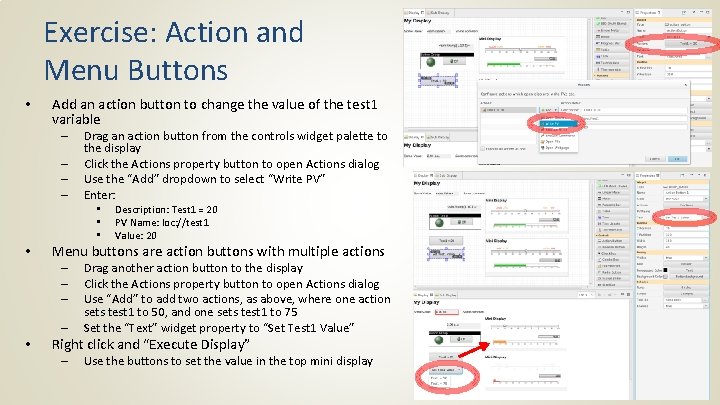
Exercise: Action and Menu Buttons • Add an action button to change the value of the test 1 variable – – Drag an action button from the controls widget palette to the display Click the Actions property button to open Actions dialog Use the “Add” dropdown to select “Write PV” Enter: • • Menu buttons are action buttons with multiple actions – – • Description: Test 1 = 20 PV Name: loc: //test 1 Value: 20 Drag another action button to the display Click the Actions property button to open Actions dialog Use “Add” to add two actions, as above, where one action sets test 1 to 50, and one sets test 1 to 75 Set the “Text” widget property to “Set Test 1 Value” Right click and “Execute Display” – Use the buttons to set the value in the top mini display
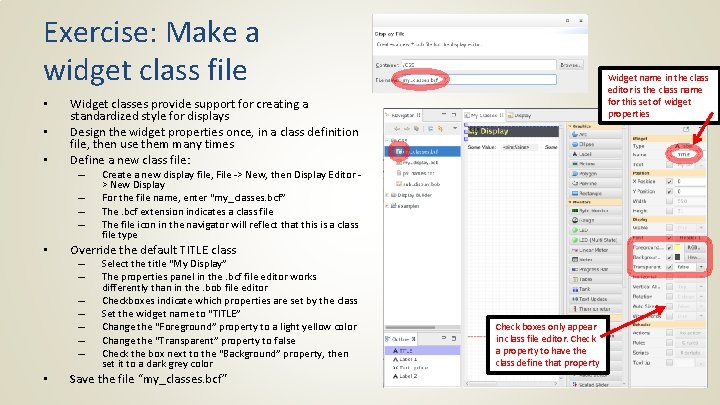
Exercise: Make a widget class file • • • Widget classes provide support for creating a standardized style for displays Design the widget properties once, in a class definition file, then use them many times Define a new class file: – – • Create a new display file, File -> New, then Display Editor > New Display For the file name, enter “my_classes. bcf” The. bcf extension indicates a class file The file icon in the navigator will reflect that this is a class file type Override the default TITLE class – – – – • Widget name in the class editor is the class name for this set of widget properties Select the title “My Display” The properties panel in the. bcf file editor works differently than in the. bob file editor Checkboxes indicate which properties are set by the class Set the widget name to “TITLE” Change the “Foreground” property to a light yellow color Change the “Transparent” property to false Check the box next to the “Background” property, then set it to a dark grey color Save the file “my_classes. bcf” Check boxes only appear in class file editor. Check a property to have the class define that property
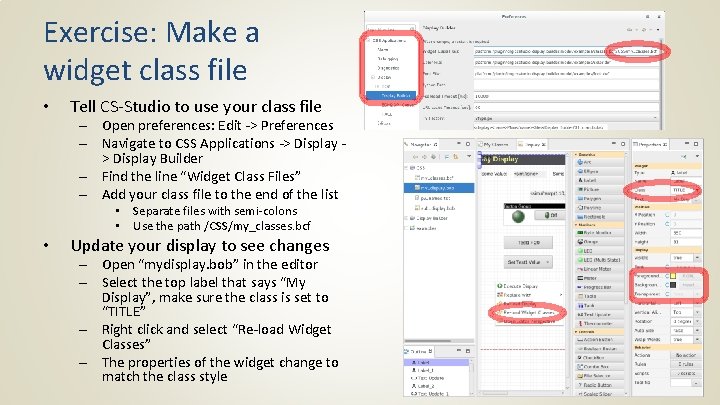
Exercise: Make a widget class file • Tell CS-Studio to use your class file – Open preferences: Edit -> Preferences – Navigate to CSS Applications -> Display Builder – Find the line “Widget Class Files” – Add your class file to the end of the list • Separate files with semi-colons • Use the path /CSS/my_classes. bcf • Update your display to see changes – Open “mydisplay. bob” in the editor – Select the top label that says “My Display”, make sure the class is set to “TITLE” – Right click and select “Re-load Widget Classes” – The properties of the widget change to match the class style
Exercise: Widget Classes • Class files – Can override classes or define entirely new ones • One could design a “BLUE LED” in a class file • Once the. bcf class file is loaded, “BLUE LED” will appear in the class dropdown for LEDs in the display editor for. bob files – Are resolved in the order they are listed • You could have a “master. bcf”, then override certain settings in another file, “control_room 1. bcf” • Classes – Are applied to widgets when CS-Studio starts up – Are applied to widgets when the display is reloaded – Are applied to widgets when the widget classes are reloaded
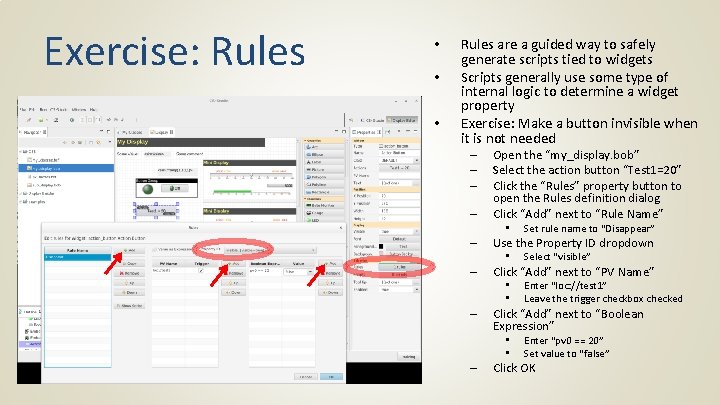
Exercise: Rules • • • Rules are a guided way to safely generate scripts tied to widgets Scripts generally use some type of internal logic to determine a widget property Exercise: Make a button invisible when it is not needed – – Open the “my_display. bob” Select the action button “Test 1=20” Click the “Rules” property button to open the Rules definition dialog Click “Add” next to “Rule Name” • Set rule name to “Disappear” – Use the Property ID dropdown – Click “Add” next to “PV Name” • • • – Enter “loc: //test 1” Leave the trigger checkbox checked Click “Add” next to “Boolean Expression” • • – Select “visible” Enter “pv 0 == 20” Set value to “false” Click OK
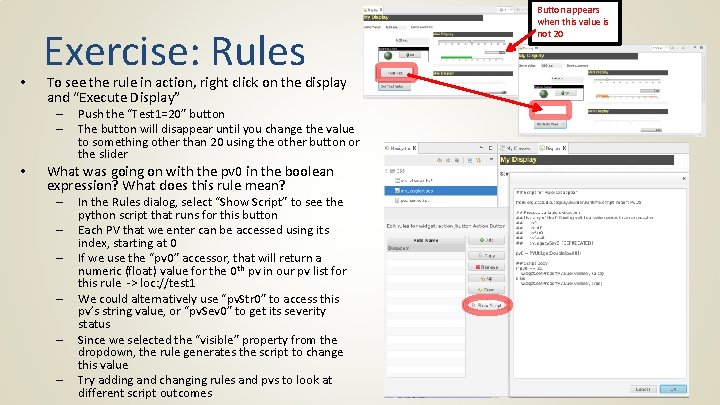
• Exercise: Rules To see the rule in action, right click on the display and “Execute Display” – – • Push the “Test 1=20” button The button will disappear until you change the value to something other than 20 using the other button or the slider What was going on with the pv 0 in the boolean expression? What does this rule mean? – – – In the Rules dialog, select “Show Script” to see the python script that runs for this button Each PV that we enter can be accessed using its index, starting at 0 If we use the “pv 0” accessor, that will return a numeric (float) value for the 0 th pv in our pv list for this rule -> loc: //test 1 We could alternatively use “pv. Str 0” to access this pv’s string value, or “pv. Sev 0” to get its severity status Since we selected the “visible” property from the dropdown, the rule generates the script to change this value Try adding and changing rules and pvs to look at different script outcomes Button appears when this value is not 20
Scripting… • As seen in rules, widgets can have scripts tied to them • Scripting behavior is more advanced topic • See Help and examples to get started scripting • Use Scripts widget property to attach Python or Java. Script
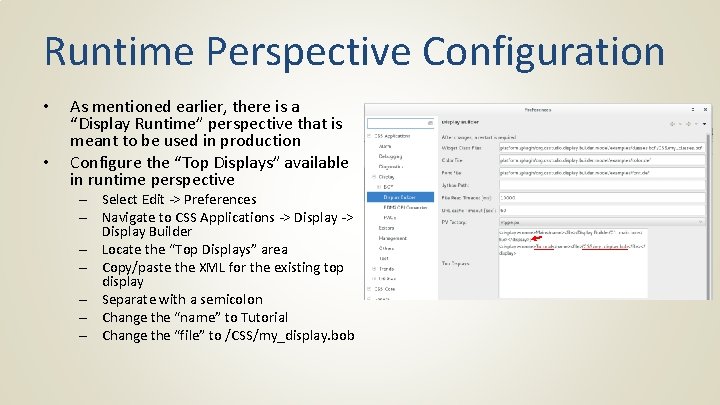
Runtime Perspective Configuration • • As mentioned earlier, there is a “Display Runtime” perspective that is meant to be used in production Configure the “Top Displays” available in runtime perspective – Select Edit -> Preferences – Navigate to CSS Applications -> Display Builder – Locate the “Top Displays” area – Copy/paste the XML for the existing top display – Separate with a semicolon – Change the “name” to Tutorial – Change the “file” to /CSS/my_display. bob
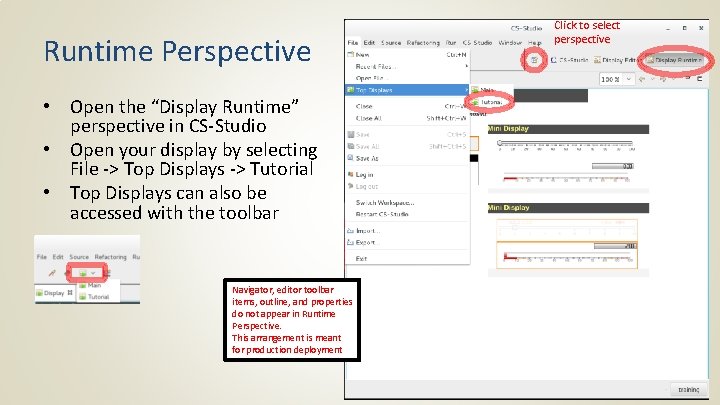
Runtime Perspective • Open the “Display Runtime” perspective in CS-Studio • Open your display by selecting File -> Top Displays -> Tutorial • Top Displays can also be accessed with the toolbar Navigator, editor toolbar items, outline, and properties do not appear in Runtime Perspective. This arrangement is meant for production deployment Click to select perspective
Backward Compatibility: OPI Files • Display Editor can be used to import. OPI files – Right click on. opi and select Open With -> Display Editor – Most widgets will work, screens need to be checked – Scripts will need to be updated • When the file is saved from display editor, it will save in new. bob format • Can maintain both files – Will use the. bob file if both exist – Scripts can check if they are running in BOY or Display Builder and take different actions depending on runtime environment • See examples -> script_util -> portable. py
For more information… • CS-Studio is an open source collaborative project • http: //controlsystemstudio. org/
- Slides: 39