
CSS Second CSS Lecture Applications to XML A
- Slides: 18
CSS Second CSS Lecture Applications to XML
A different emphasis n CSS is the same for XML as it is for HTML, but-n n HTML already does a pretty good job of layout (arranging elements on the page) XML contains no layout information, so by itself it will typically be displayed as one single huge blob of text When writing CSS for XML, typically the first thing you need to worry about is arranging text on the page No current browser does a good job of supporting CSS, particularly when used with XML, so: n n You should make sure everyone who views your pages uses the same version of the same browser (this is possible in some companies), or You should test your pages in all the most common browsers 2
The display property n n Every XML element that is formatted by a CSS command is considered to be in an invisible “box” The box containing an XML element can have one of three display properties: n display: block n n display: inline n n The element will start on a new line, and so will the element that follows it (an HTML paragraph is an example) (default) The element will not start on a new line, or cause the next element to start on a new line (bold is an HTML example) display: none n The element is hidden and will not appear on the display 3
CSS units n For many of the remaining CSS values, we will need to be able to specify size measurements n n n These are used to specify sizes: n em width of the letter ‘m’ n ex height of the letter ‘x’ n px pixels (usually 72 per inch, but depends on monitor) n % percent of inherited size These are also used to specify sizes, but don’t really make sense unless you know the screen resolution: n in inches n cm centimeters n mm millimeters n pt points (72 pt = 1 in) n pc picas (1 pc = 12 pt) Note: you can use decimal fractions, such as 1. 5 cm 4
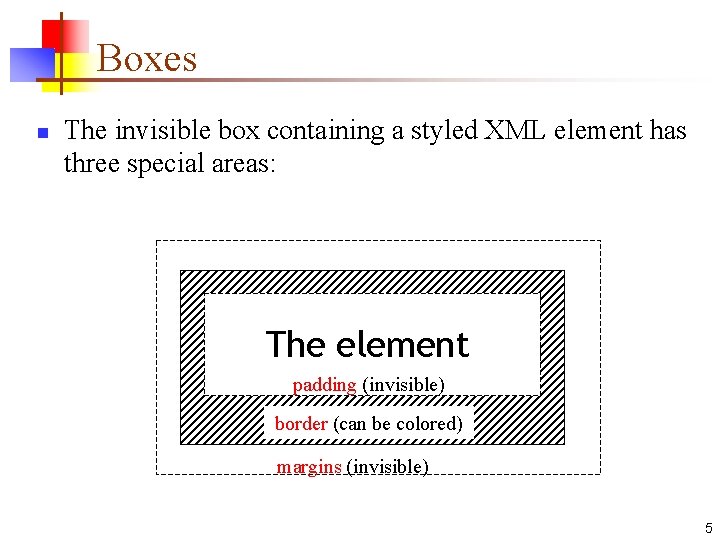
Boxes n The invisible box containing a styled XML element has three special areas: The element padding (invisible) border (can be colored) margins (invisible) 5
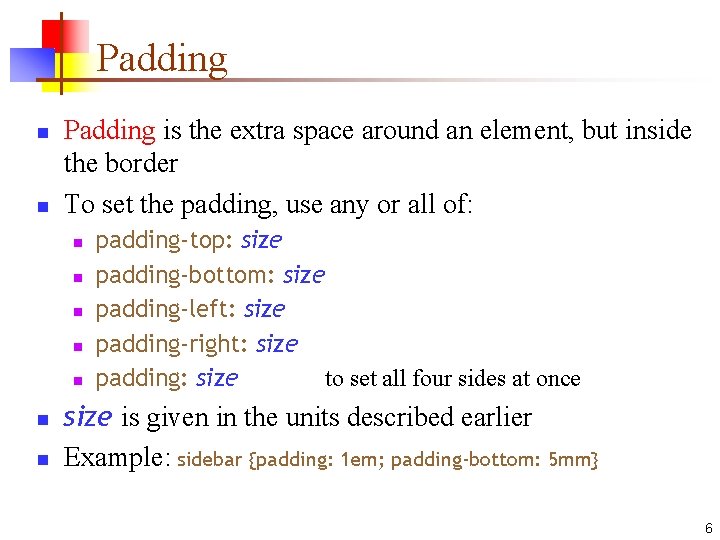
Padding n n Padding is the extra space around an element, but inside the border To set the padding, use any or all of: n n n n padding-top: size padding-bottom: size padding-left: size padding-right: size padding: size to set all four sides at once size is given in the units described earlier Example: sidebar {padding: 1 em; padding-bottom: 5 mm} 6
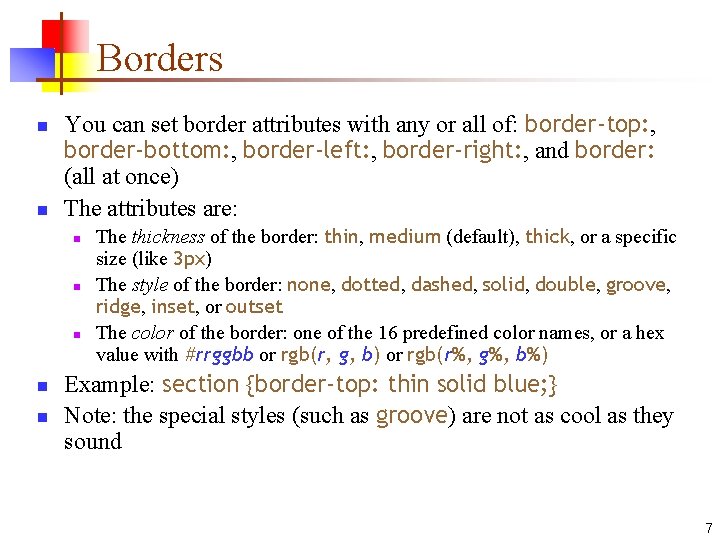
Borders n n You can set border attributes with any or all of: border-top: , border-bottom: , border-left: , border-right: , and border: (all at once) The attributes are: n n n The thickness of the border: thin, medium (default), thick, or a specific size (like 3 px) The style of the border: none, dotted, dashed, solid, double, groove, ridge, inset, or outset The color of the border: one of the 16 predefined color names, or a hex value with #rrggbb or rgb(r, g, b) or rgb(r%, g%, b%) Example: section {border-top: thin solid blue; } Note: the special styles (such as groove) are not as cool as they sound 7
Margins n n n Margins are the extra space outside the border Setting margins is analogous to setting padding To set the margins, use any or all of: n n n margin-top: size margin-bottom: size margin-left: size margin-right: size margin: size to set all four sides at once 8
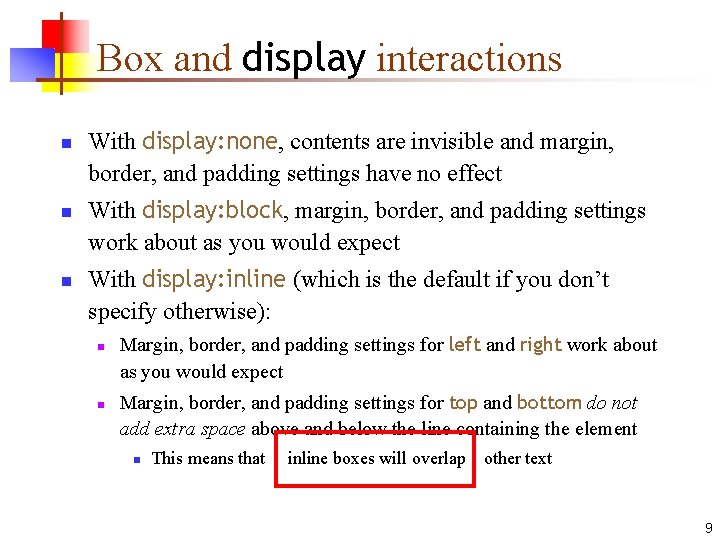
Box and display interactions n n n With display: none, contents are invisible and margin, border, and padding settings have no effect With display: block, margin, border, and padding settings work about as you would expect With display: inline (which is the default if you don’t specify otherwise): n n Margin, border, and padding settings for left and right work about as you would expect Margin, border, and padding settings for top and bottom do not add extra space above and below the line containing the element n This means that inline boxes will overlap other text 9
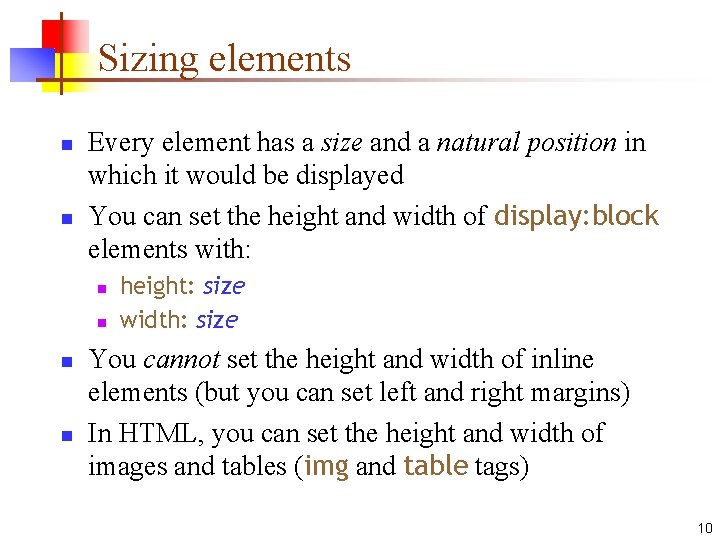
Sizing elements n n Every element has a size and a natural position in which it would be displayed You can set the height and width of display: block elements with: n n height: size width: size You cannot set the height and width of inline elements (but you can set left and right margins) In HTML, you can set the height and width of images and tables (img and table tags) 10
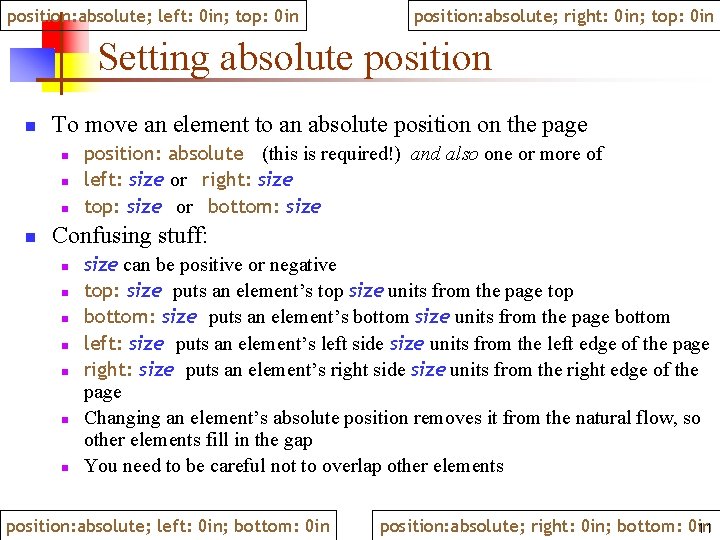
position: absolute; left: 0 in; top: 0 in position: absolute; right: 0 in; top: 0 in Setting absolute position n To move an element to an absolute position on the page n n position: absolute (this is required!) and also one or more of left: size or right: size top: size or bottom: size Confusing stuff: n n n n size can be positive or negative top: size puts an element’s top size units from the page top bottom: size puts an element’s bottom size units from the page bottom left: size puts an element’s left side size units from the left edge of the page right: size puts an element’s right side size units from the right edge of the page Changing an element’s absolute position removes it from the natural flow, so other elements fill in the gap You need to be careful not to overlap other elements position: absolute; left: 0 in; bottom: 0 in position: absolute; right: 0 in; bottom: 0 in 11
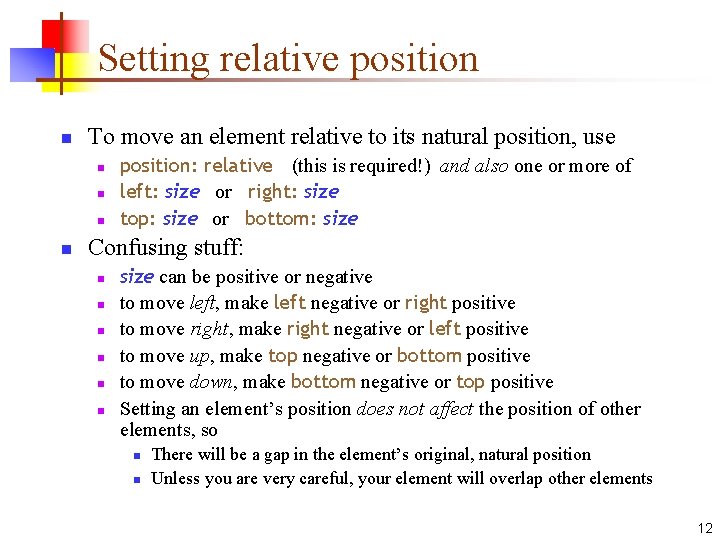
Setting relative position n To move an element relative to its natural position, use n n position: relative (this is required!) and also one or more of left: size or right: size top: size or bottom: size Confusing stuff: n n n size can be positive or negative to move left, make left negative or right positive to move right, make right negative or left positive to move up, make top negative or bottom positive to move down, make bottom negative or top positive Setting an element’s position does not affect the position of other elements, so n n There will be a gap in the element’s original, natural position Unless you are very careful, your element will overlap other elements 12
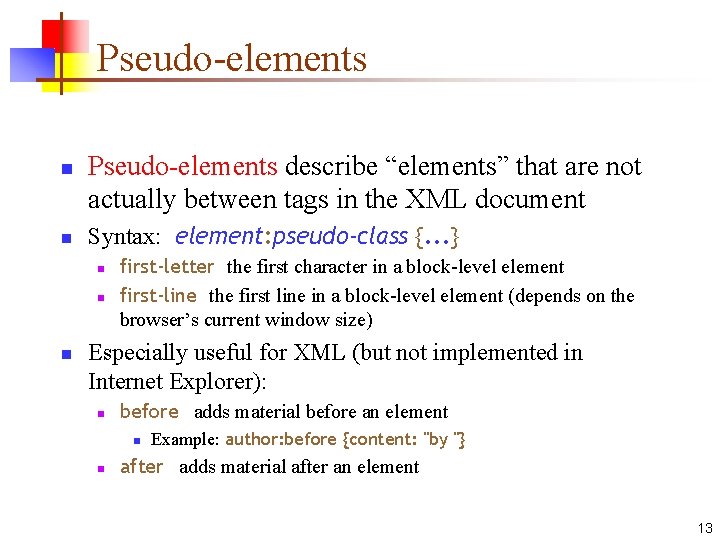
Pseudo-elements n n Pseudo-elements describe “elements” that are not actually between tags in the XML document Syntax: element: pseudo-class {. . . } n n n first-letter the first character in a block-level element first-line the first line in a block-level element (depends on the browser’s current window size) Especially useful for XML (but not implemented in Internet Explorer): n before adds material before an element n n Example: author: before {content: "by "} after adds material after an element 13
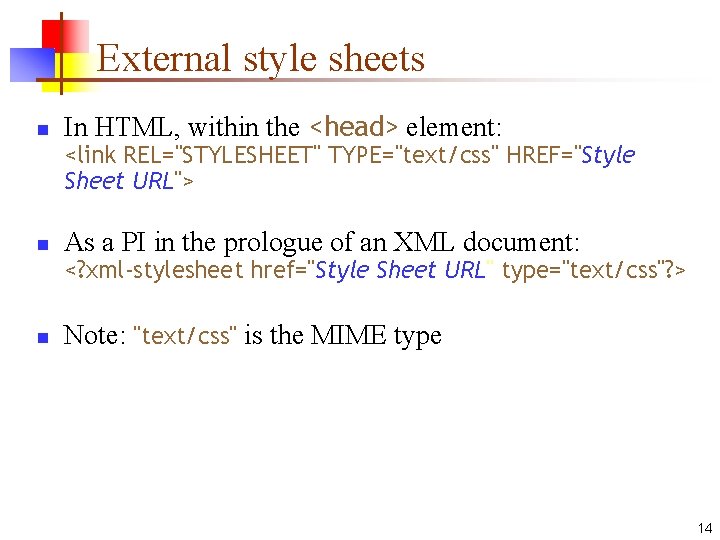
External style sheets n In HTML, within the <head> element: <link REL="STYLESHEET" TYPE="text/css" HREF="Style Sheet URL"> n As a PI in the prologue of an XML document: <? xml-stylesheet href="Style Sheet URL" type="text/css"? > n Note: "text/css" is the MIME type 14
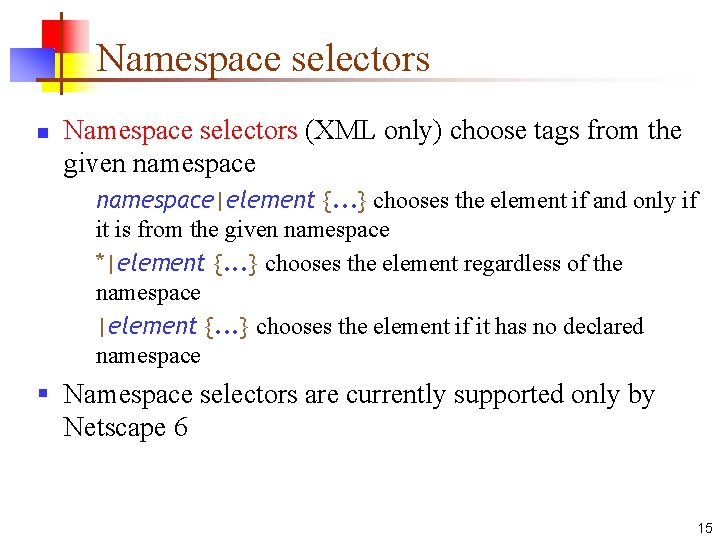
Namespace selectors n Namespace selectors (XML only) choose tags from the given namespace|element {. . . } chooses the element if and only if it is from the given namespace *|element {. . . } chooses the element regardless of the namespace |element {. . . } chooses the element if it has no declared namespace § Namespace selectors are currently supported only by Netscape 6 15
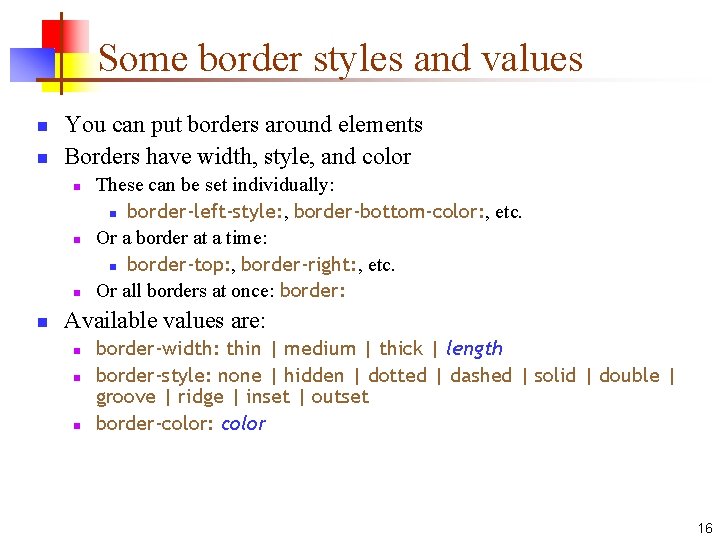
Some border styles and values n n You can put borders around elements Borders have width, style, and color n n These can be set individually: n border-left-style: , border-bottom-color: , etc. Or a border at a time: n border-top: , border-right: , etc. Or all borders at once: border: Available values are: n n n border-width: thin | medium | thick | length border-style: none | hidden | dotted | dashed | solid | double | groove | ridge | inset | outset border-color: color 16
Padding n Padding is used to set the space around an element n n n You can set padding individually: padding-top: , padding-left: , padding-bottom: , padding-right: Or all at once: padding: Allowable values: length | 12% 17
The End 18