
CSS Overview Introduction to Cascading Style Sheets Styling

![Attribute Selectors § [] selects elements based on attributes § Selects <a> elements which](https://slidetodoc.com/presentation_image_h2/931c37e31e8def6f6d4ba5b3e837405d/image-18.jpg "Attribute Selectors § [] selects elements based on attributes § Selects <a> elements which")













- Slides: 68
CSS Overview Introduction to Cascading Style Sheets Styling HTML with CSS Soft. Uni Team Technical Trainers Software University http: //softuni. bg
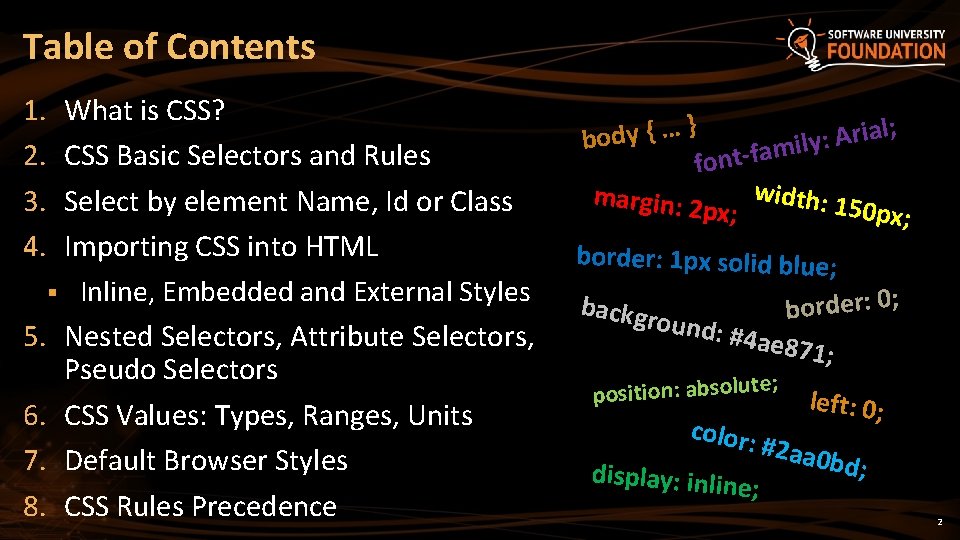
Table of Contents 1. 2. 3. 4. What is CSS? CSS Basic Selectors and Rules Select by element Name, Id or Class Importing CSS into HTML § Inline, Embedded and External Styles 5. Nested Selectors, Attribute Selectors, Pseudo Selectors 6. CSS Values: Types, Ranges, Units 7. Default Browser Styles 8. CSS Rules Precedence } ; l … a { i r y d A o : b y l i m a f fontwidth: margin: 2 150 px; border: 1 px solid blue; backgr rder: 0; o b ound: #4 ae 87 1; ; position: absolute color: display: inlin e; left: 0; #2 aa 0 bd; 2
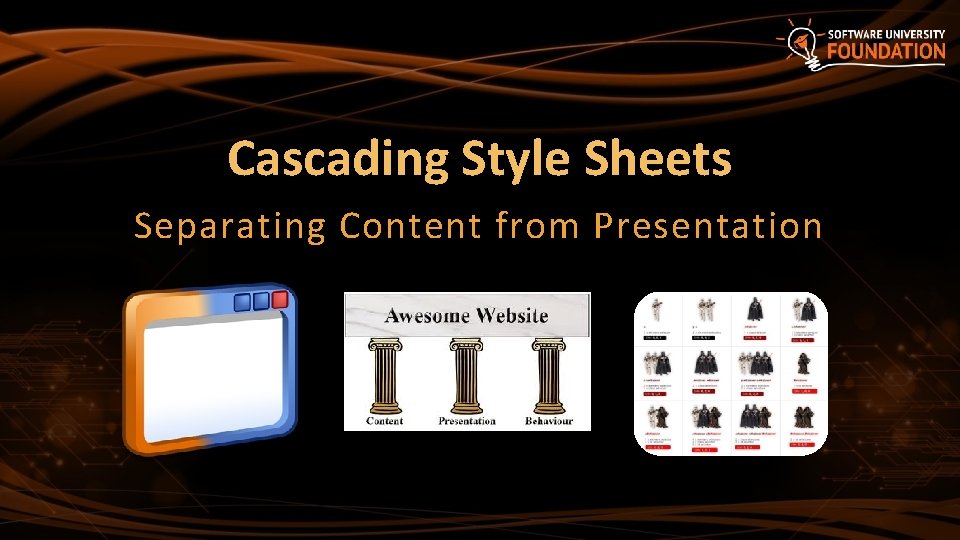
Cascading Style Sheets Separating Content from Presentation
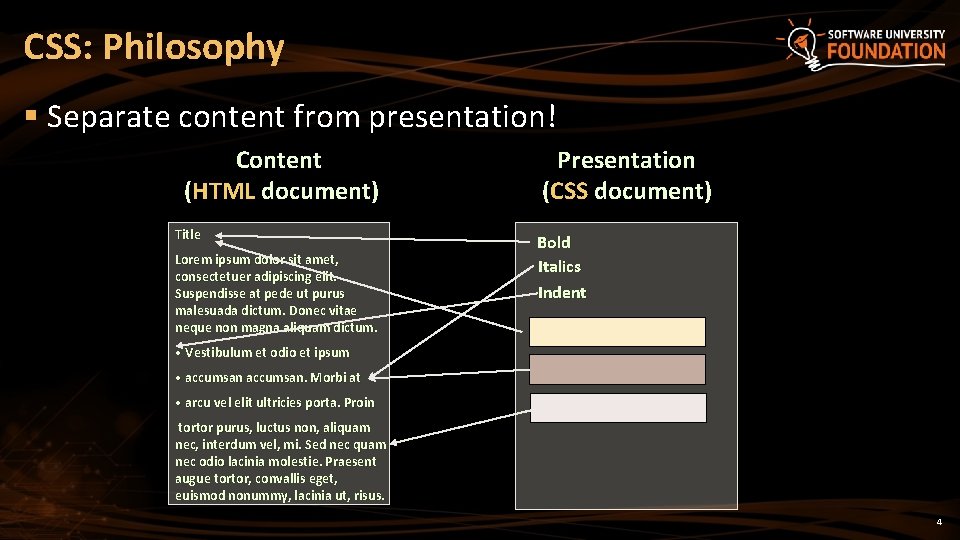
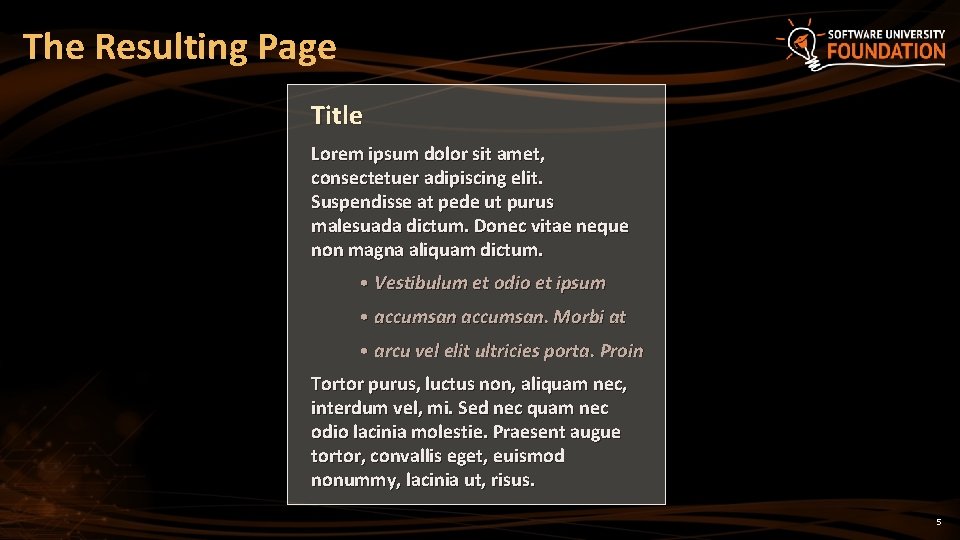
CSS: Philosophy § Separate content from presentation! Content (HTML document) Title Lorem ipsum dolor sit amet, consectetuer adipiscing elit. Suspendisse at pede ut purus malesuada dictum. Donec vitae neque non magna aliquam dictum. Presentation (CSS document) Bold Italics Indent • Vestibulum et odio et ipsum • accumsan. Morbi at • arcu vel elit ultricies porta. Proin tortor purus, luctus non, aliquam nec, interdum vel, mi. Sed nec quam nec odio lacinia molestie. Praesent augue tortor, convallis eget, euismod nonummy, lacinia ut, risus. 4
The Resulting Page Title Lorem ipsum dolor sit amet, consectetuer adipiscing elit. Suspendisse at pede ut purus malesuada dictum. Donec vitae neque non magna aliquam dictum. • Vestibulum et odio et ipsum • accumsan. Morbi at • arcu vel elit ultricies porta. Proin Tortor purus, luctus non, aliquam nec, interdum vel, mi. Sed nec quam nec odio lacinia molestie. Praesent augue tortor, convallis eget, euismod nonummy, lacinia ut, risus. 5
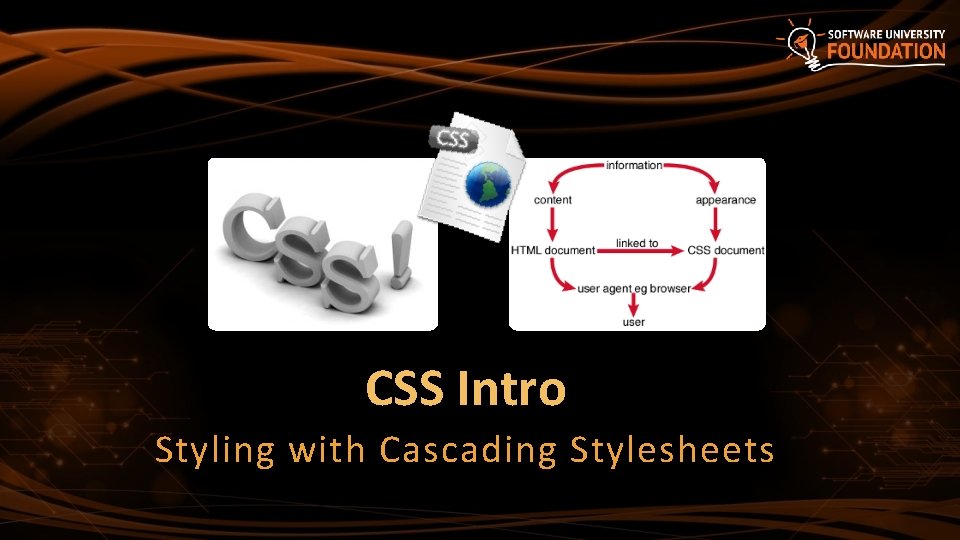
CSS Intro Styling with Cascading Stylesheets
CSS Introduction § Cascading Style Sheets (CSS) § Used to describe the presentation of documents § Define sizes, spacing, fonts, colors, layout, etc. § Improve content accessibility § Improve flexibility § Designed to separate presentation from content § Due to CSS, all HTML presentation tags and attributes are deprecated, e. g. <font>, <center>, <b>, <i>, etc. 7
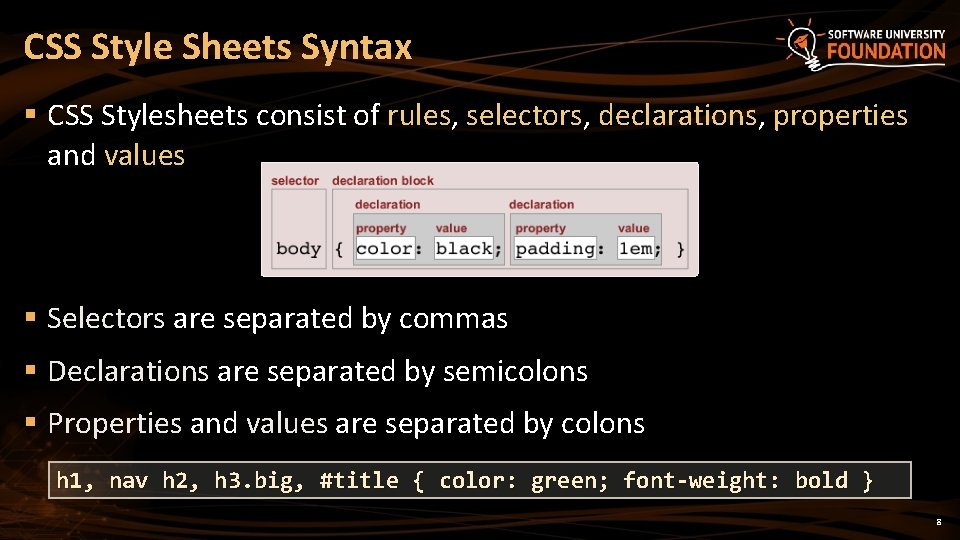
CSS Style Sheets Syntax § CSS Stylesheets consist of rules, selectors, declarations, properties and values § Selectors are separated by commas § Declarations are separated by semicolons § Properties and values are separated by colons h 1, nav h 2, h 3. big, #title { color: green; font-weight: bold } 8
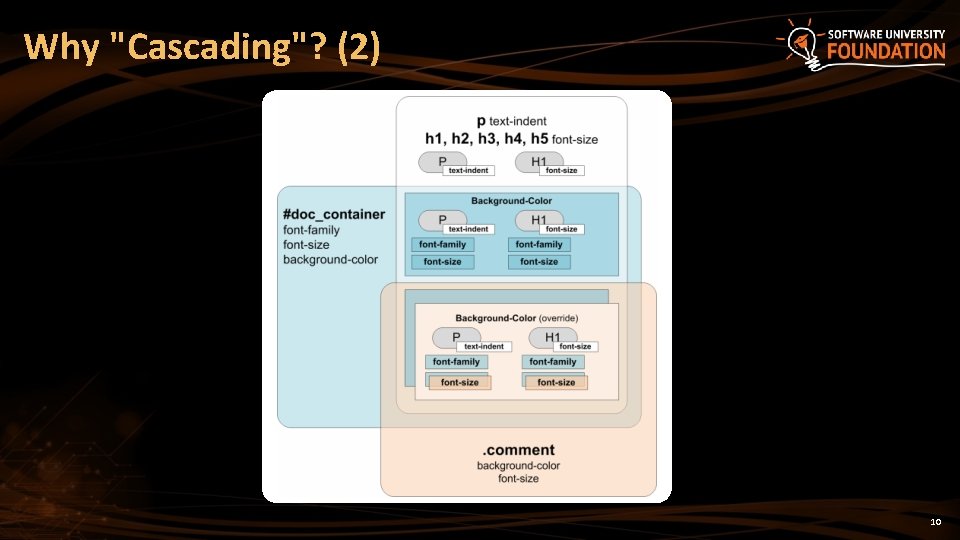
Why “Cascading”? § Priority scheme determining which style rules apply to element § Cascade priorities or specificity (weight) are calculated and assigned to the rules § Child elements in the HTML DOM tree inherit styles from their parent § Can override them § Control via !important rule 9
Why "Cascading"? (2) 10
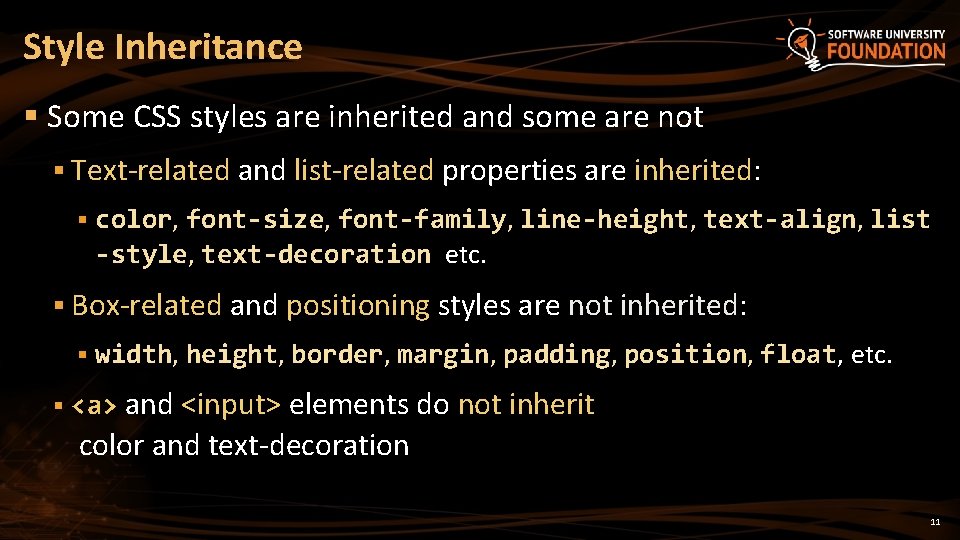
Style Inheritance § Some CSS styles are inherited and some are not § Text-related and list-related properties are inherited: § color, font-size, font-family, line-height, text-align, list -style, text-decoration etc. § Box-related and positioning styles are not inherited: § § width, height, border, margin, padding, position, float, etc. <a> and <input> elements do not inherit color and text-decoration 11
CSS, HTML and Media § CSS can be applied to any XML document § Not just to HTML / XHTML § CSS can specify different styles for different media § On-screen § In print § Handheld, projection, etc. § … even by voice or Braille-based reader § @media screen / @media print / @media tv 12
CSS Selectors Select the Elements to Apply a Style
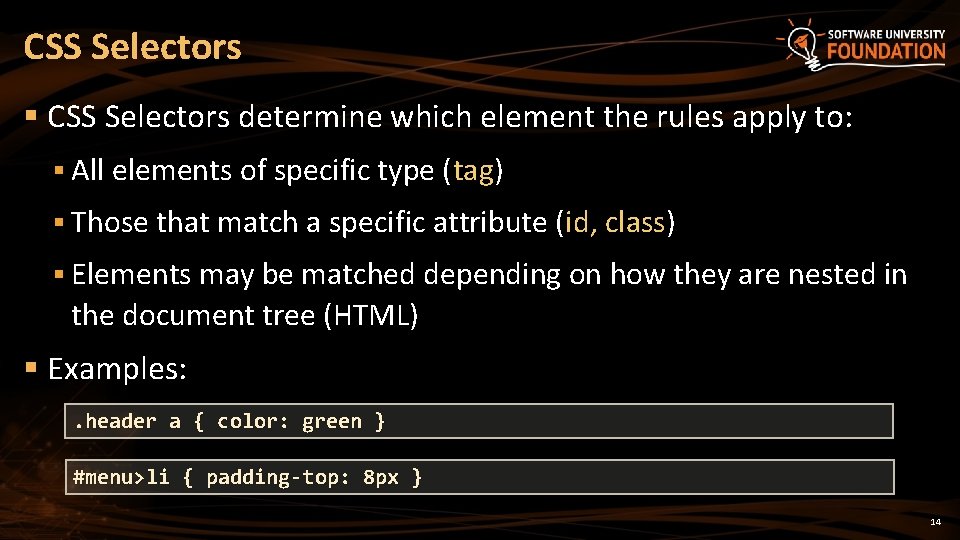
CSS Selectors § CSS Selectors determine which element the rules apply to: § All elements of specific type (tag) § Those that match a specific attribute (id, class) § Elements may be matched depending on how they are nested in the document tree (HTML) § Examples: . header a { color: green } #menu>li { padding-top: 8 px } 14
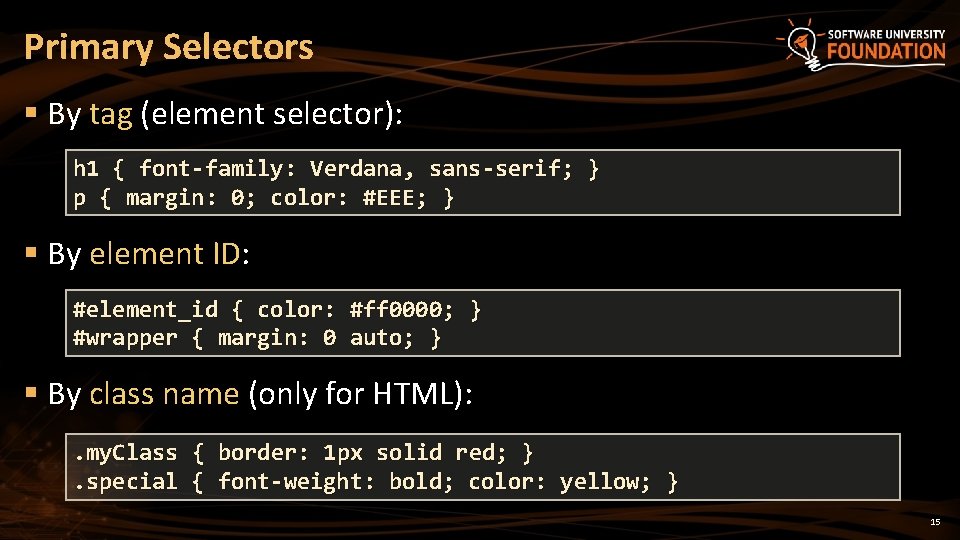
Primary Selectors § By tag (element selector): h 1 { font-family: Verdana, sans-serif; } p { margin: 0; color: #EEE; } § By element ID: #element_id { color: #ff 0000; } #wrapper { margin: 0 auto; } § By class name (only for HTML): . my. Class { border: 1 px solid red; }. special { font-weight: bold; color: yellow; } 15
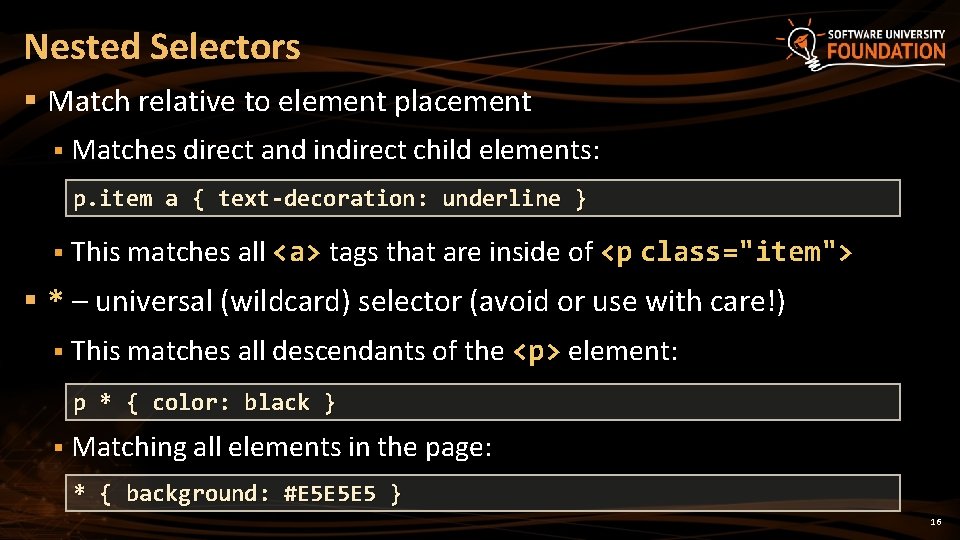
Nested Selectors § Match relative to element placement § Matches direct and indirect child elements: p. item a { text-decoration: underline } § This matches all <a> tags that are inside of <p class="item"> § * – universal (wildcard) selector (avoid or use with care!) § This matches all descendants of the <p> element: p * { color: black } § Matching all elements in the page: * { background: #E 5 E 5 E 5 } 16
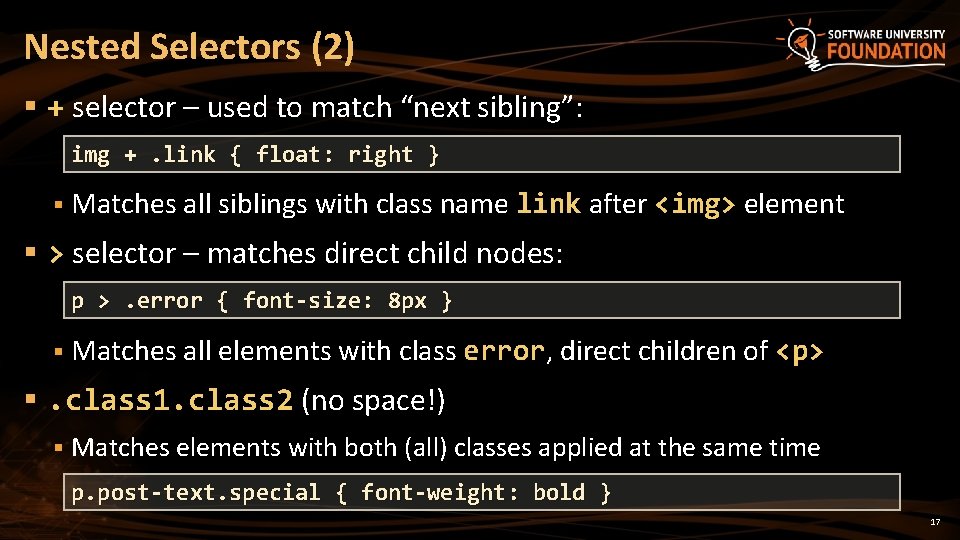
Nested Selectors (2) § + selector – used to match “next sibling”: img +. link { float: right } § Matches all siblings with class name link after <img> element § > selector – matches direct child nodes: p >. error { font-size: 8 px } § Matches all elements with class error, direct children of <p> §. class 1. class 2 (no space!) § Matches elements with both (all) classes applied at the same time p. post-text. special { font-weight: bold } 17
Attribute Selectors § [] selects elements based on attributes § Selects <a> elements which has title attribute: a[title] { color: black } § Selects <input> elements with type='text' input[type='text'] { font-family: Consolas } #reg-form input[type='text'] { background: #EEE } § Selects <a> elements whose title contains the word "logo": a[title*=logo] { border: none }
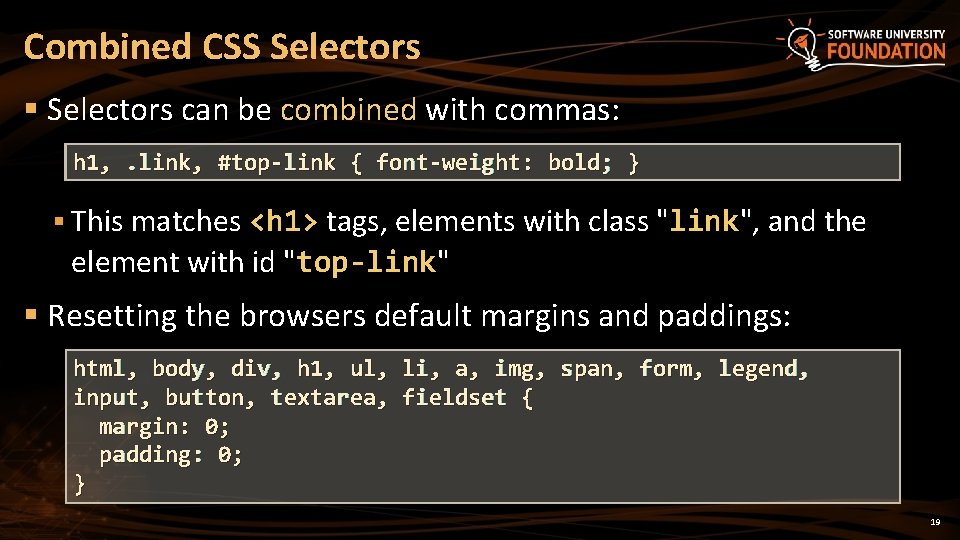
Combined CSS Selectors § Selectors can be combined with commas: h 1, . link, #top-link { font-weight: bold; } § This matches <h 1> tags, elements with class "link", and the element with id "top-link" § Resetting the browsers default margins and paddings: html, body, div, h 1, ul, li, a, img, span, form, legend, input, button, textarea, fieldset { margin: 0; padding: 0; } 19
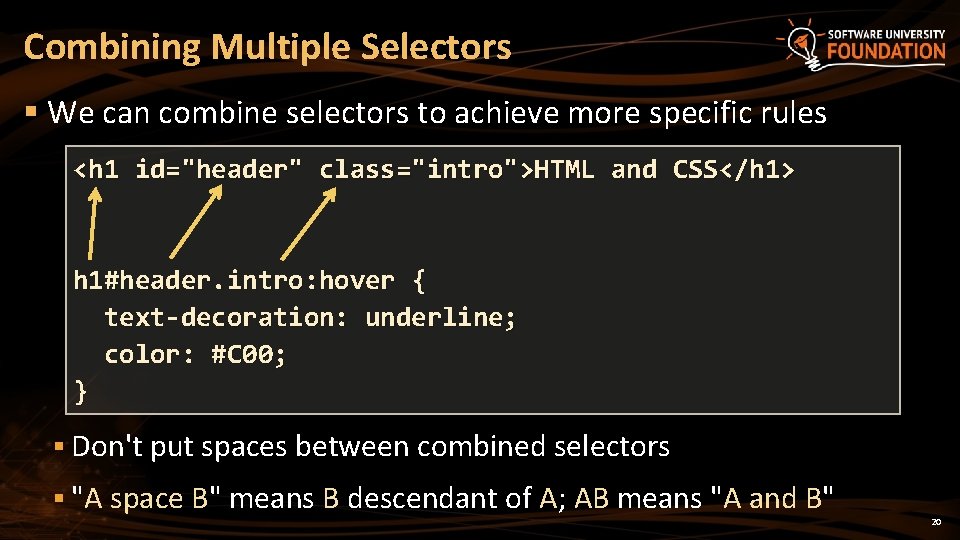
Combining Multiple Selectors § We can combine selectors to achieve more specific rules <h 1 id="header" class="intro">HTML and CSS</h 1> h 1#header. intro: hover { text-decoration: underline; color: #C 00; } § Don't put spaces between combined selectors § "A space B" means B descendant of A; AB means "A and B" 20
CSS Selectors Live Demo
Importing CSS Into HTML How to Use CSS with HTML?
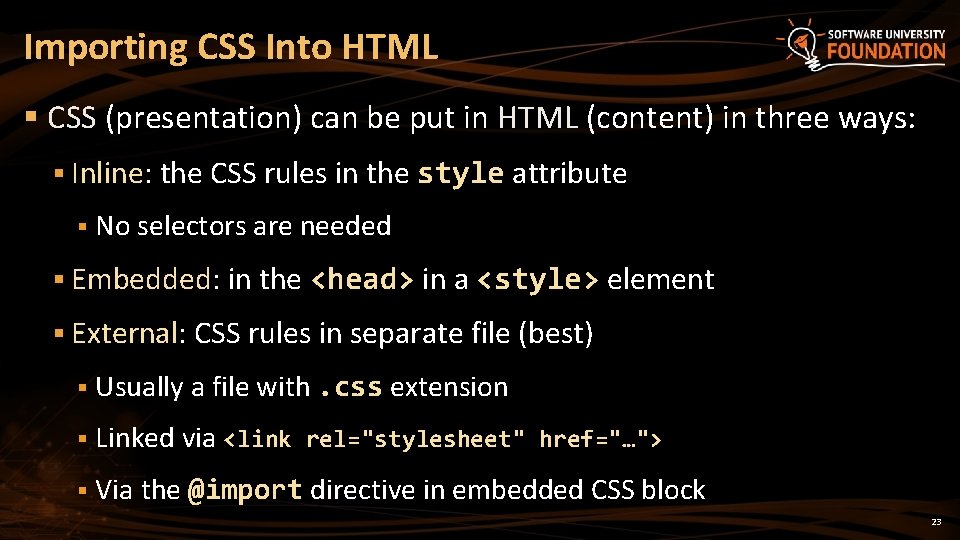
Importing CSS Into HTML § CSS (presentation) can be put in HTML (content) in three ways: § Inline: the CSS rules in the style attribute § No selectors are needed § Embedded: in the <head> in a <style> element § External: CSS rules in separate file (best) § Usually a file with. css extension § Linked via <link rel="stylesheet" href="…"> § Via the @import directive in embedded CSS block 23
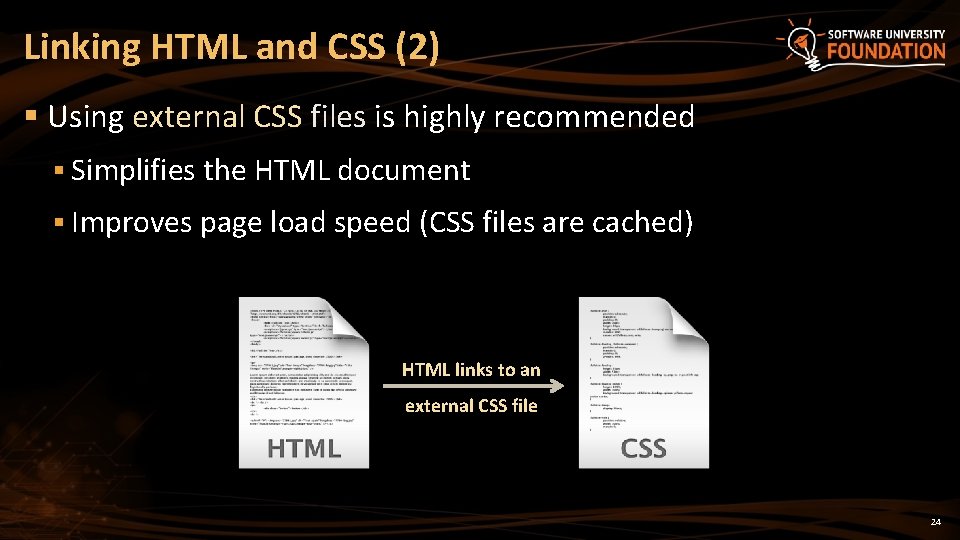
Linking HTML and CSS (2) § Using external CSS files is highly recommended § Simplifies the HTML document § Improves page load speed (CSS files are cached) HTML links to an external CSS file 24
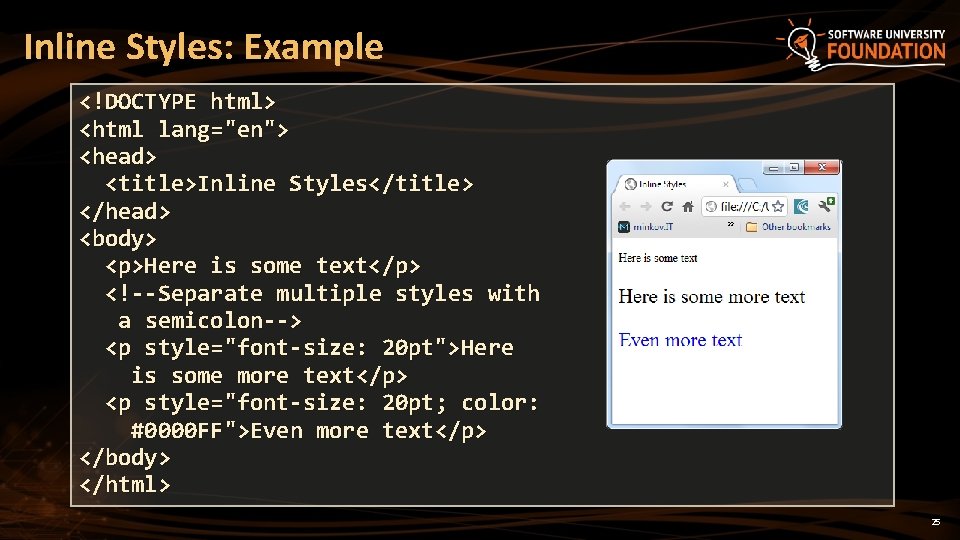
Inline Styles: Example <!DOCTYPE html> <html lang="en"> <head> <title>Inline Styles</title> </head> <body> <p>Here is some text</p> <!--Separate multiple styles with a semicolon--> <p style="font-size: 20 pt">Here is some more text</p> <p style="font-size: 20 pt; color: #0000 FF">Even more text</p> </body> </html> 25
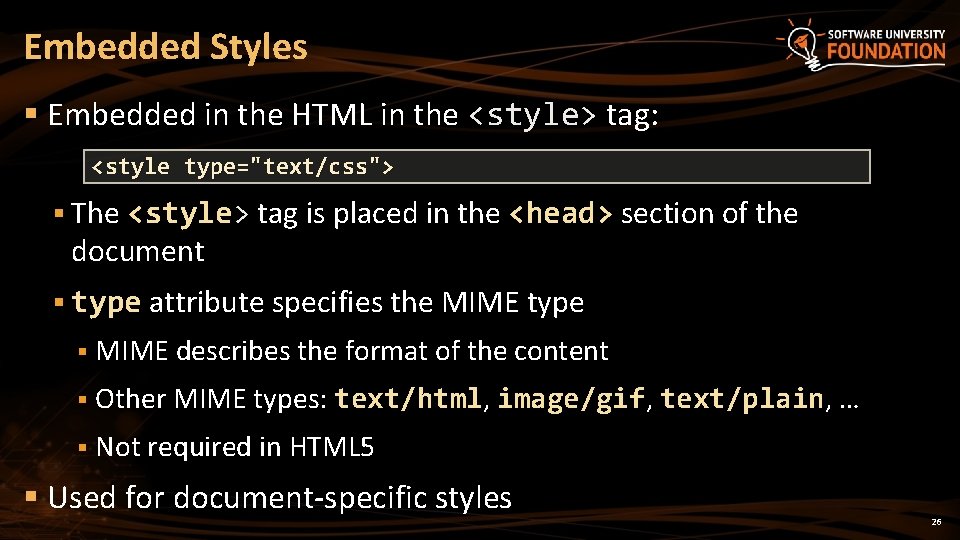
Embedded Styles § Embedded in the HTML in the <style> tag: <style type="text/css"> § The <style> tag is placed in the <head> section of the document § type attribute specifies the MIME type § MIME describes the format of the content § Other MIME types: text/html, image/gif, text/plain, … § Not required in HTML 5 § Used for document-specific styles 26
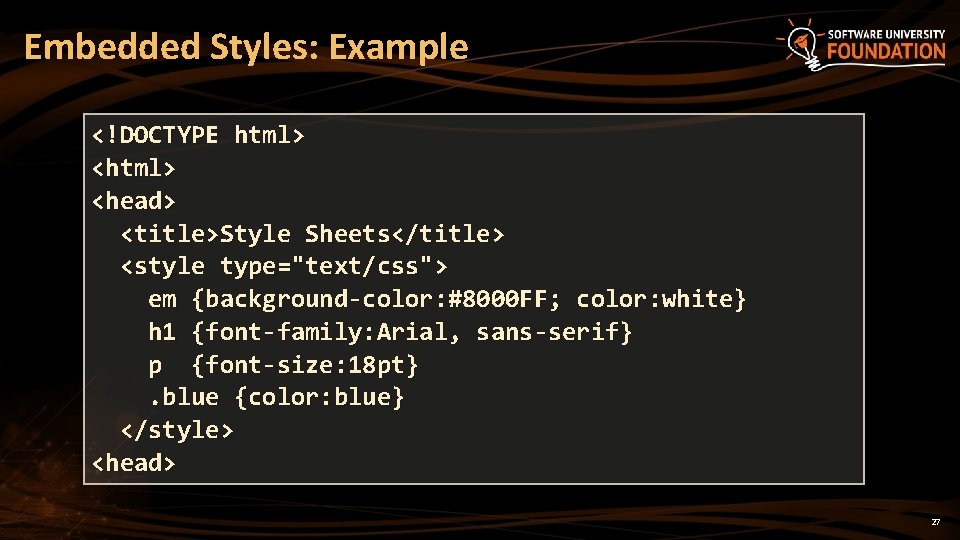
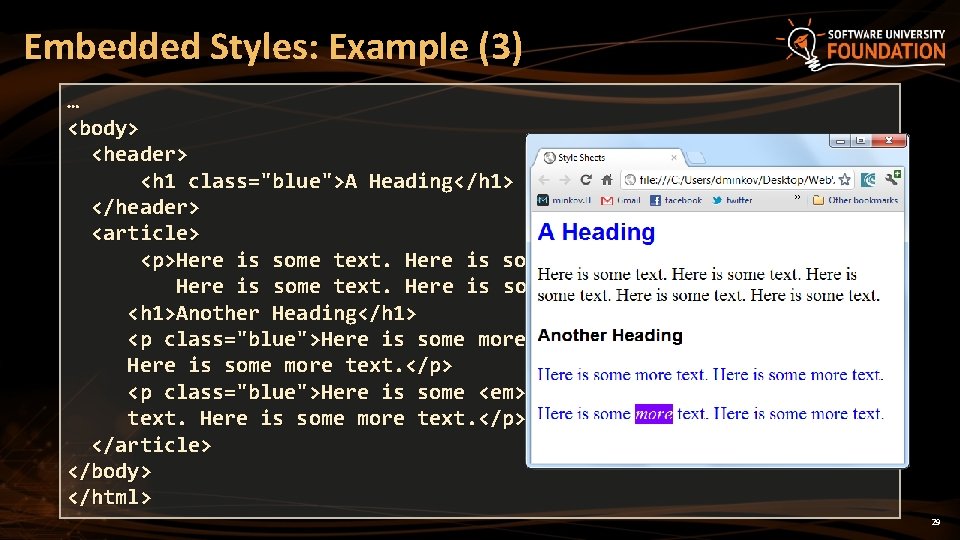
Embedded Styles: Example <!DOCTYPE html> <head> <title>Style Sheets</title> <style type="text/css"> em {background-color: #8000 FF; color: white} h 1 {font-family: Arial, sans-serif} p {font-size: 18 pt}. blue {color: blue} </style> <head> 27
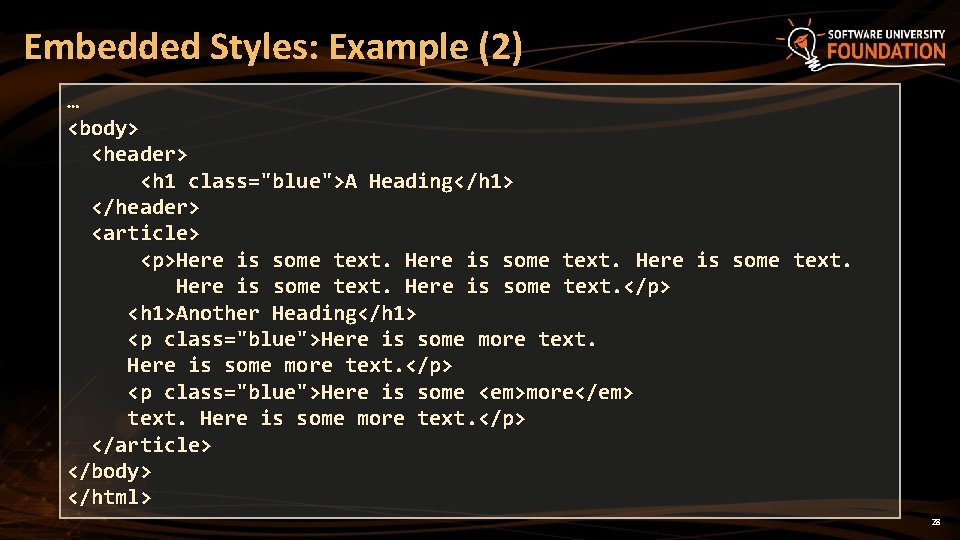
Embedded Styles: Example (2) … <body> <header> <h 1 class="blue">A Heading</h 1> </header> <article> <p>Here is some text. </p> <h 1>Another Heading</h 1> <p class="blue">Here is some more text. </p> <p class="blue">Here is some <em>more</em> text. Here is some more text. </p> </article> </body> </html> 28
Embedded Styles: Example (3) … <body> <header> <h 1 class="blue">A Heading</h 1> </header> <article> <p>Here is some text. </p> <h 1>Another Heading</h 1> <p class="blue">Here is some more text. </p> <p class="blue">Here is some <em>more</em> text. Here is some more text. </p> </article> </body> </html> 29
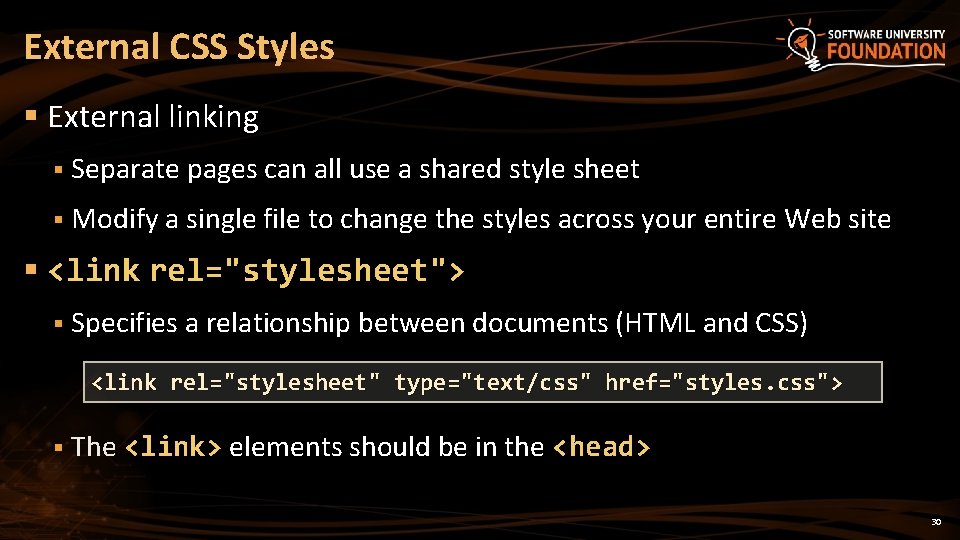
External CSS Styles § External linking § Separate pages can all use a shared style sheet § Modify a single file to change the styles across your entire Web site § <link rel="stylesheet"> § Specifies a relationship between documents (HTML and CSS) <link rel="stylesheet" type="text/css" href="styles. css"> § The <link> elements should be in the <head> 30
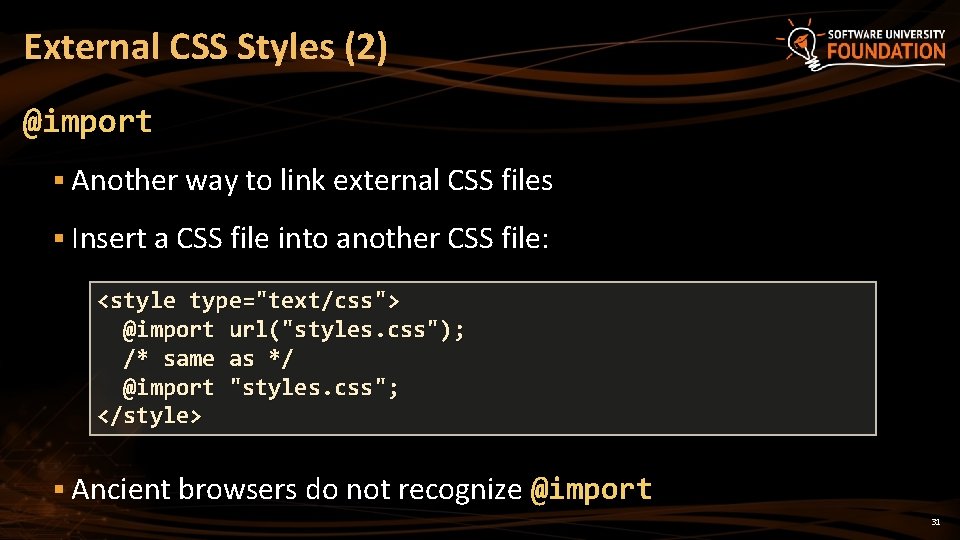
External CSS Styles (2) @import § Another way to link external CSS files § Insert a CSS file into another CSS file: <style type="text/css"> @import url("styles. css"); /* same as */ @import "styles. css"; </style> § Ancient browsers do not recognize @import 31
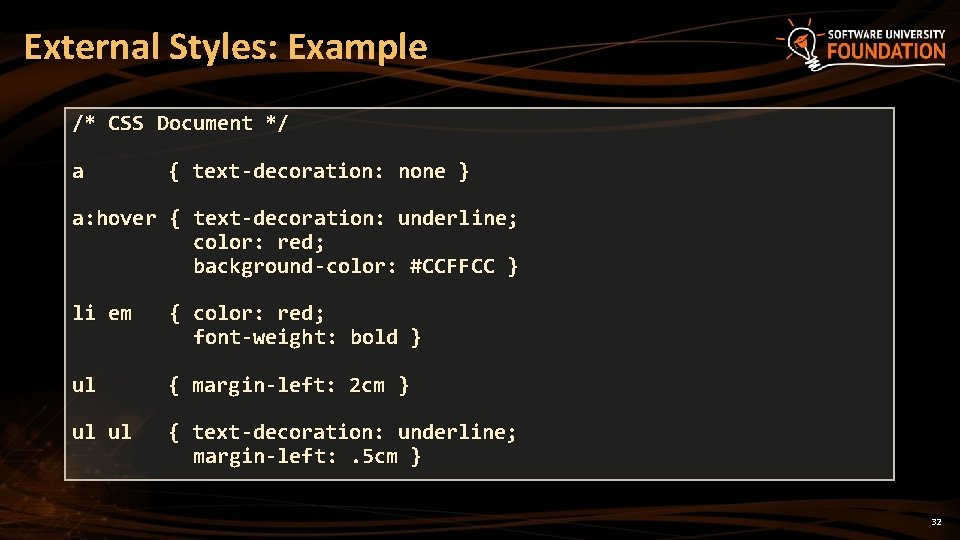
External Styles: Example /* CSS Document */ a { text-decoration: none } a: hover { text-decoration: underline; color: red; background-color: #CCFFCC } li em { color: red; font-weight: bold } ul { margin-left: 2 cm } ul ul { text-decoration: underline; margin-left: . 5 cm } 32
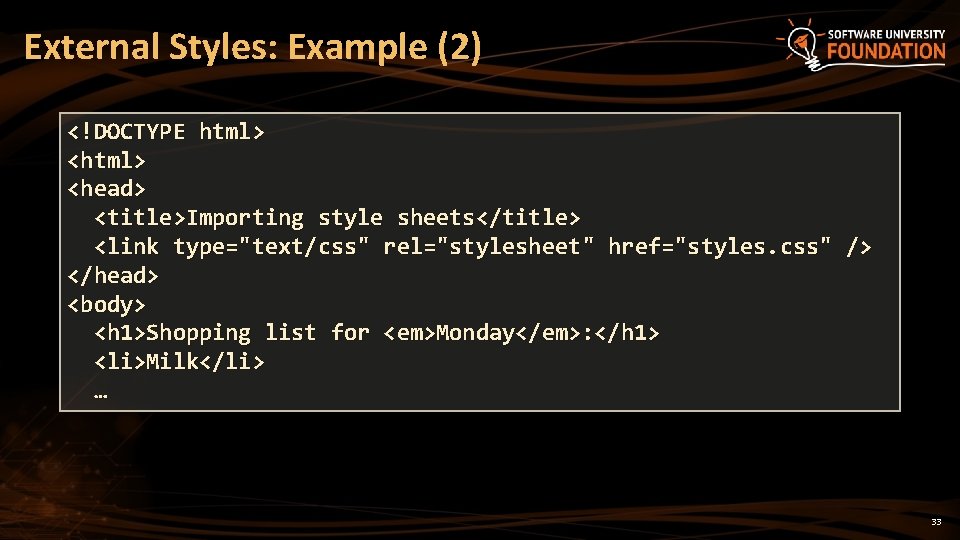
External Styles: Example (2) <!DOCTYPE html> <head> <title>Importing style sheets</title> <link type="text/css" rel="stylesheet " href="styles. css" /> </head> <body> <h 1>Shopping list for <em>Monday</em>: </h 1> <li>Milk</li> … 33
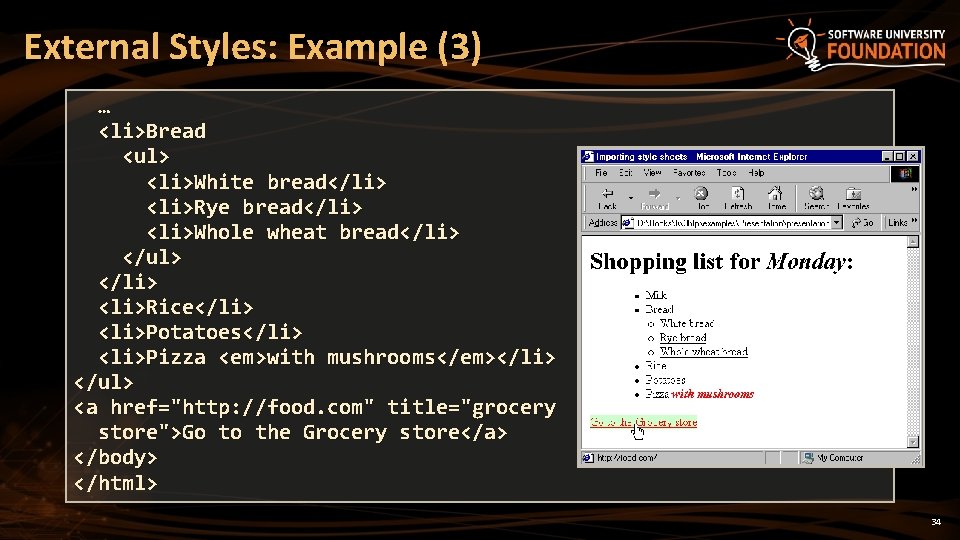
External Styles: Example (3) … <li>Bread <ul> <li>White bread</li> <li>Rye bread</li> <li>Whole wheat bread</li> </ul> </li> <li>Rice</li> <li>Potatoes</li> <li>Pizza <em>with mushrooms</em></li> </ul> <a href="http: //food. com" title="grocery store">Go to the Grocery store</a> </body> </html> 34
Pseudo Selectors Relative to Element Content or State
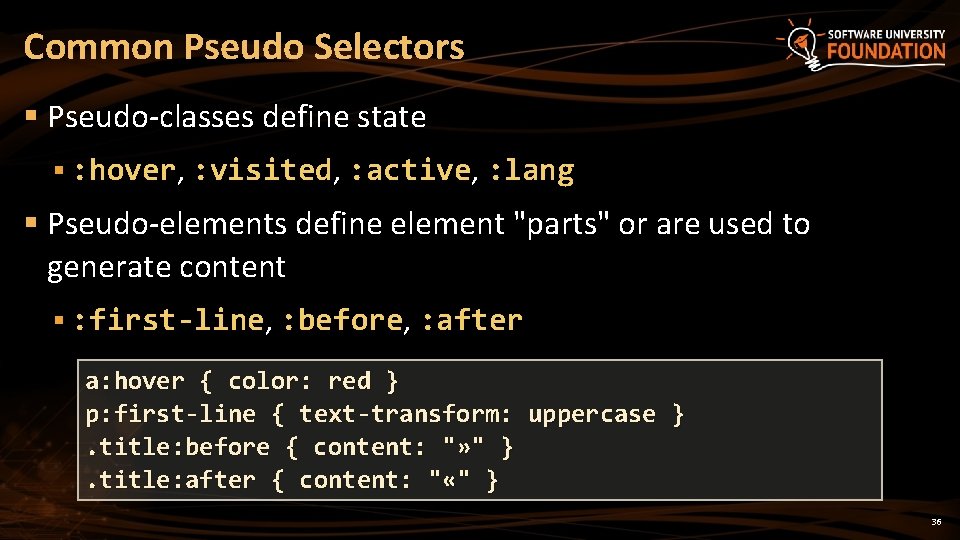
Common Pseudo Selectors § Pseudo-classes define state § : hover, : visited, : active, : lang § Pseudo-elements define element "parts" or are used to generate content § : first-line, : before, : after a: hover { color: red } p: first-line { text-transform: uppercase }. title: before { content: "» " }. title: after { content: " «" } 36
Common Pseudo Selectors Live Demo
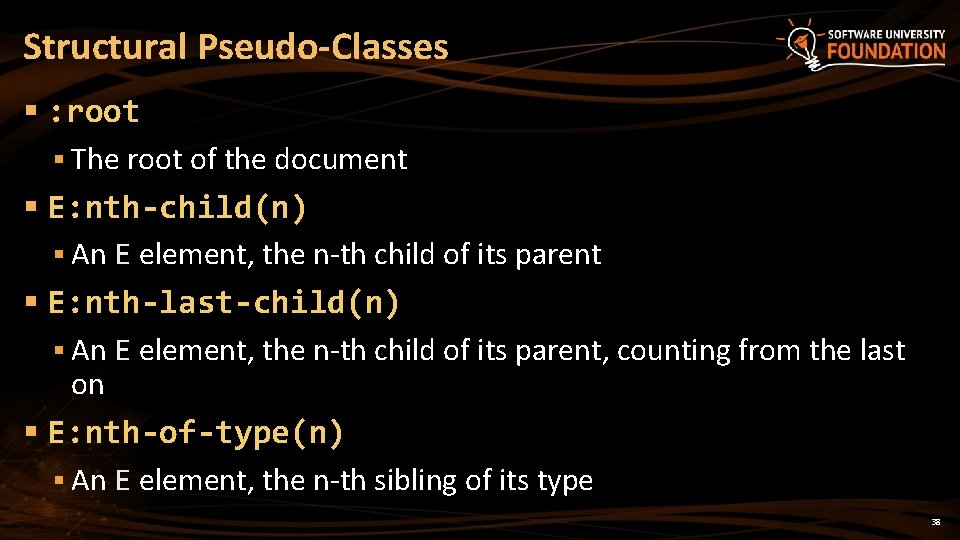
Structural Pseudo-Classes § : root § The root of the document § E: nth-child(n) § An E element, the n-th child of its parent § E: nth-last-child(n) § An E element, the n-th child of its parent, counting from the last on § E: nth-of-type(n) § An E element, the n-th sibling of its type 38
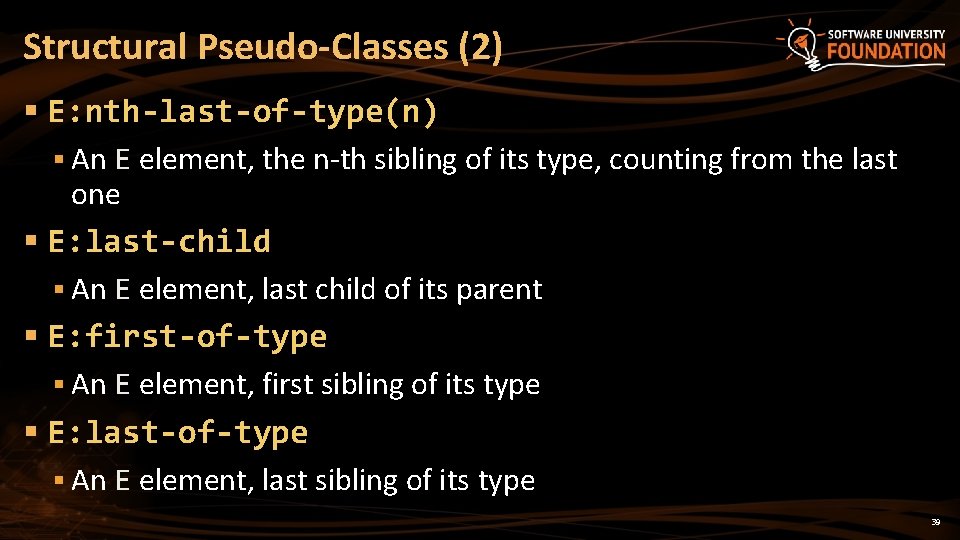
Structural Pseudo-Classes (2) § E: nth-last-of-type(n) § An E element, the n-th sibling of its type, counting from the last one § E: last-child § An E element, last child of its parent § E: first-of-type § An E element, first sibling of its type § E: last-of-type § An E element, last sibling of its type 39
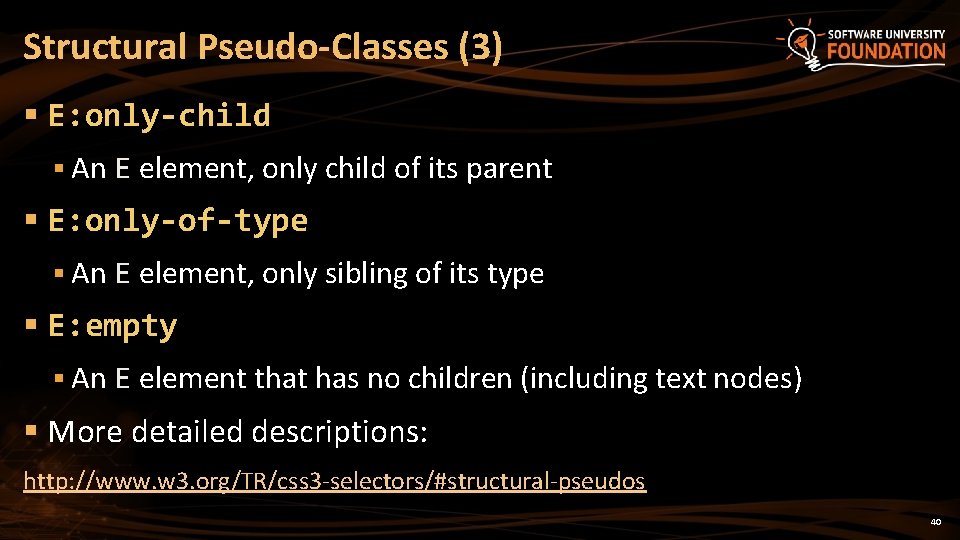
Structural Pseudo-Classes (3) § E: only-child § An E element, only child of its parent § E: only-of-type § An E element, only sibling of its type § E: empty § An E element that has no children (including text nodes) § More detailed descriptions: http: //www. w 3. org/TR/css 3 -selectors/#structural-pseudos 40
Structural Selectors Live Demo
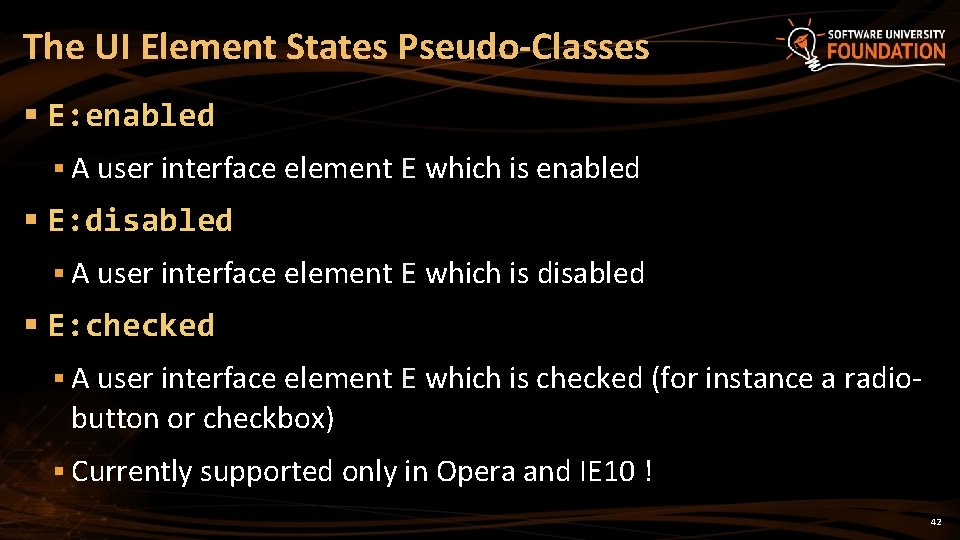
The UI Element States Pseudo-Classes § E: enabled § A user interface element E which is enabled § E: disabled § A user interface element E which is disabled § E: checked § A user interface element E which is checked (for instance a radio- button or checkbox) § Currently supported only in Opera and IE 10 ! 42
UI Selectors Live Demo
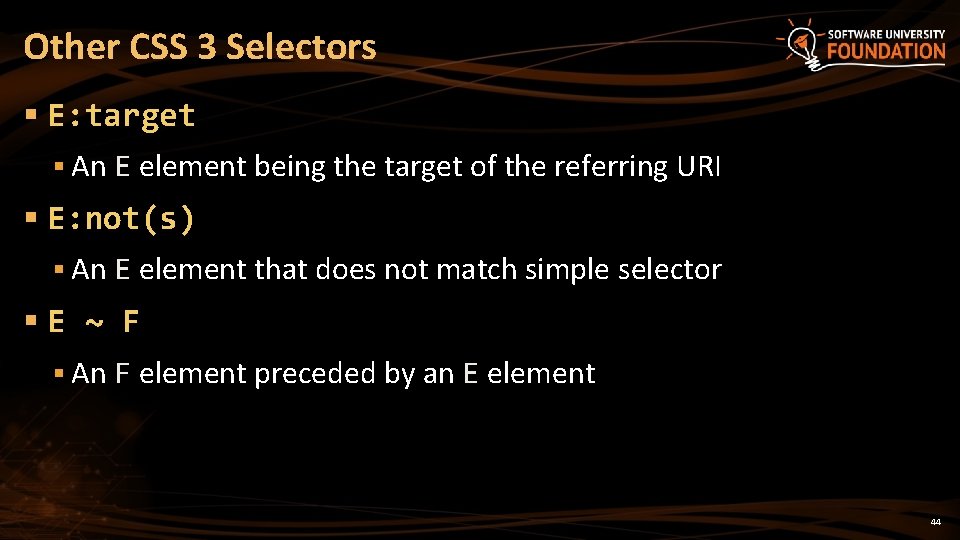
Other CSS 3 Selectors § E: target § An E element being the target of the referring URI § E: not(s) § An E element that does not match simple selector §E ~ F § An F element preceded by an E element 44
Other CSS 3 Selectors Live Demo
CSS Values Types, Ranges, Units
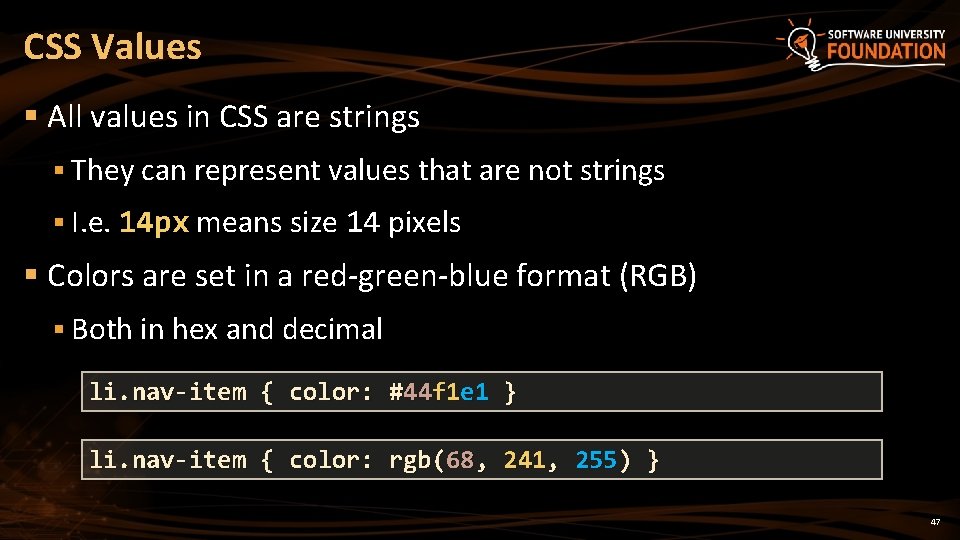
CSS Values § All values in CSS are strings § They can represent values that are not strings § I. e. 14 px means size 14 pixels § Colors are set in a red-green-blue format (RGB) § Both in hex and decimal li. nav-item { color: #44 f 1 e 1 } li. nav-item { color: rgb(68, 241, 255) } 47
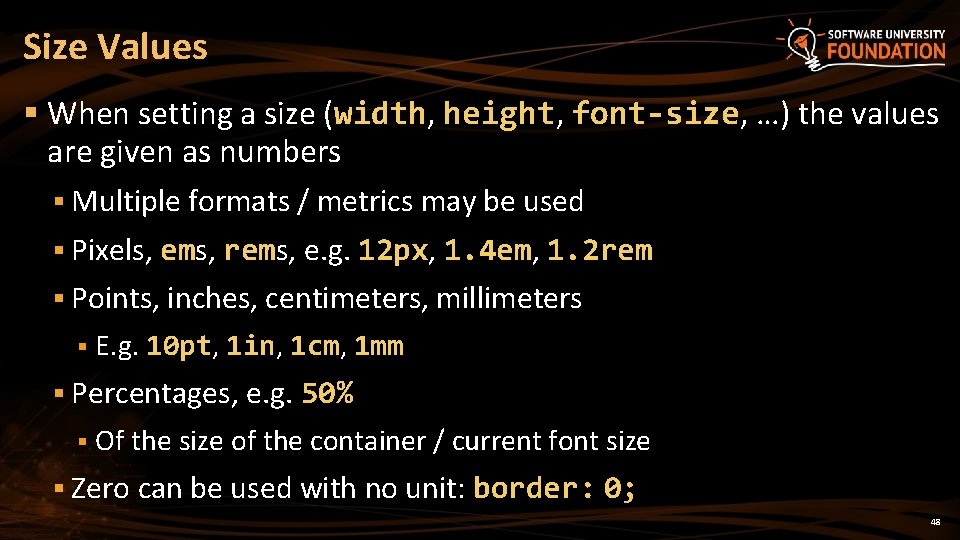
Size Values § When setting a size (width, height, font-size, …) the values are given as numbers § Multiple formats / metrics may be used § Pixels, ems, rems, e. g. 12 px, 1. 4 em, 1. 2 rem § Points, inches, centimeters, millimeters § E. g. 10 pt, 1 in, 1 cm, 1 mm § Percentages, e. g. 50% § Of the size of the container / current font size § Zero can be used with no unit: border: 0; 48
Size Values Live Demo
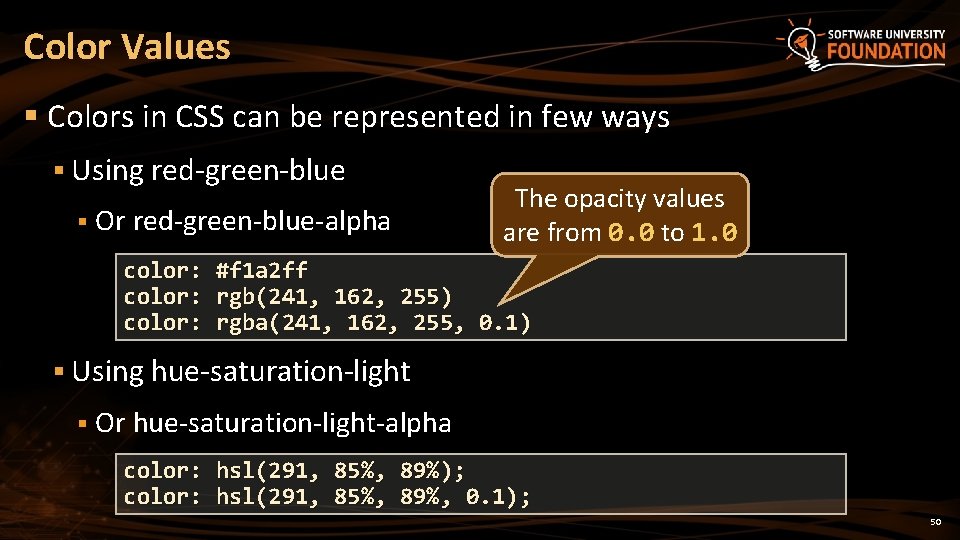
Color Values § Colors in CSS can be represented in few ways § Using red-green-blue § Or red-green-blue-alpha The opacity values are from 0. 0 to 1. 0 color: #f 1 a 2 ff color: rgb(241, 162, 255) color: rgba(241, 162, 255, 0. 1) § Using hue-saturation-light § Or hue-saturation-light-alpha color: hsl(291, 85%, 89%); color: hsl(291, 85%, 89%, 0. 1); 50
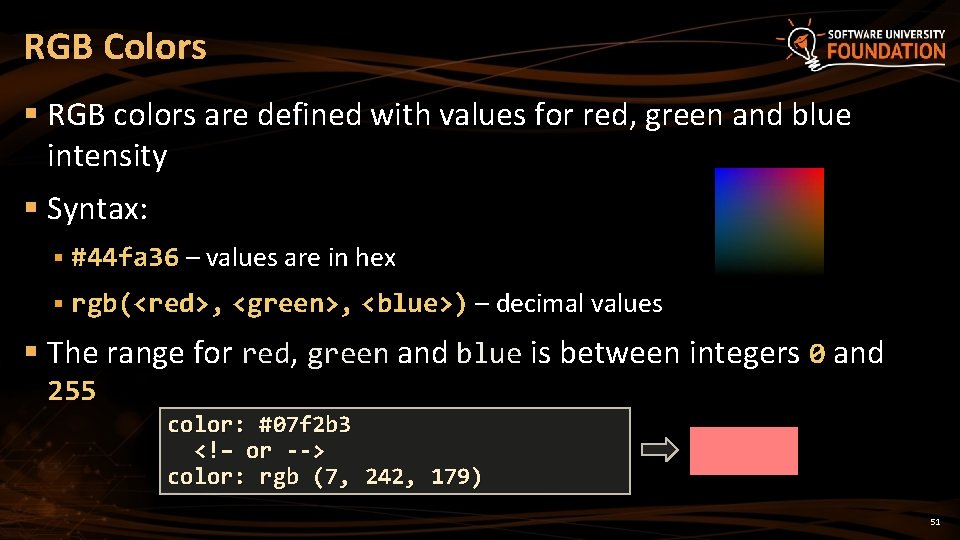
RGB Colors § RGB colors are defined with values for red, green and blue intensity § Syntax: § #44 fa 36 – values are in hex § rgb(<red>, <green>, <blue>) – decimal values § The range for red, green and blue is between integers 0 and 255 color: #07 f 2 b 3 <!– or --> color: rgb (7, 242, 179) 51
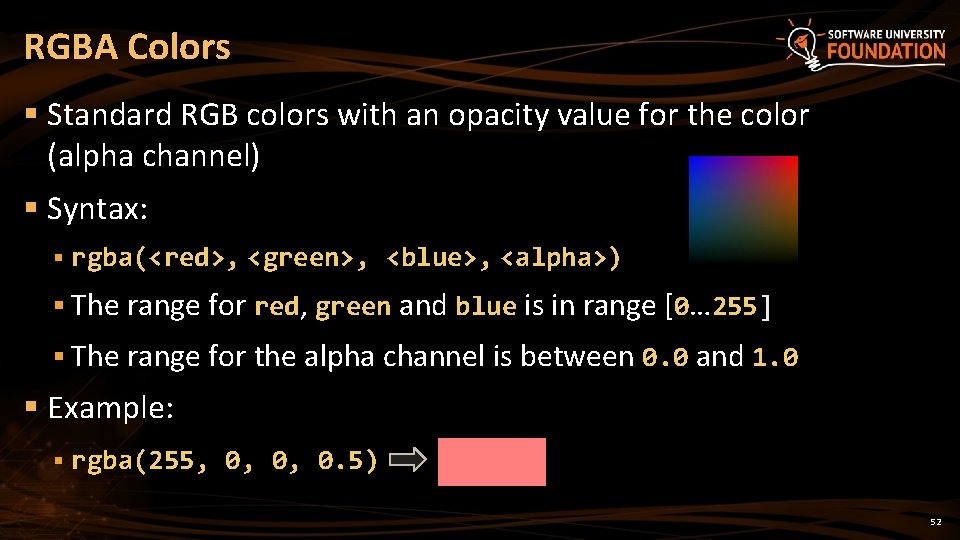
RGBA Colors § Standard RGB colors with an opacity value for the color (alpha channel) § Syntax: § rgba(<red>, <green>, <blue>, <alpha>) § The range for red, green and blue is in range [0… 255] § The range for the alpha channel is between 0. 0 and 1. 0 § Example: § rgba(255, 0, 0, 0. 5) 52
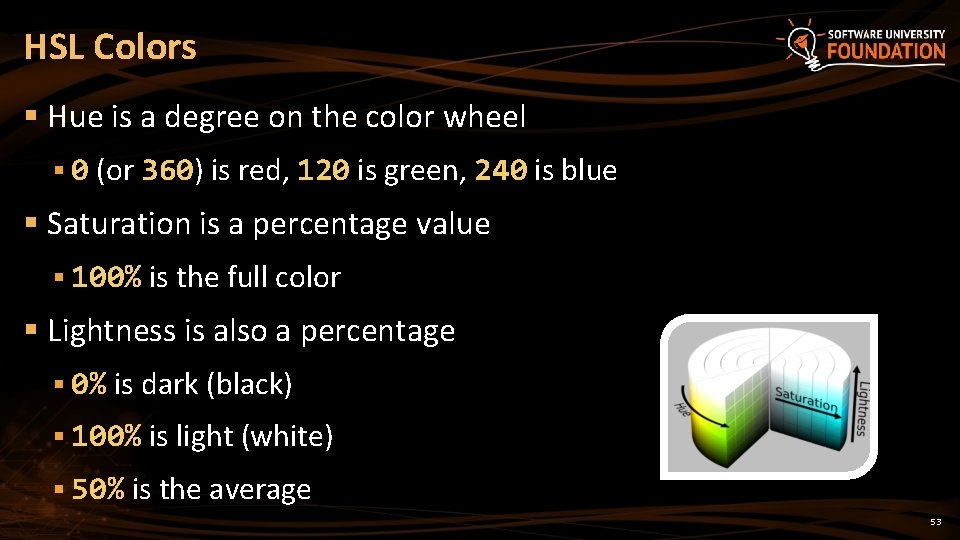
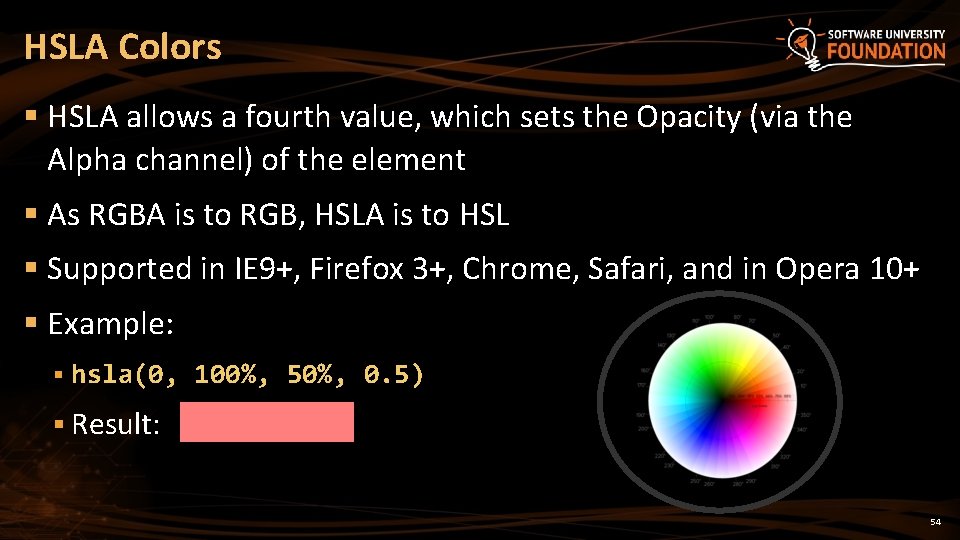
HSL Colors § Hue is a degree on the color wheel § 0 (or 360) is red, 120 is green, 240 is blue § Saturation is a percentage value § 100% is the full color § Lightness is also a percentage § 0% is dark (black) § 100% is light (white) § 50% is the average 53
HSLA Colors § HSLA allows a fourth value, which sets the Opacity (via the Alpha channel) of the element § As RGBA is to RGB, HSLA is to HSL § Supported in IE 9+, Firefox 3+, Chrome, Safari, and in Opera 10+ § Example: § hsla(0, 100%, 50%, 0. 5) § Result: 54
Color Values Live Demo
Default Browser Styles and Precedence Default Styles and Style Precedence
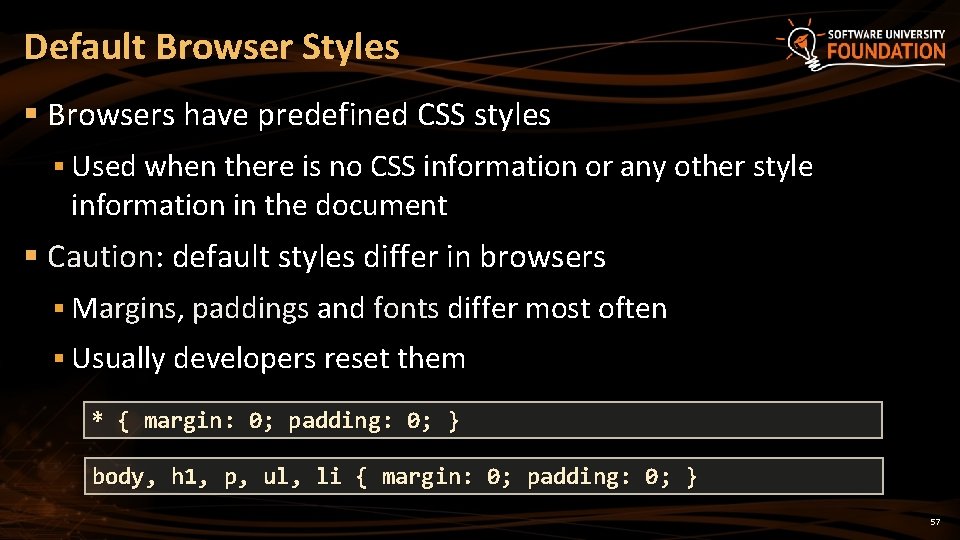
Default Browser Styles § Browsers have predefined CSS styles § Used when there is no CSS information or any other style information in the document § Caution: default styles differ in browsers § Margins, paddings and fonts differ most often § Usually developers reset them * { margin: 0; padding: 0; } body, h 1, p, ul, li { margin: 0; padding: 0; } 57
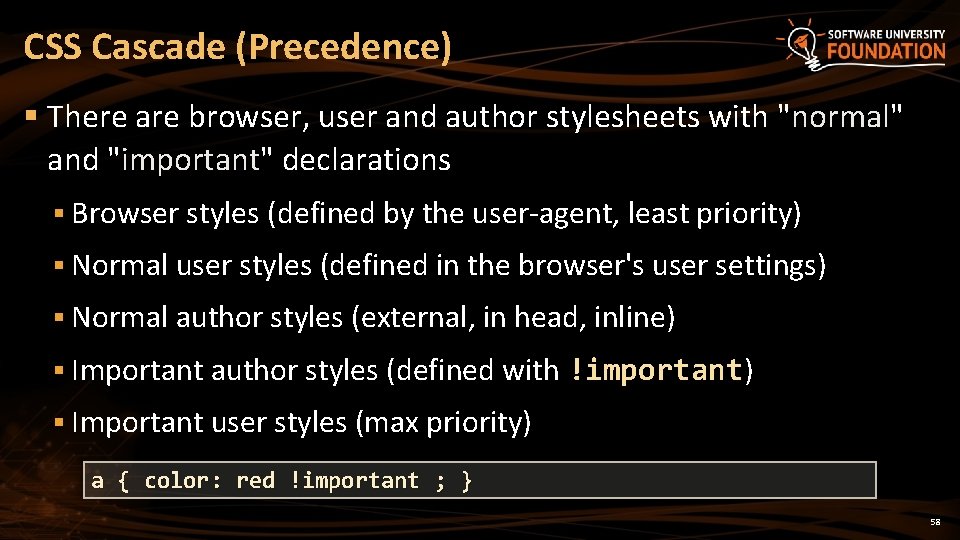
CSS Cascade (Precedence) § There are browser, user and author stylesheets with "normal" and "important" declarations § Browser styles (defined by the user-agent, least priority) § Normal user styles (defined in the browser's user settings) § Normal author styles (external, in head, inline) § Important author styles (defined with !important) § Important user styles (max priority) a { color: red !important ; } 58
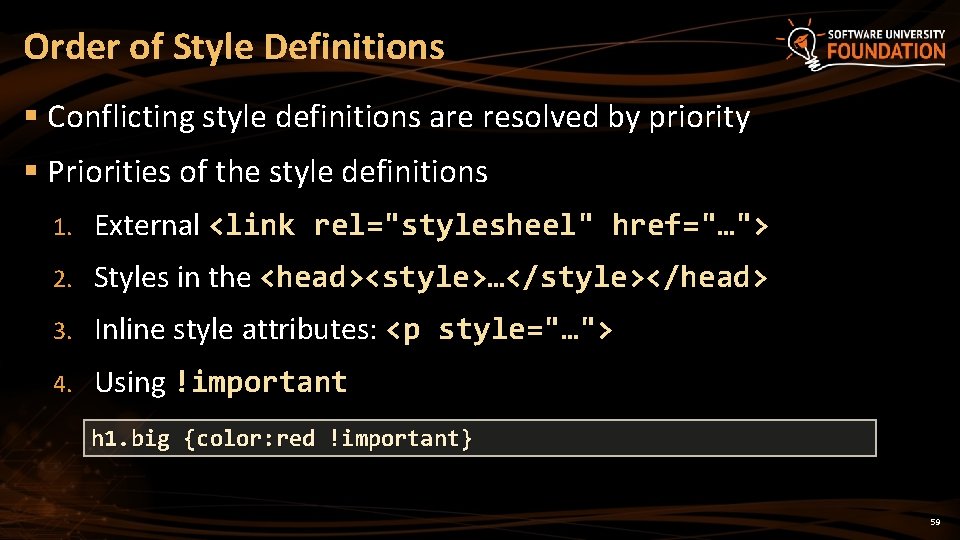
Order of Style Definitions § Conflicting style definitions are resolved by priority § Priorities of the style definitions 1. External <link rel="stylesheel" href="…"> 2. Styles in the <head><style>…</style></head> 3. Inline style attributes: <p style="…"> 4. Using !important h 1. big {color: red !important} 59
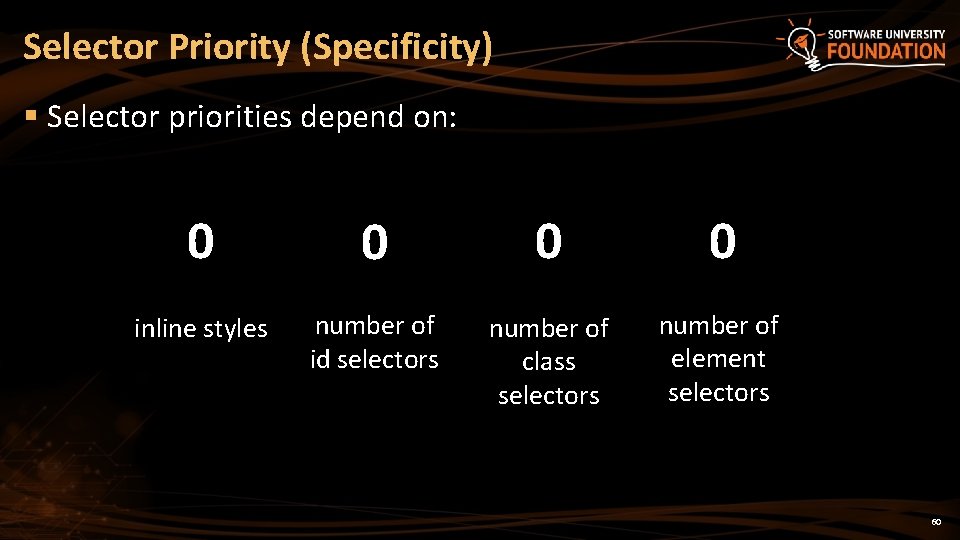
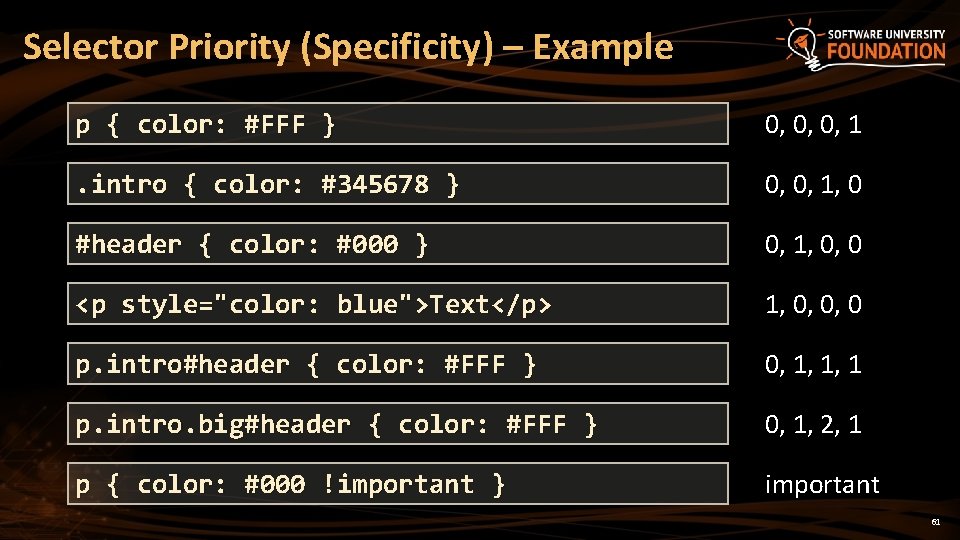
Selector Priority (Specificity) § Selector priorities depend on: 0 0 inline styles number of id selectors number of class selectors number of element selectors 60
Selector Priority (Specificity) – Example p { color: #FFF } 0, 0, 0, 1 . intro { color: #345678 } 0, 0, 1, 0 #header { color: #000 } 0, 1, 0, 0 <p style="color: blue">Text</p> 1, 0, 0, 0 p. intro#header { color: #FFF } 0, 1, 1, 1 p. intro. big#header { color: #FFF } 0, 1, 2, 1 p { color: #000 !important } important 61
CSS Selectors Precedence Live Demo
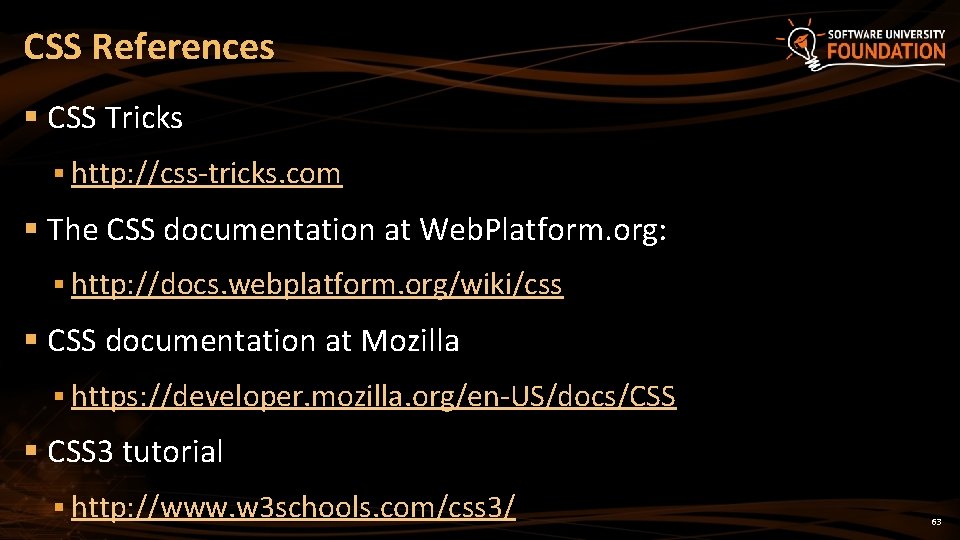
CSS References § CSS Tricks § http: //css-tricks. com § The CSS documentation at Web. Platform. org: § http: //docs. webplatform. org/wiki/css § CSS documentation at Mozilla § https: //developer. mozilla. org/en-US/docs/CSS § CSS 3 tutorial § http: //www. w 3 schools. com/css 3/ 63
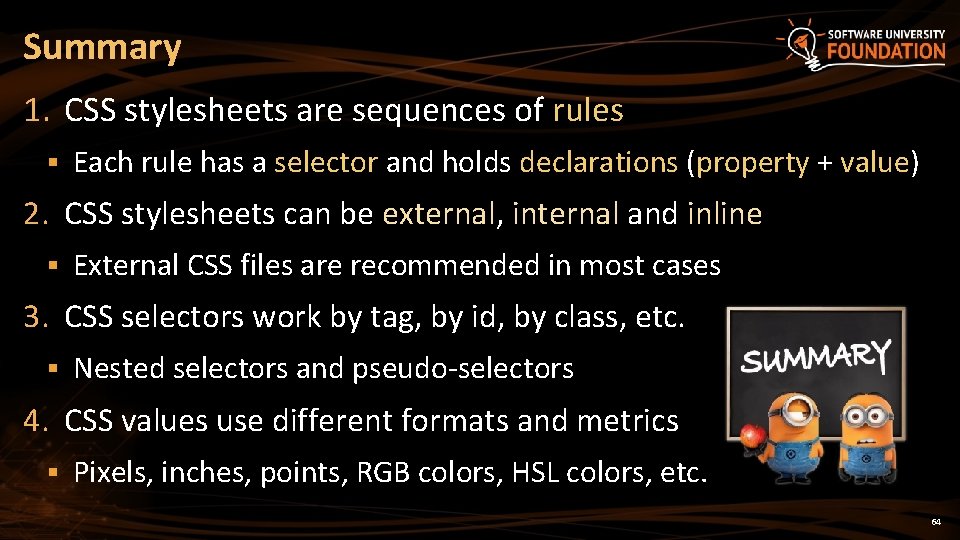
Summary 1. CSS stylesheets are sequences of rules § Each rule has a selector and holds declarations (property + value) 2. CSS stylesheets can be external, internal and inline § External CSS files are recommended in most cases 3. CSS selectors work by tag, by id, by class, etc. § Nested selectors and pseudo-selectors 4. CSS values use different formats and metrics § Pixels, inches, points, RGB colors, HSL colors, etc. 64
CSS Overview ? s n o i t s e u Q ? ? ? https: //softuni. bg/courses/web-fundamentals/
License § This course (slides, examples, demos, videos, homework, etc. ) is licensed under the "Creative Commons Attribution. Non. Commercial-Share. Alike 4. 0 International" license § Attribution: this work may contain portions from § "HTML Basics" course by Telerik Academy under CC-BY-NC-SA license § "CSS Styling" course by Telerik Academy under CC-BY-NC-SA license 66
Soft. Uni Diamond Partners
Free Trainings @ Software University § Software University Foundation – softuni. org § Software University – High-Quality Education, Profession and Job for Software Developers § softuni. bg § Software University @ Facebook § facebook. com/Software. University § Software University @ You. Tube § youtube. com/Software. University § Software University Forums – forum. softuni. bg