
CSS Cascading Style Sheets Kanida Sinmai ksinmaihotmail com


- Slides: 50
CSS – Cascading Style Sheets Kanida Sinmai ksinmai@hotmail. com http: //mis. csit. sci. tsu. ac. th/kanida
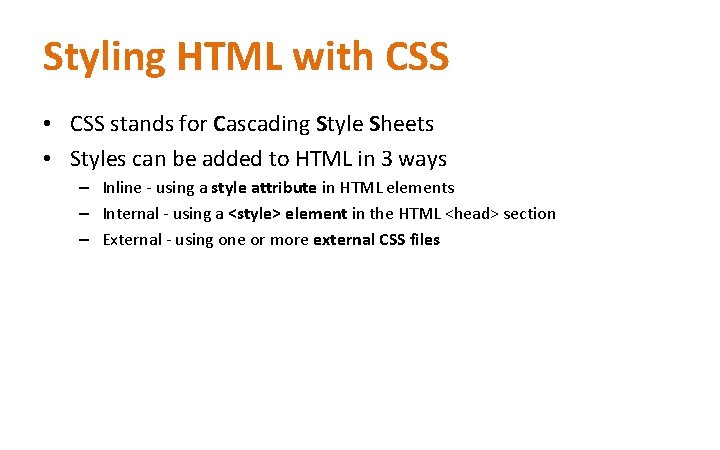
Styling HTML with CSS • CSS stands for Cascading Style Sheets • Styles can be added to HTML in 3 ways – Inline - using a style attribute in HTML elements – Internal - using a <style> element in the HTML <head> section – External - using one or more external CSS files
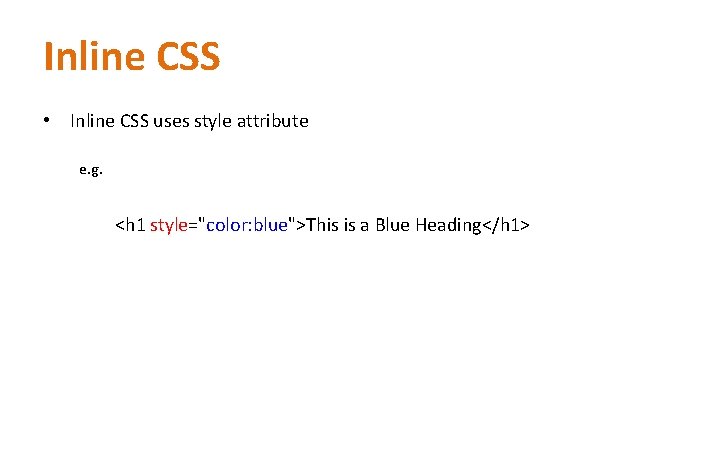
Inline CSS • Inline CSS uses style attribute e. g. <h 1 style="color: blue">This is a Blue Heading</h 1>
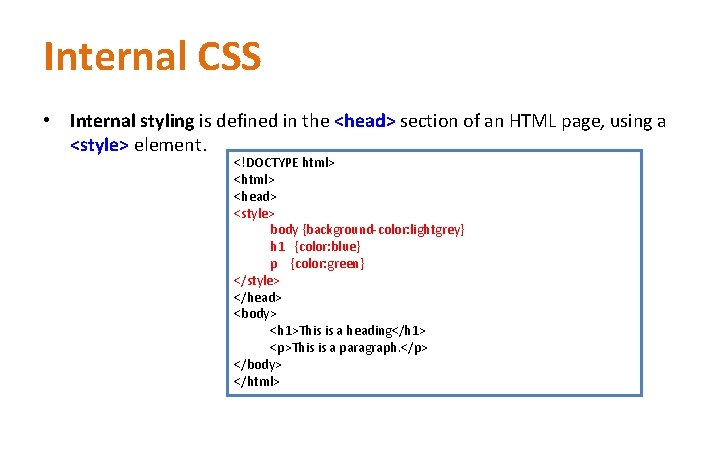
Internal CSS • Internal styling is defined in the <head> section of an HTML page, using a <style> element. <!DOCTYPE html> <head> <style> body {background-color: lightgrey} h 1 {color: blue} p {color: green} </style> </head> <body> <h 1>This is a heading</h 1> <p>This is a paragraph. </p> </body> </html>
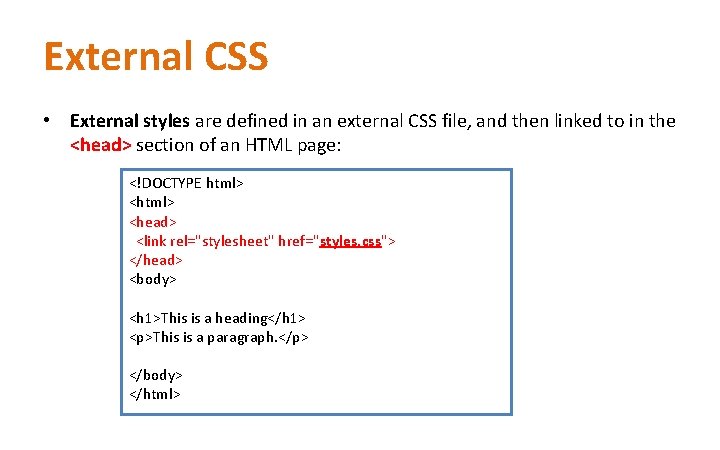
External CSS • External styles are defined in an external CSS file, and then linked to in the <head> section of an HTML page: <!DOCTYPE html> <head> <link rel="stylesheet" href="styles. css"> </head> <body> <h 1>This is a heading</h 1> <p>This is a paragraph. </p> </body> </html>
CSS file • • An external style sheet can be written in any text editor. The file should not contain any html tags. The style sheet file must be saved with a. css extension. An example of a style sheet file called ”styles. css”
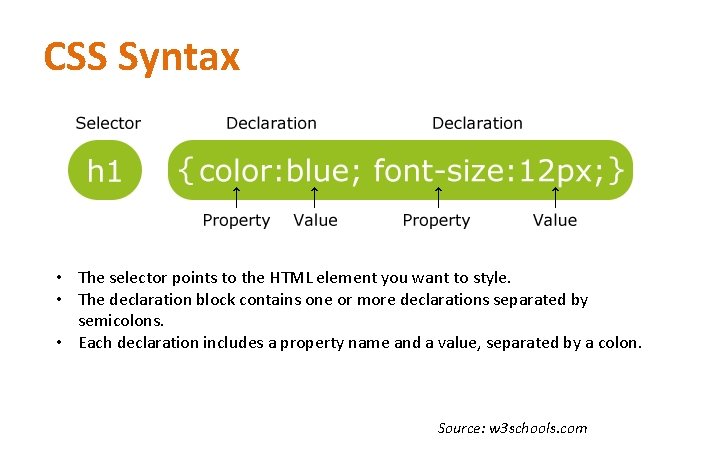
CSS Syntax • The selector points to the HTML element you want to style. • The declaration block contains one or more declarations separated by semicolons. • Each declaration includes a property name and a value, separated by a colon. Source: w 3 schools. com
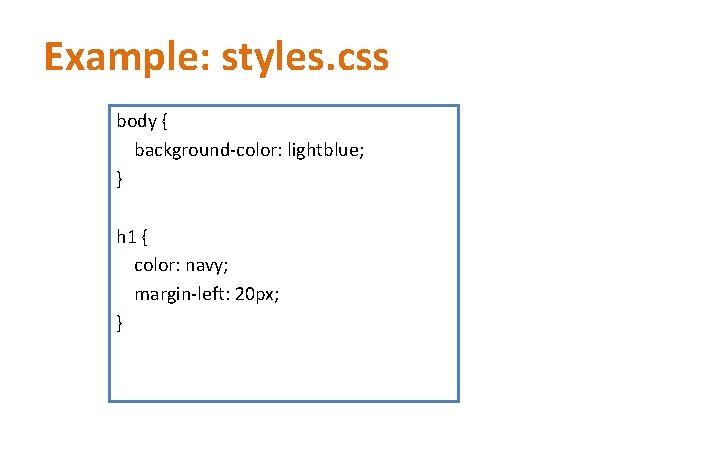
Example: styles. css body { background-color: lightblue; } h 1 { color: navy; margin-left: 20 px; }
CSS background • • background-color background-image background-repeat background-position
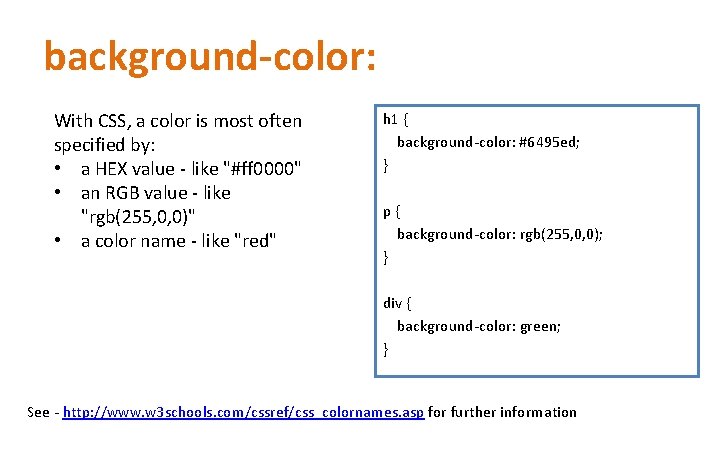
background-color: With CSS, a color is most often specified by: • a HEX value - like "#ff 0000" • an RGB value - like "rgb(255, 0, 0)" • a color name - like "red" h 1 { background-color: #6495 ed; } p { background-color: rgb(255, 0, 0); } div { background-color: green; } See - http: //www. w 3 schools. com/cssref/css_colornames. asp for further information
Background-image body { background-image: url("paper. gif"); }
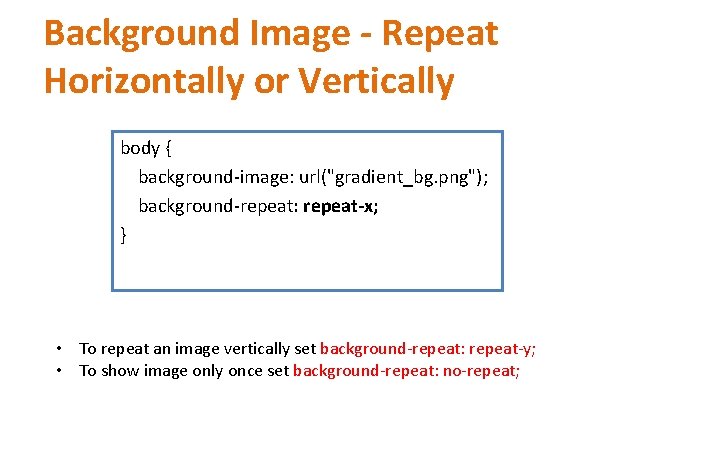
Background Image - Repeat Horizontally or Vertically body { background-image: url("gradient_bg. png"); background-repeat: repeat-x; } • To repeat an image vertically set background-repeat: repeat-y; • To show image only once set background-repeat: no-repeat;
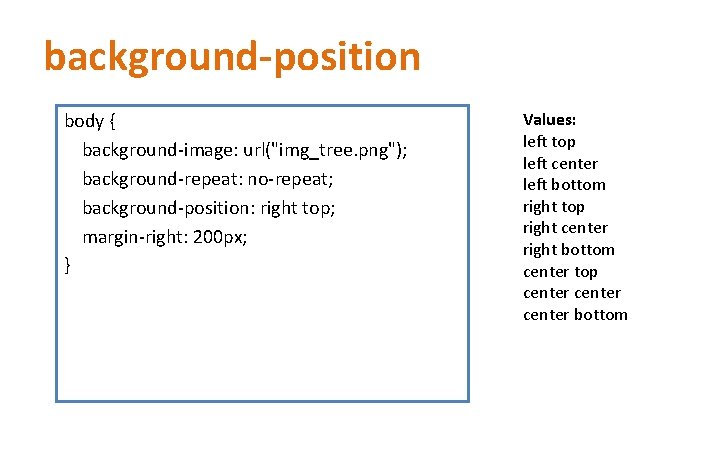
background-position body { background-image: url("img_tree. png"); background-repeat: no-repeat; background-position: right top; margin-right: 200 px; } Values: left top left center left bottom right top right center right bottom center top center bottom
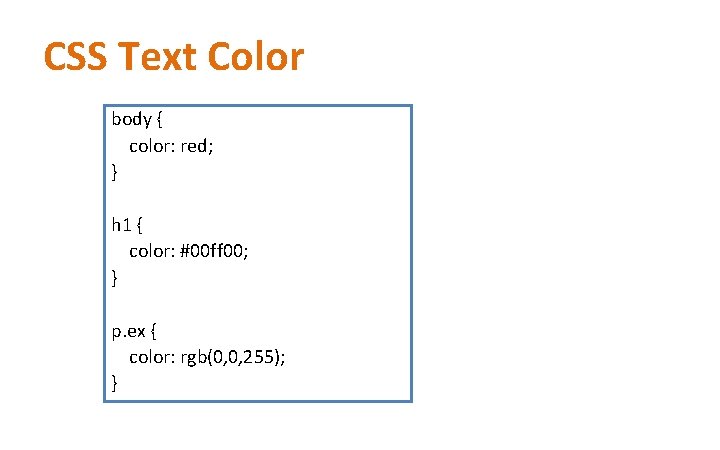
CSS Text Color body { color: red; } h 1 { color: #00 ff 00; } p. ex { color: rgb(0, 0, 255); }
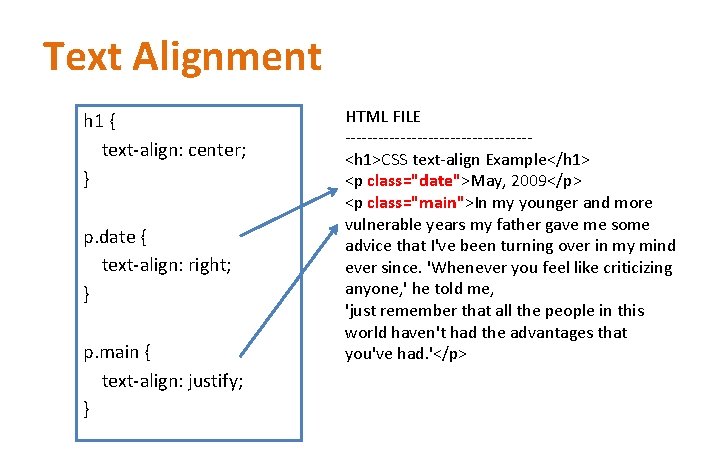
Text Alignment h 1 { text-align: center; } p. date { text-align: right; } p. main { text-align: justify; } HTML FILE -----------------<h 1>CSS text-align Example</h 1> <p class="date">May, 2009</p> <p class="main">In my younger and more vulnerable years my father gave me some advice that I've been turning over in my mind ever since. 'Whenever you feel like criticizing anyone, ' he told me, 'just remember that all the people in this world haven't had the advantages that you've had. '</p>
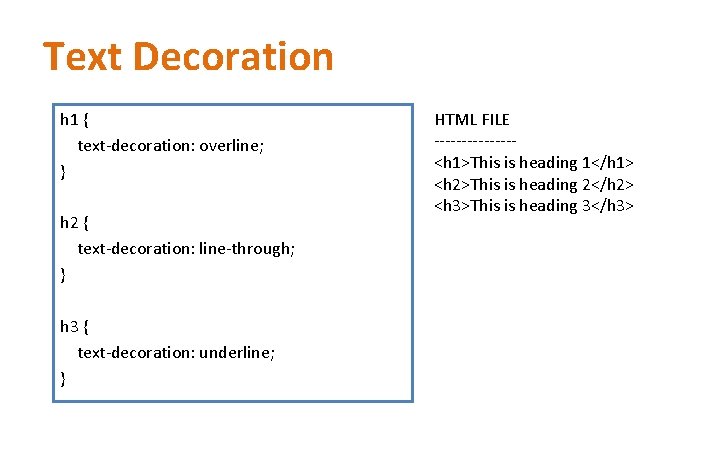
Text Decoration h 1 { text-decoration: overline; } h 2 { text-decoration: line-through; } h 3 { text-decoration: underline; } HTML FILE -------<h 1>This is heading 1</h 1> <h 2>This is heading 2</h 2> <h 3>This is heading 3</h 3>
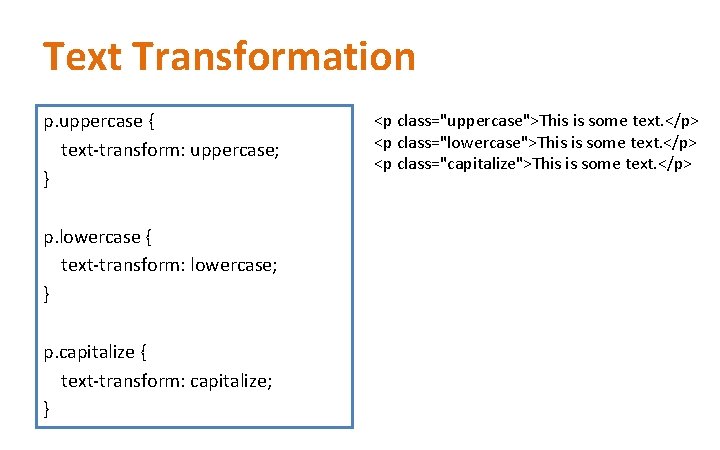
Text Transformation p. uppercase { text-transform: uppercase; } p. lowercase { text-transform: lowercase; } p. capitalize { text-transform: capitalize; } <p class="uppercase">This is some text. </p> <p class="lowercase">This is some text. </p> <p class="capitalize">This is some text. </p>
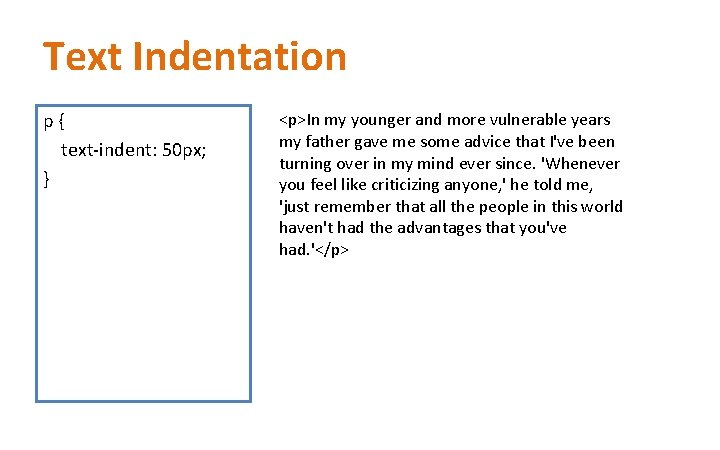
Text Indentation p { text-indent: 50 px; } <p>In my younger and more vulnerable years my father gave me some advice that I've been turning over in my mind ever since. 'Whenever you feel like criticizing anyone, ' he told me, 'just remember that all the people in this world haven't had the advantages that you've had. '</p>
CSS Font p { font-family: "Times New Roman", Times, serif; }
Font style p { font-style: normal; } p. italic { font-style: italic; }
Font Size h 1 { font-size: 40 px; } h 2 { font-size: 30 px; } p { font-size: 14 px; }
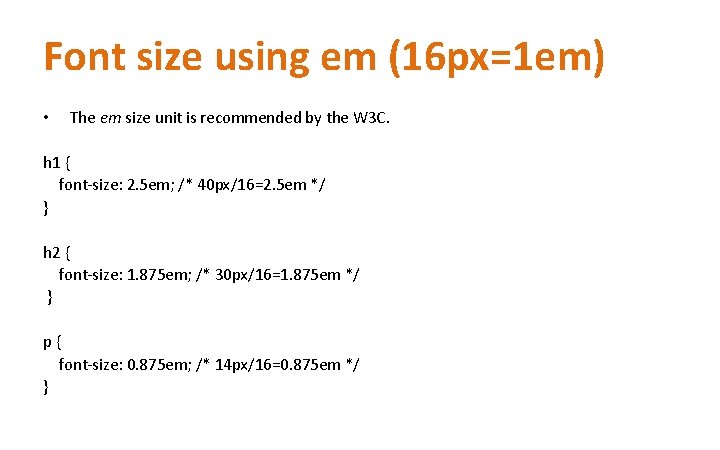
Font size using em (16 px=1 em) • The em size unit is recommended by the W 3 C. h 1 { font-size: 2. 5 em; /* 40 px/16=2. 5 em */ } h 2 { font-size: 1. 875 em; /* 30 px/16=1. 875 em */ } p { font-size: 0. 875 em; /* 14 px/16=0. 875 em */ }
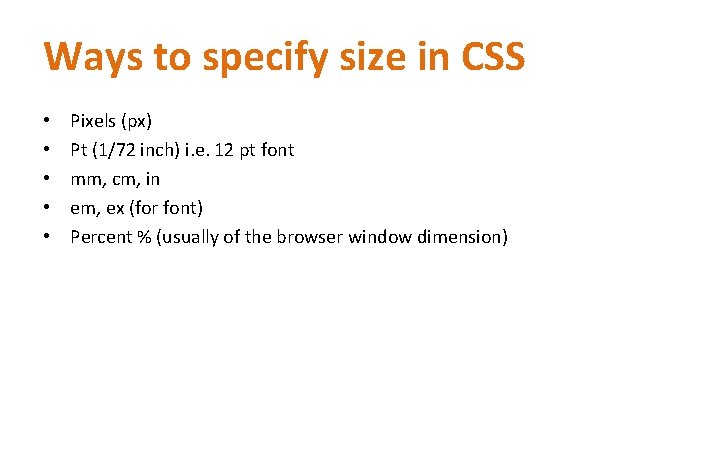
Ways to specify size in CSS • • • Pixels (px) Pt (1/72 inch) i. e. 12 pt font mm, cm, in em, ex (for font) Percent % (usually of the browser window dimension)
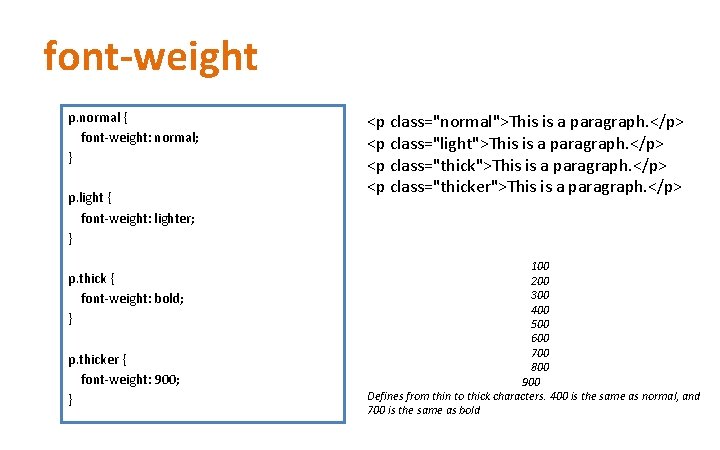
font-weight p. normal { font-weight: normal; } p. light { font-weight: lighter; } p. thick { font-weight: bold; } p. thicker { font-weight: 900; } <p class="normal">This is a paragraph. </p> <p class="light">This is a paragraph. </p> <p class="thicker">This is a paragraph. </p> 100 200 300 400 500 600 700 800 900 Defines from thin to thick characters. 400 is the same as normal, and 700 is the same as bold
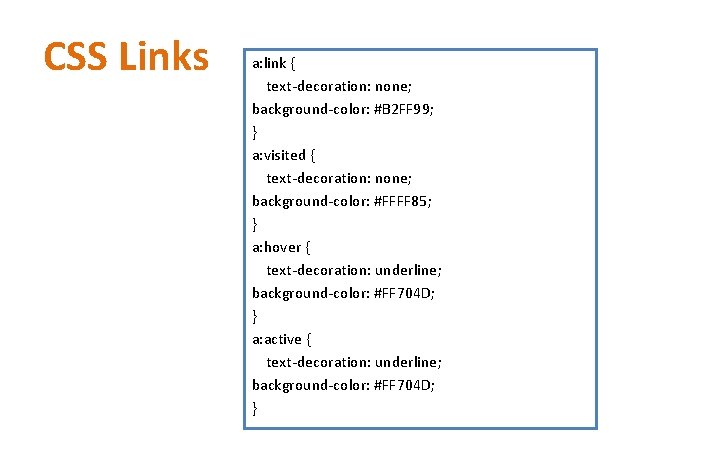
CSS Links a: link { text-decoration: none; background-color: #B 2 FF 99; } a: visited { text-decoration: none; background-color: #FFFF 85; } a: hover { text-decoration: underline; background-color: #FF 704 D; } a: active { text-decoration: underline; background-color: #FF 704 D; }
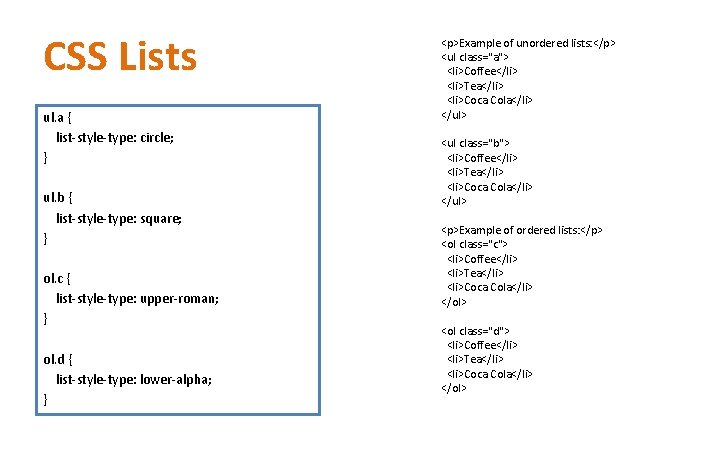
CSS Lists ul. a { list-style-type: circle; } ul. b { list-style-type: square; } ol. c { list-style-type: upper-roman; } ol. d { list-style-type: lower-alpha; } <p>Example of unordered lists: </p> <ul class="a"> <li>Coffee</li> <li>Tea</li> <li>Coca Cola</li> </ul> <ul class="b"> <li>Coffee</li> <li>Tea</li> <li>Coca Cola</li> </ul> <p>Example of ordered lists: </p> <ol class="c"> <li>Coffee</li> <li>Tea</li> <li>Coca Cola</li> </ol> <ol class="d"> <li>Coffee</li> <li>Tea</li> <li>Coca Cola</li> </ol>
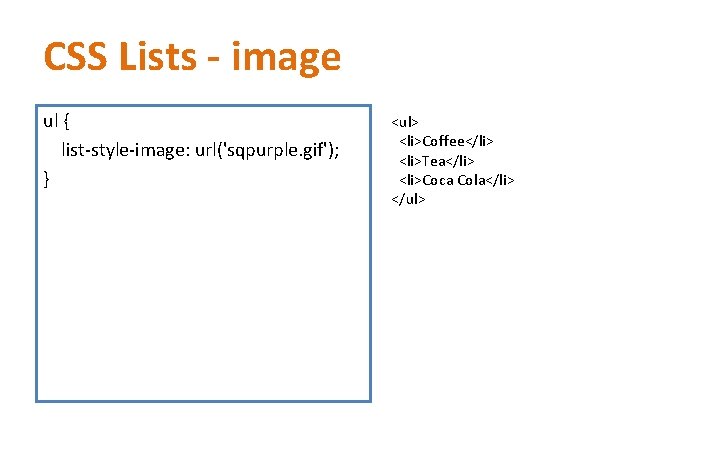
CSS Lists - image ul { list-style-image: url('sqpurple. gif'); } <ul> <li>Coffee</li> <li>Tea</li> <li>Coca Cola</li> </ul>
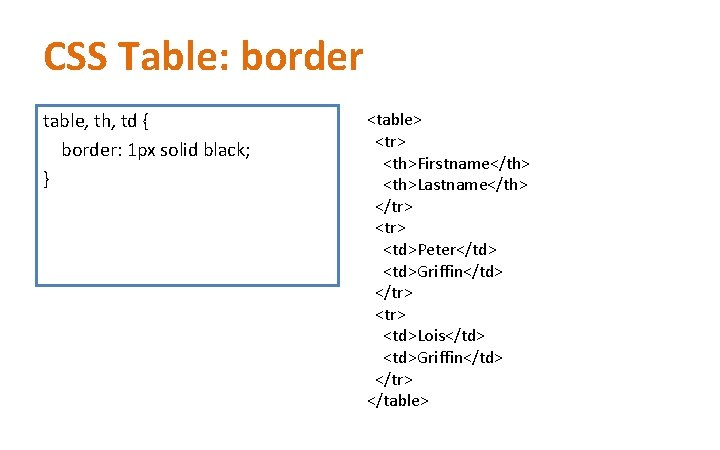
CSS Table: border table, th, td { border: 1 px solid black; } <table> <tr> <th>Firstname</th> <th>Lastname</th> </tr> <tr> <td>Peter</td> <td>Griffin</td> </tr> <tr> <td>Lois</td> <td>Griffin</td> </tr> </table>
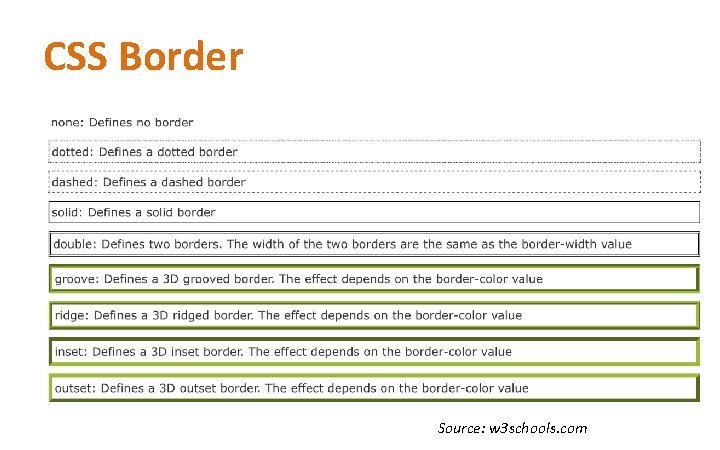
CSS Border Source: w 3 schools. com
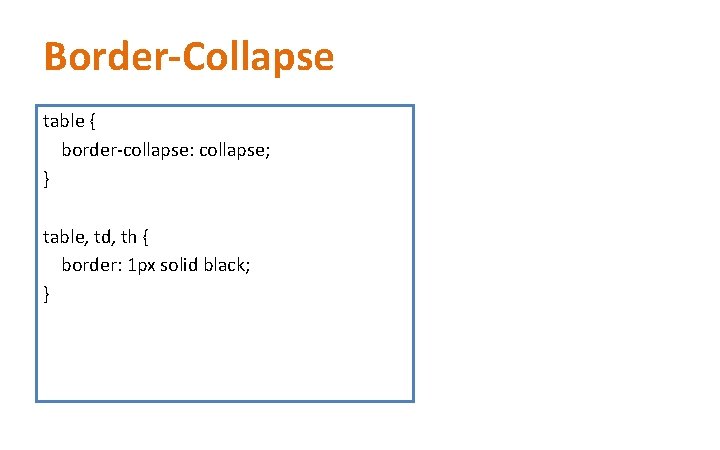
Border-Collapse table { border-collapse: collapse; } table, td, th { border: 1 px solid black; }
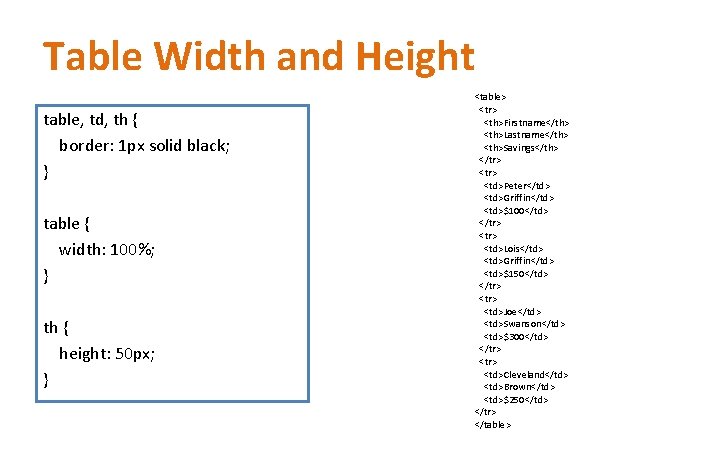
Table Width and Height table, td, th { border: 1 px solid black; } table { width: 100%; } th { height: 50 px; } <table> <tr> <th>Firstname</th> <th>Lastname</th> <th>Savings</th> </tr> <tr> <td>Peter</td> <td>Griffin</td> <td>$100</td> </tr> <tr> <td>Lois</td> <td>Griffin</td> <td>$150</td> </tr> <tr> <td>Joe</td> <td>Swanson</td> <td>$300</td> </tr> <tr> <td>Cleveland</td> <td>Brown</td> <td>$250</td> </tr> </table>
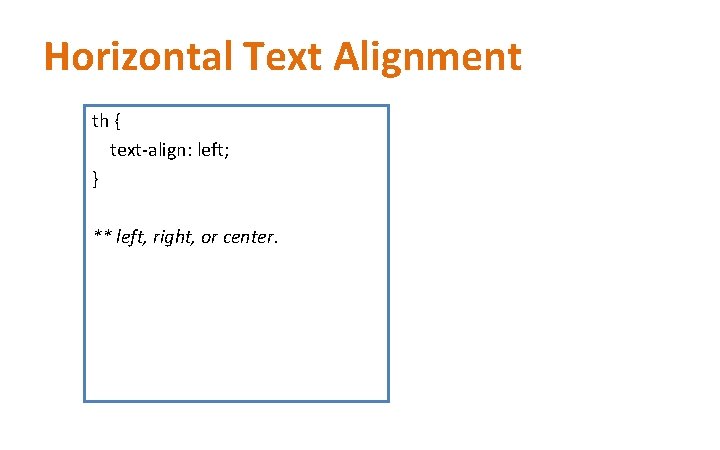
Horizontal Text Alignment th { text-align: left; } ** left, right, or center.
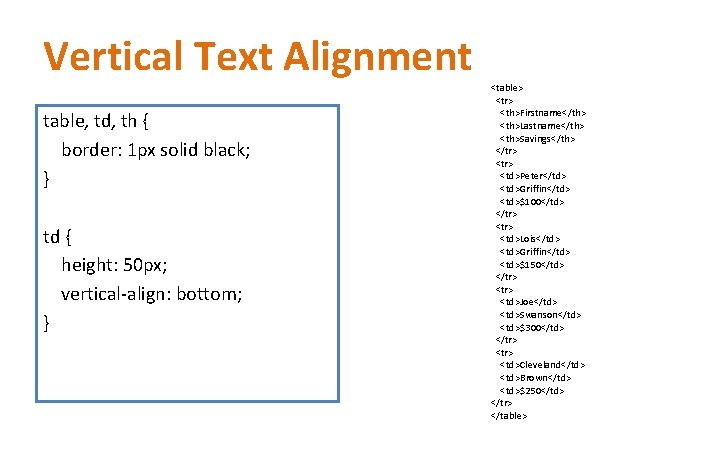
Vertical Text Alignment table, td, th { border: 1 px solid black; } td { height: 50 px; vertical-align: bottom; } <table> <tr> <th>Firstname</th> <th>Lastname</th> <th>Savings</th> </tr> <tr> <td>Peter</td> <td>Griffin</td> <td>$100</td> </tr> <tr> <td>Lois</td> <td>Griffin</td> <td>$150</td> </tr> <tr> <td>Joe</td> <td>Swanson</td> <td>$300</td> </tr> <tr> <td>Cleveland</td> <td>Brown</td> <td>$250</td> </tr> </table>
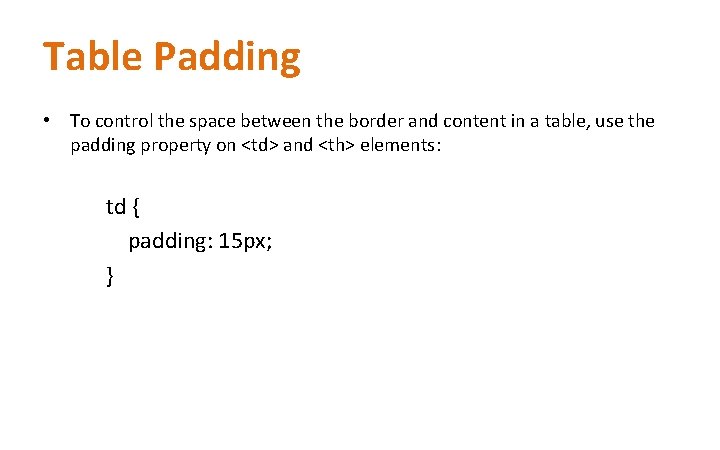
Table Padding • To control the space between the border and content in a table, use the padding property on <td> and <th> elements: td { padding: 15 px; }
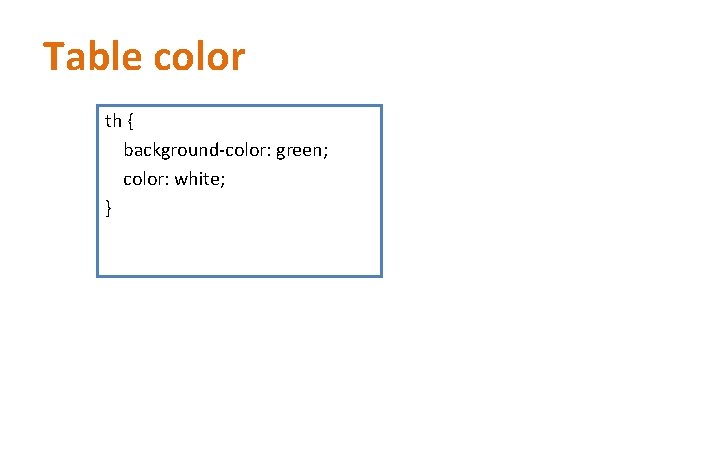
Table color th { background-color: green; color: white; }
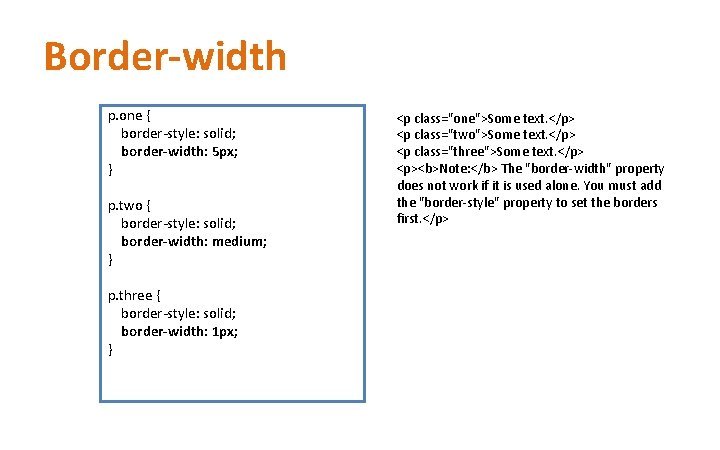
Border-width p. one { border-style: solid; border-width: 5 px; } p. two { border-style: solid; border-width: medium; } p. three { border-style: solid; border-width: 1 px; } <p class="one">Some text. </p> <p class="two">Some text. </p> <p class="three">Some text. </p> <p><b>Note: </b> The "border-width" property does not work if it is used alone. You must add the "border-style" property to set the borders first. </p>
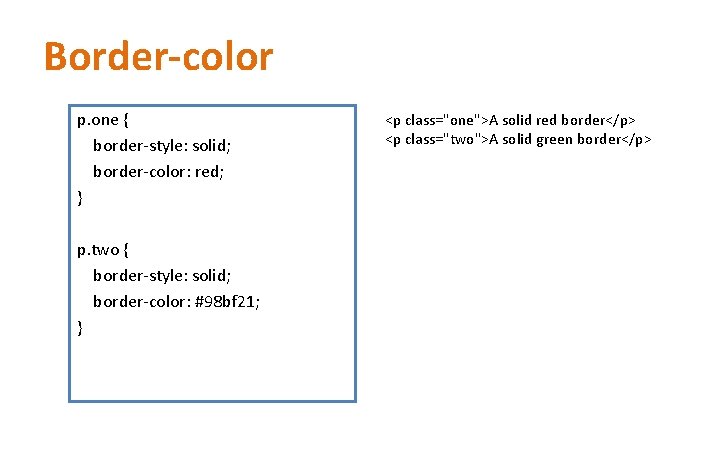
Border-color p. one { border-style: solid; border-color: red; } p. two { border-style: solid; border-color: #98 bf 21; } <p class="one">A solid red border</p> <p class="two">A solid green border</p>
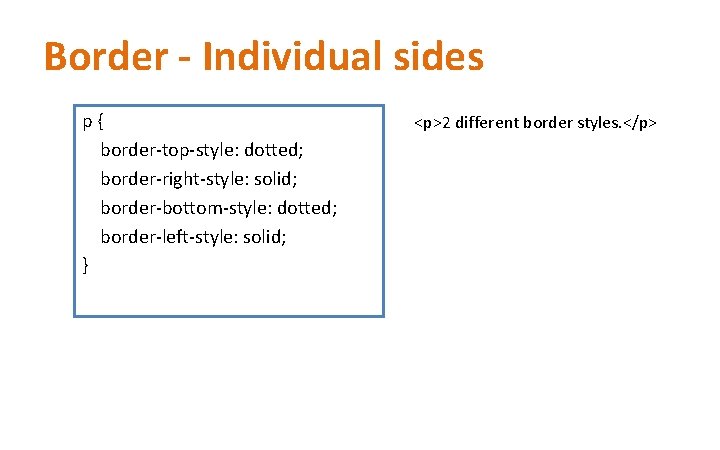
Border - Individual sides p { border-top-style: dotted; border-right-style: solid; border-bottom-style: dotted; border-left-style: solid; } <p>2 different border styles. </p>
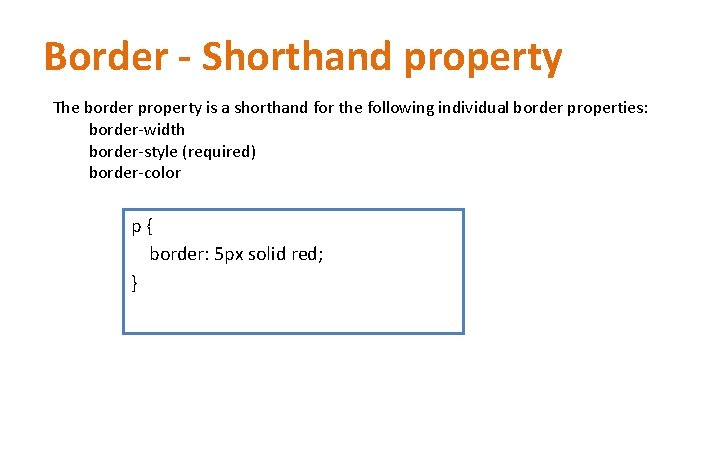
Border - Shorthand property The border property is a shorthand for the following individual border properties: border-width border-style (required) border-color p { border: 5 px solid red; }
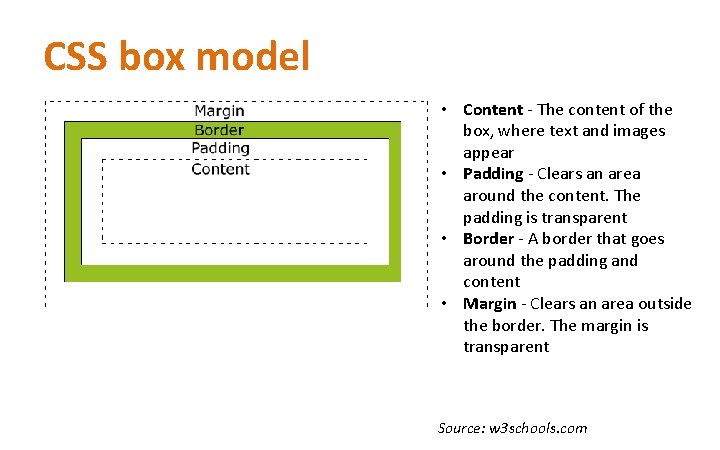
CSS box model • Content - The content of the box, where text and images appear • Padding - Clears an area around the content. The padding is transparent • Border - A border that goes around the padding and content • Margin - Clears an area outside the border. The margin is transparent Source: w 3 schools. com
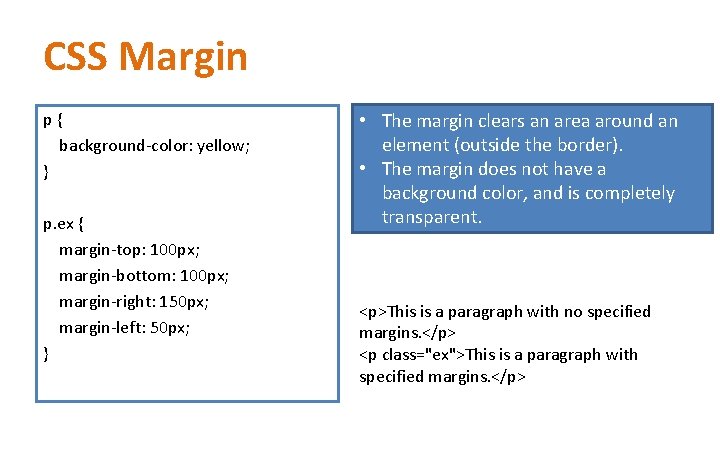
CSS Margin p { background-color: yellow; } p. ex { margin-top: 100 px; margin-bottom: 100 px; margin-right: 150 px; margin-left: 50 px; } • The margin clears an area around an element (outside the border). • The margin does not have a background color, and is completely transparent. <p>This is a paragraph with no specified margins. </p> <p class="ex">This is a paragraph with specified margins. </p>
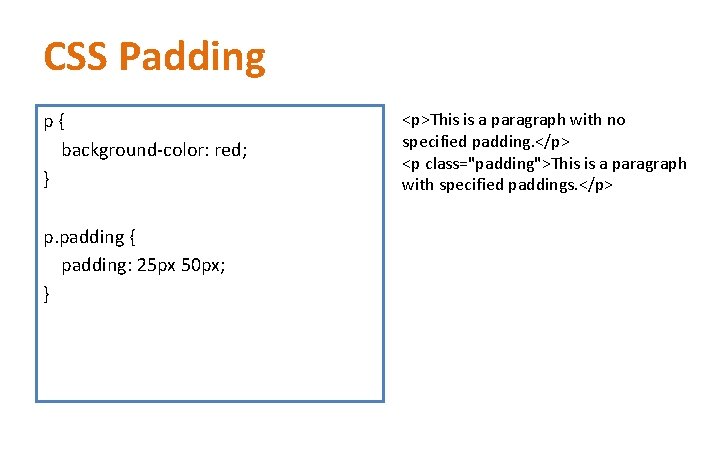
CSS Padding p { background-color: red; } p. padding { padding: 25 px 50 px; } <p>This is a paragraph with no specified padding. </p> <p class="padding">This is a paragraph with specified paddings. </p>
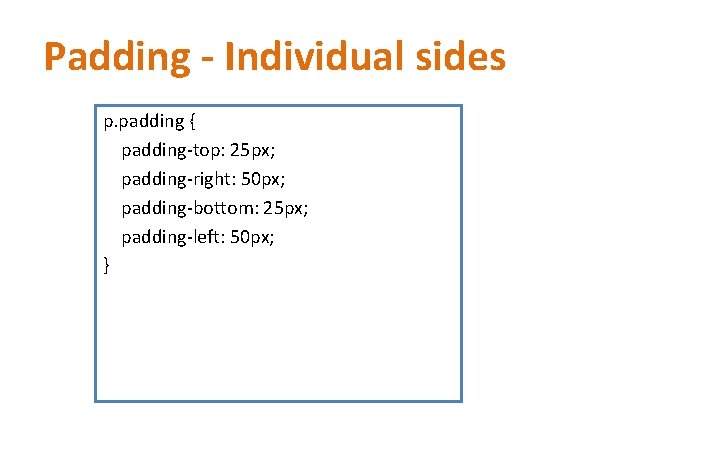
Padding - Individual sides p. padding { padding-top: 25 px; padding-right: 50 px; padding-bottom: 25 px; padding-left: 50 px; }
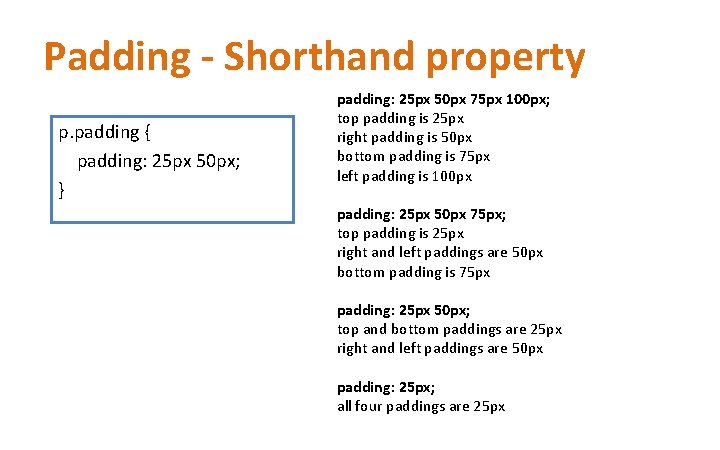
Padding - Shorthand property p. padding { padding: 25 px 50 px; } padding: 25 px 50 px 75 px 100 px; top padding is 25 px right padding is 50 px bottom padding is 75 px left padding is 100 px padding: 25 px 50 px 75 px; top padding is 25 px right and left paddings are 50 px bottom padding is 75 px padding: 25 px 50 px; top and bottom paddings are 25 px right and left paddings are 50 px padding: 25 px; all four paddings are 25 px
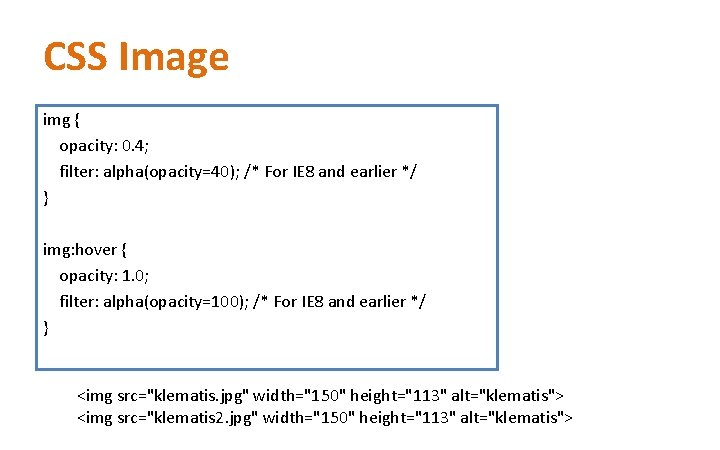
CSS Image img { opacity: 0. 4; filter: alpha(opacity=40); /* For IE 8 and earlier */ } img: hover { opacity: 1. 0; filter: alpha(opacity=100); /* For IE 8 and earlier */ } <img src="klematis. jpg" width="150" height="113" alt="klematis"> <img src="klematis 2. jpg" width="150" height="113" alt="klematis">
Image - float img { float: right; margin: 0 0 10 px; } <p>In the paragraph below, we have added an image with style <b>float: right</b>. The result is that the image will float to the right in the paragraph. </p> <img src="logocss. gif" width="95" height="84" /> This is some text. This is some text. </p>
CSS 3 – Rounded corners With the CSS 3 border-radius property, you can give any element "rounded corners". p { background-color: yellow; border-radius: 25 px; }
Summary • • • CSS background CSS text CSS font CSS table CSS links CSS lists CSS image CSS margin CSS padding CSS border
Resources • w 3 schools. com
Practical • Please see practical #3 on my website