
CSE 390 a Lecture 1 introduction to LinuxUnix

- Slides: 21
CSE 390 a Lecture 1 introduction to Linux/Unix environment slides created by Marty Stepp, modified by Jessica Miller & Ruth Anderson http: //www. cs. washington. edu/390 a/ 1
Lecture summary • Course introduction and syllabus • Unix and Linux operating system • Introduction to Bash shell 2
Course Staff • Me: § Meg Campbell, meganca@cs § Office hours: Mon 10: 30 -11: 30 am, Thurs 11 am-12 pm, CSE 614 3
Course Introduction • CSE 390 a § Collection of tools and topics not specifically addressed in other courses that CSE majors should know • *nix command line interface (CLI), Shell scripting, compilation tools (makefiles), version control… § Credit / No Credit course, determined by short weekly assignments and a “final” assignment 4
Operating systems • What is an OS? Why have one? • What is a Kernel? 5
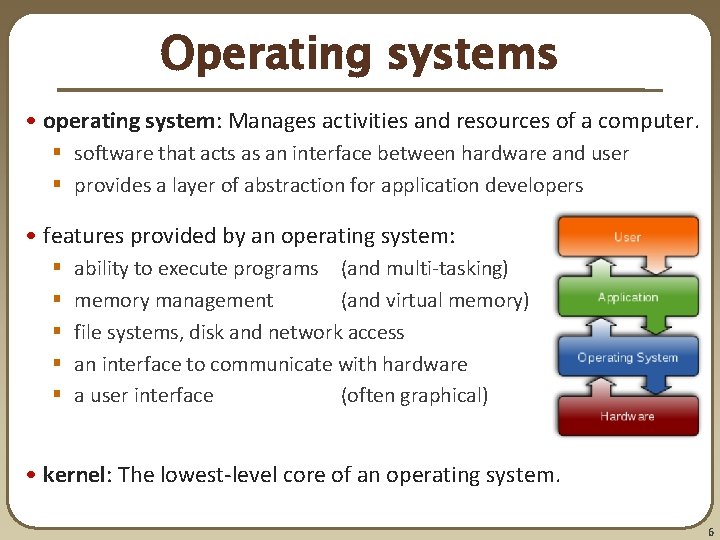
Operating systems • operating system: Manages activities and resources of a computer. § software that acts as an interface between hardware and user § provides a layer of abstraction for application developers • features provided by an operating system: § § § ability to execute programs (and multi-tasking) memory management (and virtual memory) file systems, disk and network access an interface to communicate with hardware a user interface (often graphical) • kernel: The lowest-level core of an operating system. 6
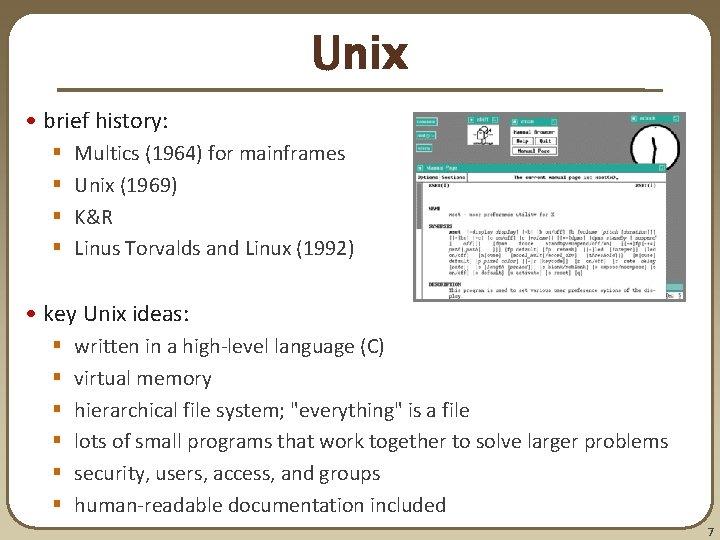
Unix • brief history: § § Multics (1964) for mainframes Unix (1969) K&R Linus Torvalds and Linux (1992) • key Unix ideas: § § § written in a high-level language (C) virtual memory hierarchical file system; "everything" is a file lots of small programs that work together to solve larger problems security, users, access, and groups human-readable documentation included 7
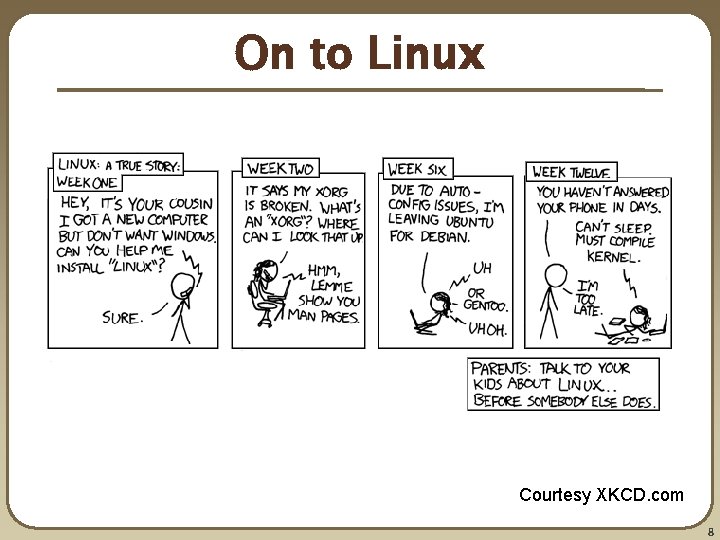
On to Linux Courtesy XKCD. com 8
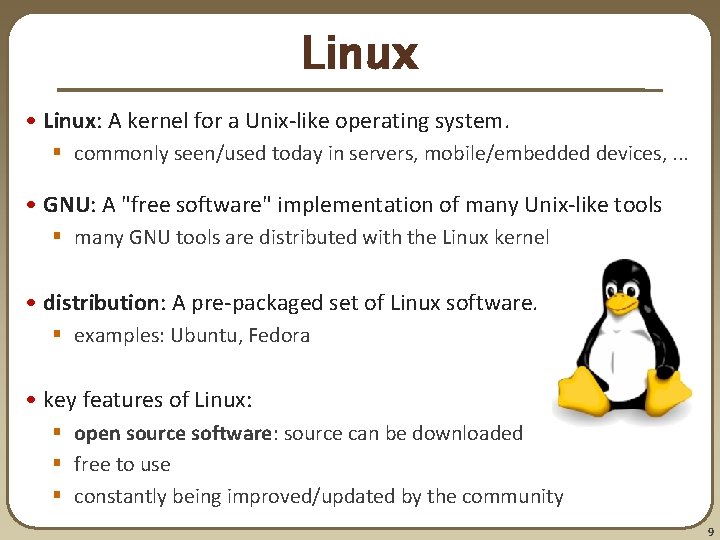
Linux • Linux: A kernel for a Unix-like operating system. § commonly seen/used today in servers, mobile/embedded devices, . . . • GNU: A "free software" implementation of many Unix-like tools § many GNU tools are distributed with the Linux kernel • distribution: A pre-packaged set of Linux software. § examples: Ubuntu, Fedora • key features of Linux: § open source software: source can be downloaded § free to use § constantly being improved/updated by the community 9
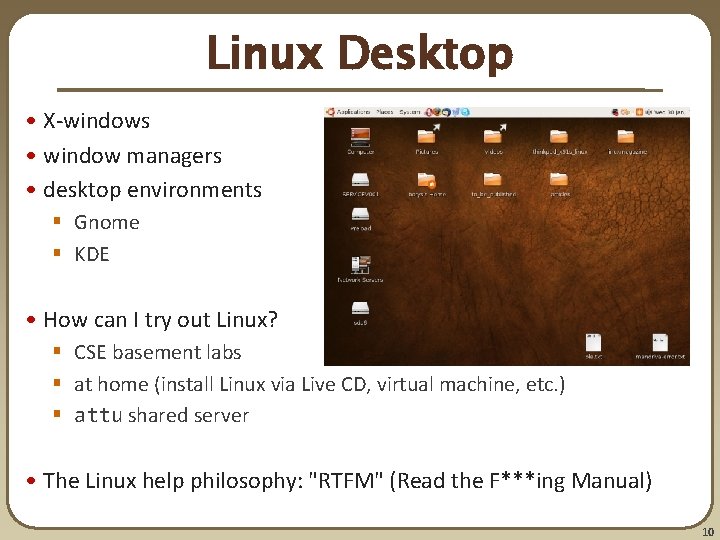
Linux Desktop • X-windows • window managers • desktop environments § Gnome § KDE • How can I try out Linux? § CSE basement labs § at home (install Linux via Live CD, virtual machine, etc. ) § attu shared server • The Linux help philosophy: "RTFM" (Read the F***ing Manual) 10
Things you can do in Linux • Load the course web site in a browser • Install and play games • Play MP 3 s • Edit photos • IM, Skype 11
Shell • shell: An interactive program that uses user input to manage the execution of other programs. § A command processor, typically runs in a text window. § User types commands, the shell runs the commands § Several different shell programs exist: • bash : the default shell program on most Linux/Unix systems • We will use bash • Other shells: Bourne, csh, tsch • Why should I learn to use a shell when GUIs exist? 12
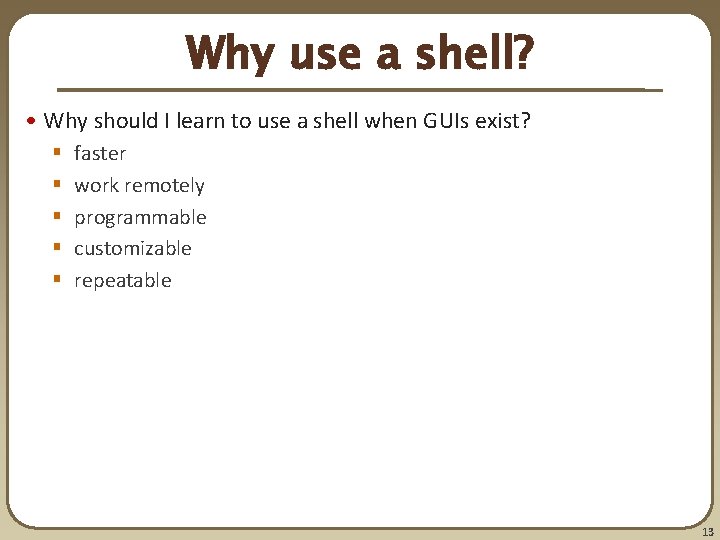
Why use a shell? • Why should I learn to use a shell when GUIs exist? § § § faster work remotely programmable customizable repeatable 13
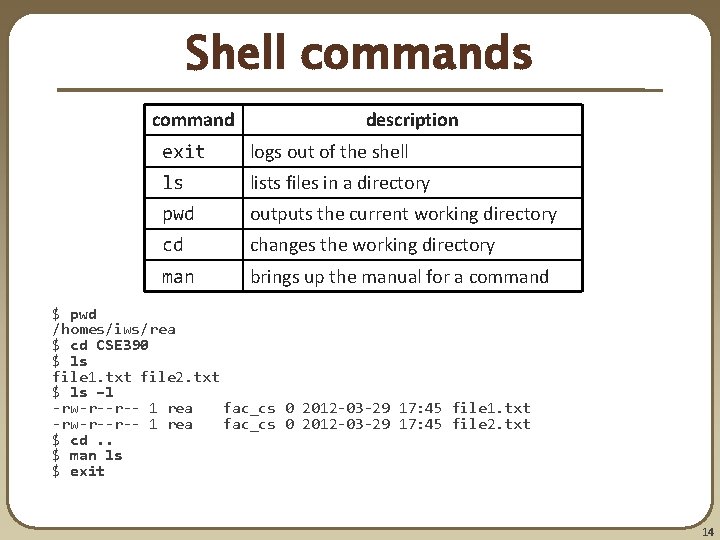
Shell commands command description exit logs out of the shell ls lists files in a directory pwd outputs the current working directory cd changes the working directory man brings up the manual for a command $ pwd /homes/iws/rea $ cd CSE 390 $ ls file 1. txt file 2. txt $ ls –l -rw-r--r-- 1 rea fac_cs 0 2012 -03 -29 17: 45 file 1. txt -rw-r--r-- 1 rea fac_cs 0 2012 -03 -29 17: 45 file 2. txt $ cd. . $ man ls $ exit 14
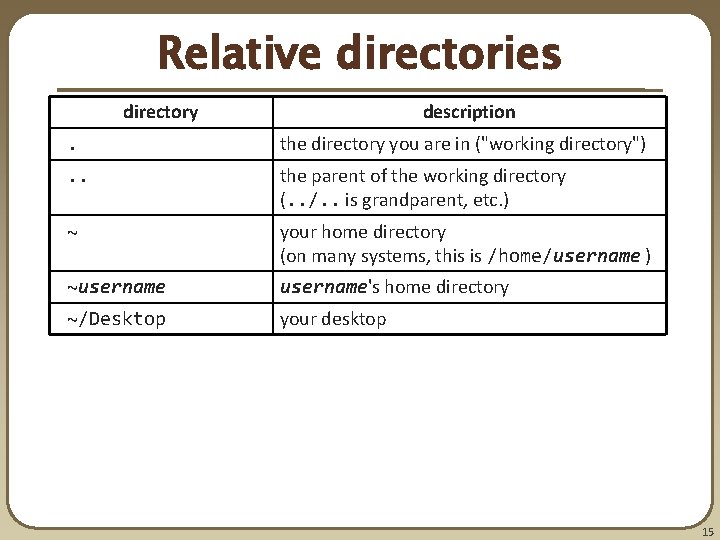
Relative directories directory description . the directory you are in ("working directory") . . the parent of the working directory (. . /. . is grandparent, etc. ) ~ your home directory (on many systems, this is /home/username ) ~username's home directory ~/Desktop your desktop 15
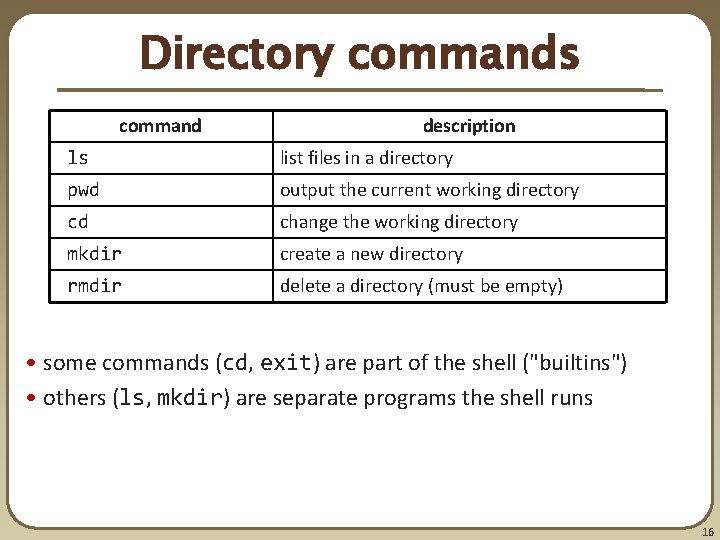
Directory commands command description ls list files in a directory pwd output the current working directory cd change the working directory mkdir create a new directory rmdir delete a directory (must be empty) • some commands (cd, exit) are part of the shell ("builtins") • others (ls, mkdir) are separate programs the shell runs 16
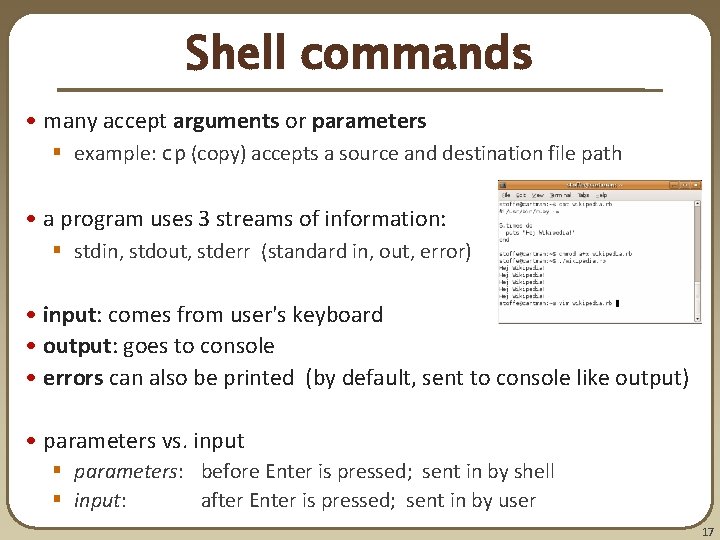
Shell commands • many accept arguments or parameters § example: cp (copy) accepts a source and destination file path • a program uses 3 streams of information: § stdin, stdout, stderr (standard in, out, error) • input: comes from user's keyboard • output: goes to console • errors can also be printed (by default, sent to console like output) • parameters vs. input § parameters: before Enter is pressed; sent in by shell § input: after Enter is pressed; sent in by user 17
Command-line arguments • most options are a - followed by a letter such as -c § some are longer words preceded by two - signs, such as --count • options can be combined: ls -l -a -r can be ls -lar • many programs accept a --help or -help option to give more information about that command (in addition to man pages) § or if you run the program with no arguments, it may print help info • for many commands that accept a file name argument, if you omit the parameter, it will read from standard input (your keyboard) 18
Shell/system commands command description man or info get help on a command clears out the output from the console exits and logs out of the shell command description date output the system date cal output a text calendar uname print information about the current system • "man pages" are a very important way to learn new commands man ls man 19
File commands command description cp copy a file mv move or rename a file rm delete a file touch create a new empty file, or update its last-modified time stamp • caution: the above commands do not prompt for confirmation § easy to overwrite/delete a file; this setting can be overridden (how? ) • Exercise : Given several albums of. mp 3 files all in one folder, move them into separate folders by artist. • Exercise : Modify a. java file to make it seem as though you finished writing it on Dec 28 at 4: 56 am. 20
Exercise Solutions • caution: the cp, rm, mv commands do not prompt for confirmation § easy to overwrite/delete a file; this setting can be overridden (how? ) • Use “-i” with the command, “interactive” to prompt before overwrite • Exercise : Given several albums of. mp 3 files all in one folder, move them into separate folders by artist. § § § mkdir U 2 mkdir PSY mkdir Justin. Bieber mv Gangnam. Style. mp 3 PSY/ mv Pride. mp 3 U 2/ • Exercise : Modify a. java file to make it seem as though you finished writing it on Dec 28 at 4: 56 am. § touch –t 201212280456 Hello. java 21