
CSE 374 Programming Concepts Tools Hal Perkins Fall
- Slides: 12
CSE 374 Programming Concepts & Tools Hal Perkins Fall 2015 Lecture 11 – gdb and Debugging
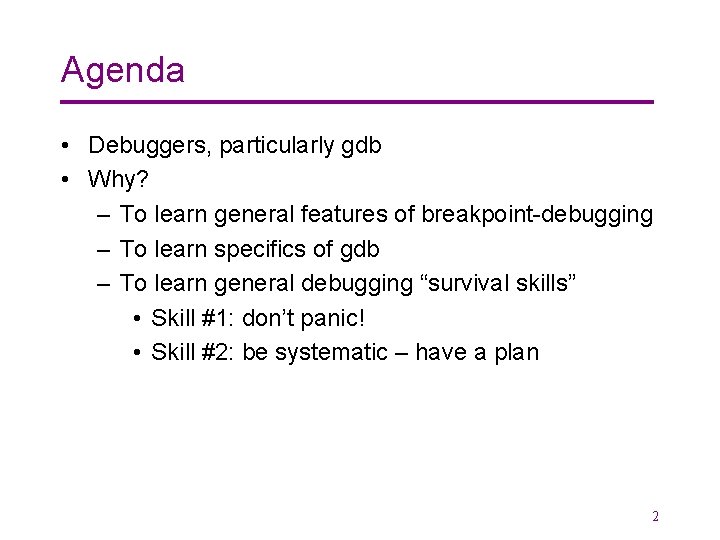
Agenda • Debuggers, particularly gdb • Why? – To learn general features of breakpoint-debugging – To learn specifics of gdb – To learn general debugging “survival skills” • Skill #1: don’t panic! • Skill #2: be systematic – have a plan 2
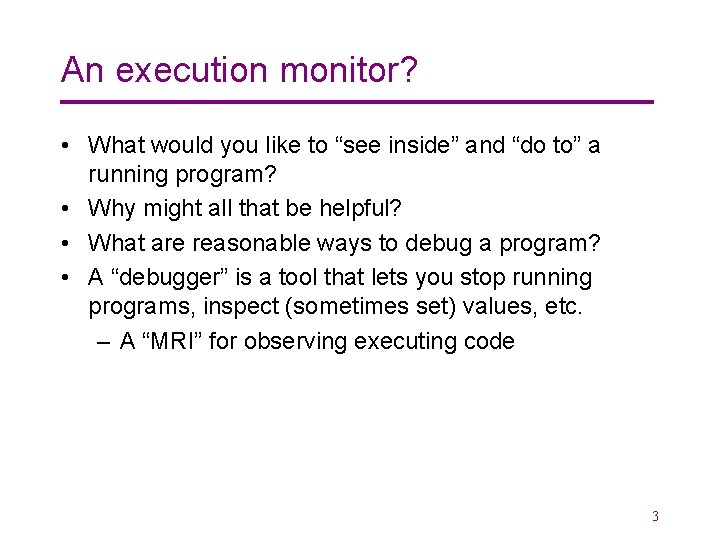
An execution monitor? • What would you like to “see inside” and “do to” a running program? • Why might all that be helpful? • What are reasonable ways to debug a program? • A “debugger” is a tool that lets you stop running programs, inspect (sometimes set) values, etc. – A “MRI” for observing executing code 3
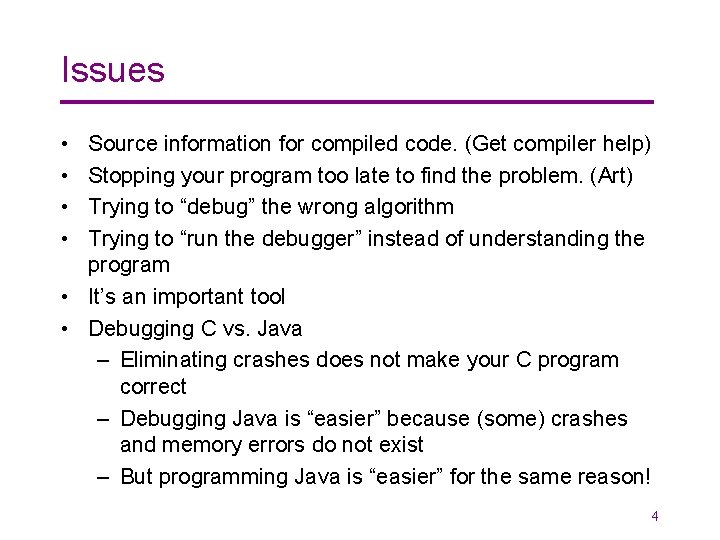
Issues • • Source information for compiled code. (Get compiler help) Stopping your program too late to find the problem. (Art) Trying to “debug” the wrong algorithm Trying to “run the debugger” instead of understanding the program • It’s an important tool • Debugging C vs. Java – Eliminating crashes does not make your C program correct – Debugging Java is “easier” because (some) crashes and memory errors do not exist – But programming Java is “easier” for the same reason! 4
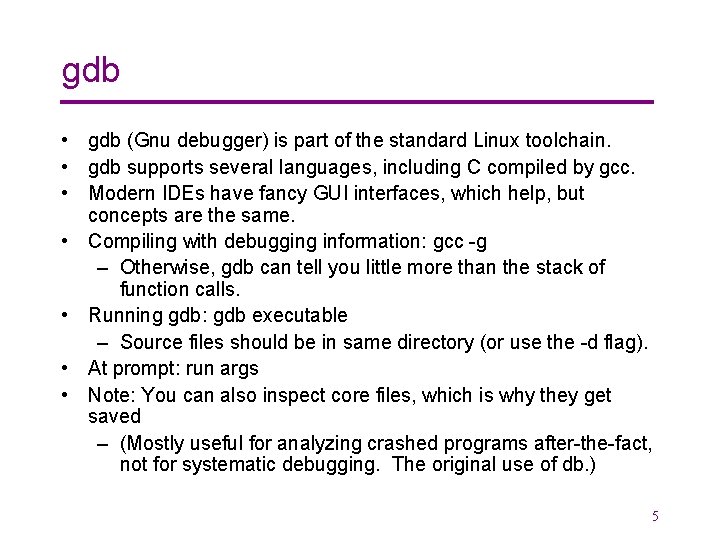
gdb • gdb (Gnu debugger) is part of the standard Linux toolchain. • gdb supports several languages, including C compiled by gcc. • Modern IDEs have fancy GUI interfaces, which help, but concepts are the same. • Compiling with debugging information: gcc -g – Otherwise, gdb can tell you little more than the stack of function calls. • Running gdb: gdb executable – Source files should be in same directory (or use the -d flag). • At prompt: run args • Note: You can also inspect core files, which is why they get saved – (Mostly useful for analyzing crashed programs after-the-fact, not for systematic debugging. The original use of db. ) 5
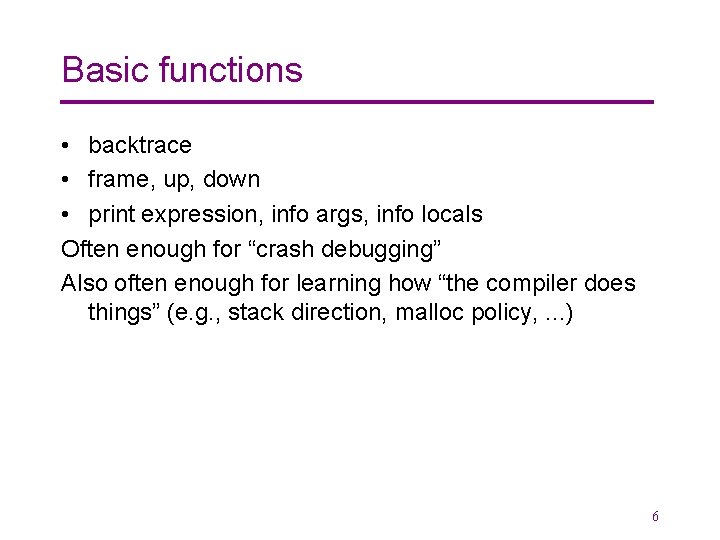
Basic functions • backtrace • frame, up, down • print expression, info args, info locals Often enough for “crash debugging” Also often enough for learning how “the compiler does things” (e. g. , stack direction, malloc policy, . . . ) 6
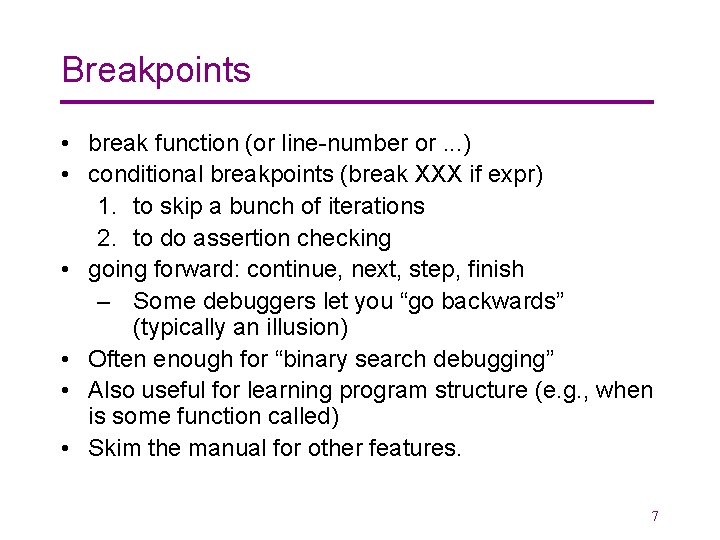
Breakpoints • break function (or line-number or. . . ) • conditional breakpoints (break XXX if expr) 1. to skip a bunch of iterations 2. to do assertion checking • going forward: continue, next, step, finish – Some debuggers let you “go backwards” (typically an illusion) • Often enough for “binary search debugging” • Also useful for learning program structure (e. g. , when is some function called) • Skim the manual for other features. 7
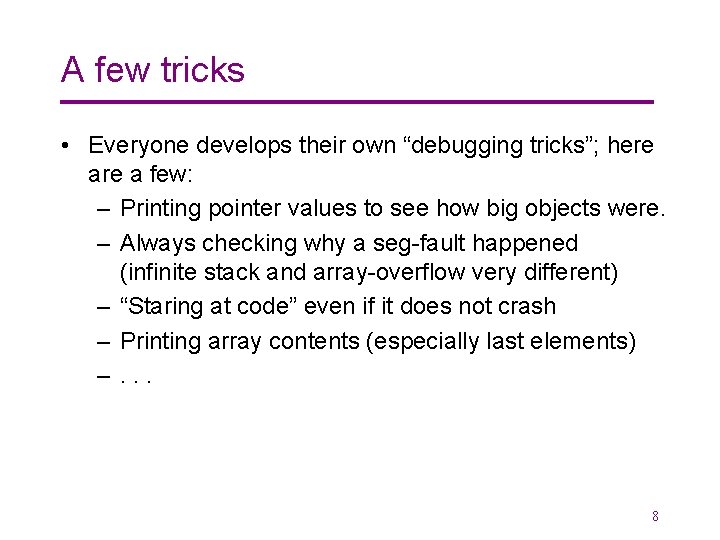
A few tricks • Everyone develops their own “debugging tricks”; here a few: – Printing pointer values to see how big objects were. – Always checking why a seg-fault happened (infinite stack and array-overflow very different) – “Staring at code” even if it does not crash – Printing array contents (especially last elements) –. . . 8
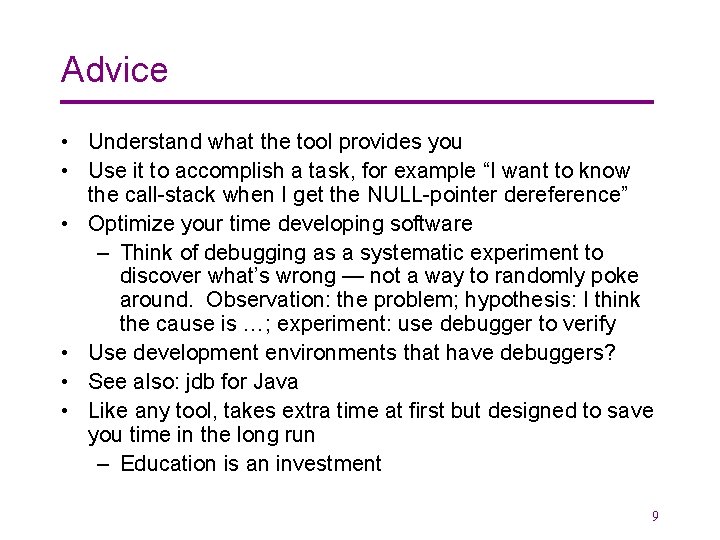
Advice • Understand what the tool provides you • Use it to accomplish a task, for example “I want to know the call-stack when I get the NULL-pointer dereference” • Optimize your time developing software – Think of debugging as a systematic experiment to discover what’s wrong — not a way to randomly poke around. Observation: the problem; hypothesis: I think the cause is …; experiment: use debugger to verify • Use development environments that have debuggers? • See also: jdb for Java • Like any tool, takes extra time at first but designed to save you time in the long run – Education is an investment 9
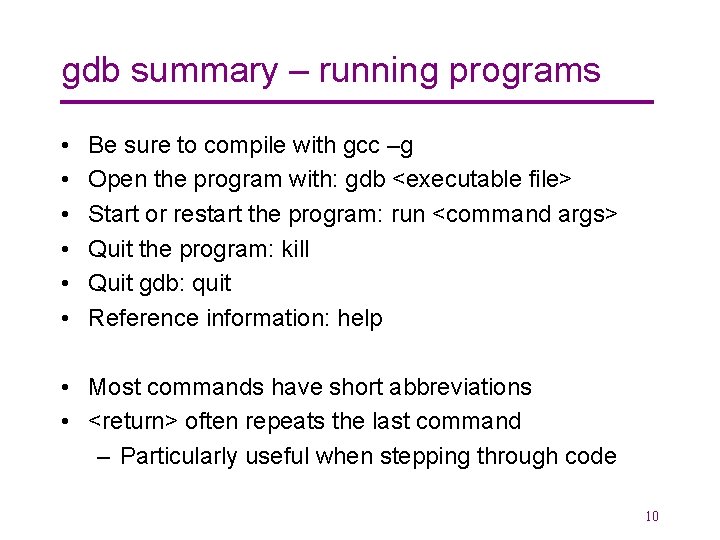
gdb summary – running programs • • • Be sure to compile with gcc –g Open the program with: gdb <executable file> Start or restart the program: run <command args> Quit the program: kill Quit gdb: quit Reference information: help • Most commands have short abbreviations • <return> often repeats the last command – Particularly useful when stepping through code 10
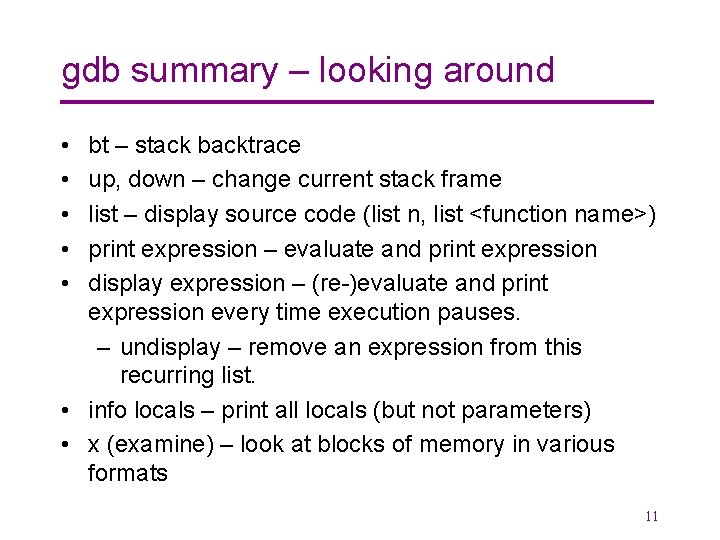
gdb summary – looking around • • • bt – stack backtrace up, down – change current stack frame list – display source code (list n, list <function name>) print expression – evaluate and print expression display expression – (re-)evaluate and print expression every time execution pauses. – undisplay – remove an expression from this recurring list. • info locals – print all locals (but not parameters) • x (examine) – look at blocks of memory in various formats 11
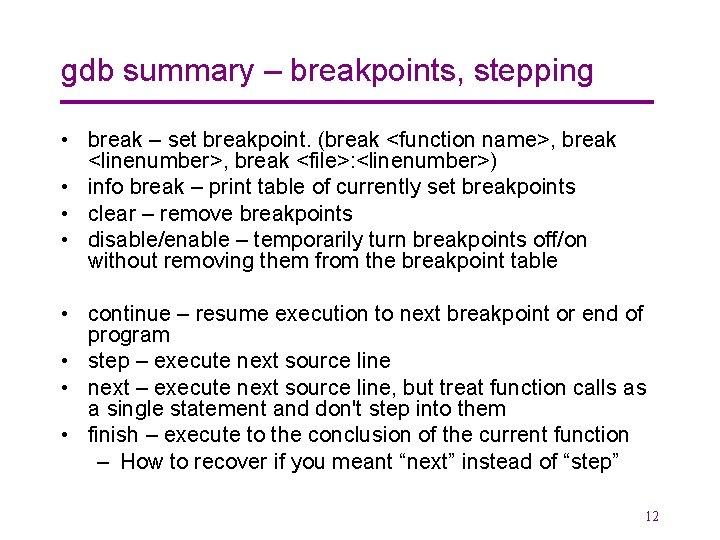
gdb summary – breakpoints, stepping • break – set breakpoint. (break <function name>, break <linenumber>, break <file>: <linenumber>) • info break – print table of currently set breakpoints • clear – remove breakpoints • disable/enable – temporarily turn breakpoints off/on without removing them from the breakpoint table • continue – resume execution to next breakpoint or end of program • step – execute next source line • next – execute next source line, but treat function calls as a single statement and don't step into them • finish – execute to the conclusion of the current function – How to recover if you meant “next” instead of “step” 12