
CSE 102 Introduction to Web Design and Programming
CSE 102 Introduction to Web Design and Programming XHTML: Lists & Hyperlinks
w 3 schools references • http: //www. w 3 schools. com • Tryit Editor: http: //www. w 3 schools. com/html/tryit. asp? filename =tryhtml_basic

Lists • Block-level elements: – Unordered list (bulleted): <ul> – Ordered list (numbered): <ol> • Both <ul> & <ol> have list items, <li>, for each element in a list – Definition list: <dl> • Each term is specified by a definition term element, <dt> • Each definition is specified by a definition description element, <dd> • Lists are formed according to hierarchical nesting • All list tags require opening & closing tags with proper nesting
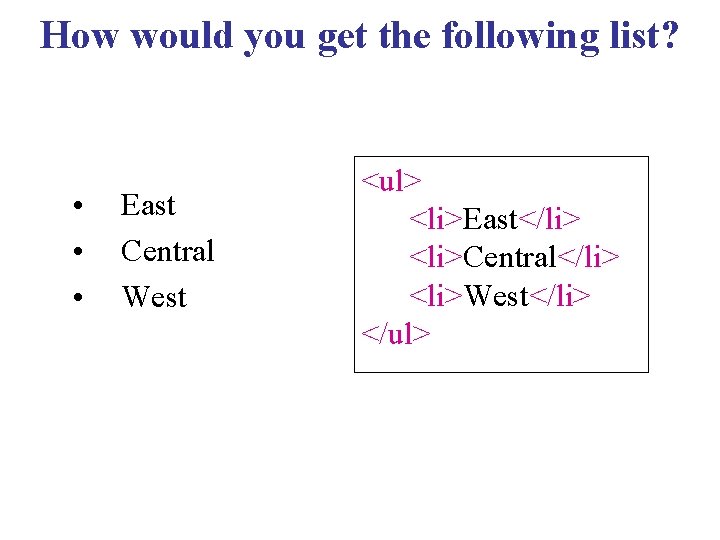
How would you get the following list? • • • East Central West <ul> <li>East</li> <li>Central</li> <li>West</li> </ul>
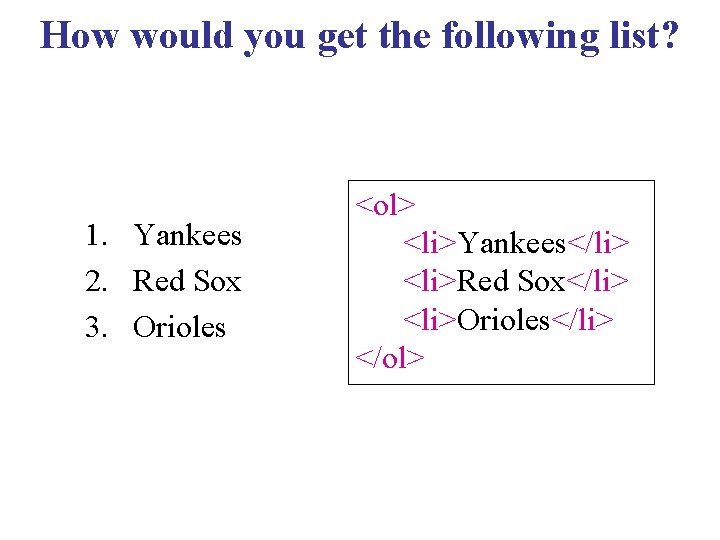
How would you get the following list? 1. Yankees 2. Red Sox 3. Orioles <ol> <li>Yankees</li> <li>Red Sox</li> <li>Orioles</li> </ol>
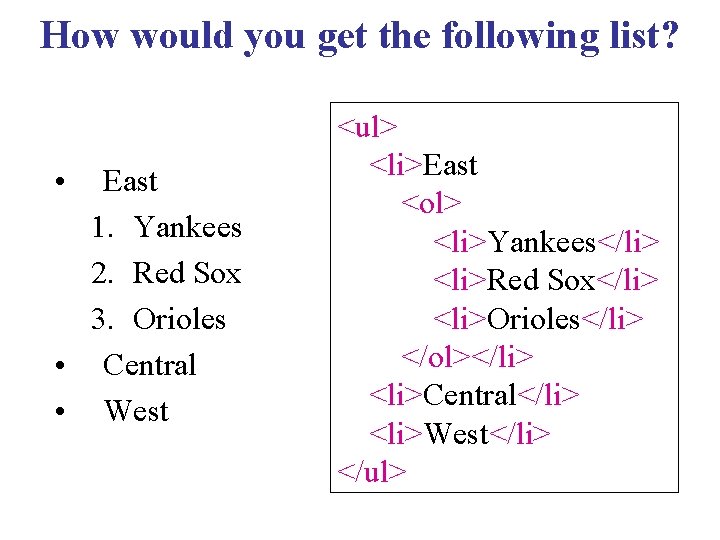
How would you get the following list? • East 1. Yankees 2. Red Sox 3. Orioles • Central • West <ul> <li>East <ol> <li>Yankees</li> <li>Red Sox</li> <li>Orioles</li> </ol></li> <li>Central</li> <li>West</li> </ul>
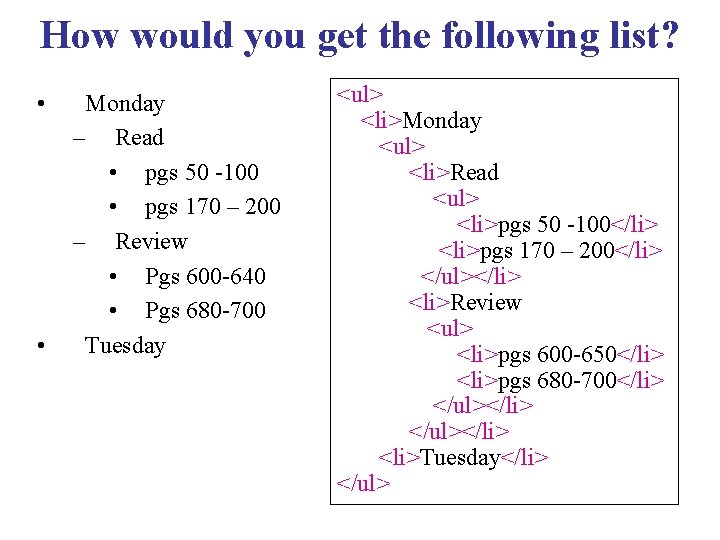
How would you get the following list? • • Monday – Read • pgs 50 -100 • pgs 170 – 200 – Review • Pgs 600 -640 • Pgs 680 -700 Tuesday <ul> <li>Monday <ul> <li>Read <ul> <li>pgs 50 -100</li> <li>pgs 170 – 200</li> </ul></li> <li>Review <ul> <li>pgs 600 -650</li> <li>pgs 680 -700</li> </ul></li> <li>Tuesday</li> </ul>
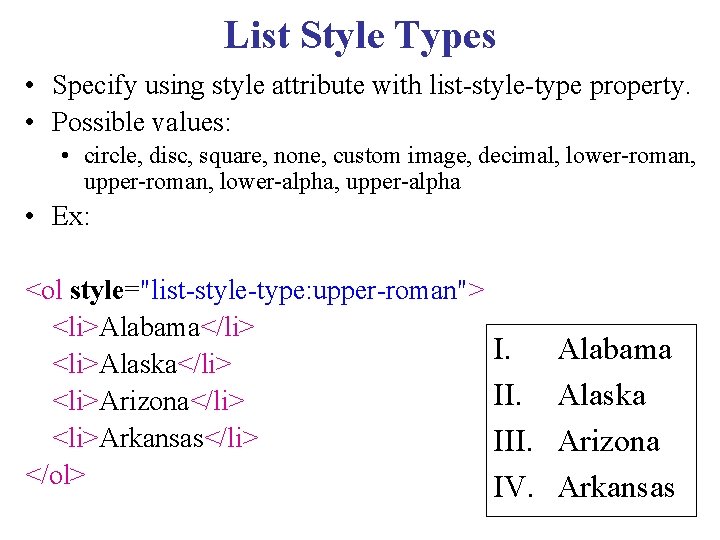
List Style Types • Specify using style attribute with list-style-type property. • Possible values: • circle, disc, square, none, custom image, decimal, lower-roman, upper-roman, lower-alpha, upper-alpha • Ex: <ol style="list-style-type: upper-roman"> <li>Alabama</li> I. <li>Alaska</li> II. <li>Arizona</li> <li>Arkansas</li> III. </ol> IV. Alabama Alaska Arizona Arkansas
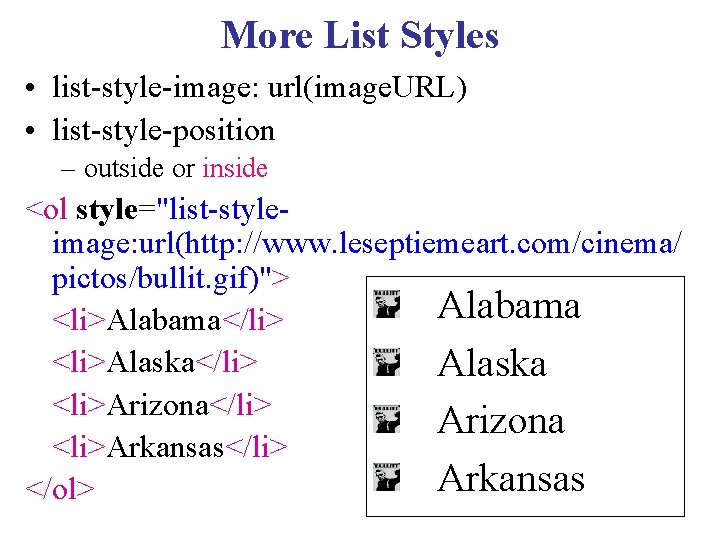
More List Styles • list-style-image: url(image. URL) • list-style-position – outside or inside <ol style="list-styleimage: url(http: //www. leseptiemeart. com/cinema/ pictos/bullit. gif)"> Alabama <li>Alabama</li> <li>Alaska</li> Alaska <li>Arizona</li> Arizona <li>Arkansas</li> Arkansas </ol>
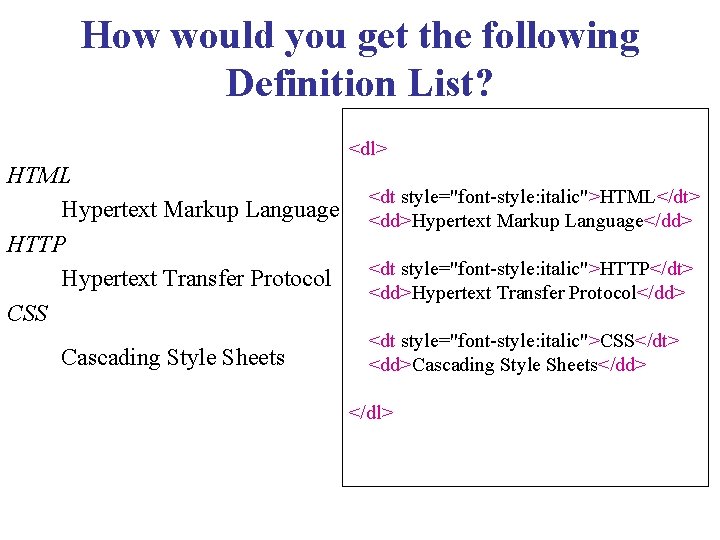
How would you get the following Definition List? <dl> HTML Hypertext Markup Language HTTP Hypertext Transfer Protocol CSS Cascading Style Sheets <dt style="font-style: italic">HTML</dt> <dd>Hypertext Markup Language</dd> <dt style="font-style: italic">HTTP</dt> <dd>Hypertext Transfer Protocol</dd> <dt style="font-style: italic">CSS</dt> <dd>Cascading Style Sheets</dd> </dl>

Hyperlinks • Inline element, must have 2 tags • <a href=… specify clickable links to other Web or local documents • Can be attached to text or images • Can also be attached to a portion of an image – Image map • Can be tied to any portion of text: <p>Hello, my name is <a href="http: //www. cs. sunysb. edu/people/faculty/Ahmad. E smaili. html">Ahmad Esmaili</a>. Won't you be my friend? </p> • Hello, my name is Ahmad Esmaili. Won't you be my friend? • URLs can be to local or remote resources
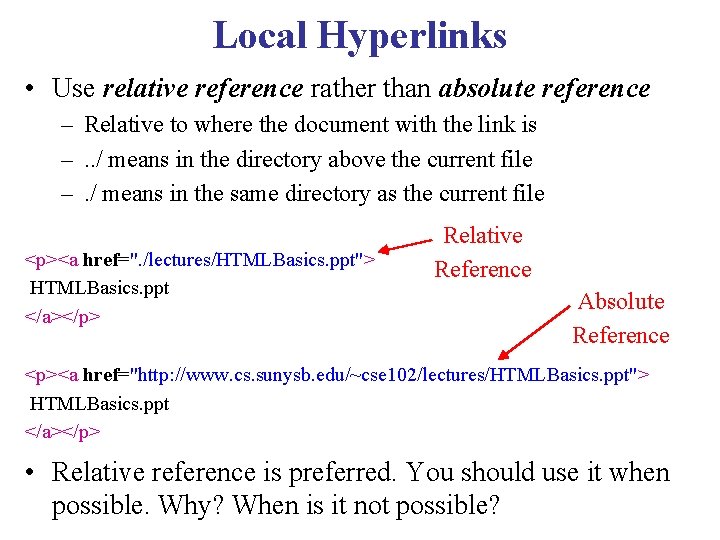
Local Hyperlinks • Use relative reference rather than absolute reference – Relative to where the document with the link is –. . / means in the directory above the current file –. / means in the same directory as the current file <p><a href=". /lectures/HTMLBasics. ppt"> HTMLBasics. ppt </a></p> Relative Reference Absolute Reference <p><a href="http: //www. cs. sunysb. edu/~cse 102/lectures/HTMLBasics. ppt"> HTMLBasics. ppt </a></p> • Relative reference is preferred. You should use it when possible. Why? When is it not possible?
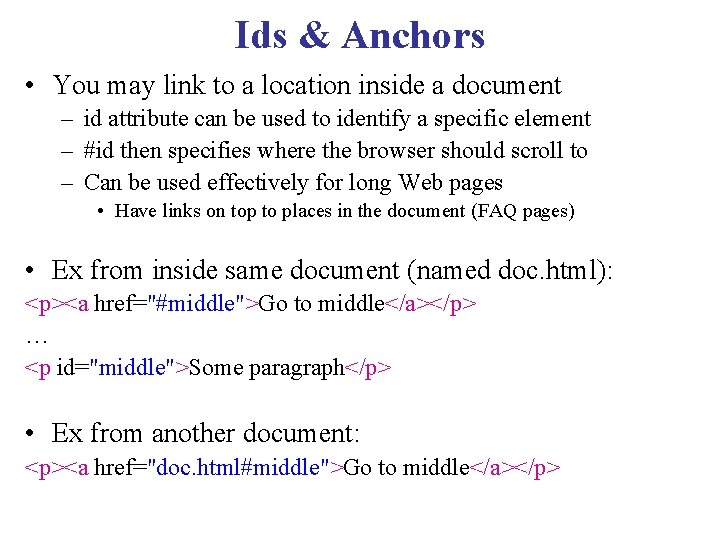
Ids & Anchors • You may link to a location inside a document – id attribute can be used to identify a specific element – #id then specifies where the browser should scroll to – Can be used effectively for long Web pages • Have links on top to places in the document (FAQ pages) • Ex from inside same document (named doc. html): <p><a href="#middle">Go to middle</a></p> … <p id="middle">Some paragraph</p> • Ex from another document: <p><a href="doc. html#middle">Go to middle</a></p>
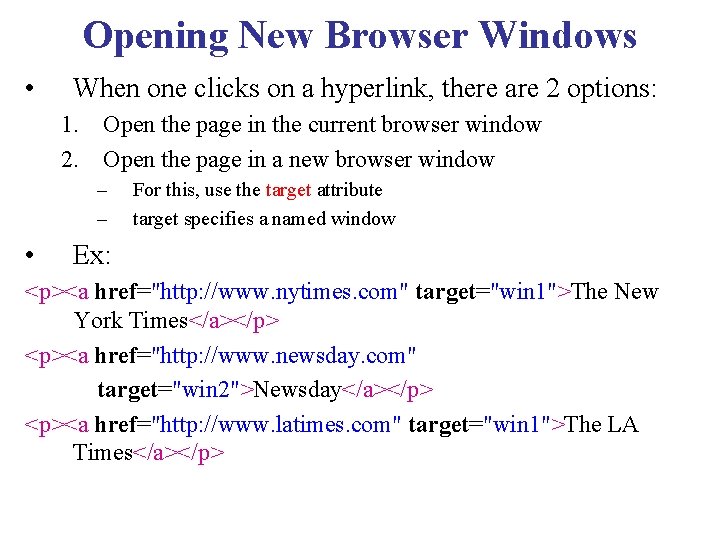
Opening New Browser Windows • When one clicks on a hyperlink, there are 2 options: 1. Open the page in the current browser window 2. Open the page in a new browser window – – • For this, use the target attribute target specifies a named window Ex: <p><a href="http: //www. nytimes. com" target="win 1">The New York Times</a></p> <p><a href="http: //www. newsday. com" target="win 2">Newsday</a></p> <p><a href="http: //www. latimes. com" target="win 1">The LA Times</a></p>
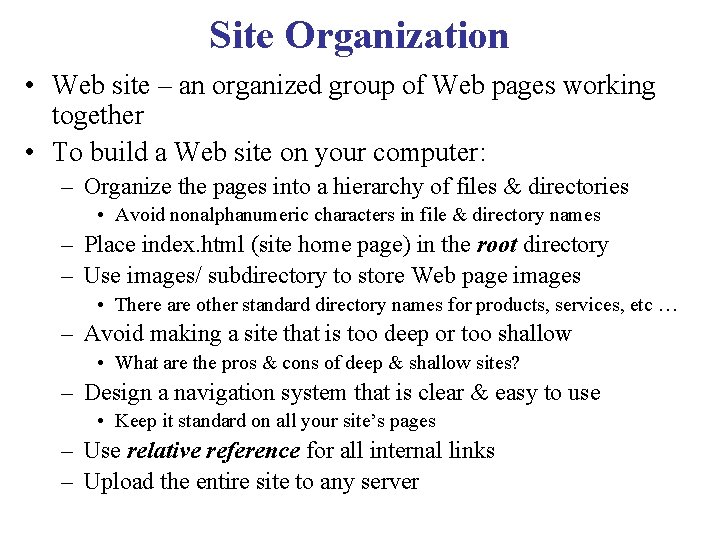
Site Organization • Web site – an organized group of Web pages working together • To build a Web site on your computer: – Organize the pages into a hierarchy of files & directories • Avoid nonalphanumeric characters in file & directory names – Place index. html (site home page) in the root directory – Use images/ subdirectory to store Web page images • There are other standard directory names for products, services, etc … – Avoid making a site that is too deep or too shallow • What are the pros & cons of deep & shallow sites? – Design a navigation system that is clear & easy to use • Keep it standard on all your site’s pages – Use relative reference for all internal links – Upload the entire site to any server
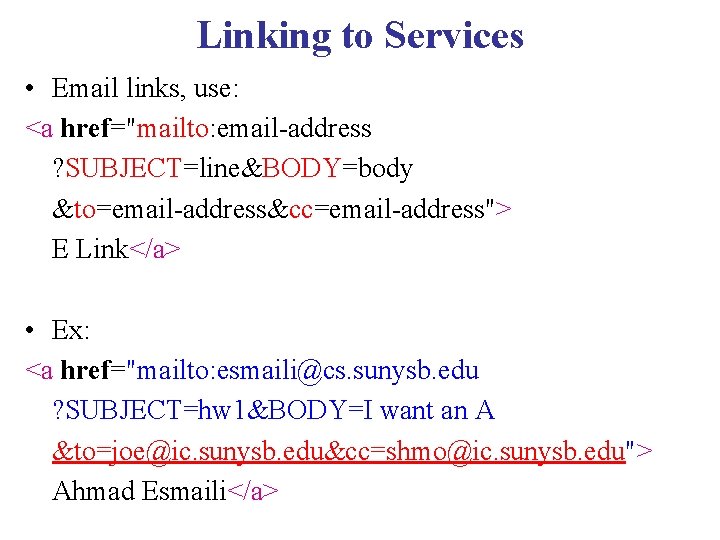
Linking to Services • Email links, use: <a href="mailto: email-address ? SUBJECT=line&BODY=body &to=email-address&cc=email-address"> E Link</a> • Ex: <a href="mailto: esmaili@cs. sunysb. edu ? SUBJECT=hw 1&BODY=I want an A &to=joe@ic. sunysb. edu&cc=shmo@ic. sunysb. edu"> Ahmad Esmaili</a>
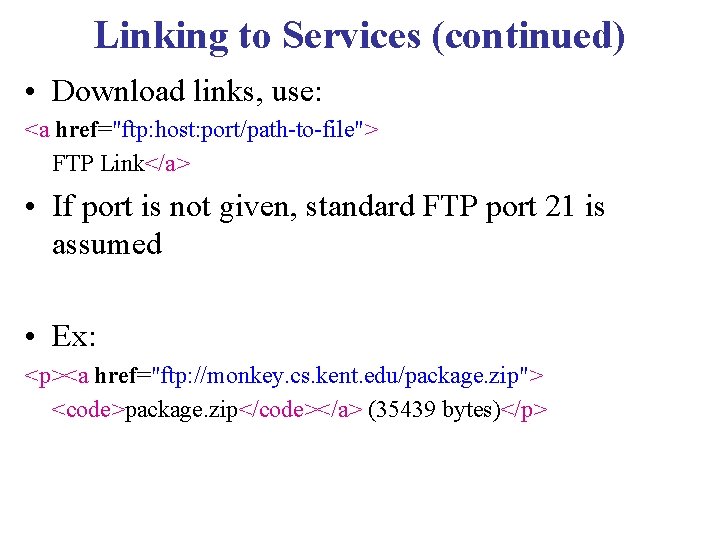
Linking to Services (continued) • Download links, use: <a href="ftp: host: port/path-to-file"> FTP Link</a> • If port is not given, standard FTP port 21 is assumed • Ex: <p><a href="ftp: //monkey. cs. kent. edu/package. zip"> <code>package. zip</code></a> (35439 bytes)</p>
Display Style for Hyperlinks • Done with Style Sheets (we’ll see later) • Custom colors for – Unvisited links – Visited links – Active links – Hover links
- Slides: 18