
CSE 102 Introduction to Web Design and Programming

CSE 102 Introduction to Web Design and Programming XHTML: Images & Character Encoding
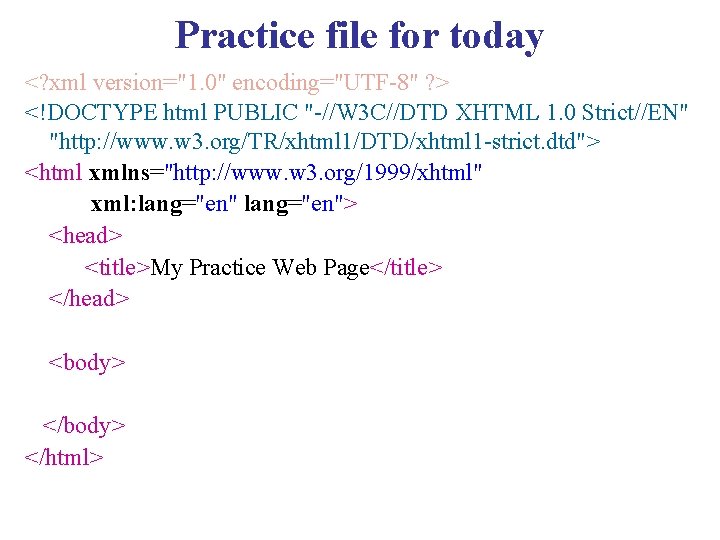
Practice file for today <? xml version="1. 0" encoding="UTF-8" ? > <!DOCTYPE html PUBLIC "-//W 3 C//DTD XHTML 1. 0 Strict//EN" "http: //www. w 3. org/TR/xhtml 1/DTD/xhtml 1 -strict. dtd"> <html xmlns="http: //www. w 3. org/1999/xhtml" xml: lang="en"> <head> <title>My Practice Web Page</title> </head> <body> </html>
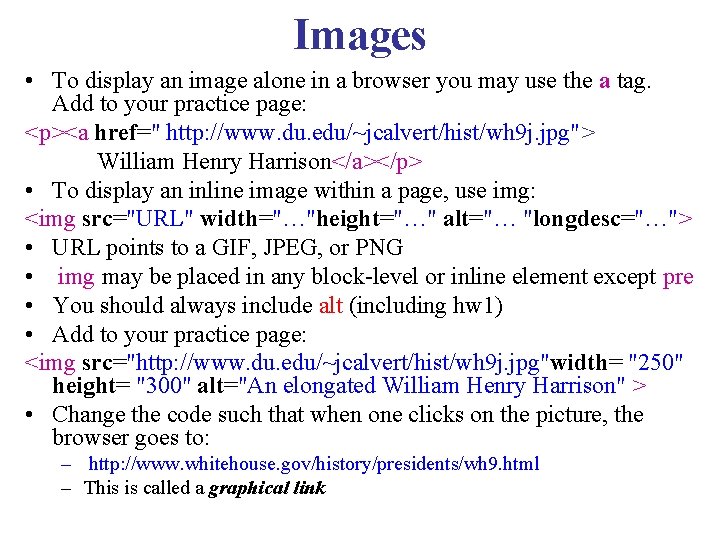
Images • To display an image alone in a browser you may use the a tag. Add to your practice page: <p><a href=" http: //www. du. edu/~jcalvert/hist/wh 9 j. jpg"> William Henry Harrison</a></p> • To display an inline image within a page, use img: <img src="URL" width="…"height="…" alt="… "longdesc="…"> • URL points to a GIF, JPEG, or PNG • img may be placed in any block-level or inline element except pre • You should always include alt (including hw 1) • Add to your practice page: <img src="http: //www. du. edu/~jcalvert/hist/wh 9 j. jpg"width= "250" height= "300" alt="An elongated William Henry Harrison" > • Change the code such that when one clicks on the picture, the browser goes to: – http: //www. whitehouse. gov/history/presidents/wh 9. html – This is called a graphical link
Organizing your own site images • Place all images inside an images directory – Be sure to do this for all assignments • Inside your Web pages, you may then reference the images using src="images/…" • When you upload your Web pages, upload your entire images directory – Save the following file to an images directory and correct the URLs accordingly • http: //www. du. edu/~jcalvert/hist/wh 9 j. jpg
Text around images • You may wrap text around an image – Float the image to the left or right margin • Use style="float: right" – Add appropriate spacing between the image and text • Use style="margin-left: 1 em" – Place the image right before whatever text you wish it to be even with.
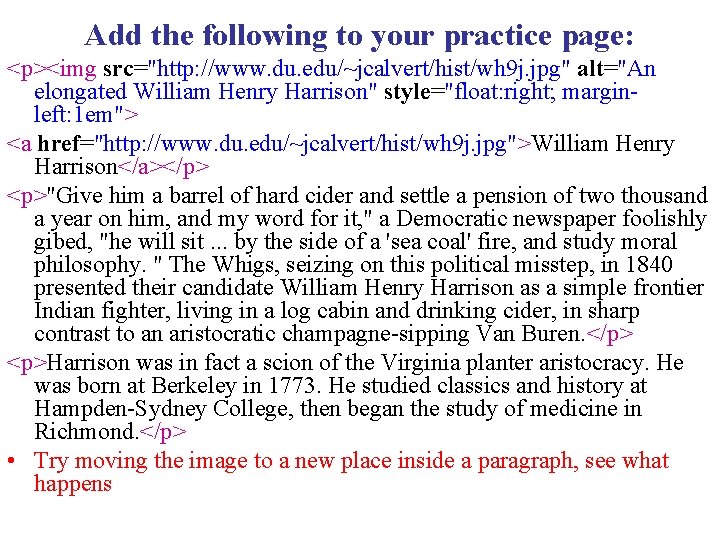
Add the following to your practice page: <p><img src="http: //www. du. edu/~jcalvert/hist/wh 9 j. jpg" alt="An elongated William Henry Harrison" style="float: right; marginleft: 1 em"> <a href="http: //www. du. edu/~jcalvert/hist/wh 9 j. jpg">William Henry Harrison</a></p> <p>"Give him a barrel of hard cider and settle a pension of two thousand a year on him, and my word for it, " a Democratic newspaper foolishly gibed, "he will sit. . . by the side of a 'sea coal' fire, and study moral philosophy. " The Whigs, seizing on this political misstep, in 1840 presented their candidate William Henry Harrison as a simple frontier Indian fighter, living in a log cabin and drinking cider, in sharp contrast to an aristocratic champagne-sipping Van Buren. </p> <p>Harrison was in fact a scion of the Virginia planter aristocracy. He was born at Berkeley in 1773. He studied classics and history at Hampden-Sydney College, then began the study of medicine in Richmond. </p> • Try moving the image to a new place inside a paragraph, see what happens

Additional Ways to align images • Use style="vertical-align: value" • Possible values: – baseline – aligns baselines of image & text – middle – aligns middle of image with middle character in preceding text – text-top – aligns top of image with font top of preceding text – xx% - raises the bottom of image xx percent of the text line height

Image Maps • An image map is an image with active areas – when clicked, these areas lead to designated URLs • Use map tag, then specify areas using area tags – Areas can be specified as rect, poly, circle, or default • Specify using shape & coords attributes – 0, 0 is top-left coordinate • Specify link using href attribute • Not placed in body, instead, put it inside head element • Assign a name (ex: image_map_name) to your image map • Then, inside the body, specify an image and usemap="#image_map_name" attribute
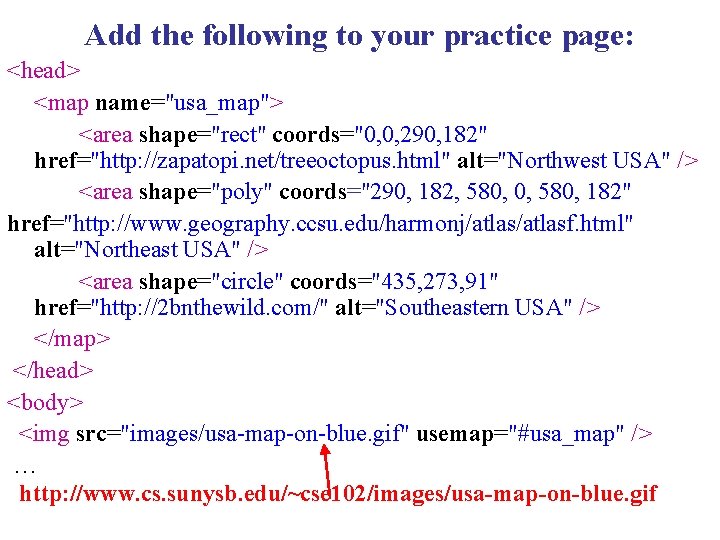
Add the following to your practice page: <head> <map name="usa_map"> <area shape="rect" coords="0, 0, 290, 182" href="http: //zapatopi. net/treeoctopus. html" alt="Northwest USA" /> <area shape="poly" coords="290, 182, 580, 0, 580, 182" href="http: //www. geography. ccsu. edu/harmonj/atlasf. html" alt="Northeast USA" /> <area shape="circle" coords="435, 273, 91" href="http: //2 bnthewild. com/" alt="Southeastern USA" /> </map> </head> <body> <img src="images/usa-map-on-blue. gif" usemap="#usa_map" /> … http: //www. cs. sunysb. edu/~cse 102/images/usa-map-on-blue. gif
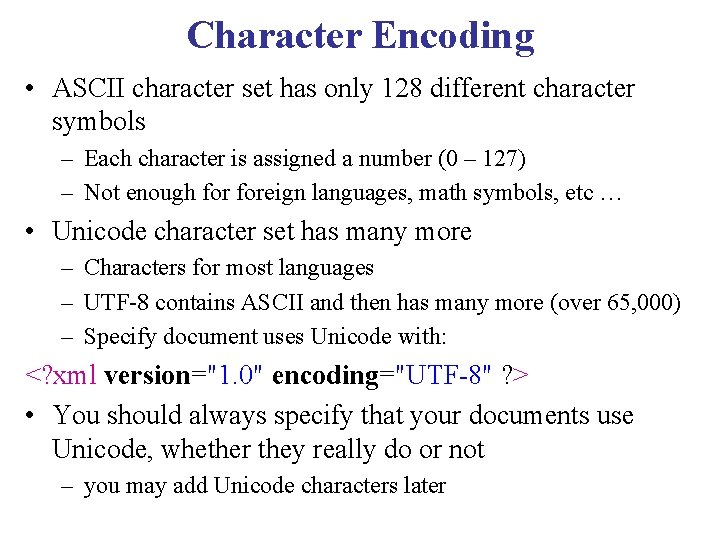
Character Encoding • ASCII character set has only 128 different character symbols – Each character is assigned a number (0 – 127) – Not enough foreign languages, math symbols, etc … • Unicode character set has many more – Characters for most languages – UTF-8 contains ASCII and then has many more (over 65, 000) – Specify document uses Unicode with: <? xml version="1. 0" encoding="UTF-8" ? > • You should always specify that your documents use Unicode, whether they really do or not – you may add Unicode characters later
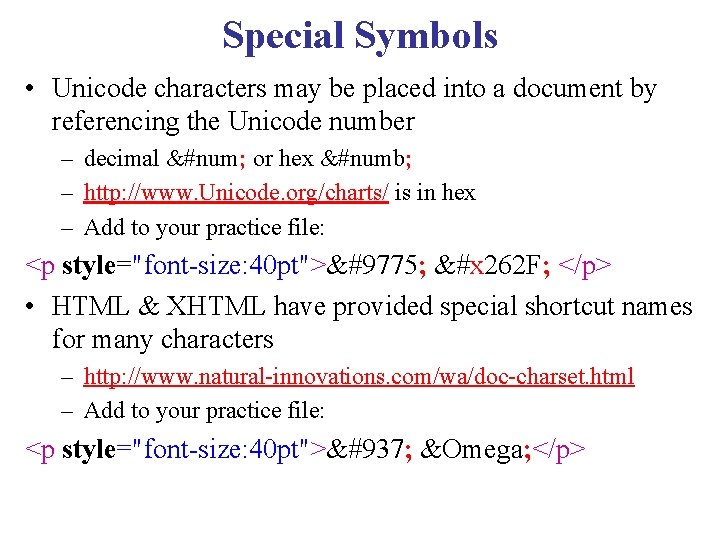
Special Symbols • Unicode characters may be placed into a document by referencing the Unicode number – decimal &#num; or hex &#numb; – http: //www. Unicode. org/charts/ is in hex – Add to your practice file: <p style="font-size: 40 pt">☯ &#x 262 F; </p> • HTML & XHTML have provided special shortcut names for many characters – http: //www. natural-innovations. com/wa/doc-charset. html – Add to your practice file: <p style="font-size: 40 pt">Ω Ω </p>
QUIZ #1 -- Upload • Upload your practice page and your images directory such that the images appear properly – You must use relative reference for all local images
- Slides: 12