
CS Knowledge Articles Troubleshooting Service Desk Support Oct
CS Knowledge Articles Troubleshooting Service Desk Support Oct 2019 1
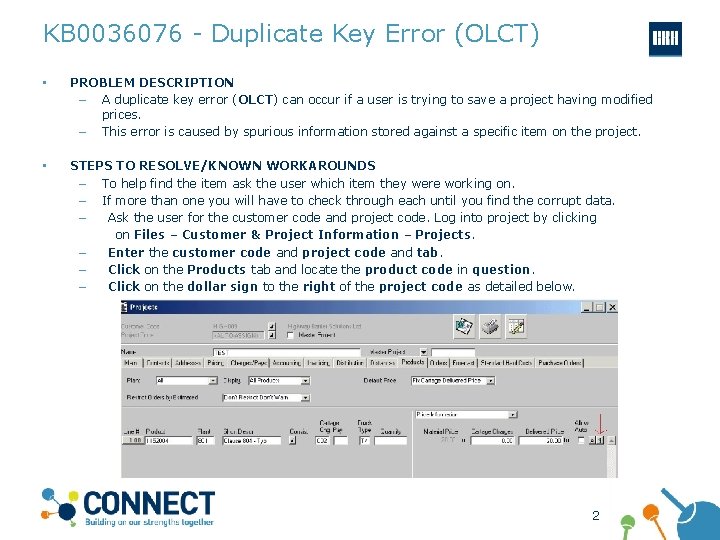
KB 0036076 - Duplicate Key Error (OLCT) • PROBLEM DESCRIPTION – A duplicate key error (OLCT) can occur if a user is trying to save a project having modified prices. – This error is caused by spurious information stored against a specific item on the project. • STEPS TO RESOLVE/KNOWN WORKAROUNDS – To help find the item ask the user which item they were working on. – If more than one you will have to check through each until you find the corrupt data. – Ask the user for the customer code and project code. Log into project by clicking on Files – Customer & Project Information – Projects. – Enter the customer code and project code and tab. – Click on the Products tab and locate the product code in question. – Click on the dollar sign to the right of the project code as detailed below. 2
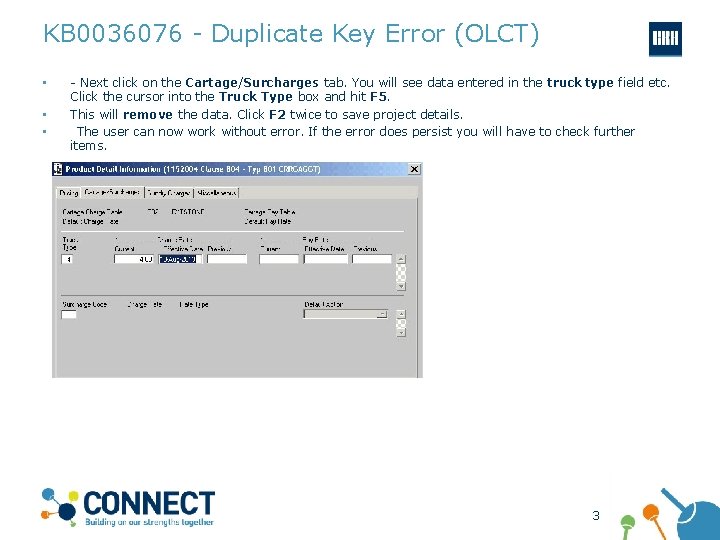
KB 0036076 - Duplicate Key Error (OLCT) • • • - Next click on the Cartage/Surcharges tab. You will see data entered in the truck type field etc. Click the cursor into the Truck Type box and hit F 5. This will remove the data. Click F 2 twice to save project details. The user can now work without error. If the error does persist you will have to check further items. 3
KB 0036076 - Duplicate Key Error (OLCT) • • WHAT TO DO IF THE PROVIDED INSTRUCTIONS ABOVE DO NOT RESOLVE THE ISSUE? If the known steps to remedy the issue do not resolve, please carry out the following • As for all Incidents & Requests, all steps taken and Interactions with the end user or supporting system, must be documented When did this issue start happening? What steps did you do to resolve it? What is the exact issue now? Did you resolve the issue with a fix that was not documented in this article? If so, please contact your Knowledge Manager so that the existing article can be updated appropriately? • • You must now route this issue to the appropriate resolver group in Service. Now using the required Minimum Data Set. Local IT with responsibility for Command Alkon applications 4
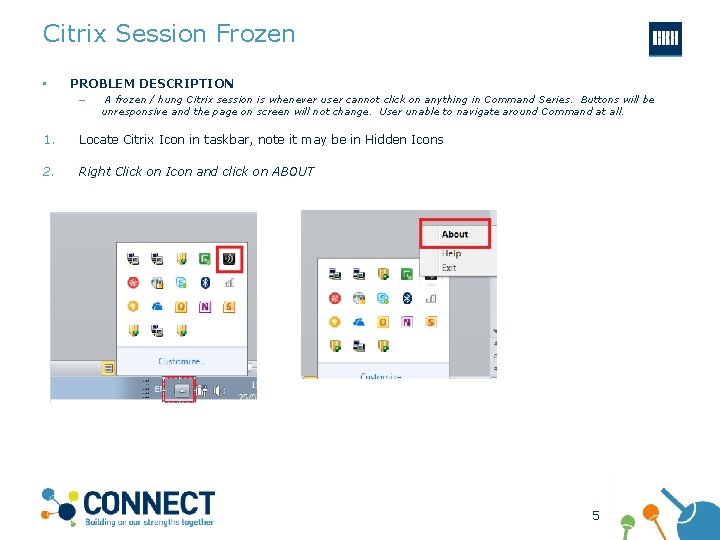
Citrix Session Frozen • PROBLEM DESCRIPTION – A frozen / hung Citrix session is whenever user cannot click on anything in Command Series. Buttons will be unresponsive and the page on screen will not change. User unable to navigate around Command at all. 1. Locate Citrix Icon in taskbar, note it may be in Hidden Icons 2. Right Click on Icon and click on ABOUT 5

Citrix Session Frozen 3. Click on Advanced and then Connection Centre 4. Highlight the Active Session and the click on Disconnect. This will kill the session and the user can log in again and continue with use. Note last position user was in will be lost. 6

Citrix Session Frozen 3. Click on Advanced and then Connection Centre 4. Highlight the Active Session and the click on Disconnect. This will kill the session and the user can log in again and continue with use. Note last position user was in will be lost. 7
Citrix Session Frozen • • WHAT TO DO IF THE PROVIDED INSTRUCTIONS ABOVE DO NOT RESOLVE THE ISSUE? If the known steps to remedy the issue do not resolve, please carry out the following • As for all Incidents & Requests, all steps taken and Interactions with the end user or supporting system, must be documented When did this issue start happening? What steps did you do to resolve it? What is the exact issue now? Did you resolve the issue with a fix that was not documented in this article? If so, please contact your Knowledge Manager so that the existing article can be updated appropriately? • • You must now route this issue to the appropriate resolver group in Service. Now using the required Minimum Data Set. Local IT with responsibility for Command Alkon applications 8
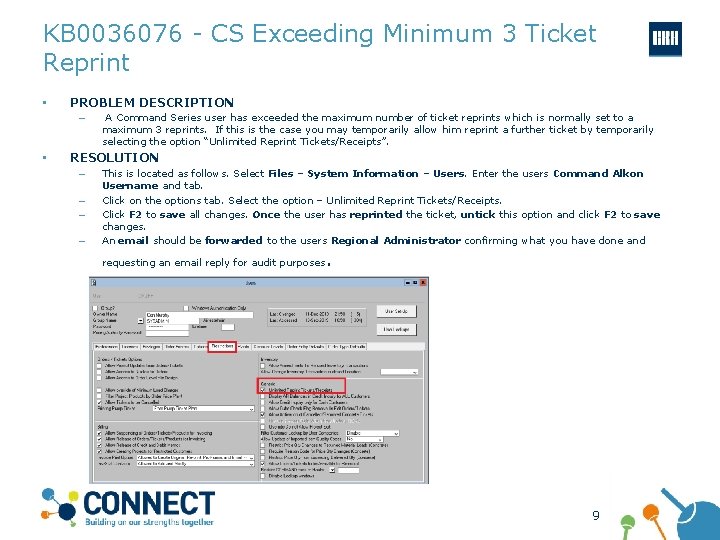
KB 0036076 - CS Exceeding Minimum 3 Ticket Reprint • PROBLEM DESCRIPTION – • A Command Series user has exceeded the maximum number of ticket reprints which is normally set to a maximum 3 reprints. If this is the case you may temporarily allow him reprint a further ticket by temporarily selecting the option “Unlimited Reprint Tickets/Receipts”. RESOLUTION – – This is located as follows. Select Files – System Information – Users. Enter the users Command Alkon Username and tab. Click on the options tab. Select the option – Unlimited Reprint Tickets/Receipts. Click F 2 to save all changes. Once the user has reprinted the ticket, untick this option and click F 2 to save changes. An email should be forwarded to the users Regional Administrator confirming what you have done and requesting an email reply for audit purposes . 9
KB 0036076 - CS Exceeding Minimum 3 Ticket Reprint • WHAT TO DO IF THE PROVIDED INSTRUCTIONS ABOVE DO NOT RESOLVE THE ISSUE? – If the known steps to remedy the issue do not resolve, please carry out the following – As for all Incidents & Requests, all steps taken and Interactions with the end user or supporting system, must be documented When did this issue start happening? What steps did you do to resolve it? What is the exact issue now? Did you resolve the issue with a fix that was not documented in this article? If so, please contact your Knowledge Manager so that the existing article can be updated appropriately? – – – • You must now route this issue to the appropriate resolver group in Service. Now using the required Minimum Data Set. Local IT with responsibility for Command Alkon applications 10
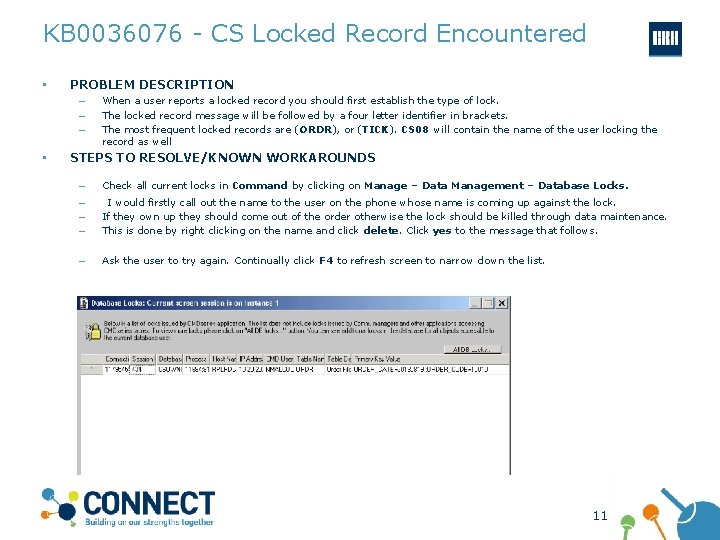
KB 0036076 - CS Locked Record Encountered • PROBLEM DESCRIPTION – – – • When a user reports a locked record you should first establish the type of lock. The locked record message will be followed by a four letter identifier in brackets. The most frequent locked records are (ORDR), or (TICK). CS 08 will contain the name of the user locking the record as well STEPS TO RESOLVE/KNOWN WORKAROUNDS – Check all current locks in Command by clicking on Manage – Data Management – Database Locks. – – – I would firstly call out the name to the user on the phone whose name is coming up against the lock. If they own up they should come out of the order otherwise the lock should be killed through data maintenance. This is done by right clicking on the name and click delete. Click yes to the message that follows. – Ask the user to try again. Continually click F 4 to refresh screen to narrow down the list. 11
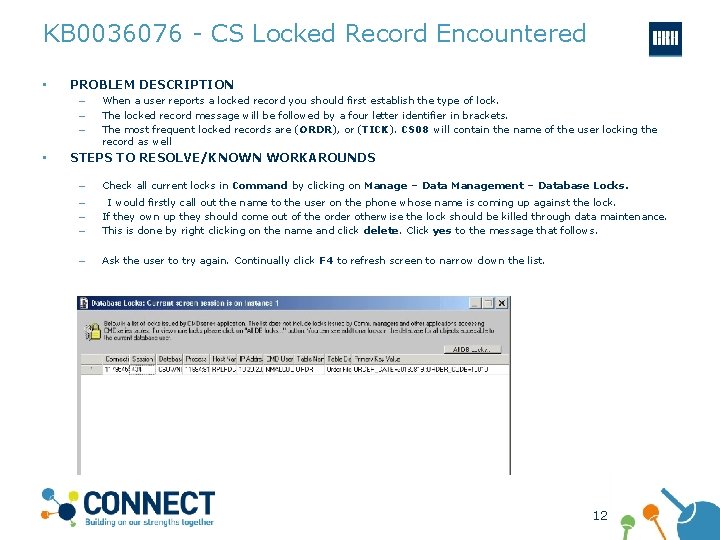
KB 0036076 - CS Locked Record Encountered • PROBLEM DESCRIPTION – – – • When a user reports a locked record you should first establish the type of lock. The locked record message will be followed by a four letter identifier in brackets. The most frequent locked records are (ORDR), or (TICK). CS 08 will contain the name of the user locking the record as well STEPS TO RESOLVE/KNOWN WORKAROUNDS – Check all current locks in Command by clicking on Manage – Data Management – Database Locks. – – – I would firstly call out the name to the user on the phone whose name is coming up against the lock. If they own up they should come out of the order otherwise the lock should be killed through data maintenance. This is done by right clicking on the name and click delete. Click yes to the message that follows. – Ask the user to try again. Continually click F 4 to refresh screen to narrow down the list. 12
KB 0036076 - CS Locked Record Encountered • WHAT TO DO IF THE PROVIDED INSTRUCTIONS ABOVE DO NOT RESOLVE THE ISSUE? – If the known steps to remedy the issue do not resolve, please carry out the following – As for all Incidents & Requests, all steps taken and Interactions with the end user or supporting system, must be documented When did this issue start happening? What steps did you do to resolve it? What is the exact issue now? Did you resolve the issue with a fix that was not documented in this article? If so, please contact your Knowledge Manager so that the existing article can be updated appropriately? – – – • You must now route this issue to the appropriate resolver group in Service. Now using the required Minimum Data Set. Local IT with responsibility for Command Alkon applications 13
KB 0036076 – No Privilege for Attempted Operation • PROBLEM DESCRIPTION – • When attempting to access a function within Command Series the user may be presented with a message “No Privilege for Attempted Operation”. The users CS privileges to not extend to allow such access and must be updated before the user can proceed. STEPS TO RESOLVE/KNOWN WORKAROUNDS – In this case the users Command Series group privileges need to be amended or the user moved to a new group. This action has SOX implications and proper documentation should be provided and signed off by senior local management before any changes are applied. – – No direct action should be taken Directly by Service Desk to resolve. Local IT support for the Command Series application should be contacted. 14
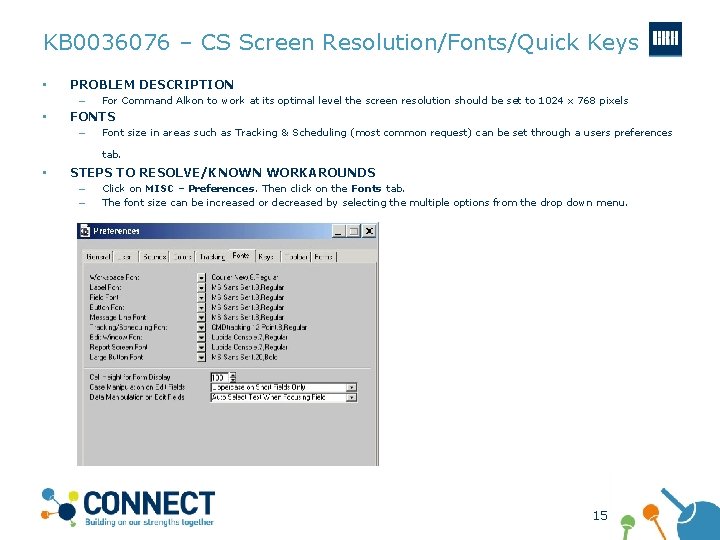
KB 0036076 – CS Screen Resolution/Fonts/Quick Keys • PROBLEM DESCRIPTION – • For Command Alkon to work at its optimal level the screen resolution should be set to 1024 x 768 pixels FONTS – Font size in areas such as Tracking & Scheduling (most common request) can be set through a users preferences tab. • STEPS TO RESOLVE/KNOWN WORKAROUNDS – – Click on MISC – Preferences. Then click on the Fonts tab. The font size can be increased or decreased by selecting the multiple options from the drop down menu. 15
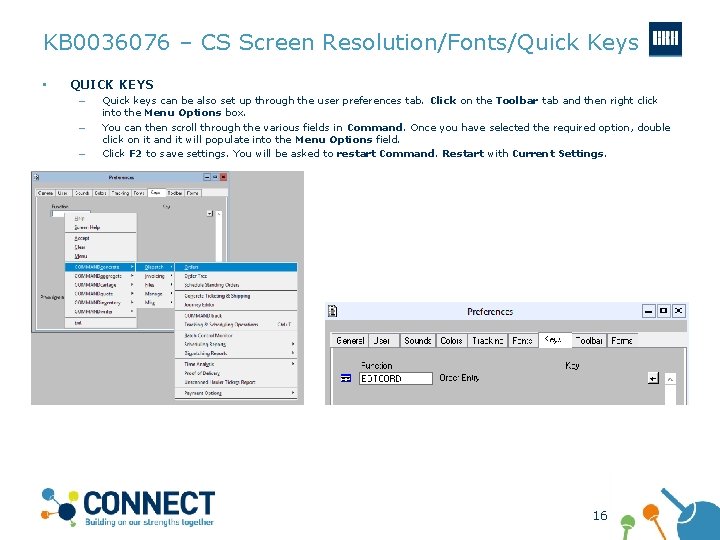
KB 0036076 – CS Screen Resolution/Fonts/Quick Keys • QUICK KEYS – – – Quick keys can be also set up through the user preferences tab. Click on the Toolbar tab and then right click into the Menu Options box. You can then scroll through the various fields in Command. Once you have selected the required option, double click on it and it will populate into the Menu Options field. Click F 2 to save settings. You will be asked to restart Command. Restart with Current Settings. 16
KB 0036076 – CS Screen Resolution/Fonts/Quick Keys • WHAT TO DO IF THE PROVIDED INSTRUCTIONS ABOVE DO NOT RESOLVE THE ISSUE? – If the known steps to remedy the issue do not resolve, please carry out the following – As for all Incidents & Requests, all steps taken and Interactions with the end user or supporting system, must be documented When did this issue start happening? What steps did you do to resolve it? What is the exact issue now? Did you resolve the issue with a fix that was not documented in this article? If so, please contact your Knowledge Manager so that the existing article can be updated appropriately? – – – • You must now route this issue to the appropriate resolver group in Service. Now using the required Minimum Data Set. Local IT with responsibility for Command Alkon applications 17
KB 0036076 – CS System Dropping • PROBLEM DESCRIPTION – • STEPS TO RESOLVE/KNOWN WORKAROUNDS – • The user should fully restart Command Series to reconnect. This works in 99% of cases. WHAT TO DO IF THE PROVIDED INSTRUCTIONS ABOVE DO NOT RESOLVE THE ISSUE? – If the known steps to remedy the issue do not resolve, please carry out the following – As for all Incidents & Requests, all steps taken and Interactions with the end user or supporting system, must be documented When did this issue start happening? What steps did you do to resolve it? What is the exact issue now? Did you resolve the issue with a fix that was not documented in this article? If so, please contact your Knowledge Manager so that the existing article can be updated appropriately? – – – • Command Series user receives a white screen which means the connection to Command Series DB has been lost. You must now route this issue to the appropriate resolver group in Service. Now using the required Minimum Data Set. Local IT with responsibility for Command Alkon applications 18
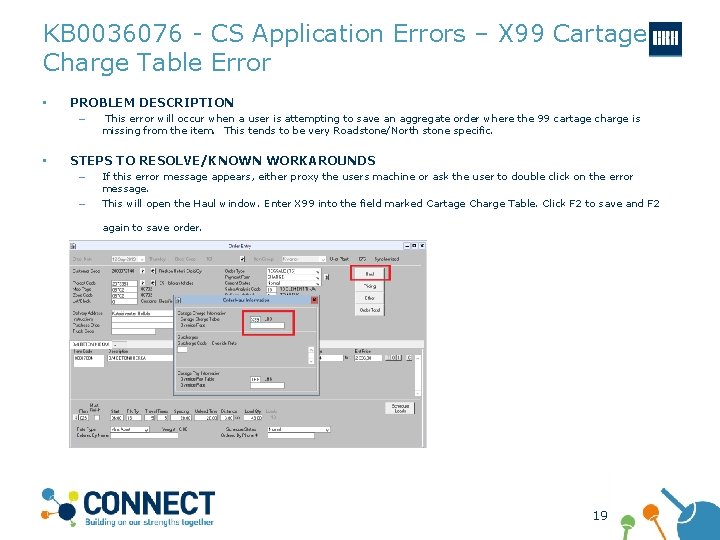
KB 0036076 - CS Application Errors – X 99 Cartage Charge Table Error • PROBLEM DESCRIPTION – • This error will occur when a user is attempting to save an aggregate order where the 99 cartage charge is missing from the item. This tends to be very Roadstone/North stone specific. STEPS TO RESOLVE/KNOWN WORKAROUNDS – – If this error message appears, either proxy the users machine or ask the user to double click on the error message. This will open the Haul window. Enter X 99 into the field marked Cartage Charge Table. Click F 2 to save and F 2 again to save order. 19
KB 0036076 - CS Application Errors – X 99 Cartage Charge Table Error • WHAT TO DO IF THE PROVIDED INSTRUCTIONS ABOVE DO NOT RESOLVE THE ISSUE? – If the known steps to remedy the issue do not resolve, please carry out the following – As for all Incidents & Requests, all steps taken and Interactions with the end user or supporting system, must be documented When did this issue start happening? What steps did you do to resolve it? What is the exact issue now? Did you resolve the issue with a fix that was not documented in this article? If so, please contact your Knowledge Manager so that the existing article can be updated appropriately? – – – • You must now route this issue to the appropriate resolver group in Service. Now using the required Minimum Data Set. Local IT with responsibility for Command Alkon applications 20
KB 0036076 - CS Fatal Errors • PROBLEM DESCRIPTION – • • STEPS TO RESOLVE/KNOWN WORKAROUNDS – When a fatal error is encountered the best practice is to completely log out of Citrix and then log back in. – This will resolve the issue is 99% of fatal error instances . WHAT TO DO IF THE PROVIDED INSTRUCTIONS ABOVE DO NOT RESOLVE THE ISSUE? – If the known steps to remedy the issue do not resolve, please carry out the following – As for all Incidents & Requests, all steps taken and Interactions with the end user or supporting system, must be documented When did this issue start happening? What steps did you do to resolve it? What is the exact issue now? Did you resolve the issue with a fix that was not documented in this article? If so, please contact your Knowledge Manager so that the existing article can be updated appropriately? – – – • A user receives a “Fatal Error” message when using a Command Alkon application such as Command Series. This prevents the user from using the application until resolved. You must now route this issue to the appropriate resolver group in Service. Now using the required Minimum Data Set. Local IT with responsibility for Command Alkon applications 21
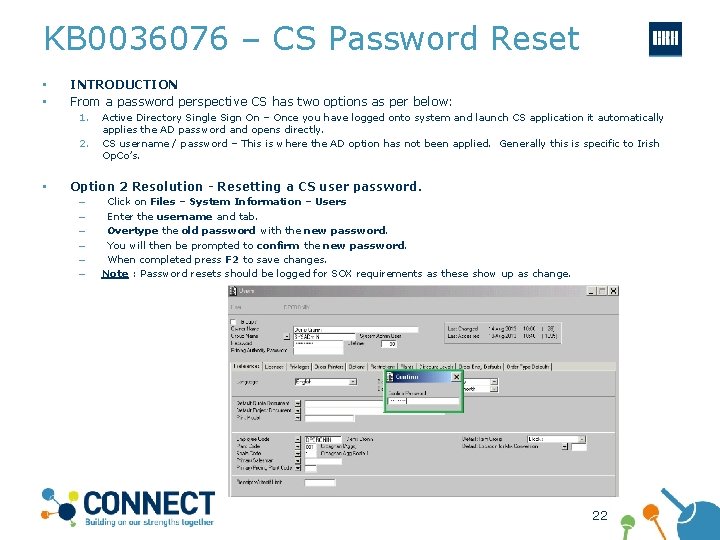
KB 0036076 – CS Password Reset • • INTRODUCTION From a password perspective CS has two options as per below: 1. 2. • Active Directory Single Sign On – Once you have logged onto system and launch CS application it automatically applies the AD password and opens directly. CS username / password – This is where the AD option has not been applied. Generally this is specific to Irish Op. Co’s. Option 2 Resolution - Resetting a CS user password. – – – Click on Files – System Information – Users Enter the username and tab. Overtype the old password with the new password. You will then be prompted to confirm the new password. When completed press F 2 to save changes. Note : Password resets should be logged for SOX requirements as these show up as change. 22
KB 0036076 – CS Password Reset • WHAT TO DO IF THE PROVIDED INSTRUCTIONS ABOVE DO NOT RESOLVE THE ISSUE? – If the known steps to remedy the issue do not resolve, please carry out the following – As for all Incidents & Requests, all steps taken and Interactions with the end user or supporting system, must be documented When did this issue start happening? What steps did you do to resolve it? What is the exact issue now? Did you resolve the issue with a fix that was not documented in this article? If so, please contact your Knowledge Manager so that the existing article can be updated appropriately? – – – • You must now route this issue to the appropriate resolver group in Service. Now using the required Minimum Data Set. Local IT with responsibility for Command Alkon applications 23
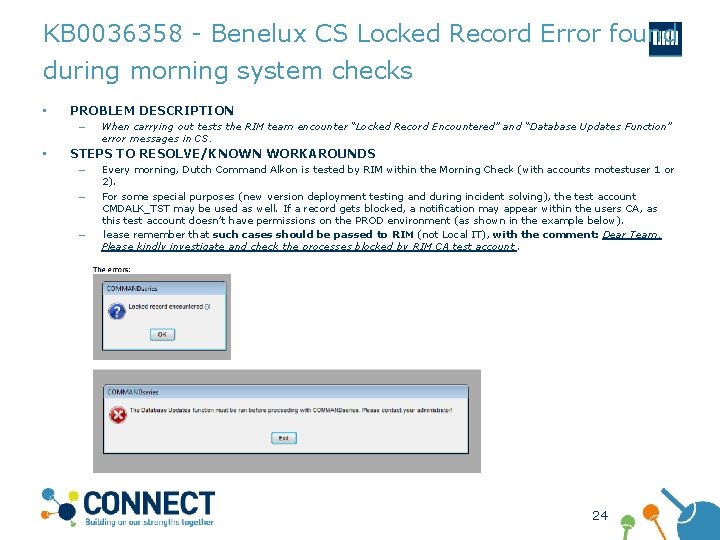
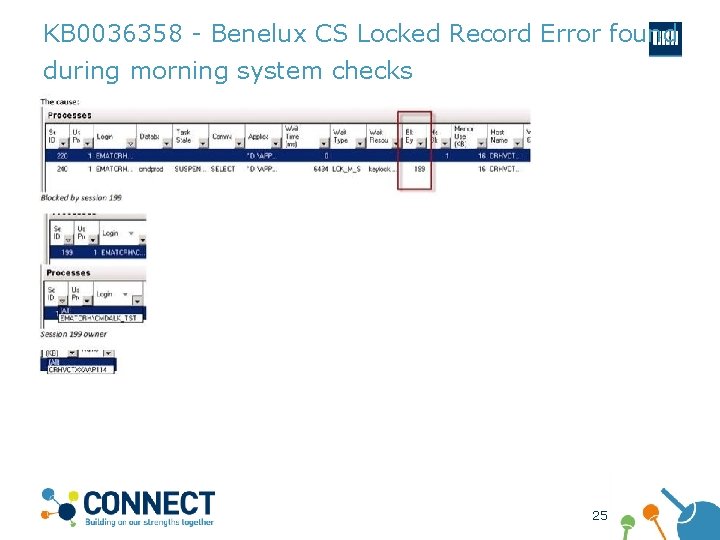
KB 0036358 - Benelux CS Locked Record Error found during morning system checks • PROBLEM DESCRIPTION – • When carrying out tests the RIM team encounter “Locked Record Encountered” and “Database Updates Function” error messages in CS. STEPS TO RESOLVE/KNOWN WORKAROUNDS – – – Every morning, Dutch Command Alkon is tested by RIM within the Morning Check (with accounts motestuser 1 or 2). For some special purposes (new version deployment testing and during incident solving), the test account CMDALK_TST may be used as well. If a record gets blocked, a notification may appear within the users CA, as this test account doesn’t have permissions on the PROD environment (as shown in the example below). lease remember that such cases should be passed to RIM (not Local IT), with the comment: Dear Team, Please kindly investigate and check the processes blocked by RIM CA test account. 24
KB 0036358 - Benelux CS Locked Record Error found during morning system checks 25
KB 0036358 - Benelux CS Locked Record Error found during morning system checks • WHAT TO DO IF THE PROVIDED INSTRUCTIONS ABOVE DO NOT RESOLVE THE ISSUE? – If the known steps to remedy the issue do not resolve, please carry out the following – As for all Incidents & Requests, all steps taken and Interactions with the end user or supporting system, must be documented When did this issue start happening? What steps did you do to resolve it? What is the exact issue now? Did you resolve the issue with a fix that was not documented in this article? If so, please contact your Knowledge Manager so that the existing article can be updated appropriately? – – – • You must now route this issue to the appropriate resolver group in Service. Now using the required Minimum Data Set. – Cementbouw Local IT Dept 26
- Slides: 26