
CS 444544 OS II Lab Session 1 Lab
CS 444/544 OS II Lab Session #1 Lab Setup, Pointers, and Debugging
Lab Session (Total 80 minutes) Tutorial (30 ~ 45 minutes) Following the instructions! Exercise + Q&A (35 ~ 50 minutes) Do your lab exercises and ask questions to TAs
Today’s Tutorial 1. 2. 3. 4. Lab environment setup Commit your information on your own ‘jos’ repository Run pointer example Run debugging example
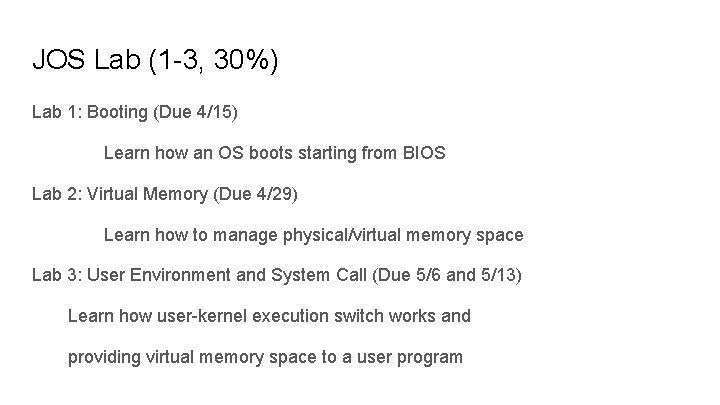
JOS Lab (1 -3, 30%) Lab 1: Booting (Due 4/15) Learn how an OS boots starting from BIOS Lab 2: Virtual Memory (Due 4/29) Learn how to manage physical/virtual memory space Lab 3: User Environment and System Call (Due 5/6 and 5/13) Learn how user-kernel execution switch works and providing virtual memory space to a user program
Concurrency Lab (TBA, 1 -2, 20%) Concurrency Lab 1: Implementing Locks, semaphores, and other synchronization mechanisms Concurrency Lab 2: Resolve deadlock issues, implementing a thread-safe data structure
Lab Quizzes (1, 2, 20%, 10% each) A short version of an Exam We will provide a practice Quiz (posted online) one week before the actual exam
Extra Credit Labs JOS Challenges (2% each from Lab 1, 2, 3, same due with the lab) Solving a challenge would add +2% towards the entire course credits JOS Lab 4 (15% extra credits, Due 6/13): Preemptive Multitasking / Copy-on-write Fork / Inter-process Communication JOS Lab 5 (15% extra credits, Due 6/13): Filesystem
How to Start Labs? Setup lab environment first (we will do this today!) Read Lab description online https: //os. unexploitable. systems/lab 1. html Finish all exercises, and run $ make grade
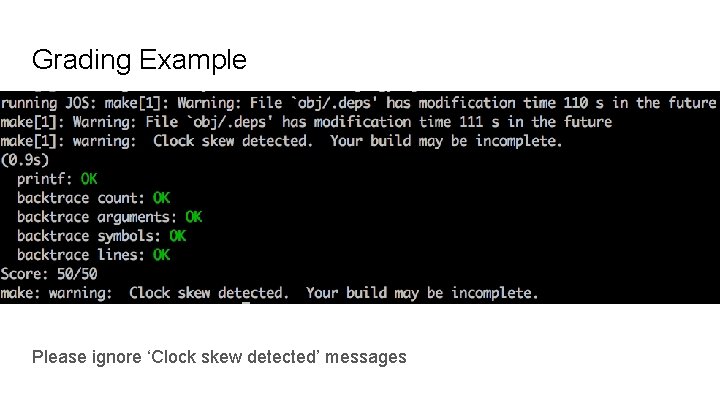
Grading Example Please ignore ‘Clock skew detected’ messages
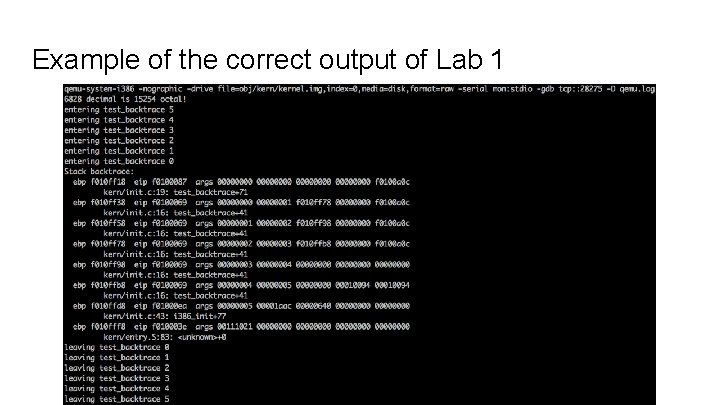
Example of the correct output of Lab 1
How to Submit Labs? All lab submissions must be turn in via your lab repository on CS 444/544 gitlab. $ git add … (add files to git repo) $ git commit (commit your changes) After finishing the lab: $ git tag lab 1 -final $ git push origin --tags This will push lab 1 -final to the repository. . .
JOS Lab Setup Tools: QEMU (Intel 32 -bit x 86 emulator) GIT (Source Code Version Control System) GDB (Debugger) BASH, TMUX, VIM, etc. We will use GIT to checkout all code and submit your lab progress! Register yourself to: https: //gitlab. unexploitable. systems
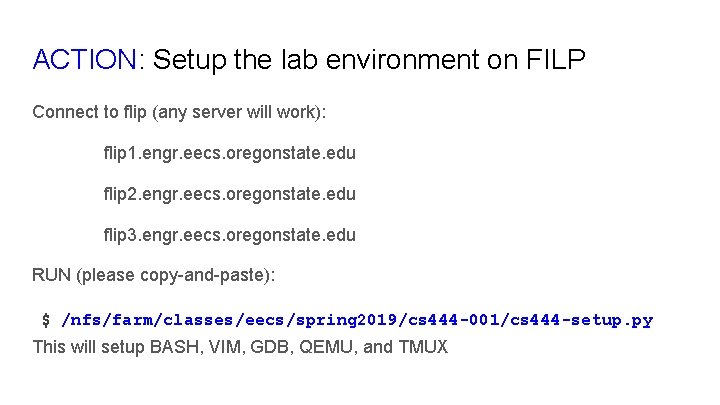
ACTION: Setup the lab environment on FILP Connect to flip (any server will work): flip 1. engr. eecs. oregonstate. edu flip 2. engr. eecs. oregonstate. edu flip 3. engr. eecs. oregonstate. edu RUN (please copy-and-paste): $ /nfs/farm/classes/eecs/spring 2019/cs 444 -001/cs 444 -setup. py This will setup BASH, VIM, GDB, QEMU, and TMUX
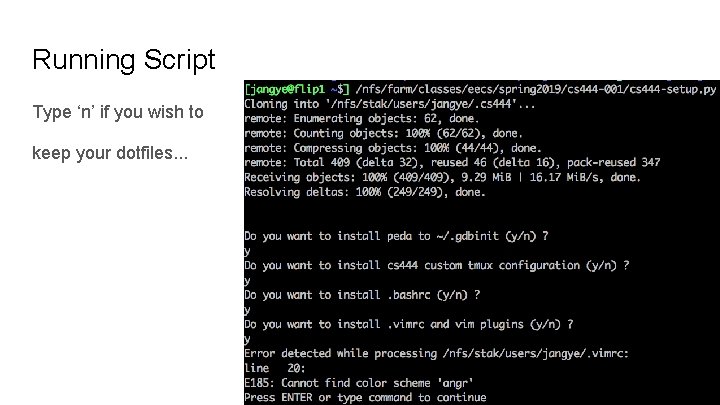
Running Script Type ‘n’ if you wish to keep your dotfiles. . .
ACTION: https: //gitlab. unexploitable. systems Register your account! We will use a private gitlab to host your projects FERPA Act prevents us from storing your course progress outside OSU Visit the website and register an account; Use @oregonstate. edu e-mail address (you can’t register otherwise) Wait for receiving the confirmation e-mail; After confirming the message, please log on to the gitlab website
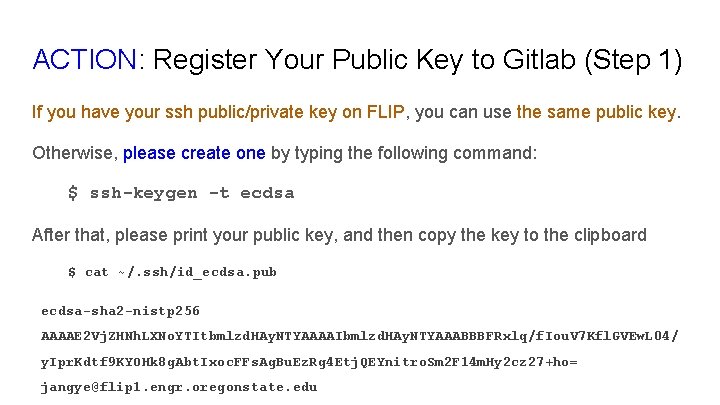
ACTION: Register Your Public Key to Gitlab (Step 1) If you have your ssh public/private key on FLIP, you can use the same public key. Otherwise, please create one by typing the following command: $ ssh-keygen -t ecdsa After that, please print your public key, and then copy the key to the clipboard $ cat ~/. ssh/id_ecdsa. pub ecdsa-sha 2 -nistp 256 AAAAE 2 Vj. ZHNh. LXNo. YTItbmlzd. HAy. NTYAAAAIbmlzd. HAy. NTYAAABBBFRxlq/f. Iou. V 7 Kfl. GVEw. L 04/ y. Ipr. Kdtf 9 KYOHk 8 g. Abt. Ixoc. FFs. Ag. Bu. Ez. Rg 4 Etj. QEYnitro. Sm 2 F 14 m. Hy 2 cz 27+ho= jangye@flip 1. engr. oregonstate. edu
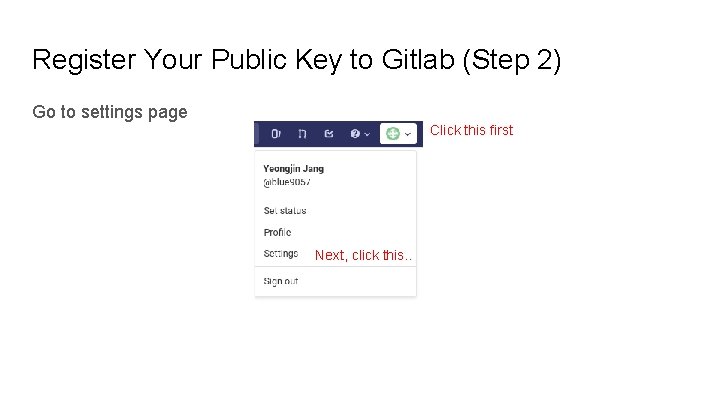
Register Your Public Key to Gitlab (Step 2) Go to settings page Click this first Next, click this. .
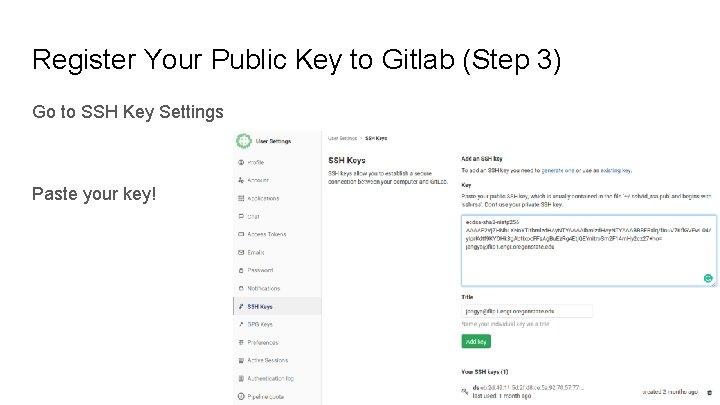
Register Your Public Key to Gitlab (Step 3) Go to SSH Key Settings Paste your key!
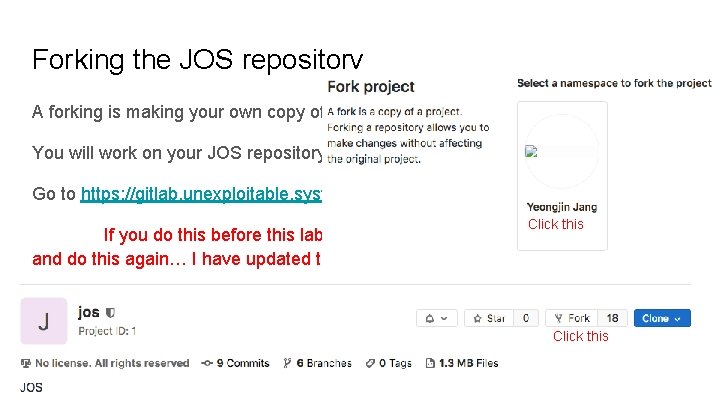
Forking the JOS repository A forking is making your own copy of an existing repository. You will work on your JOS repository by forking. Go to https: //gitlab. unexploitable. systems/root/jos, and fork the repository! Click this If you do this before this lab session, then delete the forked repository and do this again… I have updated the original repository. . . Click this
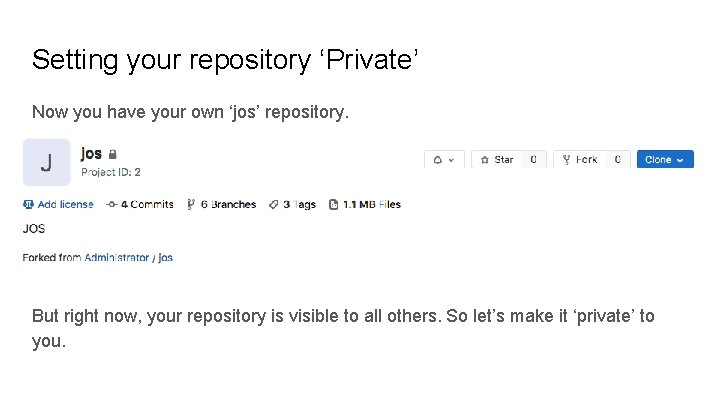
Setting your repository ‘Private’ Now you have your own ‘jos’ repository. But right now, your repository is visible to all others. So let’s make it ‘private’ to you.
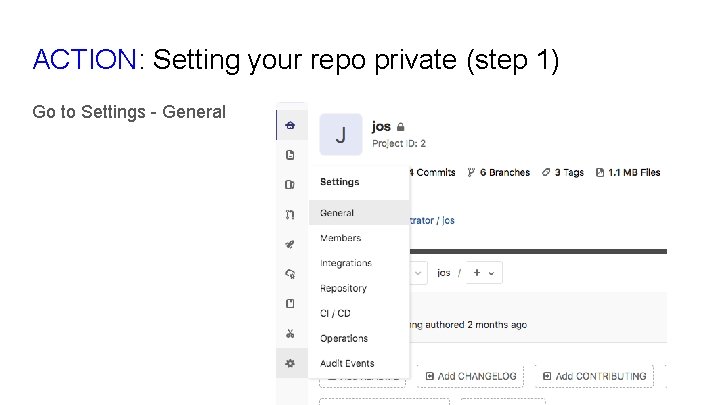
ACTION: Setting your repo private (step 1) Go to Settings - General
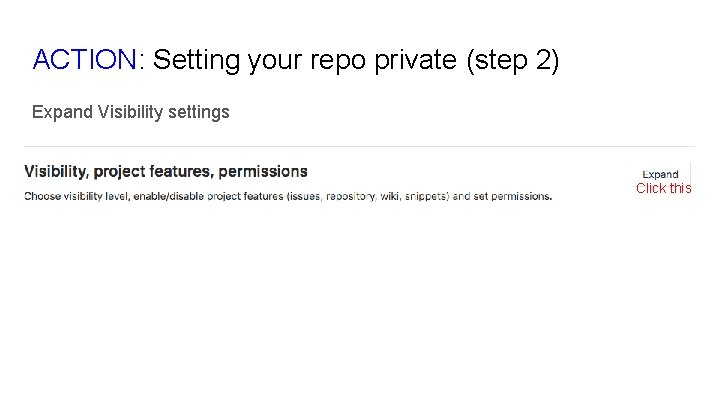
ACTION: Setting your repo private (step 2) Expand Visibility settings Click this
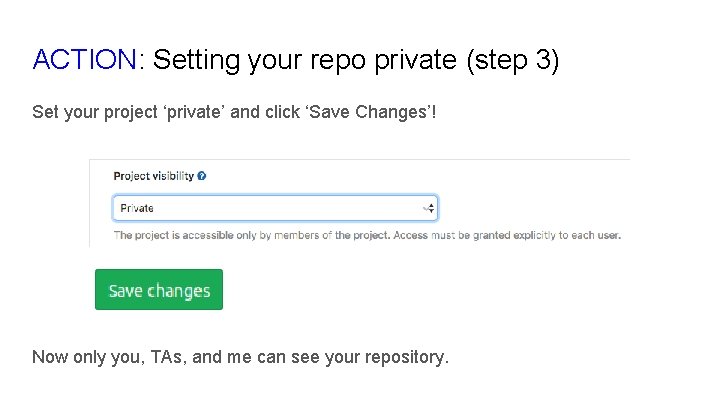
ACTION: Setting your repo private (step 3) Set your project ‘private’ and click ‘Save Changes’! Now only you, TAs, and me can see your repository.
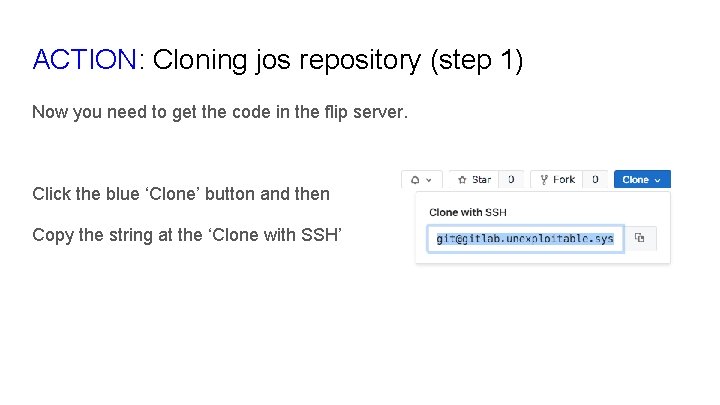
ACTION: Cloning jos repository (step 1) Now you need to get the code in the flip server. Click the blue ‘Clone’ button and then Copy the string at the ‘Clone with SSH’
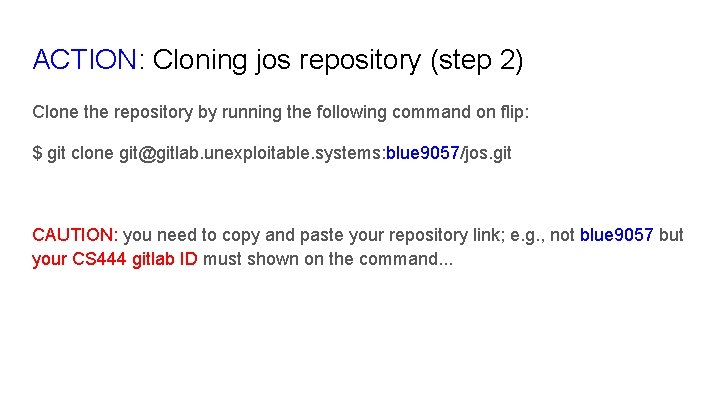
ACTION: Cloning jos repository (step 2) Clone the repository by running the following command on flip: $ git clone git@gitlab. unexploitable. systems: blue 9057/jos. git CAUTION: you need to copy and paste your repository link; e. g. , not blue 9057 but your CS 444 gitlab ID must shown on the command. . .
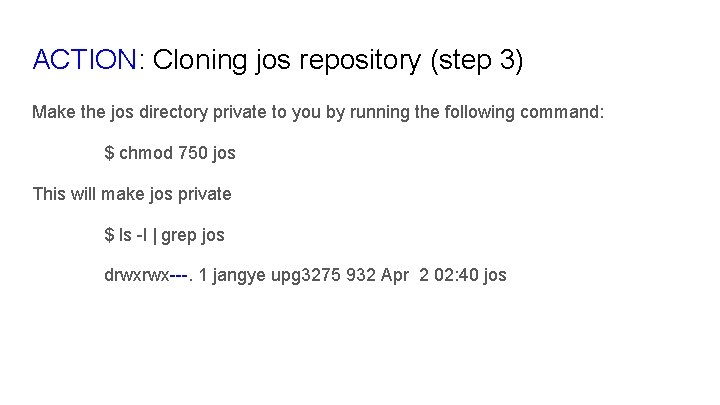
ACTION: Cloning jos repository (step 3) Make the jos directory private to you by running the following command: $ chmod 750 jos This will make jos private $ ls -l | grep jos drwxrwx---. 1 jangye upg 3275 932 Apr 2 02: 40 jos
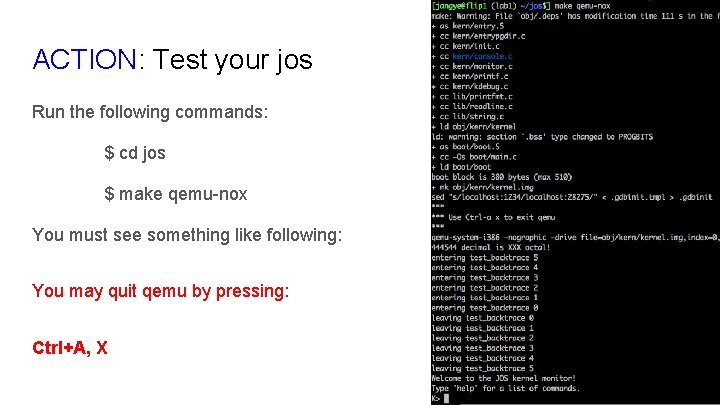
ACTION: Test your jos Run the following commands: $ cd jos $ make qemu-nox You must see something like following: You may quit qemu by pressing: Ctrl+A, X
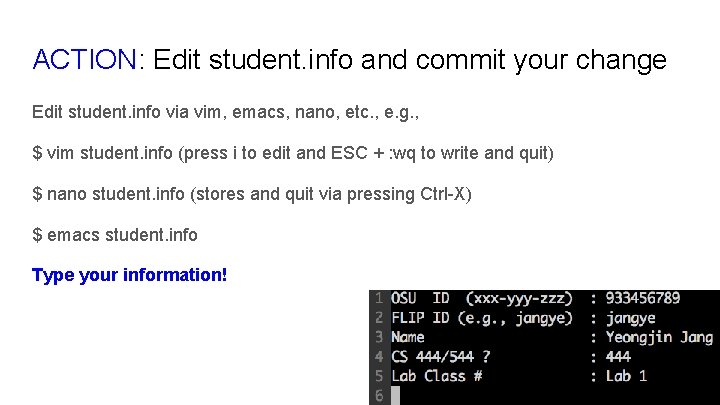
ACTION: Edit student. info and commit your change Edit student. info via vim, emacs, nano, etc. , e. g. , $ vim student. info (press i to edit and ESC + : wq to write and quit) $ nano student. info (stores and quit via pressing Ctrl-X) $ emacs student. info Type your information!
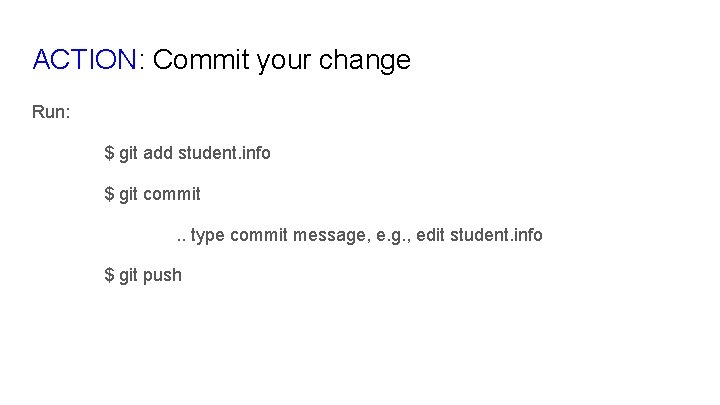
ACTION: Commit your change Run: $ git add student. info $ git commit. . type commit message, e. g. , edit student. info $ git push
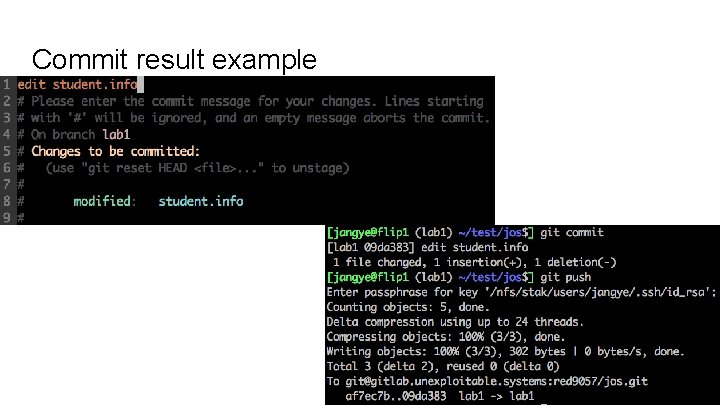
Commit result example
ACTION: Fork&Cloning another repository Practice fork and clone by taking the same step on the following repository: https: //gitlab. unexploitable. systems/root/labtest
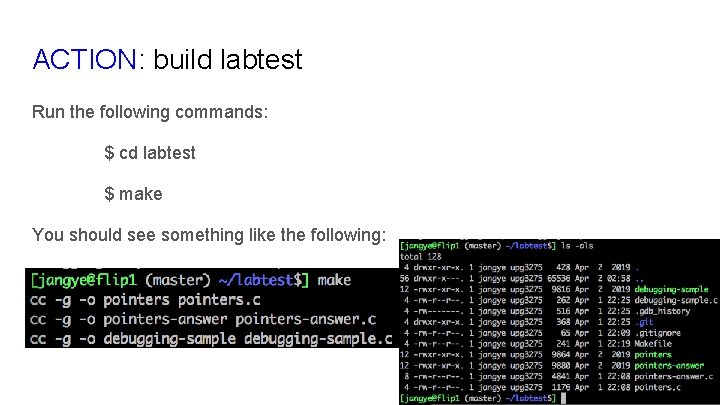
ACTION: build labtest Run the following commands: $ cd labtest $ make You should see something like the following:
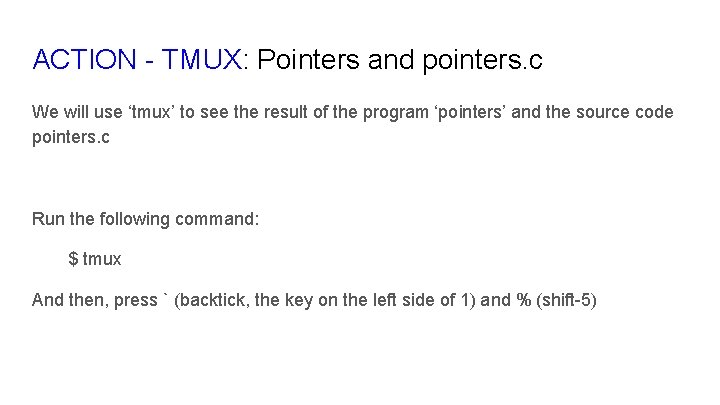
ACTION - TMUX: Pointers and pointers. c We will use ‘tmux’ to see the result of the program ‘pointers’ and the source code pointers. c Run the following command: $ tmux And then, press ` (backtick, the key on the left side of 1) and % (shift-5)
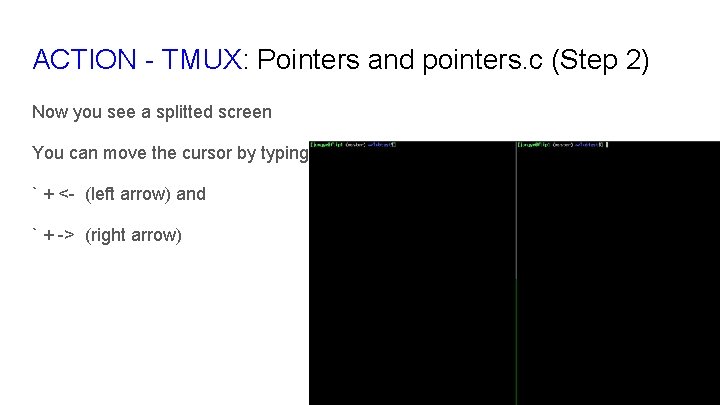
ACTION - TMUX: Pointers and pointers. c (Step 2) Now you see a splitted screen You can move the cursor by typing ` + <- (left arrow) and ` + -> (right arrow)
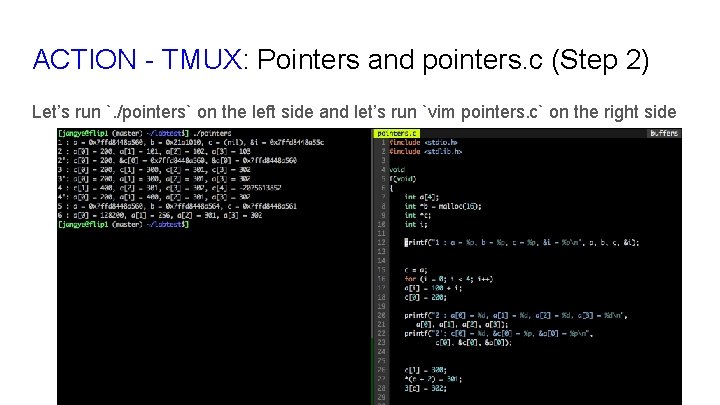
ACTION - TMUX: Pointers and pointers. c (Step 2) Let’s run `. /pointers` on the left side and let’s run `vim pointers. c` on the right side
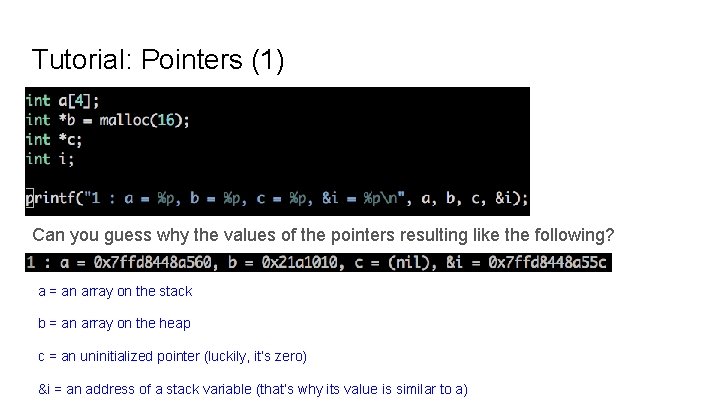
Tutorial: Pointers (1) Can you guess why the values of the pointers resulting like the following? a = an array on the stack b = an array on the heap c = an uninitialized pointer (luckily, it’s zero) &i = an address of a stack variable (that’s why its value is similar to a)
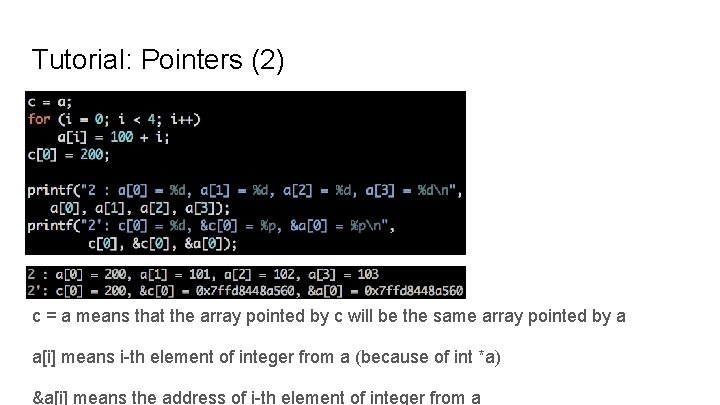
Tutorial: Pointers (2) c = a means that the array pointed by c will be the same array pointed by a a[i] means i-th element of integer from a (because of int *a) &a[i] means the address of i-th element of integer from a
![Tutorial: Pointers (3) * (c + 2) is equivalent to c[2] 3[c] is equivalent](http://slidetodoc.com/presentation_image_h/da28ec5ff97263daf9ad383242f050fc/image-38.jpg "Tutorial: Pointers (3) * (c + 2) is equivalent to c[2] 3[c] is equivalent")
Tutorial: Pointers (3) * (c + 2) is equivalent to c[2] 3[c] is equivalent to *(3 + c), which is equivalent to *(c + 3), which is equivalent to c[3].
![Tutorial: Pointers (4) Now c = c + 1, which means c = &c[1];](http://slidetodoc.com/presentation_image_h/da28ec5ff97263daf9ad383242f050fc/image-39.jpg "Tutorial: Pointers (4) Now c = c + 1, which means c = &c[1];")
Tutorial: Pointers (4) Now c = c + 1, which means c = &c[1]; this also means c = &a[1] because c == a *c is equivalent to * ( c + 0 ), which is equivalent to c[0]; c[0] = 400 Because c is &a[1], c[0] is equal to a[1]. So it’s a[1] = 400
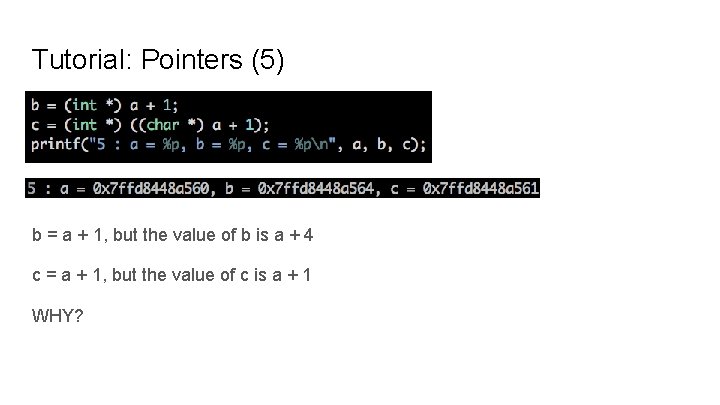
Tutorial: Pointers (5) b = a + 1, but the value of b is a + 4 c = a + 1, but the value of c is a + 1 WHY?
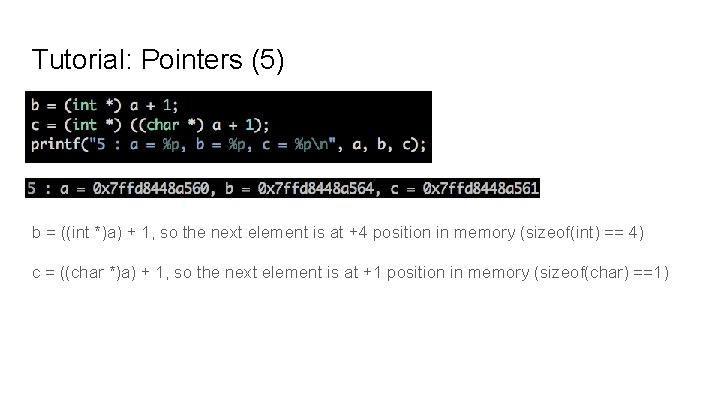
Tutorial: Pointers (5) b = ((int *)a) + 1, so the next element is at +4 position in memory (sizeof(int) == 4) c = ((char *)a) + 1, so the next element is at +1 position in memory (sizeof(char) ==1)
![Tutorial: Pointers (6) Why c = 500 makes changes in both a[0] and a[1],](http://slidetodoc.com/presentation_image_h/da28ec5ff97263daf9ad383242f050fc/image-42.jpg "Tutorial: Pointers (6) Why c = 500 makes changes in both a[0] and a[1],")
Tutorial: Pointers (6) Why c = 500 makes changes in both a[0] and a[1], and why do they changes to such weird values?
![Tutorial: Pointers (6) Previously, In hexadecimal: a[0] = 0 x 000000 c 8, a[1]](http://slidetodoc.com/presentation_image_h/da28ec5ff97263daf9ad383242f050fc/image-43.jpg "Tutorial: Pointers (6) Previously, In hexadecimal: a[0] = 0 x 000000 c 8, a[1]")
Tutorial: Pointers (6) Previously, In hexadecimal: a[0] = 0 x 000000 c 8, a[1] = 0 x 00000190, a[2] = 0 x 0000012 d, a[3] = 0 x 0000012 e Intel uses ‘Little endian’ Position 0 1 2 3 4 5 6 7 Value c 8 00 00 00 90 01 00 00 Position 8 9 10 11 12 13 14 15 Value 2 d 01 00 00 2 e 01 00 00
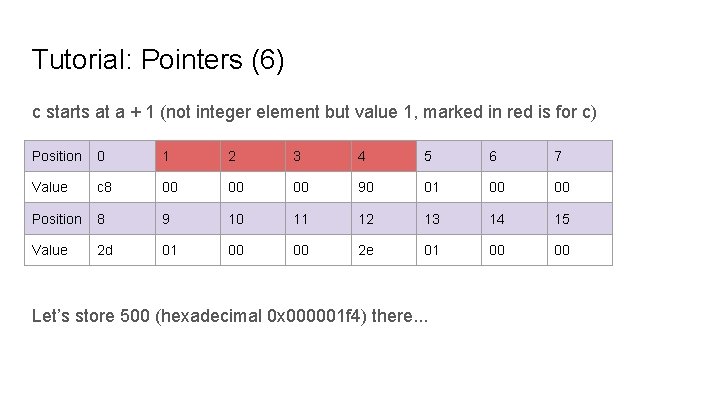
Tutorial: Pointers (6) c starts at a + 1 (not integer element but value 1, marked in red is for c) Position 0 1 2 3 4 5 6 7 Value c 8 00 00 00 90 01 00 00 Position 8 9 10 11 12 13 14 15 Value 2 d 01 00 00 2 e 01 00 00 Let’s store 500 (hexadecimal 0 x 000001 f 4) there. . .
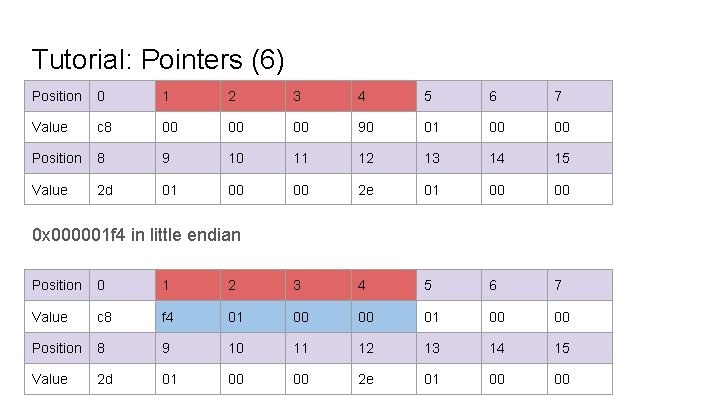
Tutorial: Pointers (6) Position 0 1 2 3 4 5 6 7 Value c 8 00 00 00 90 01 00 00 Position 8 9 10 11 12 13 14 15 Value 2 d 01 00 00 2 e 01 00 00 0 x 000001 f 4 in little endian Position 0 1 2 3 4 5 6 7 Value c 8 f 4 01 00 00 Position 8 9 10 11 12 13 14 15 Value 2 d 01 00 00 2 e 01 00 00
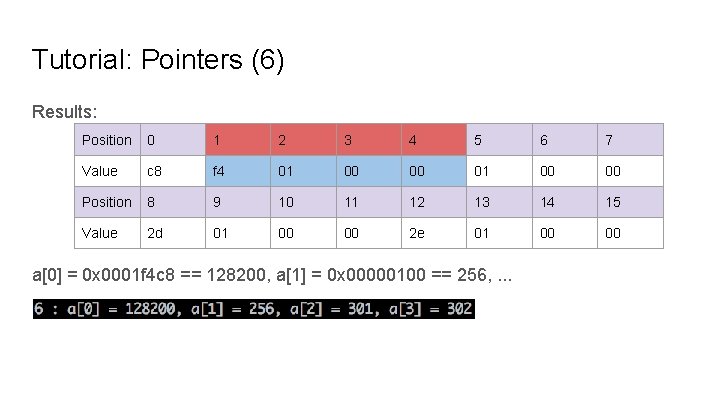
Tutorial: Pointers (6) Results: Position 0 1 2 3 4 5 6 7 Value c 8 f 4 01 00 00 Position 8 9 10 11 12 13 14 15 Value 2 d 01 00 00 2 e 01 00 00 a[0] = 0 x 0001 f 4 c 8 == 128200, a[1] = 0 x 00000100 == 256, . . .
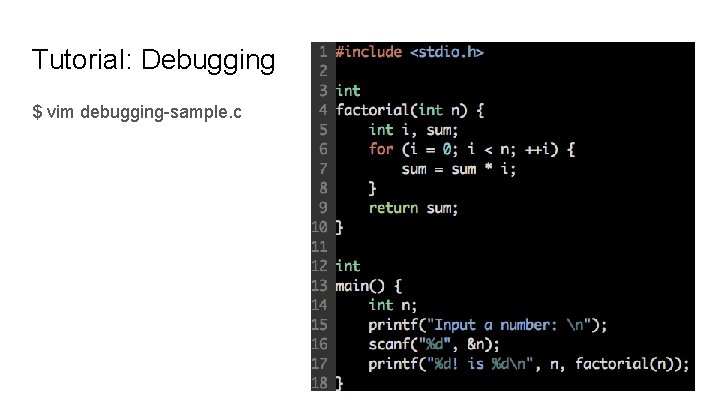
Tutorial: Debugging $ vim debugging-sample. c
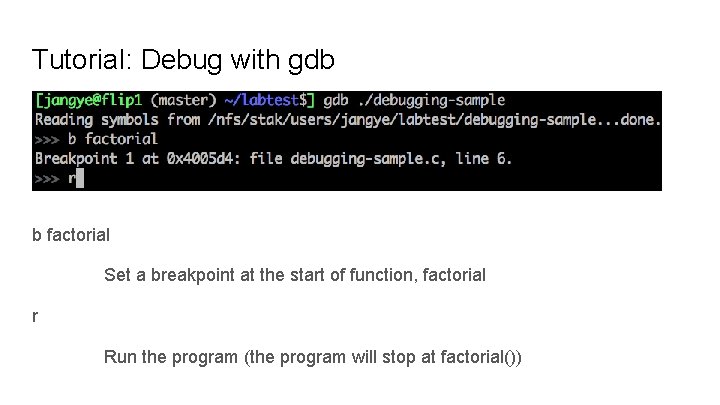
Tutorial: Debug with gdb b factorial Set a breakpoint at the start of function, factorial r Run the program (the program will stop at factorial())
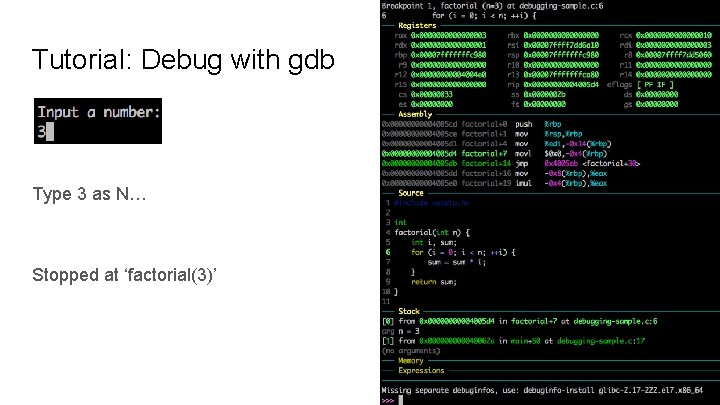
Tutorial: Debug with gdb Type 3 as N… Stopped at ‘factorial(3)’
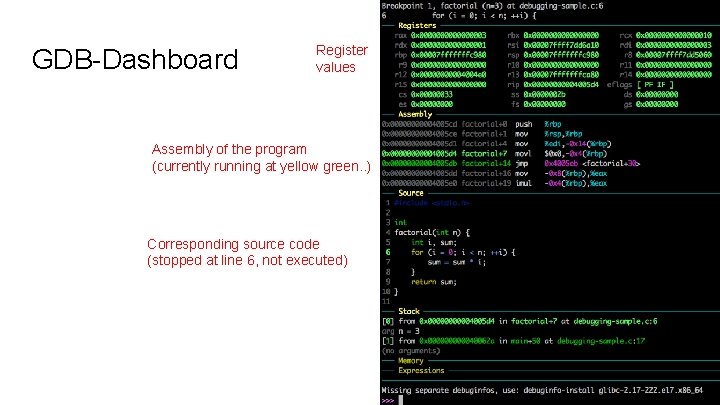
GDB-Dashboard Register values Assembly of the program (currently running at yellow green. . ) Corresponding source code (stopped at line 6, not executed)
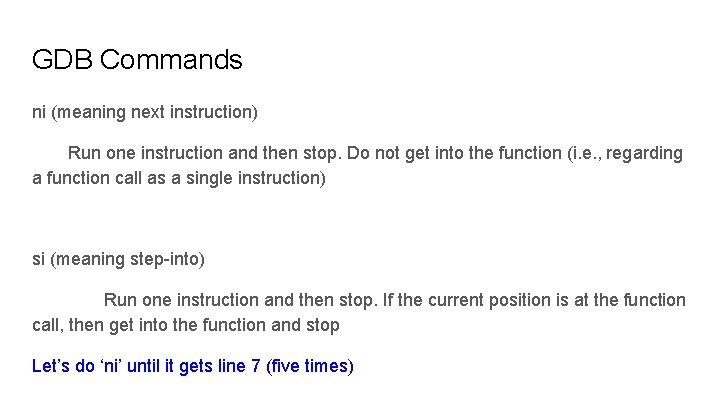
GDB Commands ni (meaning next instruction) Run one instruction and then stop. Do not get into the function (i. e. , regarding a function call as a single instruction) si (meaning step-into) Run one instruction and then stop. If the current position is at the function call, then get into the function and stop Let’s do ‘ni’ until it gets line 7 (five times)
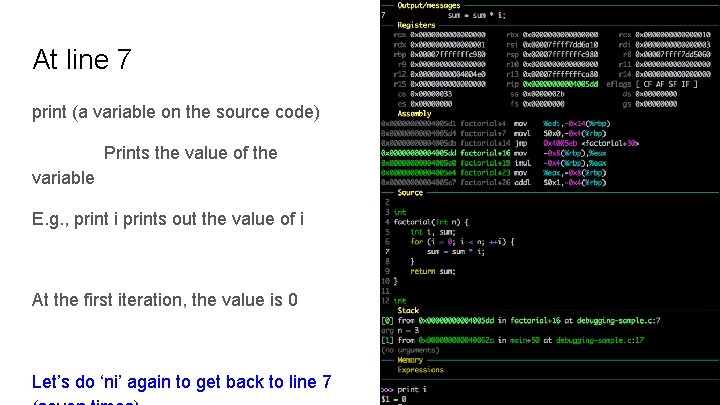
At line 7 print (a variable on the source code) Prints the value of the variable E. g. , print i prints out the value of i At the first iteration, the value is 0 Let’s do ‘ni’ again to get back to line 7
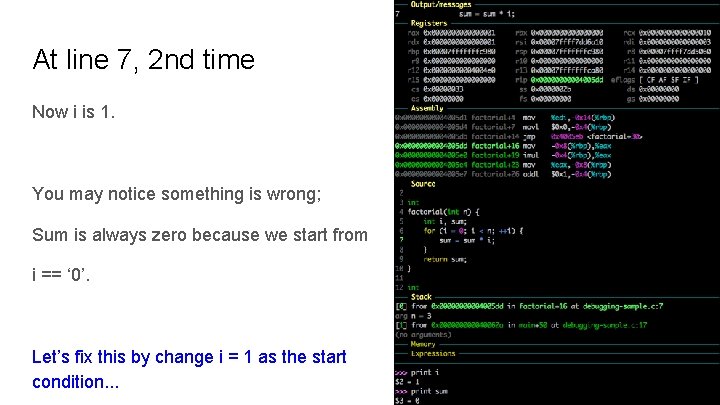
At line 7, 2 nd time Now i is 1. You may notice something is wrong; Sum is always zero because we start from i == ‘ 0’. Let’s fix this by change i = 1 as the start condition. . .
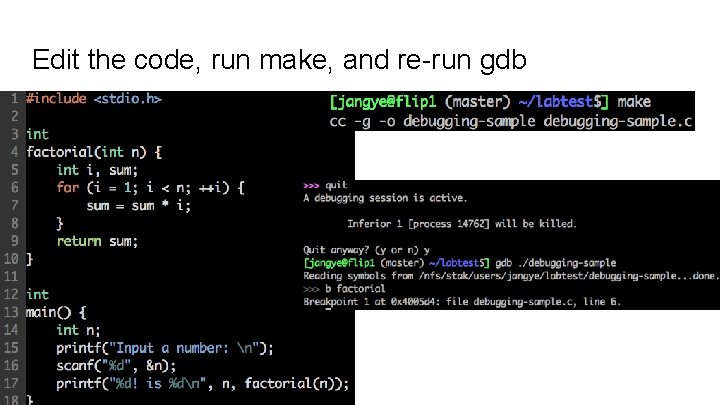
Edit the code, run make, and re-run gdb
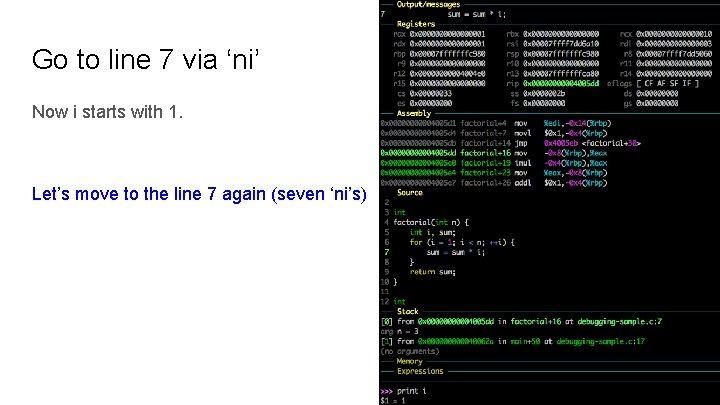
Go to line 7 via ‘ni’ Now i starts with 1. Let’s move to the line 7 again (seven ‘ni’s)
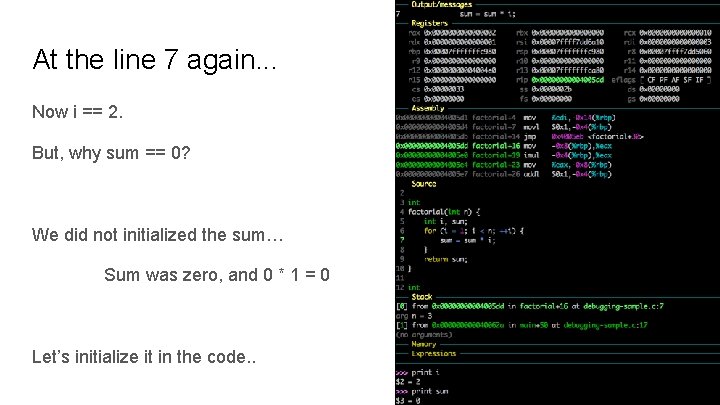
At the line 7 again. . . Now i == 2. But, why sum == 0? We did not initialized the sum… Sum was zero, and 0 * 1 = 0 Let’s initialize it in the code. .
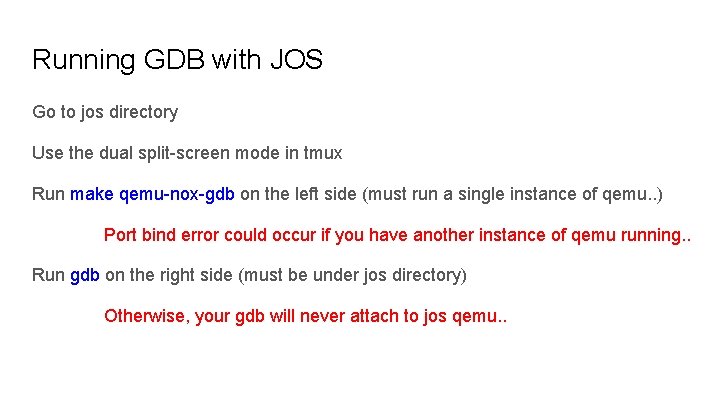
Running GDB with JOS Go to jos directory Use the dual split-screen mode in tmux Run make qemu-nox-gdb on the left side (must run a single instance of qemu. . ) Port bind error could occur if you have another instance of qemu running. . Run gdb on the right side (must be under jos directory) Otherwise, your gdb will never attach to jos qemu. .
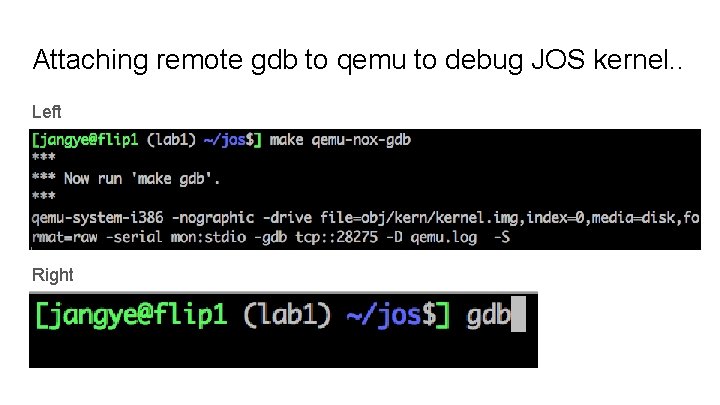
Attaching remote gdb to qemu to debug JOS kernel. . Left Right
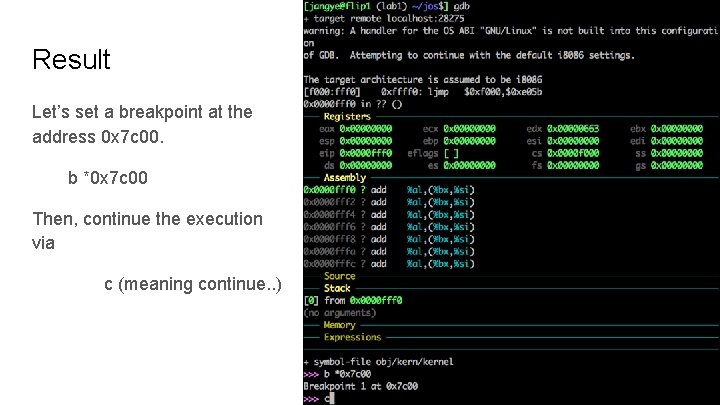
Result Let’s set a breakpoint at the address 0 x 7 c 00. b *0 x 7 c 00 Then, continue the execution via c (meaning continue. . )
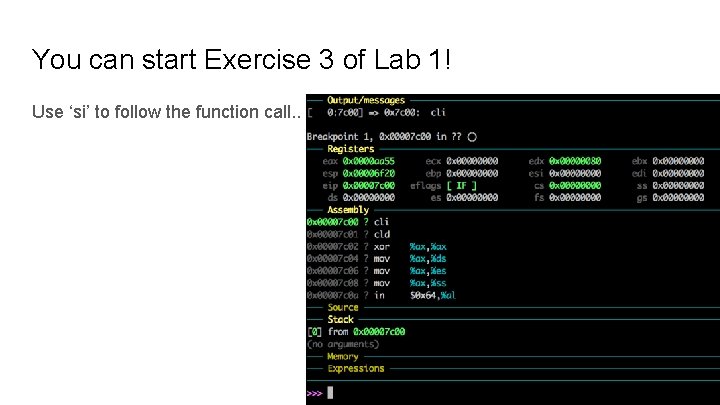
You can start Exercise 3 of Lab 1! Use ‘si’ to follow the function call. .
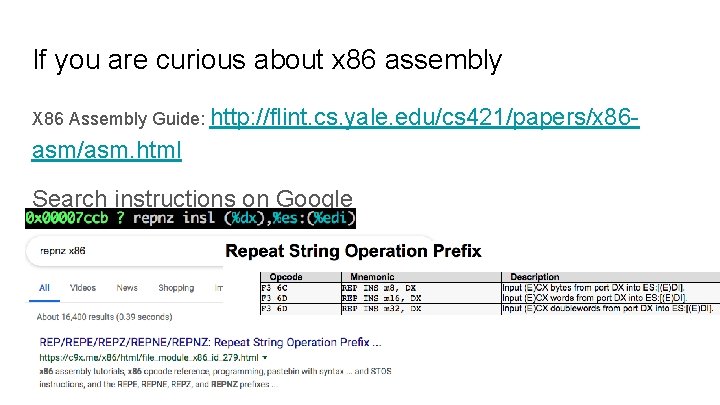
If you are curious about x 86 assembly X 86 Assembly Guide: http: //flint. cs. yale. edu/cs 421/papers/x 86 - asm/asm. html Search instructions on Google
Read more at. . . GIT cheat sheet: https: //www. git-tower. com/blog/git-cheat-sheet VIM cheat sheets: https: //devhints. io/vim and https: //vim. rtorr. com/ GDB cheat sheets: https: //cs. brown. edu/courses/cs 033/docs/guides/gdb. pdf https: //darkdust. net/files/GDB%20 Cheat%20 Sheet. pdf TMUX cheat sheet: https: //gist. github. com/Mohamed. Alaa/2961058 (the prefix is ` in CS 444 settings)
- Slides: 62