
CS 378 Mobile Computing Maps Using Google Maps
CS 378 - Mobile Computing Maps

Using Google Maps • Like other web services requires an API key from Google • http: //code. google. com/android/addons/google-apis/mapkey. html • required to use Map. View class • Must: – Register the MD 5 fingerprint of the certificate used to sign the application. – Adding a reference to the Maps API Key in each Map. View (xml or code) 2
Signing Apps • deploying apps on the market requires signing the app with a certificate • development and debugging uses an automatic key creation process – invisible to us • In release mode you must create your own private key to sign apps – use of keytool program from Java SDK • http: //developer. android. com/guide/publish ing/app-signing. html 3

Debugging Maps Applications • Possible to use the debug key to get a certificate for Google Maps • steps: – locate debug keystore – use keytool to get the MD 5 fingerprint of the debug certificate to request map certificate • MD 5 – Message - Digest Algorithm – cryptographic hash function 4
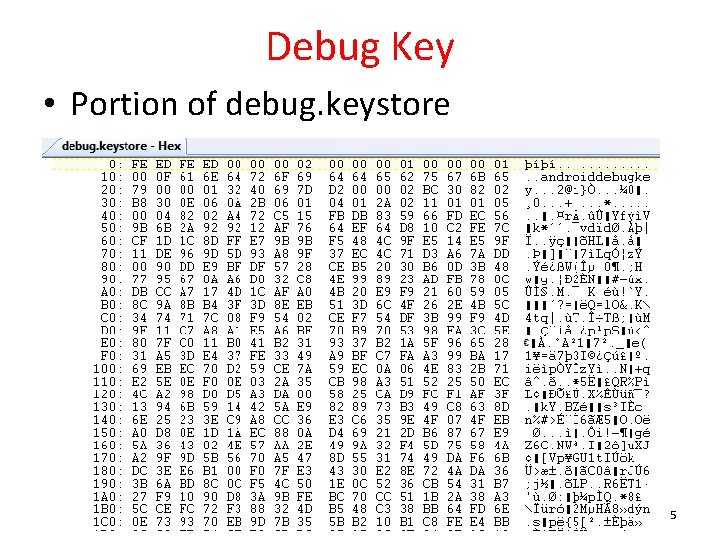
Debug Key • Portion of debug. keystore 5
Getting MD 5 Fingerprint • use keytool program • keytool part of Java SDK • keytool -list -alias androiddebugkey -keystore <path_to_debug_keystore>. keystore -storepass android -keypass android • gives MD 5 fingerprint of the debug certificate • keytool of Java 1. 7 gives SHA 1 by default – use -v after keytool, before -list 6
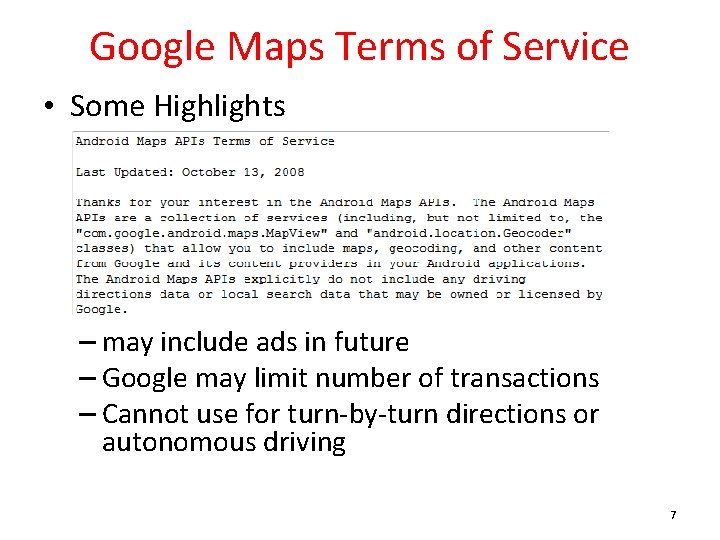
Google Maps Terms of Service • Some Highlights – may include ads in future – Google may limit number of transactions – Cannot use for turn-by-turn directions or autonomous driving 7
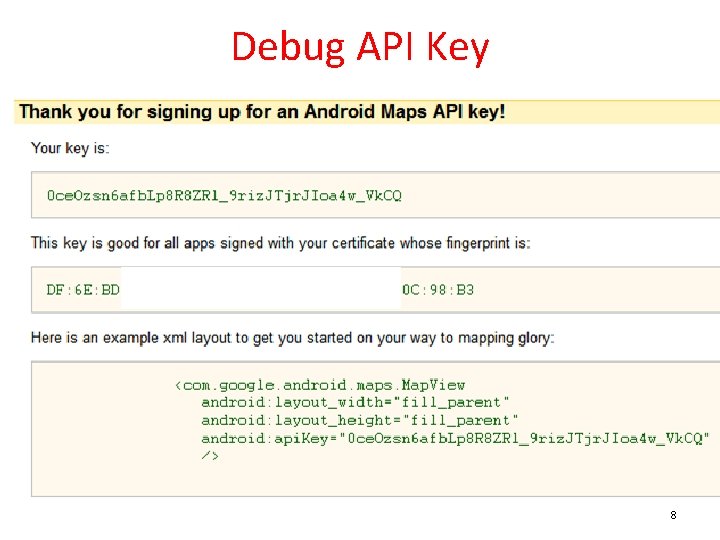
Debug API Key 8
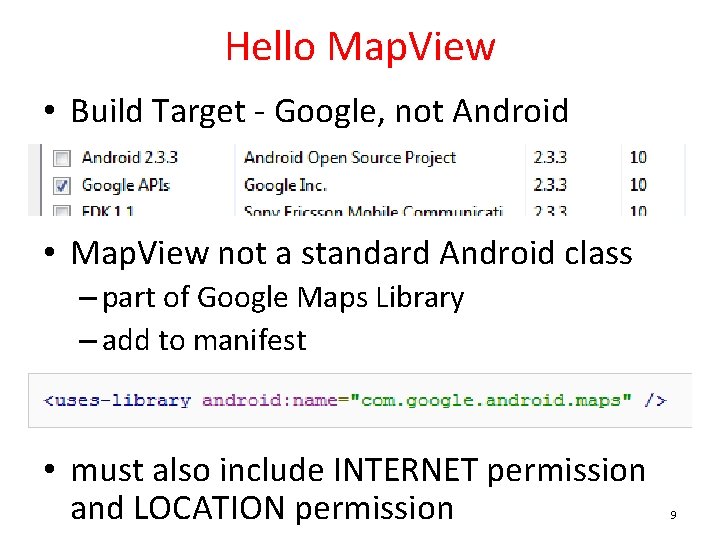
Hello Map. View • Build Target - Google, not Android • Map. View not a standard Android class – part of Google Maps Library – add to manifest • must also include INTERNET permission and LOCATION permission 9
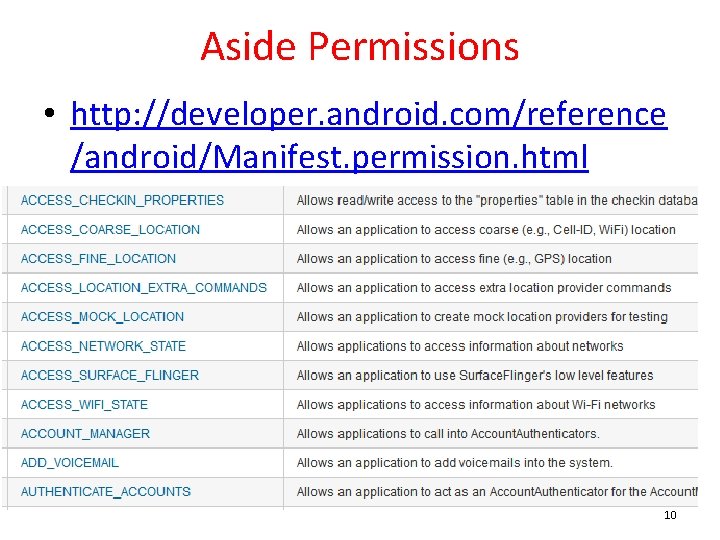
Aside Permissions • http: //developer. android. com/reference /android/Manifest. permission. html 10
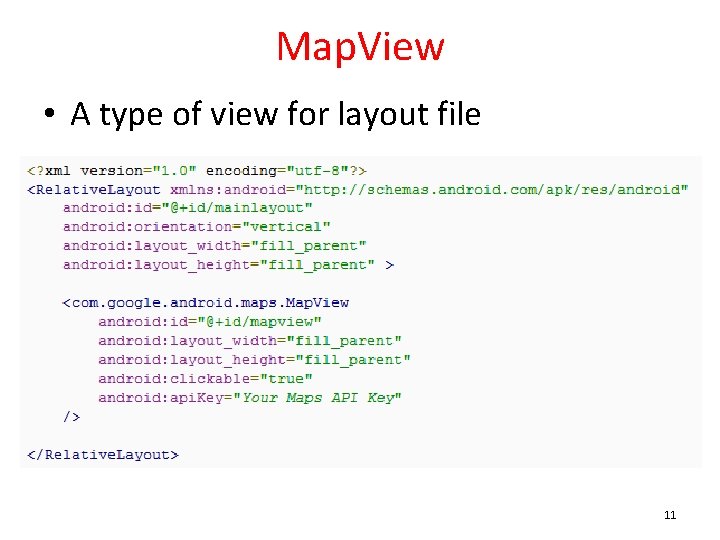
Map. View • A type of view for layout file 11
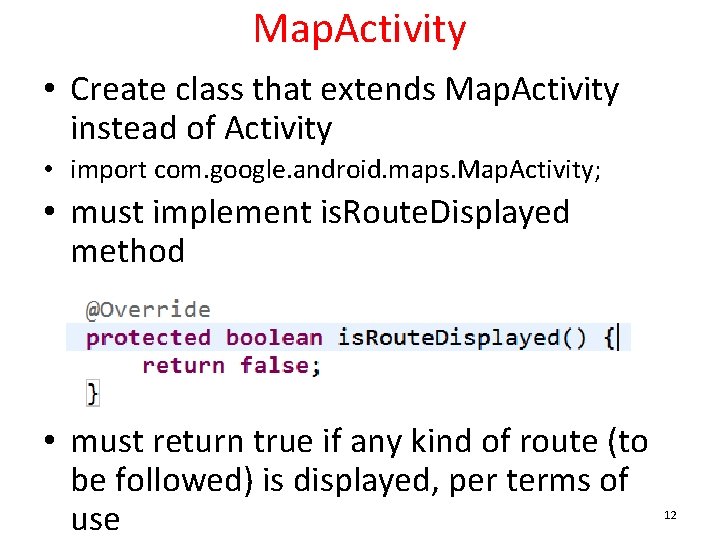
Map. Activity • Create class that extends Map. Activity instead of Activity • import com. google. android. maps. Map. Activity; • must implement is. Route. Displayed method • must return true if any kind of route (to be followed) is displayed, per terms of use 12
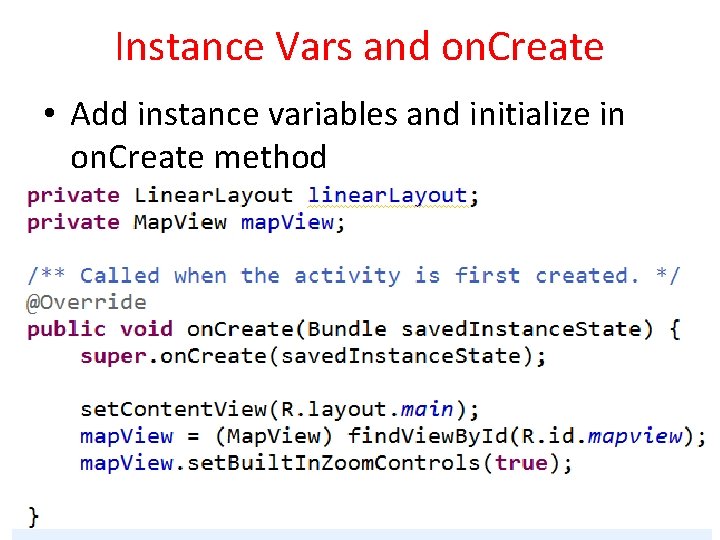
Instance Vars and on. Create • Add instance variables and initialize in on. Create method 13
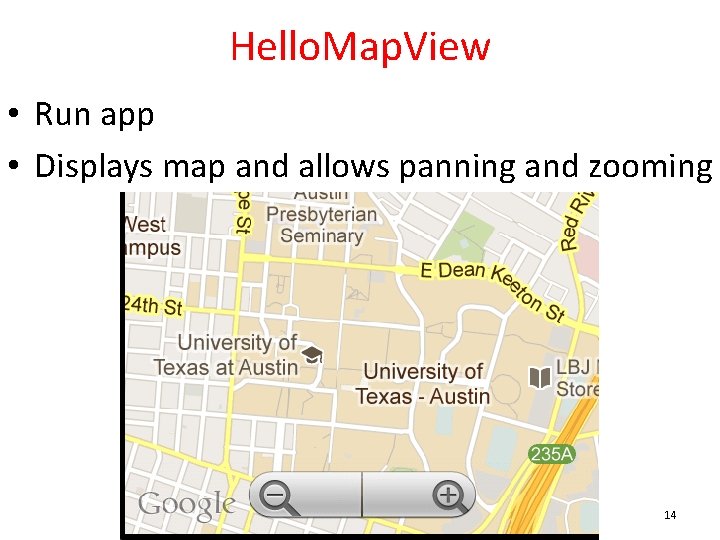
Hello. Map. View • Run app • Displays map and allows panning and zooming 14
Customizing Map • Easy to display map and allow interaction • Customize with markers and overlays • Overlays – used to display information on top of map – use Itemized. Overlay class 15
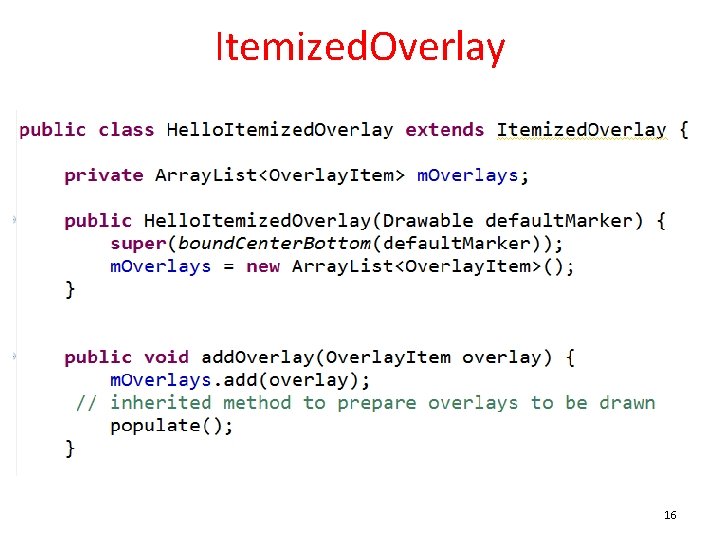
Itemized. Overlay 16
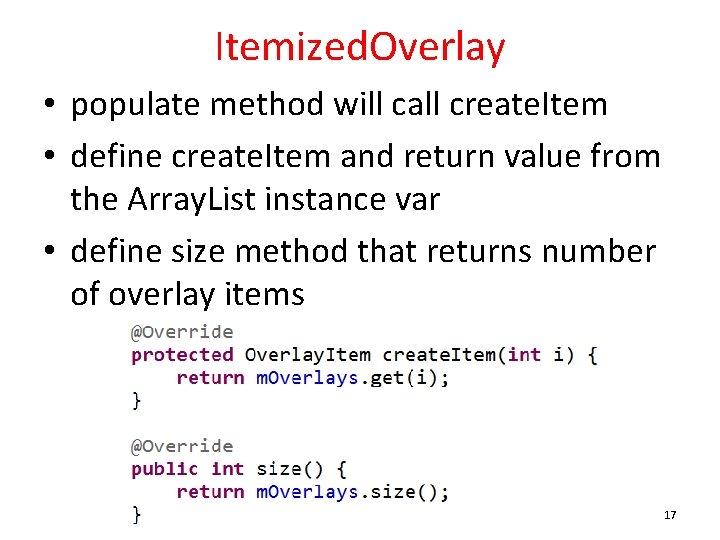
Itemized. Overlay • populate method will call create. Item • define create. Item and return value from the Array. List instance var • define size method that returns number of overlay items 17
Adding Overlays • • In Map. Activity create Overlay. Item add to Hello. Itemized. Overlay add to Map. View Need a drawable for the marker – res/drawable – issues display gif format images on some devices 18
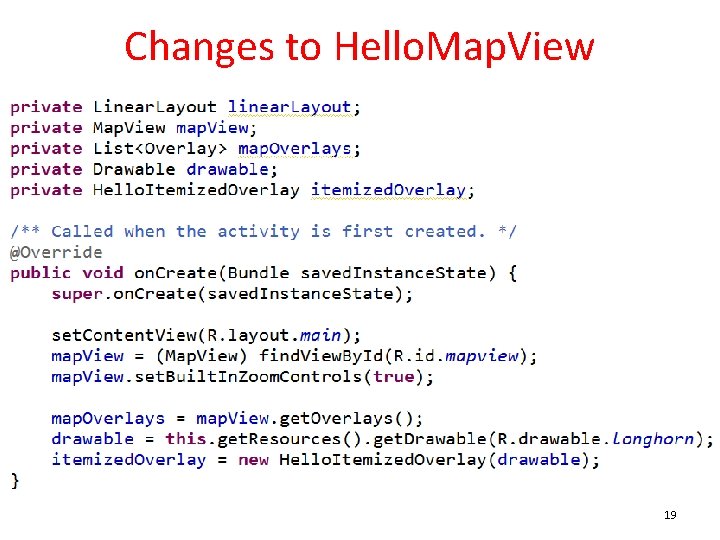
Changes to Hello. Map. View 19
Add Overlay Items • Create Geo. Point and use these to create Overlay. Items • Geo. Point based on microdegrees – lat and long times 1, 000 • Build Overlay. Items out of Geo. Points and include strings for title and snippet text to display when drawable clicked 20
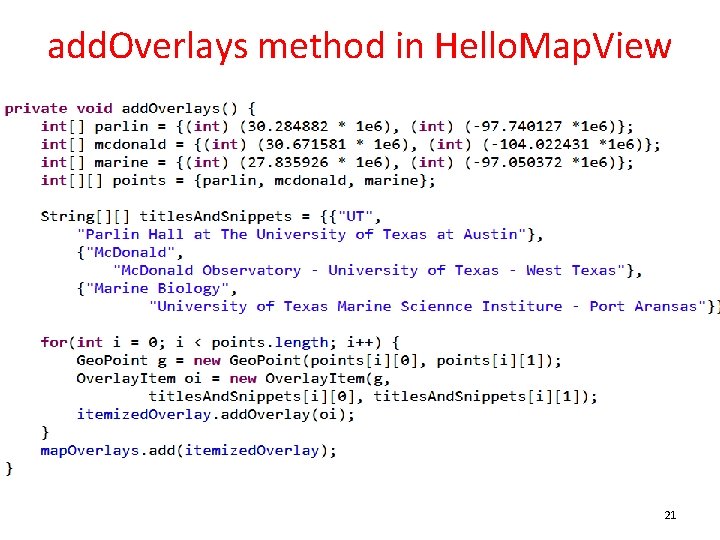
add. Overlays method in Hello. Map. View 21
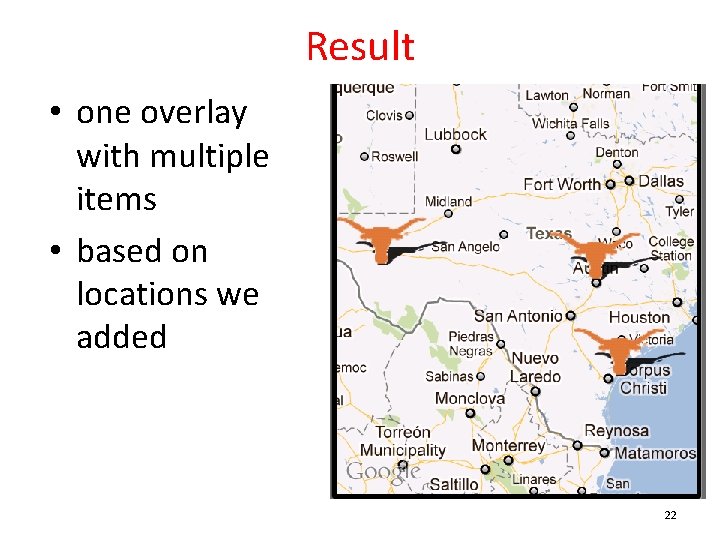
Result • one overlay with multiple items • based on locations we added 22
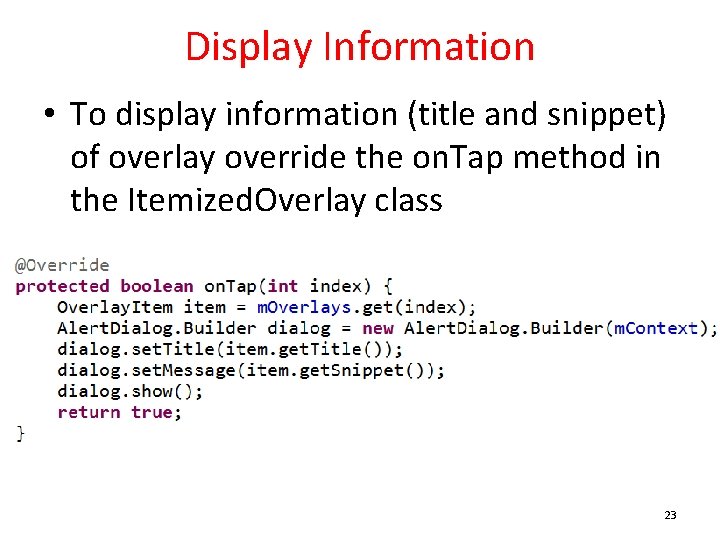
Display Information • To display information (title and snippet) of overlay override the on. Tap method in the Itemized. Overlay class 23
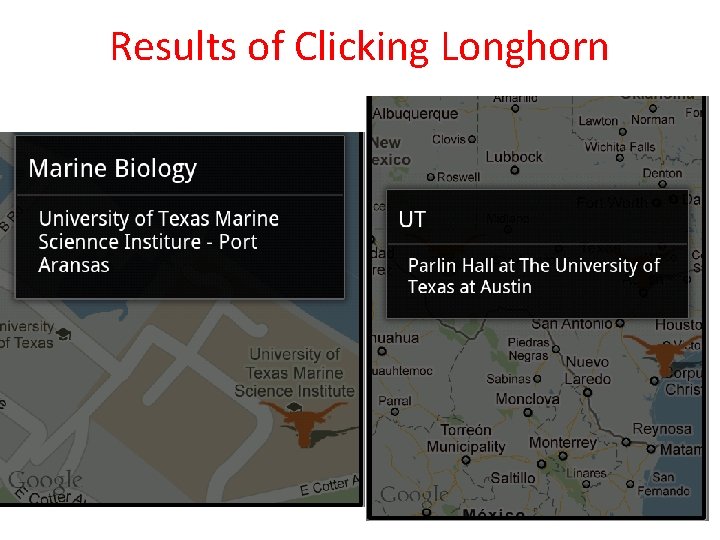
Results of Clicking Longhorn 24
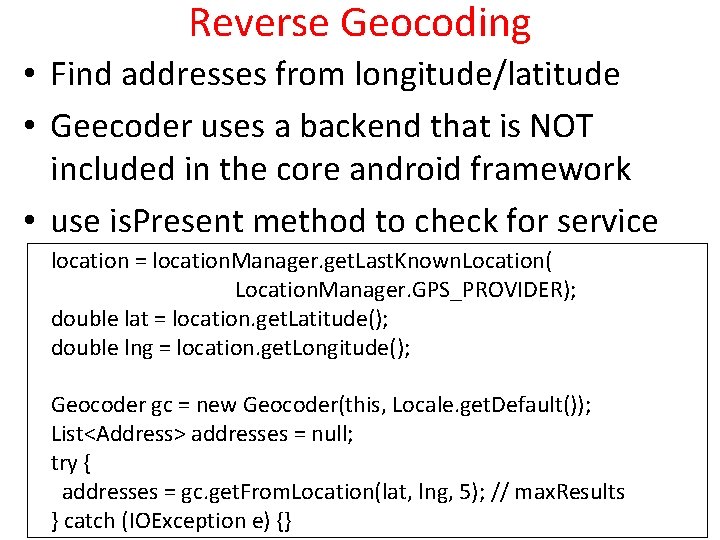
Reverse Geocoding • Find addresses from longitude/latitude • Geecoder uses a backend that is NOT included in the core android framework • use is. Present method to check for service location = location. Manager. get. Last. Known. Location( Location. Manager. GPS_PROVIDER); double lat = location. get. Latitude(); double lng = location. get. Longitude(); Geocoder gc = new Geocoder(this, Locale. get. Default()); List<Address> addresses = null; try { addresses = gc. get. From. Location(lat, lng, 5); // max. Results } catch (IOException e) {} 25
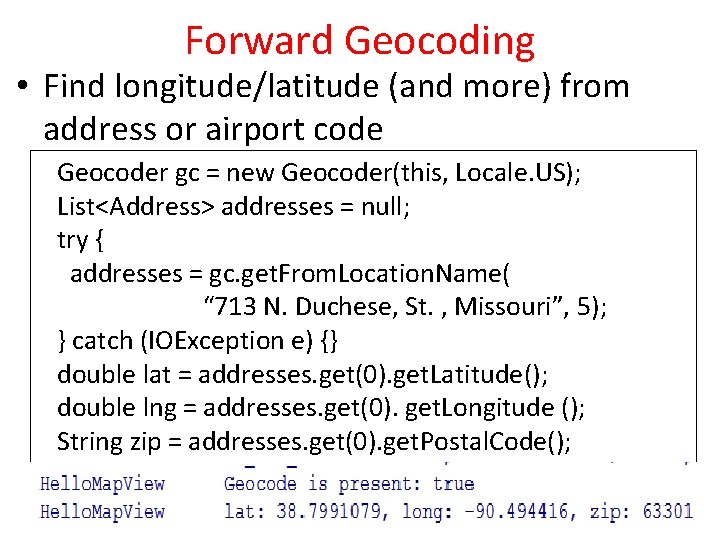
Forward Geocoding • Find longitude/latitude (and more) from address or airport code Geocoder gc = new Geocoder(this, Locale. US); List<Address> addresses = null; try { addresses = gc. get. From. Location. Name( “ 713 N. Duchese, St. , Missouri”, 5); } catch (IOException e) {} double lat = addresses. get(0). get. Latitude(); double lng = addresses. get(0). get. Longitude (); String zip = addresses. get(0). get. Postal. Code(); 26

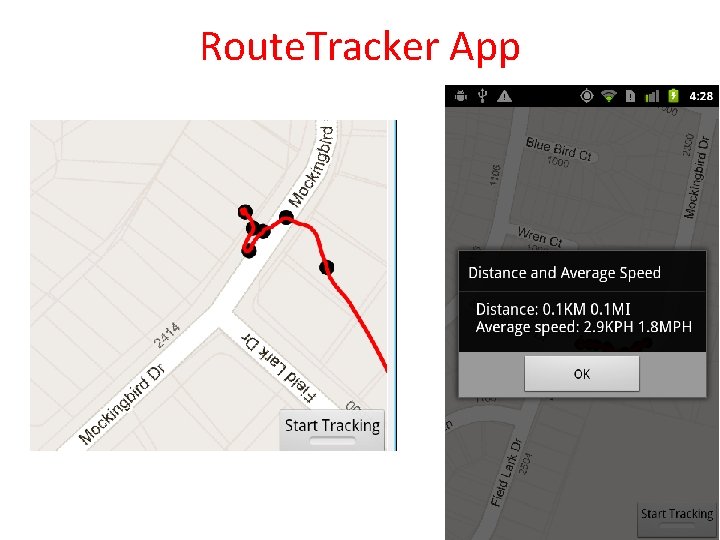
Maps Example • Route Tracker using Locations, Map. Activity, Map. View, and Google Maps – from Deitel AFP-AADA • Similar to Map My Ride – popular app among cyclists and runners 27
Route. Tracker App 28
Route. Tracker App • using Frame. Layout to stack components with the most recently added component on top • Toggle. Button at bottom to start and stop route tracking • Map. View added to Frame. Layout • route is an overlay to map with points and lines connecting points 29
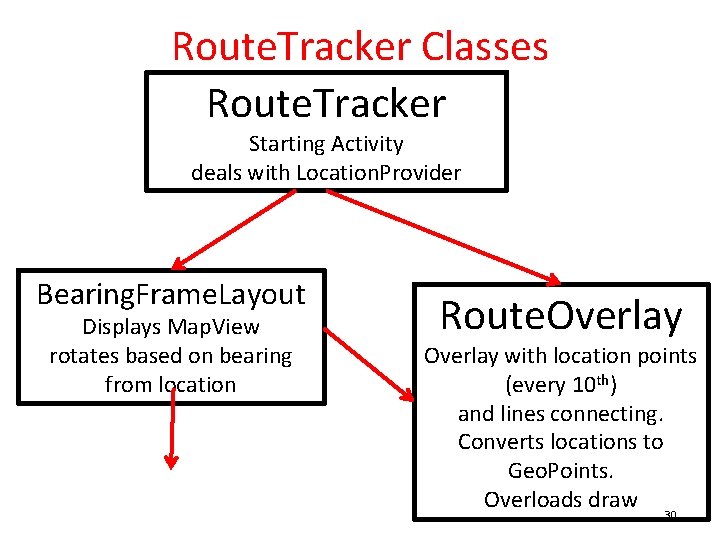
Route. Tracker Classes Route. Tracker Starting Activity deals with Location. Provider Bearing. Frame. Layout Displays Map. View rotates based on bearing from location Route. Overlay with location points (every 10 th) and lines connecting. Converts locations to Geo. Points. Overloads draw 30
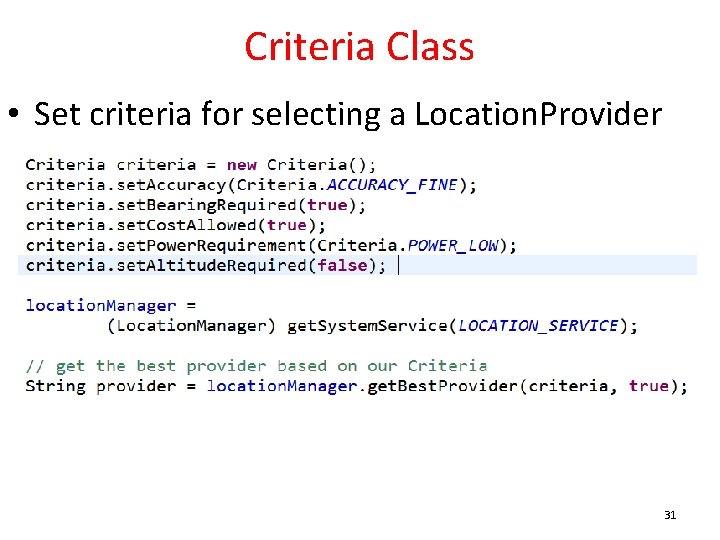
Criteria Class • Set criteria for selecting a Location. Provider 31
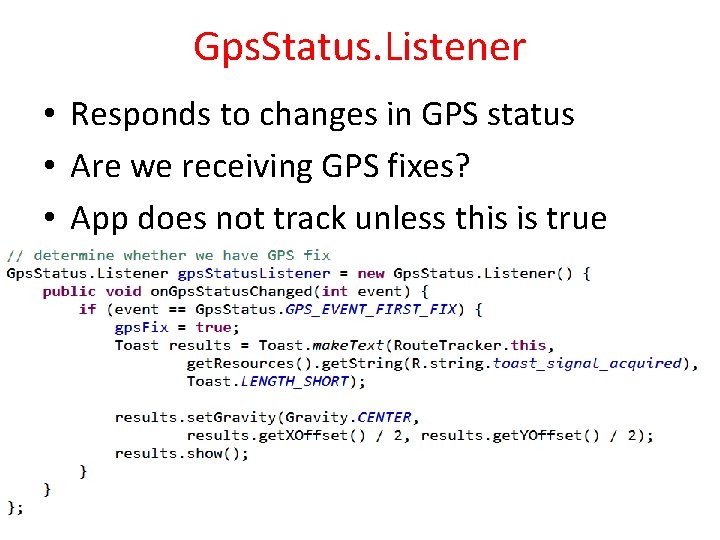
Gps. Status. Listener • Responds to changes in GPS status • Are we receiving GPS fixes? • App does not track unless this is true 32
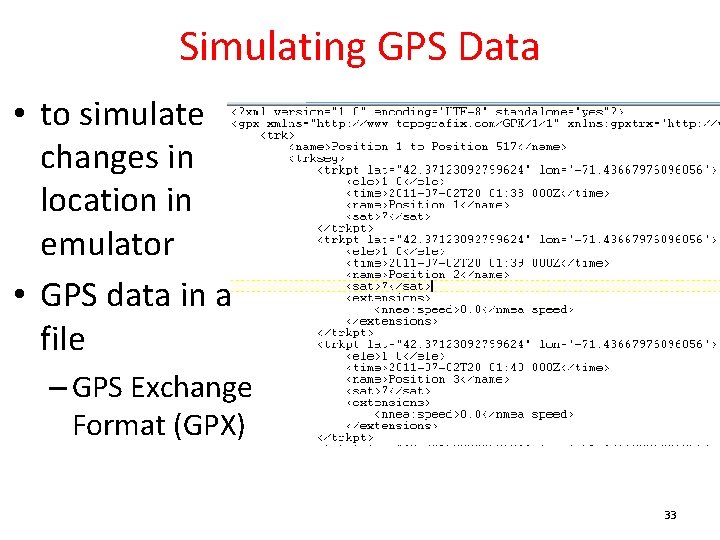
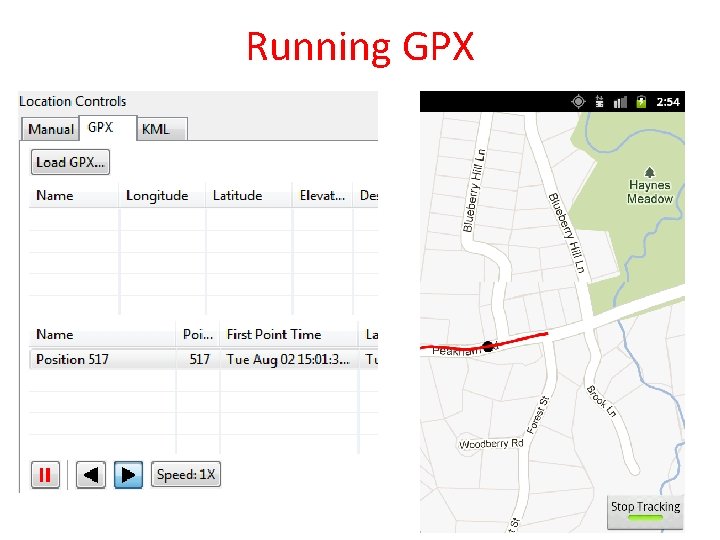
Simulating GPS Data • to simulate changes in location in emulator • GPS data in a file – GPS Exchange Format (GPX) 33
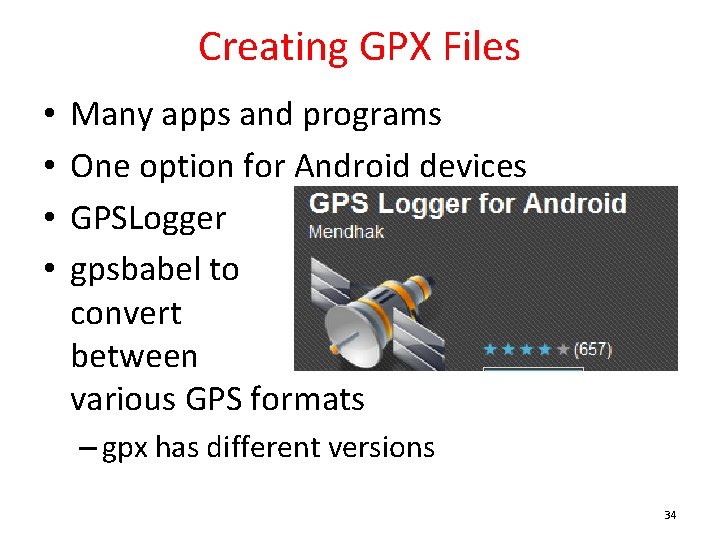
Creating GPX Files • • Many apps and programs One option for Android devices GPSLogger gpsbabel to convert between various GPS formats – gpx has different versions 34
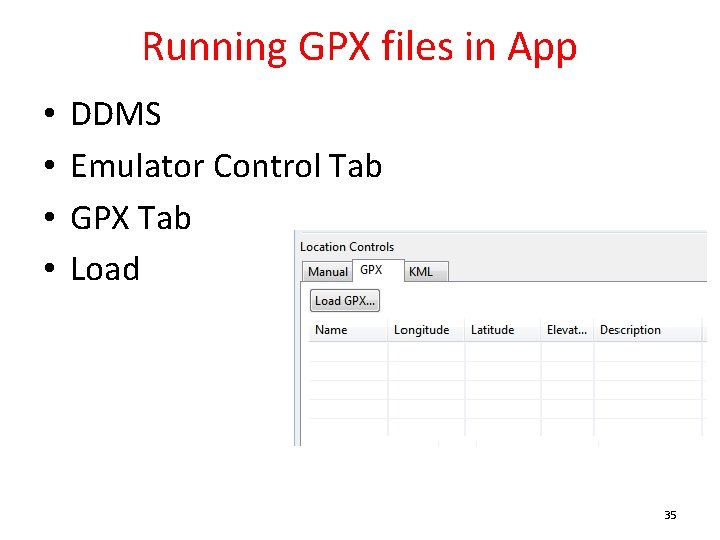
Running GPX files in App • • DDMS Emulator Control Tab GPX Tab Load 35
Running GPX 36
- Slides: 36