
CS 352 Computer Graphics Input and Interaction Chapter
- Slides: 55
CS 352: Computer Graphics Input and Interaction
Chapter 3 - 2 Interactive Computer Graphics What good is Computer Graphics? n n JS 1 k canvas examples: 1 2 3 4 5 Games, visual demos…of what value? Is there a Christian perspective? n Communication of information to the user Data visualization, simulation, GUI Even a word processor is an "interactive graphics program" n Communication between users "Collaborative environments" are hot (multi-player games? ) Social networking is transforming the world… n Interaction is an essential component
Chapter 3 - 3 Interactive Computer Graphics Interaction n n Much of the fun and utility of graphics is in interaction: accepting user input that affects the display Paint programs, modeling, games, word processors, spreadsheets, powerpoint … n n User initiates input events such as clicking on a menu or drawing a circle Computer response by changing graphical display
Chapter 3 - 4 Interactive Computer Graphics
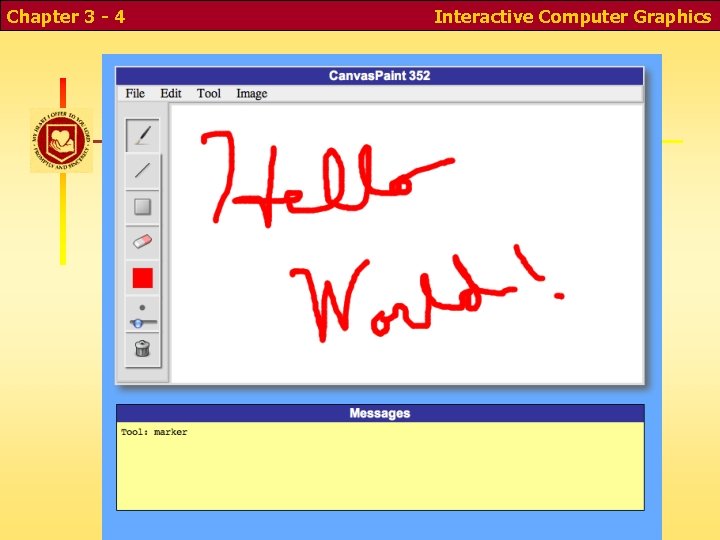
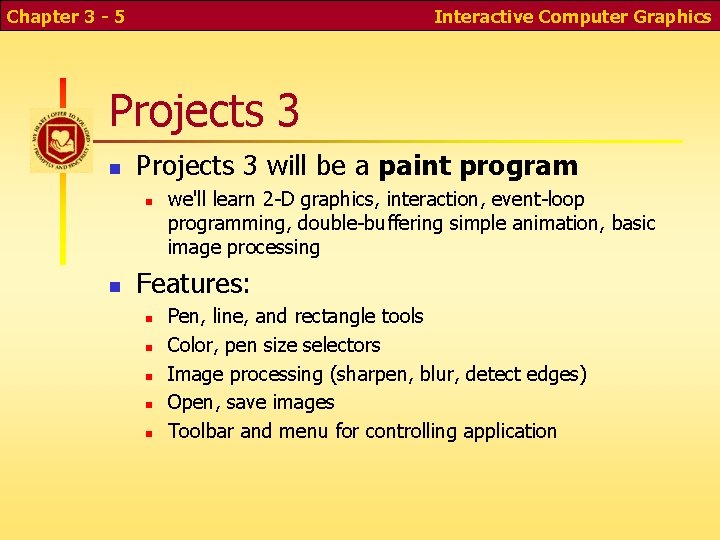
Chapter 3 - 5 Interactive Computer Graphics Projects 3 n Projects 3 will be a paint program n n we'll learn 2 -D graphics, interaction, event-loop programming, double-buffering simple animation, basic image processing Features: n n n Pen, line, and rectangle tools Color, pen size selectors Image processing (sharpen, blur, detect edges) Open, save images Toolbar and menu for controlling application
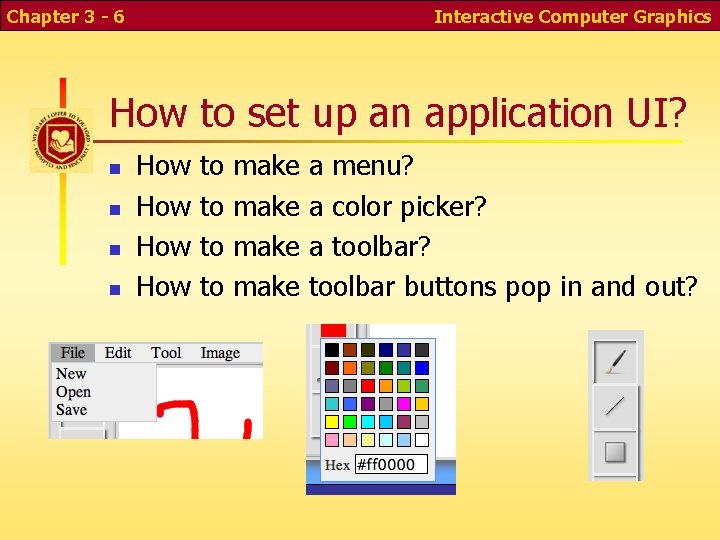
Chapter 3 - 6 Interactive Computer Graphics How to set up an application UI? n n How How to to make a menu? a color picker? a toolbar? toolbar buttons pop in and out?
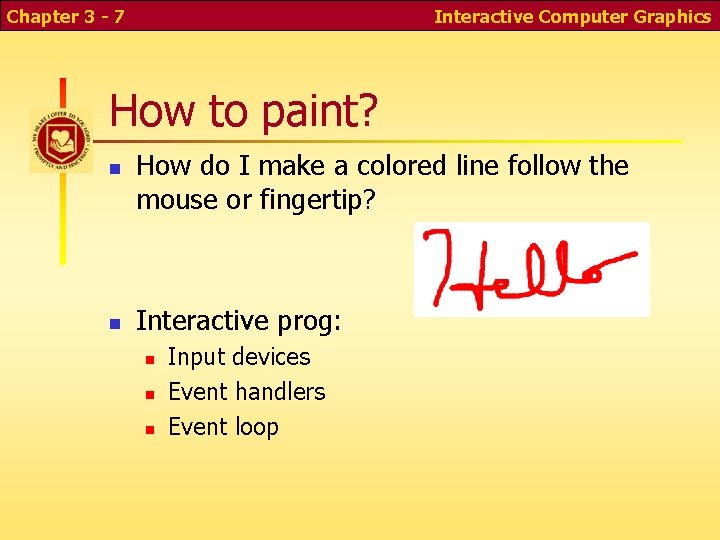
Chapter 3 - 7 Interactive Computer Graphics How to paint? n n How do I make a colored line follow the mouse or fingertip? Interactive prog: n n n Input devices Event handlers Event loop
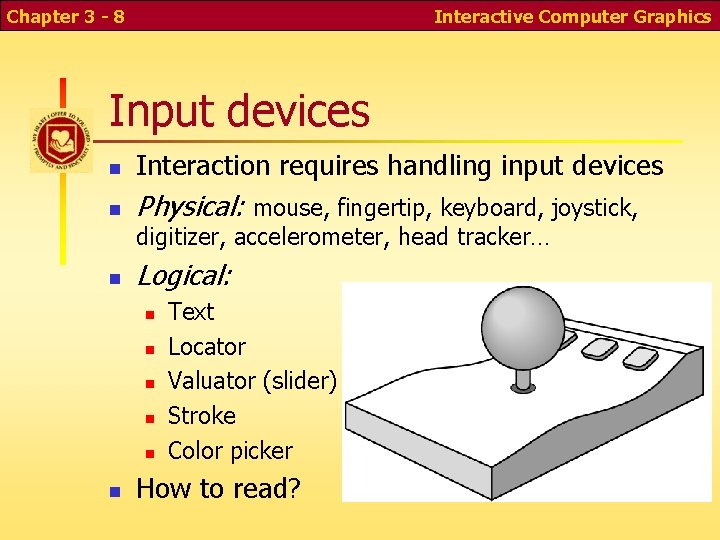
Chapter 3 - 8 Interactive Computer Graphics Input devices n Interaction requires handling input devices n Physical: mouse, fingertip, keyboard, joystick, digitizer, accelerometer, head tracker… n Logical: n n n Text Locator Valuator (slider) Stroke Color picker How to read?
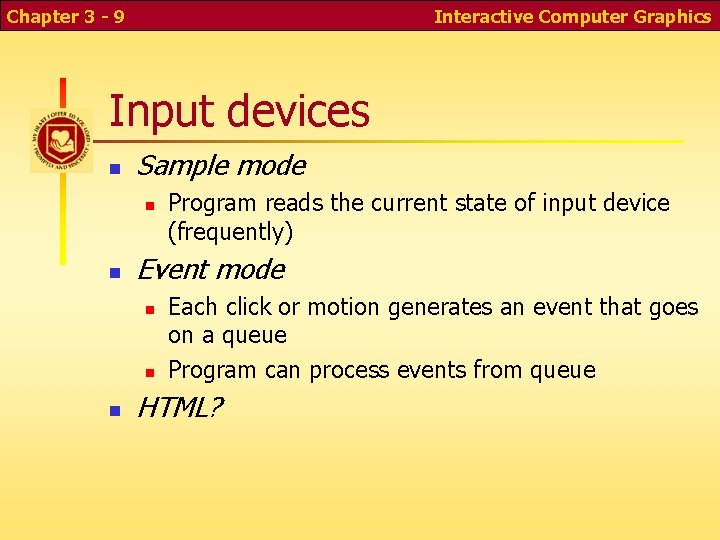
Chapter 3 - 9 Interactive Computer Graphics Input devices n Sample mode n n Event mode n n n Program reads the current state of input device (frequently) Each click or motion generates an event that goes on a queue Program can process events from queue HTML?
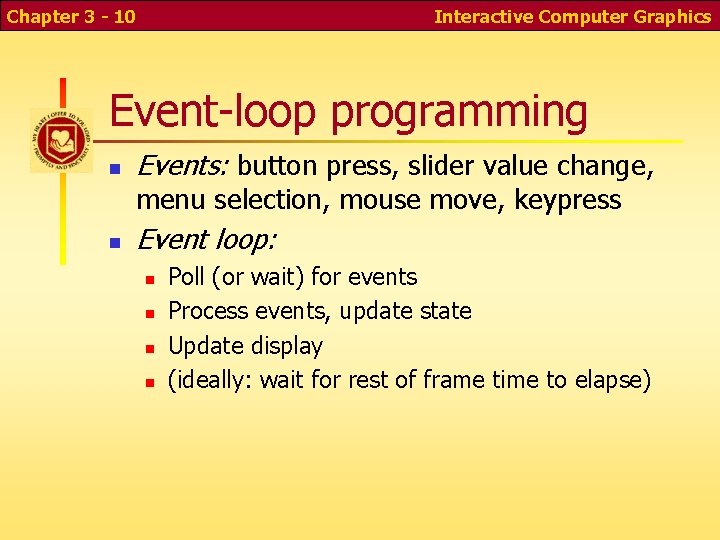
Chapter 3 - 10 Interactive Computer Graphics Event-loop programming n Events: button press, slider value change, menu selection, mouse move, keypress n Event loop: n n Poll (or wait) for events Process events, update state Update display (ideally: wait for rest of frame time to elapse)
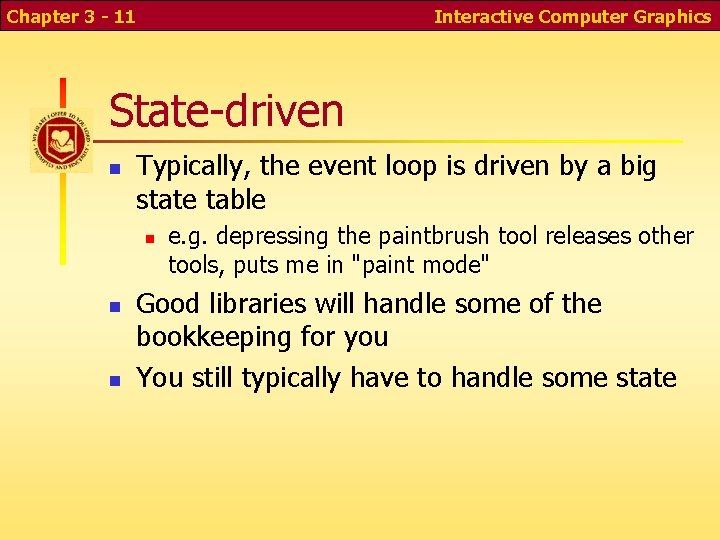
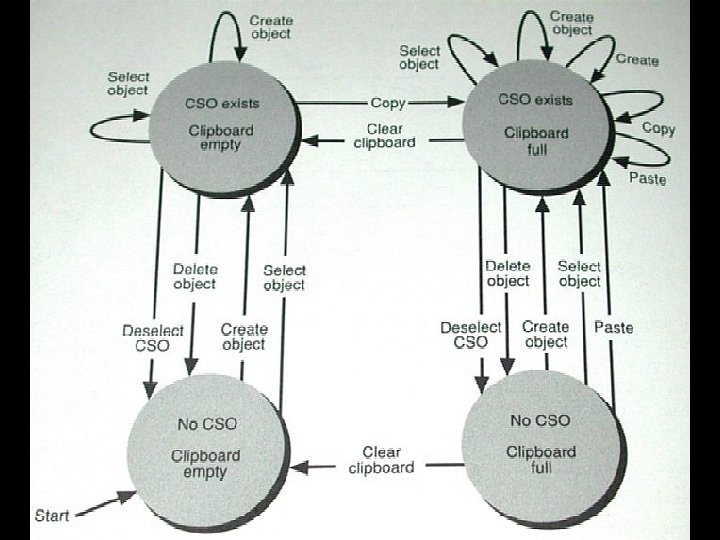
Chapter 3 - 11 Interactive Computer Graphics State-driven n Typically, the event loop is driven by a big state table n n n e. g. depressing the paintbrush tool releases other tools, puts me in "paint mode" Good libraries will handle some of the bookkeeping for you You still typically have to handle some state
Chapter 3 - 12 State diagram Interactive Computer Graphics
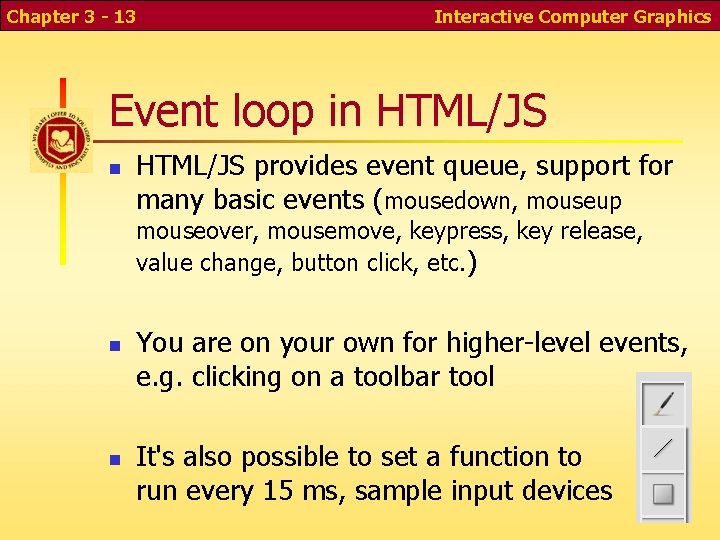
Chapter 3 - 13 Interactive Computer Graphics Event loop in HTML/JS provides event queue, support for many basic events (mousedown, mouseup mouseover, mousemove, keypress, key release, value change, button click, etc. ) n n You are on your own for higher-level events, e. g. clicking on a toolbar tool It's also possible to set a function to run every 15 ms, sample input devices
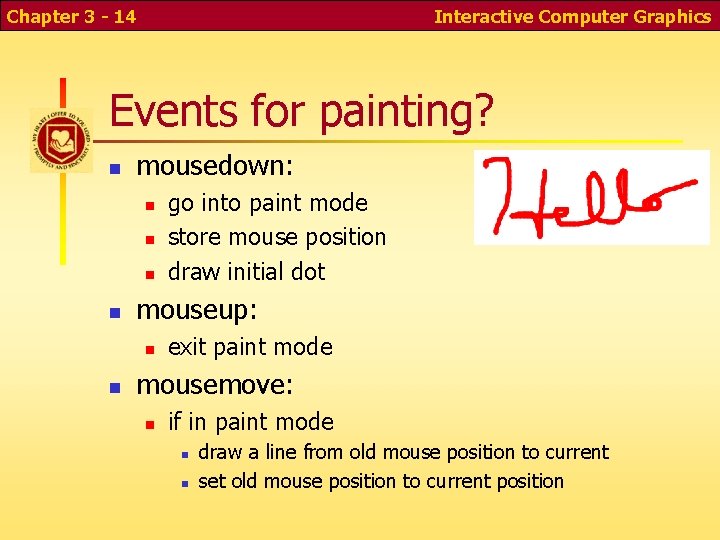
Chapter 3 - 14 Interactive Computer Graphics Events for painting? n mousedown: n n mouseup: n n go into paint mode store mouse position draw initial dot exit paint mode mousemove: n if in paint mode n n draw a line from old mouse position to current set old mouse position to current position
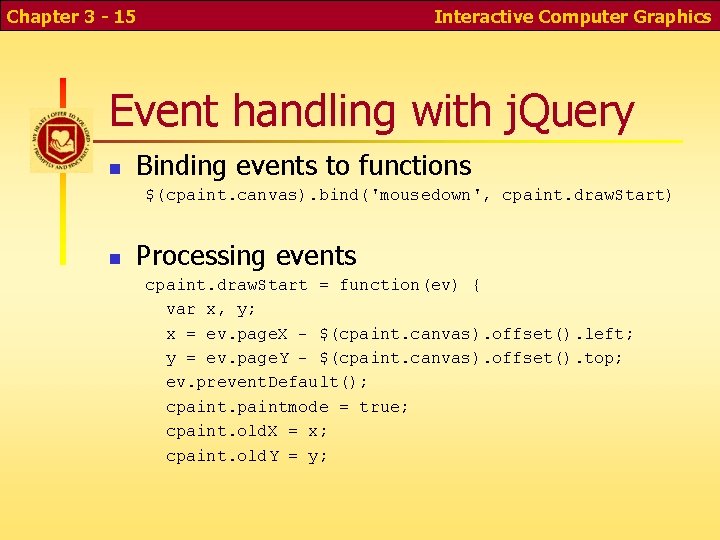
Chapter 3 - 15 Interactive Computer Graphics Event handling with j. Query n Binding events to functions $(cpaint. canvas). bind('mousedown', cpaint. draw. Start) n Processing events cpaint. draw. Start = function(ev) { var x, y; x = ev. page. X - $(cpaint. canvas). offset(). left; y = ev. page. Y - $(cpaint. canvas). offset(). top; ev. prevent. Default(); cpaintmode = true; cpaint. old. X = x; cpaint. old. Y = y;
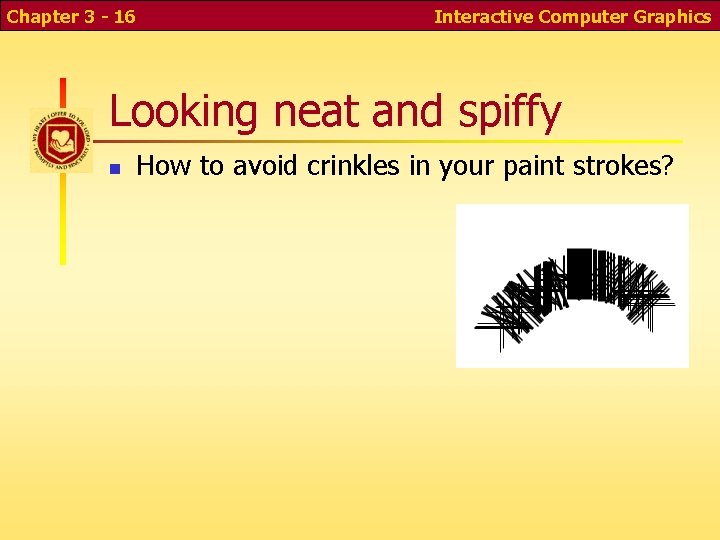
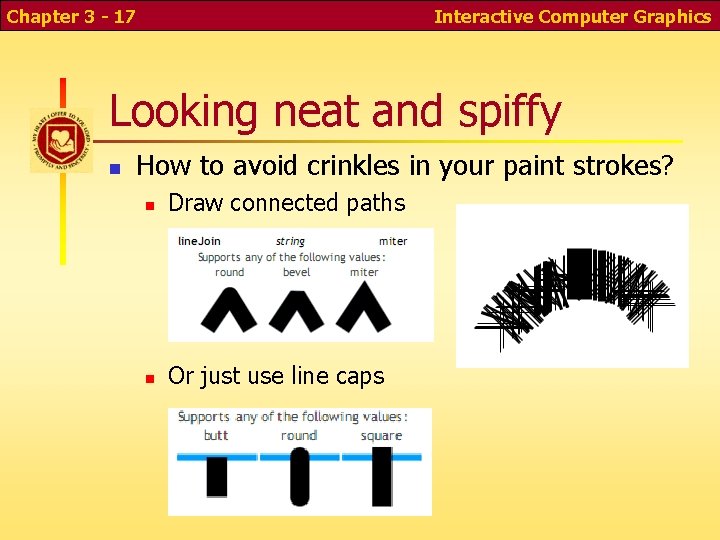
Chapter 3 - 16 Interactive Computer Graphics Looking neat and spiffy n How to avoid crinkles in your paint strokes?
Chapter 3 - 17 Interactive Computer Graphics Looking neat and spiffy n How to avoid crinkles in your paint strokes? n Draw connected paths n Or just use line caps
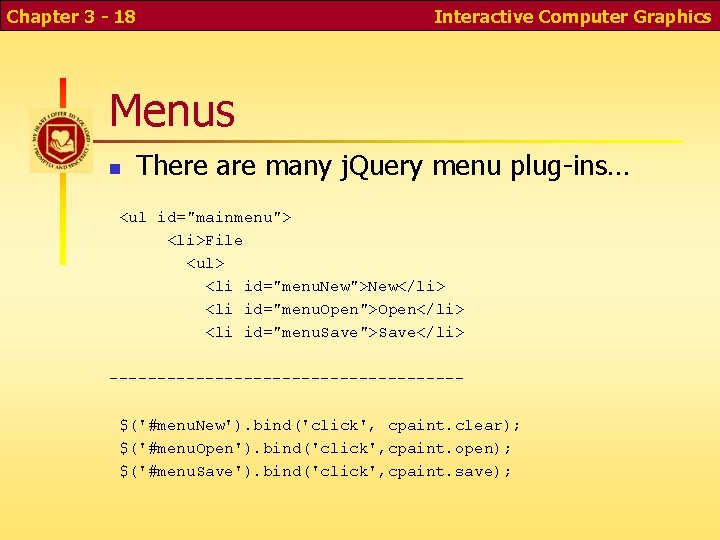
Chapter 3 - 18 Interactive Computer Graphics Menus n There are many j. Query menu plug-ins… <ul id="mainmenu"> <li>File <ul> <li id="menu. New">New</li> <li id="menu. Open">Open</li> <li id="menu. Save">Save</li> ------------------$('#menu. New'). bind('click', cpaint. clear); $('#menu. Open'). bind('click', cpaint. open); $('#menu. Save'). bind('click', cpaint. save);
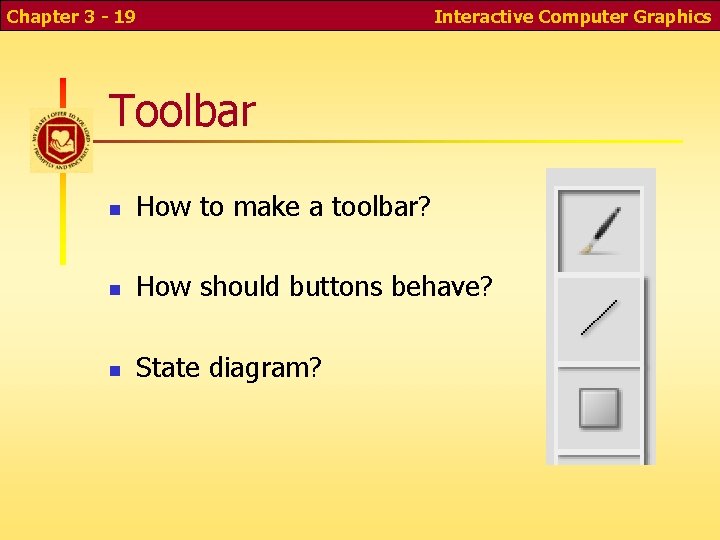
Chapter 3 - 19 Interactive Computer Graphics Toolbar n How to make a toolbar? n How should buttons behave? n State diagram?
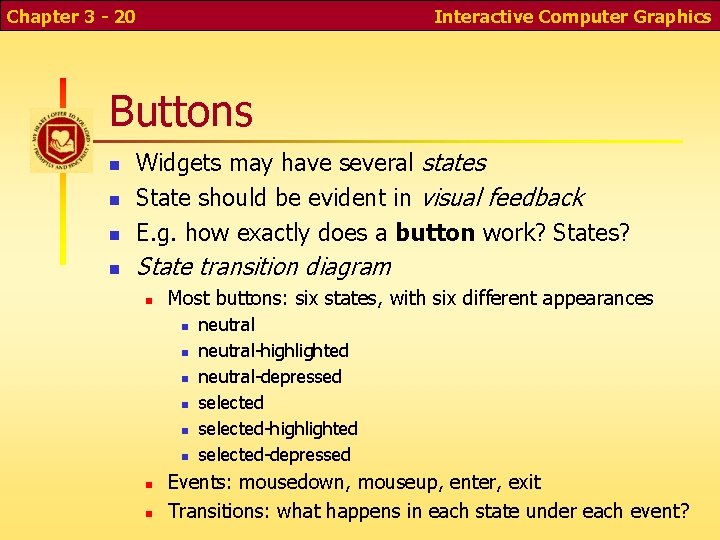
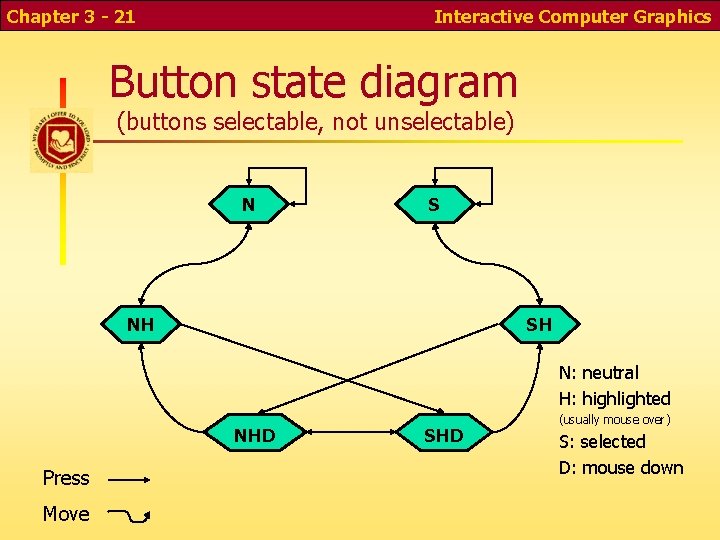
Chapter 3 - 20 Interactive Computer Graphics Buttons n Widgets may have several states State should be evident in visual feedback E. g. how exactly does a button work? States? n State transition diagram n n n Most buttons: six states, with six different appearances n n n n neutral-highlighted neutral-depressed selected-highlighted selected-depressed Events: mousedown, mouseup, enter, exit Transitions: what happens in each state under each event?
Chapter 3 - 21 Interactive Computer Graphics Button state diagram (buttons selectable, not unselectable) N S NH SH N: neutral H: highlighted NHD Press Move SHD (usually mouse over) S: selected D: mouse down
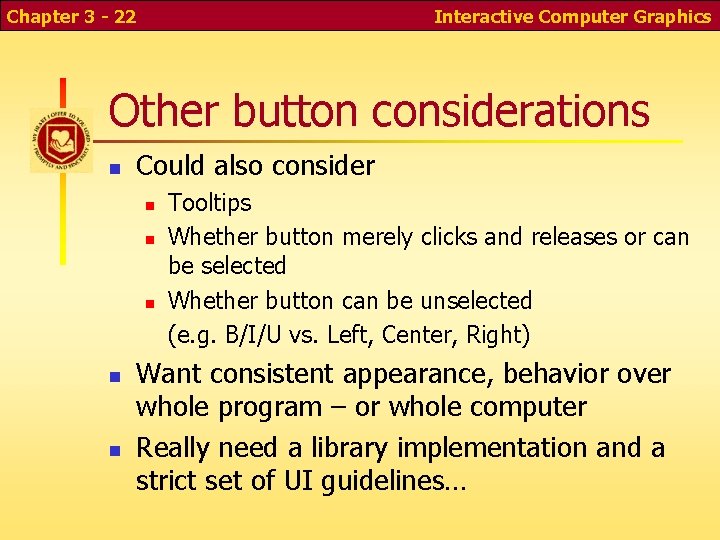
Chapter 3 - 22 Interactive Computer Graphics Other button considerations n Could also consider n n n Tooltips Whether button merely clicks and releases or can be selected Whether button can be unselected (e. g. B/I/U vs. Left, Center, Right) Want consistent appearance, behavior over whole program – or whole computer Really need a library implementation and a strict set of UI guidelines…
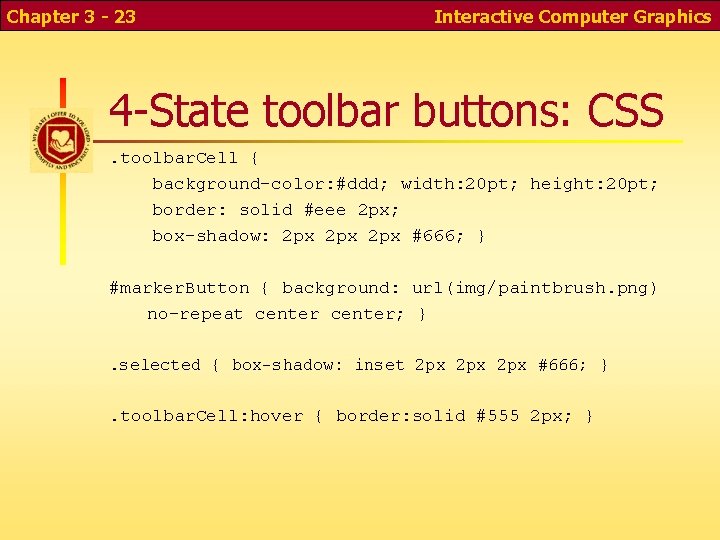
Chapter 3 - 23 Interactive Computer Graphics 4 -State toolbar buttons: CSS. toolbar. Cell { background-color: #ddd; width: 20 pt; height: 20 pt; border: solid #eee 2 px; box-shadow: 2 px 2 px #666; } #marker. Button { background: url(img/paintbrush. png) no-repeat center; }. selected { box-shadow: inset 2 px 2 px #666; } . toolbar. Cell: hover { border: solid #555 2 px; }
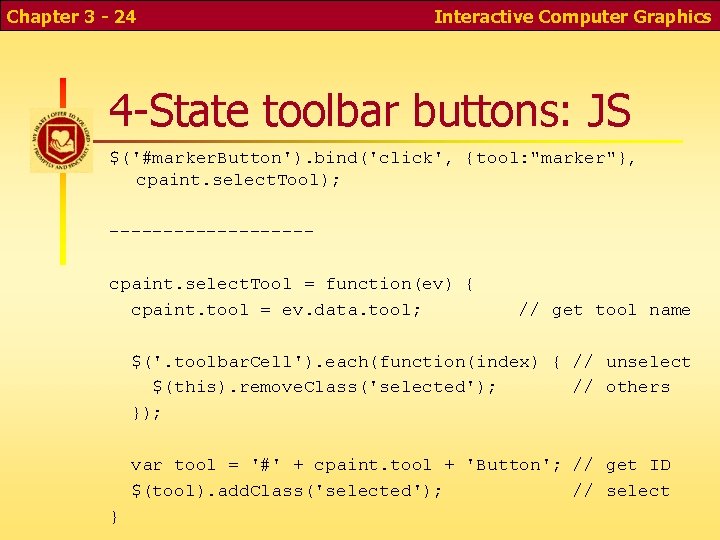
Chapter 3 - 24 Interactive Computer Graphics 4 -State toolbar buttons: JS $('#marker. Button'). bind('click', {tool: "marker"}, cpaint. select. Tool); ---------cpaint. select. Tool = function(ev) { cpaint. tool = ev. data. tool; // get tool name $('. toolbar. Cell'). each(function(index) { // unselect $(this). remove. Class('selected'); // others }); var tool = '#' + cpaint. tool + 'Button'; // get ID $(tool). add. Class('selected'); // select }
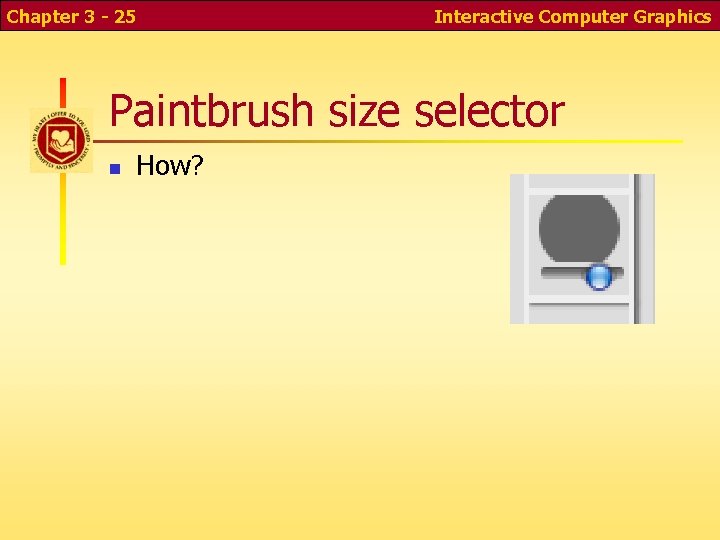
Chapter 3 - 25 Interactive Computer Graphics Paintbrush size selector n How?
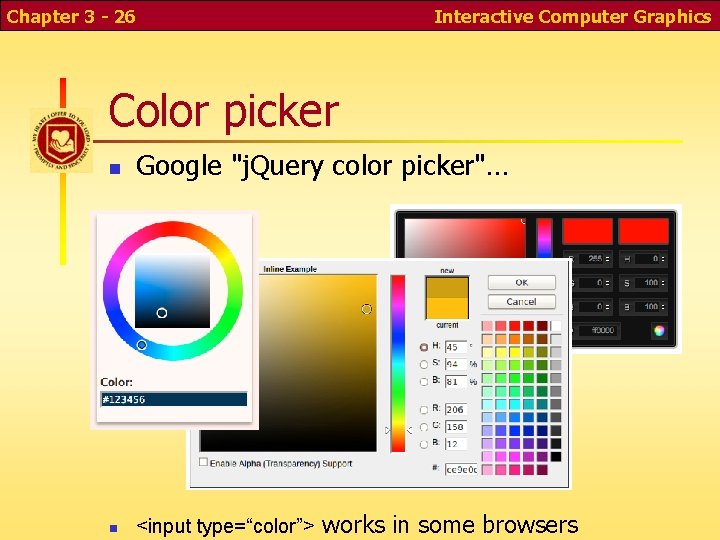
Chapter 3 - 26 Interactive Computer Graphics Color picker n Google "j. Query color picker"… n <input type=“color”> works in some browsers
Chapter 3 - 27 Interactive Computer Graphics How draw a line? n What kind of feedback is normal? n n Rubber Banding Events and actions?
Chapter 3 - 28 Interactive Computer Graphics Save & restore n n n Create your own off-screen canvas Copy it back on each mouse movement Events and actions?
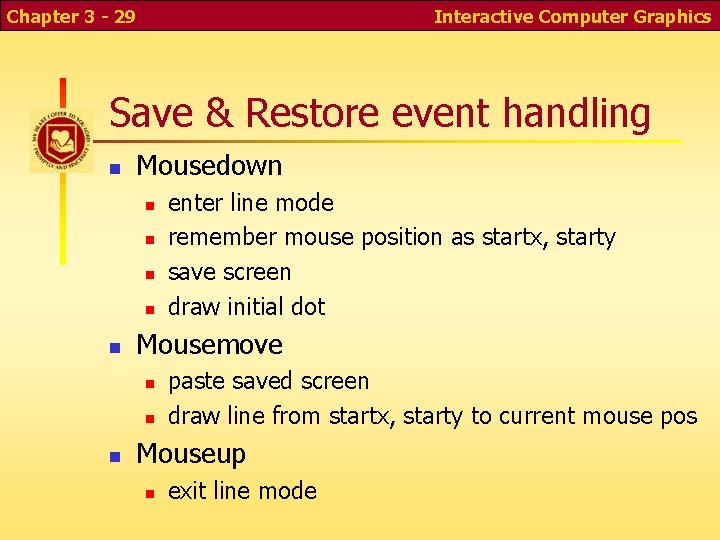
Chapter 3 - 29 Interactive Computer Graphics Save & Restore event handling n Mousedown n n Mousemove n n n enter line mode remember mouse position as startx, starty save screen draw initial dot paste saved screen draw line from startx, starty to current mouse pos Mouseup n exit line mode
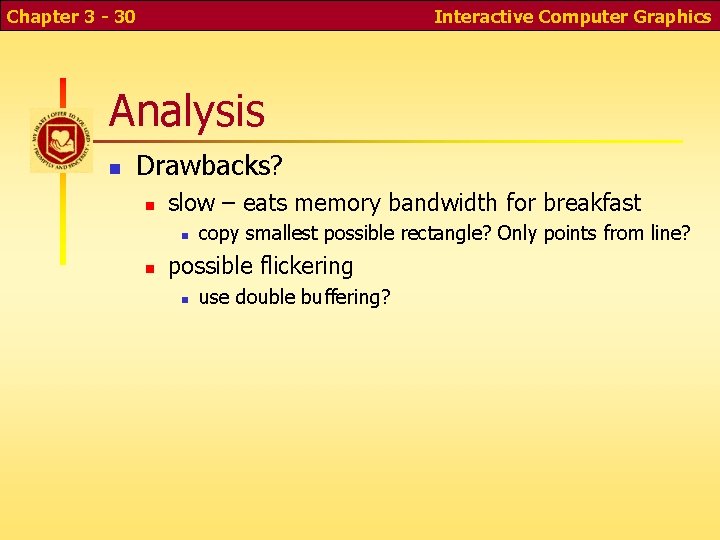
Chapter 3 - 30 Interactive Computer Graphics Analysis n Drawbacks? n slow – eats memory bandwidth for breakfast n n copy smallest possible rectangle? Only points from line? possible flickering n use double buffering?
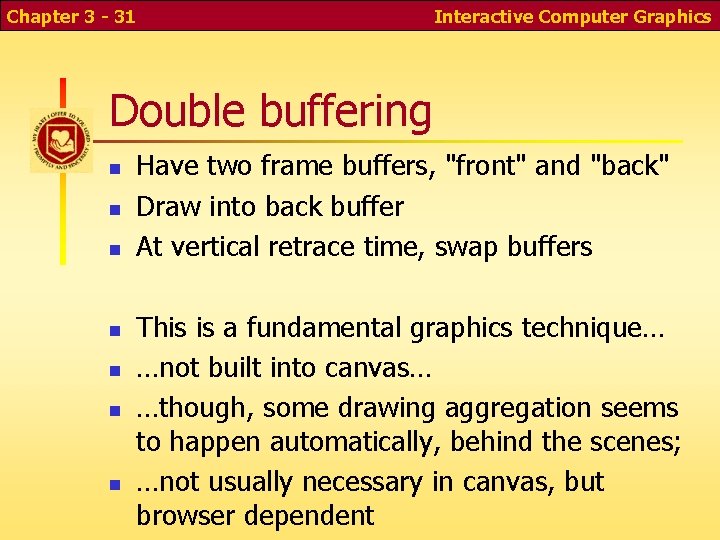
Chapter 3 - 31 Interactive Computer Graphics Double buffering n n n n Have two frame buffers, "front" and "back" Draw into back buffer At vertical retrace time, swap buffers This is a fundamental graphics technique… …not built into canvas… …though, some drawing aggregation seems to happen automatically, behind the scenes; …not usually necessary in canvas, but browser dependent
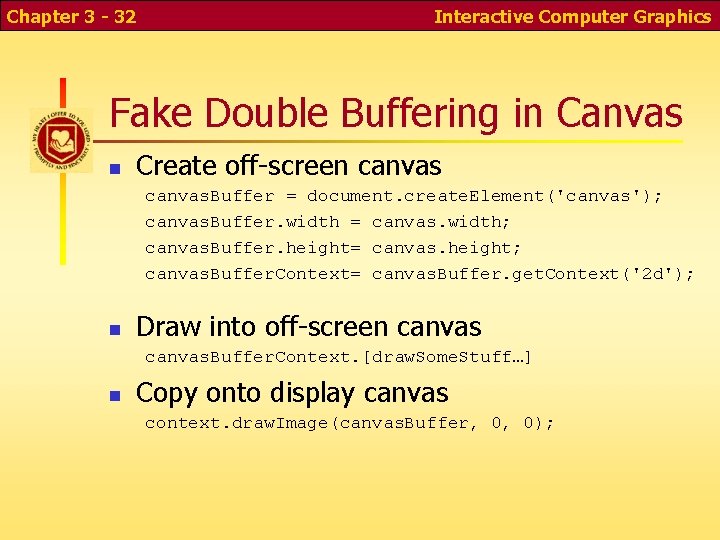
Chapter 3 - 32 Interactive Computer Graphics Fake Double Buffering in Canvas n Create off-screen canvas. Buffer = document. create. Element('canvas'); canvas. Buffer. width = canvas. width; canvas. Buffer. height= canvas. height; canvas. Buffer. Context= canvas. Buffer. get. Context('2 d'); n Draw into off-screen canvas. Buffer. Context. [draw. Some. Stuff…] n Copy onto display canvas context. draw. Image(canvas. Buffer, 0, 0);
Chapter 3 - 33 Interactive Computer Graphics How to erase? n Draw background color…
Chapter 3 - 34 Interactive Computer Graphics Save, Load? n Save n n Copy pixels to an image so users can right-click, save-as Load n n n What are the security risks? Can only load files from the same server Can use a file chooser if it's a local app Security policies are not entirely in place Consider chrome option --allow-file-access-from-files
Chapter 3 - 35 Interactive Computer Graphics Resizing n n How would you allow the user to shrink, expand image? What would happen to image resolution?
Chapter 3 - 36 Interactive Computer Graphics Store drawing commands n Realistically, to redraw effectively, you have to save all drawing commands pen color red fill color blue line width 5 circle 5 10 12 textfont Times 12 text 10 10 "hello world" n n n Replay commands to redraw scene Could store commands in a file (e. g. Mac PICT file) For some kinds of drawings, files are smaller and more accurate than bitmaps
Chapter 3 - 37 Interactive Computer Graphics Other toolkits n n n HTML offers basic UI capabilities in a crossplatform context Writing your own UI extensions is tedious j. Query plugins extend capabilities Ideally, all UI elements ought to be built in In the real world, they come in platformspecific 'toolkits' or 'windowing libraries' E. g. MFC, QT, Open. Look, Cocoa …
Chapter 3 - 38 Interactive Computer Graphics Image processing n Image processing examples: n n n n n blur, sharpen detect edges enhance contrast noise reduction posterize fisheye reduction find faces …
Chapter 3 - 39 Interactive Computer Graphics How to fade an image? n n Could average pixel colors with white Or just decrease alpha…
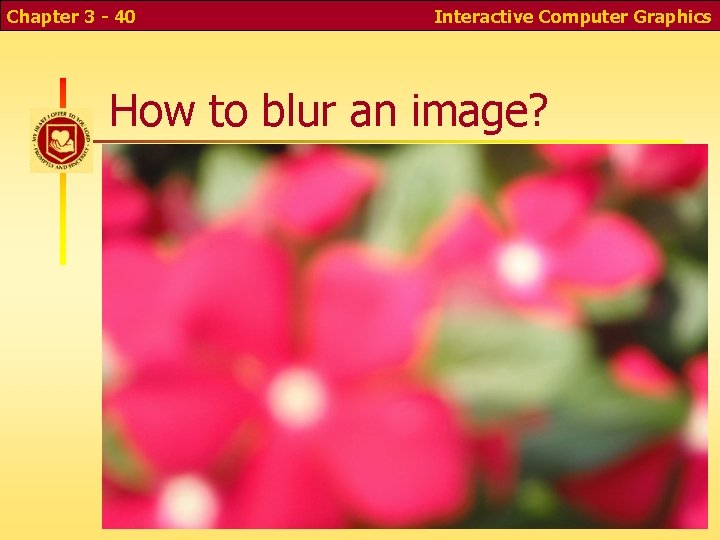
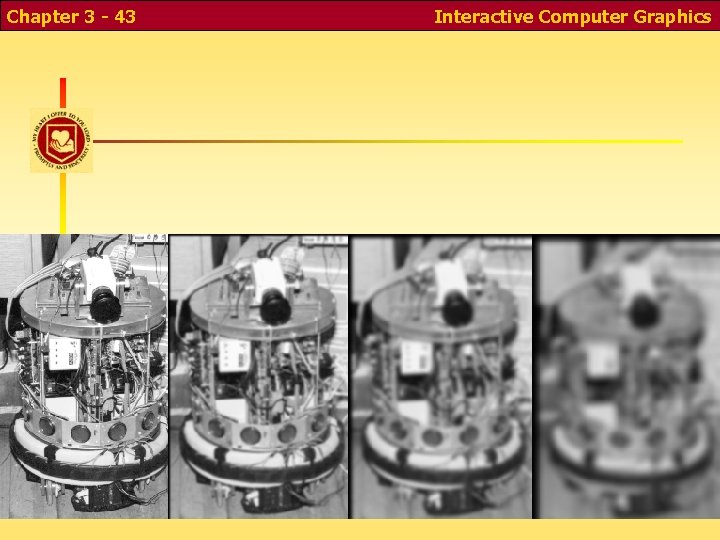
Chapter 3 - 40 Interactive Computer Graphics How to blur an image?
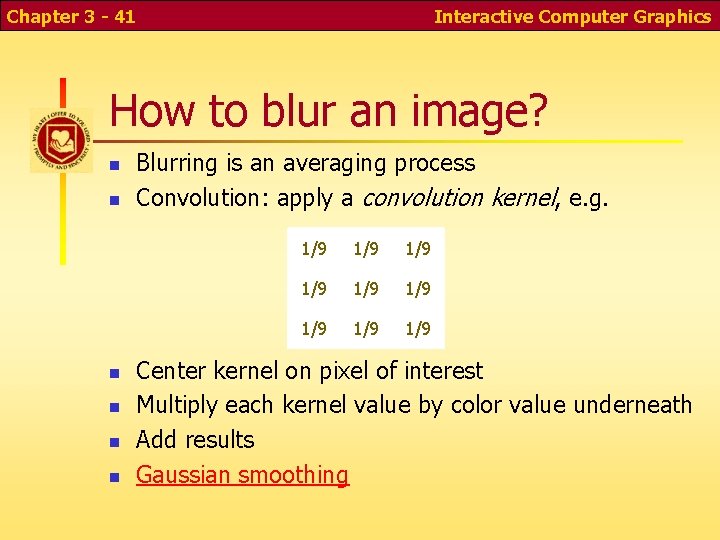
Chapter 3 - 41 Interactive Computer Graphics How to blur an image? n n n Blurring is an averaging process Convolution: apply a convolution kernel, e. g. 1/9 1/9 1/9 Center kernel on pixel of interest Multiply each kernel value by color value underneath Add results Gaussian smoothing
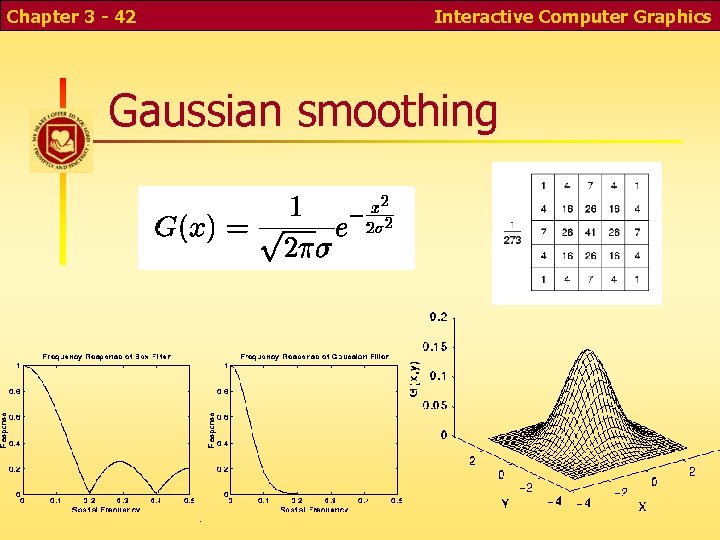
Chapter 3 - 42 Interactive Computer Graphics Gaussian smoothing
Chapter 3 - 43 Interactive Computer Graphics
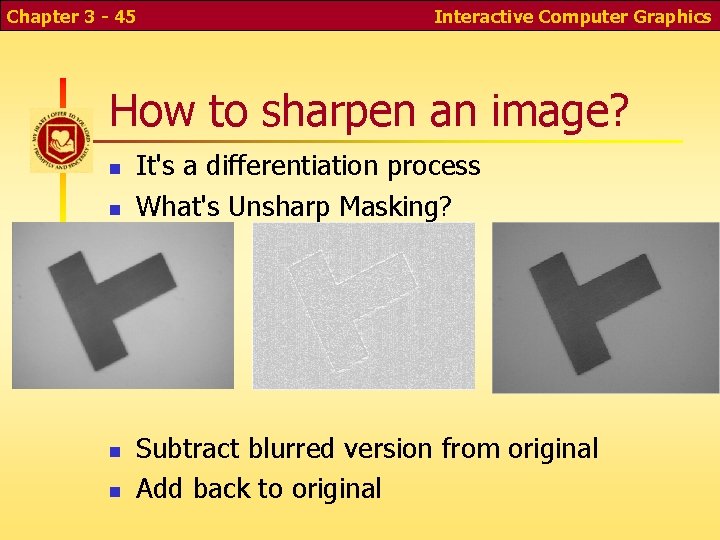
Chapter 3 - 44 Interactive Computer Graphics How to sharpen an image? n n It's a differentiation process What's Unsharp Masking?
Chapter 3 - 45 Interactive Computer Graphics How to sharpen an image? n n It's a differentiation process What's Unsharp Masking? Subtract blurred version from original Add back to original
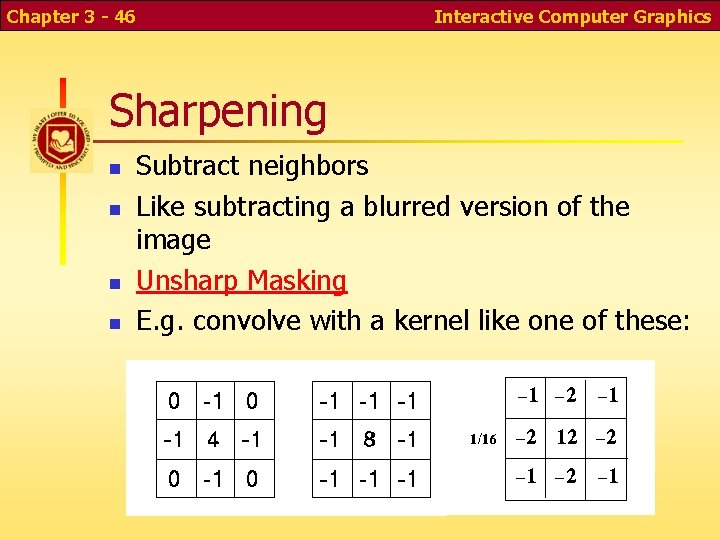
Chapter 3 - 46 Interactive Computer Graphics Sharpening n n Subtract neighbors Like subtracting a blurred version of the image Unsharp Masking E. g. convolve with a kernel like one of these:
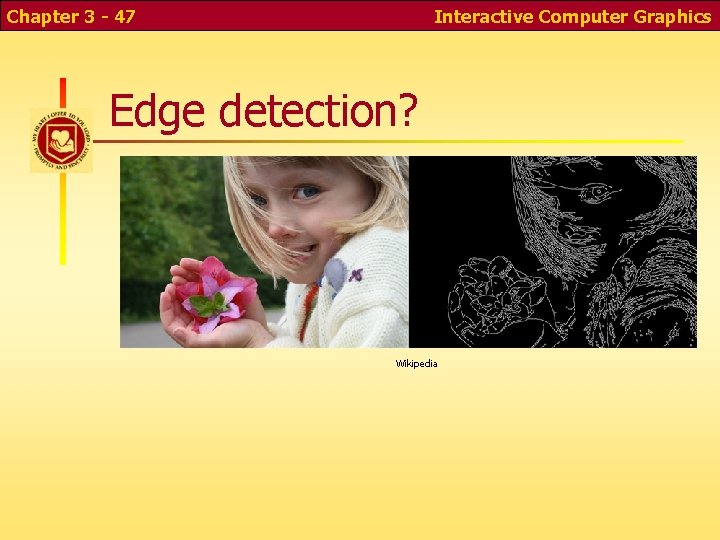
Chapter 3 - 47 Interactive Computer Graphics Edge detection? Wikipedia
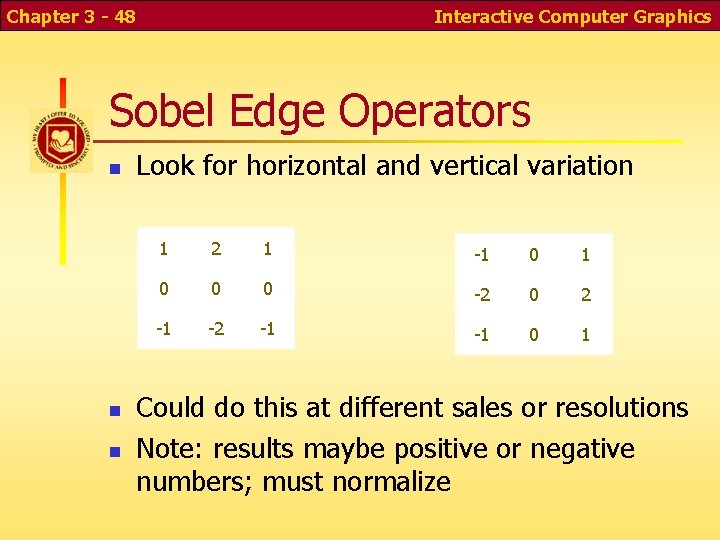
Chapter 3 - 48 Interactive Computer Graphics Sobel Edge Operators n n n Look for horizontal and vertical variation 1 2 1 -1 0 0 0 -2 0 2 -1 -1 0 1 Could do this at different sales or resolutions Note: results maybe positive or negative numbers; must normalize
Chapter 3 - 49 Interactive Computer Graphics Image Compression n What if you created say six different lowerresolution images and only stored the difference at each resolution? Note: most of the data is in the highestfrequency component An early image compression technique
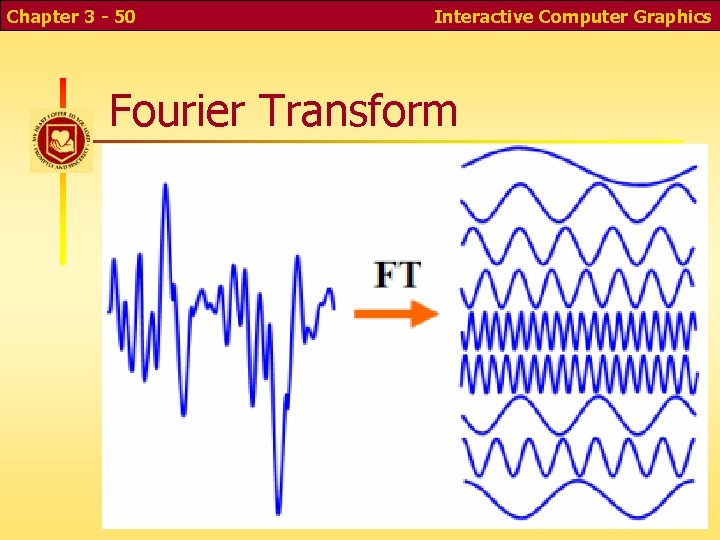
Chapter 3 - 50 Interactive Computer Graphics Fourier Transform
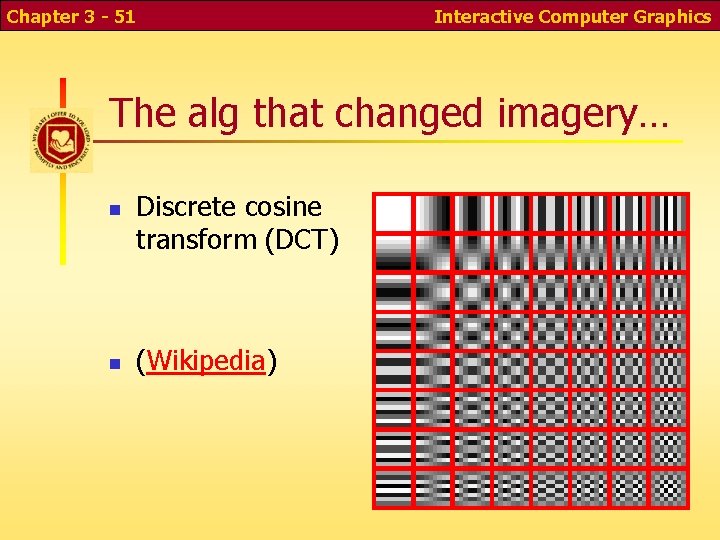
Chapter 3 - 51 Interactive Computer Graphics The alg that changed imagery… n n Discrete cosine transform (DCT) (Wikipedia)
Chapter 3 - 52 Interactive Computer Graphics JPEG image compression n n DCT to convert to frequency domain Perceptual modeling Coefficient quantization Entropy coding
Chapter 3 - 53 Interactive Computer Graphics Research in image processing and computer vision n n How would you clear up a blurry photograph? How would you recognize a face in a photograph?
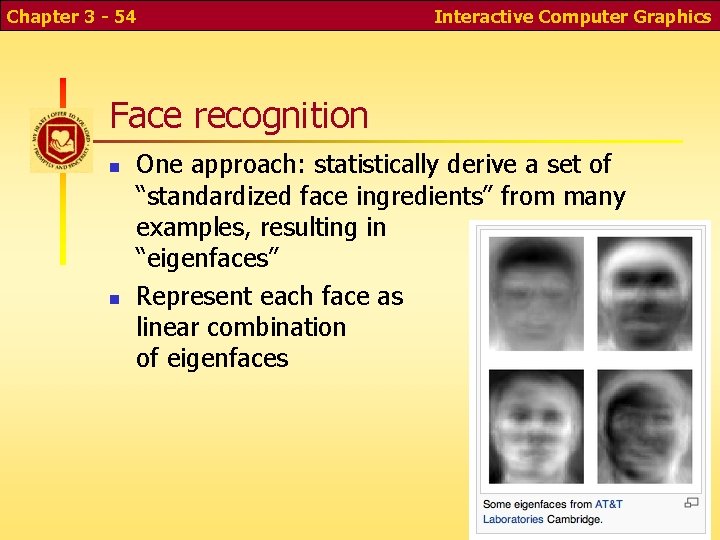
Chapter 3 - 54 Interactive Computer Graphics Face recognition n n One approach: statistically derive a set of “standardized face ingredients” from many examples, resulting in “eigenfaces” Represent each face as linear combination of eigenfaces
Chapter 3 - 55 Interactive Computer Graphics Summary n n n n Event loop programming Interaction and event handling in HTML State diagrams Painting Rubber banding Double buffering Basic image processing and convolutions "Photoshop Nano"