
CS 346 Chapter 10 File system Files Access

- Slides: 13
CS 346 – Chapter 10 • File system – Files – Access – Directories – Mounting – Sharing – Protection
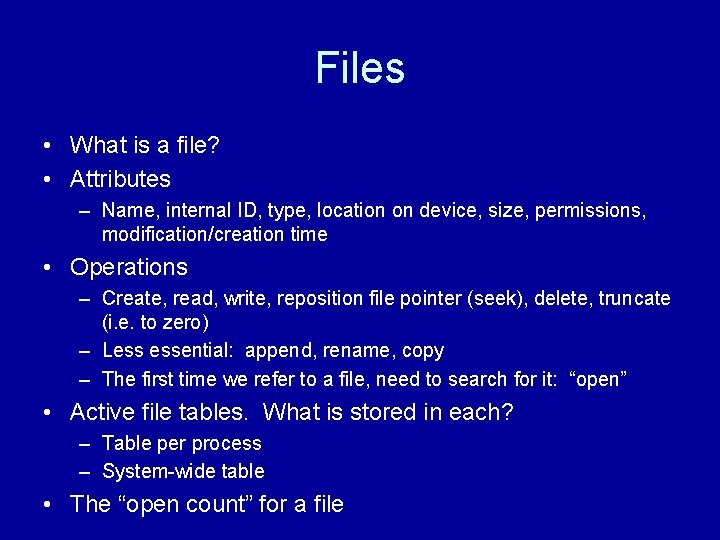
Files • What is a file? • Attributes – Name, internal ID, type, location on device, size, permissions, modification/creation time • Operations – Create, read, write, reposition file pointer (seek), delete, truncate (i. e. to zero) – Less essential: append, rename, copy – The first time we refer to a file, need to search for it: “open” • Active file tables. What is stored in each? – Table per process – System-wide table • The “open count” for a file
Type and structure • Policy question – should OS be aware of file types? • How file type determined – filename extension – Keep track of which application created file – Magic number • File type determines its structure – At a minimum: bits and bytes – e. g. OS expects executable file to have certain format – Text file: recognize meaning of certain ASCII codes • Files stored in “blocks” on a device – Each I/O operation can grab one block (~ 1 KB <= page size) – Can start a new file on a new block, or do some “packing”
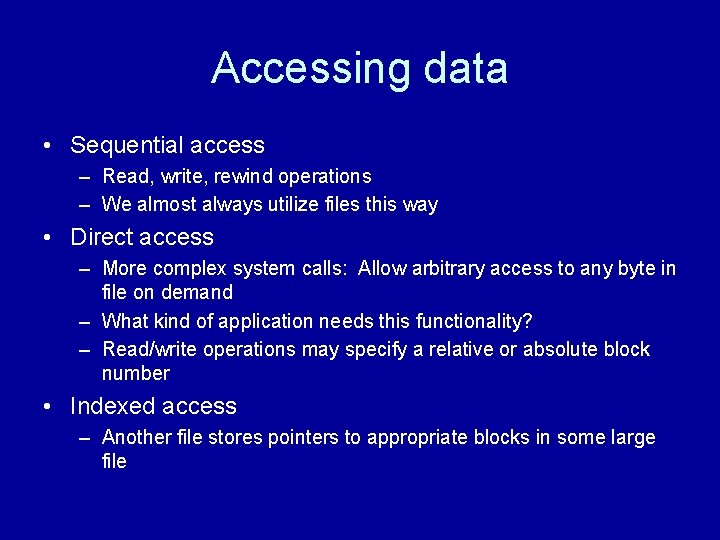
Accessing data • Sequential access – Read, write, rewind operations – We almost always utilize files this way • Direct access – More complex system calls: Allow arbitrary access to any byte in file on demand – What kind of application needs this functionality? – Read/write operations may specify a relative or absolute block number • Indexed access – Another file stores pointers to appropriate blocks in some large file
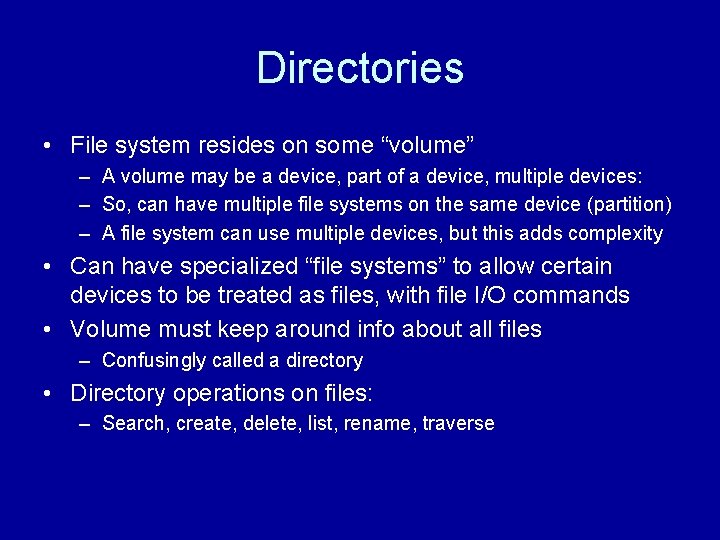
Directories • File system resides on some “volume” – A volume may be a device, part of a device, multiple devices: – So, can have multiple file systems on the same device (partition) – A file system can use multiple devices, but this adds complexity • Can have specialized “file systems” to allow certain devices to be treated as files, with file I/O commands • Volume must keep around info about all files – Confusingly called a directory • Directory operations on files: – Search, create, delete, list, rename, traverse
File organization • How are files logically organized in the directory? • Single-level directory: one flat list – File names must be unique – Excellent if everyone is sharing files • Two-level directory – Each user has a separate directory: Figure 10. 10 – System maintains a master file directory: pointers to each user’s file directory – Allows user’s work to be isolated – Can specify file by absolute or relative path name – Special “system user” for system files. Why necessary? – Search path: sequence of directories to use when searching for a file. Look here, look in system folder, etc.
File org (2) • Tree-based directory: Files can be arbitrarily deep • Allows user to impose local structure on files • Each process has a current working directory – To access file, need to specify path name or change the current directory • Policy on deleting an entire directory • Acyclic directory: support links to existing files – – – In effect, the same file has multiple path names Same file exists in multiple directories But there is just 1 file, not a copy When traversing, need to ignore the links What happens when we delete file? Links now point to … Can count the # of references to file (like garbage collection)
Mounting • Mount = make volume/device available to file system. • Assign a name to its root so that all files will have a specific path name. • Mount point = position in existing file system in which we insert the new volume. – Think of inserting a subtree at a new child of an existing node. – E. g. You plug in a USB drive, and immediately it acquires the name E: so you can access its files – In UNIX, a new “volume” may appear under / • Unused volumes may be temporarily unmounted if file system desires
File sharing • In multi-user system, desirable to have some files accessible by multiple users! • File system must have more info – Owner of each file – Assign unique ID numbers for users and groups of users – When you access file, we check your IDs first • Remote file system access – Manually transfer files via FTP – Distributed file system: see a file system on another computer on the network – Anonymous browsing on the Web
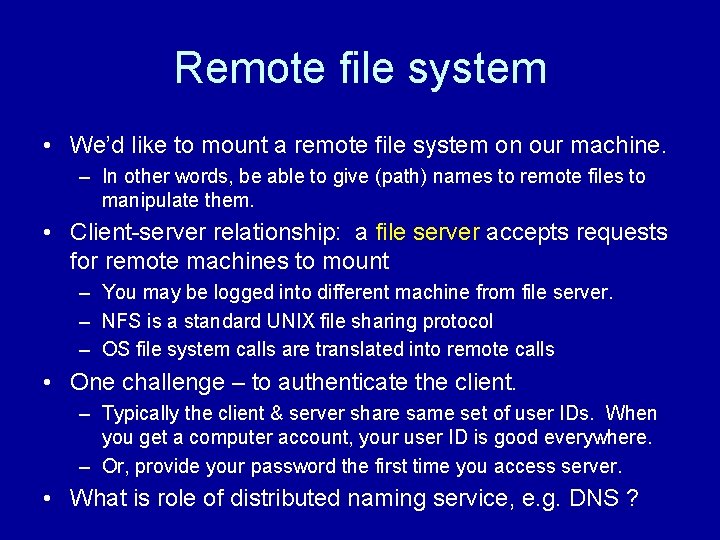
Remote file system • We’d like to mount a remote file system on our machine. – In other words, be able to give (path) names to remote files to manipulate them. • Client-server relationship: a file server accepts requests for remote machines to mount – You may be logged into different machine from file server. – NFS is a standard UNIX file sharing protocol – OS file system calls are translated into remote calls • One challenge – to authenticate the client. – Typically the client & server share same set of user IDs. When you get a computer account, your user ID is good everywhere. – Or, provide your password the first time you access server. • What is role of distributed naming service, e. g. DNS ?
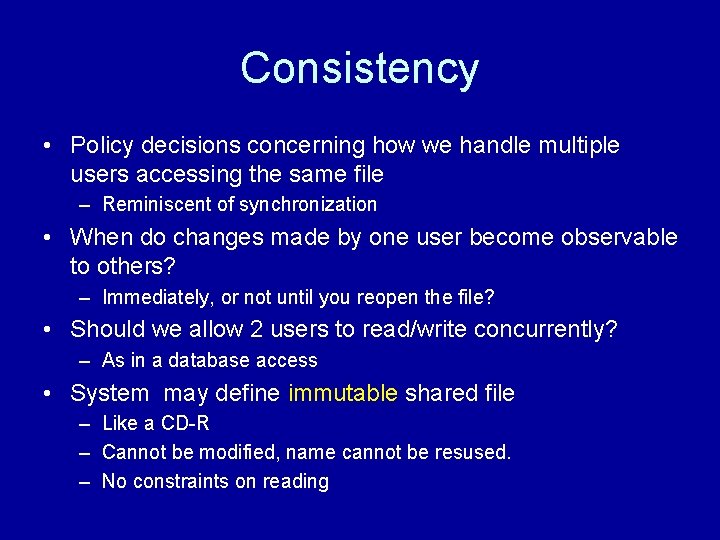
Consistency • Policy decisions concerning how we handle multiple users accessing the same file – Reminiscent of synchronization • When do changes made by one user become observable to others? – Immediately, or not until you reopen the file? • Should we allow 2 users to read/write concurrently? – As in a database access • System may define immutable shared file – Like a CD-R – Cannot be modified, name cannot be resused. – No constraints on reading
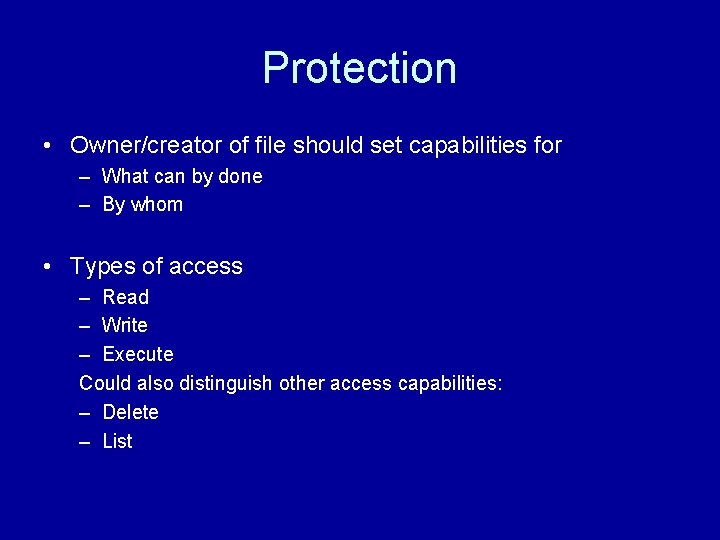
Protection • Owner/creator of file should set capabilities for – What can by done – By whom • Types of access – Read – Write – Execute Could also distinguish other access capabilities: – Delete – List
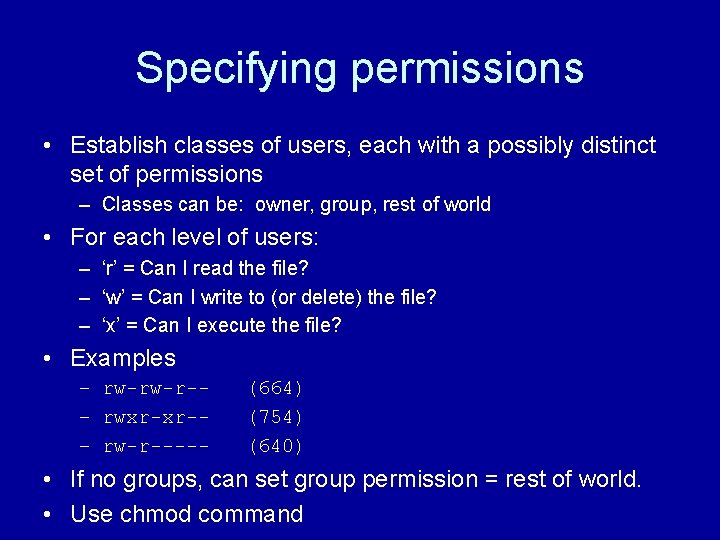
Specifying permissions • Establish classes of users, each with a possibly distinct set of permissions – Classes can be: owner, group, rest of world • For each level of users: – ‘r’ = Can I read the file? – ‘w’ = Can I write to (or delete) the file? – ‘x’ = Can I execute the file? • Examples – rw-rw-r-– rwxr-xr-– rw-r----- (664) (754) (640) • If no groups, can set group permission = rest of world. • Use chmod command