
CS 3205 HCI in SW Development Readings Some



















- Slides: 101
CS 3205: HCI in SW Development Readings: • Some material on windows and icons are discussed in Section 6. 2. 2 (both editions)
Where Are We? • We know about… – Learning about users and tasks – Conceptual models, mental models, metaphors, interaction styles/modes – Lo-fidelity prototyping, wire-frames, hi-fidelity prototypes – Evaluation basics • Next we want to get more detailed… – Often referred to as “physical” design (even for screen interfaces)
Outline • Outline: – (Reminder) Designing overall UI flow – Windows – Widgets / Controls
Overall UI Flow • Major UI elements are probably windows or screens (on handhelds) – What are they? How are they organized? – Do they “match” users’ mental models of how they want to achieve tasks? – Compare to SW architecture design • Major components and their roles • How they’re related • Save detailed design (inside modules) for later
Goal of Modeling UI Flow • Identify major UI components (windows) – High-level description of their role • Interactions between these – Conditions? • Two levels possible – At conceptual design (more abstract) – At physical design (what will be windows)
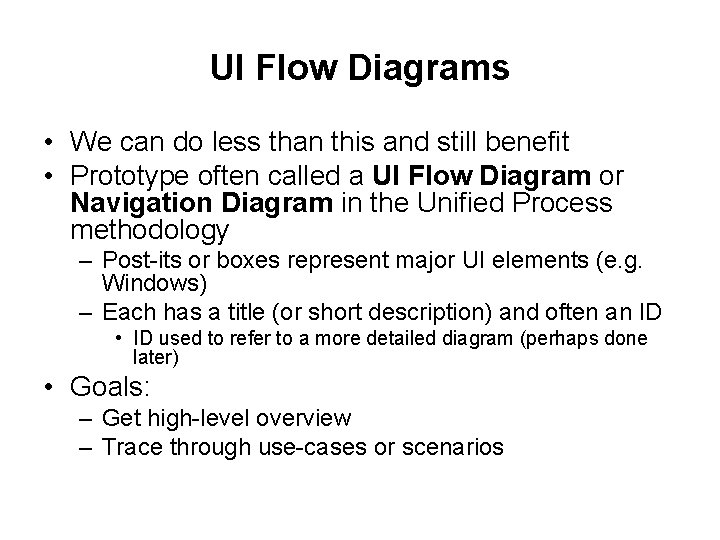
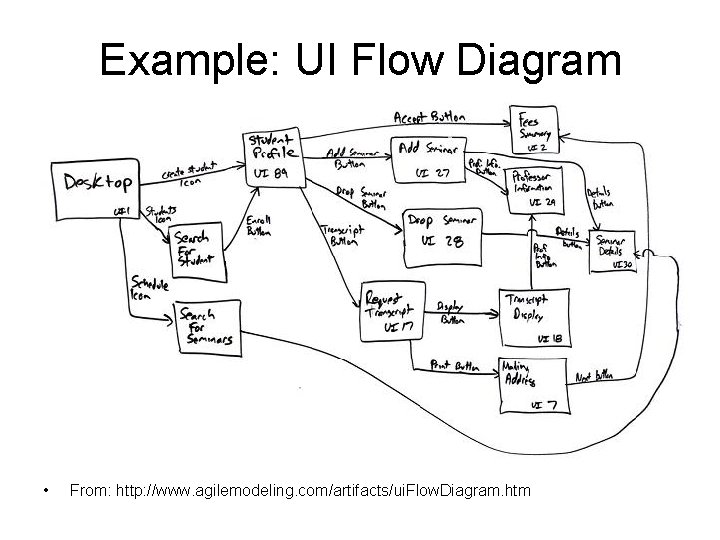
UI Flow Diagrams • We can do less than this and still benefit • Prototype often called a UI Flow Diagram or Navigation Diagram in the Unified Process methodology – Post-its or boxes represent major UI elements (e. g. Windows) – Each has a title (or short description) and often an ID • ID used to refer to a more detailed diagram (perhaps done later) • Goals: – Get high-level overview – Trace through use-cases or scenarios
Example: UI Flow Diagram • From: http: //www. agilemodeling. com/artifacts/ui. Flow. Diagram. htm
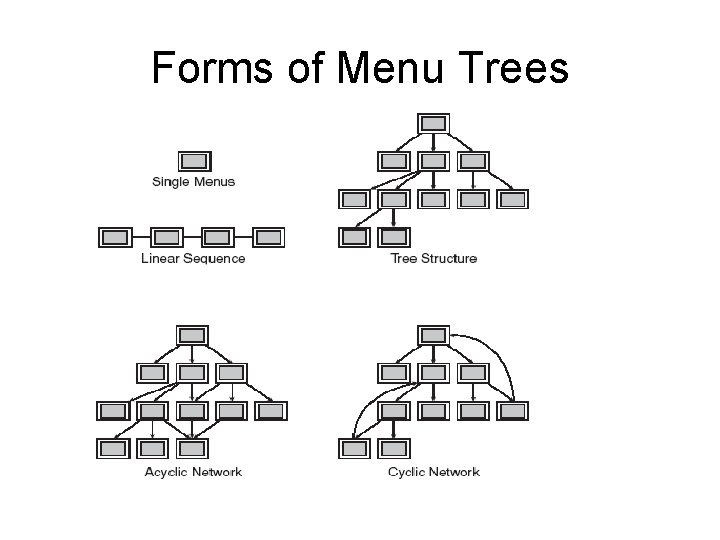
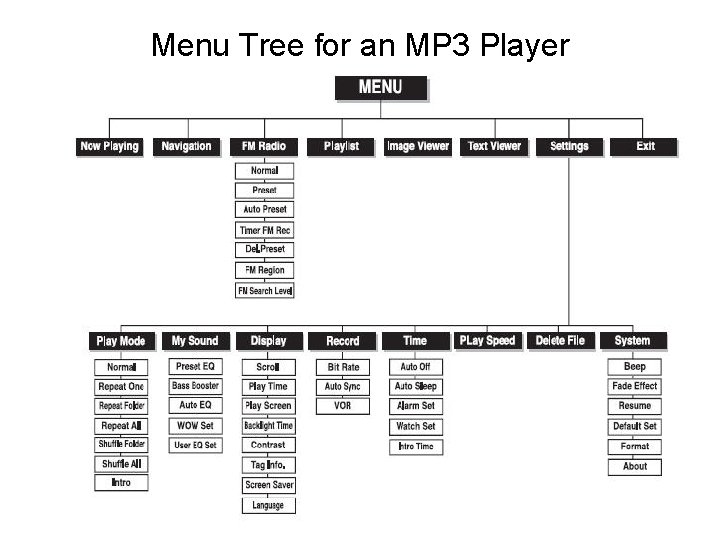
Related Idea: Menu Trees • We can wander through pages, we wander through nested menu items • Menu trees often used as a form of user documentation – You can see how the earlier design representations lead to these • Forms of menu trees may indicate problems (see next slide)
Forms of Menu Trees
Menu Tree for an MP 3 Player
Summary on UI Flow • Plan overall structure of your major UI elements – Windows or screens – Menus (problably later) • Some lo-fi methods are quick and potentially useful – If you base these or evaluate these using your scenarios or use-cases
In-Class Exercise • Diagram something complex or confusing – Suggestions about confusing page structure on a web site? – Others? Web sites, wikis, apps with deep menus?
UI Patterns
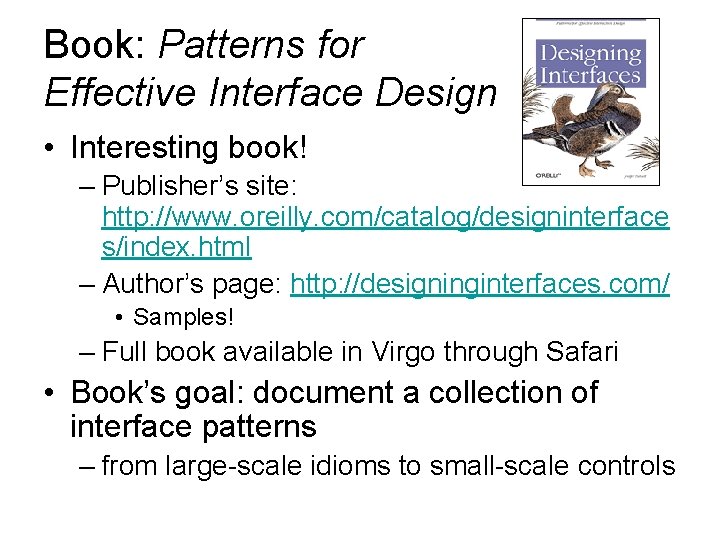
Book: Patterns for Effective Interface Design • Interesting book! – Publisher’s site: http: //www. oreilly. com/catalog/designinterface s/index. html – Author’s page: http: //designinginterfaces. com/ • Samples! – Full book available in Virgo through Safari • Book’s goal: document a collection of interface patterns – from large-scale idioms to small-scale controls
Sample Chapter Titles • Information Architecture and Application Structure • Navigation, Signposts and Wayfinding • Layout of Page Elements • Actions and Commands • Showing Complex Data • etc.
Example: Organizing Content • What might the following be? – Two-panel selector – Center-Stage – Extras on demand – One-window drill-down • Examples?
Windows • We know a lot about these already, eh? • Primary Windows • Secondary Windows – modal vs. modeless – dialog boxes – configuration, tabs • Mouse focus
Organizing a Windowing Interface A window is a container that designers use to organize the information that users see in an application – Window interface actions include • • • Open action Close action Resize action Move action Bring forward or activation
Multiple Windows Design – Advantages • Windows optimize the use of limited display space: – More information can be accessible • Users can use multiple sources on screen simultaneously to complete a task: – They give the user freedom to multitask • Windowing Systems allow standardization of interfaces across many applications – The user moves easily between applications and quickly learns to use new applications. • Automatic facilities for organizing window working sets: – save time and make large collections of windows easier to manage • They lend themselves to direct manipulation
Multiple Windows Design – Disadvantages: • Users perform some tasks slower – Due to the need to switch windows – Due to getting lost • Display screen size and resolution are limitations • Time can be lost in rearranging windows • User can be confused by user switches context
Windows are like… • Pages on websites • Screens on mobile devices • From a UI design, what’s similar? What’s different?
Window/Screen design Two aspects: • How to split things across screens • moving around within and between screens • how much interaction per screen? • serial or workbench style? • Individual screen design • white space: balance between enough information/interaction and clarity • grouping items together: separation with boxes? lines? colors?
Screen design: splitting functions across screens • Task analysis as a starting point • Each screen contains a single simple step? • Frustration if too many simple screens • Keep information available: multiple screens open at once
Screen design: individual screen design • Draw user attention to salient point, e. g. colour, motion, boxing • Animation is very powerful but can be distracting • Good organization helps: grouping, physical proximity • Trade off between sparse population and overcrowding
Information display • Relevant information available at all times • Different types of information imply different kinds of display • Consistency between paper display and screen data entry
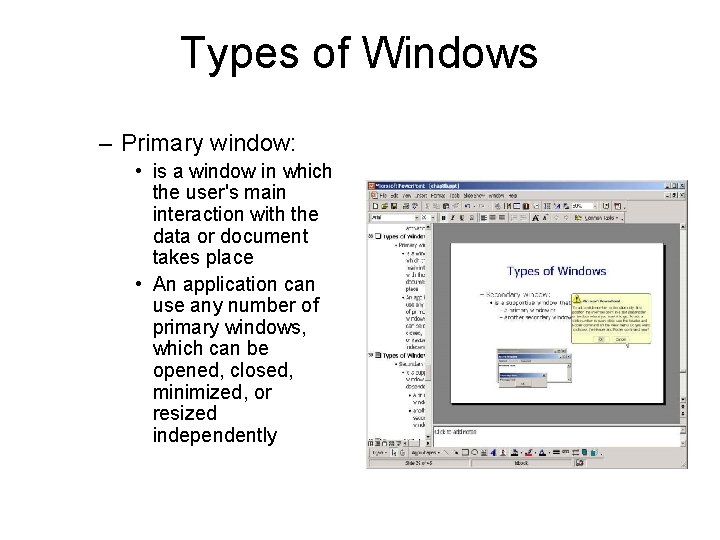
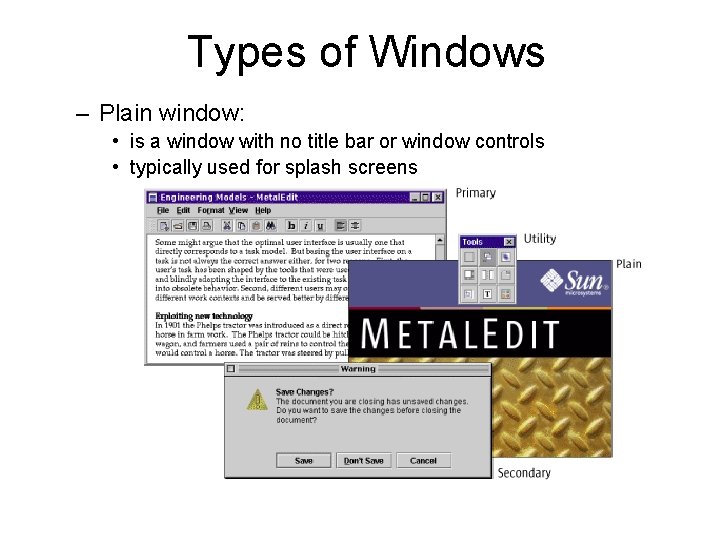
Types of Windows – Primary window: • is a window in which the user's main interaction with the data or document takes place • An application can use any number of primary windows, which can be opened, closed, minimized, or resized independently
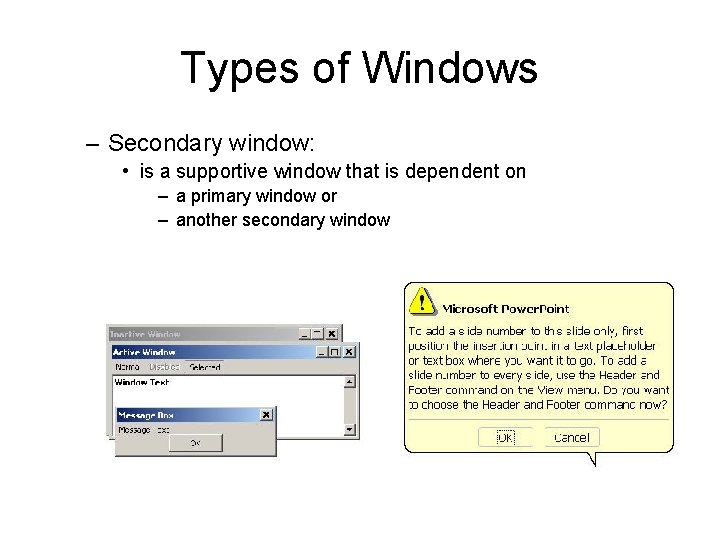
Types of Windows – Secondary window: • is a supportive window that is dependent on – a primary window or – another secondary window
Types of Secondary Windows • Message boxes – Often modal: must exit or OK before continuing – Problems? • search in Excel; overlapping • Dialog boxes – Enter additional information – Sometimes modal, sometimes modeless • Comments?
Types of Windows – Utility window: • is a window whose contents affect an active primary window • Unlike secondary windows, utility windows remain open when primary windows are closed or minimized. • e. g. tool palette that is used to select a graphic tool.
Types of Windows – Plain window: • is a window with no title bar or window controls • typically used for splash screens
Wizards • A wizard is really a sequence of dialog boxes to achieve a certain goal – Install, configure, etc. • An example of the conversational interaction mode • Issues to consider: – Modal or modeless? – Navigation: just next and back, or – allow users to see the complete set and jump directly to a screen
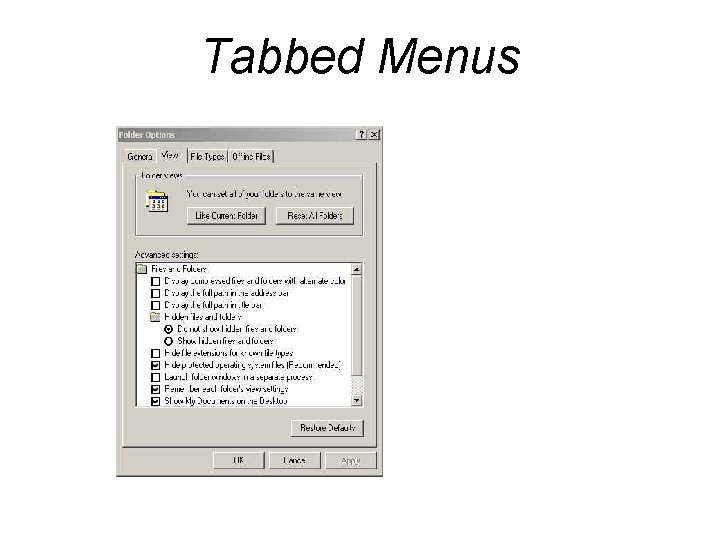
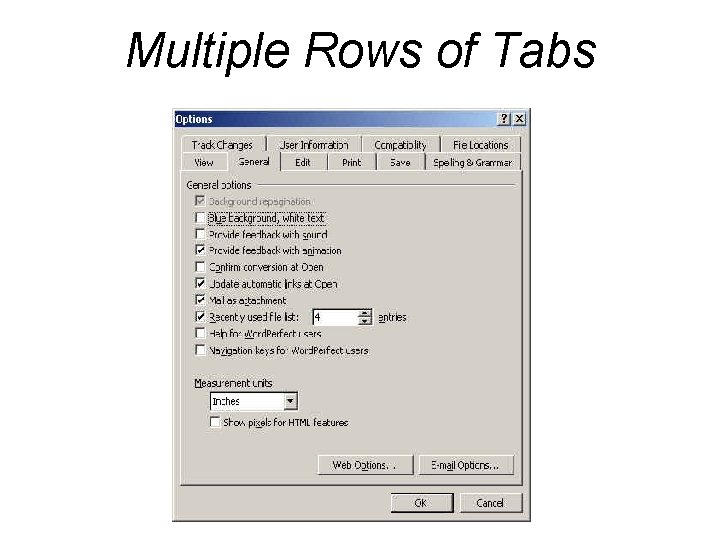
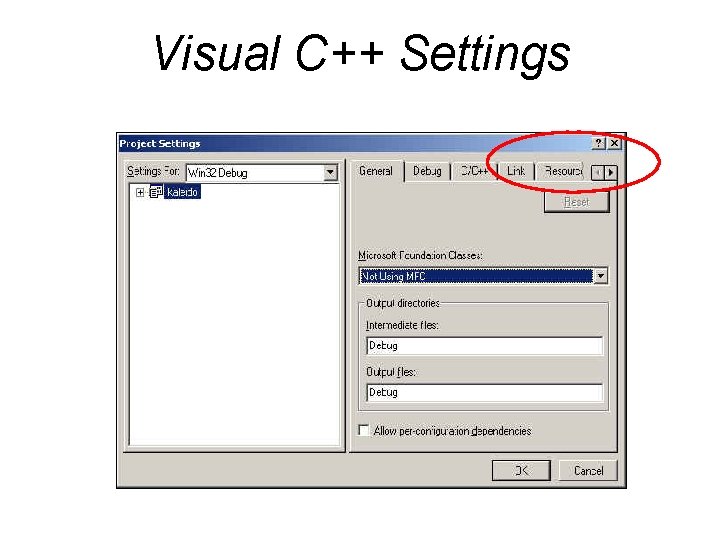
Tabs in Windows • Why use tabs? • Irritations? • Alternatives? • (See text or reflect on the discussion we had in class)
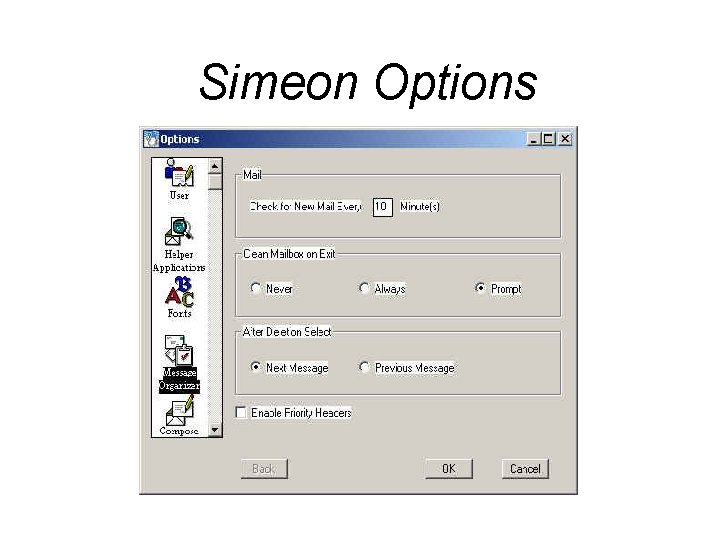
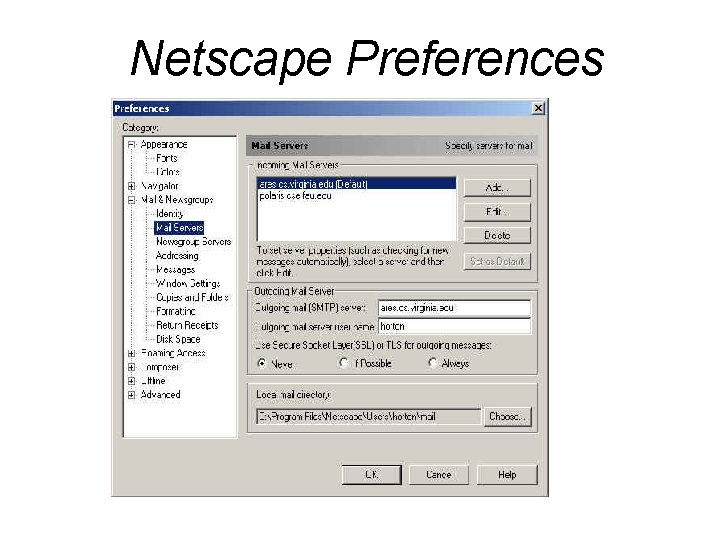
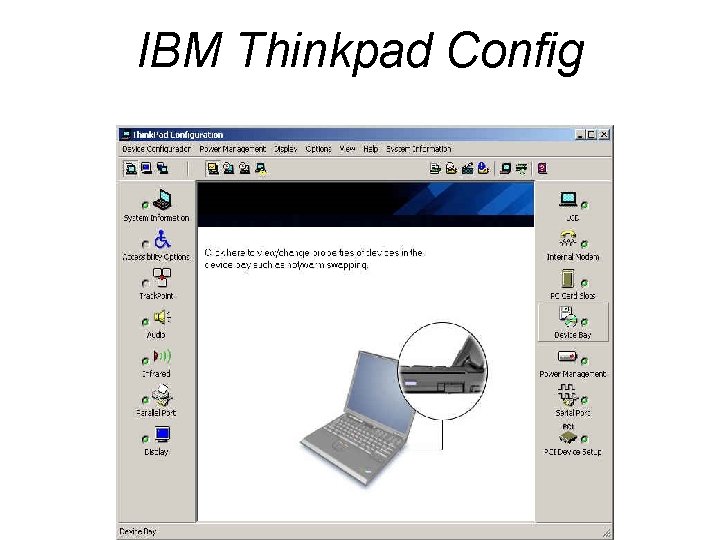
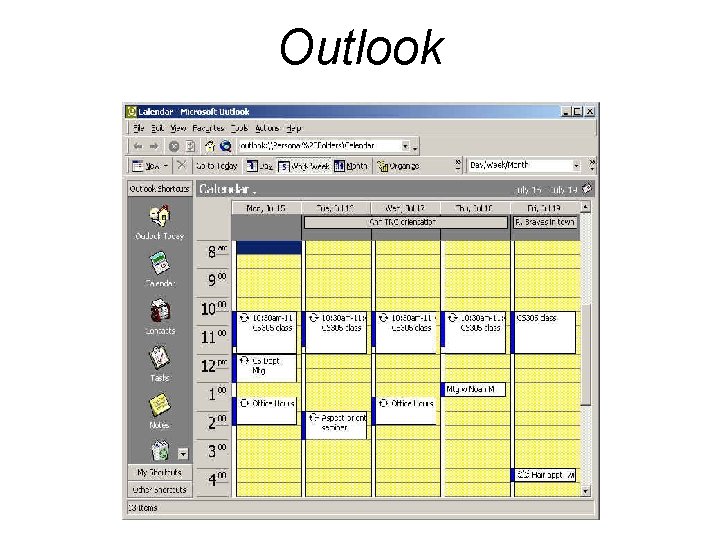
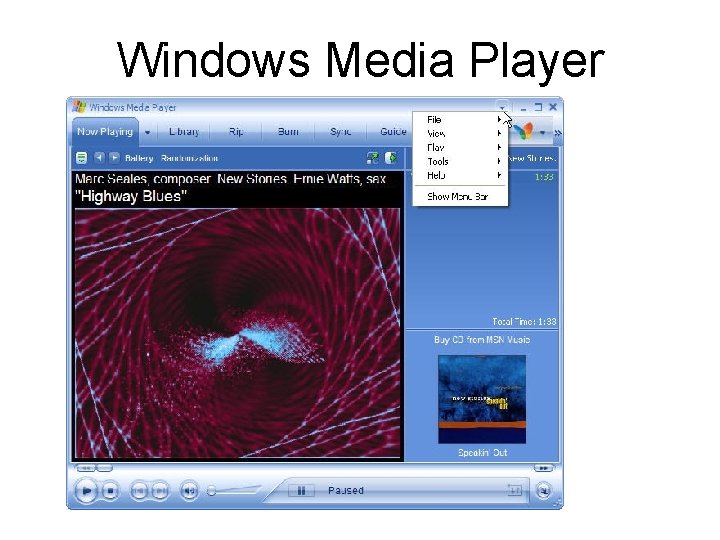
Some Examples • Following screen shots discussed in class • Some of these deal with configuration – Interesting problem: large number of choices, infrequently used, important for novice and expert – Note variety of approaches
Simeon Options
Netscape Preferences
Tabbed Menus
IBM Thinkpad Config
Multiple Rows of Tabs
Visual C++ Settings
Outlook
Windows Media Player
Windows Media Player
General guidelines for arranging windows – Ensure window arrangement is only changed by the user – Keep secondary windows to only one level and limit their number • Secondary windows can be: – Windows within windows – Separate windows that depend on a primary window – Make the use of secondary windows optional – As alternatives use multiple primary windows or menus
General guidelines for arranging windows – Allow the user to save the arrangement of windows from run to run of a program – Allow a choice of what to do when opening new windows: • Automatically position • Cascaded is best – Respond to window events in real time • Dragging, resizing, bringing to front, closing, iconizing
Window Focus • Which window gets events like key-presses? • Two approaches have been used: – “Mouse focus” vs. “click-to-focus” • Mouse focus – Typical of original UNIX X-windows managers – Input goes wherever the mouse is pointing • Windows doesn’t have to be on top – Input can go into a partly obscured window • Comments?
Mouse Focus: pros/cons • Disadvantages – Harder for novices – Not-consistent with other platforms • Advantages: – Allows easier interaction with multiple windows without rearranging – Faster interaction in many cases
Click-to-Focus • Click to focus – Default in MS-Windows and Macintosh – A window must be brought to the front before it will accept input – Input goes to that window regardless of where the mouse is pointing – Advantage: • Input cannot accidentally input to the wrong window
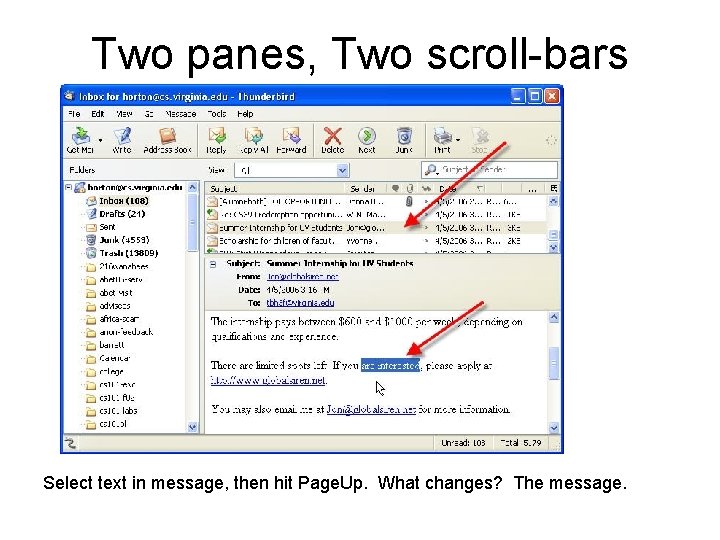
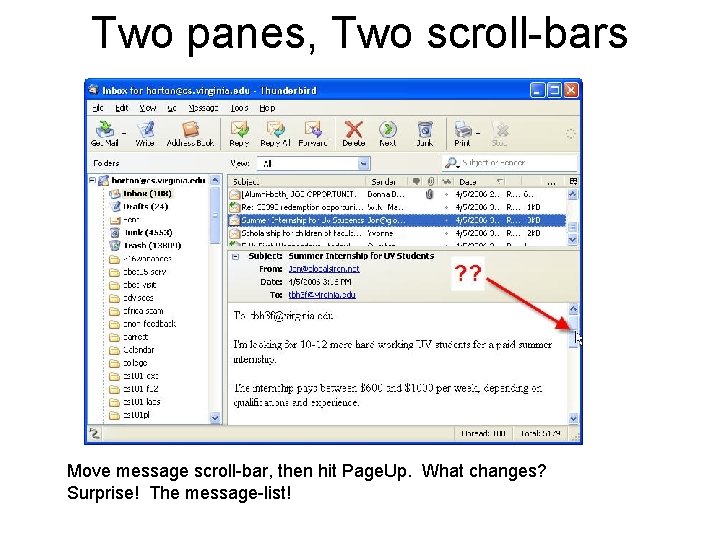
Focus within Applications • Many apps have multiple panes or panels • Case study: Thunderbird/Mozilla email client – message-list pane and message-pane – change of focus for key-input after one of the two scroll-bars has been used – Demo’d in class, but some screen captures next • What are the issues is usability terms? – Your answers are: – Visibility: Can I easily see which pane has focus? – Consistency: Clicking message-list scroll-bar assigns key-focus to message list, but not the other way
Two panes, Two scroll-bars Select message first. What does Page. Up change? The message-list.
Two panes, Two scroll-bars Select text in message, then hit Page. Up. What changes? The message.
Two panes, Two scroll-bars Move message scroll-bar, then hit Page. Up. What changes? Surprise! The message-list!
Widgets within Windows • Terminology: – widgets, controls (. NET), components (Java) – Here I mean: “smaller” GUI objects in a window that the user directly interacts with • Input, output, display, control, … • menus, toolbars, buttons • option buttons, check-boxes, list-boxes, text-boxes, combo-boxes • Others too
Commands • Menus and menu-structure • Buttons • Toolbars
Buttons • Maybe the simplest widget? • But – What labels? Too often defaults to OK, Continue, Accept, etc. when that is ambigious in the context – Where positioned? Consistency, prominent position – Size and shape: pretty vs. visible
Toolbars • Alternatives to menu hierarchies – Why have them? Your answers are: • Location: tool bar at top of window, or secondary window (floating) • Key issue: the icons – Problems, issues?
Desirable Icon Properties • • Easily distinguished Easily recognized and understood Visually simple Easy to perceive – Use of color, detail, not to complex • Informative – Good example: text-justification icons • Should represent concrete objects – Home, printer • From Horton, 1991 (no relation)
More on Icons • See ID-book, Chaper 6 figure 6. 9 and after. • Note icon design for handheld devices – Digital cameras – Phones
Menus • Types – – – Permanent (menu bar, in a form, toolbar) Pull-down Pop-up Roll-up Modal: Each menu is a complete screen or Web page • Note: there are equivalents to menus on webpages, hand-held devices – Many principles that follow apply to these too!
Roll-up Menu Example
Menus • Meaningful organization demonstrated to reduce error rates, think time – Organize based on task-related objects and actions – Repetition of items in menus? (Creates a acyclic network. ) • Confusing to some. See this on the Web. • Why? – Harder mental model with no “level”.
Menu Dimensions • How to measure “size” or “complexity”? • Menu items, nested menu items… – Many forms of this: Pull-down, screens, tabs, etc. – All are just different organizations of a multidimensional structure • How to cope? Are there rules?
Menu Depth vs. Breadth • Depth: number of levels Breadth: number of items per level • Empirical studies show: Prefer menu breadth over depth. – Limit menu trees to three levels – User-stress has been tested in one study
Menu Content Organization • Item Presentation Sequence – The order of items in the menu is important, and should take natural sequence into account when possible: • Time • Numeric ordering • Physical properties – When cases have no task-related orderings, the designer must choose from such possibilities as: • Alphabetic sequence of terms • Grouping of related items • Most frequently used items first • Most important items first.
Menu Content Organization • Item Presentation Sequence – The order of items in the menu is important, and should take natural sequence into account when possible: • Time • Numeric ordering • Physical properties – When cases have no task-related orderings, the designer must choose from such possibilities as: • Alphabetic sequence of terms • Grouping of related items • Most frequently used items first • Most important items first.
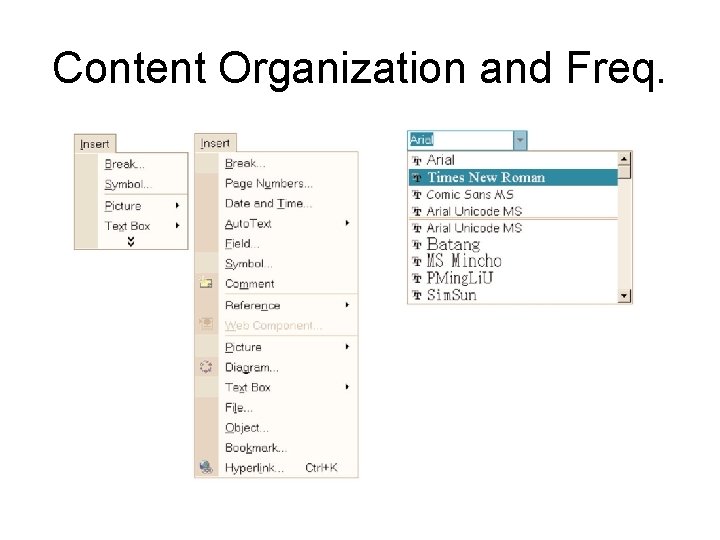
Menu Organization and Frequency of Use • Question: What do you think about Windows technique of hiding infrequently used items? – These are known as adaptive menus • What’s the goal here? – Improve efficiency • At what cost? – Consistency • Users vary in their preference! – Possible to allow users to customize menu order – Or, mix frequency with standard order (e. g. fonts)
Content Organization and Freq.
Menu guidelines to assist users • Keep menus self-explanatory – Give items meaningful labels – Be consistent in grammar and pattern in sets of menu labels • e. g. the following set of labels is bad! • ‘up’, ‘go down’, ‘forward’, ‘reverse’ – Ensure all items correspond to the name of the menu • i. e. menu items should be meaningfully organized • e. g. on an ‘insert’ menu, all items should be things to insert
Menu guidelines to assist users • When standards or conventions exist, follow them • e. g. ‘file’, ‘edit’ and ‘window’ menus • Ensure items only correspond to the name of this menu (not any other) – i. e. make sure the each item can only logically be in one place – rename the item or the menus if necessary – Prevent users from searching the wrong menu
Menu guidelines to assist users – Use checkmarks to show state of toggles – Use a triangle to show when there is a submenu – Use an ellipsis to show when the action cannot be completed without further input • e. g. ‘save as. . . ’ • Means a modal dialog box must be filled in • But don’t use an ellipsis when just opening a new nonmodal window – Group related menu items • • Separate groups by horizontal lines This allows users to focus attention An ISO rule: g = √n (Fig. 6. 3, p. 235 in ID-Book) Good grouping can allow the total number of items to be increased to 15 -20
Menu guidelines to assist users – Disable items that are not valid in the current context • ‘Grey them out’ • Do not remove them unless the user persistently works in a context where a set of items is never valid (e. g. beginner mode) • Provide tool tip help even on disabled items
Menu guidelines to assist users – Provide a facility to back up to the previous level in multi-level modal menus • E. g. to go to the home page or parent page – Provide visible feedback so users know where they are in a menu hierarchy • e. g. when displaying a lower-level web page – Allow the user to pick from higher levels directly • For screens displayed as a result of menu choices, display the menu item that led to the screen • The above always ensures the user keeps a mental model of where they are – Provide a menu map, equivalent of a site map on a Web site
Menu guidelines to assist users – Use modal menus only for systems that are used for searching through categories of information • E. g. directories on the web • Design most applications so users have access to all commands at all times – Consider providing ‘beginner’ menus with fewer choices
Menu guidelines to assist users – Provide a way of accessing help on each menu and item • This facilitates exploring and building the user’s mental model • Dynamic tool-tip/balloon help when cursor pauses over the item • One-key access to context-sensitive help about whatever the cursor is pointing to
Menu guidelines to assist users – Allow direct picking of items from menus • . . . as opposed to ‘choose the number’ of the menu item • On a character-based display, use cursor keys to select. • This only works if the number of items is few • Where there are too many items to allow cursor movement, preferably use mnemonic alphabetic choices • as well as cursor movement
Menu guidelines to assist users • Help the user perform frequent and repetitive actions – Place the most used menu items near the top • If frequencies are equal, order by natural sequence or sequence performed in the task • If still equal, order alphabetically • But never sacrifice good grouping – Provide keyboard shortcuts and display them on the menu • Allow tailoring of shortcuts
Menu guidelines to assist users • Provide pop-up menus for key actions • Especially if context sensitive • i. e. action depends on what is selected • But in general, permanent menus are better • Consider providing history tracking: • When a menu is displayed, place the cursor on the most recent item chosen from this menu • Palm OS does this
Summary of What We Covered • Planning Overall Flow, Design – Patterns – Interaction Styles • What goes into screens, menus? • Types of Windows • Commands – Buttons, Toolbars (icons) – Menus
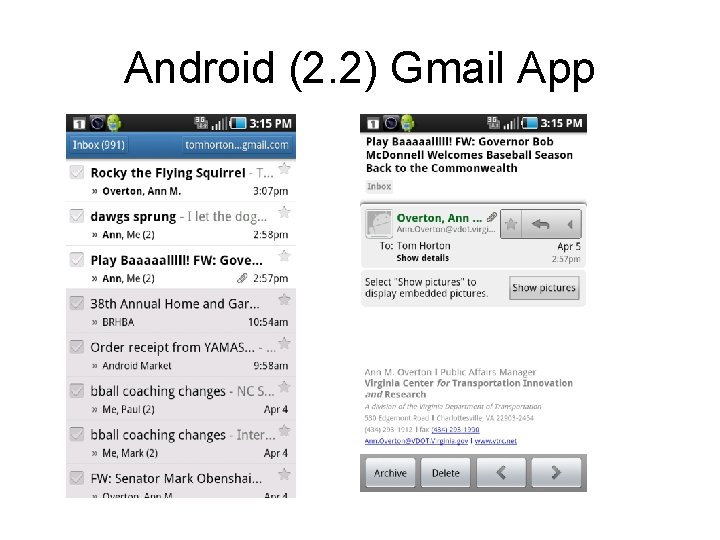
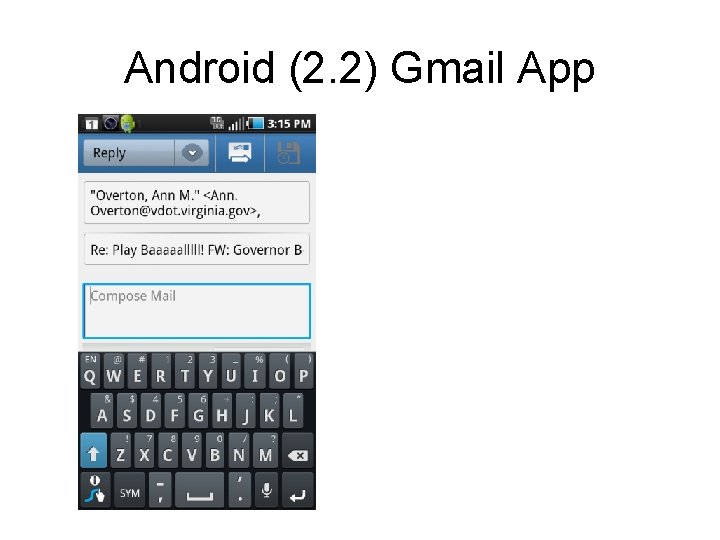
Android (2. 2) Gmail App
Android (2. 2) Gmail App
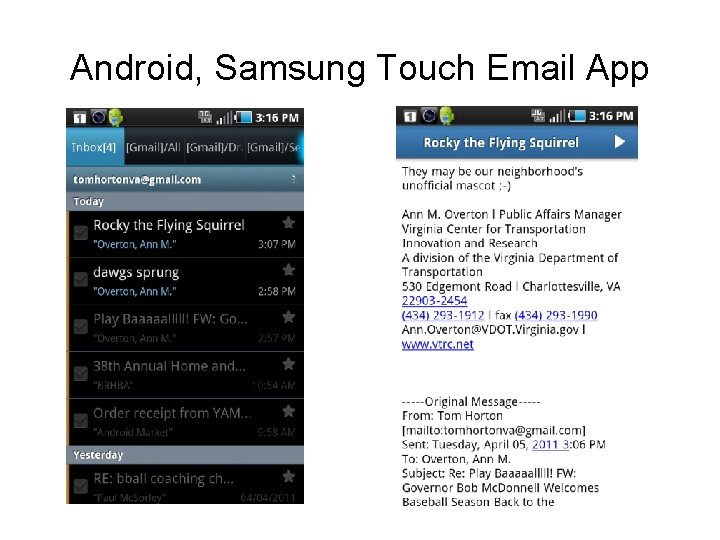
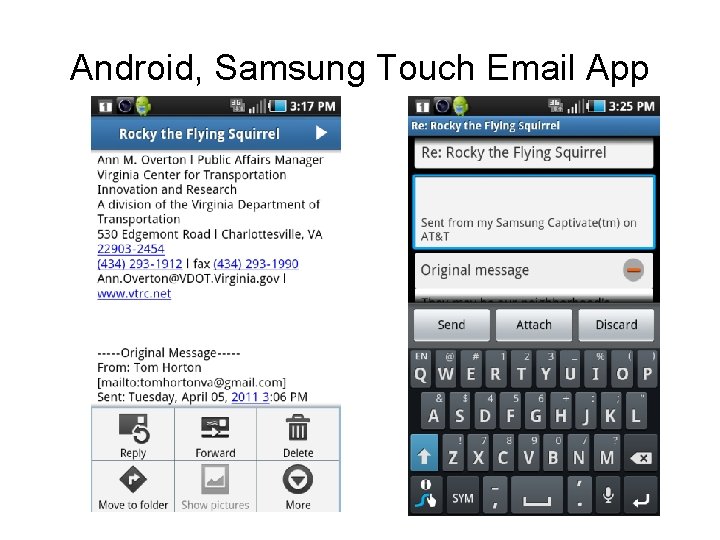
Android, Samsung Touch Email App
Android, Samsung Touch Email App
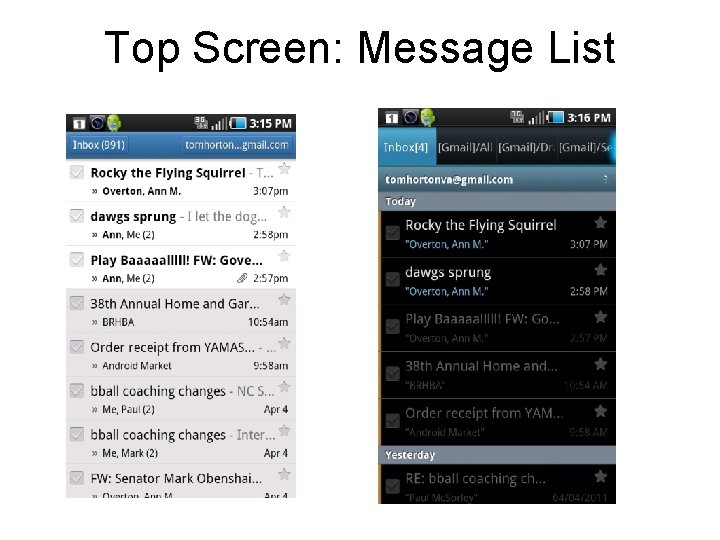
Top Screen: Message List
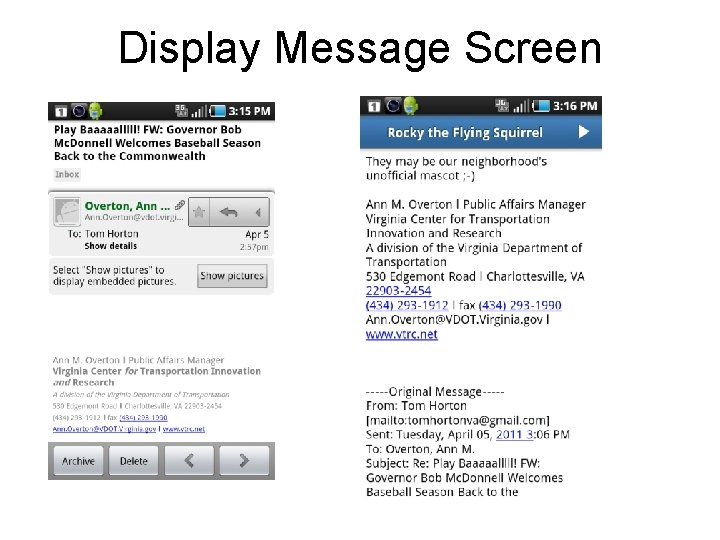
Display Message Screen
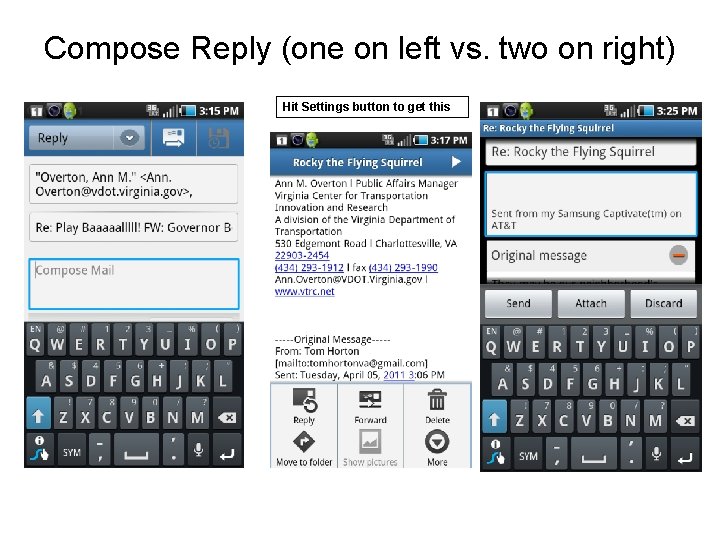
Compose Reply (one on left vs. two on right) Hit Settings button to get this
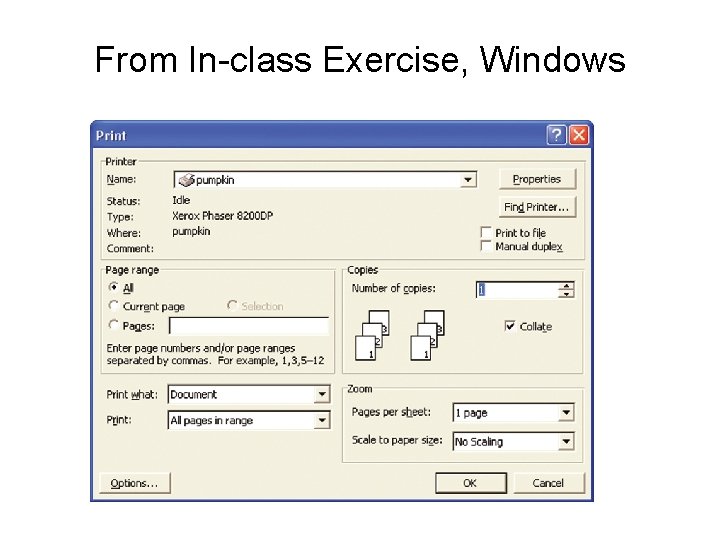
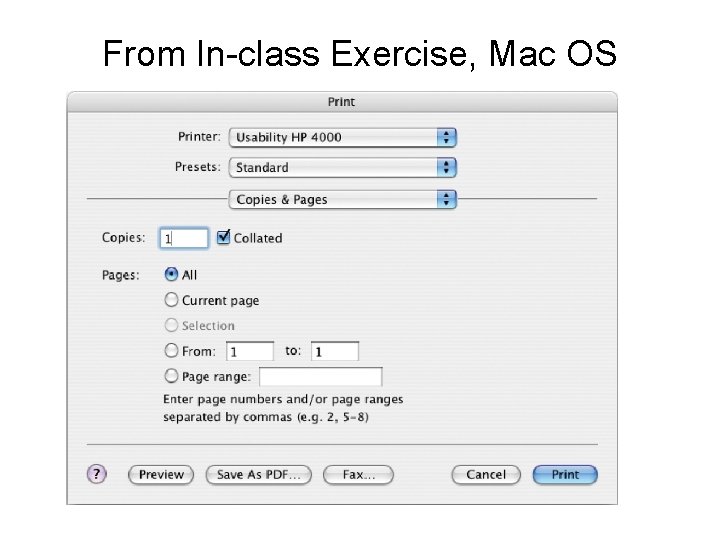
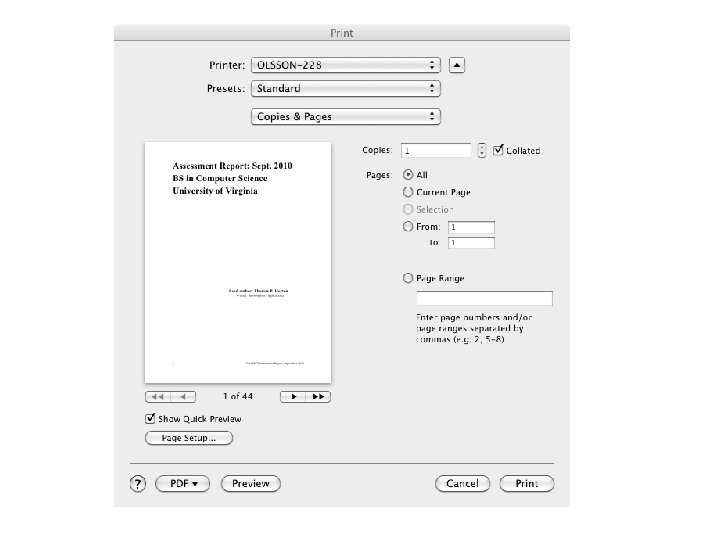
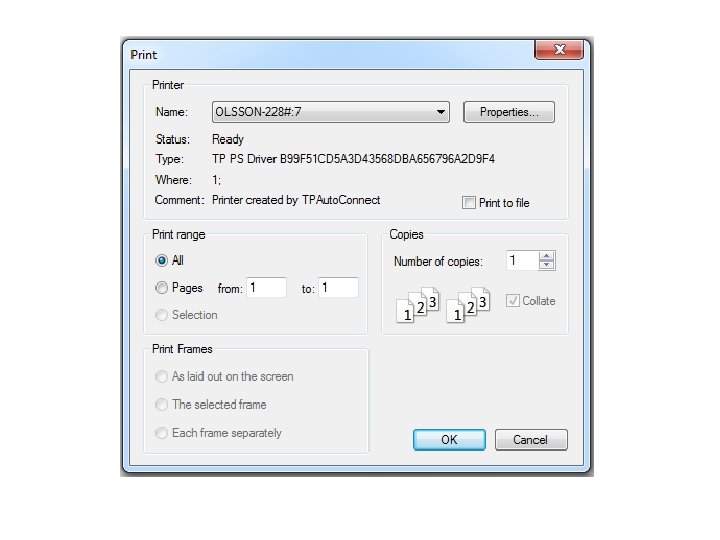
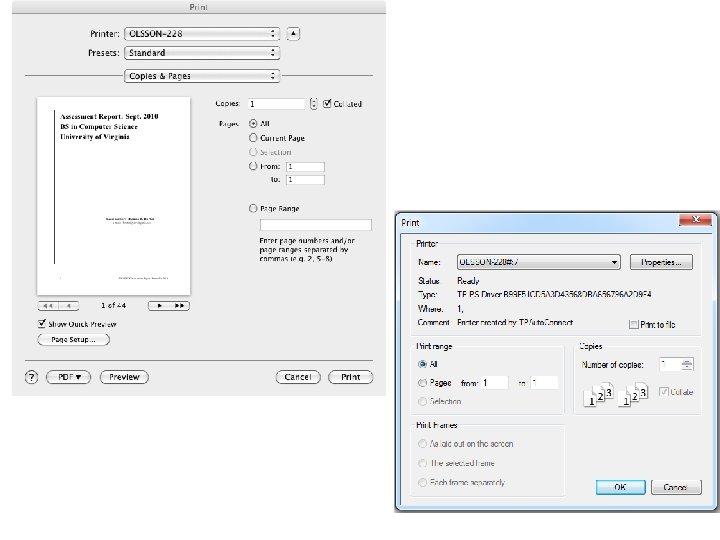
In-Class Exercise (Turn in with your names) • Compare the two windows shown here. • (1) Discuss differences in buttons in terms of: – – – Affordance of buttons Use of color Shape of buttons Positioning of buttons Wording of text in buttons • (2) Compare window organization in terms of tasks supported on the two windows • (3) Discuss in usability terms differences in physical layout
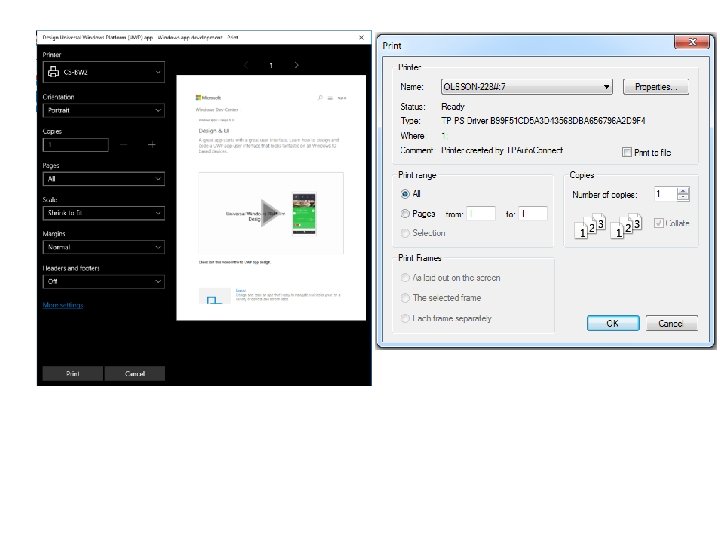
From In-class Exercise, Windows
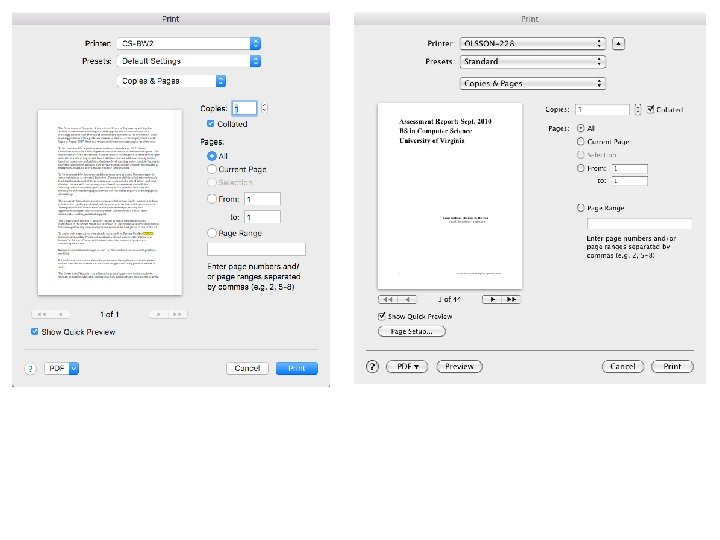
From In-class Exercise, Mac OS