
CS 161 Introduction to Computer Science Topic 13
- Slides: 24
CS 161 Introduction to Computer Science Topic #13 1
Today in CS 161 • External Files – What is an external file? – How do we save data in a file? • Discuss Program #5 – Questions? • Next time: – How do we read data from a file? CS 161 Topic #13 2
External Files • So far, all of our programs have used main memory to temporarily store information. • In addition, all input and output has been done with standard-in and standard-out devices – this includes input from the keyboard and output to our terminal's screen for prompts, echoing data, and displaying results • Now it is time to work with secondary storage! CS 161 Topic #13 3
External Files • Typically, secondary storage consists of a hard disk. . however, – some of you may end up using a floppy as your secondary storage. – With ODIN, we will be using a hard disk. – Those of you using PCs, will use a combination of hard disks and floppies. CS 161 Topic #13 4
External Files • There is one big difference between main memory and secondary storage. • Remember with main memory, each time we run our program the value of our variables is lost and we start from scratch (i. e. , we don't remember what the values of the variables were when we last ran the program). • Also, when we power down the computer all of the data stored in main memory goes away. CS 161 Topic #13 5
External Files: Secondary Storage • With files, when you finish executing a program, the data no longer goes away! • It stays around so you can access it the next time you run your program. • Plus, when your computer is powered down, information stored in secondary storage is not lost (unless you have a disk crash or failure!). • Therefore, secondary storage can be used to store data for as long as it is needed. CS 161 Topic #13 6
External Files: Secondary Storage • We can write information to secondary storage by creating a file which consists of a collection of data. • We then name this file, so that we can store different types of information all in one directory or on one disk. • We will be using text files in this class (and in CS 162) CS 161 Topic #13 7
External Files: Secondary Storage • A text file contains the same kind of data that we are used to seeing on the screen of our terminals. • What this means is that a text file is a stream of characters: line by line. • Therefore, these are files of characters. Lines in our files can be separated by end-of-lines ('n'). • This defines how many characters there are on a line and how many lines there are in the text file. CS 161 Topic #13 8
External Files: Secondary Storage • To use a text file to store information, – we first need to include a new library of I/O functions, – declare input/output stream variables to be used instead of cin and cout, and – attach a C++ input or output stream to that file. CS 161 Topic #13 9
External Files: Secondary Storage • Text files all have names, called filenames. • If you do a directory (ls on ODIN), – you will the filenames for all of your programs. • Text files are just one of these, commonly with the extension. txt. • We must specify a filename when we want to attach our input or output stream so that we can access the correct file! CS 161 Topic #13 10
The Steps to Using External Files • In your program when using C++ I/O stream files, you need to include the header file for a new library: #include <fstream. h> • This library already includes the iostream library, so you don’t need to include both the fstream library and the iostream library. CS 161 Topic #13 11
The Steps to Using External Files • The next step is to define a set of variables that will be used to read or write to the stream for a particular file. Let's backup a moment. • Remember we use cin to read from standard-in and cout to write to standard-out. • Well, cin and cout are really just variables. – cin is a variable of type istream (input stream) and – cout is a variable of type ostream (output stream). CS 161 Topic #13 12
The Steps to Using External Files • Therefore, to work with files we need to create our own variables; – for input our variable will be of type ifstream (input file stream) and – for output our variable will be of type ofstream (output file stream). • Once these variables are defined, we can attach these input or output streams to the corresponding file in our directory. CS 161 Topic #13 13
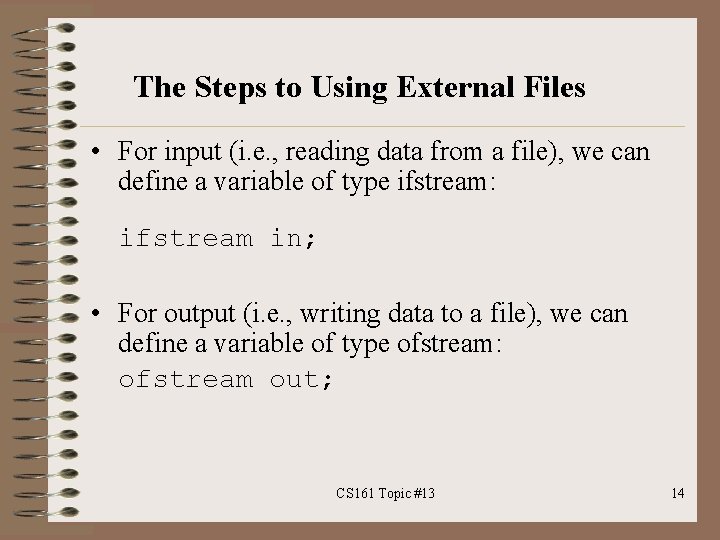
The Steps to Using External Files • For input (i. e. , reading data from a file), we can define a variable of type ifstream: ifstream in; • For output (i. e. , writing data to a file), we can define a variable of type ofstream: ofstream out; CS 161 Topic #13 14
The Steps to Using External Files • The next step after this is to attach these streams to our files. • We do this by opening files. • To open a file to enable us to write into it, we must tie the out variable in our program/function with the filename in our directory. • The filename is specified as either a constant, a literal string, or even as an array of characters read in from standard-input. CS 161 Topic #13 15
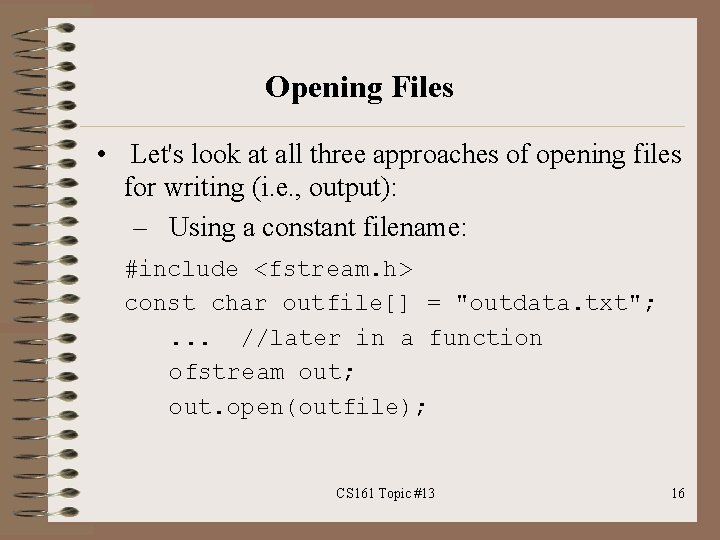
Opening Files • Let's look at all three approaches of opening files for writing (i. e. , output): – Using a constant filename: #include <fstream. h> const char outfile[] = "outdata. txt"; . . . //later in a function ofstream out; out. open(outfile); CS 161 Topic #13 16
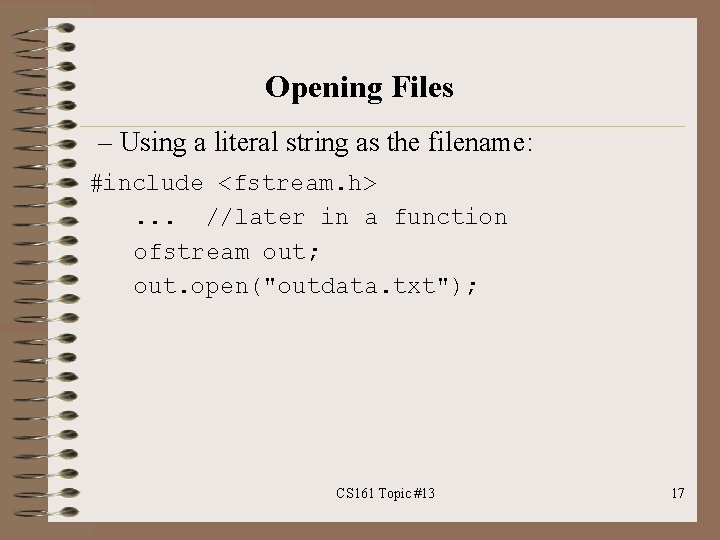
Opening Files – Using a literal string as the filename: #include <fstream. h>. . . //later in a function ofstream out; out. open("outdata. txt"); CS 161 Topic #13 17
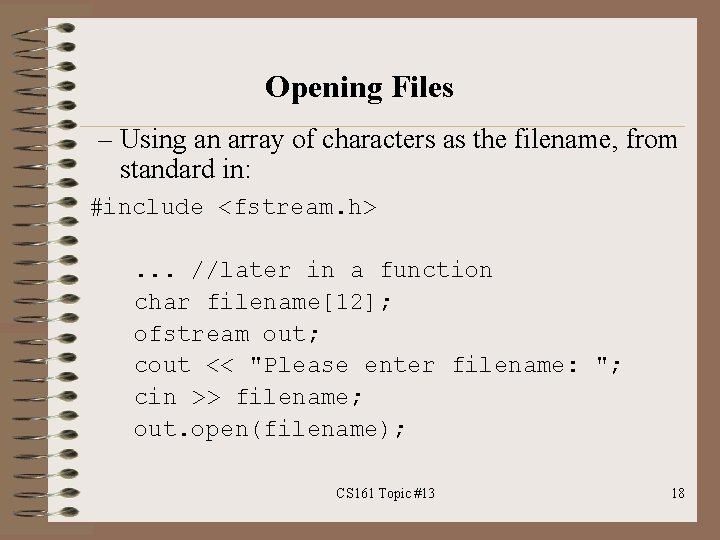
Opening Files – Using an array of characters as the filename, from standard in: #include <fstream. h>. . . //later in a function char filename[12]; ofstream out; cout << "Please enter filename: "; cin >> filename; out. open(filename); CS 161 Topic #13 18
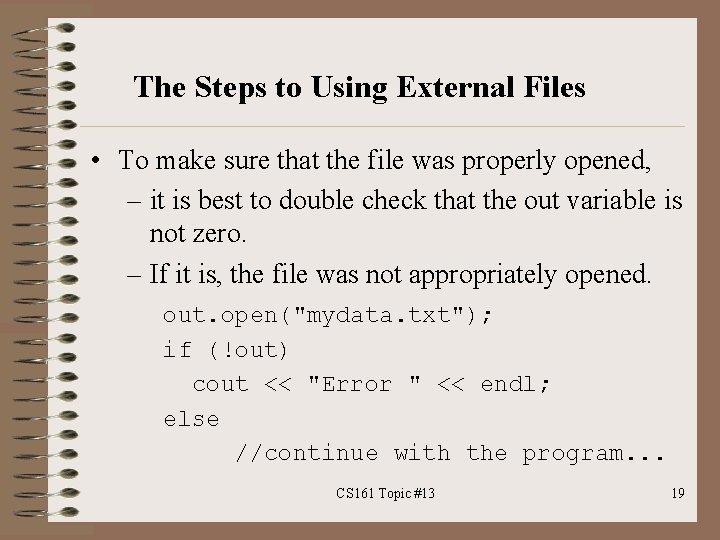
The Steps to Using External Files • To make sure that the file was properly opened, – it is best to double check that the out variable is not zero. – If it is, the file was not appropriately opened. out. open("mydata. txt"); if (!out) cout << "Error " << endl; else //continue with the program. . . CS 161 Topic #13 19
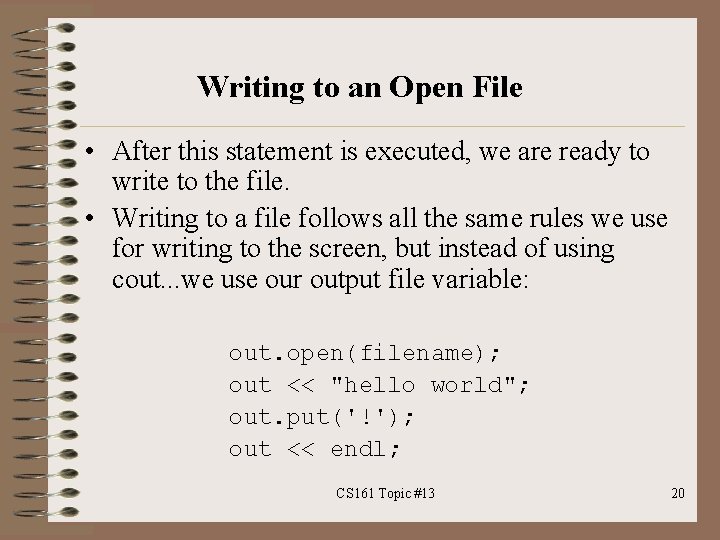
Writing to an Open File • After this statement is executed, we are ready to write to the file. • Writing to a file follows all the same rules we use for writing to the screen, but instead of using cout. . . we use our output file variable: out. open(filename); out << "hello world"; out. put('!'); out << endl; CS 161 Topic #13 20
Writing to an Open File • Using open (eg. , out. open) always opens the file so that we begin writing at the beginning of the file, as if we had a blank file, like a clean screen or a blank piece of paper. • If in another program we had previously written information to this file, it is lost as soon as we invoke the open function. • If we have never written information to this file before, then the open function will create a new file for us. CS 161 Topic #13 21
Appending to a File • It is possible to append information to an existing file. . . by specifying ios: : app when we open a file: ofstream out; out. open(filename, ios: : app); if (out) { out << data << endl; . . . CS 161 Topic #13 22
Closing a File when done. . • Once we have named the file, and opened it for writing, we can then write information to it. • Just think of using the new stream variable (eg. , out) instead of cout as directing your output from getting displayed on the terminal to being saved in the corresponding file. • Once done writing to the file, close the currently open file. We do that with another function included in our fstream library: out. close(); //parens are necessary! CS 161 Topic #13 23
CS 161 Introduction to Computer Science Questions? 24