
CS 110CS 119 Introduction to Computing Java Bob
CS 110/CS 119 Introduction to Computing (Java) Bob Wilson 1
CS 110 vs CSIT 114/CSIT 115 • Two tracks for starting CS curriculum at UMB – CS 110 is a traditional one semester introduction to computer science and Java programming – CSIT 114 and CSIT 115 are a new two semester sequence covering the same material (similar to the first two CS courses at a community college) • Decide which track is correct for you – Some experience with programming CS 110 – Otherwise, consider CSIT 114 and CSIT 115 2
Welcome to CS 110 • Textbook is Lewis and Loftus, Java Software Solutions, Foundations of Program Design, 7 th Ed. (The 6 th Ed. is also acceptable) • The course syllabus is on my CS 110 website: http: //www. cs. umb. edu/~bobw/CS 110/index. html • Go to the UNIX/PC lab (Science Bldg 3 rd floor) – “Apply” for a UNIX/PC account – You will need that account to upload your project files 3
Welcome to CS 110 • I recommend that you print copies of my lecture notes from the web and bring them to each lecture session • One lab session each week – In one of the Healey Library General Use Labs – Hands-on work associated with the lectures – Lab report must be turned in the following week • We’ll go through the syllabus now 4
Homework Assignments • We assume that you are computer literate: – Word Processing, Email, Web Browsing, Downloading Applications, etc. • Reading for today: L&L, 1. 1 – 1. 3 & App B – We won’t cover this material in class, but you are responsible for knowing it in homework or on exams – If you are totally unfamiliar with this material or have a hard time with it, please see me! • Reading for next class: L&L, 1. 4 -1. 6, Lab 1: “Using Dr Java and Sun Java SDK” 5
Types of Software (Programs) • Computers are very powerful pieces of hardware that can’t do much useful work until they are properly programmed • There are three different types of software: – Operating Systems – Application Programs – Software Development Tools (or Kits) • As a computer programmer, you may need to use and/or write any or all three types of programs 6
Operating System Programs • “O/S” programs control the hardware and allow application programs to be executed • An O/S is usually built to run on a specific underlying hardware platform, e. g. PC, MAC, or server • Generally these are the most complex types of programs to write and test • Examples: – M/S DOS, Windows, UNIX, Linux, Solaris, etc. 7
Application Programs • “Apps” perform useful work for their users • Apps are usually built to run on a specific operating system (and maybe a specific underlying hardware platform) • Users typically need to provide a lot of information about their job tasks for a programmer to write a good application program for that purpose • Examples: – Word, Excel, Power. Point, Chrome, etc. 8
Software Development Tools • Software Development Tools or Kits (SDK’s) are specialized application programs that allow programmers to write and test programs • Experienced programmers generally prefer an “Integrated Development Environment” (IDE) • Examples (that we’ll be using in this course): – Sun’s Java SDK (sometimes called JDK) – Dr Java IDE 9
Styles of User Interface • There are two predominant styles of User Interface for any type of program: – Command Line Interface (CLI) – Graphical User Interface (GUI) • As a computer programmer, you must be able to use and/or write programs for both styles of user interface 10
Styles of User Interface • Command Line Interface (CLI) – Computer types a “Prompt” requesting input – User types a “Command” with “Parameters” – Predominantly an old style of interaction that does not require a lot of computer power, but still in use today in some O/S and applications – Considered to be NOT “user friendly”, but is very efficient when combined with “scripting” – Example: DOS prompt, command & parameter C: >type file. txt (display the contents of the file) 11
Styles of User Interface • Graphical User Interface (GUI) – Computer displays a combination of text and graphical symbols offering options to the user – User manipulates mouse and uses keyboard to select from the offered options (“hot keys”) or to enter text – More common now (computer power is cheap) – Considered by most to be “user friendly” – Examples: M/S Windows/Office or MAC O/S 12
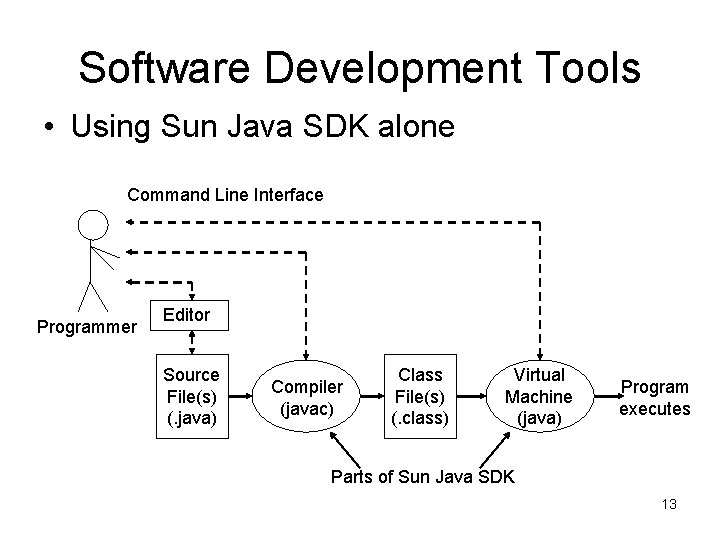
Software Development Tools • Using Sun Java SDK alone Command Line Interface Programmer Editor Source File(s) (. java) Compiler (javac) Class File(s) (. class) Virtual Machine (java) Program executes Parts of Sun Java SDK 13
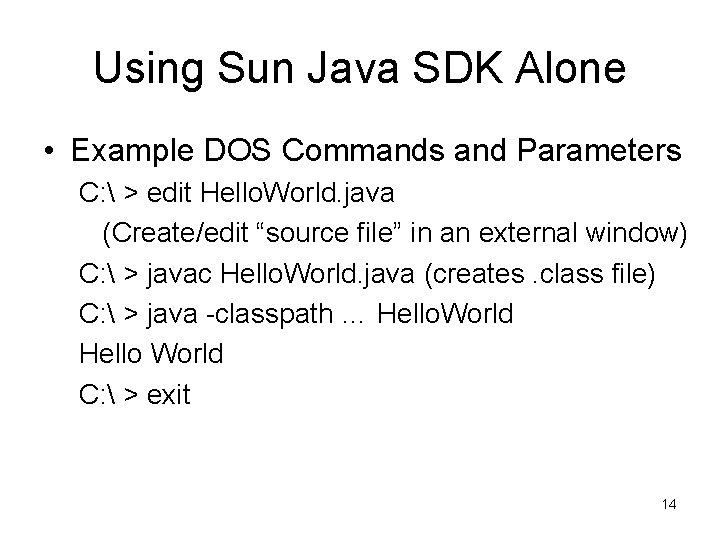
Using Sun Java SDK Alone • Example DOS Commands and Parameters C: > edit Hello. World. java (Create/edit “source file” in an external window) C: > javac Hello. World. java (creates. class file) C: > java -classpath … Hello. World Hello World C: > exit 14
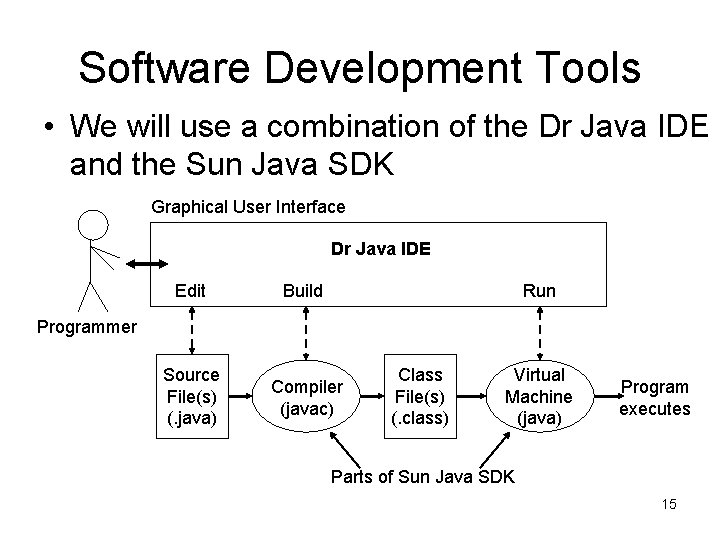
Software Development Tools • We will use a combination of the Dr Java IDE and the Sun Java SDK Graphical User Interface Dr Java IDE Edit Build Run Source File(s) (. java) Compiler (javac) Programmer Class File(s) (. class) Virtual Machine (java) Program executes Parts of Sun Java SDK 15
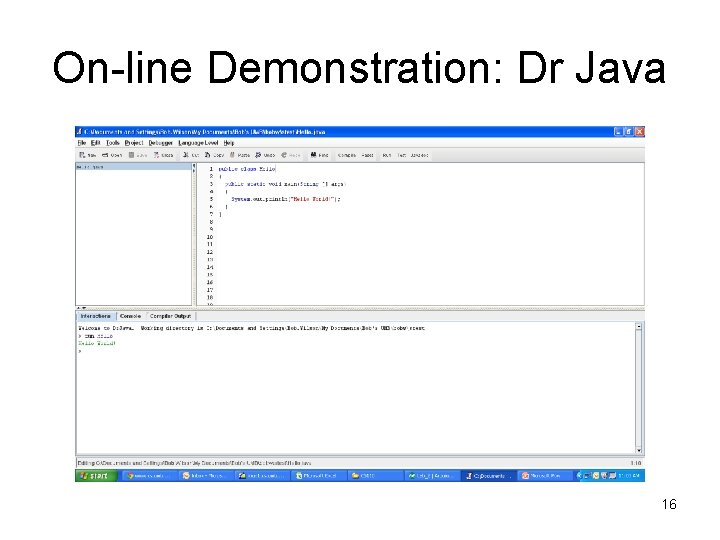
On-line Demonstration: Dr Java 16
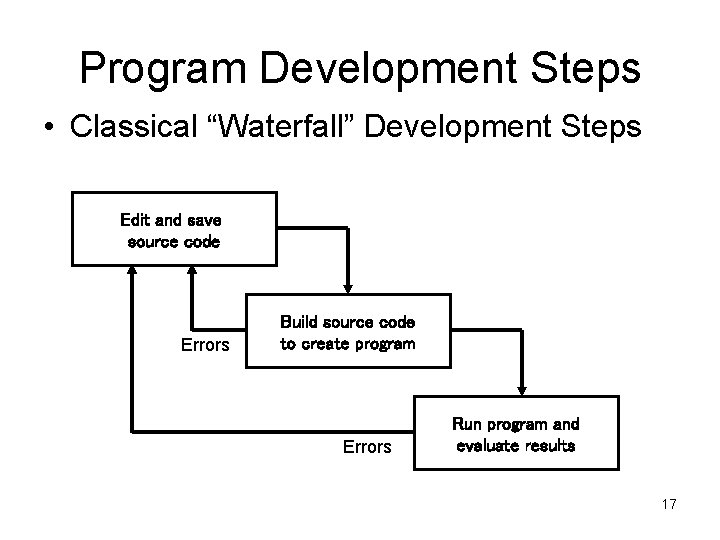
Program Development Steps • Classical “Waterfall” Development Steps Edit and save source code Errors Build source code to create program Errors Run program and evaluate results 17
Errors • A program can have three types of errors: • The IDE editor and/or compiler will find syntax errors and other basic problems (compile-time errors) – If compile-time errors exist, an executable version of the program is not created • A problem can occur during program execution, such as trying to divide by zero, which causes a program to terminate abnormally (run-time errors) • A program may run, but produce incorrect results, perhaps using an incorrect formula (logical errors) 18
- Slides: 18