
CRM Recruit Training Guide International Agents International Agents





- Slides: 59
CRM Recruit Training Guide International Agents
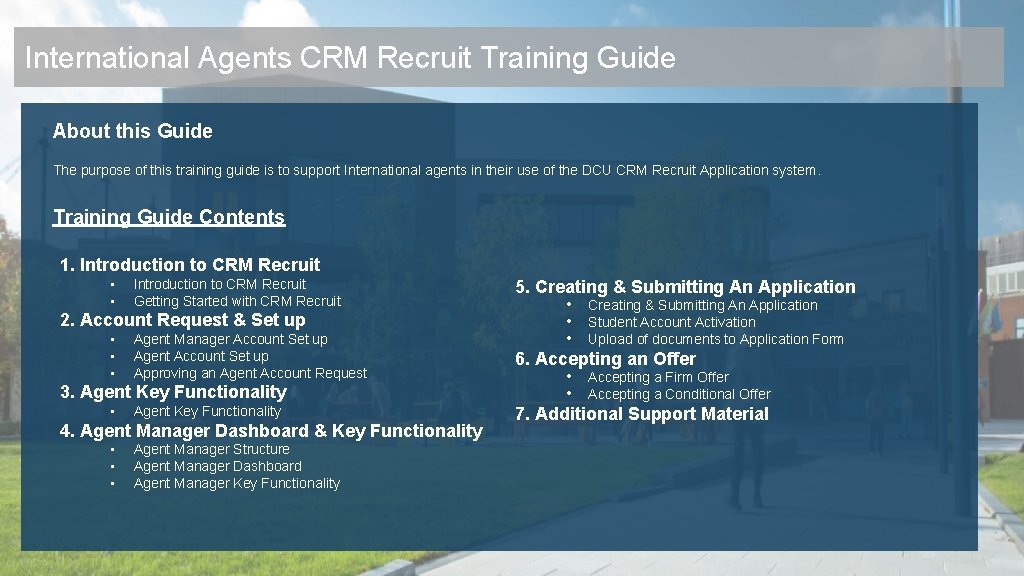
International Agents CRM Recruit Training Guide Agent CRM Recruit Training Guide Contents About this Guide The purpose of this training guide is to support International agents in their use of the DCU CRM Recruit Application system. Training Guide Contents 1. Introduction to CRM Recruit • • Introduction to CRM Recruit Getting Started with CRM Recruit 2. Account Request & Set up • • • Agent Manager Account Set up Agent Account Set up Approving an Agent Account Request 3. Agent Key Functionality • Agent Key Functionality 4. Agent Manager Dashboard & Key Functionality • • • Agent Manager Structure Agent Manager Dashboard Agent Manager Key Functionality 5. Creating & Submitting An Application • Student Account Activation • Upload of documents to Application Form 6. Accepting an Offer • Accepting a Firm Offer • Accepting a Conditional Offer 7. Additional Support Material
Introduction to CRM Recruit 1
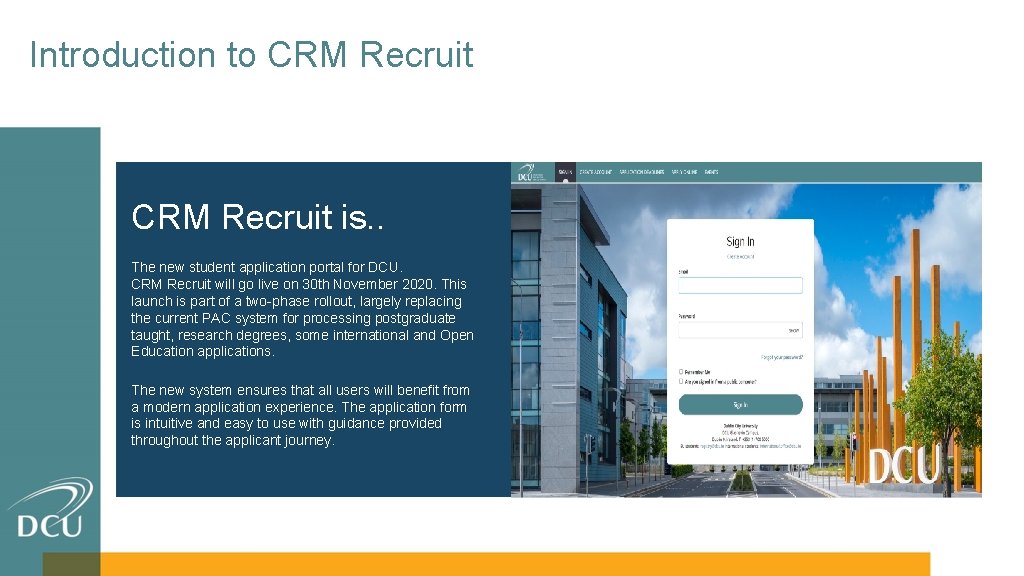
Introduction to CRM Recruit is. . The new student application portal for DCU. CRM Recruit will go live on 30 th November 2020. This launch is part of a two-phase rollout, largely replacing the current PAC system for processing postgraduate taught, research degrees, some international and Open Education applications. The new system ensures that all users will benefit from a modern application experience. The application form is intuitive and easy to use with guidance provided throughout the applicant journey.
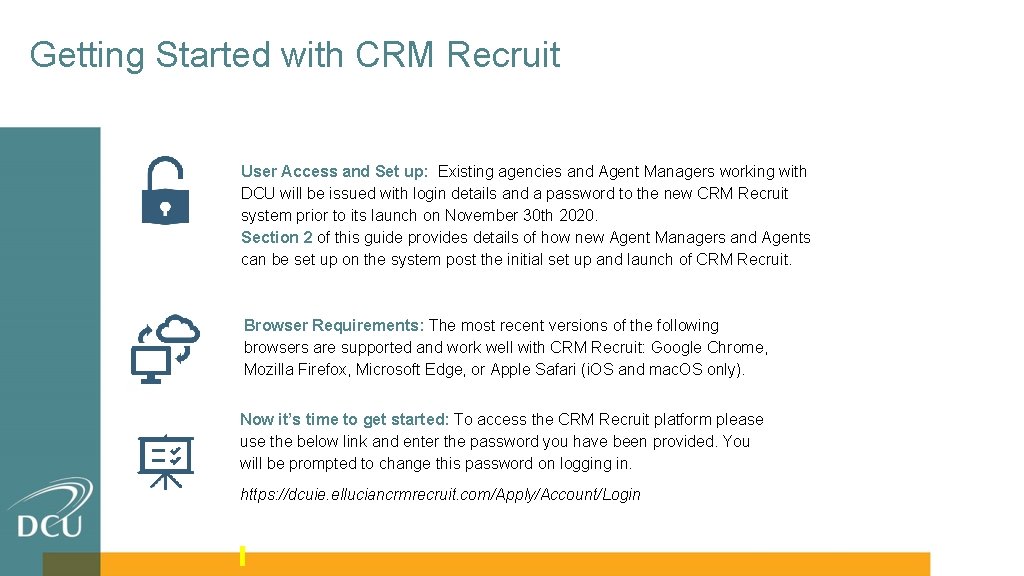
Getting Started with CRM Recruit User Access and Set up: Existing agencies and Agent Managers working with DCU will be issued with login details and a password to the new CRM Recruit system prior to its launch on November 30 th 2020. Section 2 of this guide provides details of how new Agent Managers and Agents can be set up on the system post the initial set up and launch of CRM Recruit. Browser Requirements: The most recent versions of the following browsers are supported and work well with CRM Recruit: Google Chrome, Mozilla Firefox, Microsoft Edge, or Apple Safari (i. OS and mac. OS only). Now it’s time to get started: To access the CRM Recruit platform please use the below link and enter the password you have been provided. You will be prompted to change this password on logging in. https: //dcuie. elluciancrmrecruit. com/Apply/Account/Login
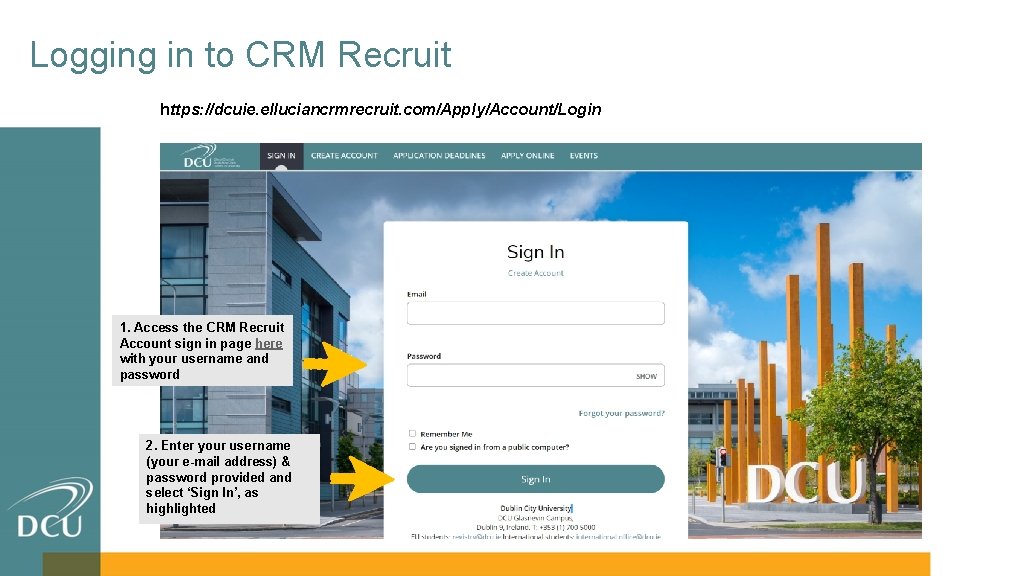
Logging in to CRM Recruit https: //dcuie. elluciancrmrecruit. com/Apply/Account/Login 1. Access the CRM Recruit Account sign in page here with your username and password 2. Enter your username (your e-mail address) & password provided and select ‘Sign In’, as highlighted
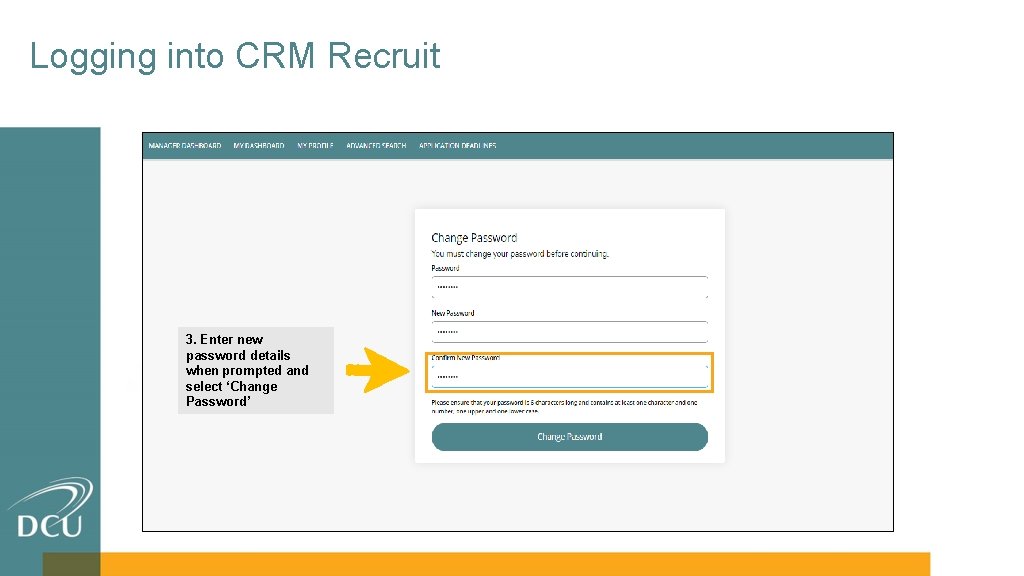
Logging into CRM Recruit 3. Enter new password details when prompted and select ‘Change Password’
Account Request & Set up 2
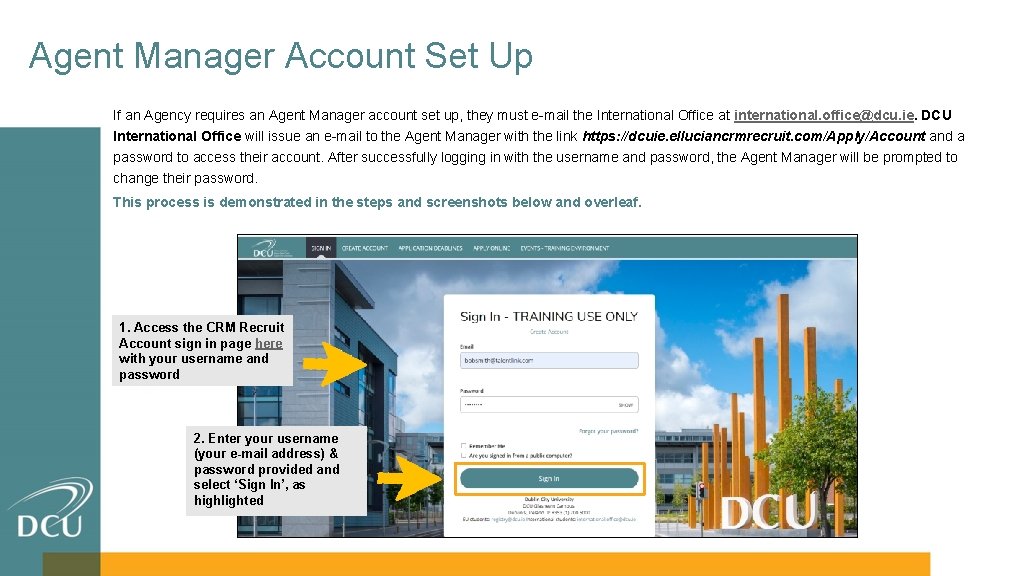
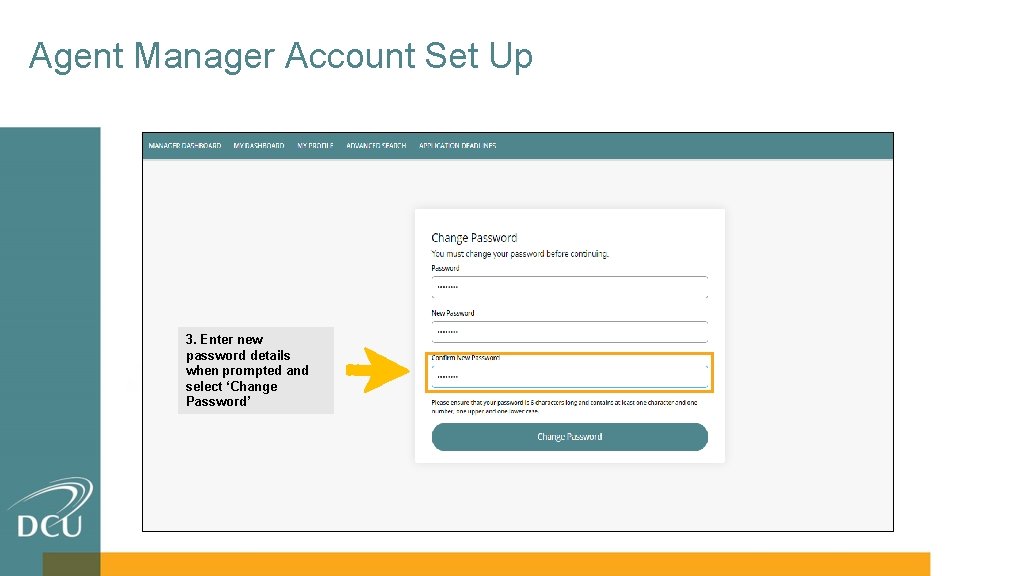
Agent Manager Account Set Up If an Agency requires an Agent Manager account set up, they must e-mail the International Office at international. office@dcu. ie. DCU International Office will issue an e-mail to the Agent Manager with the link https: //dcuie. elluciancrmrecruit. com/Apply/Account and a password to access their account. After successfully logging in with the username and password, the Agent Manager will be prompted to change their password. This process is demonstrated in the steps and screenshots below and overleaf. 1. Access the CRM Recruit Account sign in page here with your username and password 2. Enter your username (your e-mail address) & password provided and select ‘Sign In’, as highlighted
Agent Manager Account Set Up 3. Enter new password details when prompted and select ‘Change Password’
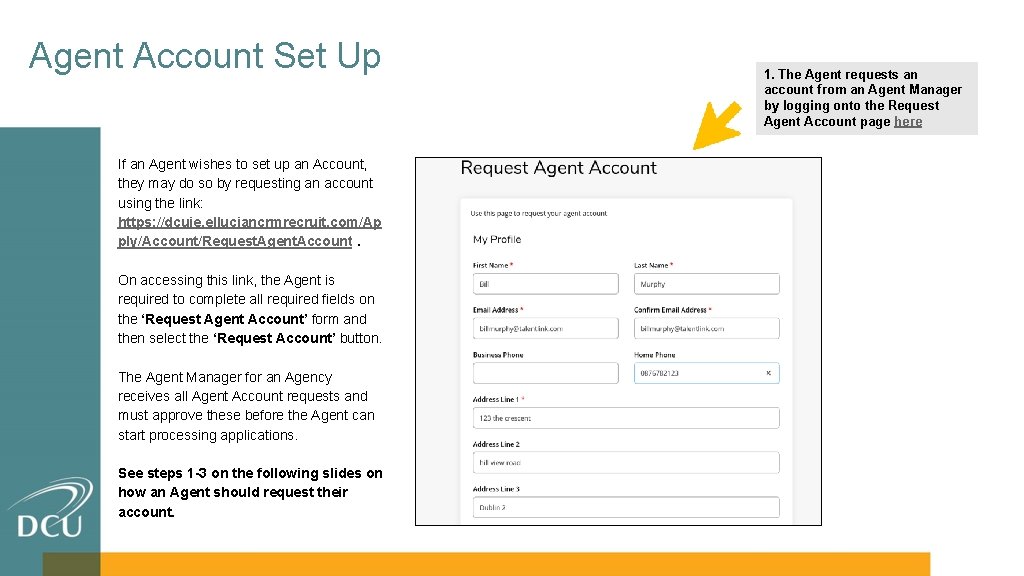
Agent Account Set Up If an Agent wishes to set up an Account, they may do so by requesting an account using the link: https: //dcuie. elluciancrmrecruit. com/Ap ply/Account/Request. Agent. Account. On accessing this link, the Agent is required to complete all required fields on the ‘Request Agent Account’ form and then select the ‘Request Account’ button. The Agent Manager for an Agency receives all Agent Account requests and must approve these before the Agent can start processing applications. See steps 1 -3 on the following slides on how an Agent should request their account. 1. The Agent requests an account from an Agent Manager by logging onto the Request Agent Account page here
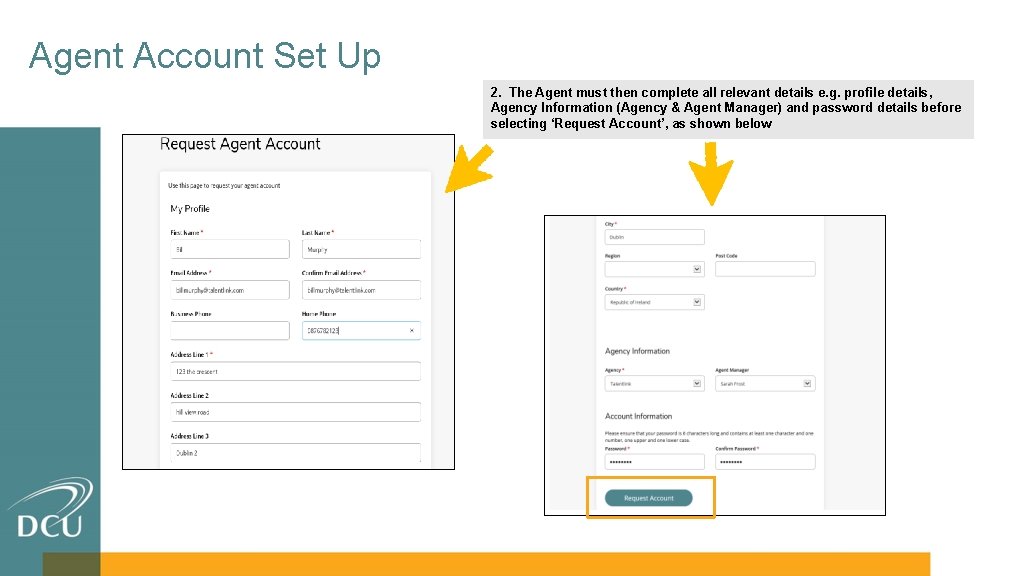
Agent Account Set Up 2. The Agent must then complete all relevant details e. g. profile details, Agency Information (Agency & Agent Manager) and password details before selecting ‘Request Account’, as shown below
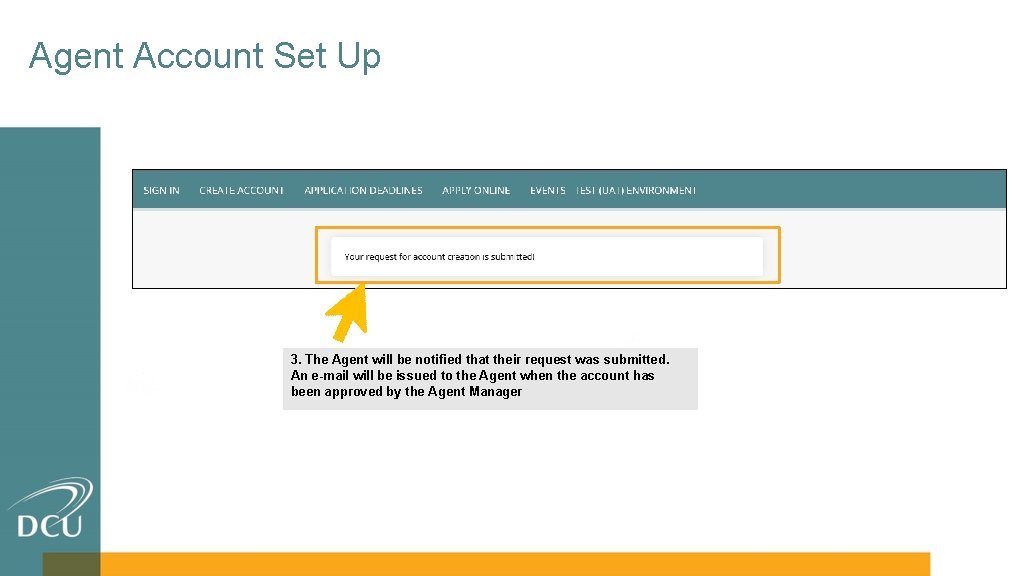
Agent Account Set Up 3. The Agent will be notified that their request was submitted. An e-mail will be issued to the Agent when the account has been approved by the Agent Manager
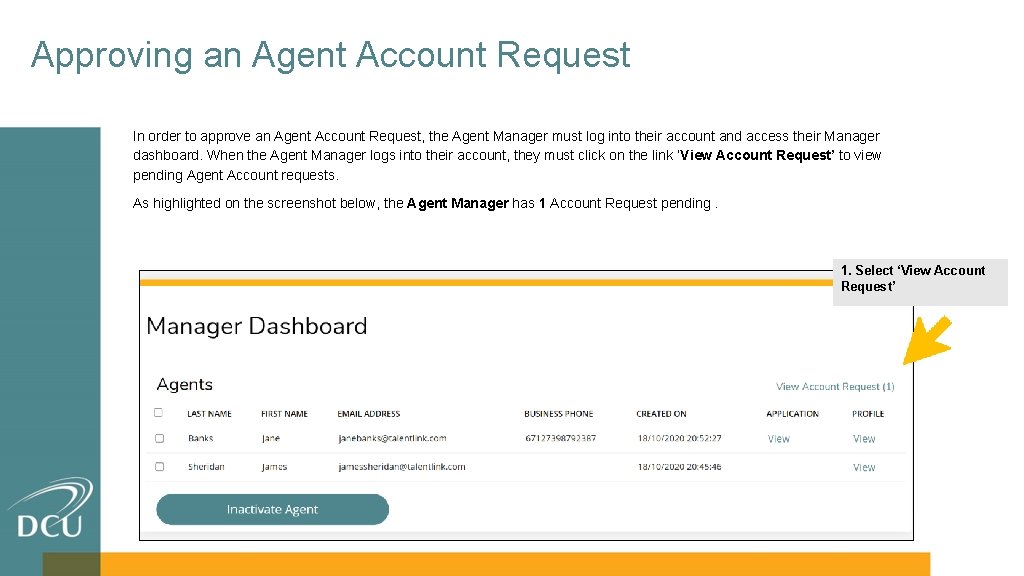
Approving an Agent Account Request In order to approve an Agent Account Request, the Agent Manager must log into their account and access their Manager dashboard. When the Agent Manager logs into their account, they must click on the link ‘View Account Request’ to view pending Agent Account requests. As highlighted on the screenshot below, the Agent Manager has 1 Account Request pending. 1. Select ‘View Account Request’
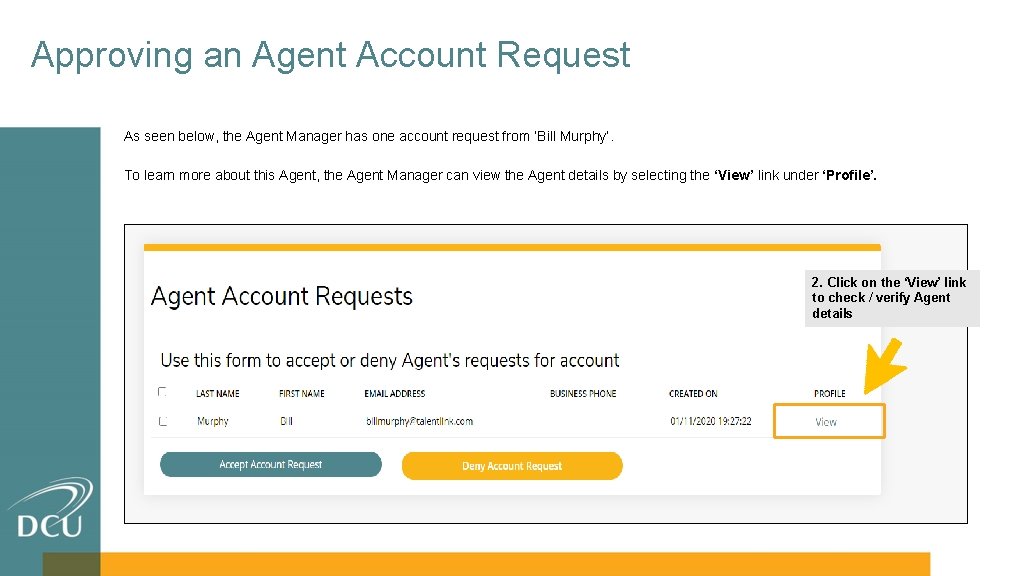
Approving an Agent Account Request As seen below, the Agent Manager has one account request from ‘Bill Murphy’. To learn more about this Agent, the Agent Manager can view the Agent details by selecting the ‘View’ link under ‘Profile’. 2. Click on the ‘View’ link to check / verify Agent details
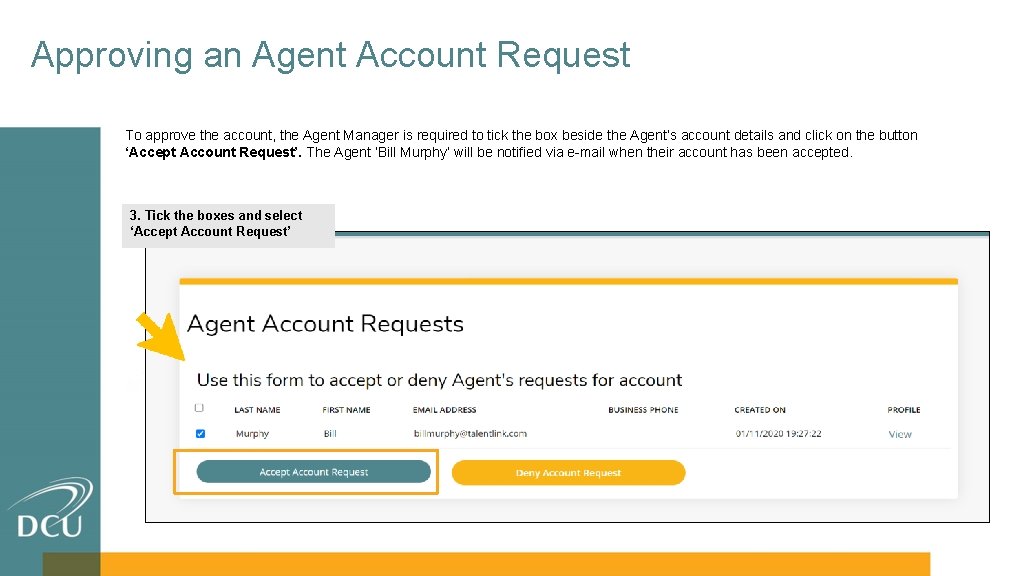
Approving an Agent Account Request To approve the account, the Agent Manager is required to tick the box beside the Agent’s account details and click on the button ‘Accept Account Request’. The Agent ‘Bill Murphy’ will be notified via e-mail when their account has been accepted. 3. Tick the boxes and select ‘Accept Account Request’
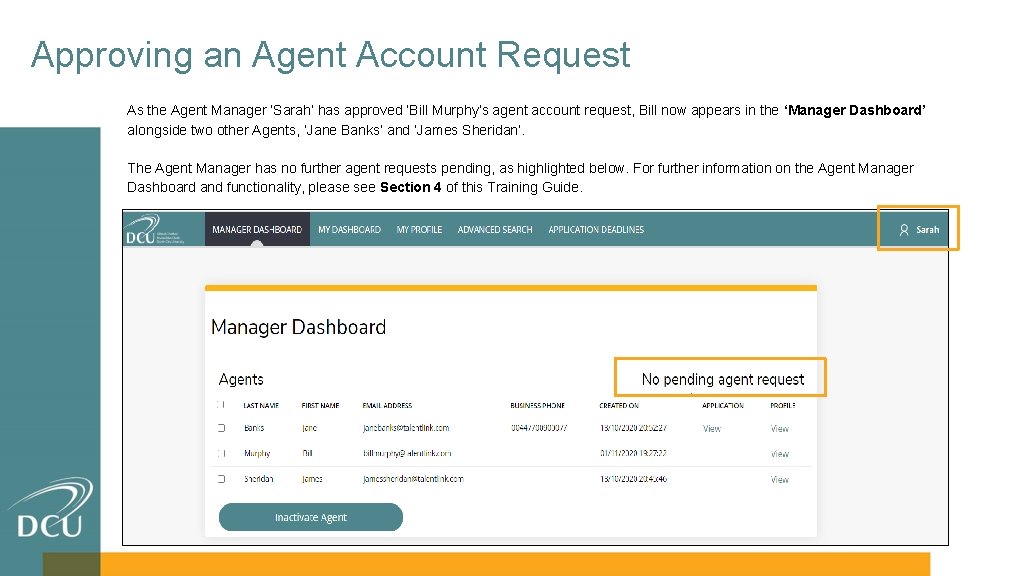
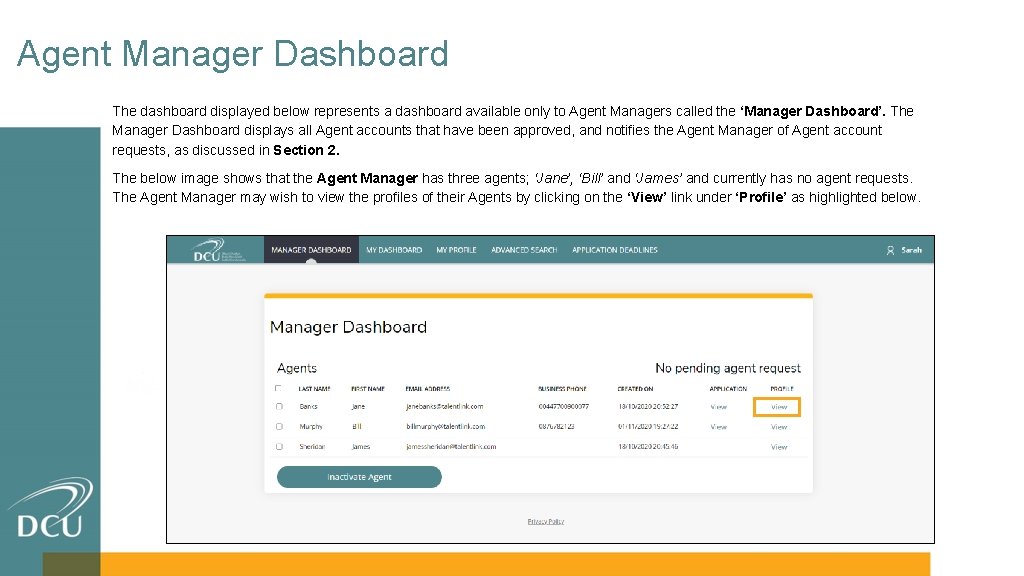
Approving an Agent Account Request As the Agent Manager ‘Sarah’ has approved ‘Bill Murphy’s agent account request, Bill now appears in the ‘Manager Dashboard’ alongside two other Agents, ‘Jane Banks’ and ‘James Sheridan’. The Agent Manager has no further agent requests pending, as highlighted below. For further information on the Agent Manager Dashboard and functionality, please see Section 4 of this Training Guide.
Agent Key Functionality 3
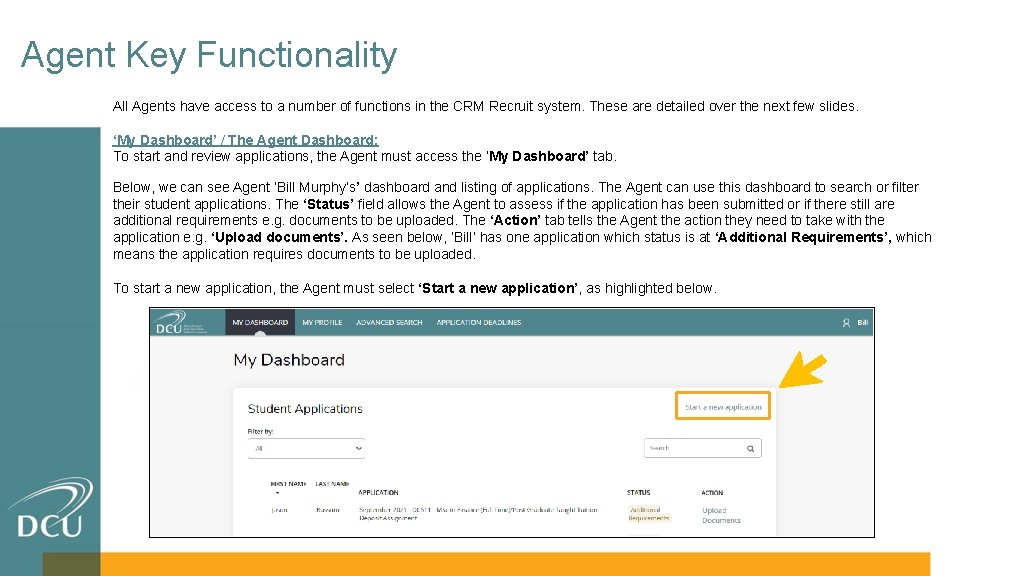
Agent Key Functionality All Agents have access to a number of functions in the CRM Recruit system. These are detailed over the next few slides. ‘My Dashboard’ / The Agent Dashboard: To start and review applications, the Agent must access the ‘My Dashboard’ tab. Below, we can see Agent ‘Bill Murphy’s’ dashboard and listing of applications. The Agent can use this dashboard to search or filter their student applications. The ‘Status’ field allows the Agent to assess if the application has been submitted or if there still are additional requirements e. g. documents to be uploaded. The ‘Action’ tab tells the Agent the action they need to take with the application e. g. ‘Upload documents’. As seen below, ‘Bill’ has one application which status is at ‘Additional Requirements’, which means the application requires documents to be uploaded. To start a new application, the Agent must select ‘Start a new application’, as highlighted below.
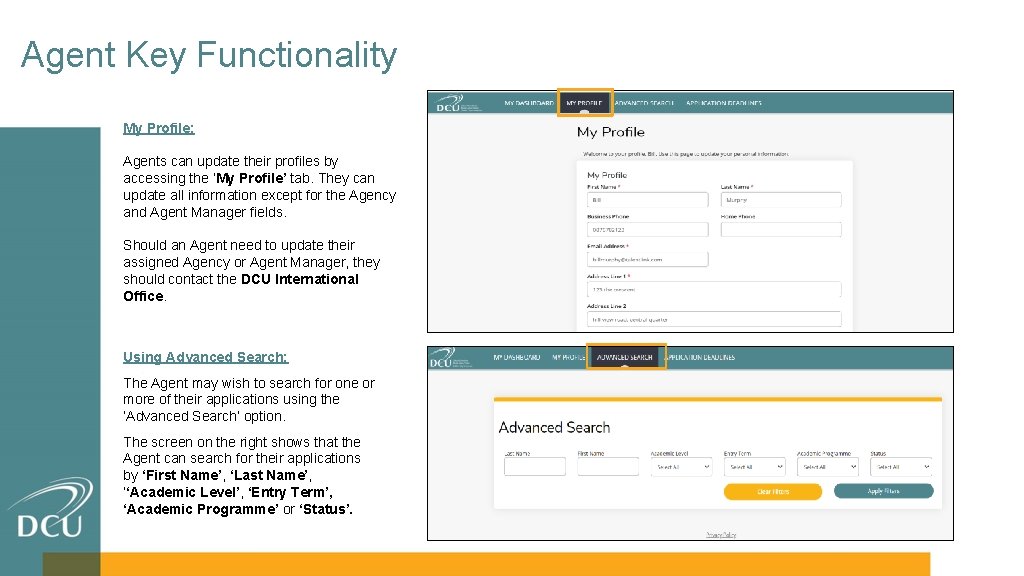
Agent Key Functionality My Profile: Agents can update their profiles by accessing the ‘My Profile’ tab. They can update all information except for the Agency and Agent Manager fields. Should an Agent need to update their assigned Agency or Agent Manager, they should contact the DCU International Office. Using Advanced Search: The Agent may wish to search for one or more of their applications using the ‘Advanced Search’ option. The screen on the right shows that the Agent can search for their applications by ‘First Name’, ‘Last Name’, ‘‘Academic Level’, ‘Entry Term’, ‘Academic Programme’ or ‘Status’.
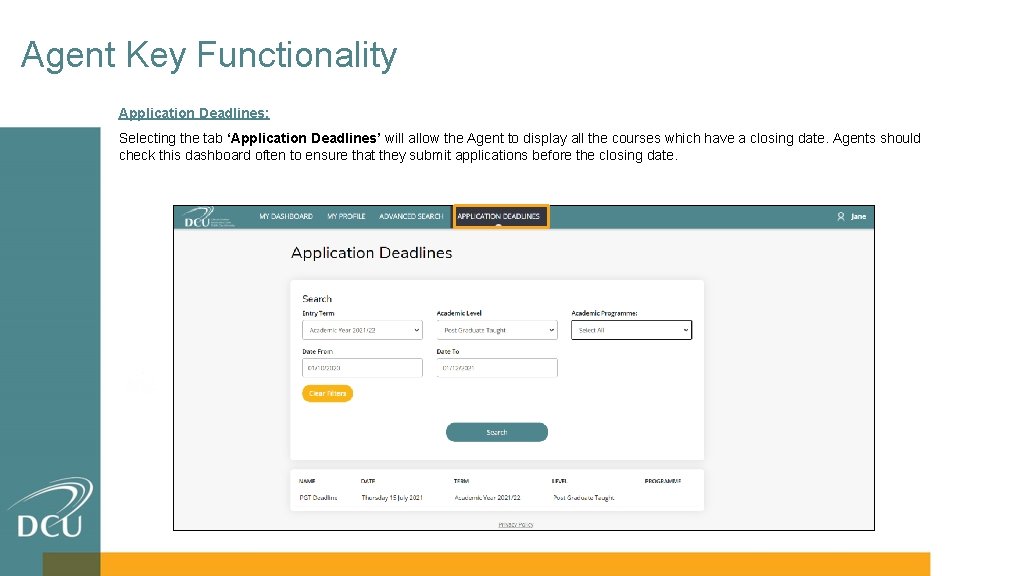
Agent Key Functionality Application Deadlines: Selecting the tab ‘Application Deadlines’ will allow the Agent to display all the courses which have a closing date. Agents should check this dashboard often to ensure that they submit applications before the closing date.
Agent Manager Dashboard & Key Functionality 4
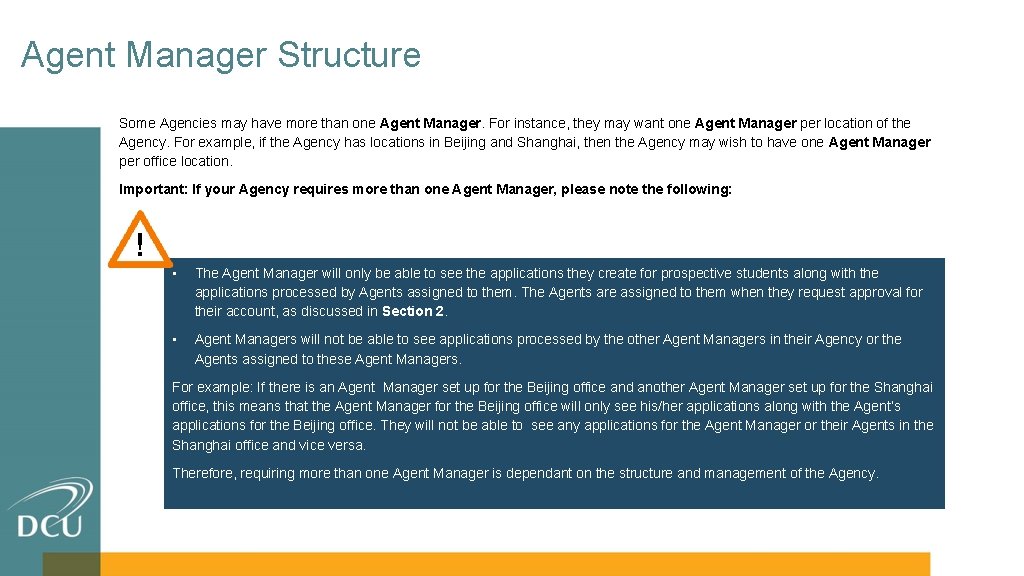
Agent Manager Structure Some Agencies may have more than one Agent Manager. For instance, they may want one Agent Manager per location of the Agency. For example, if the Agency has locations in Beijing and Shanghai, then the Agency may wish to have one Agent Manager per office location. Important: If your Agency requires more than one Agent Manager, please note the following: ! ▪ The Agent Manager will only be able to see the applications they create for prospective students along with the applications processed by Agents assigned to them. The Agents are assigned to them when they request approval for their account, as discussed in Section 2. ▪ Agent Managers will not be able to see applications processed by the other Agent Managers in their Agency or the Agents assigned to these Agent Managers. For example: If there is an Agent Manager set up for the Beijing office and another Agent Manager set up for the Shanghai office, this means that the Agent Manager for the Beijing office will only see his/her applications along with the Agent’s applications for the Beijing office. They will not be able to see any applications for the Agent Manager or their Agents in the Shanghai office and vice versa. Therefore, requiring more than one Agent Manager is dependant on the structure and management of the Agency.
Agent Manager Dashboard The dashboard displayed below represents a dashboard available only to Agent Managers called the ‘Manager Dashboard’. The Manager Dashboard displays all Agent accounts that have been approved, and notifies the Agent Manager of Agent account requests, as discussed in Section 2. The below image shows that the Agent Manager has three agents; ‘Jane’, ‘Bill’ and ‘James’ and currently has no agent requests. The Agent Manager may wish to view the profiles of their Agents by clicking on the ‘View’ link under ‘Profile’ as highlighted below. ▪ The Agent Manager will only be able to see the applications they create for prospective students along with the applications processed by Agents assigned to them. The Agents are assigned to them when they request approval for their account which was discussed in the Section 2. ▪ Agent Managers will not be able to see applications processed by the other Agent Managers in their Agency or the Agents assigned to these Agent Managers. For example: If there is an Agent Manager set up for the Beijing Office and another Agent Manager set up for the Shanghai Office, this means that the Agent Manager for the Beijing Office will only see his/her applications along with the agent’s applications for the Beijing Office. They will not be able to see any applications for the Agent Manager or their Agents in the Shanghai Office and vice versa. Therefore, requiring more than one Agent Manager is really dependant on the structure and management of the Agency.
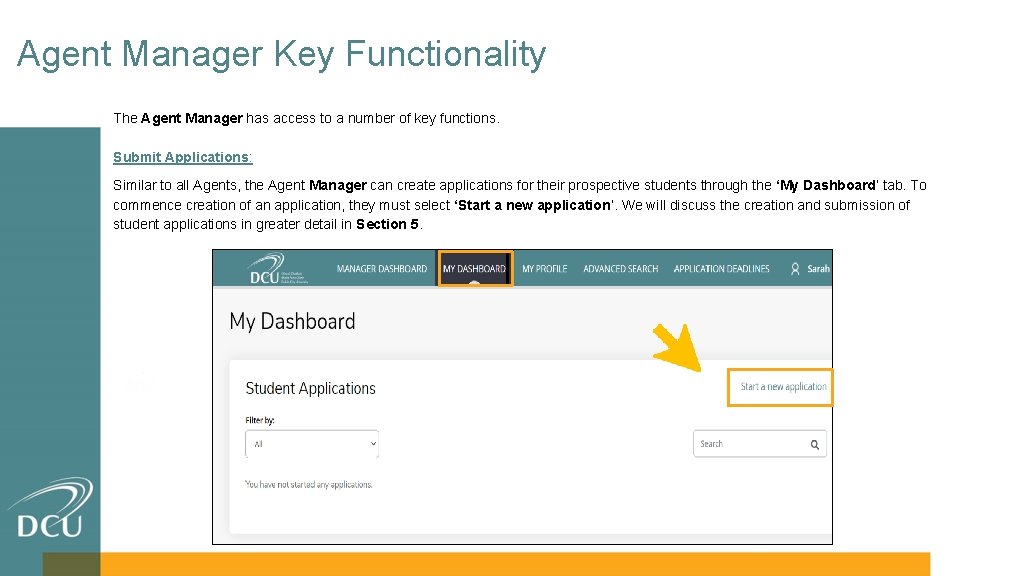
Agent Manager Key Functionality The Agent Manager has access to a number of key functions. Submit Applications: Similar to all Agents, the Agent Manager can create applications for their prospective students through the ‘My Dashboard’ tab. To commence creation of an application, they must select ‘Start a new application’. We will discuss the creation and submission of student applications in greater detail in Section 5.
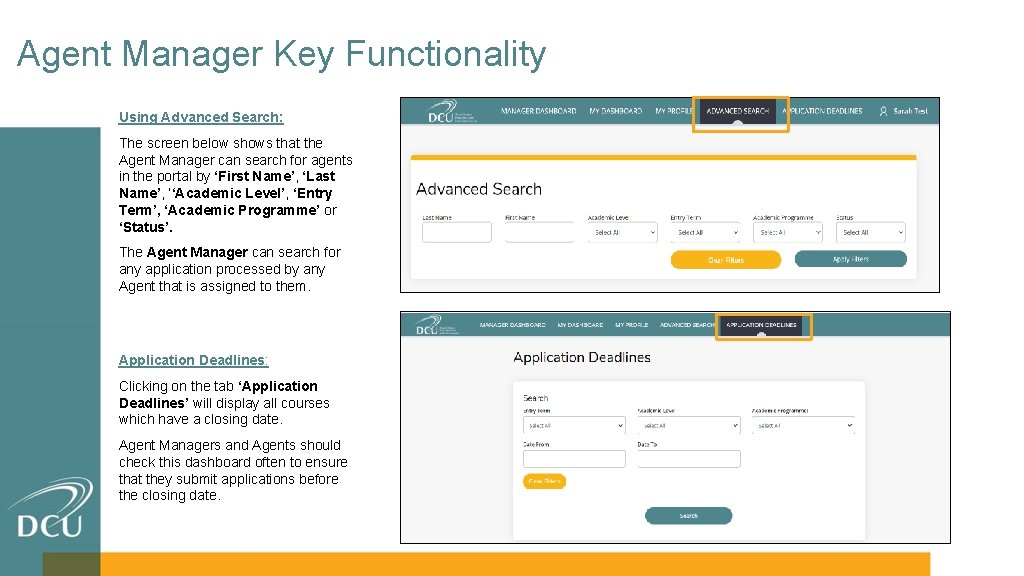
Agent Manager Key Functionality Using Advanced Search: The screen below shows that the Agent Manager can search for agents in the portal by ‘First Name’, ‘Last Name’, ‘‘Academic Level’, ‘Entry Term’, ‘Academic Programme’ or ‘Status’. The Agent Manager can search for any application processed by any Agent that is assigned to them. Application Deadlines: Clicking on the tab ‘Application Deadlines’ will display all courses which have a closing date. Agent Managers and Agents should check this dashboard often to ensure that they submit applications before the closing date.
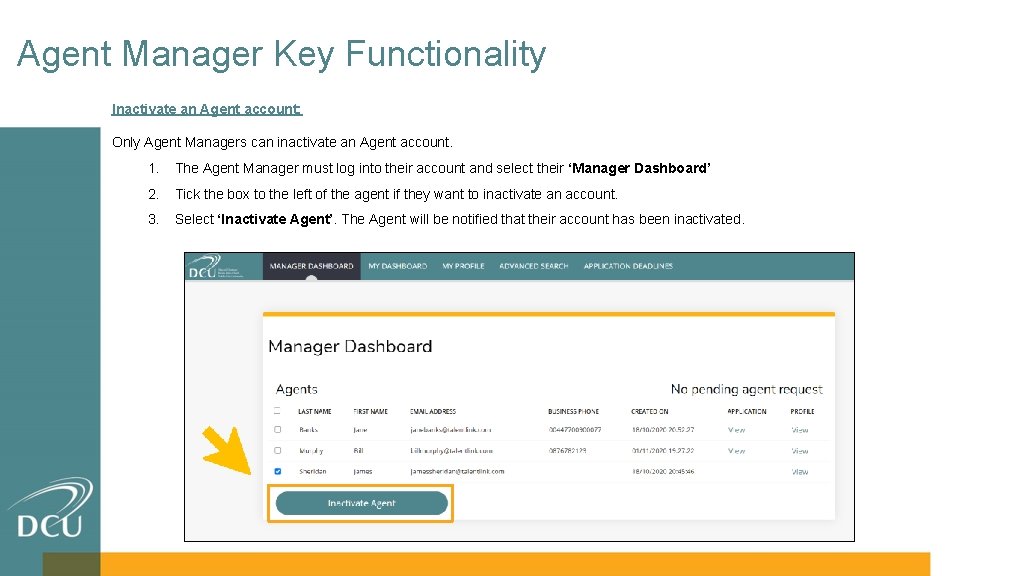
Agent Manager Key Functionality Inactivate an Agent account: Only Agent Managers can inactivate an Agent account. 1. The Agent Manager must log into their account and select their ‘Manager Dashboard’ 2. Tick the box to the left of the agent if they want to inactivate an account. 3. Select ‘Inactivate Agent’. The Agent will be notified that their account has been inactivated.
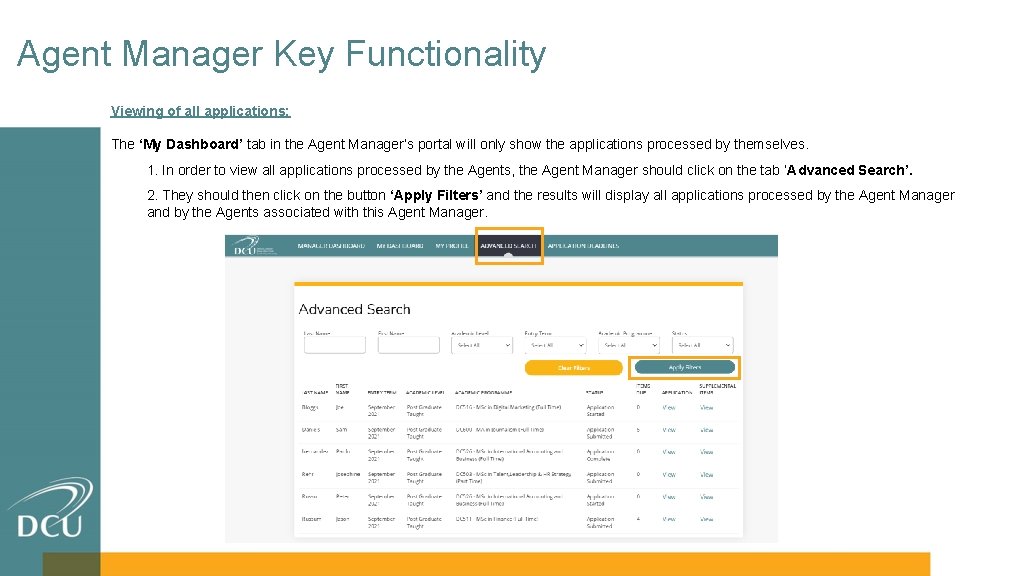
Agent Manager Key Functionality Viewing of all applications: The ‘My Dashboard’ tab in the Agent Manager’s portal will only show the applications processed by themselves. 1. In order to view all applications processed by the Agents, the Agent Manager should click on the tab ‘Advanced Search’. 2. They should then click on the button ‘Apply Filters’ and the results will display all applications processed by the Agent Manager and by the Agents associated with this Agent Manager.
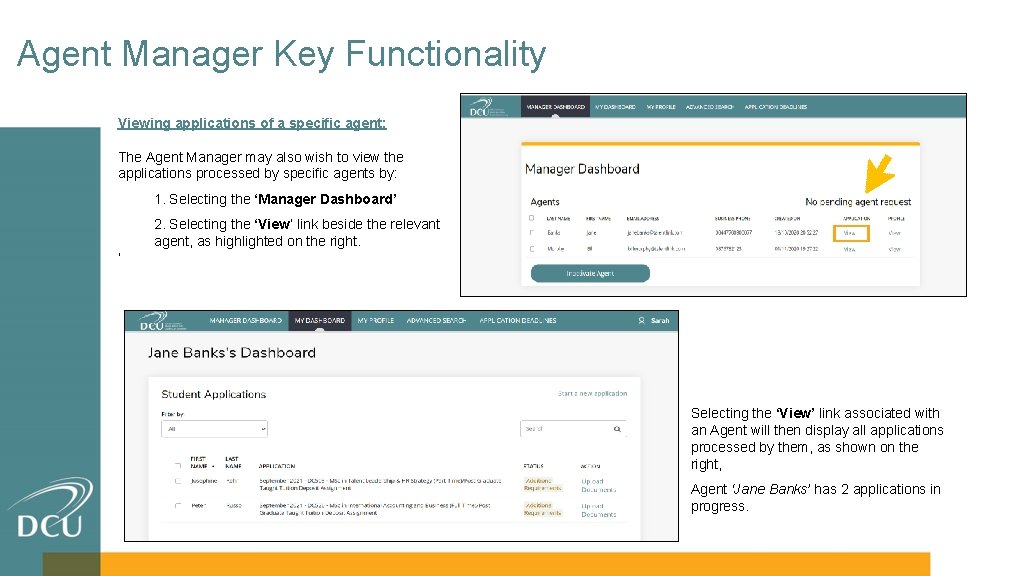
Agent Manager Key Functionality Viewing applications of a specific agent: The Agent Manager may also wish to view the applications processed by specific agents by: 1. Selecting the ‘Manager Dashboard’ 2. Selecting the ‘View’ link beside the relevant agent, as highlighted on the right. ’ Selecting the ‘View’ link associated with an Agent will then display all applications processed by them, as shown on the right, Agent ‘Jane Banks’ has 2 applications in progress.
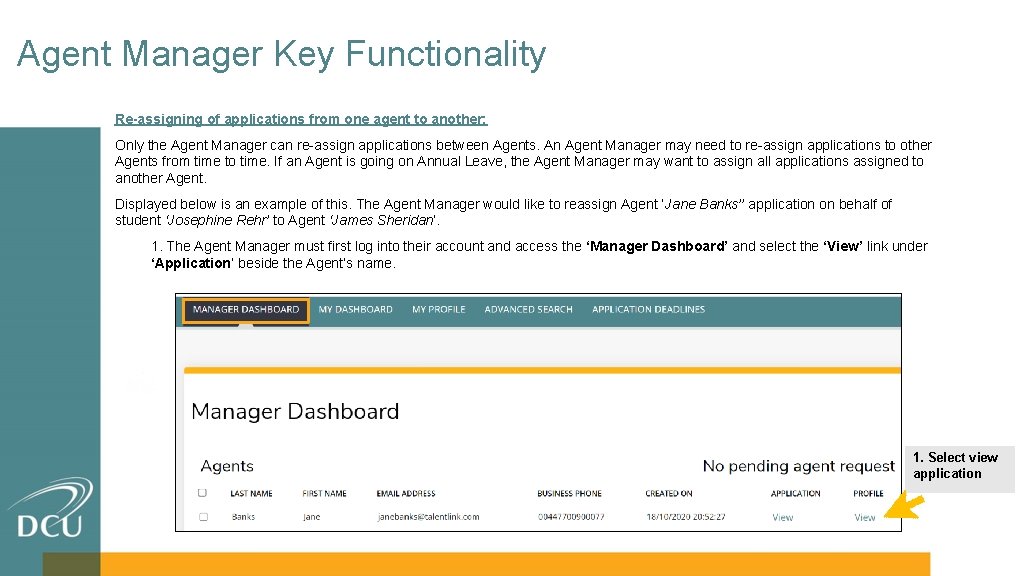
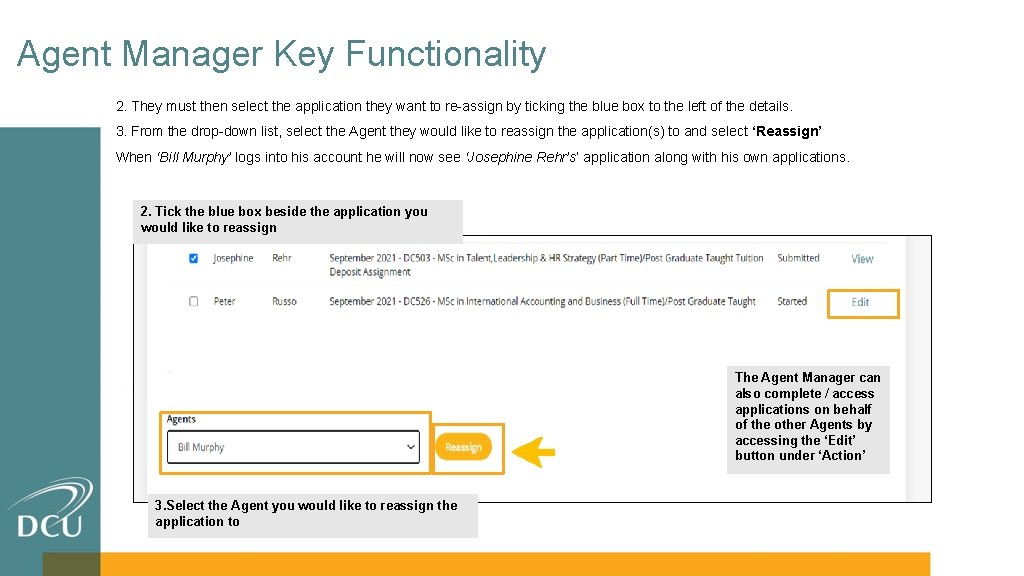
Agent Manager Key Functionality Re-assigning of applications from one agent to another: Only the Agent Manager can re-assign applications between Agents. An Agent Manager may need to re-assign applications to other Agents from time to time. If an Agent is going on Annual Leave, the Agent Manager may want to assign all applications assigned to another Agent. Displayed below is an example of this. The Agent Manager would like to reassign Agent ‘Jane Banks’’ application on behalf of student ‘Josephine Rehr’ to Agent ‘James Sheridan’. 1. The Agent Manager must first log into their account and access the ‘Manager Dashboard’ and select the ‘View’ link under ‘Application’ beside the Agent’s name. ▪ The Agent Manager will only be able to see the applications they create for prospective students along with the applications processed by Agents assigned to them. The Agents are assigned to them when they request approval for their account which was discussed in the Section 2. ▪ Agent Managers will not be able to see applications processed by the other Agent Managers in their Agency or the Agents assigned to these Agent Managers. For example: If there is an Agent Manager set up for the Beijing Office and another Agent Manager set up for the Shanghai Office, this means that the Agent Manager for the Beijing Office will only see his/her applications along with the agent’s applications for the Beijing Office. They will not be able to see any applications for the Agent Manager or their Agents in the Shanghai Office and vice versa. Therefore, requiring more than one Agent Manager is really dependant on the structure and management of the Agency. 1. Select view application
Agent Manager Key Functionality 2. They must then select the application they want to re-assign by ticking the blue box to the left of the details. 3. From the drop-down list, select the Agent they would like to reassign the application(s) to and select ‘Reassign’ When ‘Bill Murphy’ logs into his account he will now see ‘Josephine Rehr’s’ application along with his own applications. 2. Tick the blue box beside the application you would like to reassign The Agent Manager can also complete / access applications on behalf of the other Agents by accessing the ‘Edit’ button under ‘Action’ 3. Select the Agent you would like to reassign the application to
Creating & Submitting an Application 5
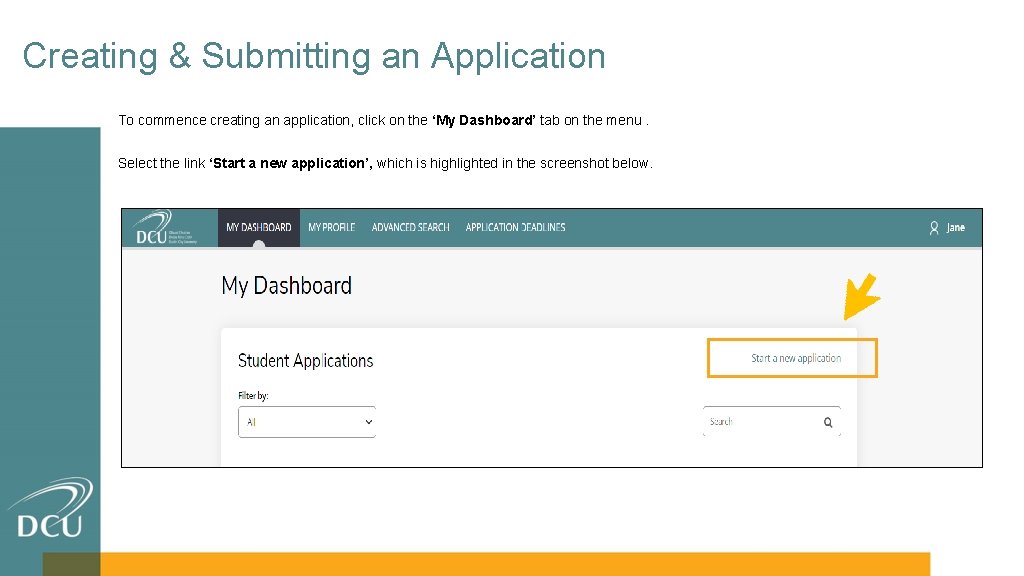
Creating & Submitting an Application To commence creating an application, click on the ‘My Dashboard’ tab on the menu. Select the link ‘Start a new application’, which is highlighted in the screenshot below.
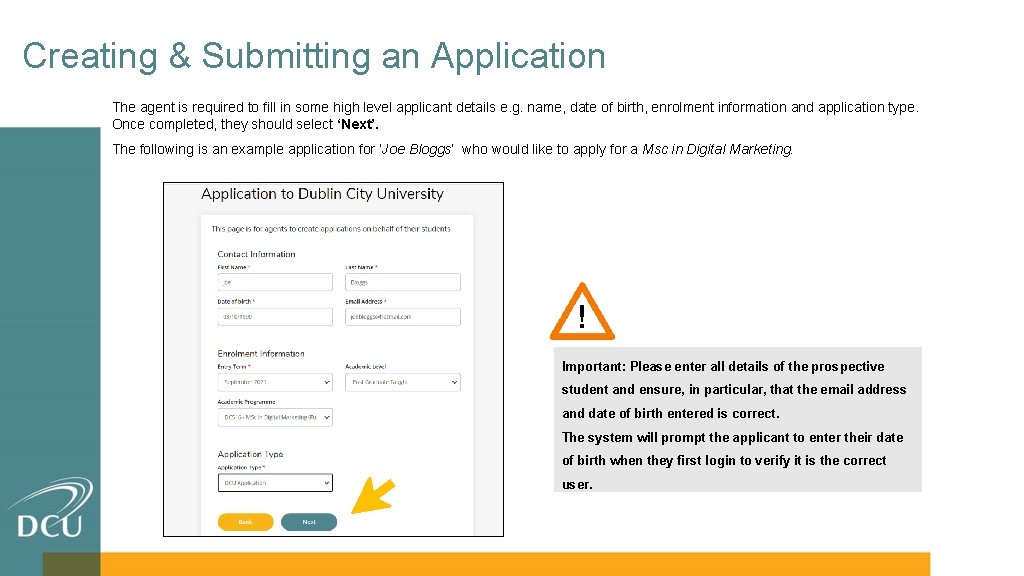
Creating & Submitting an Application The agent is required to fill in some high level applicant details e. g. name, date of birth, enrolment information and application type. Once completed, they should select ‘Next’. The following is an example application for ‘Joe Bloggs’ who would like to apply for a Msc in Digital Marketing. ▪ The Agent Manager will only be able to see the applications they create for prospective students along with the applications processed by Agents assigned to them. The Agents are assigned to them when they request approval for their account which was discussed in the Section 2. ▪ Agent Managers will not be able to see applications processed by the other Agent Managers in their Agency or the Agents assigned to these Agent Managers. ! Important: Please enter all details of the prospective For example: If there is an Agent Manager set up for the Beijing Office and another Agent Manager set up for the Shanghai student and ensure, in particular, that the email address Office, this means that the Agent Manager for the Beijing Office will only see his/her applications along with the agent’s andapplications date of birthfor entered is correct. applications for the Beijing Office. They will not be able to see any the Agent Manager or their Agents in the Shanghai Office and vice versa. The system will prompt the applicant to enter their date of birth when first login verify it is the Therefore, requiring more than one Agent Manager is really dependant on thethey structure andtomanagement of correct the Agency. user.
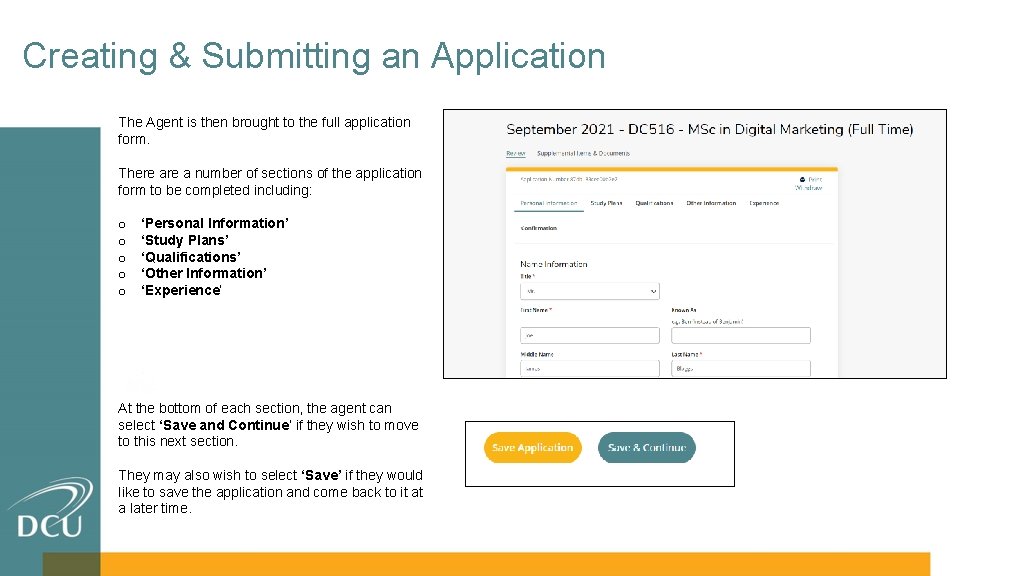
Creating & Submitting an Application The Agent is then brought to the full application form. There a number of sections of the application form to be completed including: o o o ‘Personal Information’ ‘Study Plans’ ‘Qualifications’ ‘Other Information’ ‘Experience’ At the bottom of each section, the agent can select ‘Save and Continue’ if they wish to move to this next section. They may also wish to select ‘Save’ if they would like to save the application and come back to it at a later time.
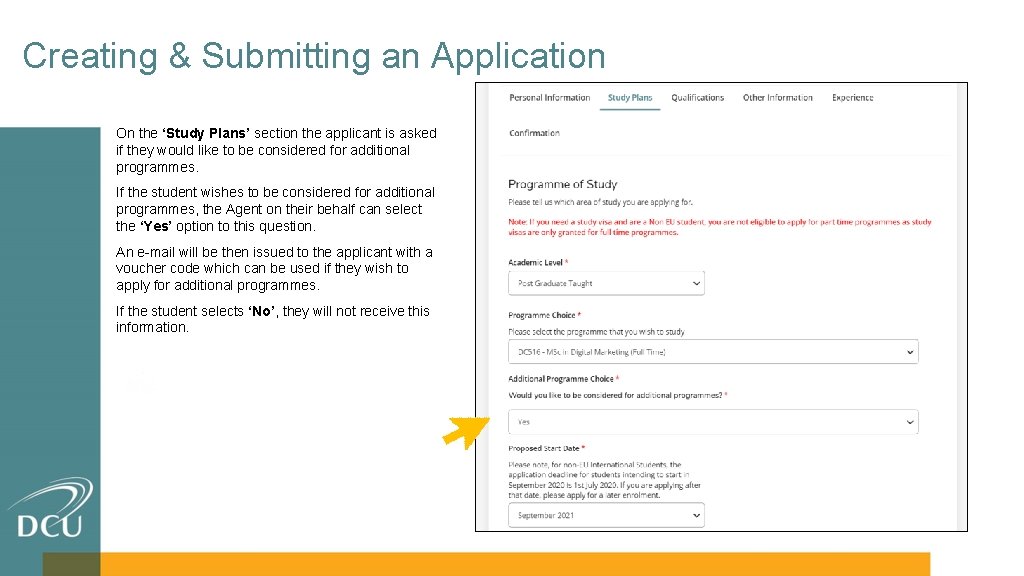
Creating & Submitting an Application On the ‘Study Plans’ section the applicant is asked if they would like to be considered for additional programmes. If the student wishes to be considered for additional programmes, the Agent on their behalf can select the ‘Yes’ option to this question. An e-mail will be then issued to the applicant with a voucher code which can be used if they wish to apply for additional programmes. If the student selects ‘No’, they will not receive this information.
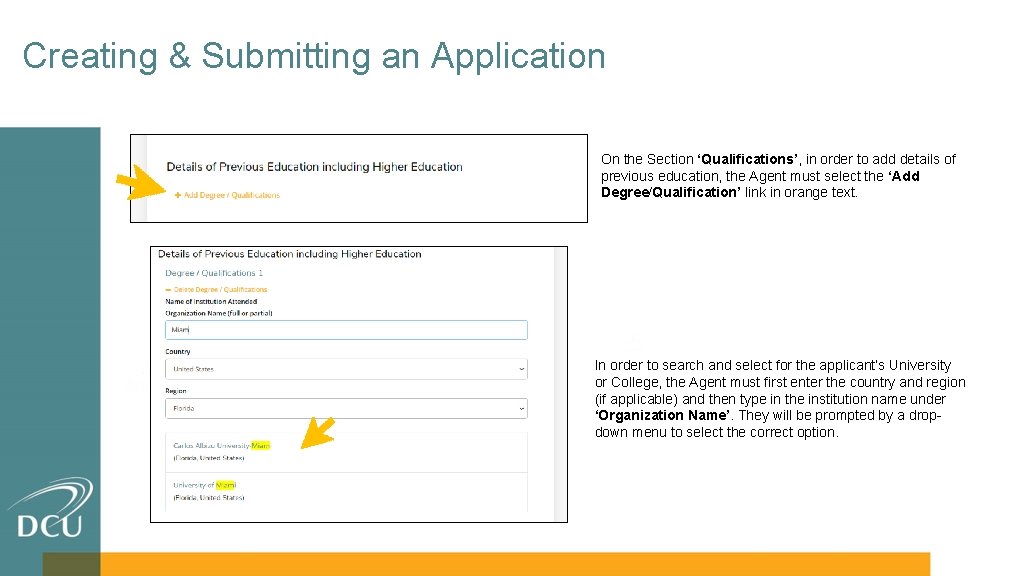
Creating & Submitting an Application On the Section ‘Qualifications’, in order to add details of previous education, the Agent must select the ‘Add Degree/Qualification’ link in orange text. In order to search and select for the applicant’s University or College, the Agent must first enter the country and region (if applicable) and then type in the institution name under ‘Organization Name’. They will be prompted by a dropdown menu to select the correct option.
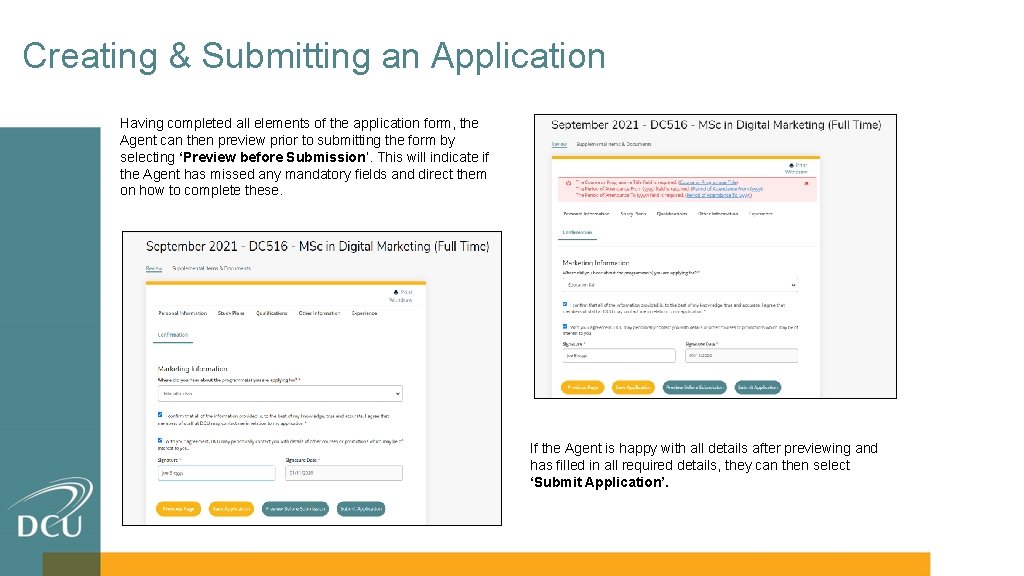
Creating & Submitting an Application Having completed all elements of the application form, the Agent can then preview prior to submitting the form by selecting ‘Preview before Submission’. This will indicate if the Agent has missed any mandatory fields and direct them on how to complete these. If the Agent is happy with all details after previewing and has filled in all required details, they can then select ‘Submit Application’.
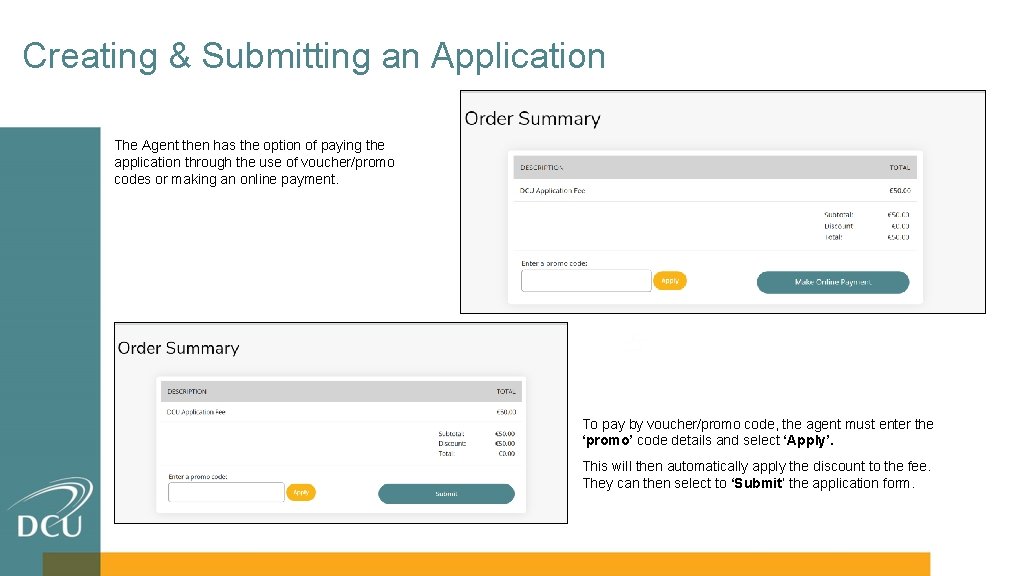
Creating & Submitting an Application The Agent then has the option of paying the application through the use of voucher/promo codes or making an online payment. To pay by voucher/promo code, the agent must enter the ‘promo’ code details and select ‘Apply’. This will then automatically apply the discount to the fee. They can then select to ‘Submit’ the application form.
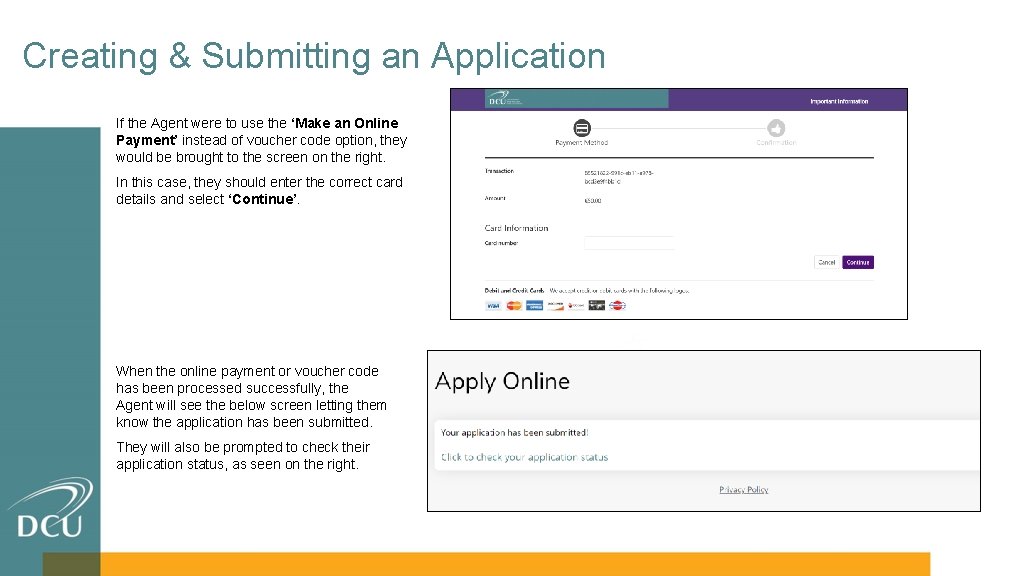
Creating & Submitting an Application If the Agent were to use the ‘Make an Online Payment’ instead of voucher code option, they would be brought to the screen on the right. In this case, they should enter the correct card details and select ‘Continue’. When the online payment or voucher code has been processed successfully, the Agent will see the below screen letting them know the application has been submitted. They will also be prompted to check their application status, as seen on the right.
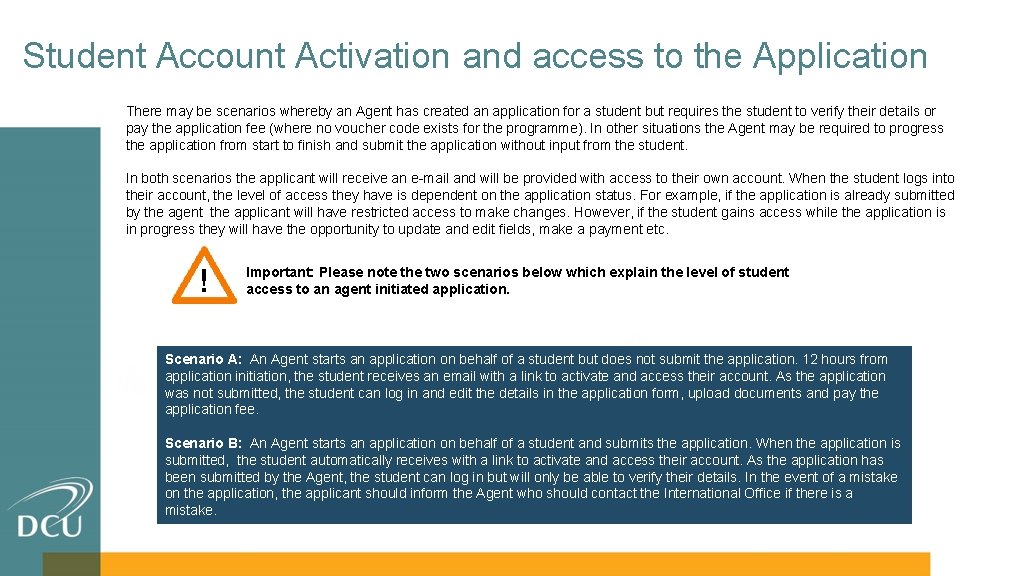
Student Account Activation and access to the Application There may be scenarios whereby an Agent has created an application for a student but requires the student to verify their details or pay the application fee (where no voucher code exists for the programme). In other situations the Agent may be required to progress the application from start to finish and submit the application without input from the student. In both scenarios the applicant will receive an e-mail and will be provided with access to their own account. When the student logs into their account, the level of access they have is dependent on the application status. For example, if the application is already submitted by the agent the applicant will have restricted access to make changes. However, if the student gains access while the application is in progress they will have the opportunity to update and edit fields, make a payment etc. ! Important: Please note the two scenarios below which explain the level of student access to an agent initiated application. Scenario A: An Agent starts an application on behalf of a student but does not submit the application. 12 hours from application initiation, the student receives an email with a link to activate and access their account. As the application was not submitted, the student can log in and edit the details in the application form, upload documents and pay the application fee. Scenario B: An Agent starts an application on behalf of a student and submits the application. When the application is submitted, the student automatically receives with a link to activate and access their account. As the application has been submitted by the Agent, the student can log in but will only be able to verify their details. In the event of a mistake on the application, the applicant should inform the Agent who should contact the International Office if there is a mistake.
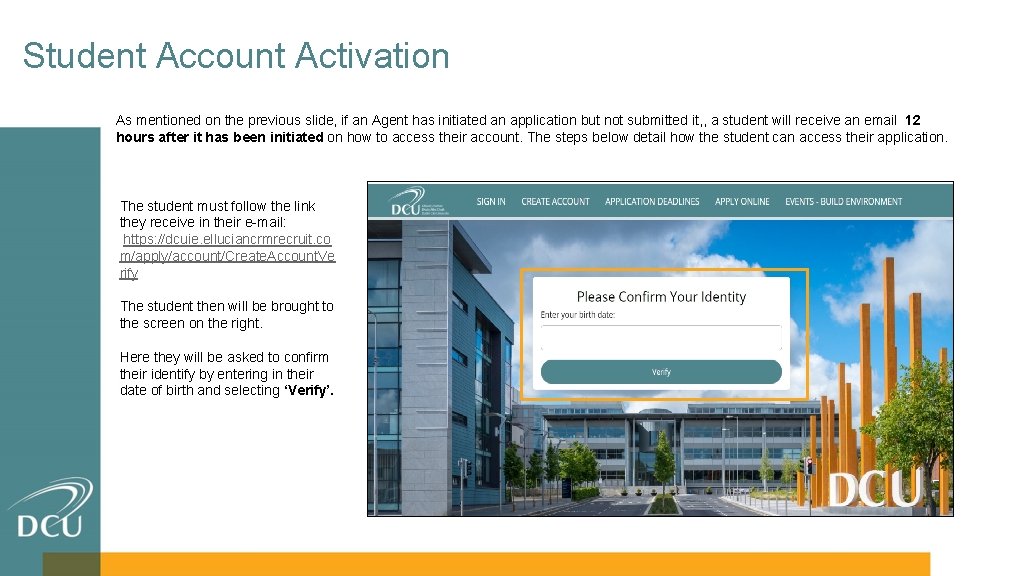
Student Account Activation As mentioned on the previous slide, if an Agent has initiated an application but not submitted it, , a student will receive an email 12 hours after it has been initiated on how to access their account. The steps below detail how the student can access their application. The student must follow the link they receive in their e-mail: https: //dcuie. elluciancrmrecruit. co m/apply/account/Create. Account. Ve rify The student then will be brought to the screen on the right. Here they will be asked to confirm their identify by entering in their date of birth and selecting ‘Verify’.
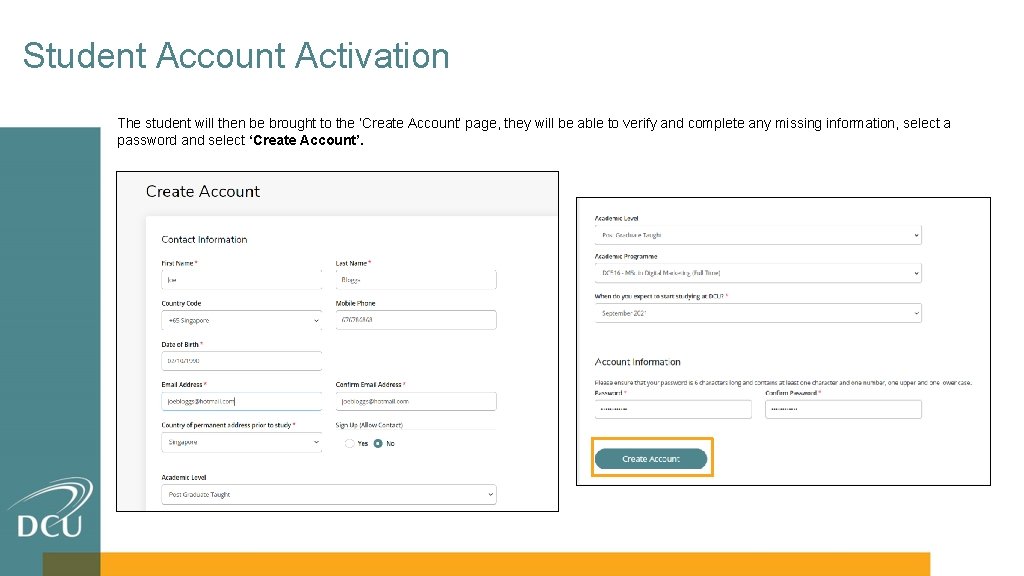
Student Account Activation The student will then be brought to the ‘Create Account’ page, they will be able to verify and complete any missing information, select a password and select ‘Create Account’.
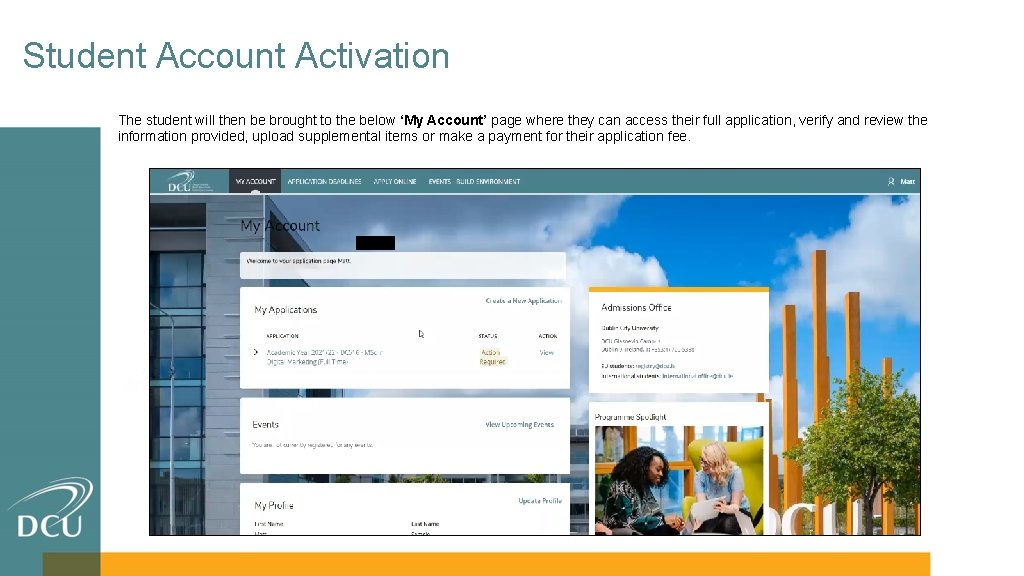
Student Account Activation The student will then be brought to the below ‘My Account’ page where they can access their full application, verify and review the information provided, upload supplemental items or make a payment for their application fee.
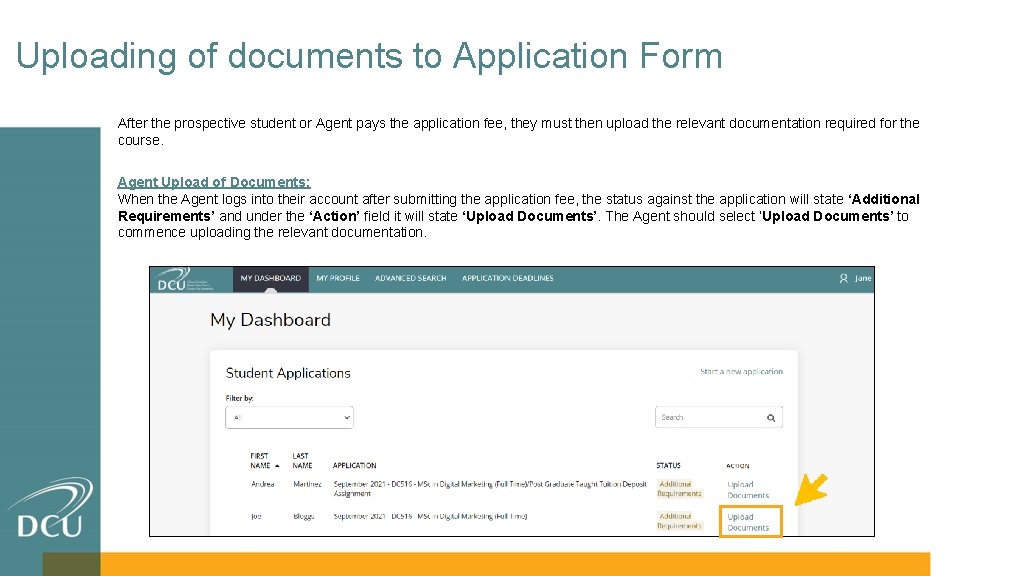
Uploading of documents to Application Form After the prospective student or Agent pays the application fee, they must then upload the relevant documentation required for the course. Agent Upload of Documents: When the Agent logs into their account after submitting the application fee, the status against the application will state ‘Additional Requirements’ and under the ‘Action’ field it will state ‘Upload Documents’. The Agent should select ‘Upload Documents’ to commence uploading the relevant documentation.
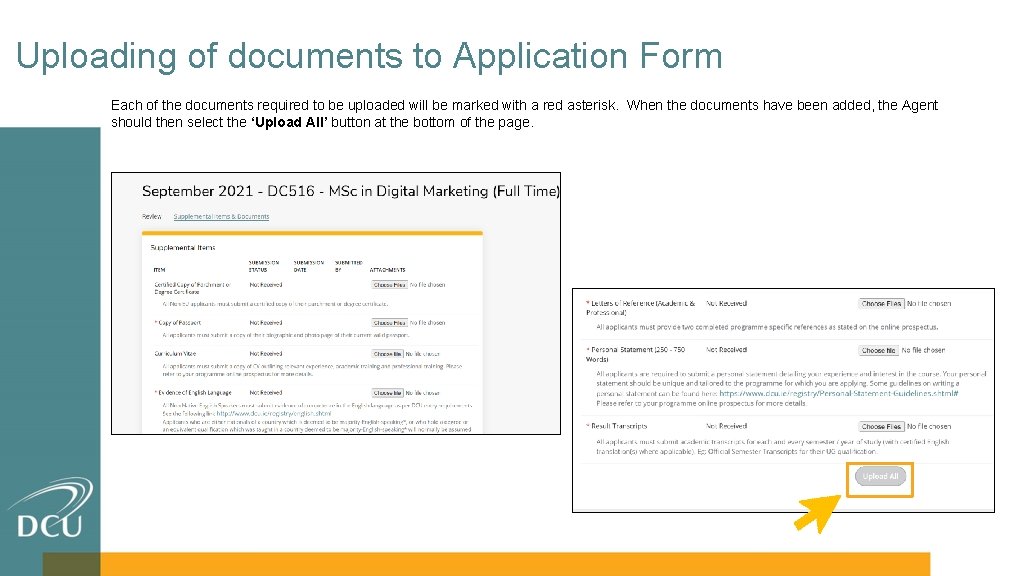
Uploading of documents to Application Form Each of the documents required to be uploaded will be marked with a red asterisk. When the documents have been added, the Agent should then select the ‘Upload All’ button at the bottom of the page.
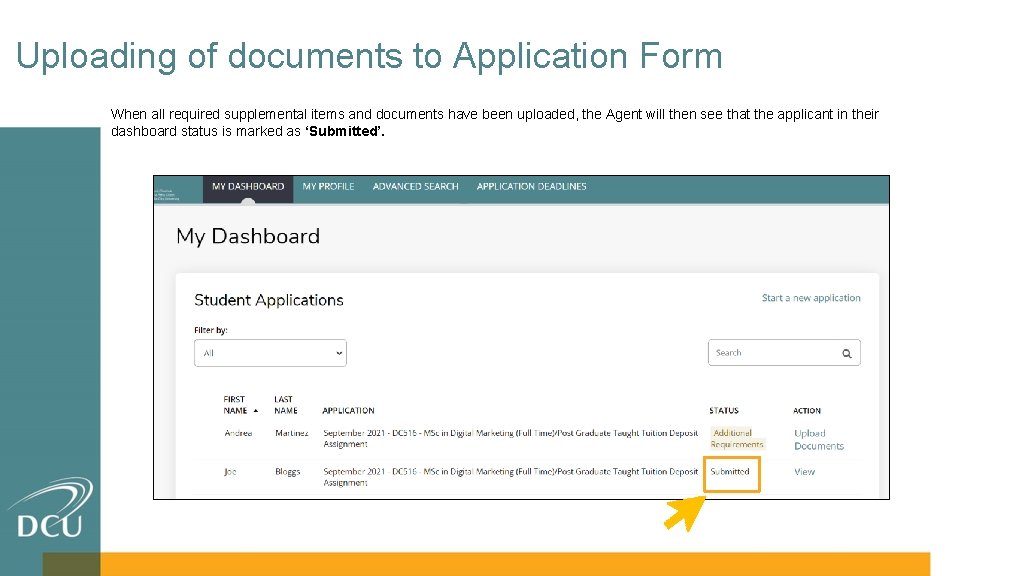
Uploading of documents to Application Form When all required supplemental items and documents have been uploaded, the Agent will then see that the applicant in their dashboard status is marked as ‘Submitted’.
Accepting an Offer 5
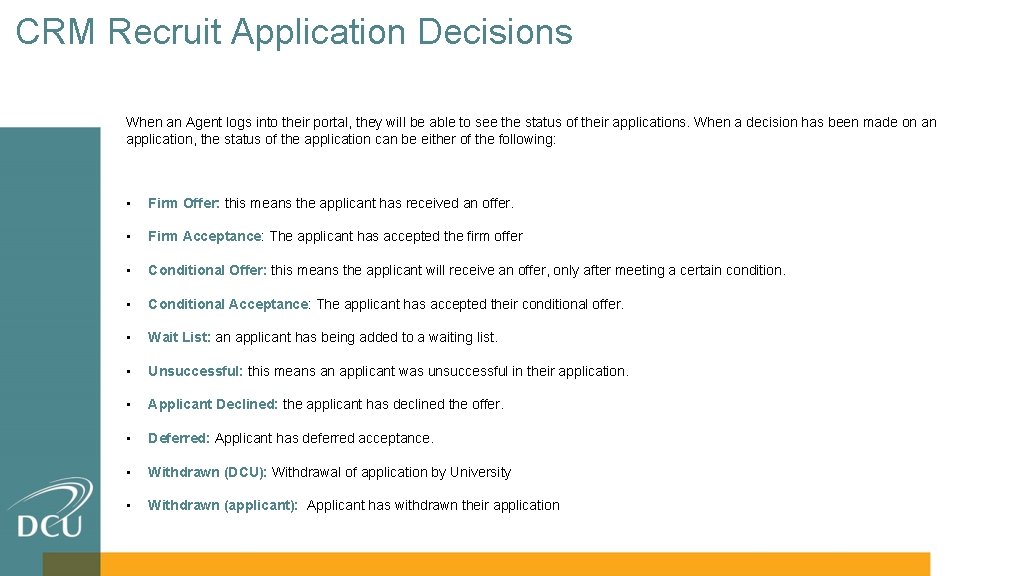
CRM Recruit Application Decisions When an Agent logs into their portal, they will be able to see the status of their applications. When a decision has been made on an application, the status of the application can be either of the following: • Firm Offer: this means the applicant has received an offer. • Firm Acceptance: The applicant has accepted the firm offer • Conditional Offer: this means the applicant will receive an offer, only after meeting a certain condition. • Conditional Acceptance: The applicant has accepted their conditional offer. • Wait List: an applicant has being added to a waiting list. • Unsuccessful: this means an applicant was unsuccessful in their application. • Applicant Declined: the applicant has declined the offer. • Deferred: Applicant has deferred acceptance. • Withdrawn (DCU): Withdrawal of application by University • Withdrawn (applicant): Applicant has withdrawn their application
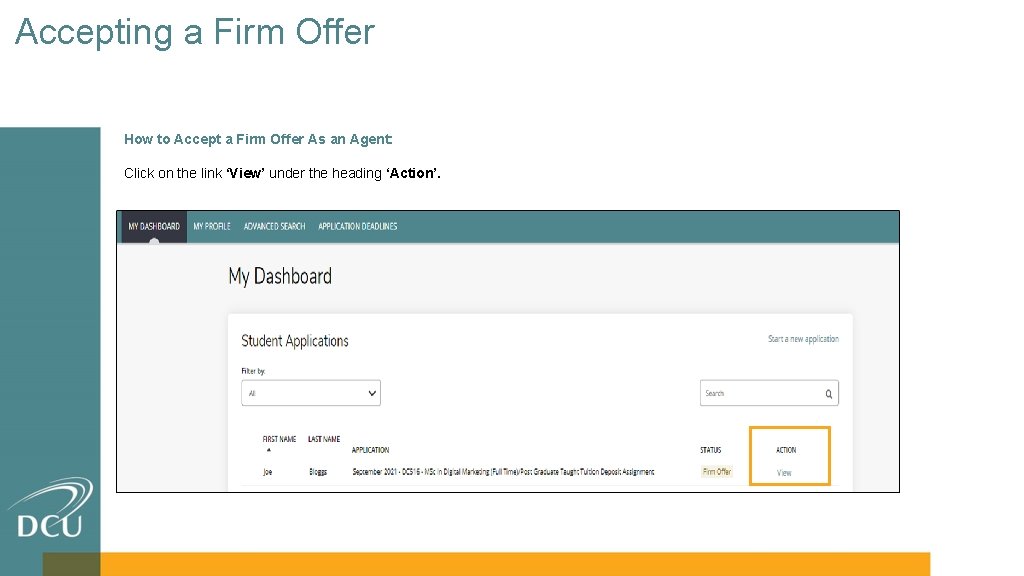
Accepting a Firm Offer How to Accept a Firm Offer As an Agent: Click on the link ‘View’ under the heading ‘Action’.
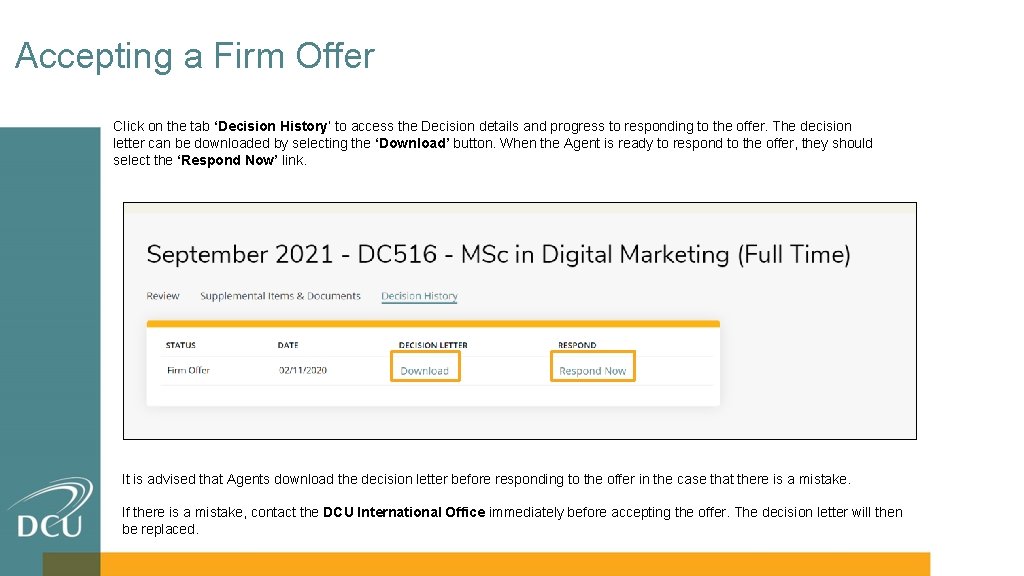
Accepting a Firm Offer Click on the tab ‘Decision History’ to access the Decision details and progress to responding to the offer. The decision letter can be downloaded by selecting the ‘Download’ button. When the Agent is ready to respond to the offer, they should select the ‘Respond Now’ link. It is advised that Agents download the decision letter before responding to the offer in the case that there is a mistake. If there is a mistake, contact the DCU International Office immediately before accepting the offer. The decision letter will then be replaced.
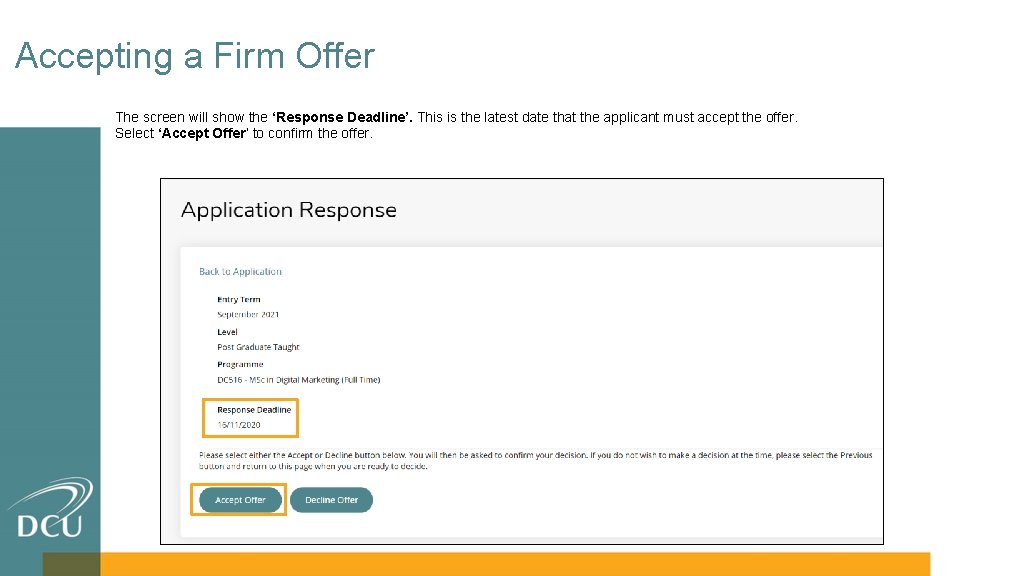
Accepting a Firm Offer The screen will show the ‘Response Deadline’. This is the latest date that the applicant must accept the offer. Select ‘Accept Offer’ to confirm the offer.
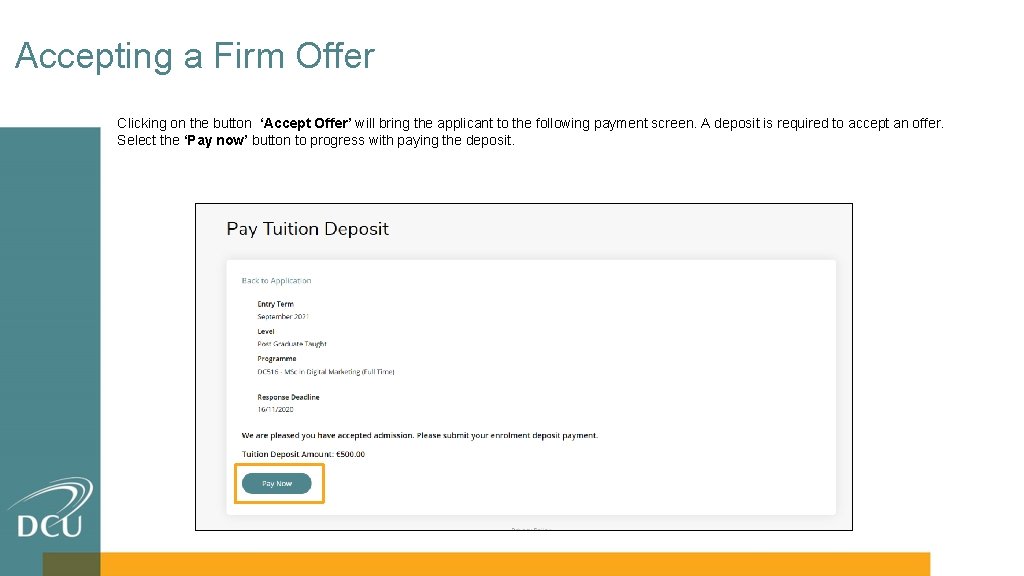
Accepting a Firm Offer Clicking on the button ‘Accept Offer’ will bring the applicant to the following payment screen. A deposit is required to accept an offer. Select the ‘Pay now’ button to progress with paying the deposit.
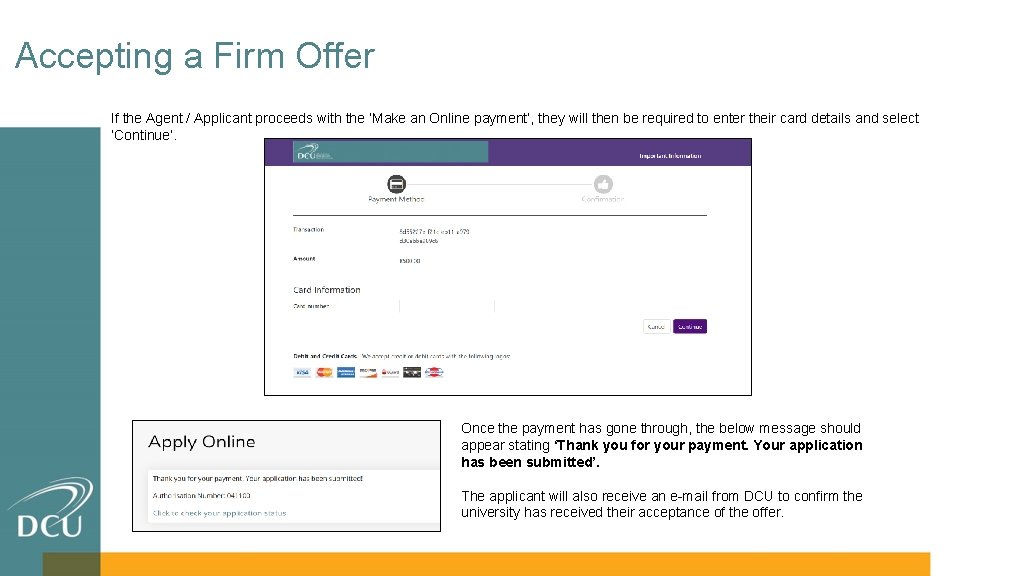
Accepting a Firm Offer If the Agent / Applicant proceeds with the ‘Make an Online payment’, they will then be required to enter their card details and select ‘Continue’. Once the payment has gone through, the below message should appear stating ‘Thank you for your payment. Your application has been submitted’. The applicant will also receive an e-mail from DCU to confirm the university has received their acceptance of the offer.
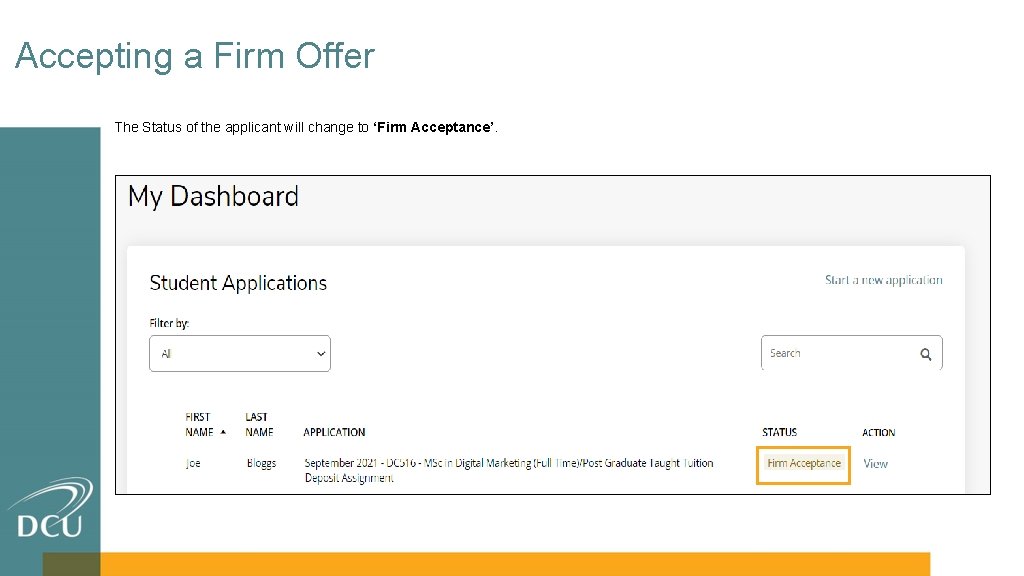
Accepting a Firm Offer The Status of the applicant will change to ‘Firm Acceptance’.
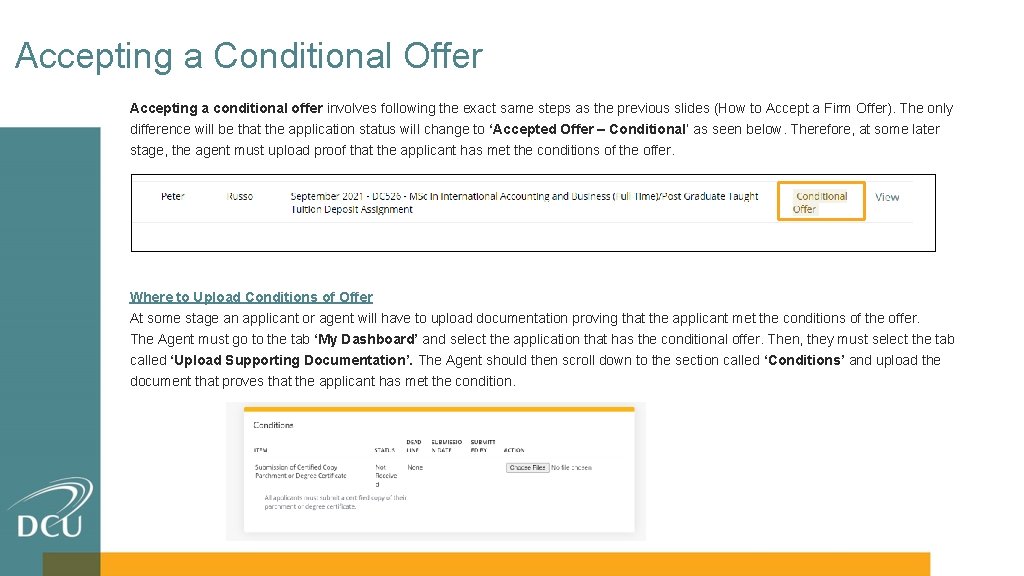
Accepting a Conditional Offer Accepting a conditional offer involves following the exact same steps as the previous slides (How to Accept a Firm Offer). The only difference will be that the application status will change to ‘Accepted Offer – Conditional’ as seen below. Therefore, at some later stage, the agent must upload proof that the applicant has met the conditions of the offer. Where to Upload Conditions of Offer At some stage an applicant or agent will have to upload documentation proving that the applicant met the conditions of the offer. The Agent must go to the tab ‘My Dashboard’ and select the application that has the conditional offer. Then, they must select the tab called ‘Upload Supporting Documentation’. The Agent should then scroll down to the section called ‘Conditions’ and upload the document that proves that the applicant has met the condition.
Additional Support Material 6
Additional Support Materials Should you require any support in your use of the system please reach out to us at international. office@dcu. ie Additional supporting materials which can be used with this training guide can be found by accessing the below links: • Postgraduate Courses: The following link will show bring you to the DCU Postgraduate page where you can locate all postgraduate courses • How to Apply at DCU: The following link will provide further information on how to apply for programmes at DCU will show what documentation is required for particular course • Links to CRM Recruit Videos COMING SOON: Coming soon - links will be provided to videos for Agents & the CRM Recruit system.
THANK YOU International. office@dcu. ie www. dcu. ie/internationaloffice