
Creating Transcripts of Your Narrated Power Points Richard


- Slides: 39
Creating Transcripts of Your Narrated Power. Points Richard Oliver Department of Information Systems 2018 Quality in Online Education Conference
Preview • • • The need for transcripts Power. Point files are collections Common file formats are helpful Automatic Speech Recognition (ASR) Web services are common Creating a transcript
ADA compliance • Passed by Congress in 1990, the Americans with Disabilities Act (ADA) is the nation's first comprehensive civil rights law addressing the needs of people with disabilities, prohibiting discrimination in employment, public services, public accommodations, and telecommunications. • Enforcement of Section 508, which now includes the Web Content Accessibility Guidelines (WCAG) 2. 0 is now being done in earnest.
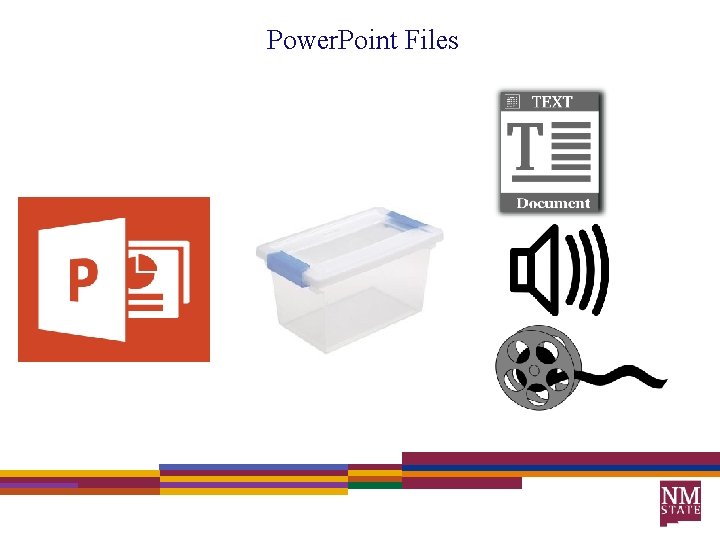
Power. Point Files
I am about to go full-up geek!
Going Geek • Go geek and learn how to: – – Open the container holding the Power. Point elements. Find the sound recording files. Convert the sound files into text. Download the text into a transcript file. • Watch a demonstration of doing this geekness. This Photo by Unknown Author is licensed under CC BYNC-SA
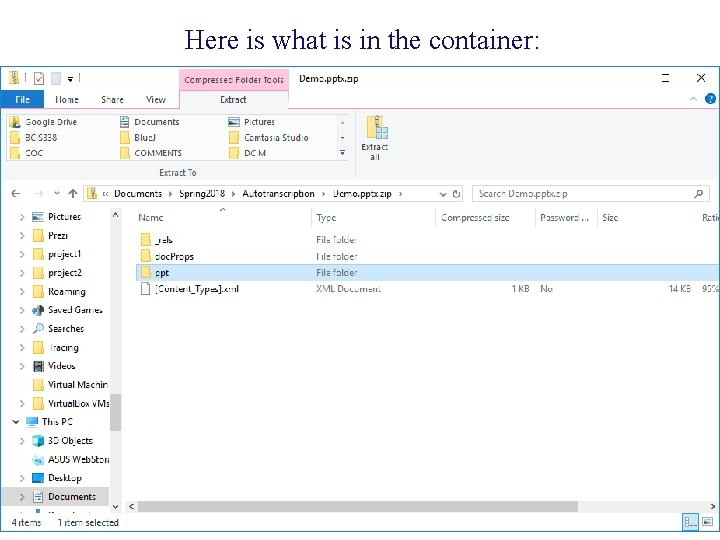
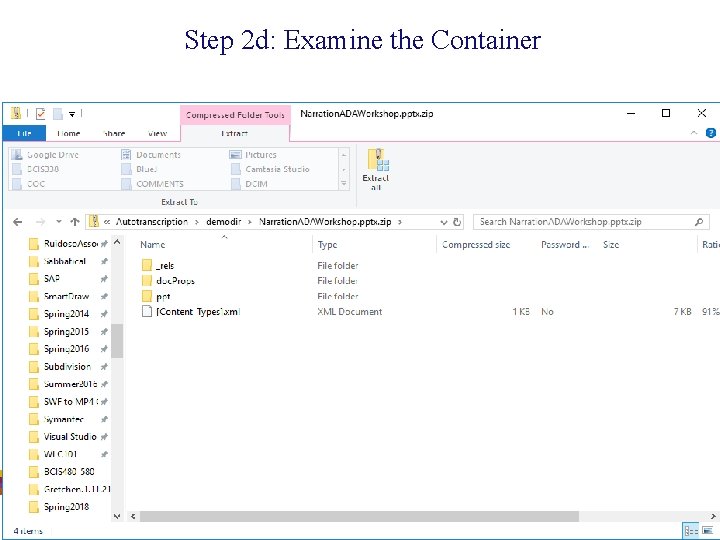
Here is what is in the container:
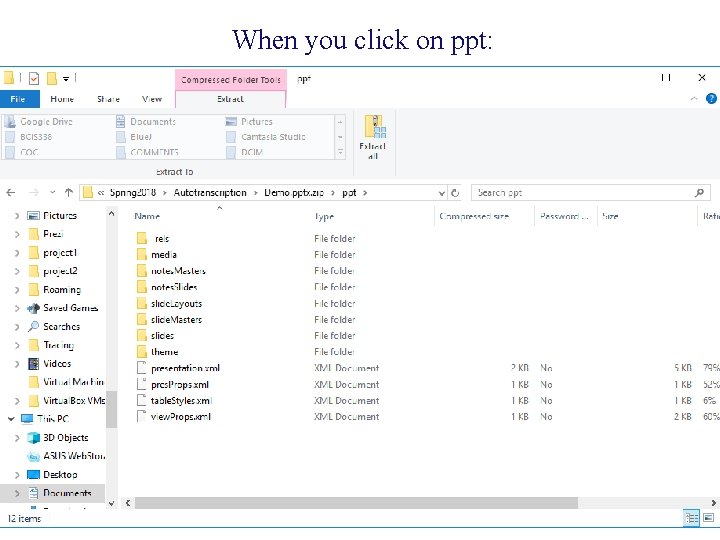
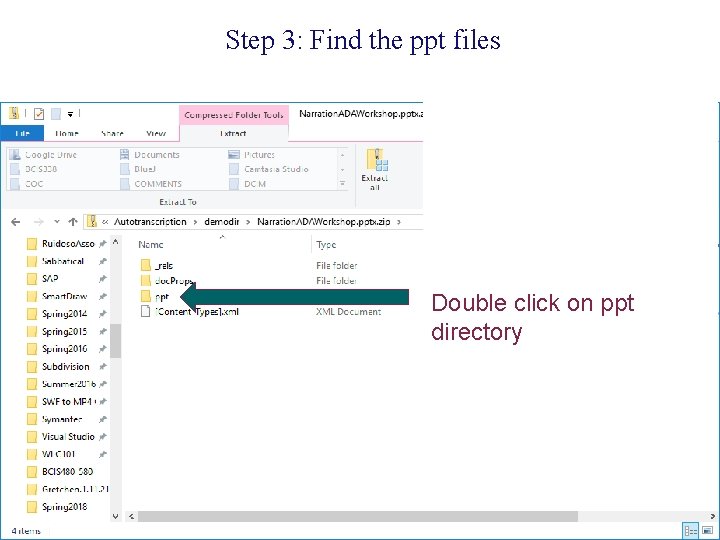
When you click on ppt:
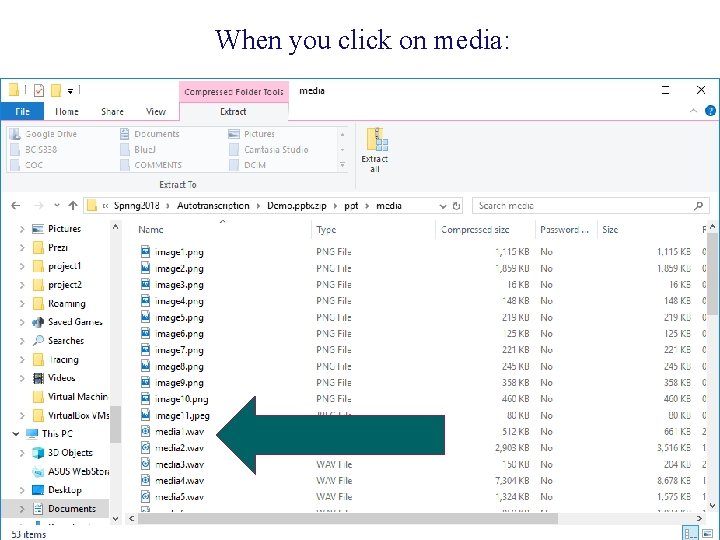
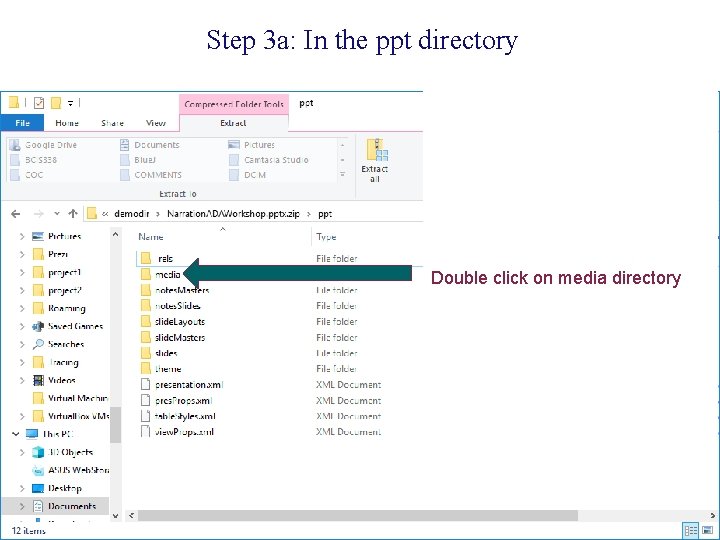
When you click on media:
What is a. wav file? • Waveform Audio File Format (WAVE, or more commonly known as WAV due to its filename extension) (rarely, Audio for Windows) is a Microsoft and IBM audio file format standard for storing an audio bitstream on PCs. . It is the main format used on Windows systems for raw and typically uncompressed audio. • From Wikipedia
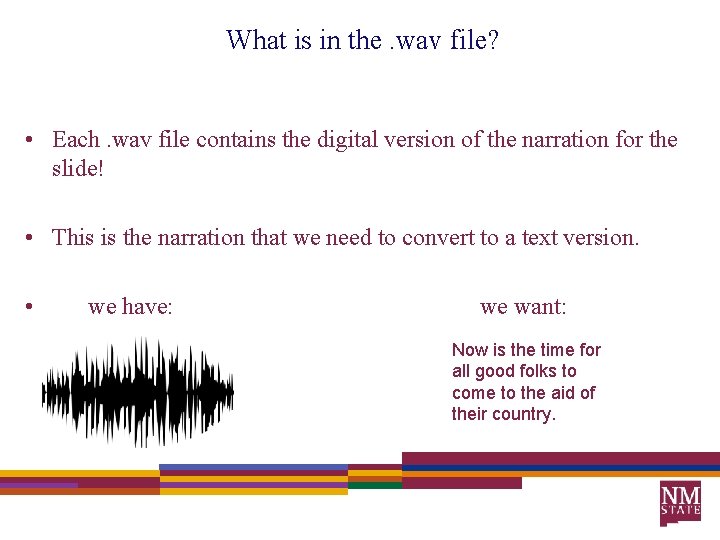
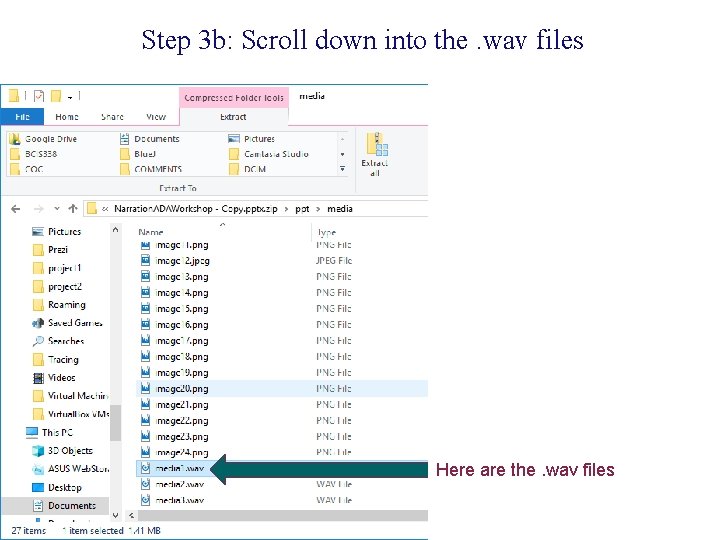
What is in the. wav file? • Each. wav file contains the digital version of the narration for the slide! • This is the narration that we need to convert to a text version. • we have: we want: Now is the time for all good folks to come to the aid of their country.
Automatic Speech Recognition (ASR) • Automatic speech recognition (ASR) can be defined as the independent, computer‐driven transcription of spoken language into readable text in real time. • ASR is technology that allows a computer to identify the words that a person speaks into a microphone or telephone and convert it to written text. • Or, in our case, ASR is a technology were a computer identifies the words as recorded and saved in a file!
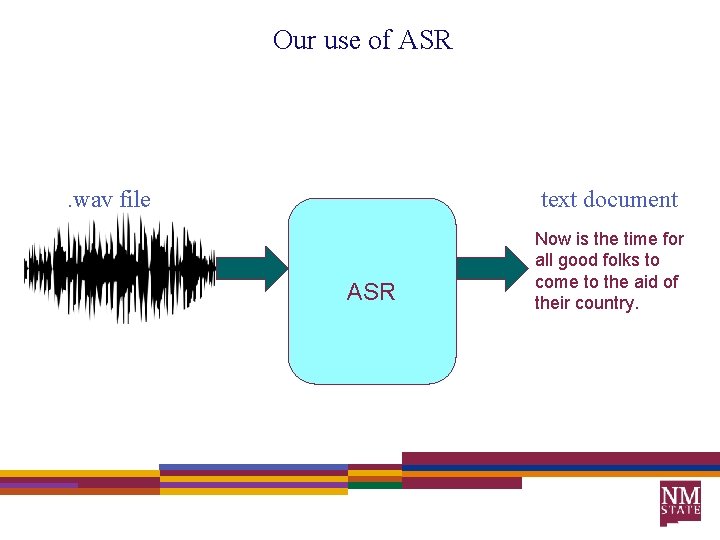
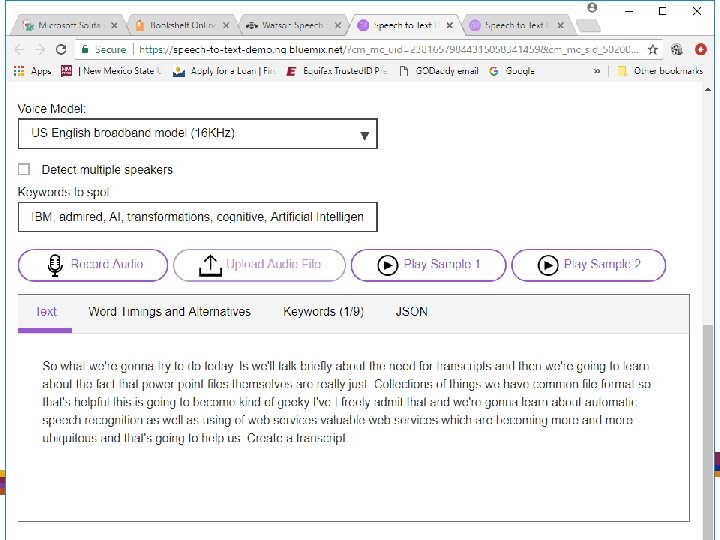
Our use of ASR . wav file text document ASR Now is the time for all good folks to come to the aid of their country.
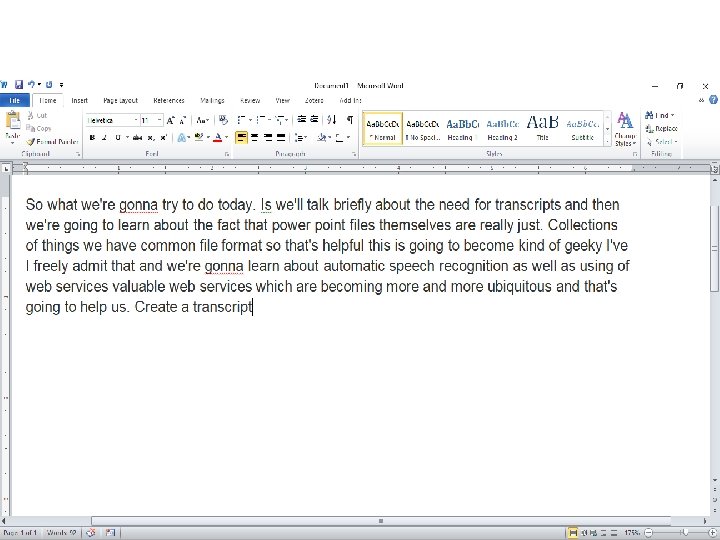
Once ASR has run: • We have the transcription of our narrated power point slide. • If you have 20 narrated powerpoint slides, there are 20. wav files. • You need to do 20 ASR processes. • And then, you have the full transcript.
Time OUT!
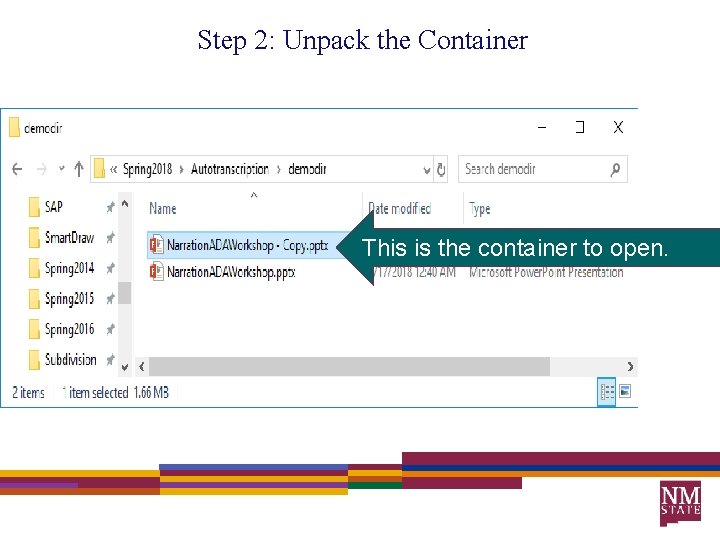
Let’s Review! (with a little less geek!) 1. 2. 3. 4. 5. 6. 7. Create a copy of a narrated Power. Point presentation Rename the file with a “. zip” file extension Unpack the Power. Point “container” Find the. wav files Send the. wav files to the ASR process Download the resulting text Celebrate!
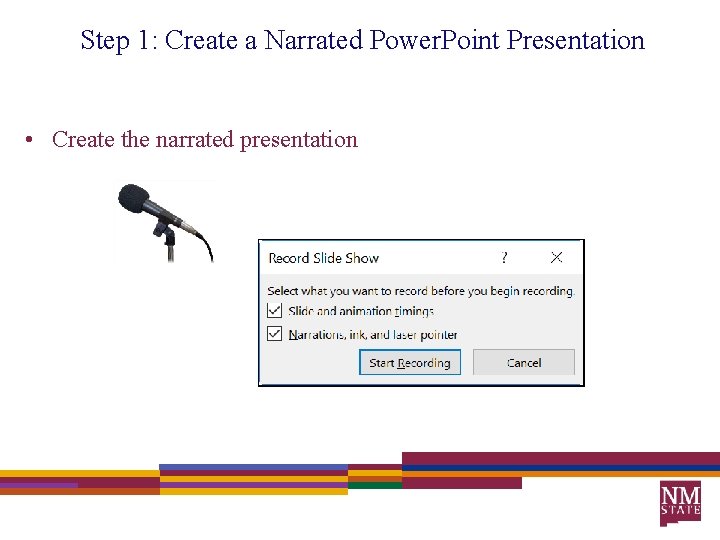
Step 1: Create a Narrated Power. Point Presentation • Create the narrated presentation
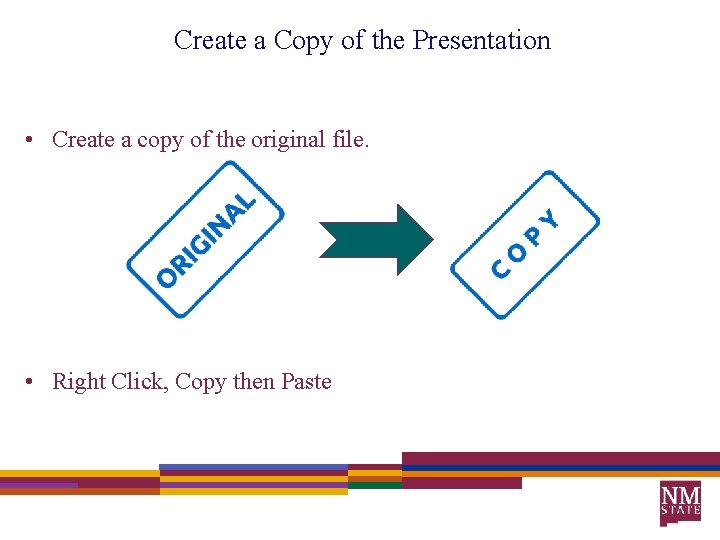
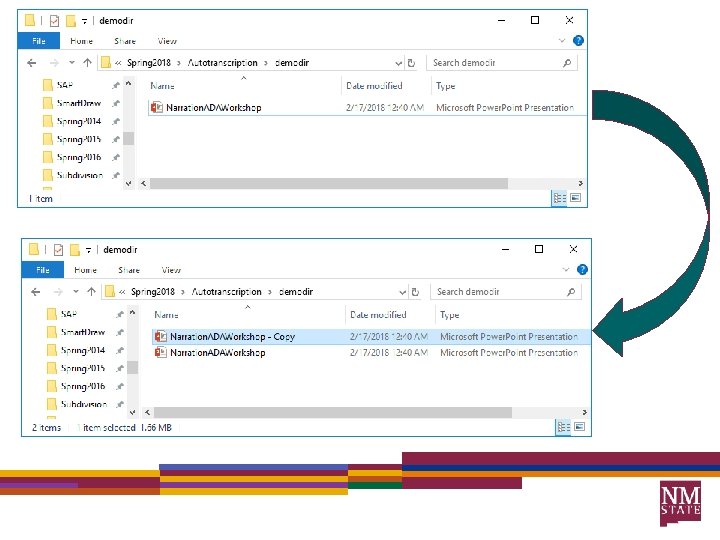
Create a Copy of the Presentation • Create a copy of the original file. • Right Click, Copy then Paste
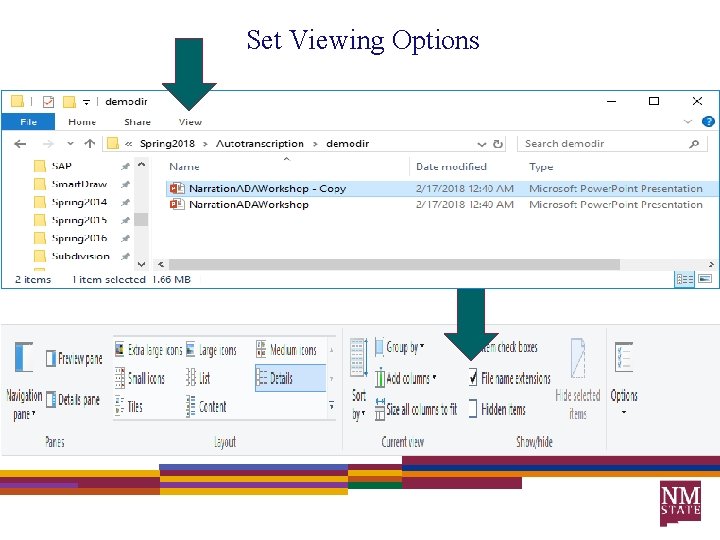
Set Viewing Options
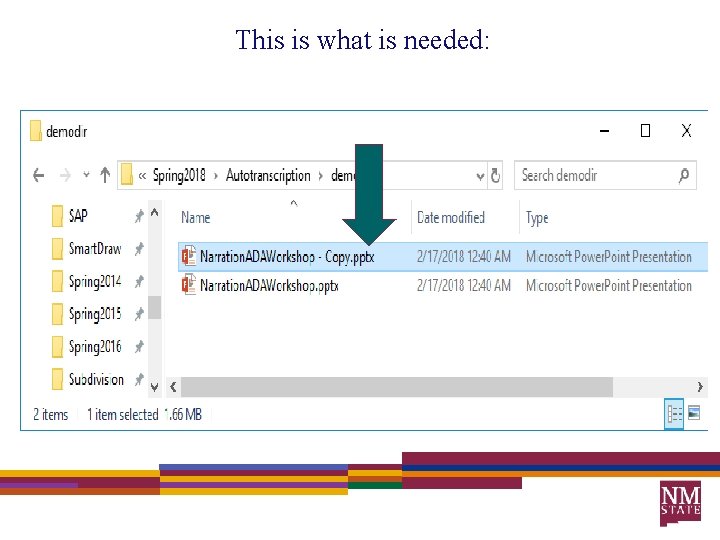
This is what is needed:
Step 2: Unpack the Container This is the container to open.
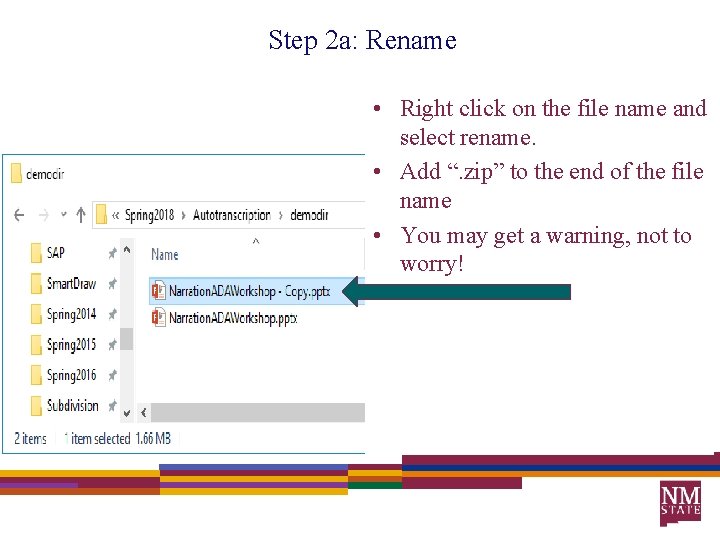
Step 2 a: Rename • Right click on the file name and select rename. • Add “. zip” to the end of the file name • You may get a warning, not to worry!
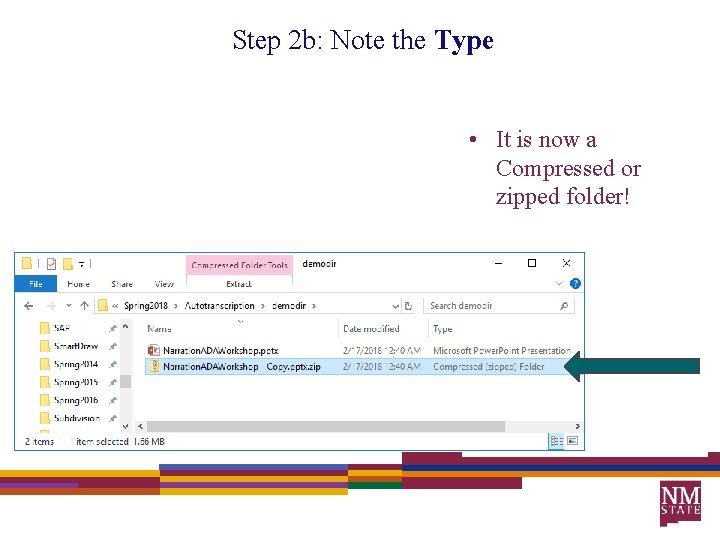
Step 2 b: Note the Type • It is now a Compressed or zipped folder!
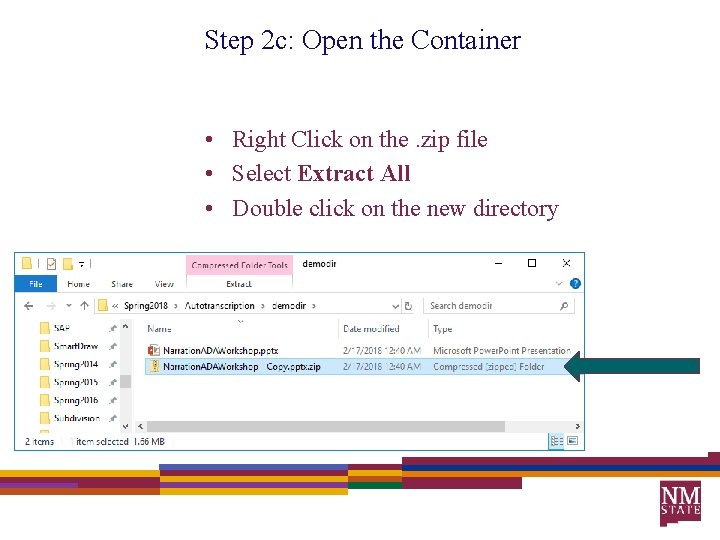
Step 2 c: Open the Container • Right Click on the. zip file • Select Extract All • Double click on the new directory
Step 2 d: Examine the Container
Step 3: Find the ppt files Double click on ppt directory
Step 3 a: In the ppt directory Double click on media directory
Step 3 b: Scroll down into the. wav files Here are the. wav files
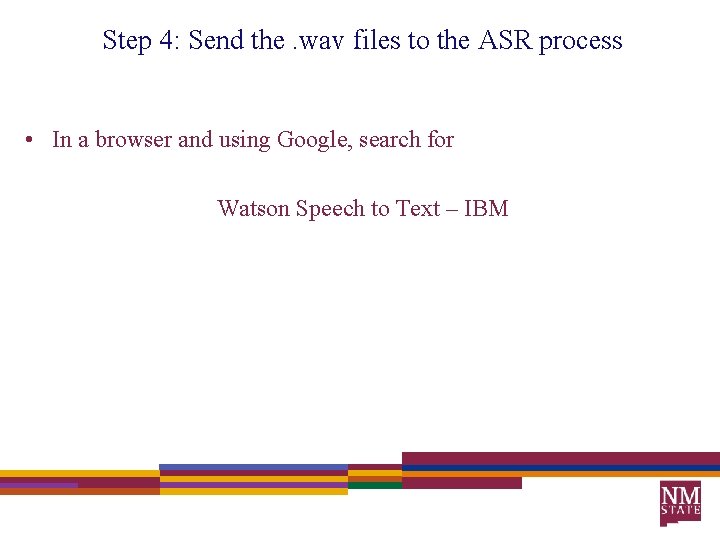
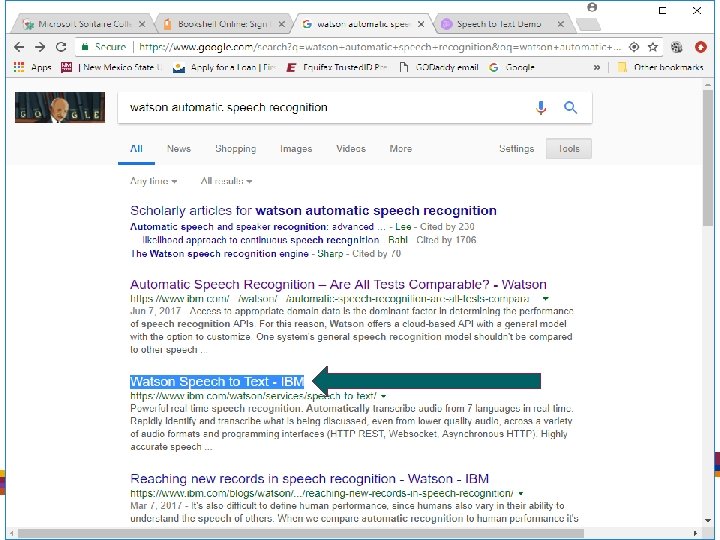
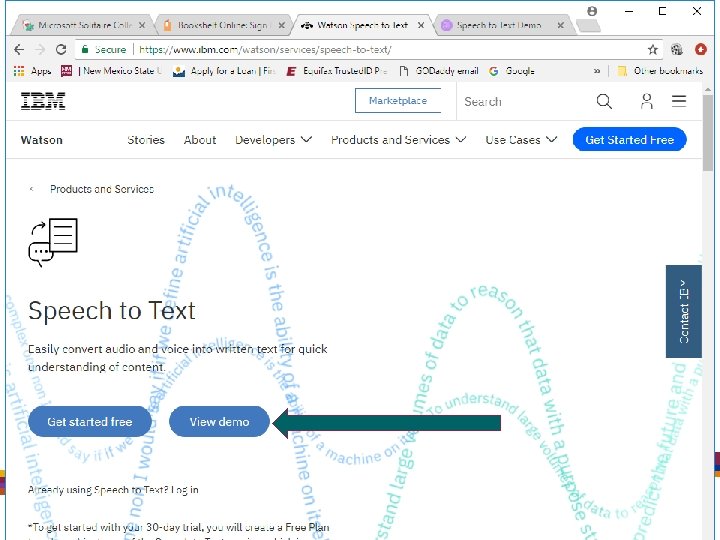
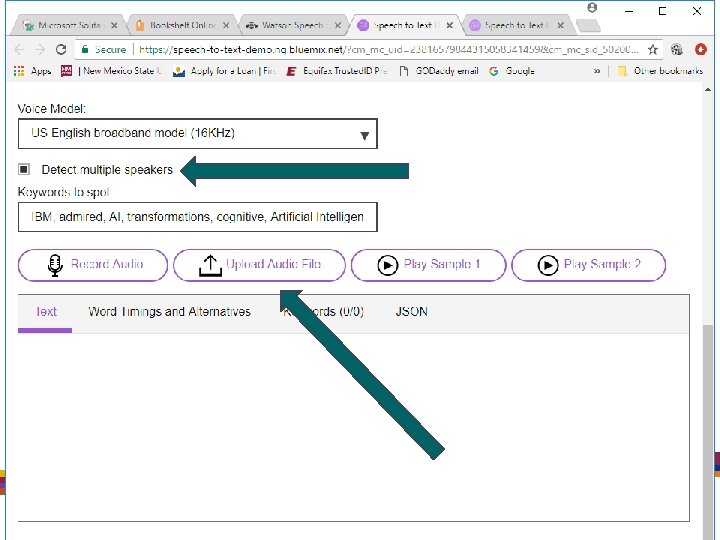
Step 4: Send the. wav files to the ASR process • In a browser and using Google, search for Watson Speech to Text – IBM
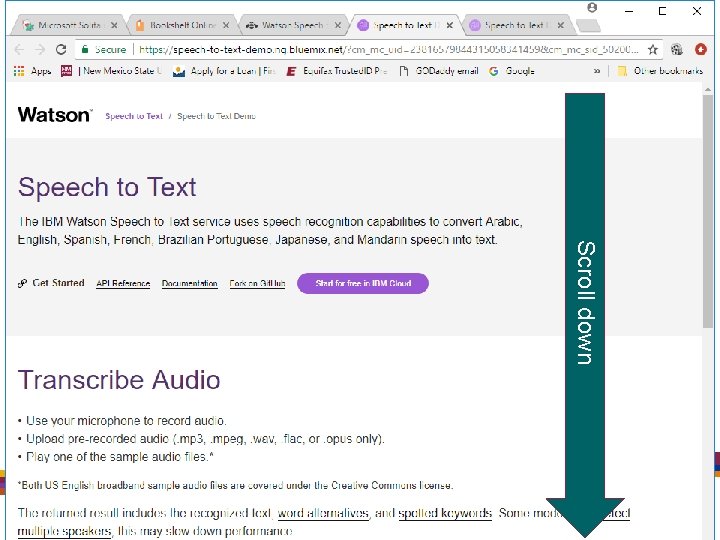
Scroll down
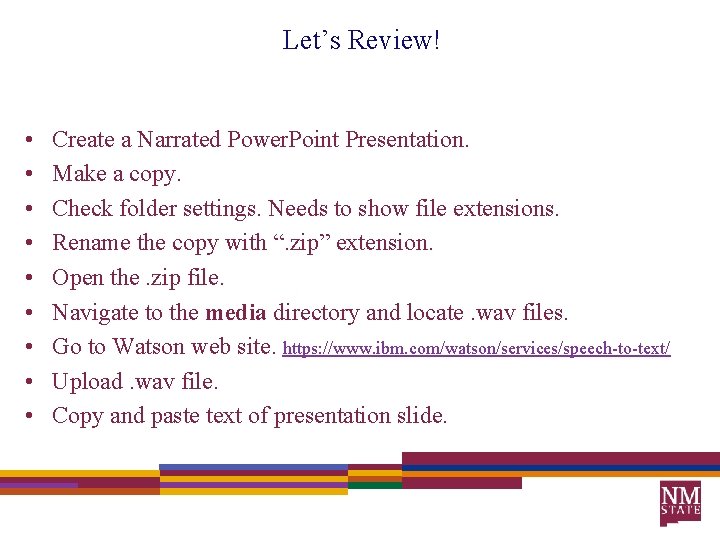
Let’s Review! • • • Create a Narrated Power. Point Presentation. Make a copy. Check folder settings. Needs to show file extensions. Rename the copy with “. zip” extension. Open the. zip file. Navigate to the media directory and locate. wav files. Go to Watson web site. https: //www. ibm. com/watson/services/speech-to-text/ Upload. wav file. Copy and paste text of presentation slide.
Summary • • • Narrated Power. Points are very common. ADA compliance is the right thing to do. Power. Point files are collections of things. ASR is coming of age. Network based services are becoming commonplace.