
Creating the Burn Report CREATE NEW Step 3
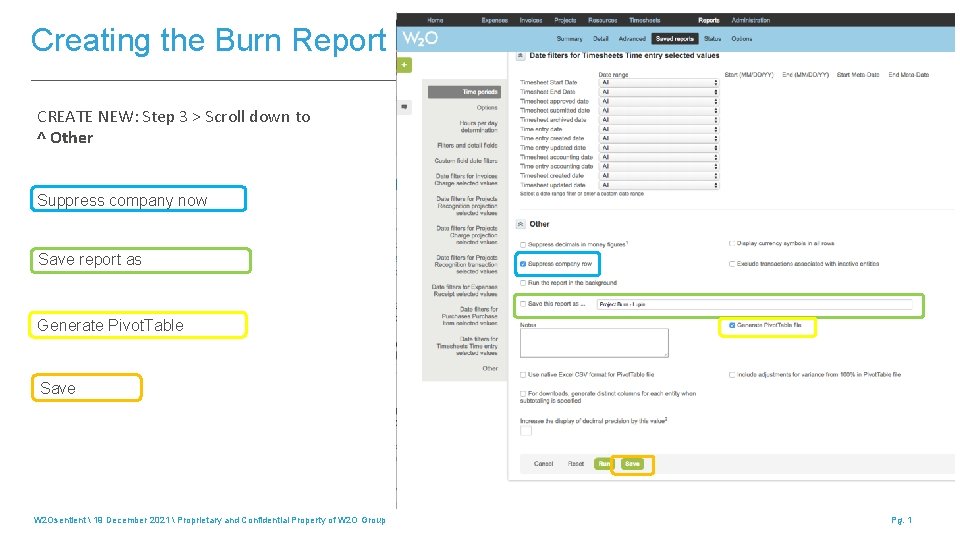
Creating the Burn Report CREATE NEW: Step 3 > Scroll down to ^ Other Suppress company now Save report as Generate Pivot. Table Save W 2 Osentient 19 December 2021 Proprietary and Confidential Property of W 2 O Group Pg. 1
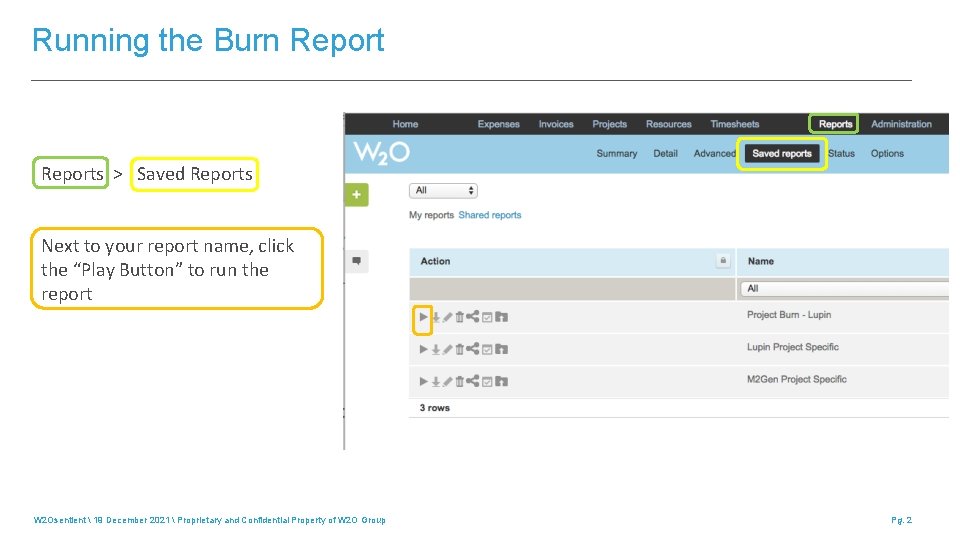
Running the Burn Reports > Saved Reports Next to your report name, click the “Play Button” to run the report W 2 Osentient 19 December 2021 Proprietary and Confidential Property of W 2 O Group Pg. 2

Saving the Burn Report Click Here” to download report Your file will immediately download to your computer • Review your data to filter out any unnecessary projects/date ranges. 1. To build report, click the “Select All” button 2. Click “Insert” 3. Click “Pivot. Table” > OK W 2 Osentient 19 December 2021 Proprietary and Confidential Property of W 2 O Group Pg. 3

Building the Burn Report Grid Next, you will see the Pivot. Table Fields Box Field Names > Select Rows and Values Rows > Drag & Drop from Fields in this order • • Project Job Number Project Task User Values > Drag & Drop from Fields in this order • • Timesheets – All hours Time Incurred (All Worked Hours) (USD) Be sure the ”Value” field is set to SUM by right clicking and choosing “Field Setting” You can now see burn by person on your projects to compare back to your staff plan W 2 Osentient 19 December 2021 Proprietary and Confidential Property of W 2 O Group Pg. 4
- Slides: 4