
Creating Talking Tactile Graphics with IVEO Gaeir Dietrich


- Slides: 30
Creating Talking Tactile Graphics with IVEO Gaeir Dietrich Alternate Media Training Specialist High Tech Center Training Unit (HTCTU) www. htctu. net
IVEO Overview
Overview n IVEO Viewer n n IVEO Lite n n Touch pad and software graphics viewer IVEO Creator n n Free software for reading pre-made graphics Touch pad and software to create talking graphics IVEO Creator Pro n n Touch pad and software to create talking graphics and graphics converter (from scanned graphics) Great for blind users to create own graphics
Why IVEO? n n n First talking tablet that uses text to speech (TTS) Easier for sighted users to create files Version 2. 0 also allows links for multimedia n n Sound files HTML links
Graphics in IVEO n SVG n n Scalable vector graphic Scalable n Can zoom in or out without loss of resolution
Other Formats to SVG n n With IVEO, can create from any Windows drawing program Can convert many image formats n n n PNG is preferred starting format TIFF, BMP, JPG can also be converted Not GIF n n Convert GIF to PNG then to SVG Also works with scanned documents
Speech Settings n Works with any voices on machine n n Speech > Speech Settings Menus are self-voicing n To turn off menu voicing: Speech > Toggle Speech
Reading Graphics n n Discrete areas are called “elements” or “objects” Reading elements n n n Touching an element reads title Ctrl + D reads “description” To find an element n n Edit > Find Element (or F 3) Touch the graphic for directions to the element
Exploring n Panning n n Zooming n n Ctrl + arrow keys Magnifying glass Page Up and Page Down keys View > Zoom Rectangle View > Fit to window n Select element, enlarge, and emboss
Creating Tactile Graphics
What Is a Tactile Graphic? n n Tactile representation of a two-dimensional graphic (drawing, chart, graph, etc. ) Tactile interpretation of a graphic n Not an exact copy n You have artistic license n You can change scale and orientation as necessary
Tactile Representation n Simplify n n n Reduce “noise” n n Think about a young child’s coloring book Basic outlines work well No shading, stippling, shadows Do not include extraneous detail n n Check text to see what information is discussed Include *only* needed information
Rule of “Fingers” n n Fingers have to move to read Make shapes at least an index-finger width wide n n n Except for point markers Allow a little-finger width between labels and shapes No extraneous lines n Reduce lead lines, label areas instead
Graphic Vocabulary n Distinctly different—limit to 4 or 5 n Textures n n Lines n n Blank is a texture Smooth, dotted, thick, thin Points n Do not use stars! n Labels n Use color if the students can see it, and always use tactile information, too!
Creating the Graphics n Always pretest lines and textures n n n Textures reproduce differently on Tiger, PIAF, Thermoform, etc. Use heaviest lines/textures for most important elements Place distinctly different lines/textures near each other.
Need a Key? n n Always place keys before the graphic! Use logical two-letter abbreviations
Tactile Tips n n Figure out lines and fills before starting to draw Write out in words what the graphic is for Develop basic axes, grids, etc. to reuse One print graphic may be many tactile pages
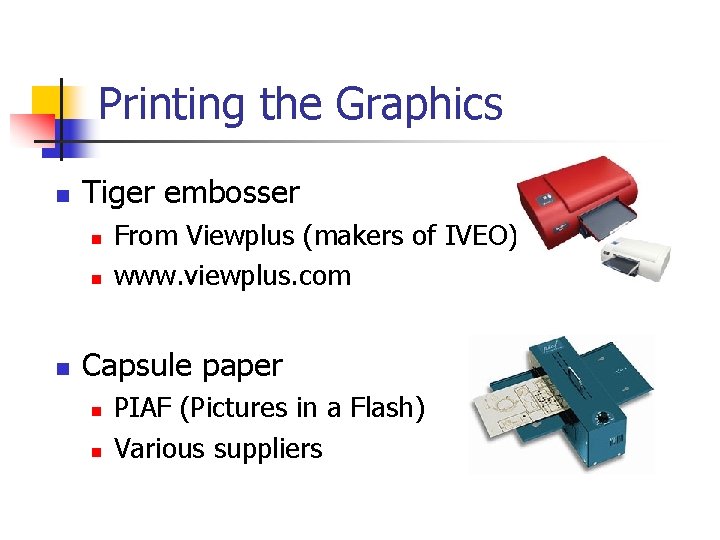
Printing the Graphics n Tiger embosser n n n From Viewplus (makers of IVEO) www. viewplus. com Capsule paper n n PIAF (Pictures in a Flash) Various suppliers
Making the Graphic Talk
Creating SVG n n Graphic must be SVG to work with it in IVEO Open original file in program in which it was create n n Choose File > Print > IVEO Creator Graphic converts to SVG and creates some elements on its own
Working with the Toolbar n n Choose Show > Toolbar Also opens System Tray n n n At bottom of graphic Will display text Works with refreshable Braille displays
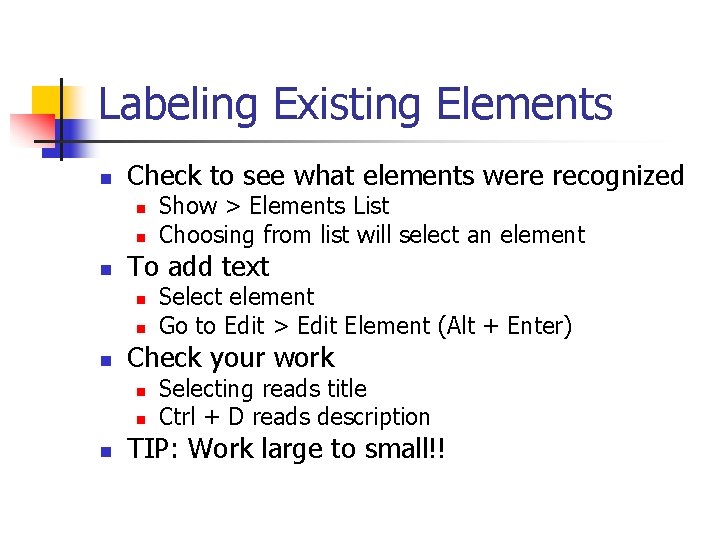
Labeling Existing Elements n Check to see what elements were recognized n n n To add text n n n Select element Go to Edit > Edit Element (Alt + Enter) Check your work n n n Show > Elements List Choosing from list will select an element Selecting reads title Ctrl + D reads description TIP: Work large to small!!
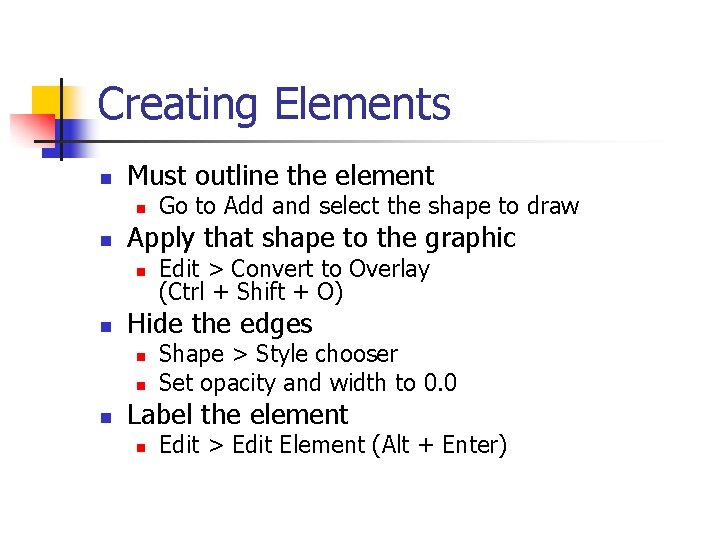
Creating Elements n Must outline the element n n Apply that shape to the graphic n n Edit > Convert to Overlay (Ctrl + Shift + O) Hide the edges n n n Go to Add and select the shape to draw Shape > Style chooser Set opacity and width to 0. 0 Label the element n Edit > Edit Element (Alt + Enter)
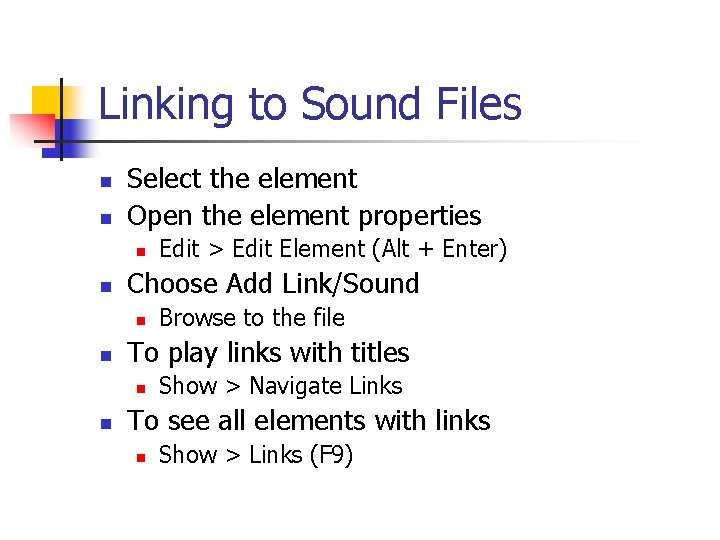
Linking to Sound Files n n Select the element Open the element properties n n Choose Add Link/Sound n n Browse to the file To play links with titles n n Edit > Edit Element (Alt + Enter) Show > Navigate Links To see all elements with links n Show > Links (F 9)
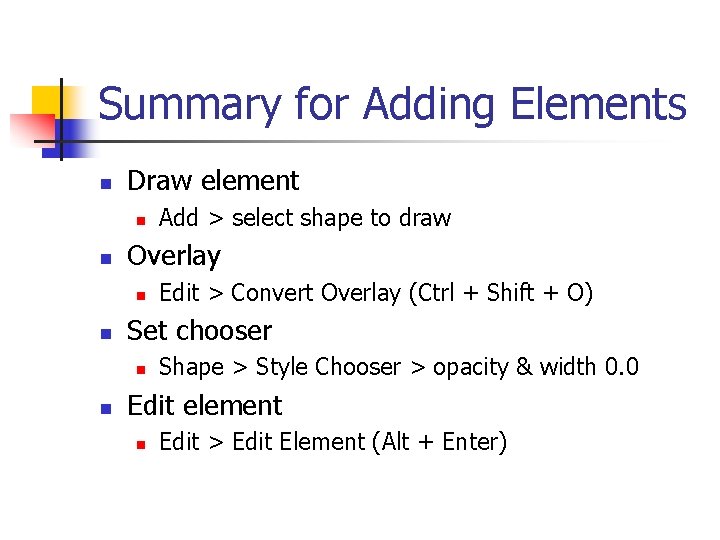
Summary for Adding Elements n Draw element n n Overlay n n Edit > Convert Overlay (Ctrl + Shift + O) Set chooser n n Add > select shape to draw Shape > Style Chooser > opacity & width 0. 0 Edit element n Edit > Edit Element (Alt + Enter)
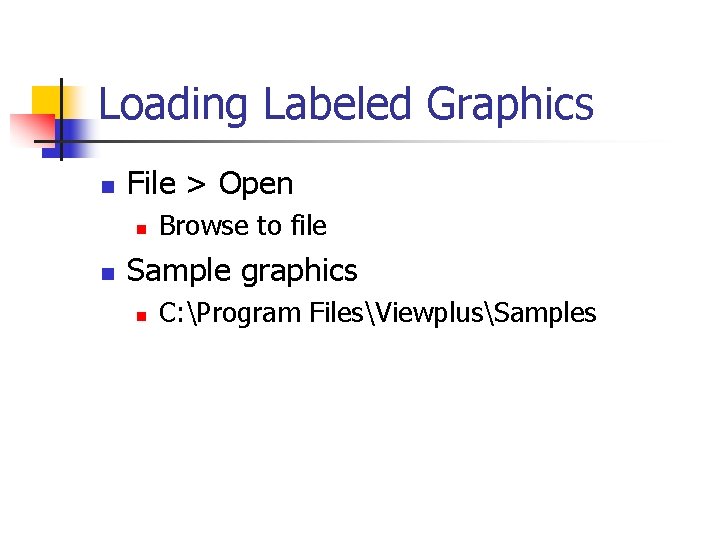
Loading Labeled Graphics n File > Open n n Browse to file Sample graphics n C: Program FilesViewplusSamples
Tips for Adding Braille
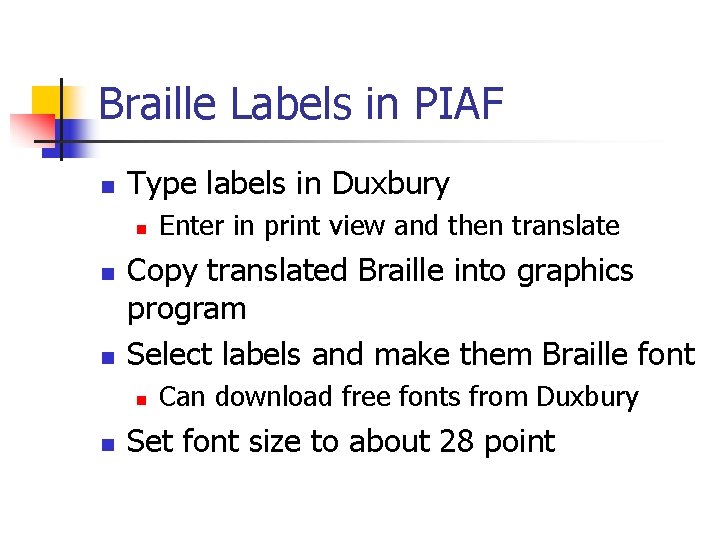
Braille Labels in PIAF n Type labels in Duxbury n n n Copy translated Braille into graphics program Select labels and make them Braille font n n Enter in print view and then translate Can download free fonts from Duxbury Set font size to about 28 point
Resources n Guidelines n www. tactilegraphics. org
Contact Me! n n Gaeir (rhymes with “fire”) Dietrich gdietrich@htctu. net 408 -996 -6043 www. htctu. net