
Creating Tables in a Web Site Introduction Tables
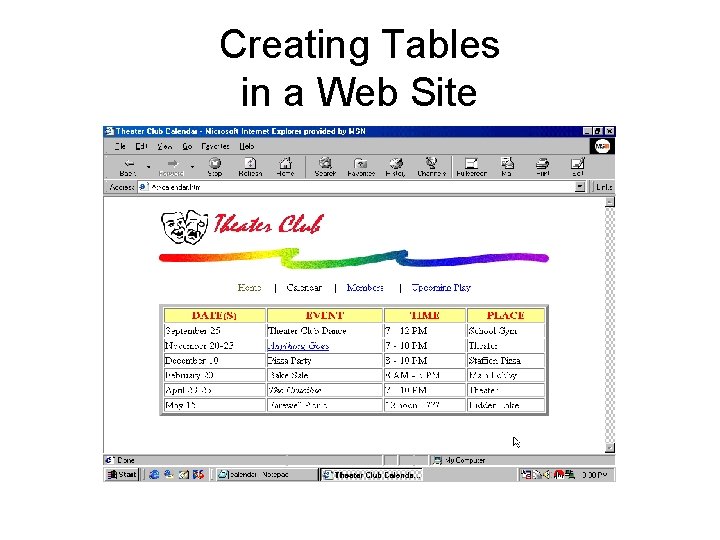
Creating Tables in a Web Site
Introduction • Tables allow you to position elements easily on a Web page • You can develop simple tables or complex tables • Once again, you will be using Notepad to develop your HTML
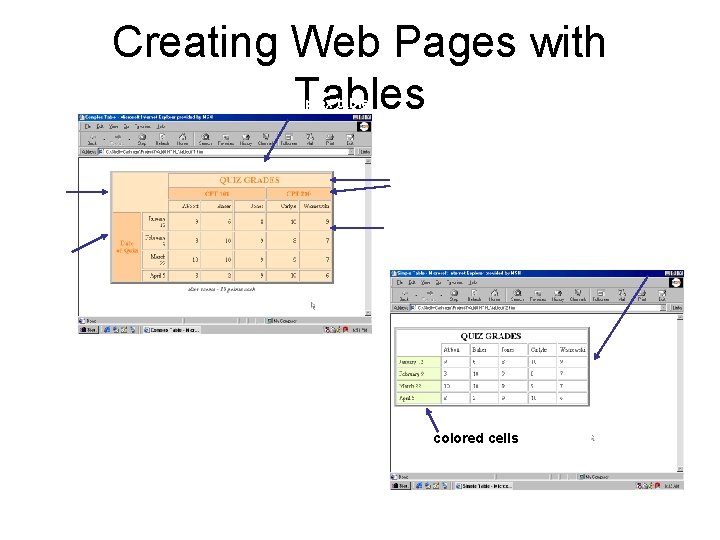
Creating Web Pages with Tables complex table no cell borders column span colored background row span simple table colored cells
Creating Web Pages with Tables • Tables can have text and/or images • You can use a table to wrap text around an image – Tables give you more control over the placement of the text and image • Tables help make the content on Web pages clear, interesting, and easy to read
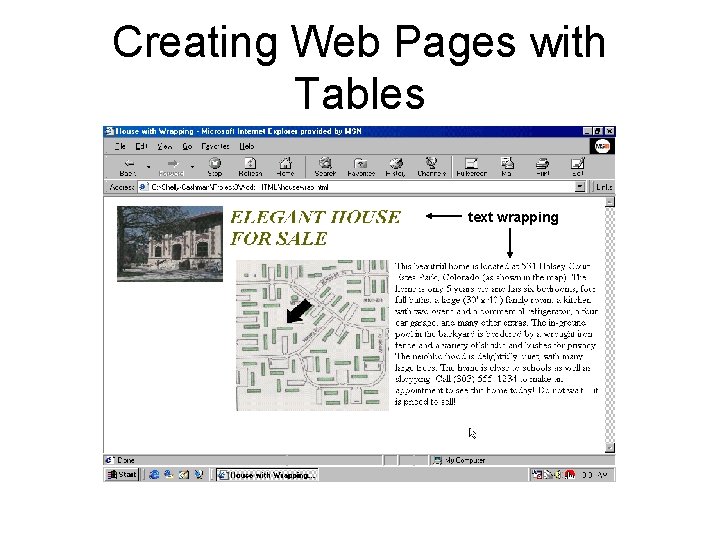
Creating Web Pages with Tables text wrapping
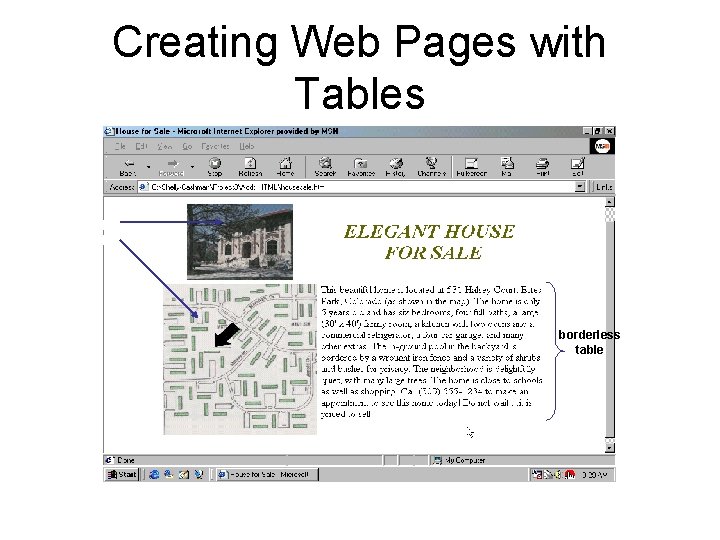
Creating Web Pages with Tables images in table borderless table
Table Elements • Tables consist of rows, columns, and cells – A row is a horizontal line of information – A column is a vertical line of information – A cell is the intersection of a row and a column • Heading cells display text as bold and centeraligned • Data cells display normal text that is left-aligned
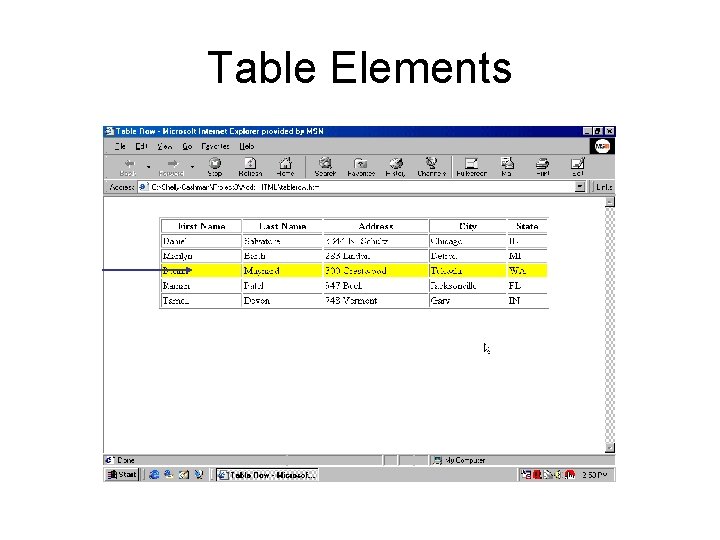
Table Elements row
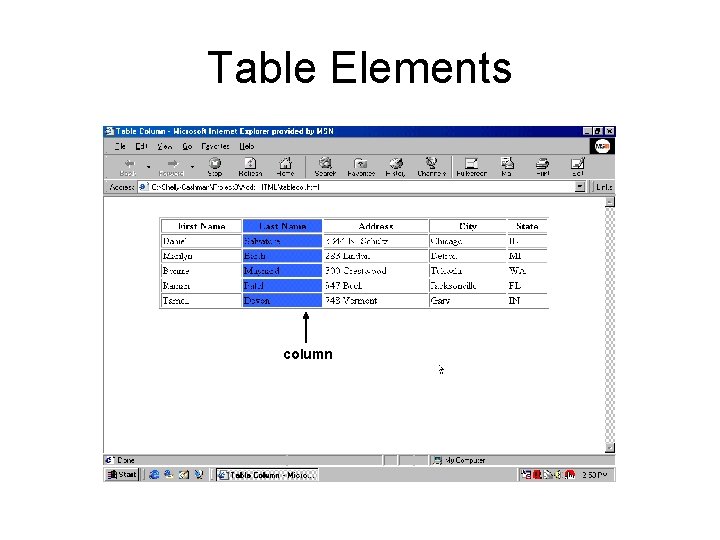
Table Elements column

Table Elements cell
Other Table Parts • Table borders are lines that encompass the perimeter of the table • Table headers are bold text that indicate the purpose of the row or column • A table caption is descriptive text located above or below the table that further describes the purpose of the table
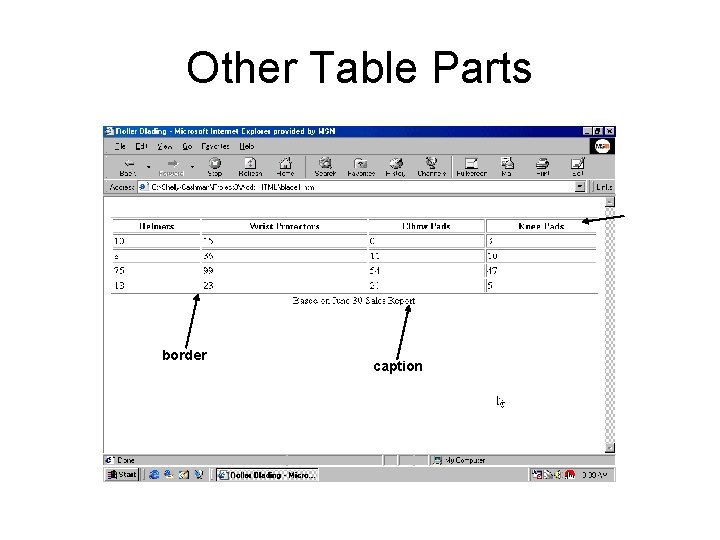
Other Table Parts heading cell border caption
Planning, Designing, and Coding a Table • Creating tables for a Web page is a threestep process: – Determine if a table is needed – Plan the table – Code the table
Determining if a Table is Needed • Not all Web page applications require the use of tables • A table is appropriate when it makes the Web page easier to read
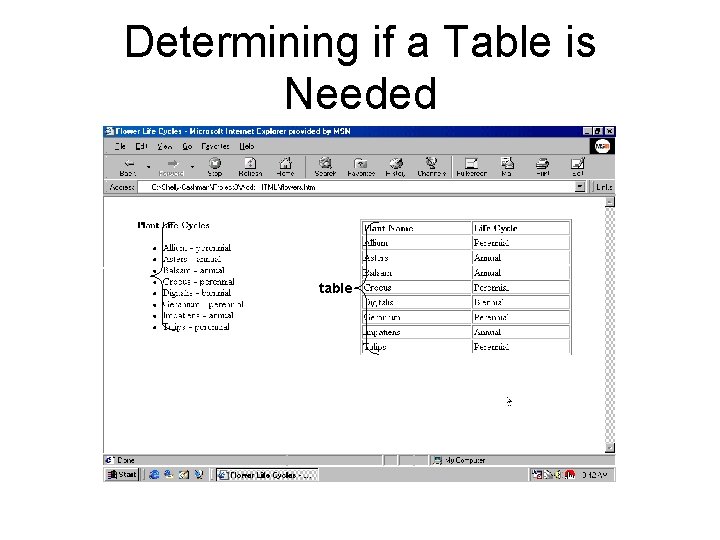
Determining if a Table is Needed bulleted list table
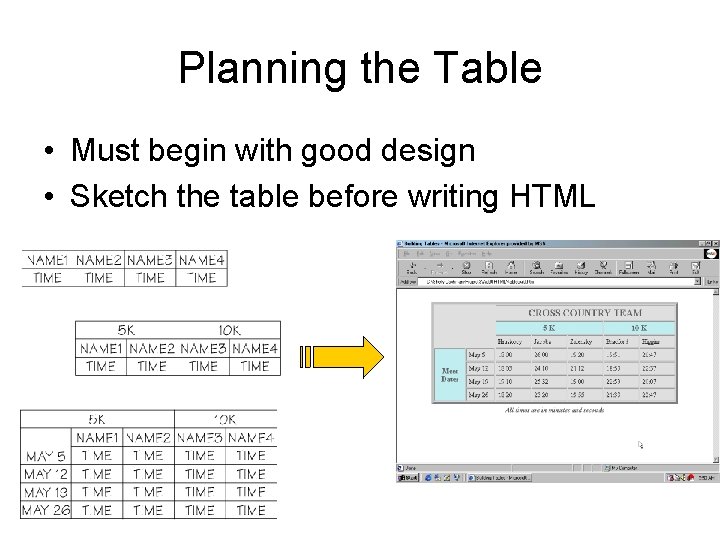
Planning the Table • Must begin with good design • Sketch the table before writing HTML
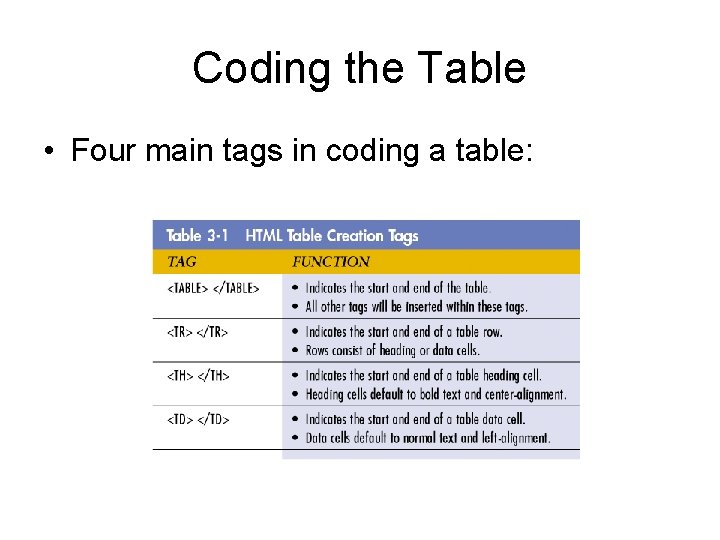
Coding the Table • Four main tags in coding a table:
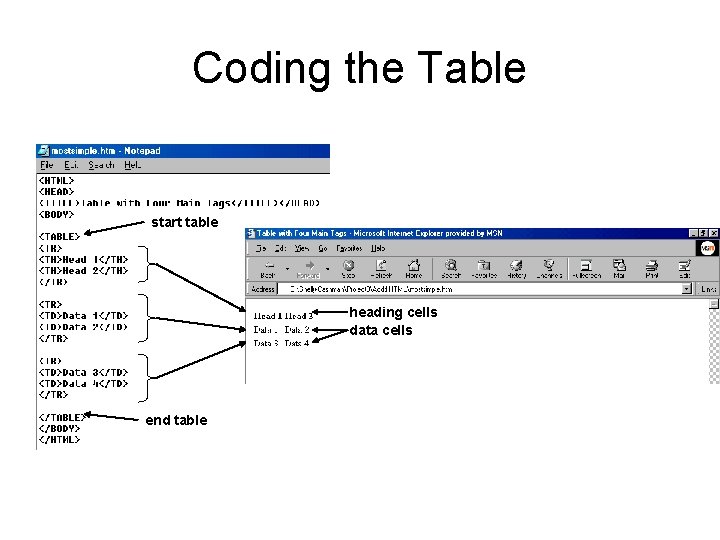
Coding the Table start table heading cells data cells end table
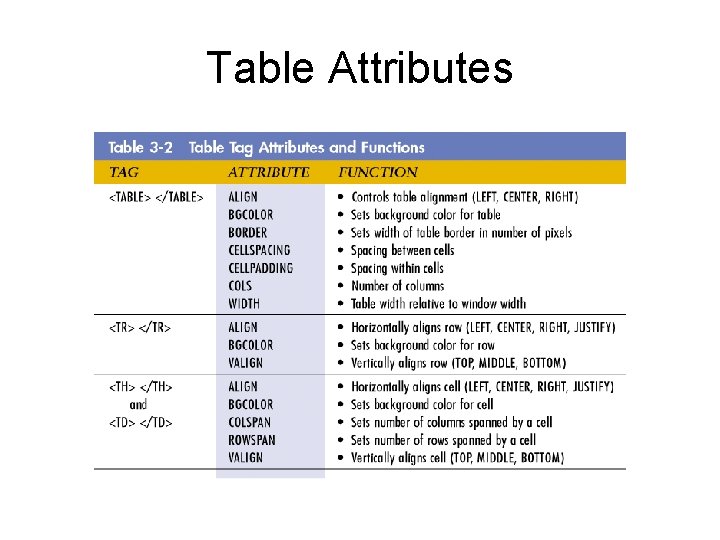
Table Attributes
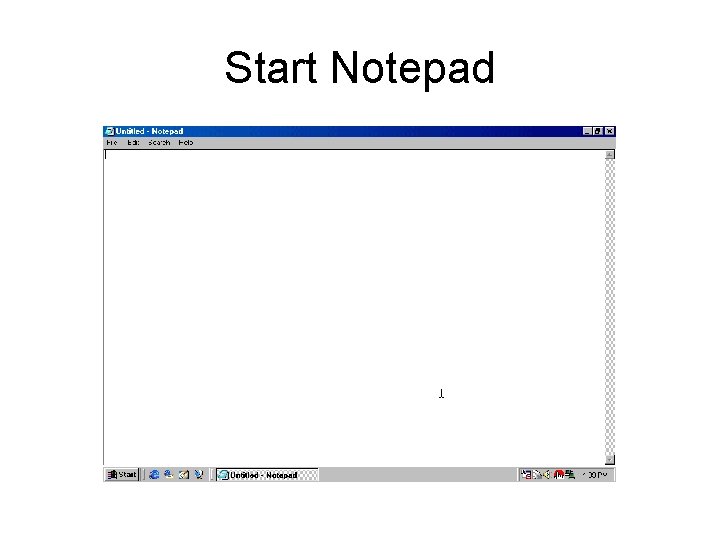
Start Notepad
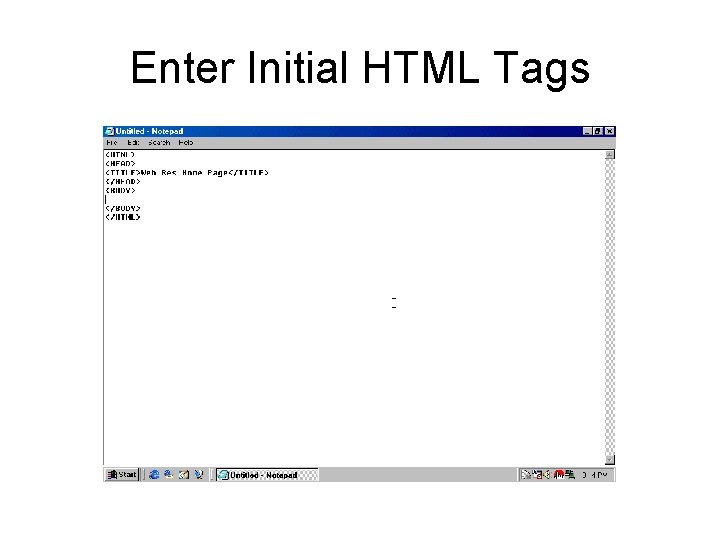
Enter Initial HTML Tags
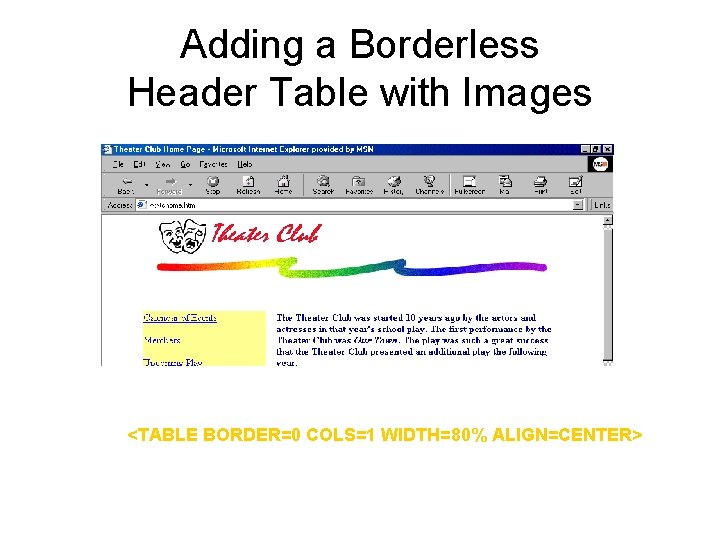
Adding a Borderless Header Table with Images border width relative to window <TABLE BORDER=0 COLS=1 WIDTH=80% ALIGN=CENTER> start table number of columns alignment
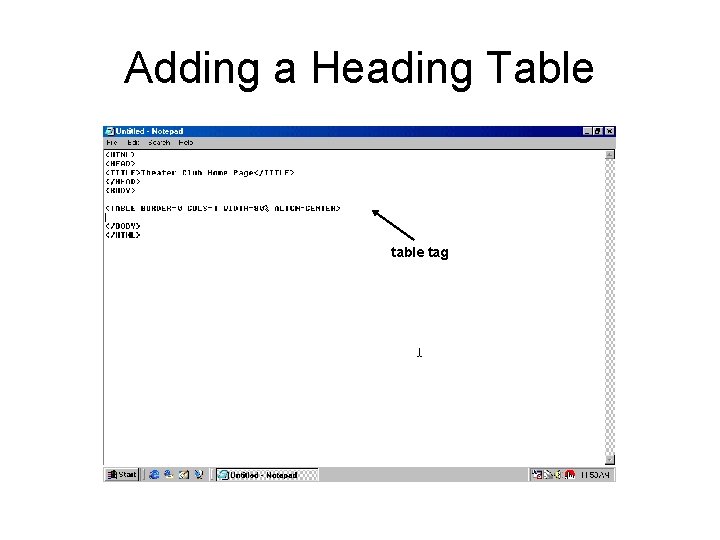
Adding a Heading Table tag
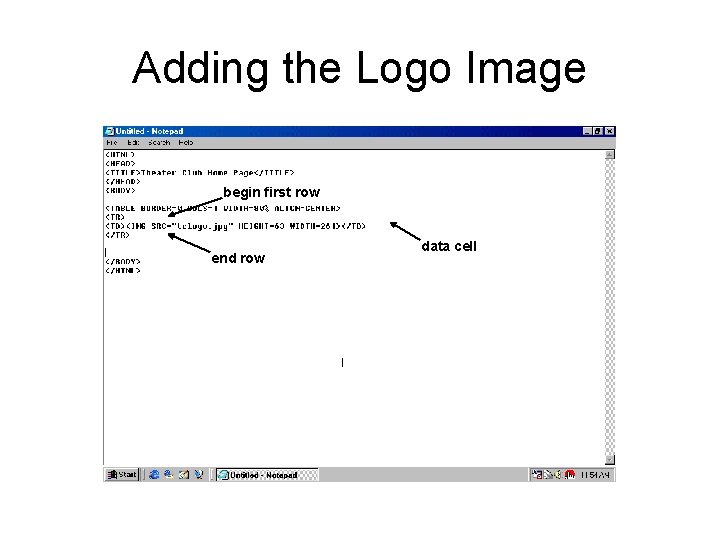
Adding the Logo Image begin first row end row data cell
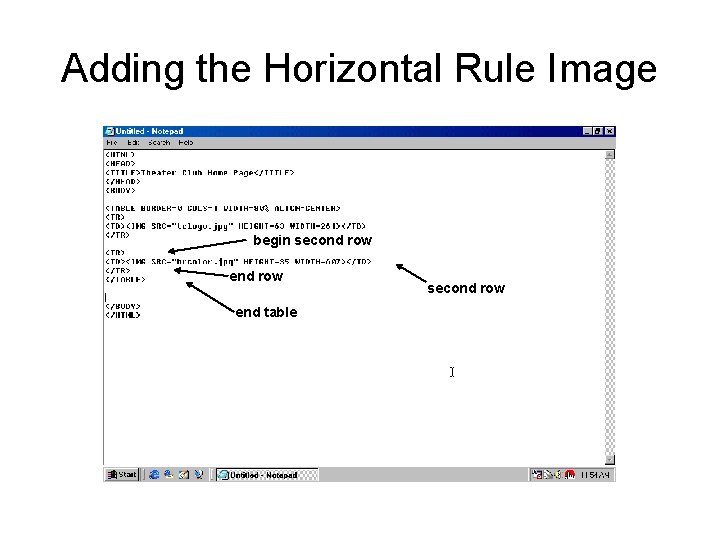
Adding the Horizontal Rule Image begin second row end table second row
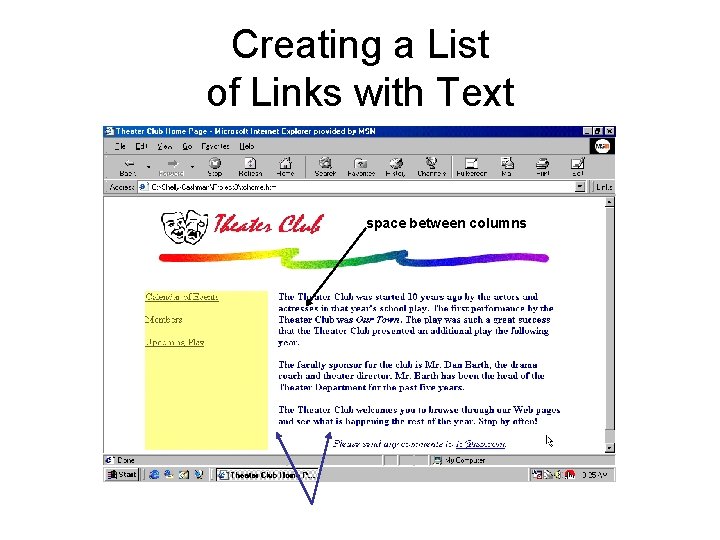
Creating a List of Links with Text Use the CELLSPACING attribute to insert some space between the left and right column space between columns two columns
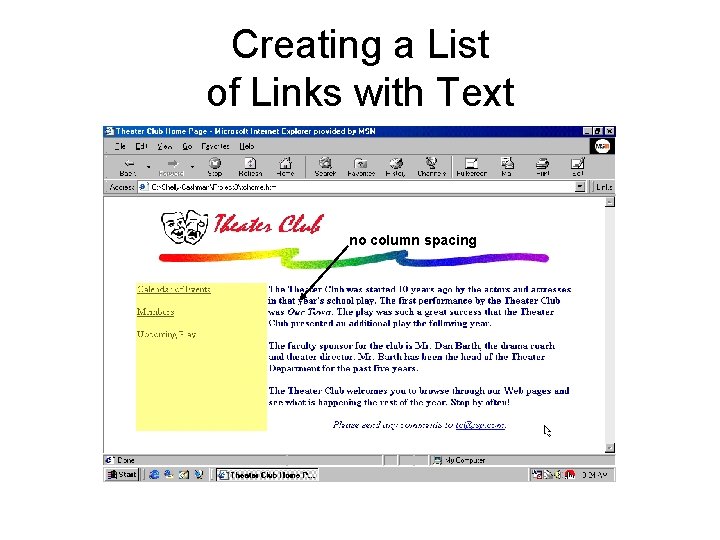
Creating a List of Links with Text no column spacing
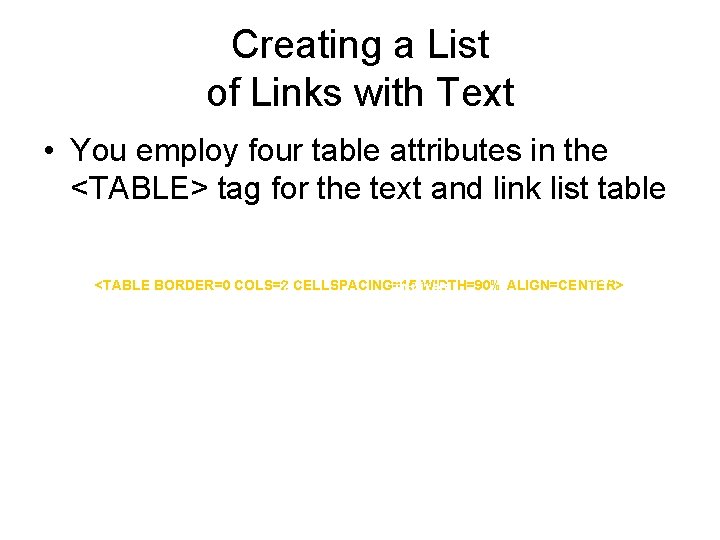
Creating a List of Links with Text • You employ four table attributes in the <TABLE> tag for the text and link list table cellspacing border alignment <TABLE BORDER=0 COLS=2 CELLSPACING=15 WIDTH=90% ALIGN=CENTER> in pixels width start table number of columns width relative to window
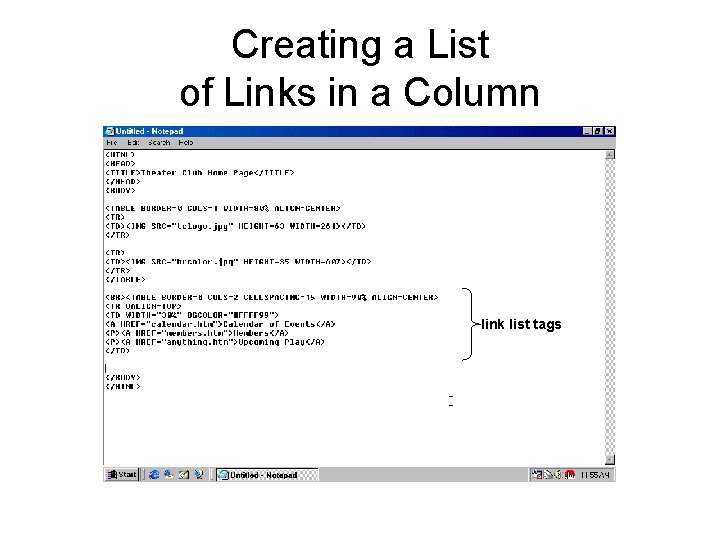
Creating a List of Links in a Column link list tags
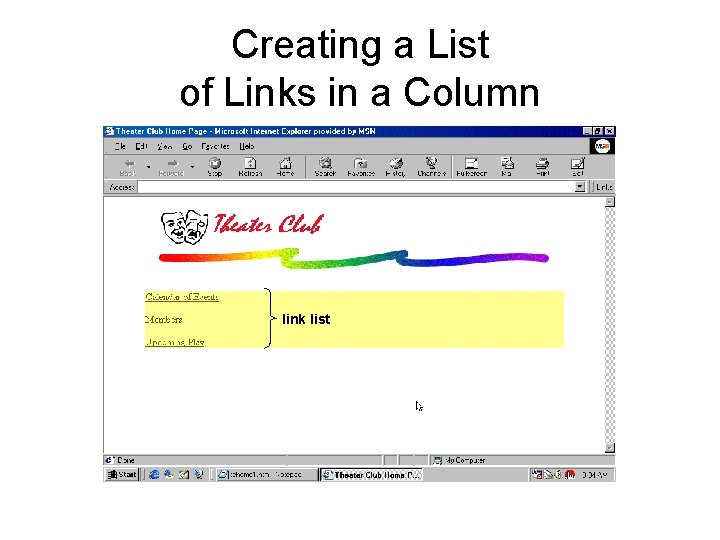
Creating a List of Links in a Column link list
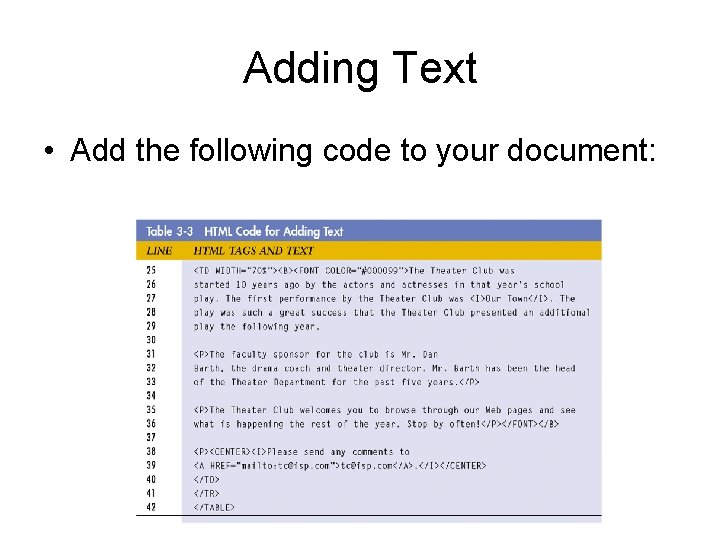
Adding Text • Add the following code to your document:
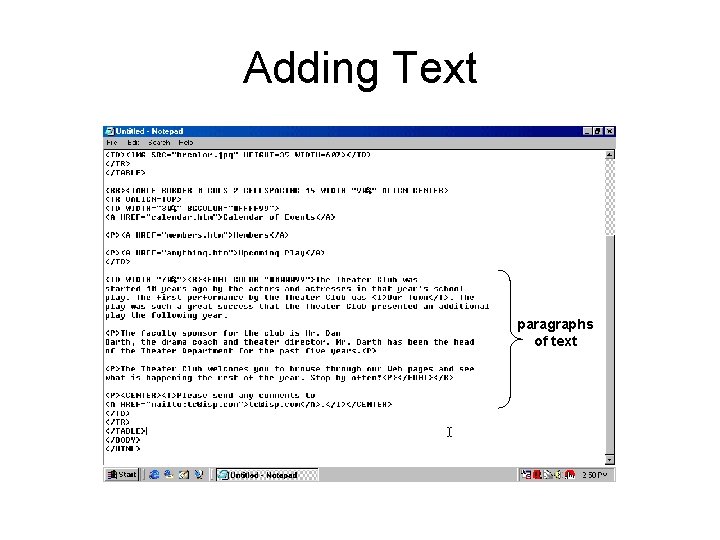
Adding Text paragraphs of text
Save and Print the HTML File • Insert the HTML Data Disk into drive A • Select Save As from the File menu • Type tchome. htm in the File name text box, then click the Save button • Select Print from the File menu
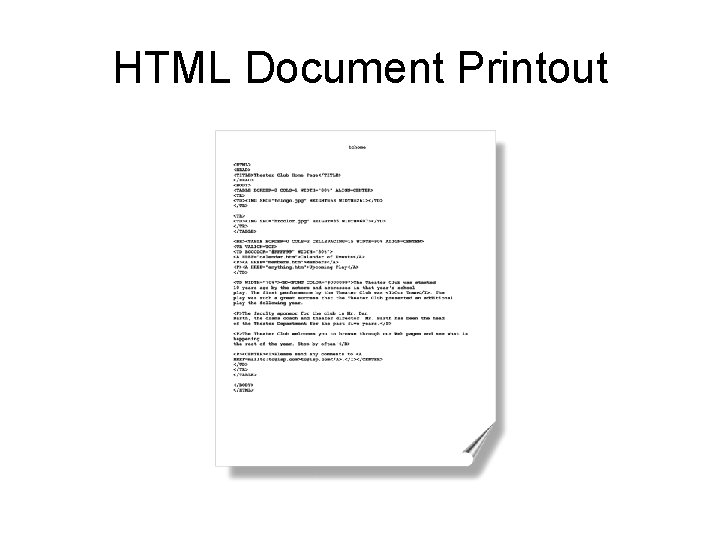
HTML Document Printout
Viewing the Web Page • Start your browser • Type a: tchome. htm in the Address text box and press the ENTER key
- Slides: 36