
Creating Solidworks Model for SCME Pressure Sensor AGBell

Creating Solidworks Model for SCME Pressure Sensor AGBell – 7/24/2019 Ivy Tech Community College
3 D Models help student visualize the device ▪ To visualize a part it is often helpful to use a 3 D model ▪ The SCME Pressure Sensor model is pretty straight forward but we could better used a model to understand its construction. ▪ Can we use Solidworks (a popular 3 D modeling tool) and the mask to create a model?

This is the original mask drawing opened in Auto. CAD but it was not designed in Auto. CAD so there are some issues that make it difficult to use in its original for to create a 3 D model.

Step 1 – Import the mask into Solidworks ▪ Solidworks can open a DWG file.
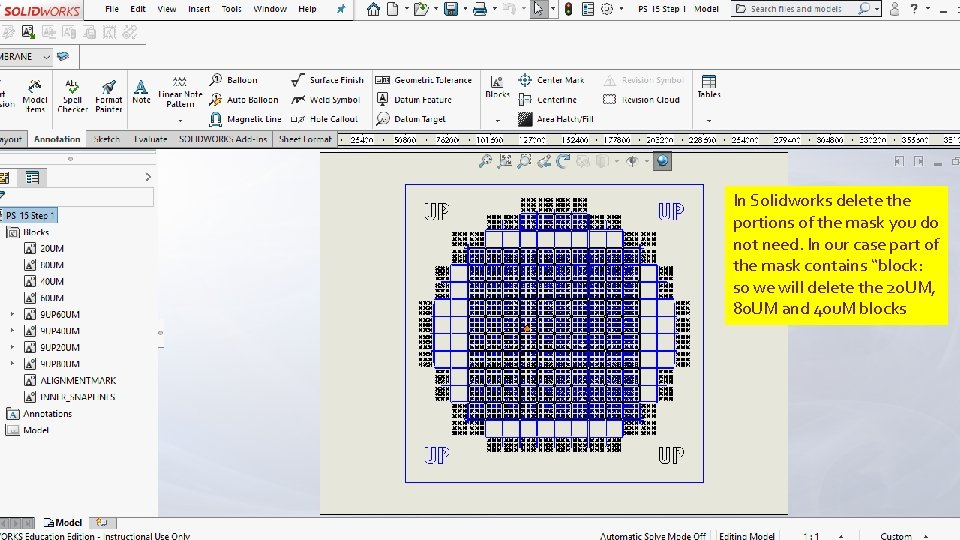
In Solidworks delete the portions of the mask you do not need. In our case part of the mask contains “block: so we will delete the 20 UM, 80 UM and 40 u. M blocks
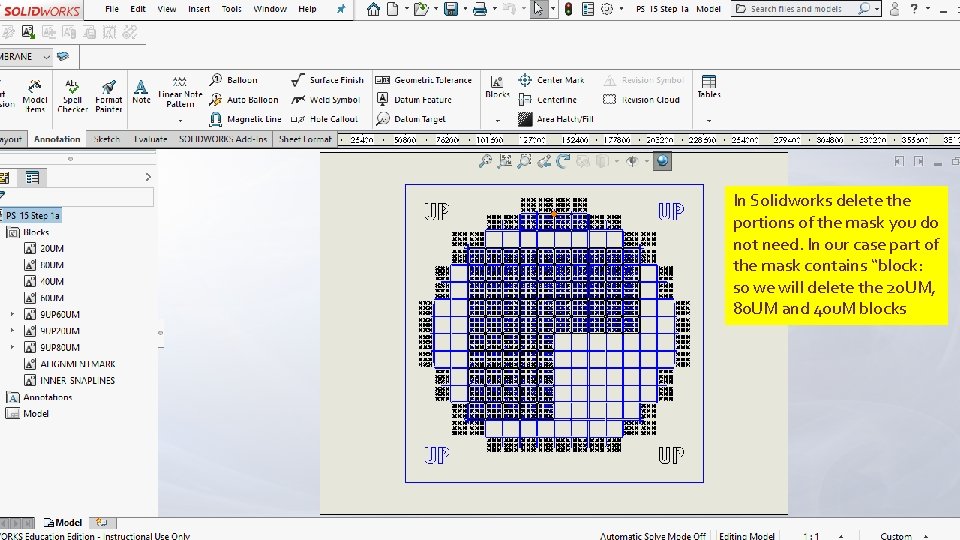
In Solidworks delete the portions of the mask you do not need. In our case part of the mask contains “block: so we will delete the 20 UM, 80 UM and 40 u. M blocks
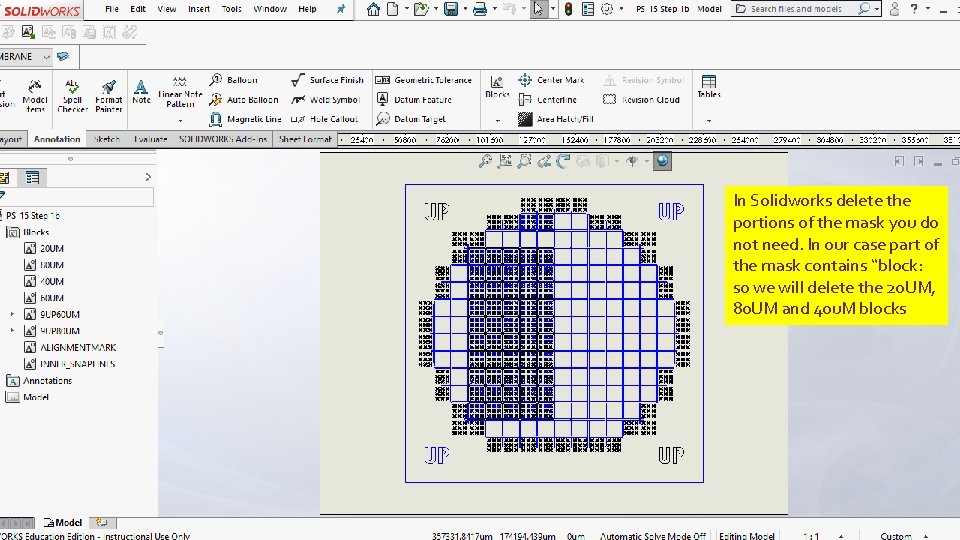
In Solidworks delete the portions of the mask you do not need. In our case part of the mask contains “block: so we will delete the 20 UM, 80 UM and 40 u. M blocks
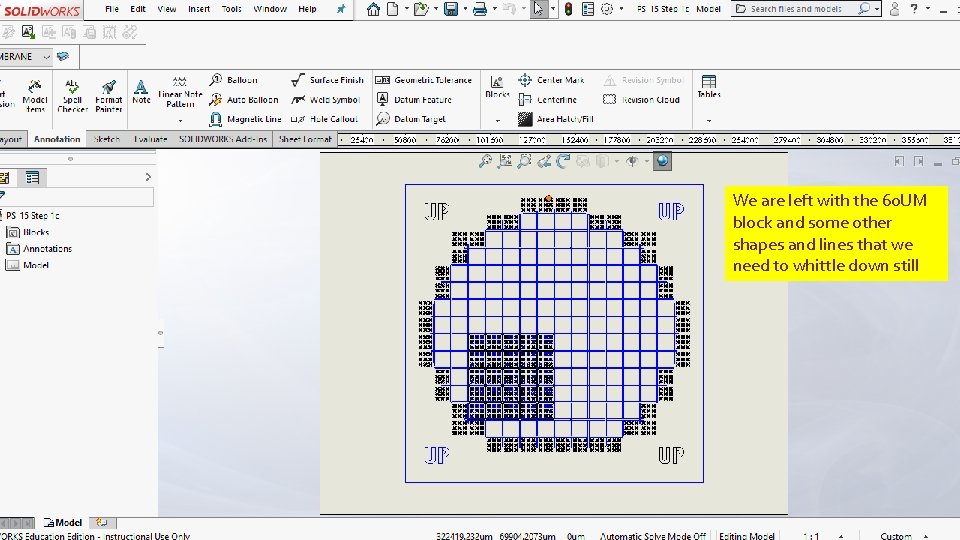
We are left with the 60 UM block and some other shapes and lines that we need to whittle down still
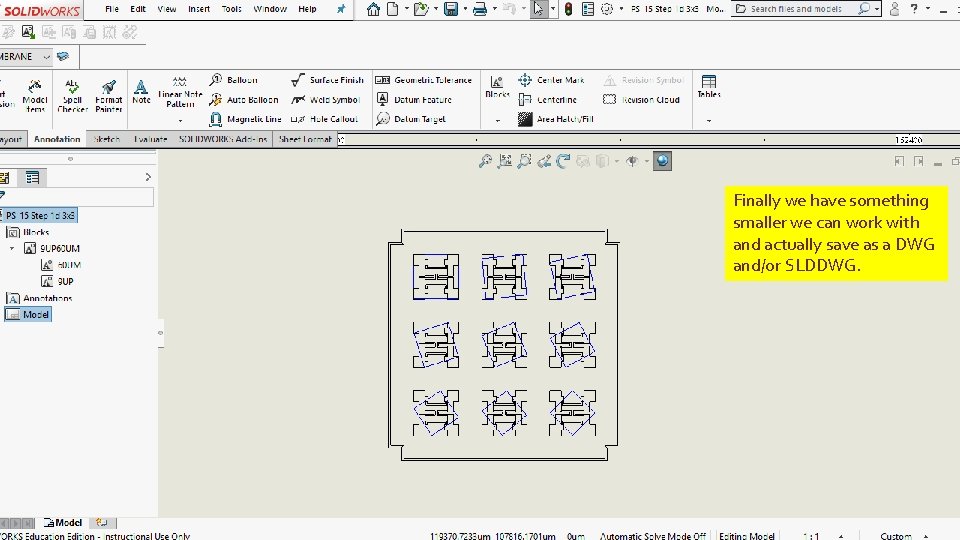
Finally we have something smaller we can work with and actually save as a DWG and/or SLDDWG.
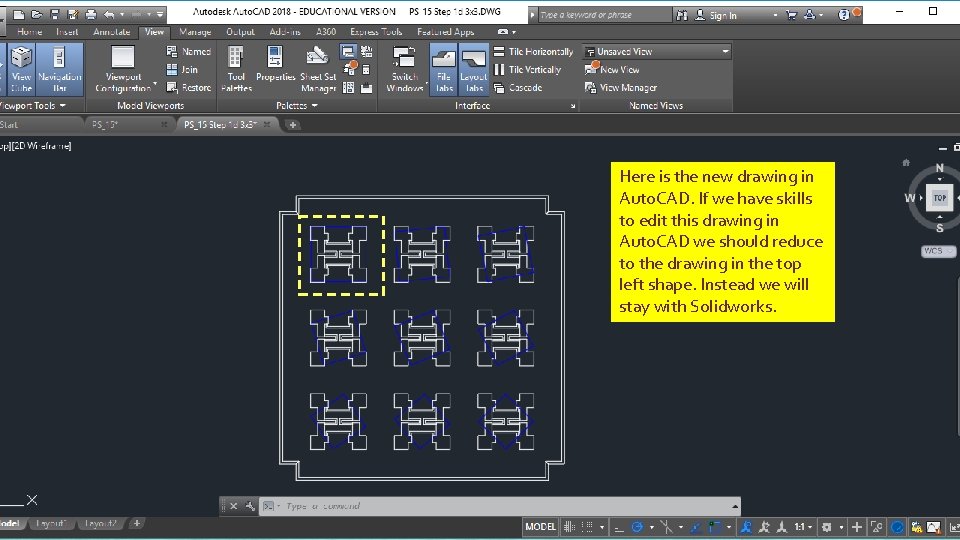
Here is the new drawing in Auto. CAD. If we have skills to edit this drawing in Auto. CAD we should reduce to the drawing in the top left shape. Instead we will stay with Solidworks.
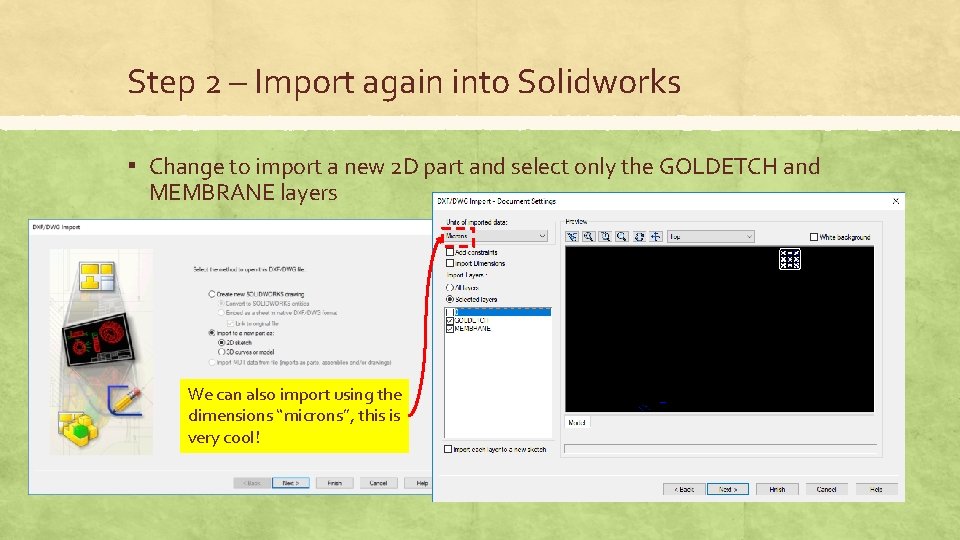
Step 2 – Import again into Solidworks ▪ Change to import a new 2 D part and select only the GOLDETCH and MEMBRANE layers We can also import using the dimensions “microns”, this is very cool!
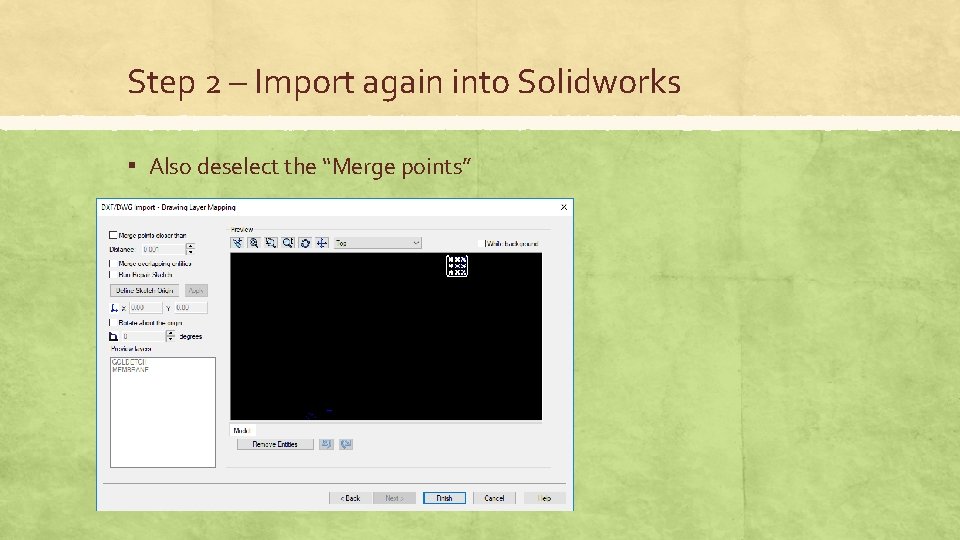
Step 2 – Import again into Solidworks ▪ Also deselect the “Merge points”
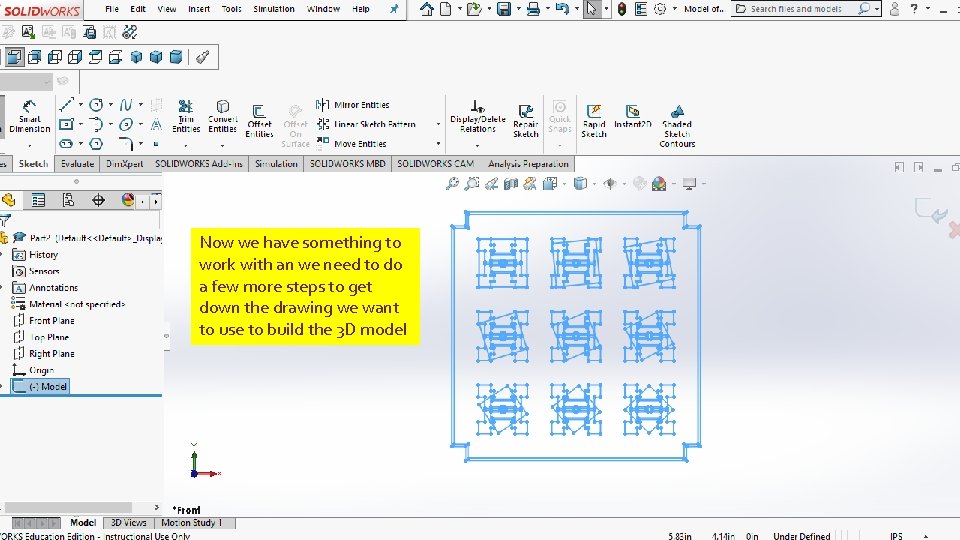
Now we have something to work with an we need to do a few more steps to get down the drawing we want to use to build the 3 D model
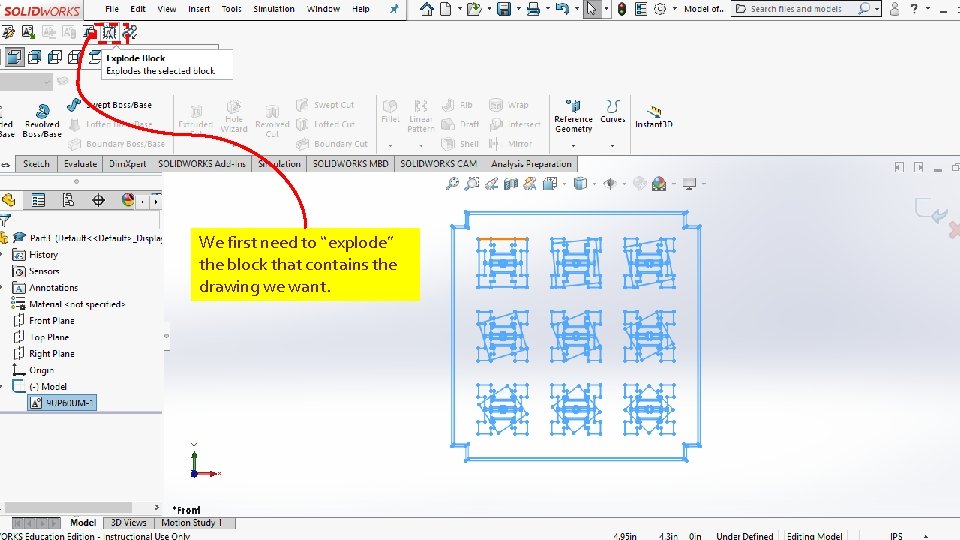
We first need to “explode” the block that contains the drawing we want.
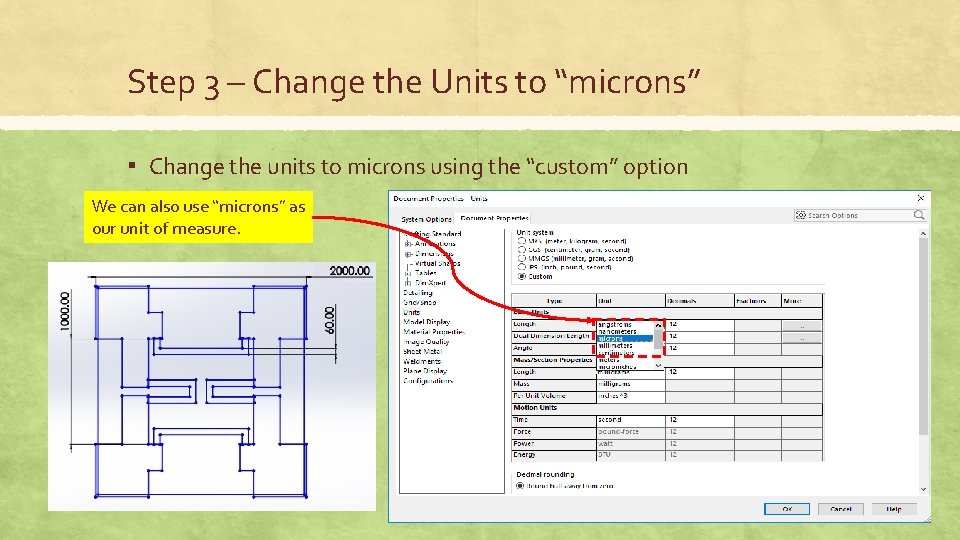
Step 3 – Change the Units to “microns” ▪ Change the units to microns using the “custom” option We can also use “microns” as our unit of measure.
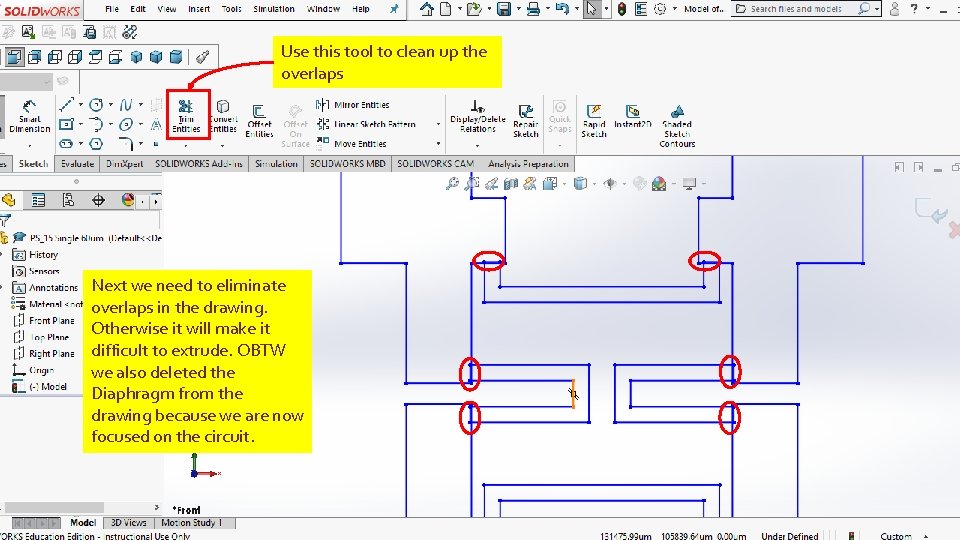
Use this tool to clean up the overlaps Next we need to eliminate overlaps in the drawing. Otherwise it will make it difficult to extrude. OBTW we also deleted the Diaphragm from the drawing because we are now focused on the circuit.
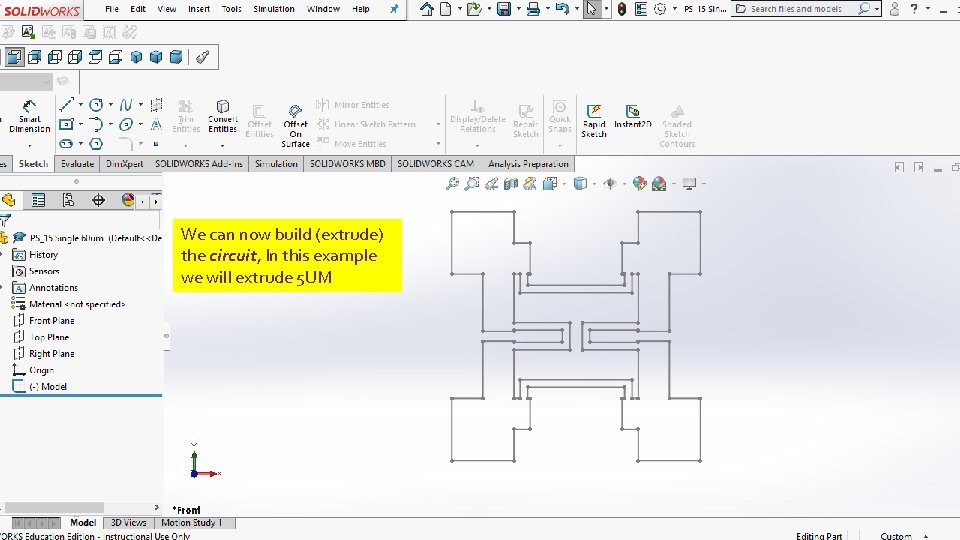
We can now build (extrude) the circuit, In this example we will extrude 5 UM
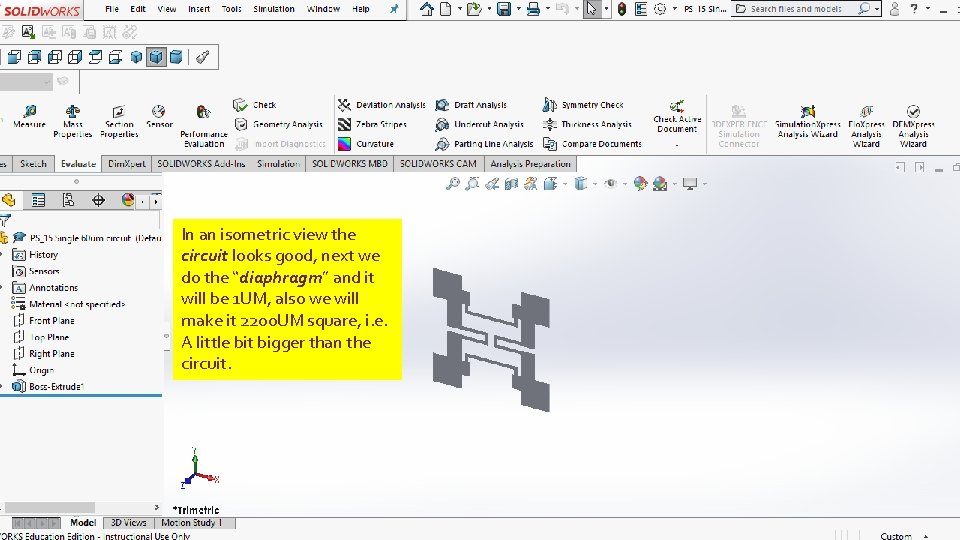
In an isometric view the circuit looks good, next we do the “diaphragm” and it will be 1 UM, also we will make it 2200 UM square, i. e. A little bit bigger than the circuit.
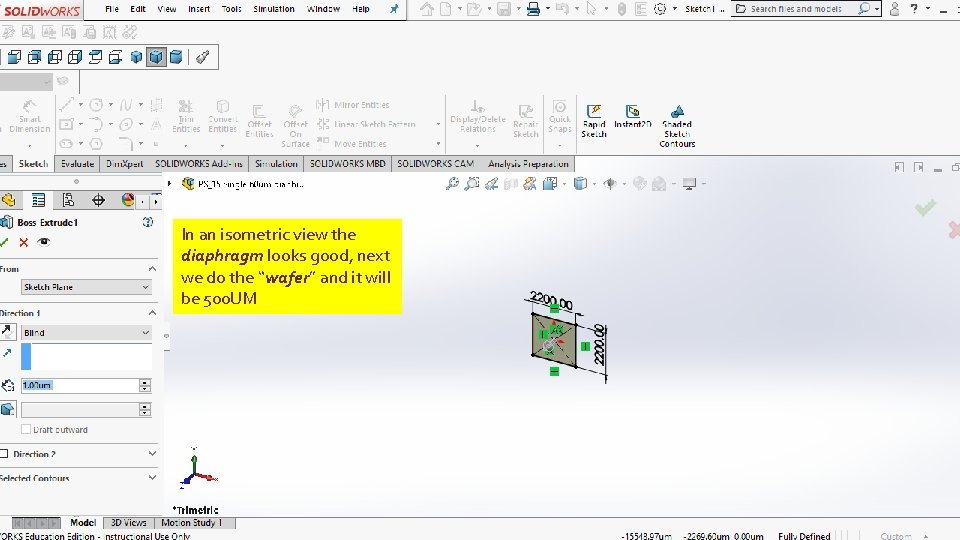
In an isometric view the diaphragm looks good, next we do the “wafer” and it will be 500 UM
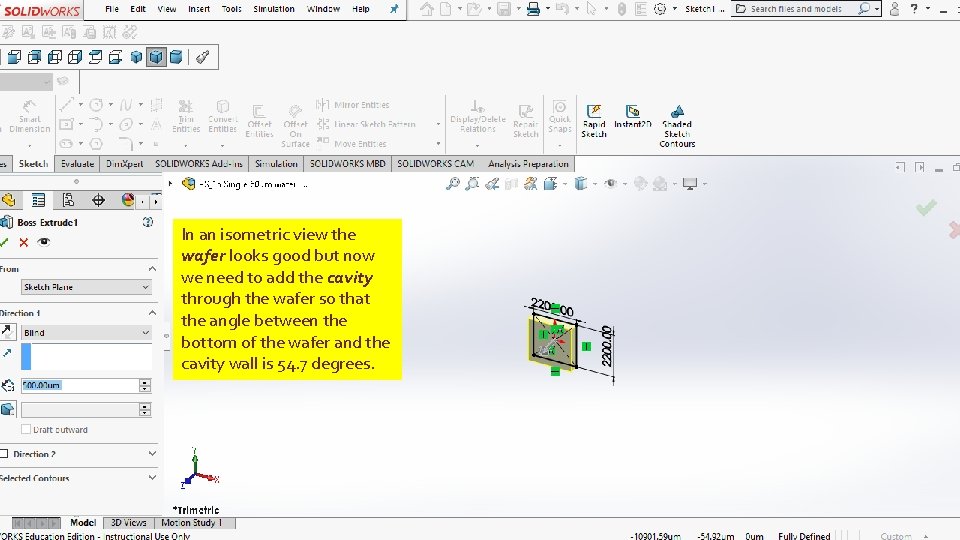
In an isometric view the wafer looks good but now we need to add the cavity through the wafer so that the angle between the bottom of the wafer and the cavity wall is 54. 7 degrees.
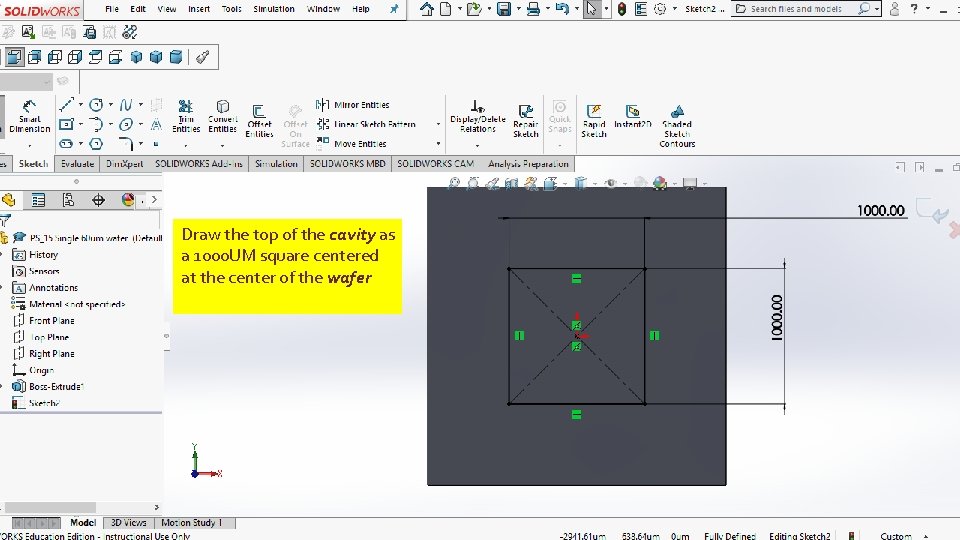
Draw the top of the cavity as a 1000 UM square centered at the center of the wafer
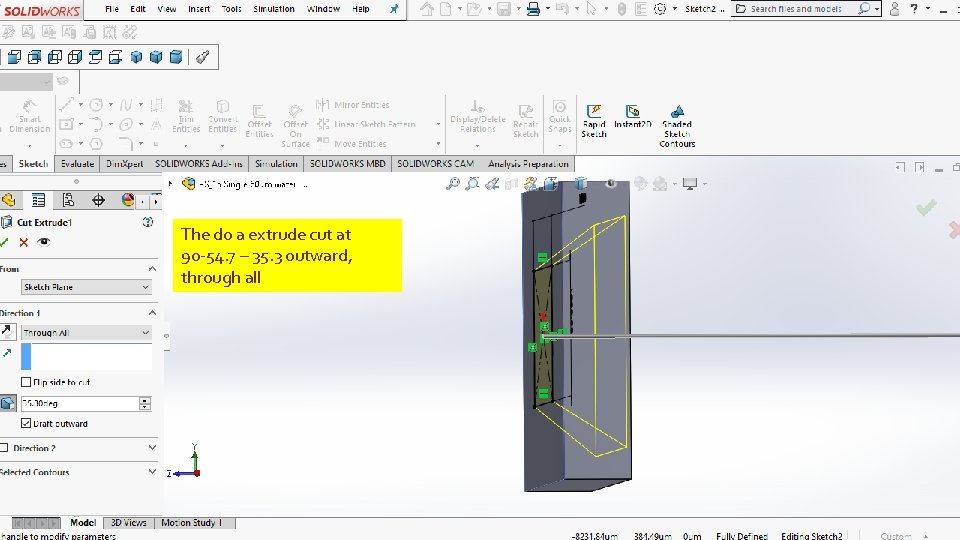
The do a extrude cut at 90 -54. 7 – 35. 3 outward, through all
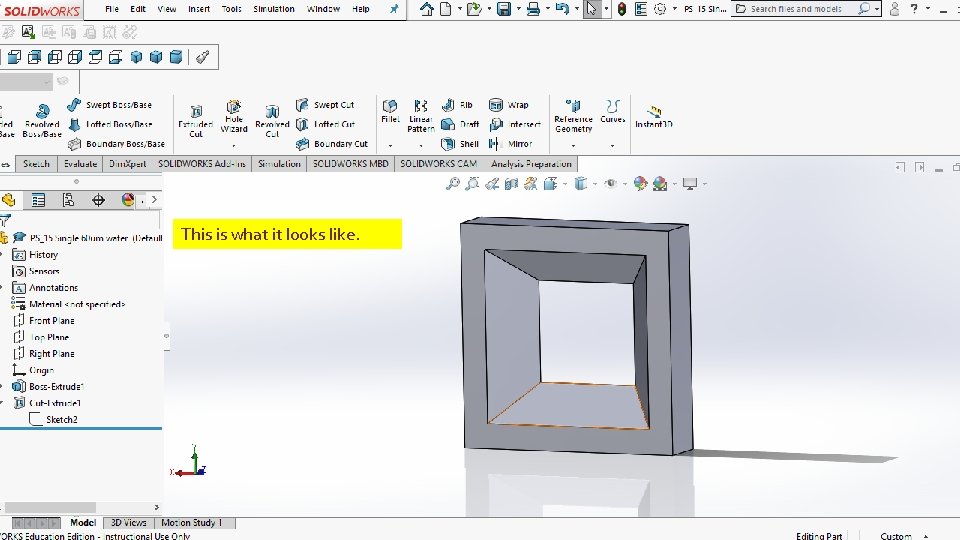
This is what it looks like.
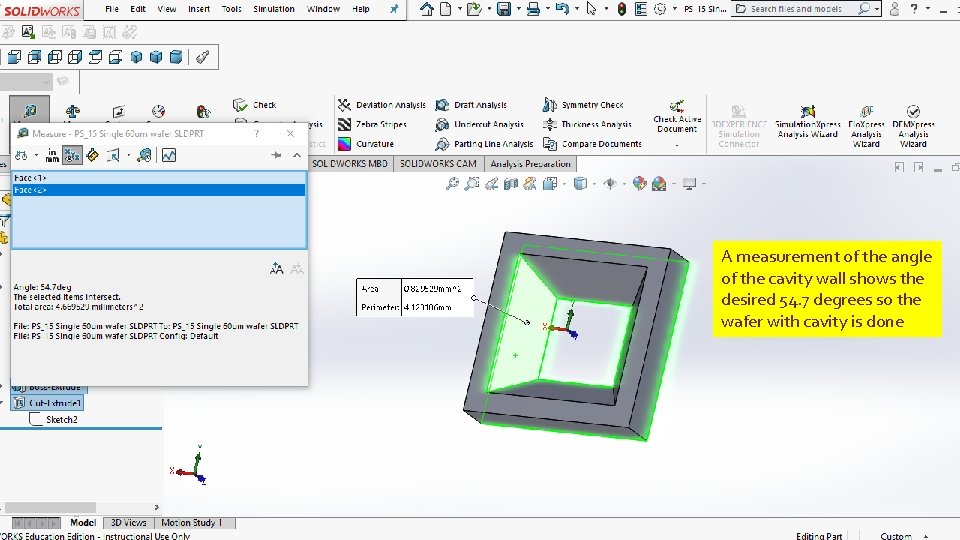
A measurement of the angle of the cavity wall shows the desired 54. 7 degrees so the wafer with cavity is done
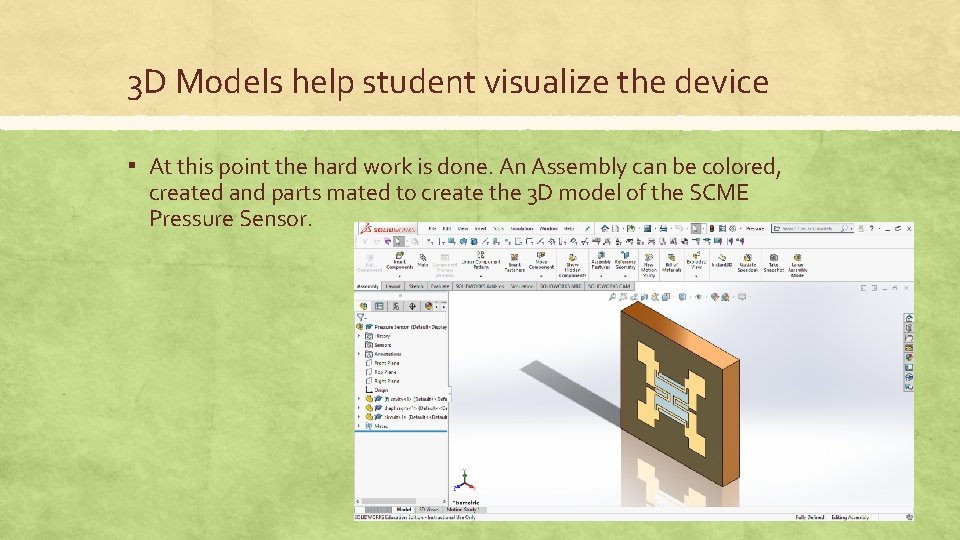
3 D Models help student visualize the device ▪ At this point the hard work is done. An Assembly can be colored, created and parts mated to create the 3 D model of the SCME Pressure Sensor.
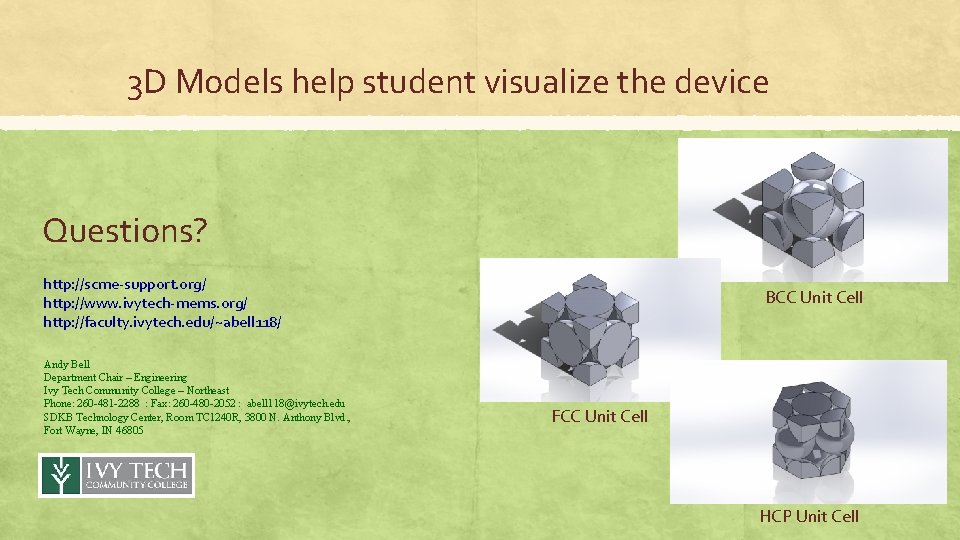
3 D Models help student visualize the device Questions? http: //scme-support. org/ http: //www. ivytech-mems. org/ http: //faculty. ivytech. edu/~abell 118/ Andy Bell Department Chair – Engineering Ivy Tech Community College – Northeast Phone: 260 -481 -2288 : Fax: 260 -480 -2052 : abell 118@ivytech. edu SDKB Technology Center, Room TC 1240 R, 3800 N. Anthony Blvd. , Fort Wayne, IN 46805 BCC Unit Cell FCC Unit Cell HCP Unit Cell
- Slides: 26