
Creating Project Deliverables Using Trimble Business Center Abstract

Creating Project Deliverables Using Trimble Business Center
Abstract This session will go through the use of the Trimble Business Center Advanced Drafting Module to create plans, plan / profile and cross section sheet drawings in paper or PDF formats. • The use of pre-defined drawing sheet templates to rapidly build high quality drawing output. • Learn how you can customize or modify existing templates to better suit your company standards, including changing company logos, adding company or project details, changing the layout of sheets and modifying settings to meet the needs of specific project data. • This session will also demonstrate how to plot utilities or other specified features in profile and cross section drawings.
Learning Objectives 1. Use standard sheet templates to produce high quality deliverables 2. Modify existing templates to meet your organization or project requirements 3. Compose cross section and profile drawings to include Utility or other features
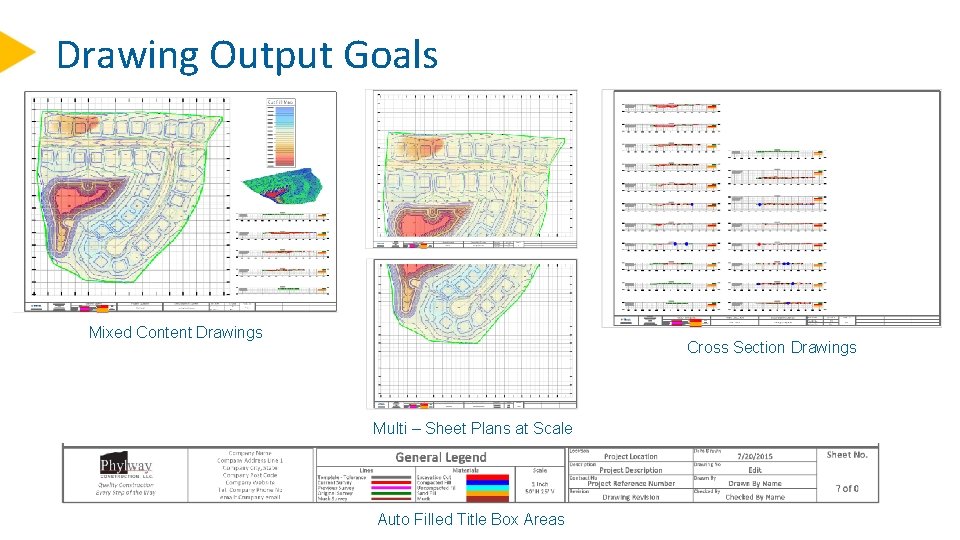
Drawing Output Goals Mixed Content Drawings Cross Section Drawings Multi – Sheet Plans at Scale Auto Filled Title Box Areas
What Do You Need To Have On Your License? • Business Center – HCE • Advanced Drafting Module • Trimble Business Center – v 5. 00 • • TBC Survey Advanced Edition This has Core, Surface Tools, Image Manager, TS/GNSS Processing and Advanced Drafting capabilities including Corridor Modeling (Finished and Subgrade + Superelevations)
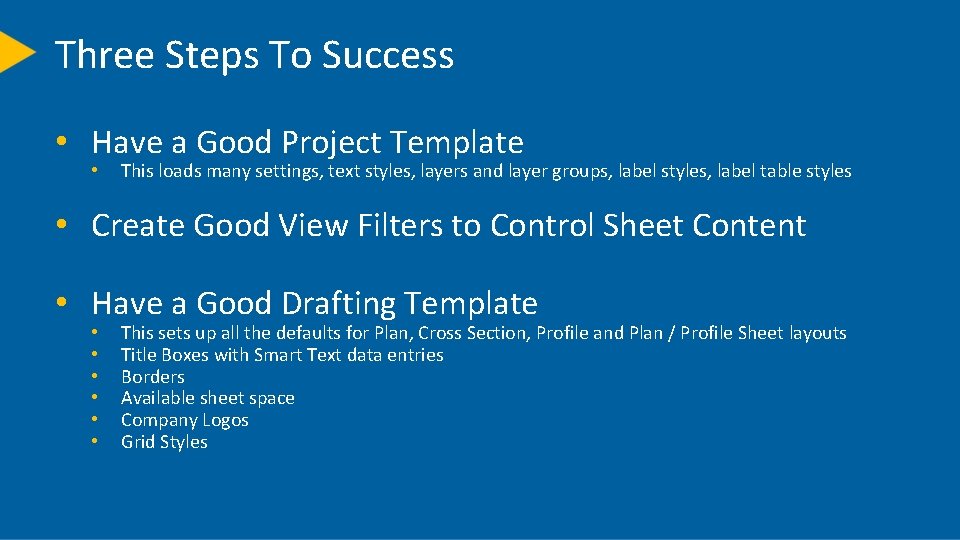
Three Steps To Success • Have a Good Project Template • This loads many settings, text styles, layers and layer groups, label styles, label table styles • Create Good View Filters to Control Sheet Content • Have a Good Drafting Template • • • This sets up all the defaults for Plan, Cross Section, Profile and Plan / Profile Sheet layouts Title Boxes with Smart Text data entries Borders Available sheet space Company Logos Grid Styles

Project Template Setup • Project Settings • • • General information Company information User information View Settings (Scale / Exaggeration) - Corridor Template View Cross Section View Plan View Profile View Station / Offset View Superelevation Diagram - Alignment Labels Key Horizontal Alignment Points Key Vertical Alignment Points Abbreviations • Other Settings • • • Layers and Layer Groups Label Styles Label Table Styles Dimension Styles Grid Styles (Typically Defined in Sheet Templates because of Layers Required) Text Styles - Recommend Text Styles for Purpose
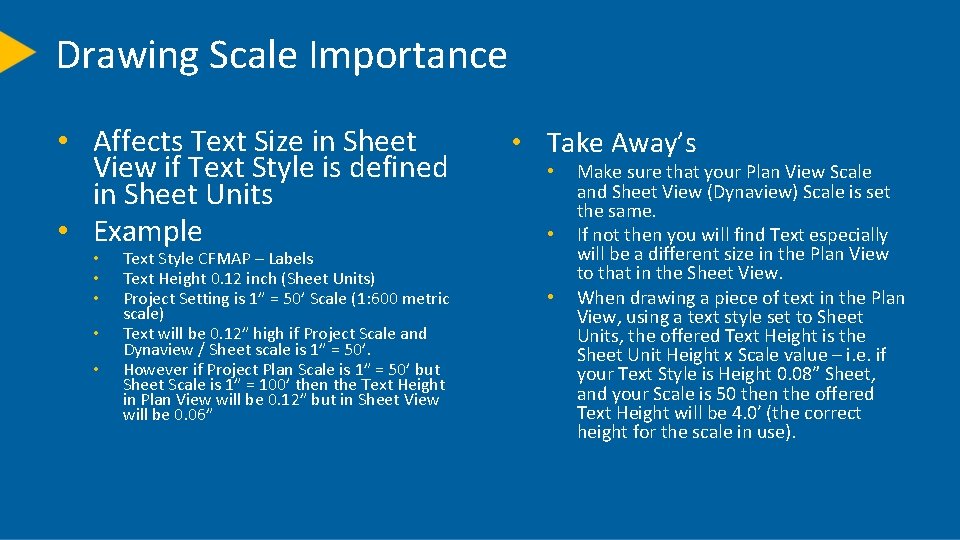
Drawing Scale Importance • Affects Text Size in Sheet View if Text Style is defined in Sheet Units • Example • • • Text Style CFMAP – Labels Text Height 0. 12 inch (Sheet Units) Project Setting is 1” = 50’ Scale (1: 600 metric scale) Text will be 0. 12” high if Project Scale and Dynaview / Sheet scale is 1” = 50’. However if Project Plan Scale is 1” = 50’ but Sheet Scale is 1” = 100’ then the Text Height in Plan View will be 0. 12” but in Sheet View will be 0. 06” • Take Away’s • • • Make sure that your Plan View Scale and Sheet View (Dynaview) Scale is set the same. If not then you will find Text especially will be a different size in the Plan View to that in the Sheet View. When drawing a piece of text in the Plan View, using a text style set to Sheet Units, the offered Text Height is the Sheet Unit Height x Scale value – i. e. if your Text Style is Height 0. 08” Sheet, and your Scale is 50 then the offered Text Height will be 4. 0’ (the correct height for the scale in use).
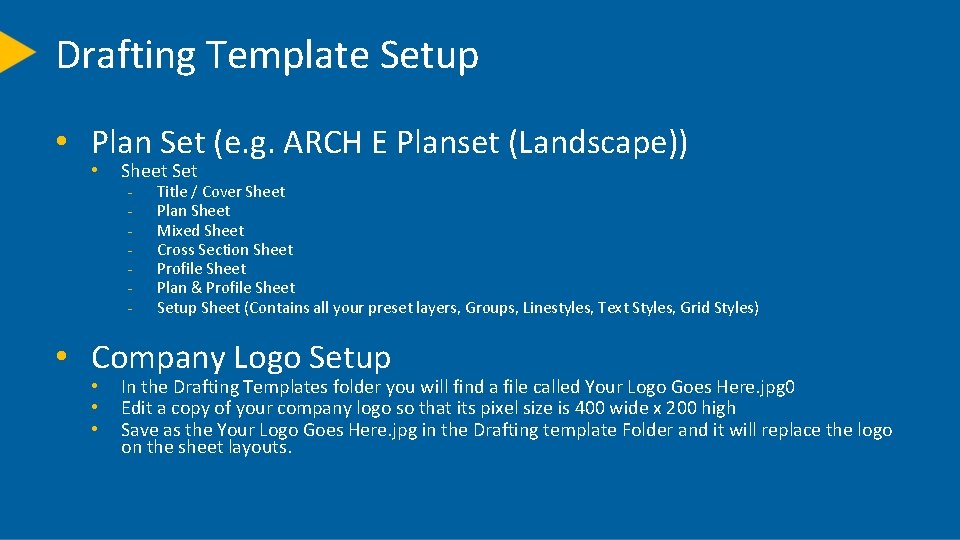
Drafting Template Setup • Plan Set (e. g. ARCH E Planset (Landscape)) • Sheet Set - Title / Cover Sheet Plan Sheet Mixed Sheet Cross Section Sheet Profile Sheet Plan & Profile Sheet Setup Sheet (Contains all your preset layers, Groups, Linestyles, Text Styles, Grid Styles) • Company Logo Setup • • • In the Drafting Templates folder you will find a file called Your Logo Goes Here. jpg 0 Edit a copy of your company logo so that its pixel size is 400 wide x 200 high Save as the Your Logo Goes Here. jpg in the Drafting template Folder and it will replace the logo on the sheet layouts.
Let’s Take A Look At A Drawing Sheet Template
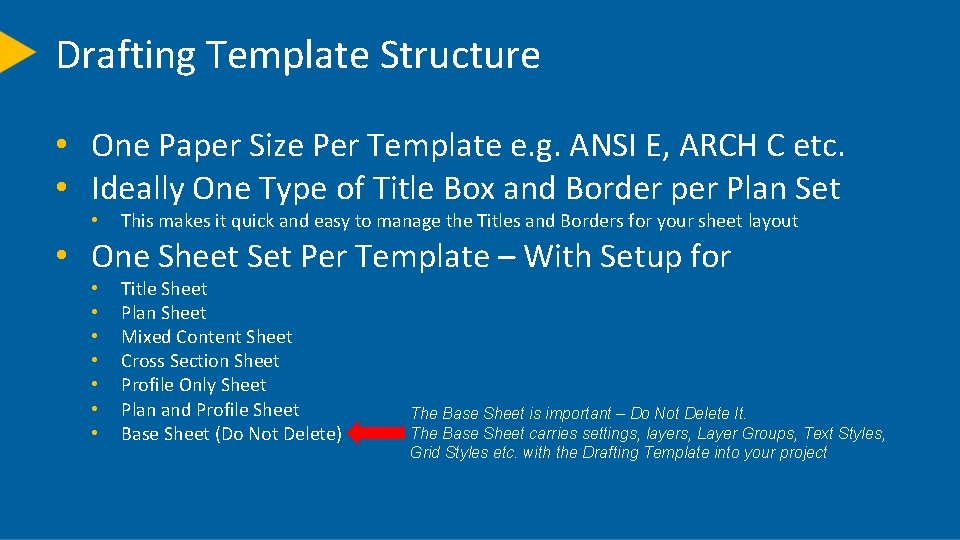
Drafting Template Structure • One Paper Size Per Template e. g. ANSI E, ARCH C etc. • Ideally One Type of Title Box and Border per Plan Set • This makes it quick and easy to manage the Titles and Borders for your sheet layout • One Sheet Set Per Template – With Setup for • • Title Sheet Plan Sheet Mixed Content Sheet Cross Section Sheet Profile Only Sheet Plan and Profile Sheet Base Sheet (Do Not Delete) The Base Sheet is important – Do Not Delete It. The Base Sheet carries settings, layers, Layer Groups, Text Styles, Grid Styles etc. with the Drafting Template into your project
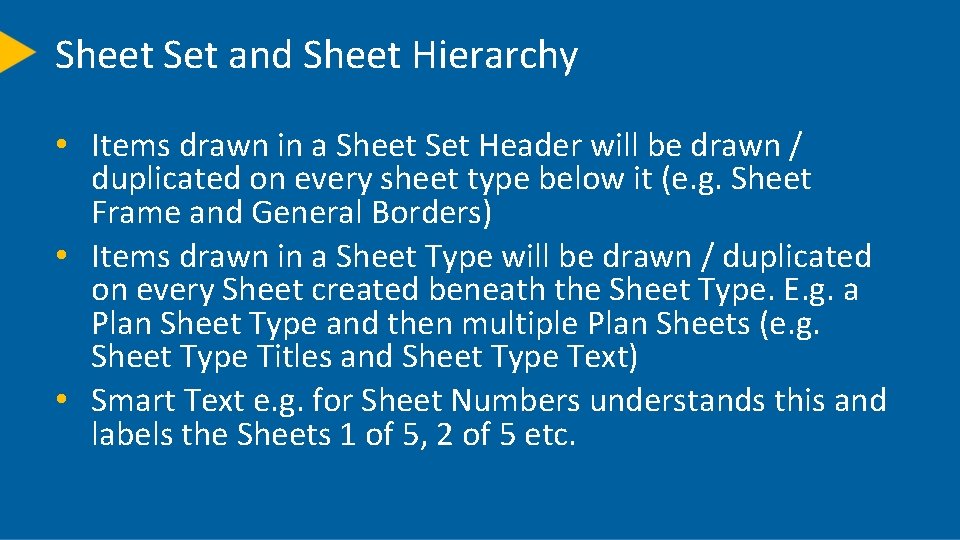
Sheet Set and Sheet Hierarchy • Items drawn in a Sheet Set Header will be drawn / duplicated on every sheet type below it (e. g. Sheet Frame and General Borders) • Items drawn in a Sheet Type will be drawn / duplicated on every Sheet created beneath the Sheet Type. E. g. a Plan Sheet Type and then multiple Plan Sheets (e. g. Sheet Type Titles and Sheet Type Text) • Smart Text e. g. for Sheet Numbers understands this and labels the Sheets 1 of 5, 2 of 5 etc.
Review Drafting Template in the TBC software
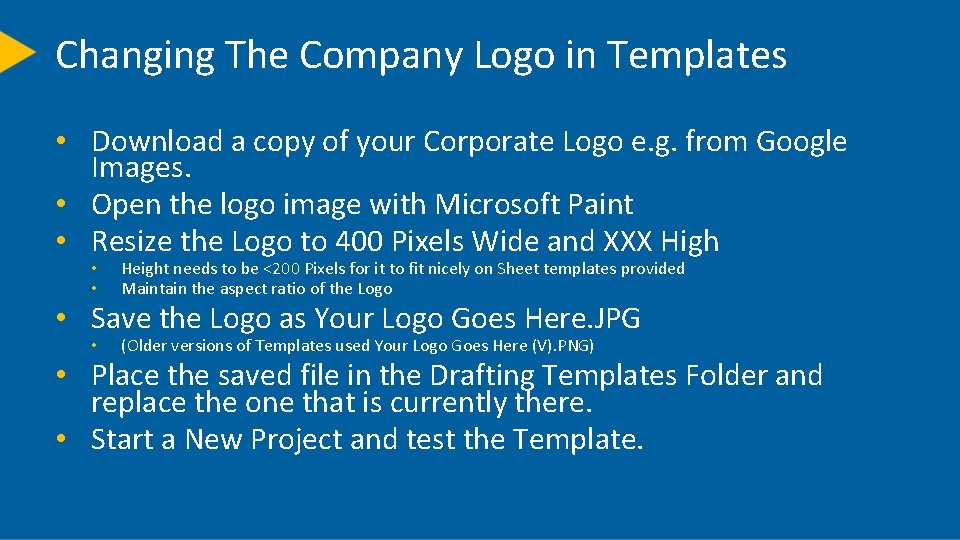
Changing The Company Logo in Templates • Download a copy of your Corporate Logo e. g. from Google Images. • Open the logo image with Microsoft Paint • Resize the Logo to 400 Pixels Wide and XXX High • • Height needs to be <200 Pixels for it to fit nicely on Sheet templates provided Maintain the aspect ratio of the Logo • (Older versions of Templates used Your Logo Goes Here (V). PNG) • Save the Logo as Your Logo Goes Here. JPG • Place the saved file in the Drafting Templates Folder and replace the one that is currently there. • Start a New Project and test the Template.
Using The Drafting Templates
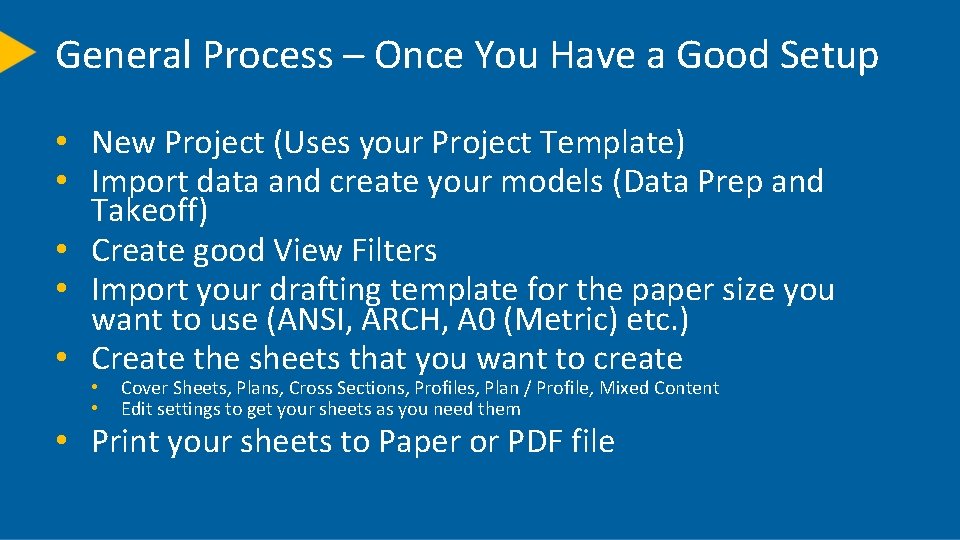
General Process – Once You Have a Good Setup • New Project (Uses your Project Template) • Import data and create your models (Data Prep and Takeoff) • Create good View Filters • Import your drafting template for the paper size you want to use (ANSI, ARCH, A 0 (Metric) etc. ) • Create the sheets that you want to create • • Cover Sheets, Plans, Cross Sections, Profiles, Plan / Profile, Mixed Content Edit settings to get your sheets as you need them • Print your sheets to Paper or PDF file

Review The Process In The TBC Software
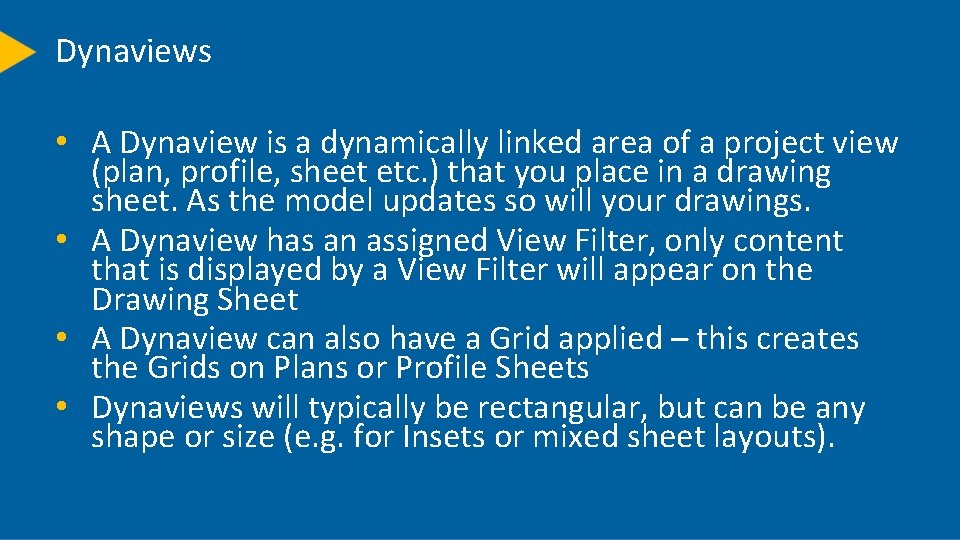
Dynaviews • A Dynaview is a dynamically linked area of a project view (plan, profile, sheet etc. ) that you place in a drawing sheet. As the model updates so will your drawings. • A Dynaview has an assigned View Filter, only content that is displayed by a View Filter will appear on the Drawing Sheet • A Dynaview can also have a Grid applied – this creates the Grids on Plans or Profile Sheets • Dynaviews will typically be rectangular, but can be any shape or size (e. g. for Insets or mixed sheet layouts).
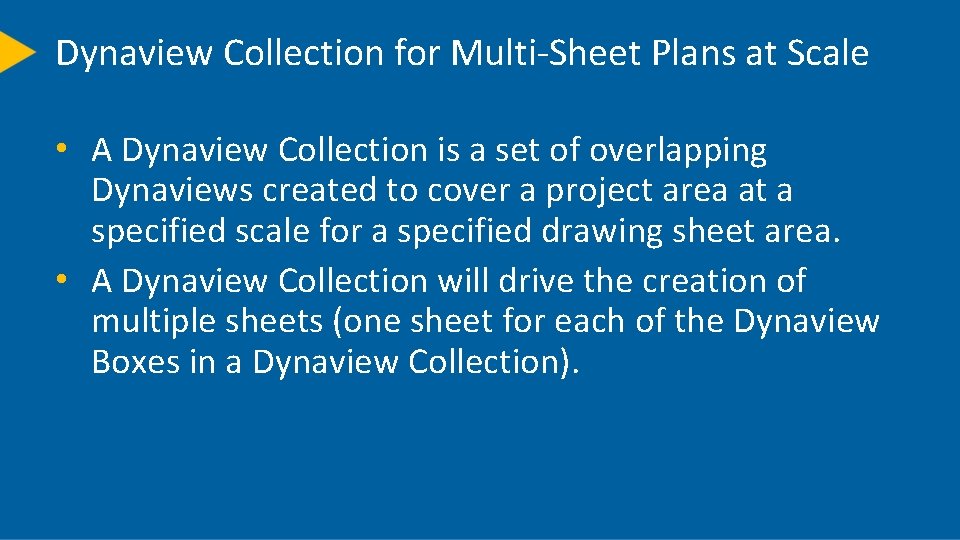
Dynaview Collection for Multi-Sheet Plans at Scale • A Dynaview Collection is a set of overlapping Dynaviews created to cover a project area at a specified scale for a specified drawing sheet area. • A Dynaview Collection will drive the creation of multiple sheets (one sheet for each of the Dynaview Boxes in a Dynaview Collection).
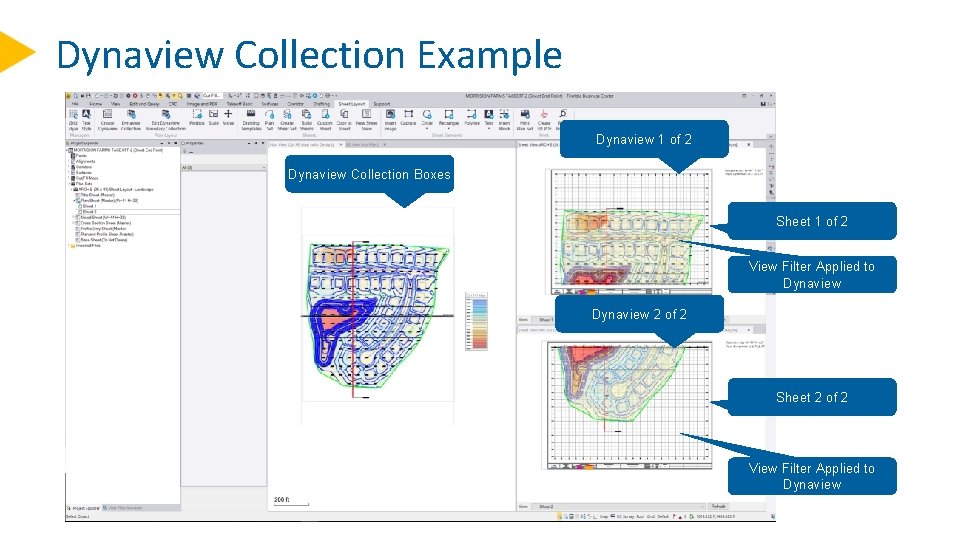
Dynaview Collection Example Dynaview 1 of 2 Dynaview Collection Boxes Sheet 1 of 2 View Filter Applied to Dynaview 2 of 2 Sheet 2 of 2 View Filter Applied to Dynaview
Printing A Sheet Set to e. g. PDF
Printing a Sheet Set to PDF • Run the Print Plan Set Command • Choose the Plan Set to Print or Print just a single Sheet Set from the Plan Set if required • Set Print Scale 1: 1 or 2: 1 (Half Scale) • Select All the Sheets or a selection of Sheets • Check [ X ] Print to PDF • Enter a Filename and Location and Tap OK • PDF is created (Show Examples)
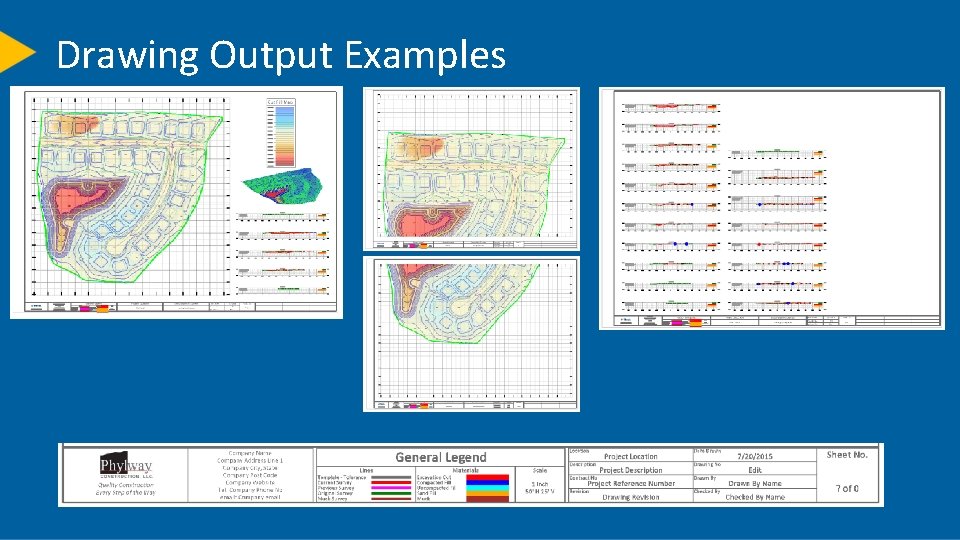
Drawing Output Examples Mixed Content Drawings Cross Section Drawings Multi – Sheet Plans at Scale Auto Filled Title Box Areas

Other Useful Tips and Tricks
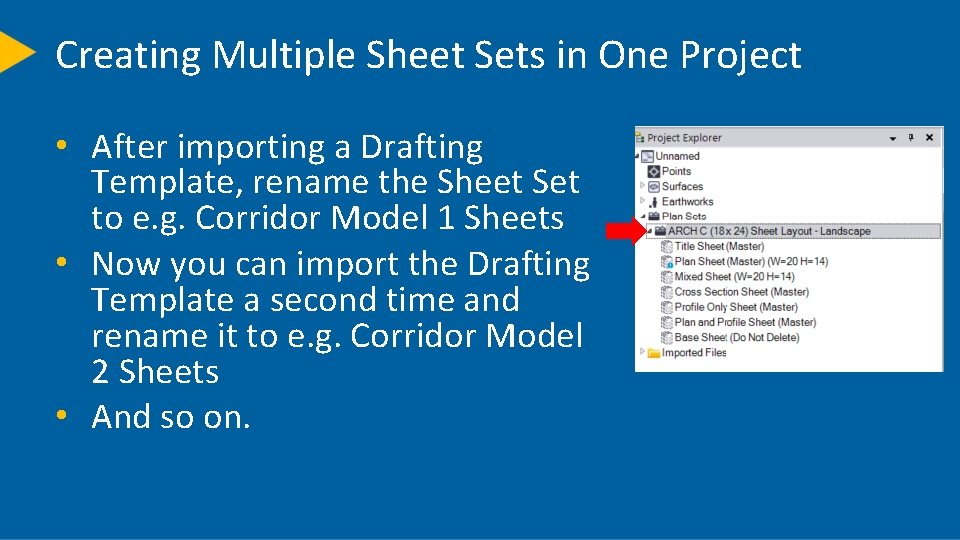
Creating Multiple Sheet Sets in One Project • After importing a Drafting Template, rename the Sheet Set to e. g. Corridor Model 1 Sheets • Now you can import the Drafting Template a second time and rename it to e. g. Corridor Model 2 Sheets • And so on.
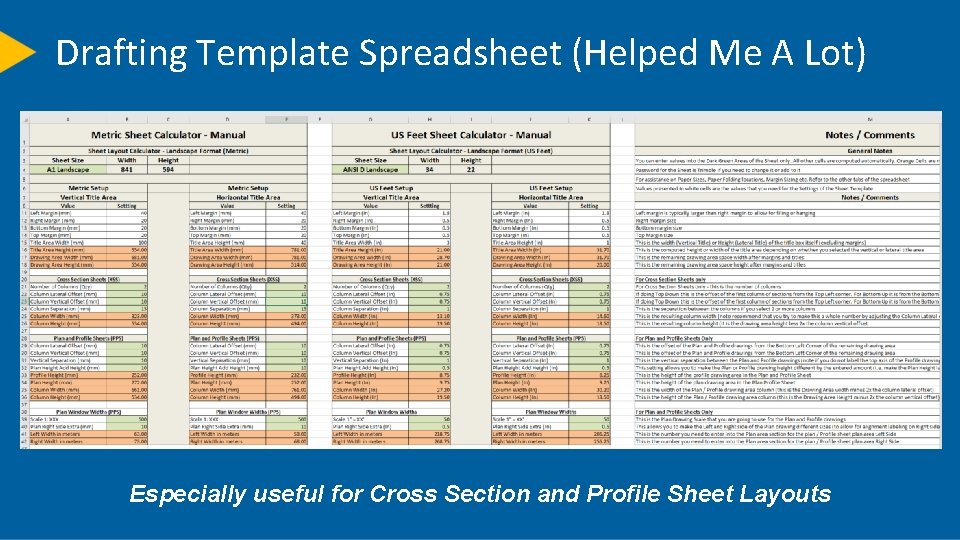
Drafting Template Spreadsheet (Helped Me A Lot) Especially useful for Cross Section and Profile Sheet Layouts
New Drafting Smart Text and Point Labels • Smart Text Code for labeling Cut or Fill at a Point Location • • @<ELS, T, F, 2, T, T>@ ELS = Surface T = Text Insertion Location or LD = Leader Point Location F = Do not display units suffix / T= Display units suffix 2 = 2 Decimal Places T = Compute the Delta Z to a Target Surface e. g. Design Surface T = Display C = Cut or F = Fill as a suffix text item • Resulting Text = 0. 50 F on drawing • If you have a lot of these to label, then use Point Label Styles. A default Templat can have these all preset so you can simply use them e. g. Grade Check Label.
New Drafting Smart Text and Point Labels • • Smart Text Code for labeling Station and Offset at a Point Location • • • Sta: @<S, T, F, 2>@ Off: @<O, T, F, 2>@ Dz: @<ELS, T, F, 2, T, T>@ Resulting Text on drawing • • • Sta: 6+43. 21 Off: 246. 64 Dz: 0. 50 F • If you have a lot of these to label, then use Point Label Styles. A default Template can have these all preset so you can simply use them e. g. Align & Grade Check. • Note: Label Styles that need to reference a HAL or a Surface need to be modified to target the correct HAL and Surface prior to labeling points.

How To Learn More In Future Trimble Community Forum & Trimble Library
Helping Yourself • Join the Trimble Library • • Free and Low Cost Video Library of Training Materials From a few $$$ to $50 for an entire training course • Join the Trimble Business Center Community Forum • • Free downloads of Project templates, Drafting Templates Free Support and Advice Give us your product improvement ideas www. Community. Trimble. com

Questions ? Thank You alan_sharp@trimble. com
- Slides: 31