
Creating MOTION From Still Images Using Photoshop David










- Slides: 30
Creating MOTION From Still Images Using Photoshop David Blass July 16, 2020
Why Do It? -It’s fun -It’s creative -It’s a challenge
2 Techniques: -Frame by Frame Video -Animated GIF (to be covered another time)
Frame by Frame Video -Each frame is a separate photo -Can create smooth motion -Time-lapse photography
Examples -movement of sun or stars -“a day in the life. . . ” -watch a flower open & close -give motion to inanimate objects
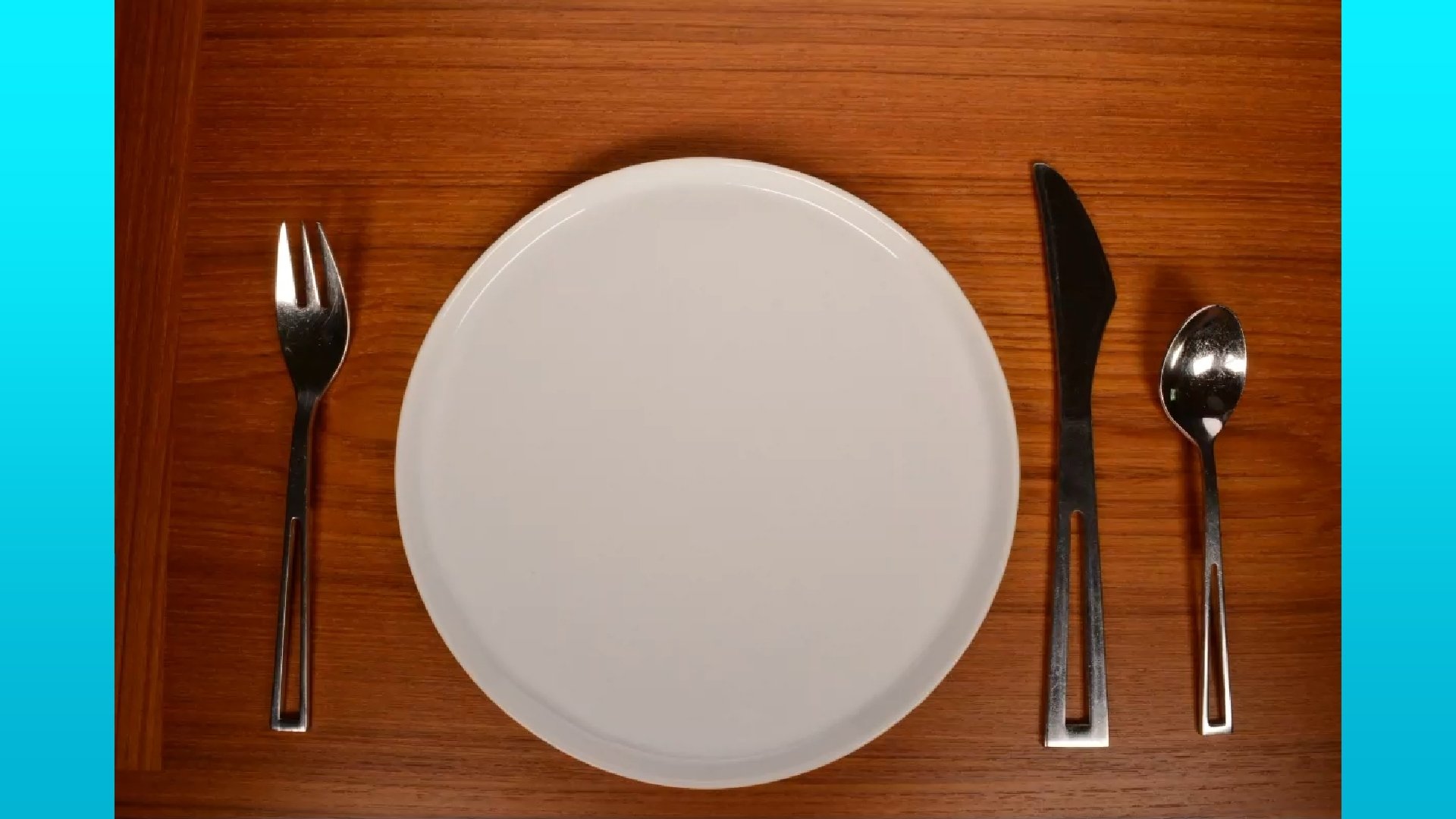
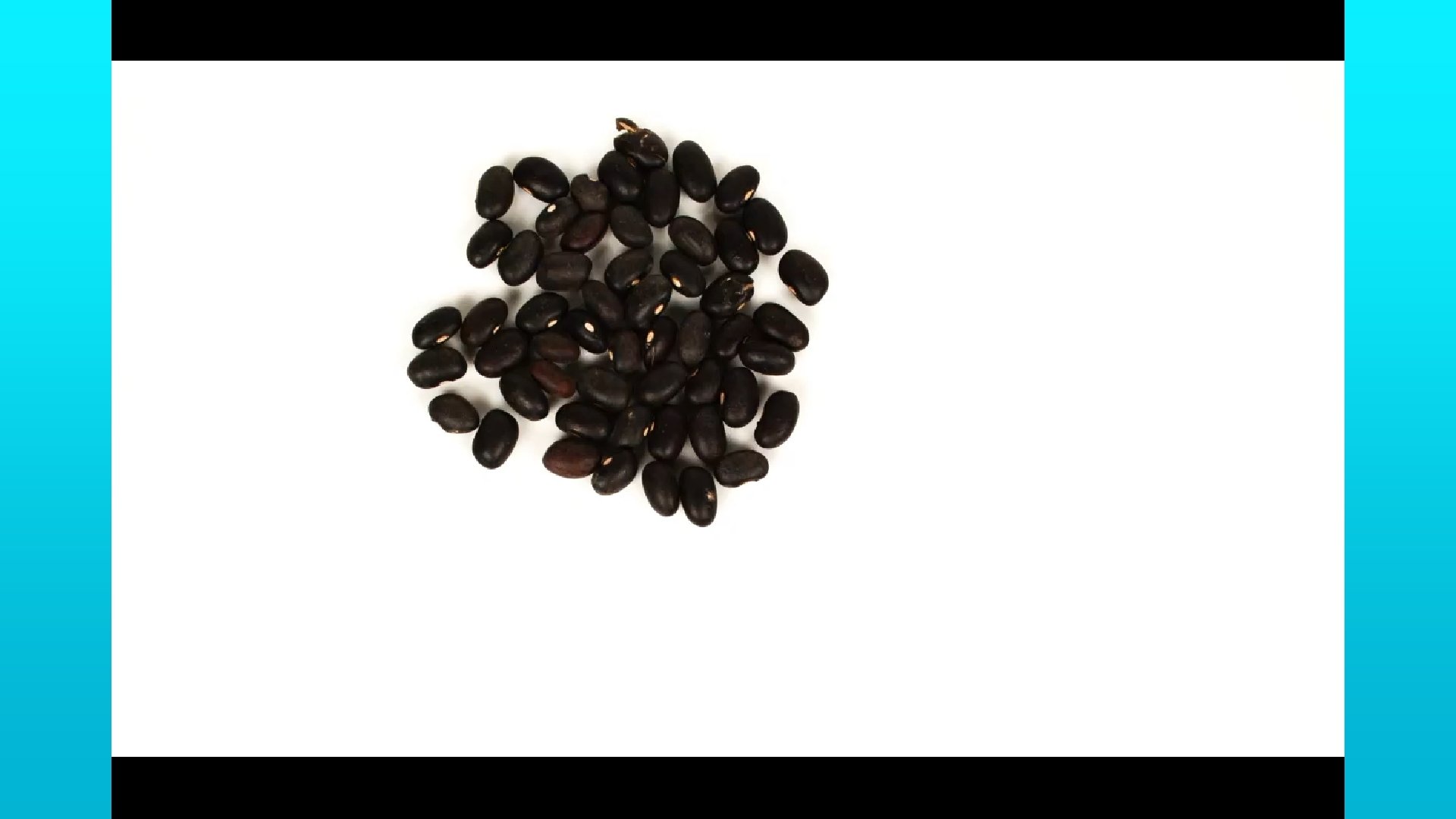
Move Inanimate Objects
Order CH From O A S
What you need: -a camera -imagination -Adobe Photoshop Helpful to have: -intervalometer -tripod
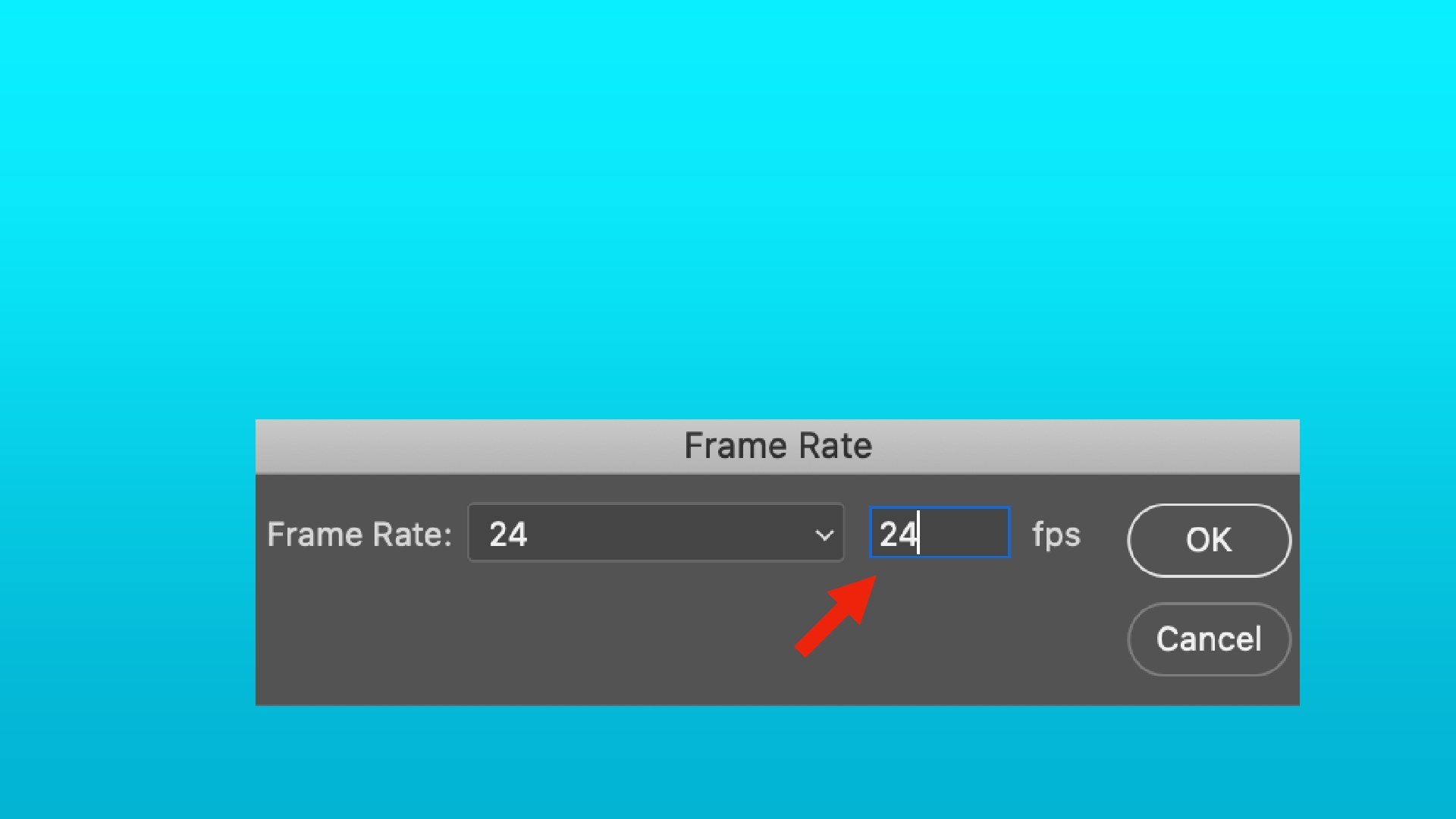
Goal: Create a series of photos, numbered consecutively, showing incremental change. Each photo becomes a frame of your video. Commonly, 24 frames=1 second
Before you start: -Have an empty SD card -Have a fully charged battery -Use aperture priority -Select the white balance (not auto) -Turn off image review -Have an empty folder in your computer to receive the images
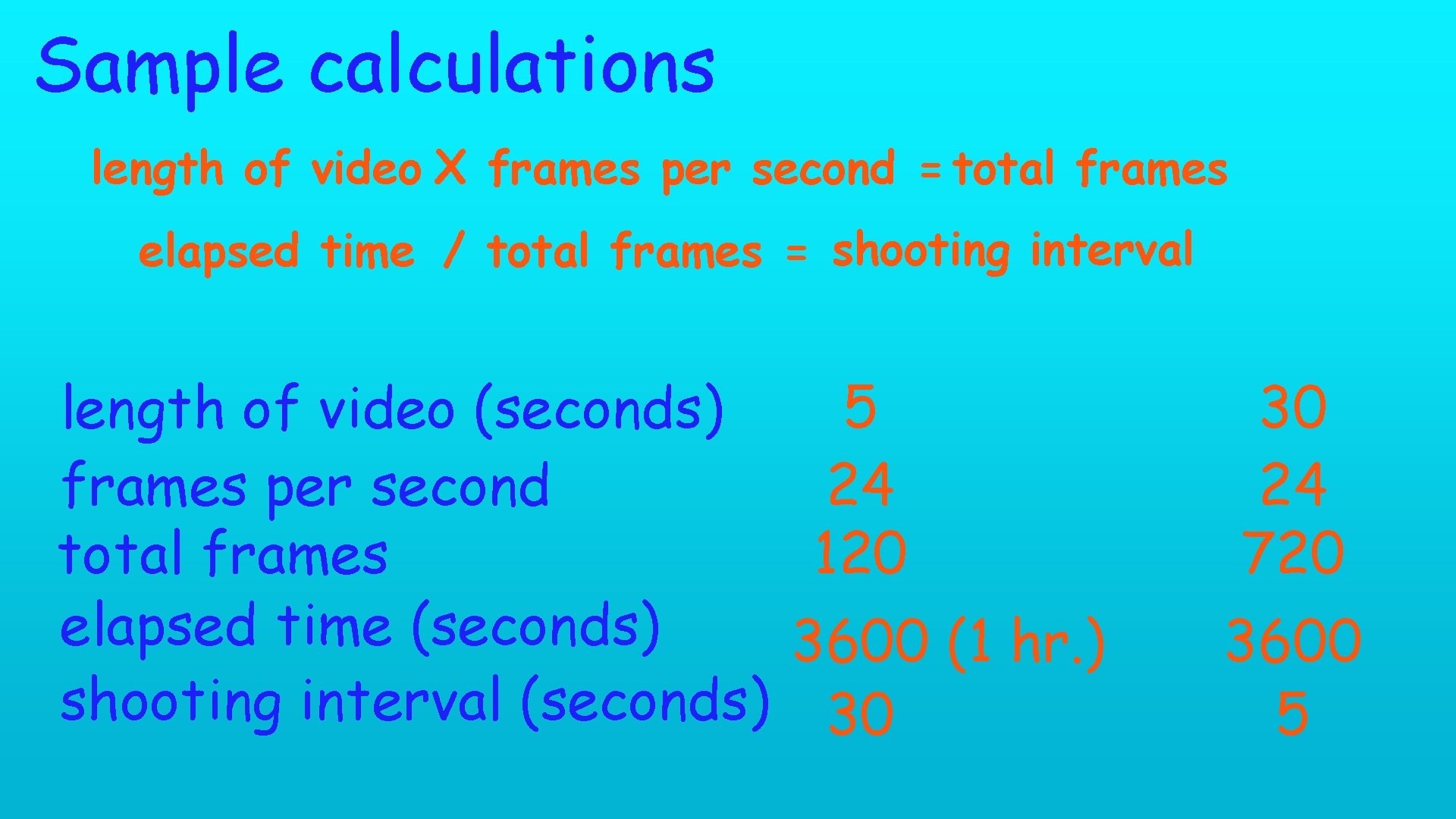
Sample calculations length of video X frames per second = total frames elapsed time / total frames = shooting interval length of video (seconds) frames per second total frames elapsed time (seconds) shooting interval (seconds) 5 24 120 3600 (1 hr. ) 30 30 24 720 3600 5
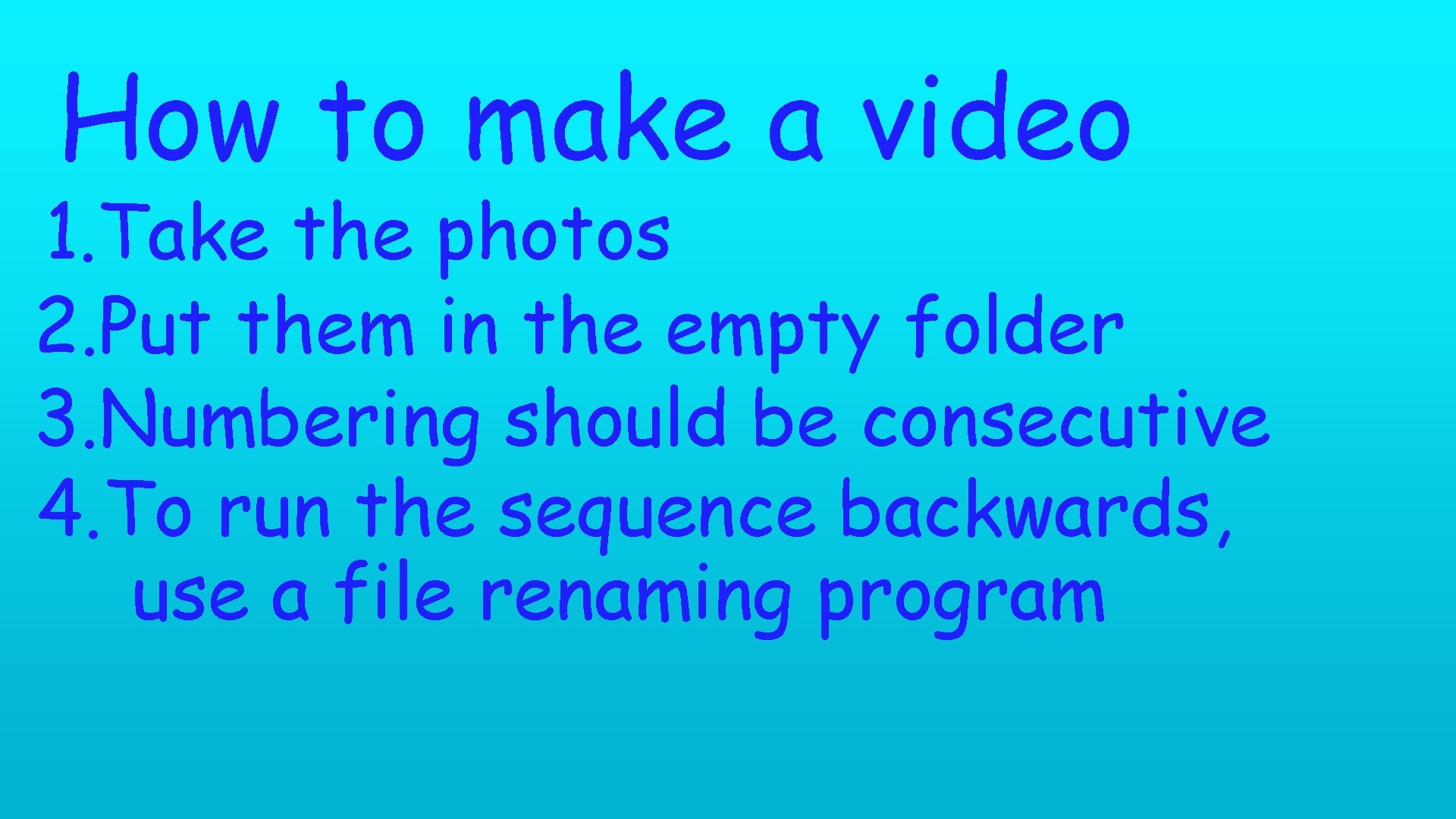
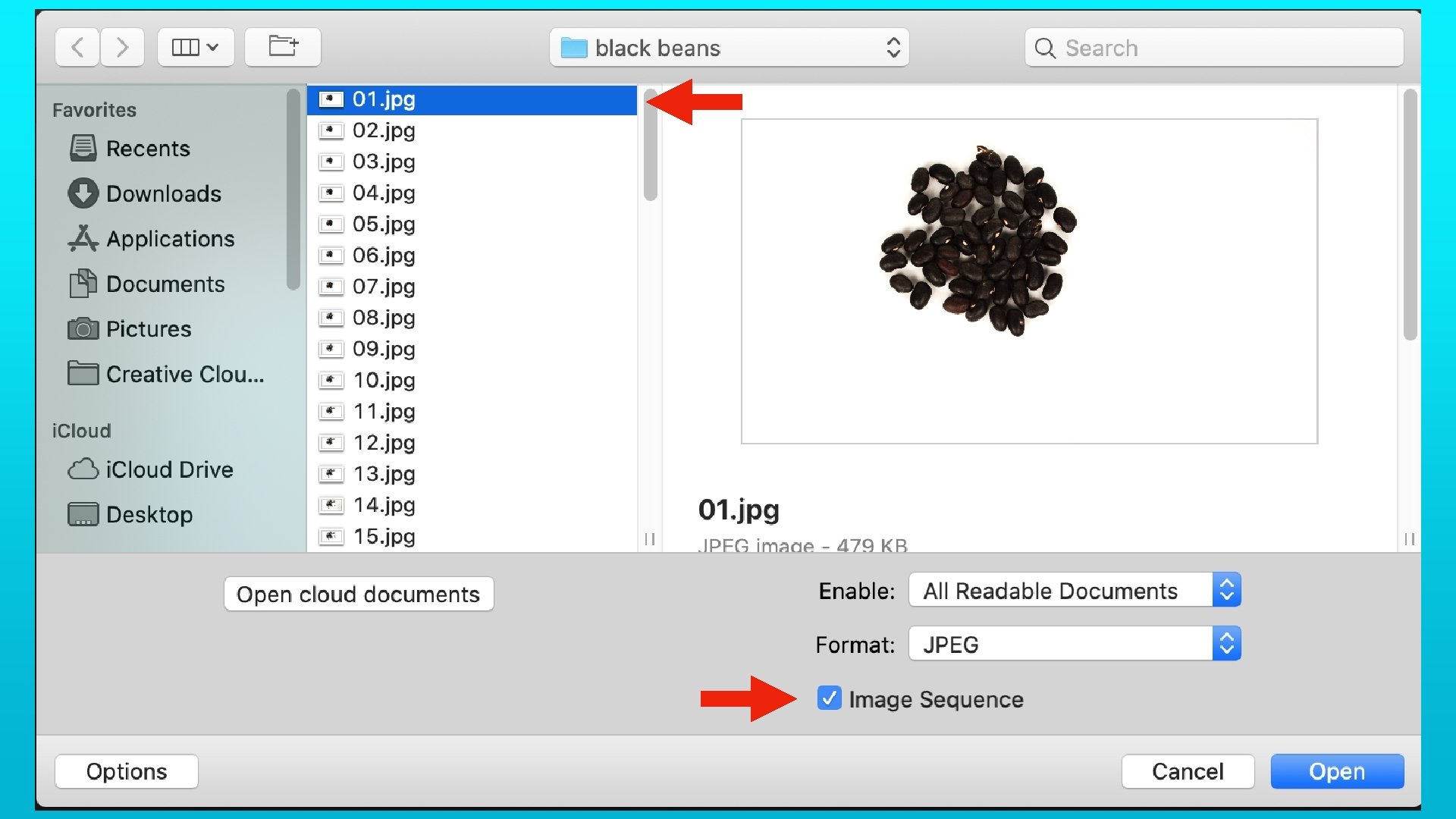
How to make a video 1. Take the photos 2. Put them in the empty folder 3. Numbering should be consecutive 4. To run the sequence backwards, use a file renaming program
File Renaming Programs Windows: File Renamer (free) https: //www. microsoft. com/en-us/p/file-renamer/9 nblgg Mac: Name. Changer (free) https: //mrrsoftware. com/namechanger/
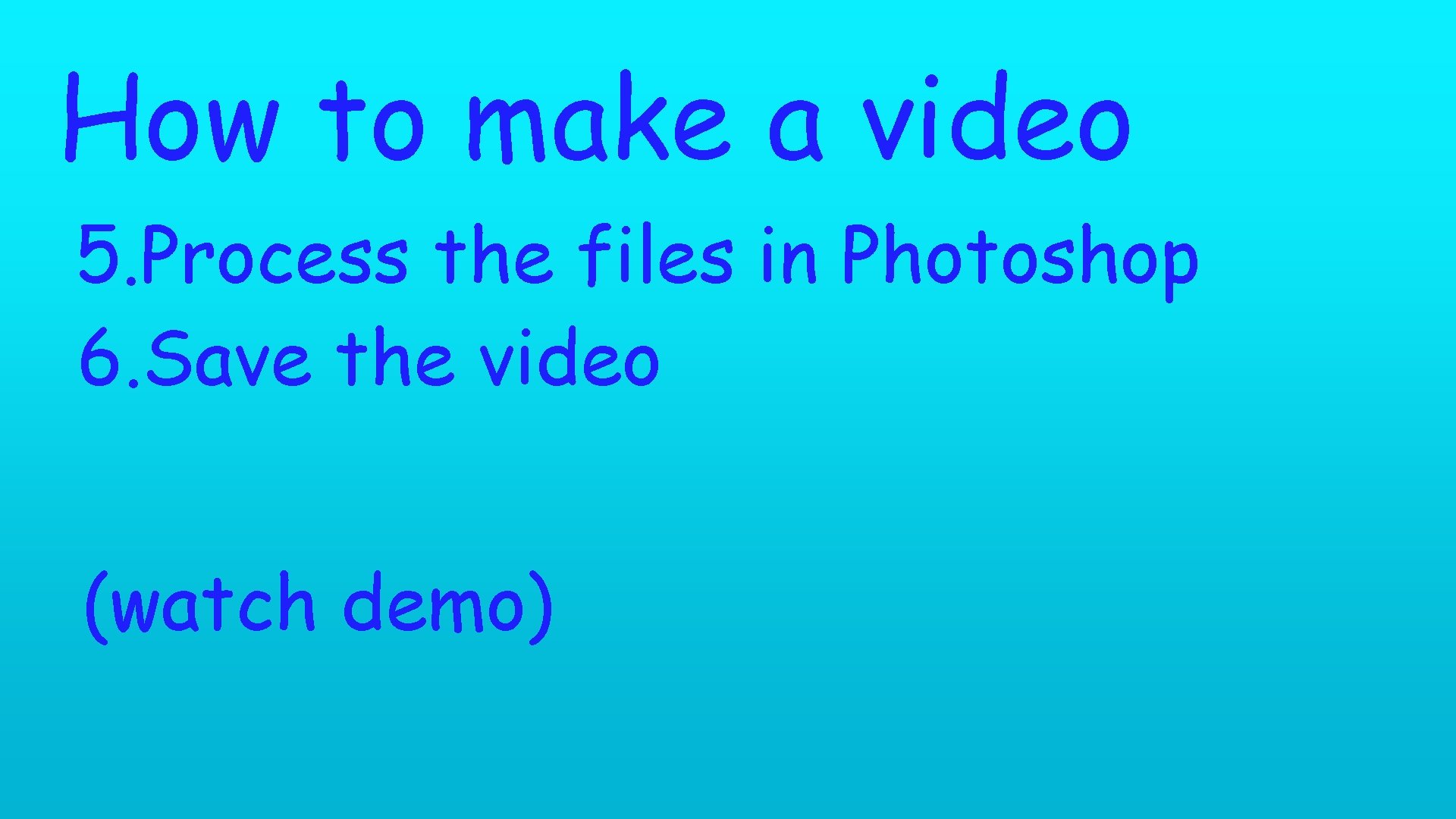
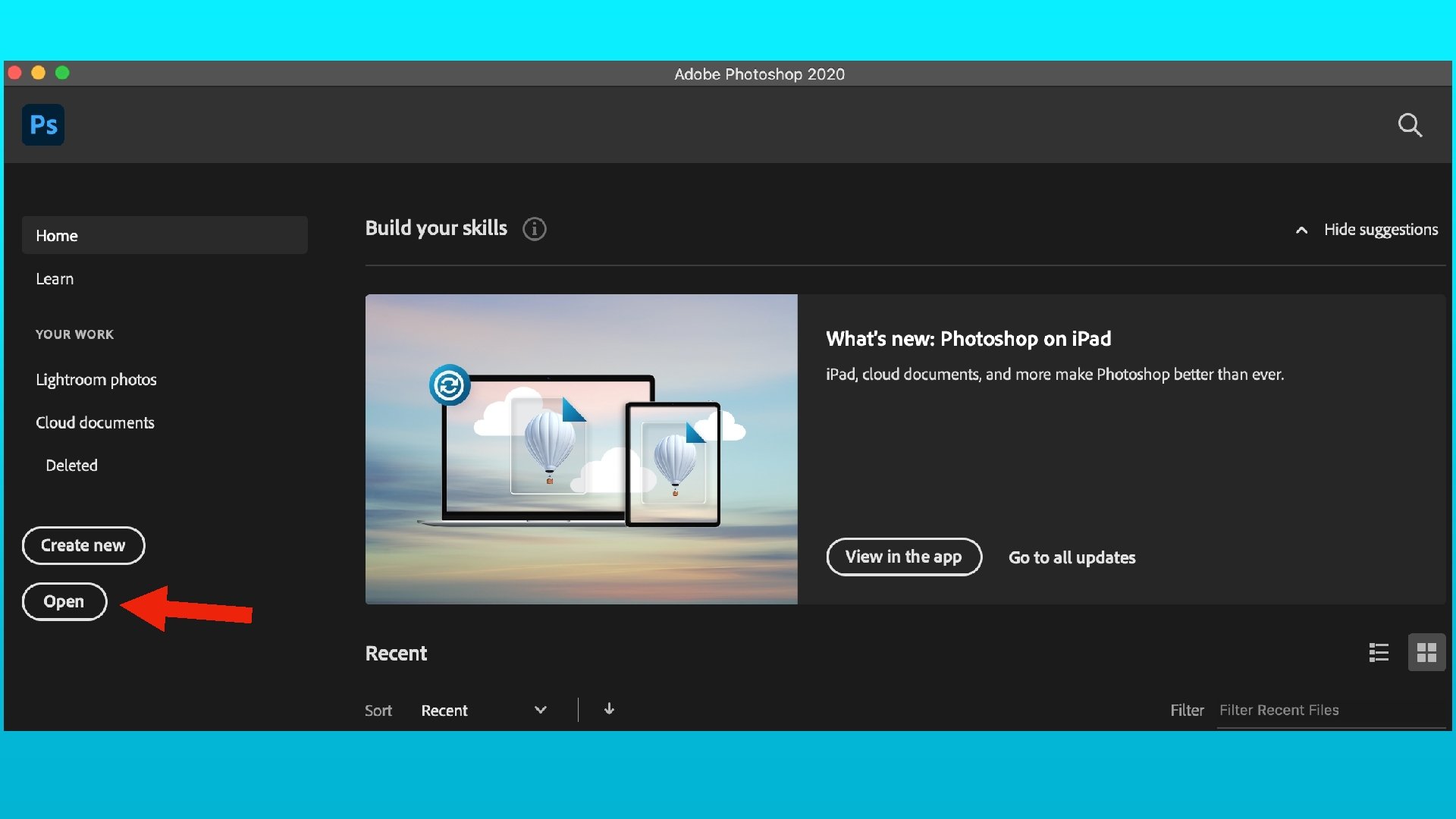
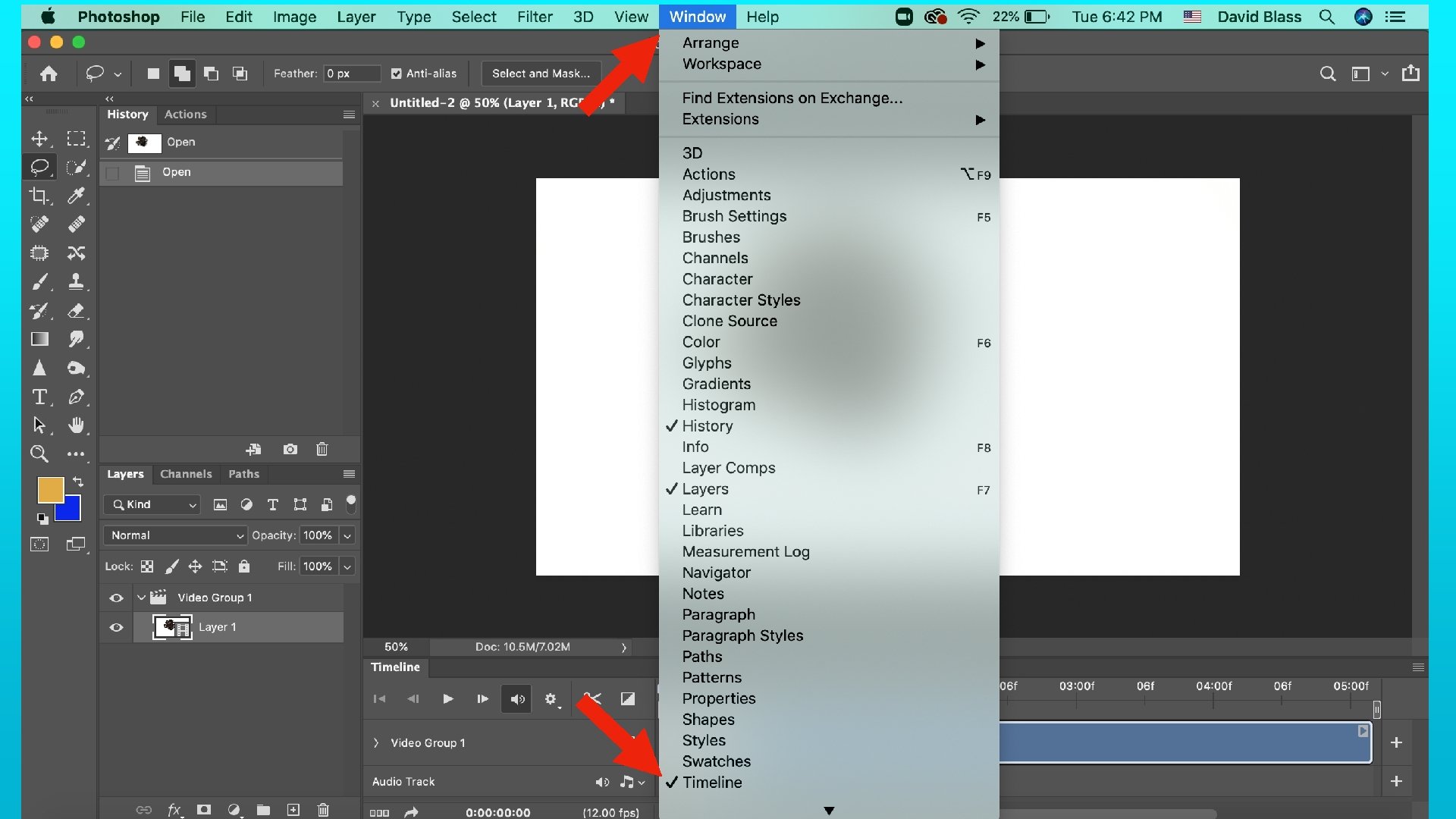
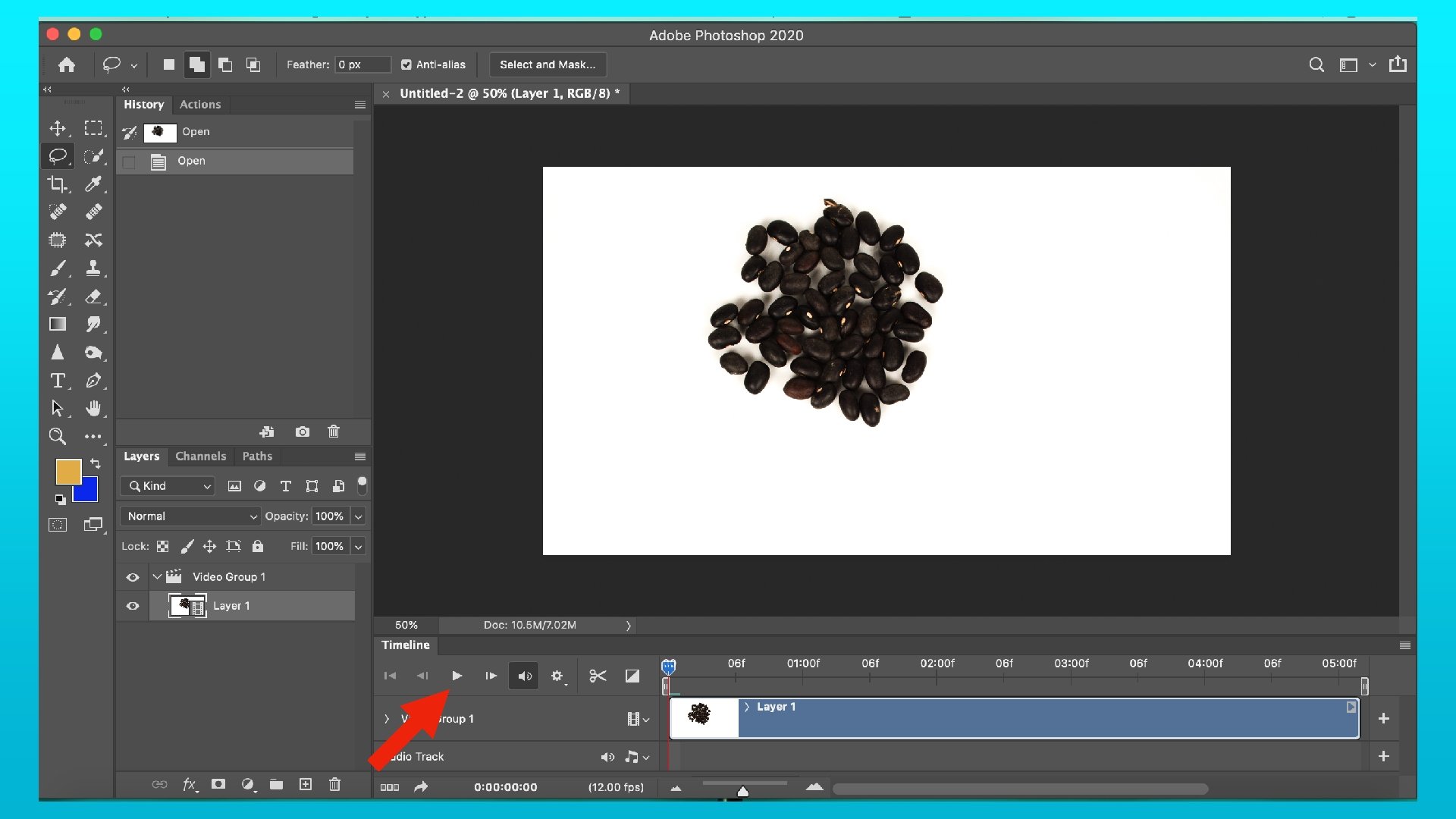
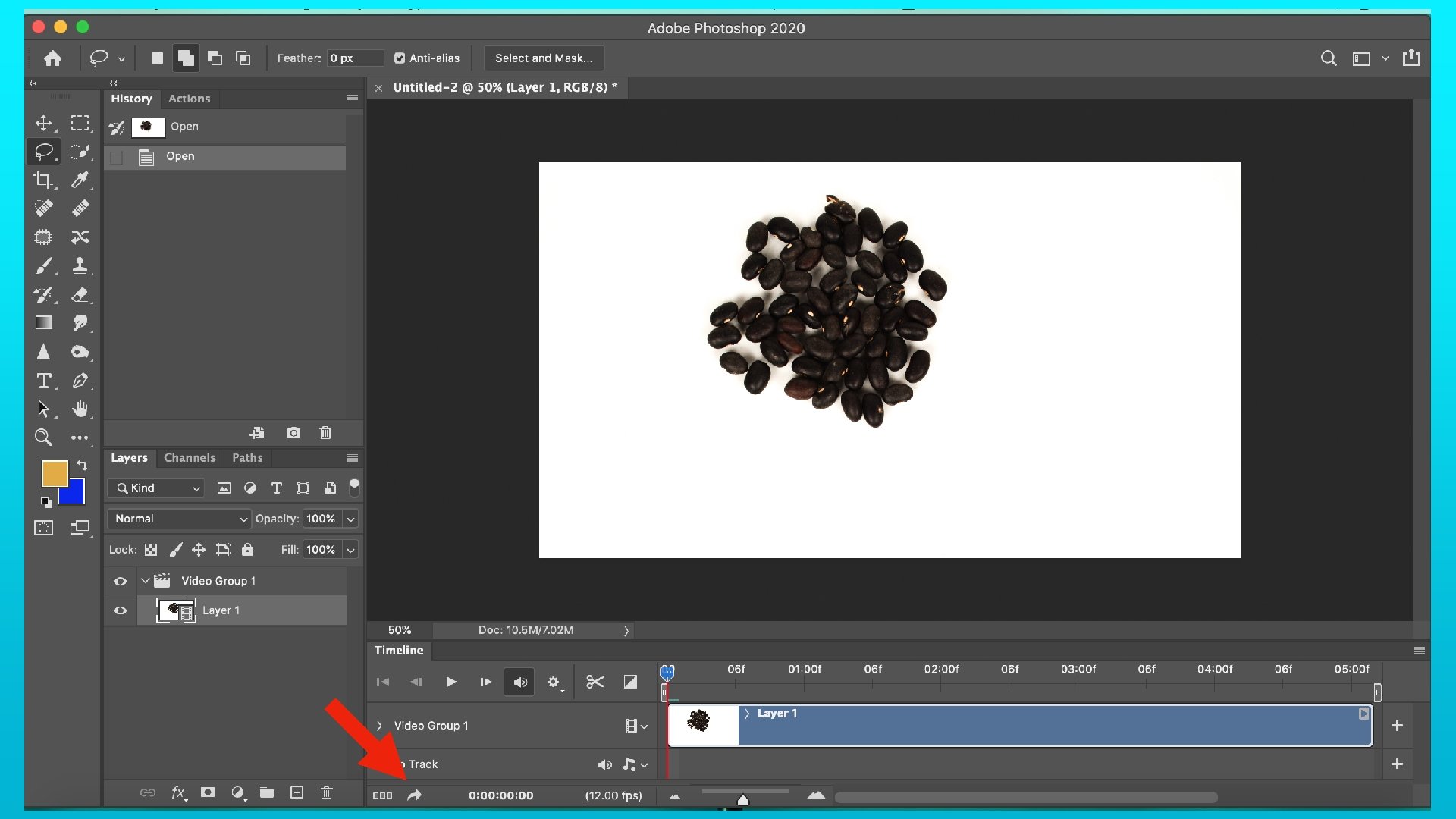
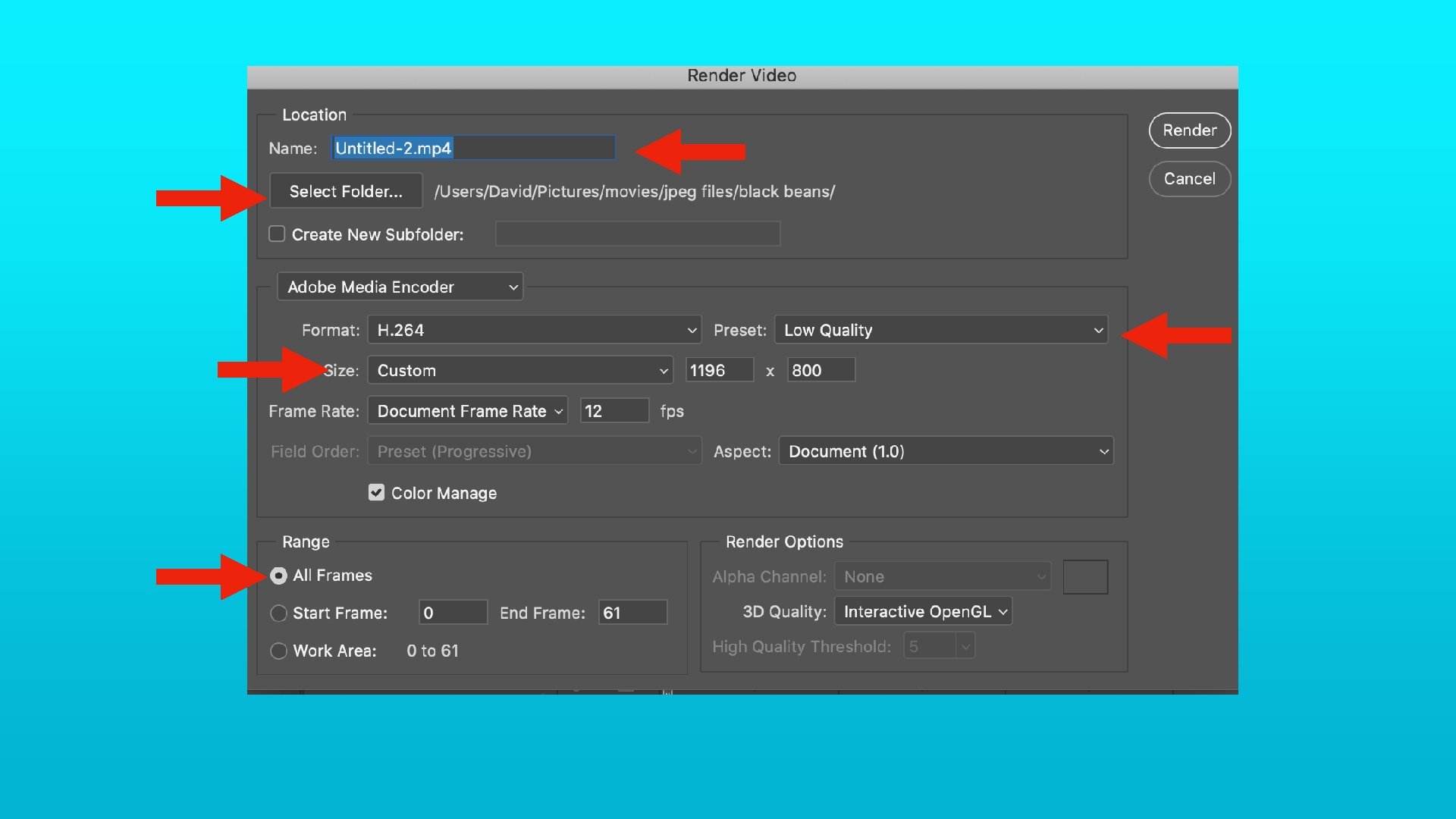
How to make a video 5. Process the files in Photoshop 6. Save the video (watch demo)
Challenge: Make a Time-Lapse Video! to present next month!
Examples -movement of sun or stars -“a day in the life. . . ” -give motion to inanimate objects -watch a flower open & close -build something -take something apart
and. . .
and. . . your choice You!! any ACTION!! now 1
Here’s a tutorial showing the technique. There are many more online—search for “making a video from still images” https: //improvephotography. com/41051/creating-amaz