
Creating Documents with Word 2013 Objectives Understand word
Creating Documents with Word 2013
Objectives • • Understand word processing software Explore the Word window Start a document Save a document Select text Format text using the Mini toolbar and the Ribbon Use a document template Navigate a document 2
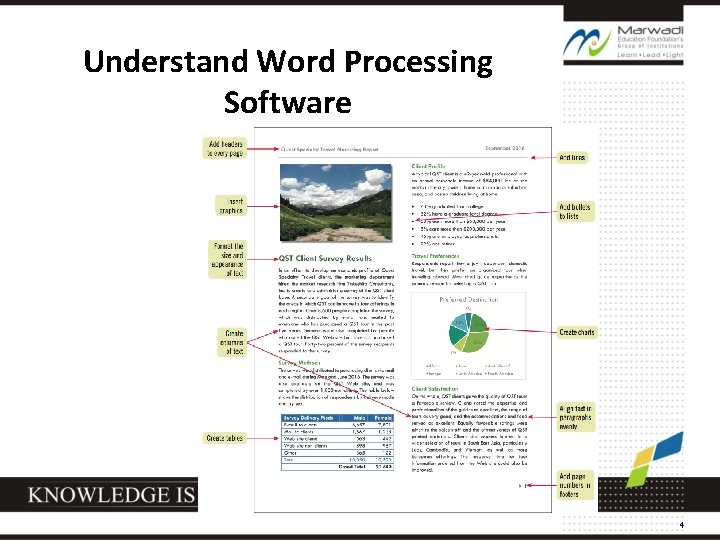
Understand Word Processing Software • • A word processing program is software that allows you to enter, edit, and format text and graphics The files you create using Word are called documents 3
Understand Word Processing Software 4
Understand Word Processing Software • • Plan a document before you create it The purpose of and audience for a document determine its design 5

Explore the Word Window • The Word program window opens and displays a blank document in Print Layout view 6
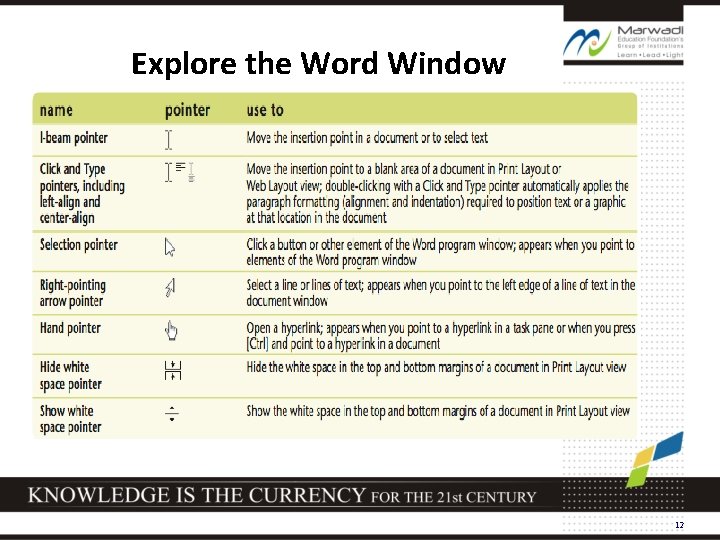
Explore the Word Window • • • The insertion point indicates where text appears when you type The mouse pointer changes shape depending on its location in the Word program window Each pointer is used for a different purpose 7
Explore the Word Window • • A Screen. Tip appears when you point to a button or element in the Word program window Quick Access toolbar contains frequently used commands and is customizable The Ribbon contains tabs Tabs include buttons for commands related to editing and formatting documents § Commands are organized in groups 8
Explore the Word Window • The Word program window Title bar displays the program and document names § File tab provides access to Backstage view, which contains commands related to managing and sharing documents: § § Create, open, save, and print a document § Share a document § Access Word Options dialog box § Microsoft Word Help button provides access to the Word Help system 9
Explore the Word Window • The Word program window (cont. ) Document window displays the current document § Rulers show margin, tab, and indent settings § Scroll bars are used to display different parts of the document in the document window § 10
Explore the Word Window • The Word program window (cont. ) Status bar shows page information, the location of the insertion point, and the on/off status of several Word features § Status bar includes: § § View buttons § Zoom level button and Zoom slider 11
Explore the Word Window 12
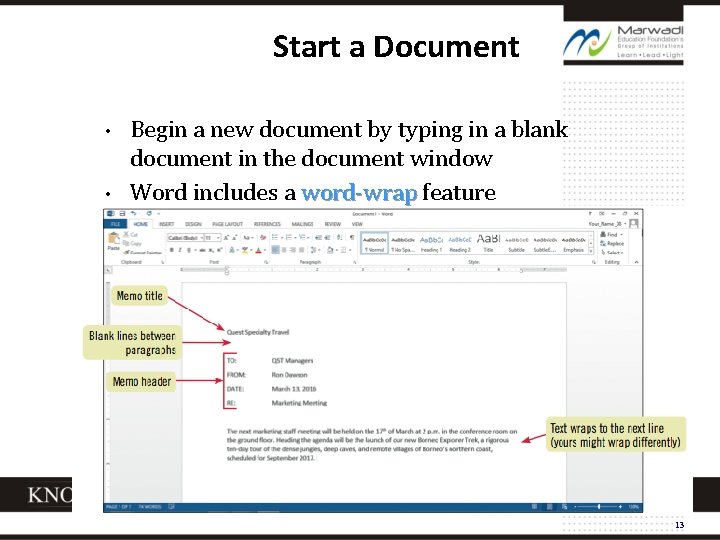
Start a Document • • Begin a new document by typing in a blank document in the document window Word includes a word-wrap feature 13
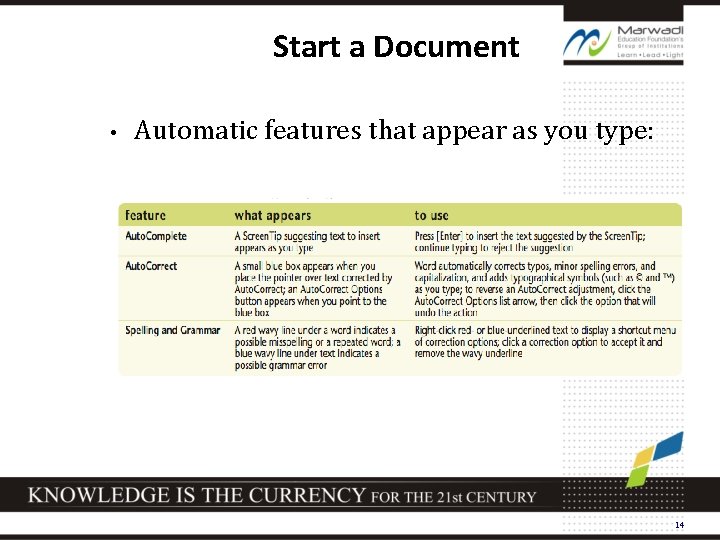
Start a Document • Automatic features that appear as you type: 14
Save a Document • • • To store a document permanently, you must save it as a file When you save a file you give it a name, called a filename, filename and indicate the location to store the file Saving a file allows you to close the file and open it later for editing or printing 15
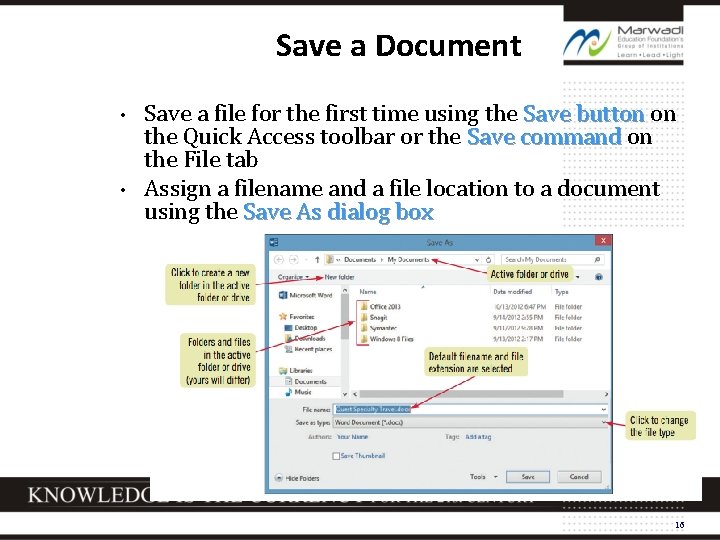
Save a Document • • Save a file for the first time using the Save button on the Quick Access toolbar or the Save command on the File tab Assign a filename and a file location to a document using the Save As dialog box 16
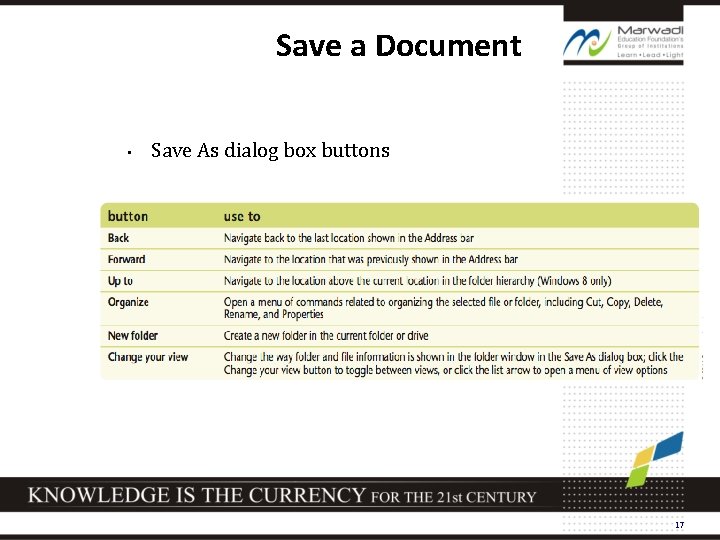
Save a Document • Save As dialog box buttons 17
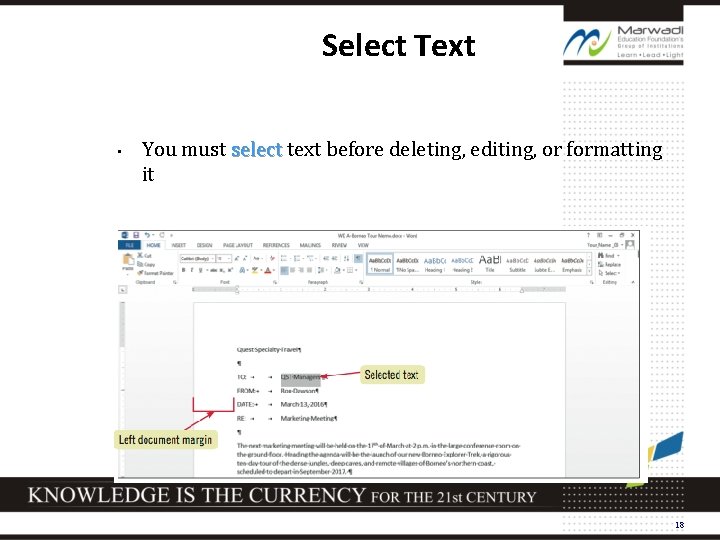
Select Text • You must select text before deleting, editing, or formatting it 18
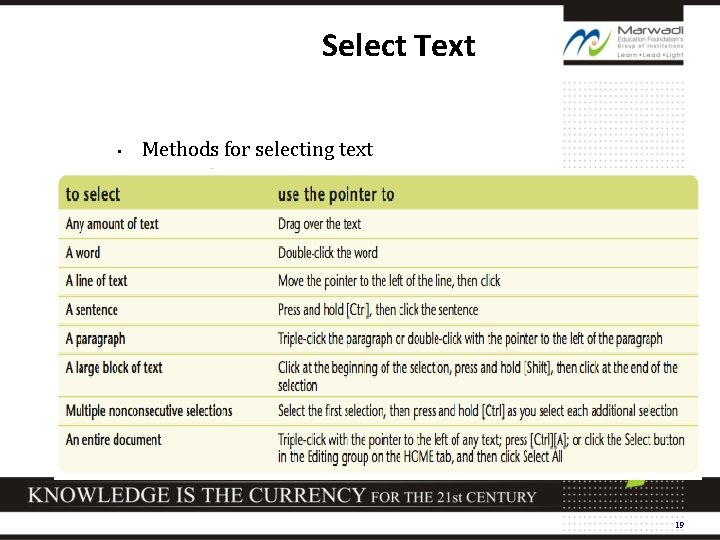
Select Text • Methods for selecting text 19
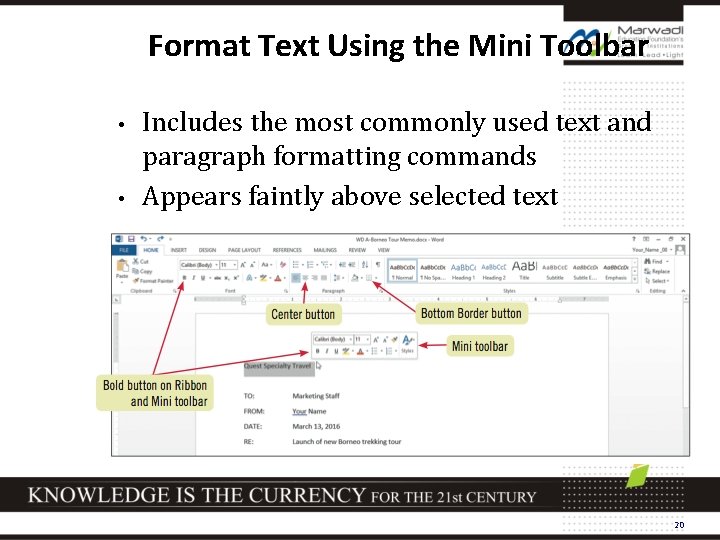
Format Text Using the Mini Toolbar • • Includes the most commonly used text and paragraph formatting commands Appears faintly above selected text 20
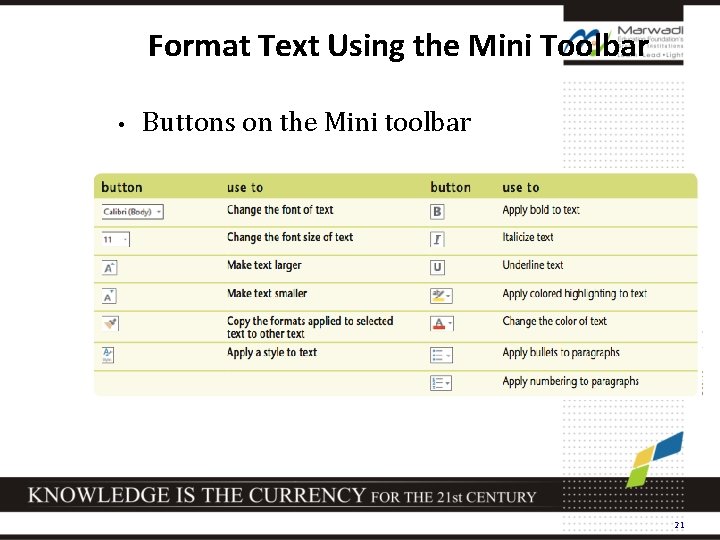
Format Text Using the Mini Toolbar • Buttons on the Mini toolbar 21
Use a Document Template • A template helps you create a formatted document quickly A template is a formatted document that contains placeholder text § You replace the placeholder text with your own text and save the file with a new filename § Word includes templates for faxes, letters, reports, brochures, and other types of documents § 22
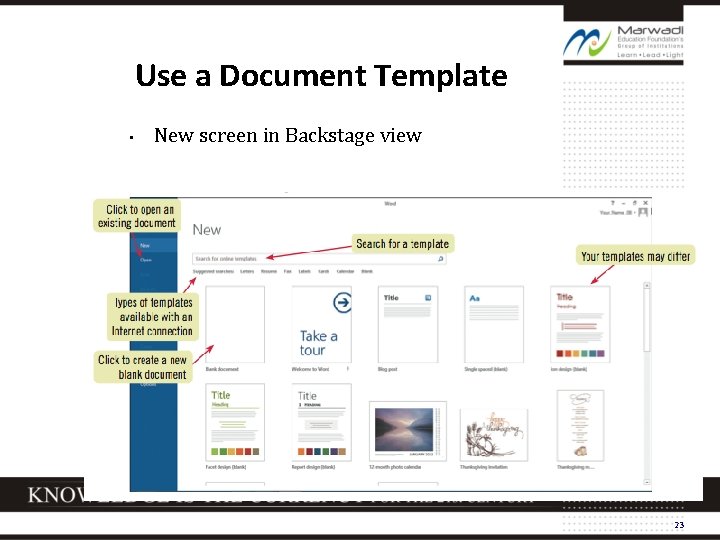
Use a Document Template • New screen in Backstage view 23
Use a Document Template • Using the Undo, Redo, and Repeat commands Reverse the last action with the Undo button § Restore a change that you reversed with the Redo button § Repeat a change with the Repeat command on the Edit menu § 24
Navigate a Document • Word Zoom feature Enlarge document for a close-up view § Reduce document for an overview of the layout § • Use tools in the Zoom group on the VIEW tab 25
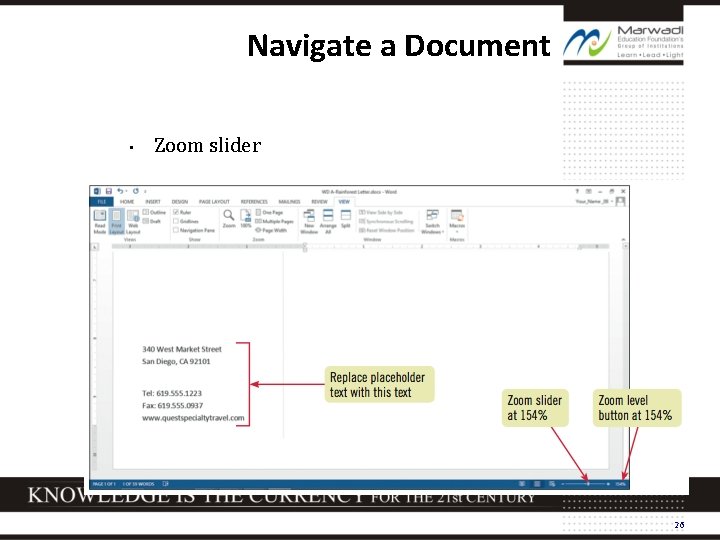
Navigate a Document • Zoom slider 26
Navigate a Document • Word includes different views, views or ways of displaying a document § § § Print Layout view Read Mode view Web Layout view Outline view Draft view 27
Summary • • When you start Word, a blank document opens in the document window To create a new document, begin typing in the blank document Save the new document with a descriptive filename As you edit the document, save your changes to it often 28
Summary • • • Select text as you work Format text using the Mini toolbar Create documents based on templates Use the Word Zoom feature to enlarge or reduce the size of a document Display your document using different Word views 29
Summary • • • Preview a document in Backstage view before printing Save, print, and then close the document When you are finished editing and creating documents, close all open files, and then close Word 30
- Slides: 30