
Creating Contracts and Finalizing Awards Source to Contract
- Slides: 28
Creating Contracts and Finalizing Awards Source to Contract
Agenda Welcome to the Creating Contracts and Finalizing Awards course. Here is a list of topics that will be covered in this course: • Course Introduction • Process Overview • Lesson 1: Starting the Award Process • Lesson 2: Creating and Completing a Contract • Lesson 3: Submitting, Reviewing, and Signing a Contract • Lesson 4: Finalizing a Solicitation Award • Lesson 5: Contract Amendments • Process Flows and Course Summary 2
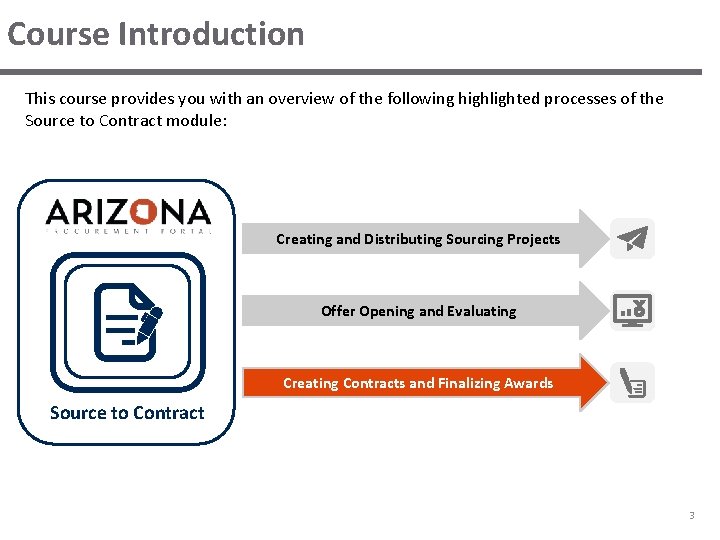
Course Introduction This course provides you with an overview of the following highlighted processes of the Source to Contract module: Creating and Distributing Sourcing Projects Offer Opening and Evaluating Creating Contracts and Finalizing Awards Source to Contract 3
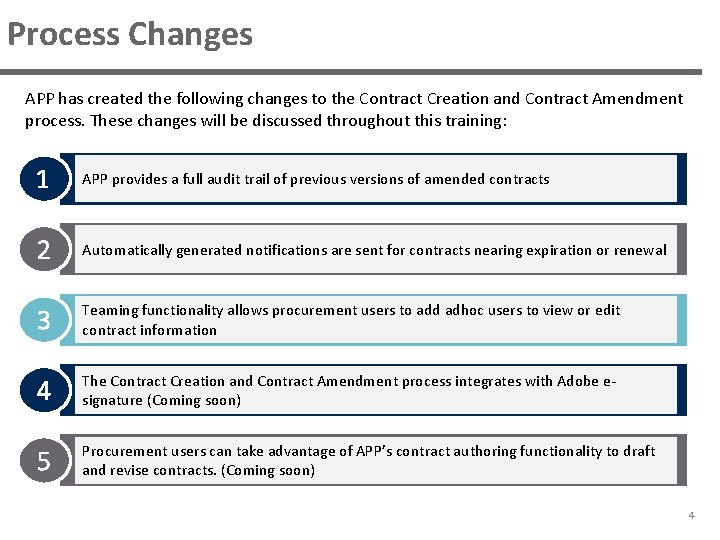
Process Changes APP has created the following changes to the Contract Creation and Contract Amendment process. These changes will be discussed throughout this training: 1 APP provides a full audit trail of previous versions of amended contracts 2 Automatically generated notifications are sent for contracts nearing expiration or renewal 3 Teaming functionality allows procurement users to add adhoc users to view or edit contract information 4 The Contract Creation and Contract Amendment process integrates with Adobe esignature (Coming soon) 5 Procurement users can take advantage of APP’s contract authoring functionality to draft and revise contracts. (Coming soon) 4
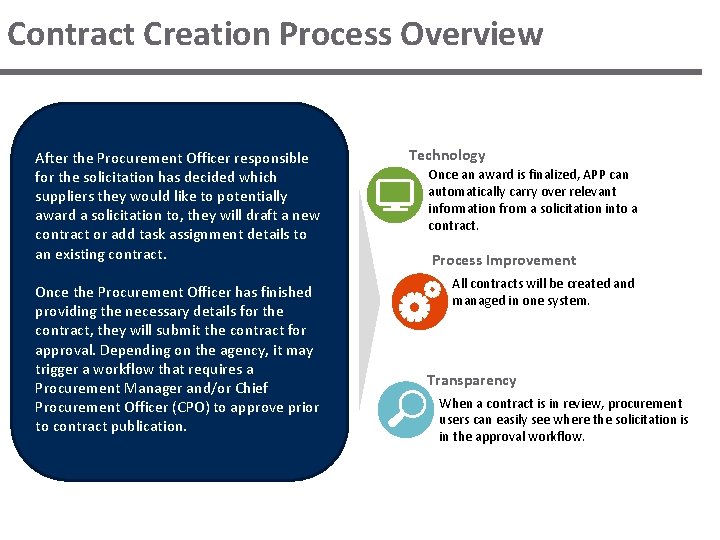
Contract Creation Process Overview After the Procurement Officer responsible for the solicitation has decided which suppliers they would like to potentially award a solicitation to, they will draft a new contract or add task assignment details to an existing contract. Once the Procurement Officer has finished providing the necessary details for the contract, they will submit the contract for approval. Depending on the agency, it may trigger a workflow that requires a Procurement Manager and/or Chief Procurement Officer (CPO) to approve prior to contract publication. Technology Once an award is finalized, APP can automatically carry over relevant information from a solicitation into a contract. Process Improvement All contracts will be created and managed in one system. Transparency When a contract is in review, procurement users can easily see where the solicitation is in the approval workflow.
Starting the Award Process When a Procurement Officer is ready to start the Award process, they can create a draft award in APP allows procurement users to create awards based on qualifications or price. Price awards can be awarded by percentage, dollar amounts, line items, and/or quantity. Please note than when a draft award is created, no notifications are sent to the suppliers and no notice is put on the Public Portal. In addition, draft awards can be changed at any time. In addition, procurement users will be able to review award results on the Synthesis tab of a solicitation to see any total identified savings as a result of the award. 6
Creating a Draft Award In addition to awarding from the Awarding section, you can also award from the Proposals section with the Decision column if you are awarding the solicitation to only one supplier. 7
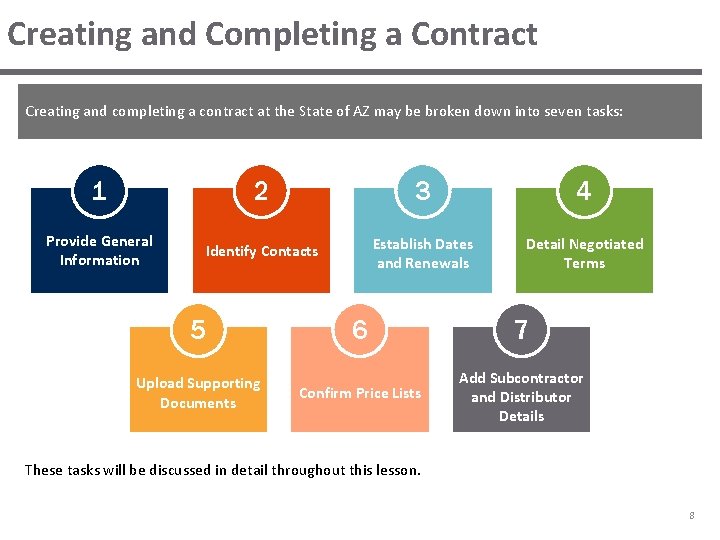
Creating and Completing a Contract Creating and completing a contract at the State of AZ may be broken down into seven tasks: 1 2 3 4 Provide General Information Identify Contacts Establish Dates and Renewals Detail Negotiated Terms 5 Upload Supporting Documents 6 7 Confirm Price Lists Add Subcontractor and Distributor Details These tasks will be discussed in detail throughout this lesson. 8
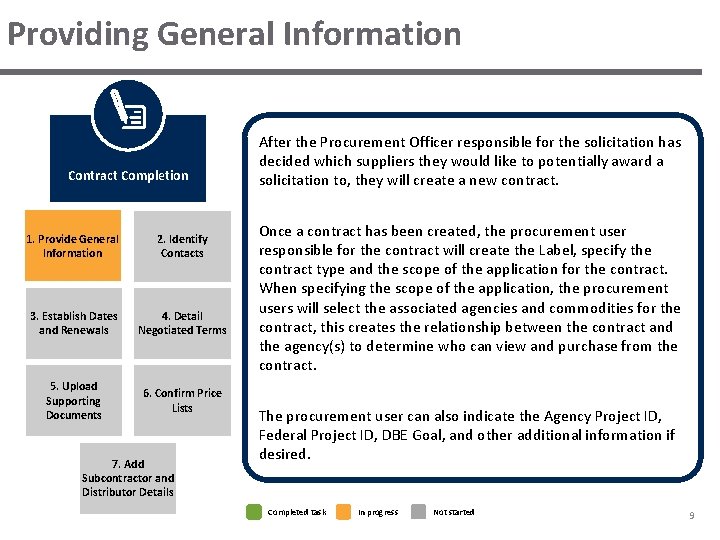
Providing General Information Contract Completion 1. Provide General Information 2. Identify Contacts 3. Establish Dates and Renewals 4. Detail Negotiated Terms 5. Upload Supporting Documents 6. Confirm Price Lists 7. Add Subcontractor and Distributor Details After the Procurement Officer responsible for the solicitation has decided which suppliers they would like to potentially award a solicitation to, they will create a new contract. Once a contract has been created, the procurement user responsible for the contract will create the Label, specify the contract type and the scope of the application for the contract. When specifying the scope of the application, the procurement users will select the associated agencies and commodities for the contract, this creates the relationship between the contract and the agency(s) to determine who can view and purchase from the contract. The procurement user can also indicate the Agency Project ID, Federal Project ID, DBE Goal, and other additional information if desired. Completed task In progress Not started 9
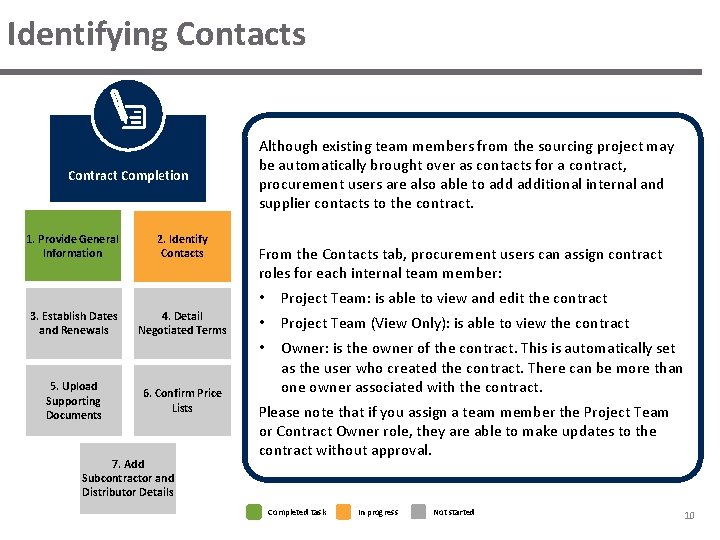
Identifying Contacts Contract Completion 1. Provide General Information 3. Establish Dates and Renewals 5. Upload Supporting Documents 2. Identify Contacts 4. Detail Negotiated Terms 6. Confirm Price Lists 7. Add Subcontractor and Distributor Details Although existing team members from the sourcing project may be automatically brought over as contacts for a contract, procurement users are also able to additional internal and supplier contacts to the contract. From the Contacts tab, procurement users can assign contract roles for each internal team member: • Project Team: is able to view and edit the contract • Project Team (View Only): is able to view the contract • Owner: is the owner of the contract. This is automatically set as the user who created the contract. There can be more than one owner associated with the contract. Please note that if you assign a team member the Project Team or Contract Owner role, they are able to make updates to the contract without approval. Completed task In progress Not started 10
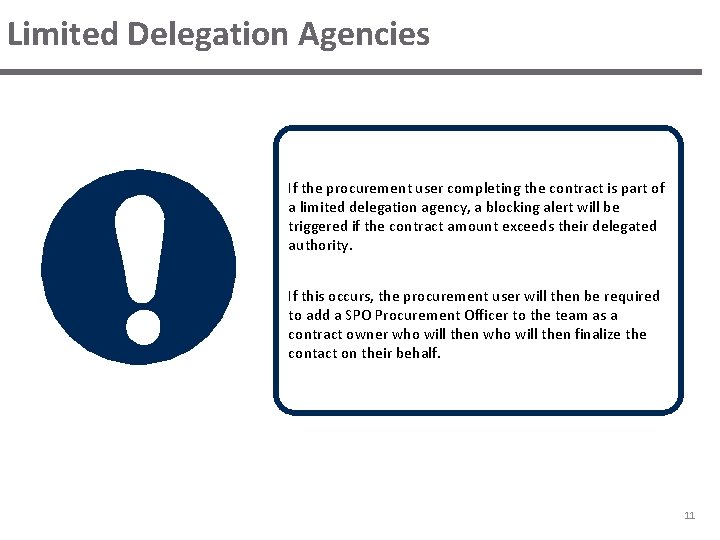
Limited Delegation Agencies If the procurement user completing the contract is part of a limited delegation agency, a blocking alert will be triggered if the contract amount exceeds their delegated authority. If this occurs, the procurement user will then be required to add a SPO Procurement Officer to the team as a contract owner who will then finalize the contact on their behalf. 11
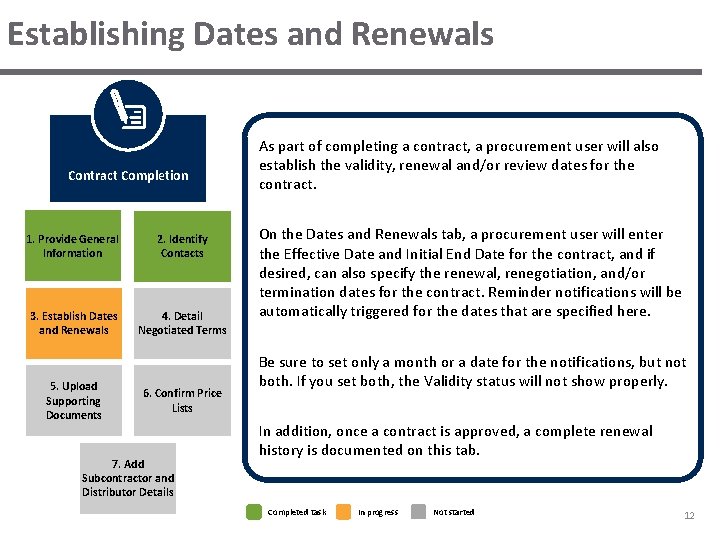
Establishing Dates and Renewals Contract Completion 1. Provide General Information 2. Identify Contacts 3. Establish Dates and Renewals 4. Detail Negotiated Terms 5. Upload Supporting Documents 6. Confirm Price Lists 7. Add Subcontractor and Distributor Details As part of completing a contract, a procurement user will also establish the validity, renewal and/or review dates for the contract. On the Dates and Renewals tab, a procurement user will enter the Effective Date and Initial End Date for the contract, and if desired, can also specify the renewal, renegotiation, and/or termination dates for the contract. Reminder notifications will be automatically triggered for the dates that are specified here. Be sure to set only a month or a date for the notifications, but not both. If you set both, the Validity status will not show properly. In addition, once a contract is approved, a complete renewal history is documented on this tab. Completed task In progress Not started 12
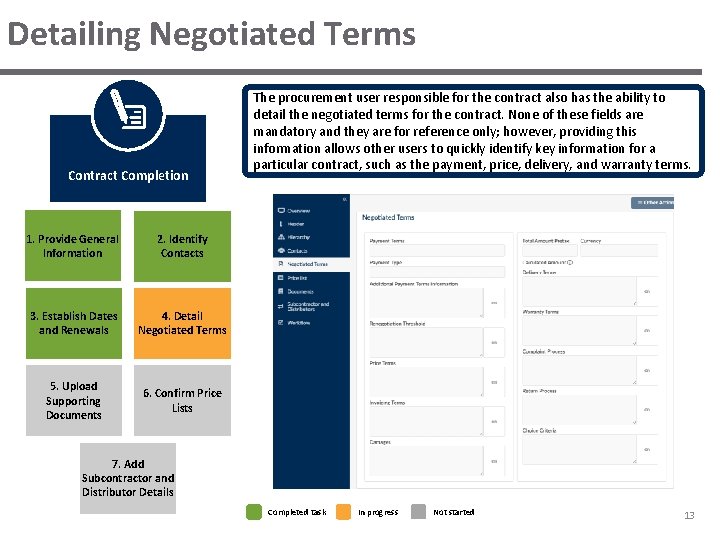
Detailing Negotiated Terms Contract Completion 1. Provide General Information 2. Identify Contacts 3. Establish Dates and Renewals 4. Detail Negotiated Terms 5. Upload Supporting Documents 6. Confirm Price Lists The procurement user responsible for the contract also has the ability to detail the negotiated terms for the contract. None of these fields are mandatory and they are for reference only; however, providing this information allows other users to quickly identify key information for a particular contract, such as the payment, price, delivery, and warranty terms. 7. Add Subcontractor and Distributor Details Completed task In progress Not started 13
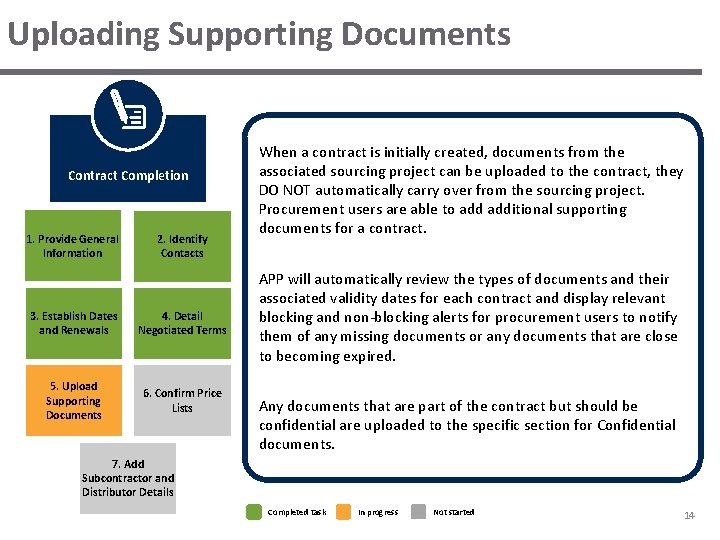
Uploading Supporting Documents Contract Completion 1. Provide General Information 2. Identify Contacts 3. Establish Dates and Renewals 4. Detail Negotiated Terms 5. Upload Supporting Documents 6. Confirm Price Lists When a contract is initially created, documents from the associated sourcing project can be uploaded to the contract, they DO NOT automatically carry over from the sourcing project. Procurement users are able to additional supporting documents for a contract. APP will automatically review the types of documents and their associated validity dates for each contract and display relevant blocking and non-blocking alerts for procurement users to notify them of any missing documents or any documents that are close to becoming expired. Any documents that are part of the contract but should be confidential are uploaded to the specific section for Confidential documents. 7. Add Subcontractor and Distributor Details Completed task In progress Not started 14
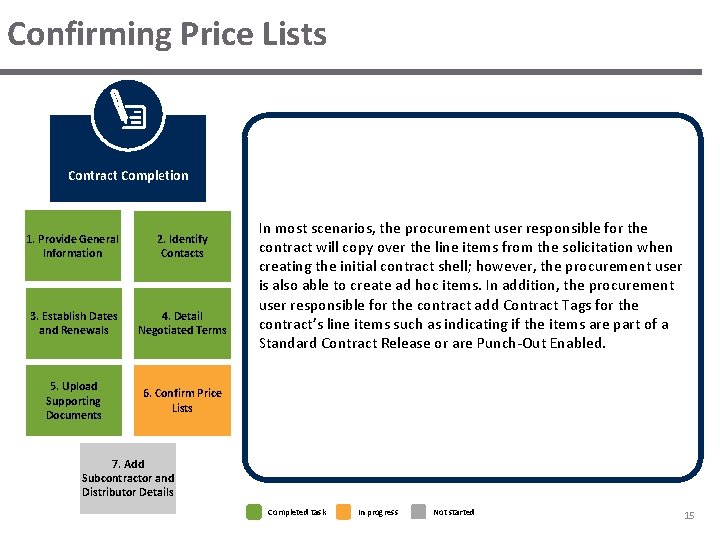
Confirming Price Lists Contract Completion 1. Provide General Information 2. Identify Contacts 3. Establish Dates and Renewals 4. Detail Negotiated Terms 5. Upload Supporting Documents 6. Confirm Price Lists In most scenarios, the procurement user responsible for the contract will copy over the line items from the solicitation when creating the initial contract shell; however, the procurement user is also able to create ad hoc items. In addition, the procurement user responsible for the contract add Contract Tags for the contract’s line items such as indicating if the items are part of a Standard Contract Release or are Punch-Out Enabled. 7. Add Subcontractor and Distributor Details Completed task In progress Not started 15
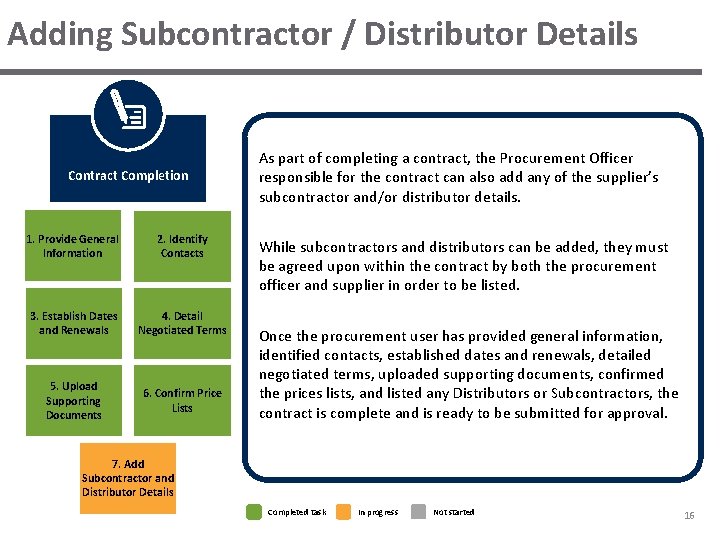
Adding Subcontractor / Distributor Details Contract Completion 1. Provide General Information 2. Identify Contacts 3. Establish Dates and Renewals 4. Detail Negotiated Terms 5. Upload Supporting Documents 6. Confirm Price Lists As part of completing a contract, the Procurement Officer responsible for the contract can also add any of the supplier’s subcontractor and/or distributor details. While subcontractors and distributors can be added, they must be agreed upon within the contract by both the procurement officer and supplier in order to be listed. Once the procurement user has provided general information, identified contacts, established dates and renewals, detailed negotiated terms, uploaded supporting documents, confirmed the prices lists, and listed any Distributors or Subcontractors, the contract is complete and is ready to be submitted for approval. 7. Add Subcontractor and Distributor Details Completed task In progress Not started 16
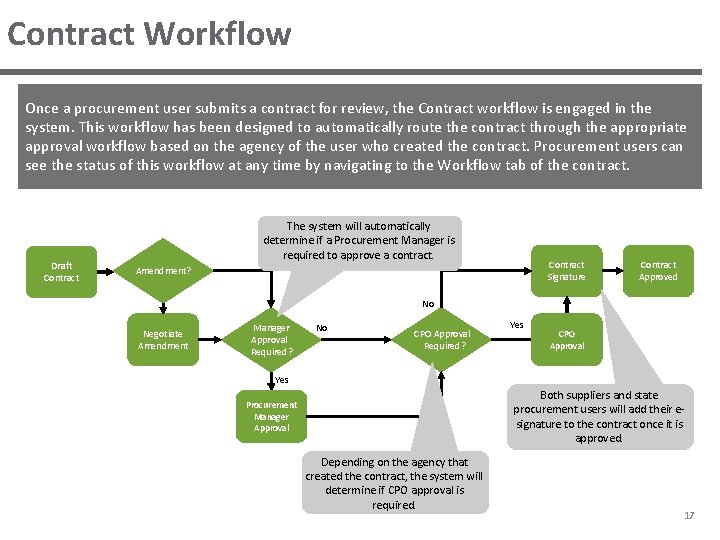
Contract Workflow Once a procurement user submits a contract for review, the Contract workflow is engaged in the system. This workflow has been designed to automatically route the contract through the appropriate approval workflow based on the agency of the user who created the contract. Procurement users can see the status of this workflow at any time by navigating to the Workflow tab of the contract. Draft Contract The system will automatically determine if a Procurement Manager is required to approve a contract. Contract Signature Amendment? Contract Approved No Negotiate Amendment Manager Approval Required? No CPO Approval Required? Yes CPO Approval Yes Both suppliers and state procurement users will add their esignature to the contract once it is approved. Procurement Manager Approval Depending on the agency that created the contract, the system will determine if CPO approval is required. 17
Finalizing the Award Once a Procurement Officer has completed a draft contract for their award they will go back to the associated sourcing event and notify the suppliers that were involved in the solicitation. They must also click the Finalize button to close out the solicitation process, post the procurement file and submitted responses to the solicitation within three days of sending the award notification to the suppliers. 18
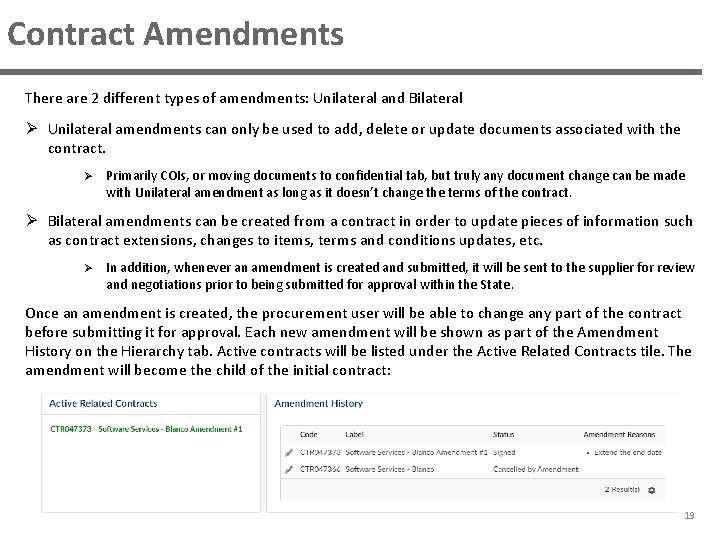
Contract Amendments There are 2 different types of amendments: Unilateral and Bilateral Ø Unilateral amendments can only be used to add, delete or update documents associated with the contract. Ø Primarily COIs, or moving documents to confidential tab, but truly any document change can be made with Unilateral amendment as long as it doesn’t change the terms of the contract. Ø Bilateral amendments can be created from a contract in order to update pieces of information such as contract extensions, changes to items, terms and conditions updates, etc. Ø In addition, whenever an amendment is created and submitted, it will be sent to the supplier for review and negotiations prior to being submitted for approval within the State. Once an amendment is created, the procurement user will be able to change any part of the contract before submitting it for approval. Each new amendment will be shown as part of the Amendment History on the Hierarchy tab. Active contracts will be listed under the Active Related Contracts tile. The amendment will become the child of the initial contract: 19
Negotiating a Contract Amendment After a contract amendment is submitted, it is sent to the associated supplier for review. The supplier can then either accept the contract amendment or reject it. Whenever a contract amendment is rejected, the supplier must enter comments. These comments are then emailed to the procurement user who created the contract amendment and the procurement user can then make the necessary changes and resubmit the contract amendment. 20
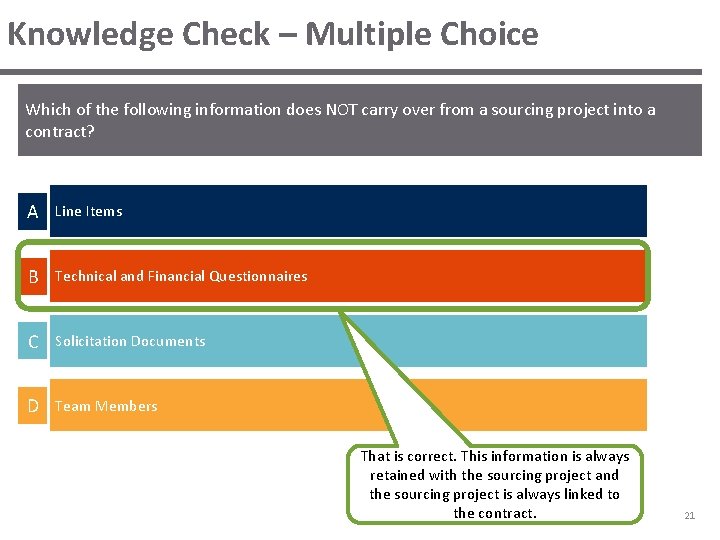
Knowledge Check – Multiple Choice Which of the following information does NOT carry over from a sourcing project into a contract? A Line Items B Technical and Financial Questionnaires C Solicitation Documents D Team Members That is correct. This information is always retained with the sourcing project and the sourcing project is always linked to the contract. 21
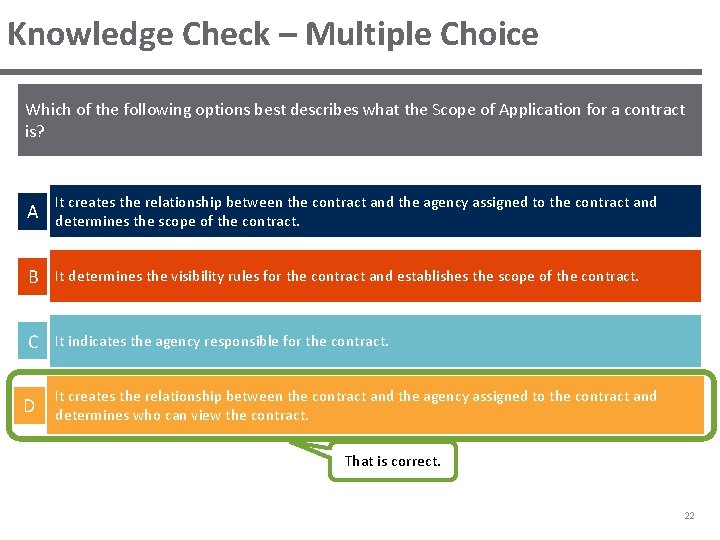
Knowledge Check – Multiple Choice Which of the following options best describes what the Scope of Application for a contract is? A It creates the relationship between the contract and the agency assigned to the contract and determines the scope of the contract. B It determines the visibility rules for the contract and establishes the scope of the contract. C It indicates the agency responsible for the contract. D It creates the relationship between the contract and the agency assigned to the contract and determines who can view the contract. That is correct. 22
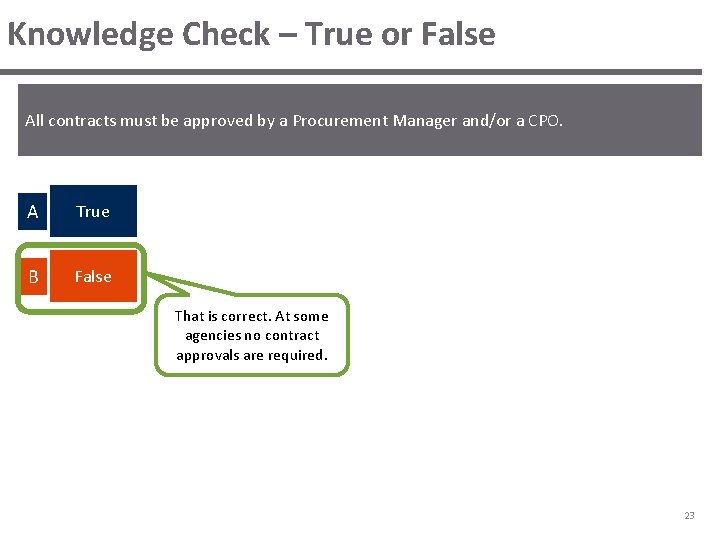
Knowledge Check – True or False All contracts must be approved by a Procurement Manager and/or a CPO. A True B False That is correct. At some agencies no contract approvals are required. 23
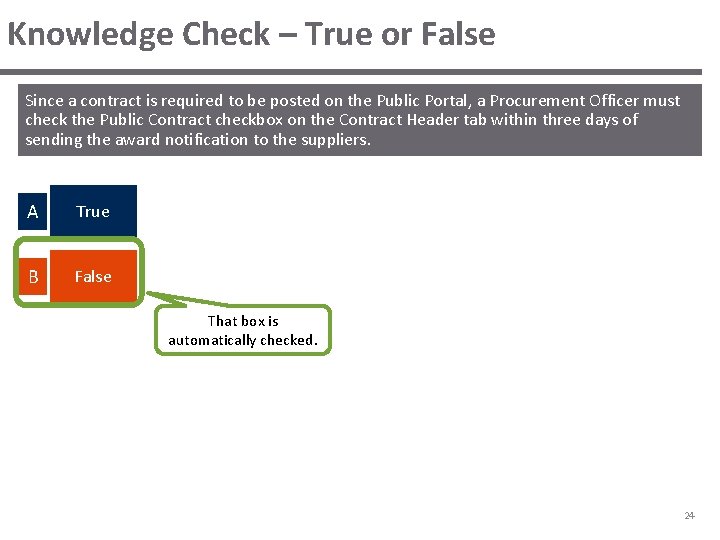
Knowledge Check – True or False Since a contract is required to be posted on the Public Portal, a Procurement Officer must check the Public Contract checkbox on the Contract Header tab within three days of sending the award notification to the suppliers. A True B False That box is automatically checked. 24
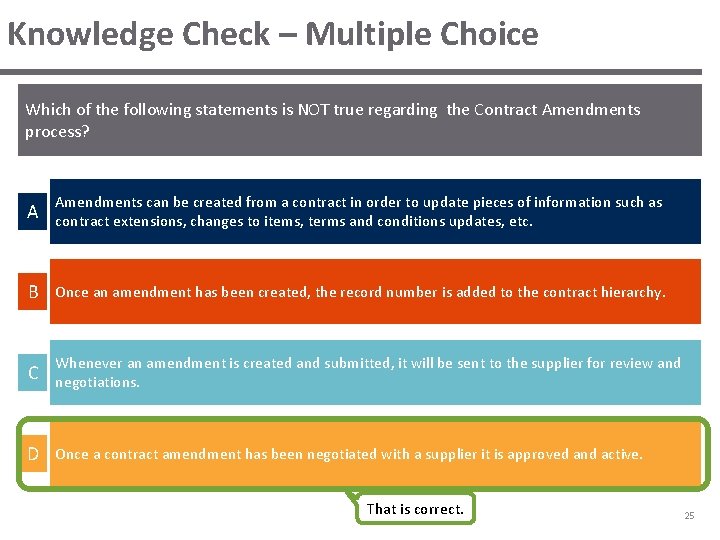
Knowledge Check – Multiple Choice Which of the following statements is NOT true regarding the Contract Amendments process? A Amendments can be created from a contract in order to update pieces of information such as contract extensions, changes to items, terms and conditions updates, etc. B Once an amendment has been created, the record number is added to the contract hierarchy. C Whenever an amendment is created and submitted, it will be sent to the supplier for review and negotiations. D Once a contract amendment has been negotiated with a supplier it is approved and active. That is correct. 25
COURSE SUMMARY
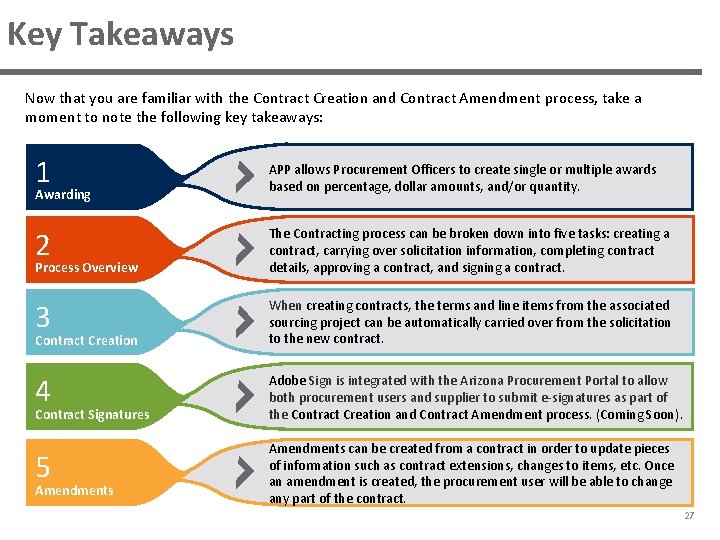
Key Takeaways Now that you are familiar with the Contract Creation and Contract Amendment process, take a moment to note the following key takeaways: 1 APP allows Procurement Officers to create single or multiple awards based on percentage, dollar amounts, and/or quantity. 2 The Contracting process can be broken down into five tasks: creating a contract, carrying over solicitation information, completing contract details, approving a contract, and signing a contract. 3 When creating contracts, the terms and line items from the associated sourcing project can be automatically carried over from the solicitation to the new contract. 4 Adobe Sign is integrated with the Arizona Procurement Portal to allow both procurement users and supplier to submit e-signatures as part of the Contract Creation and Contract Amendment process. (Coming Soon). 5 Amendments can be created from a contract in order to update pieces of information such as contract extensions, changes to items, etc. Once an amendment is created, the procurement user will be able to change any part of the contract. Awarding Process Overview Contract Creation Contract Signatures Amendments 27
THANK YOU 28