
Creating Avatars for Active Worlds Modeling your Avatar

- Slides: 17
Creating Avatars for Active. Worlds
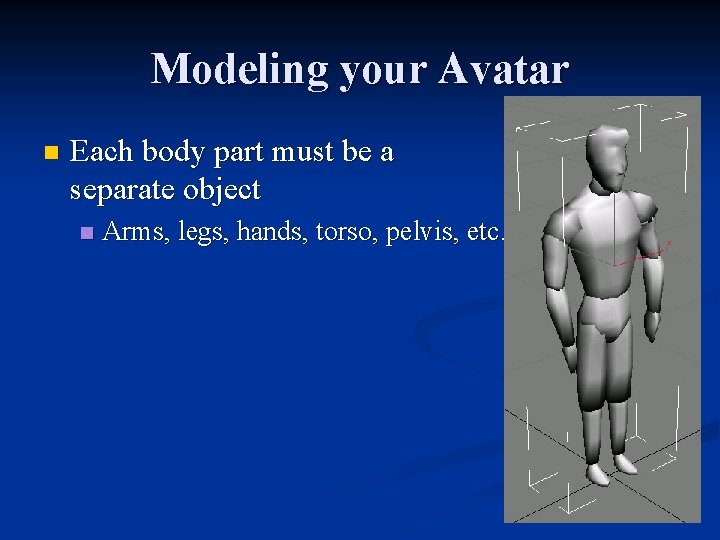
Modeling your Avatar n Each body part must be a separate object n Arms, legs, hands, torso, pelvis, etc.
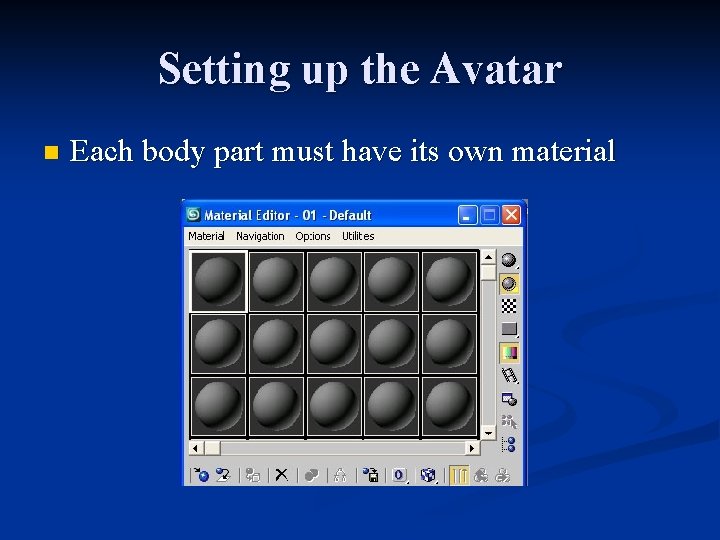
Setting up the Avatar n Each body part must have its own material
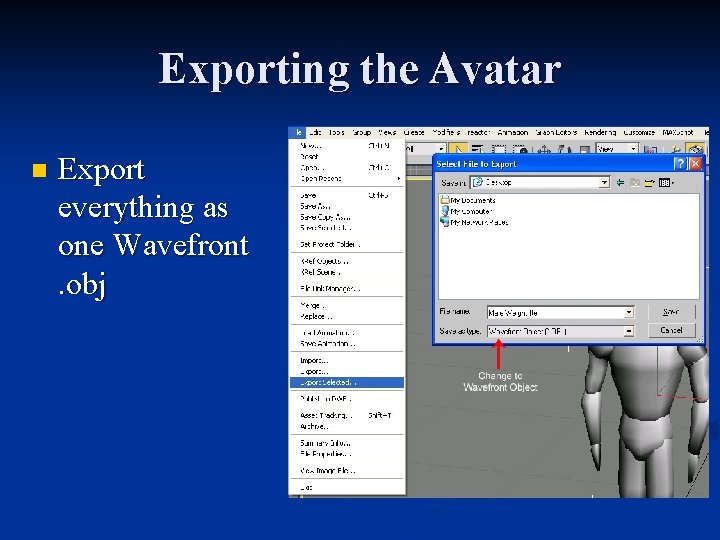
Exporting the Avatar n Export everything as one Wavefront. obj
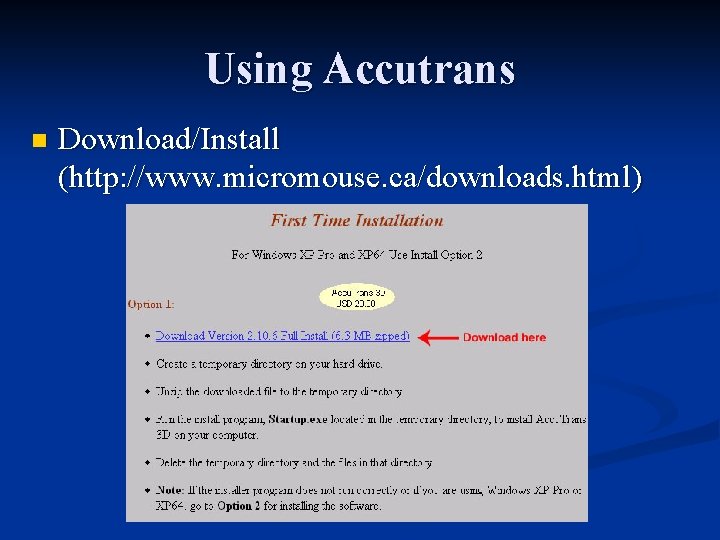
Using Accutrans n Download/Install (http: //www. micromouse. ca/downloads. html)
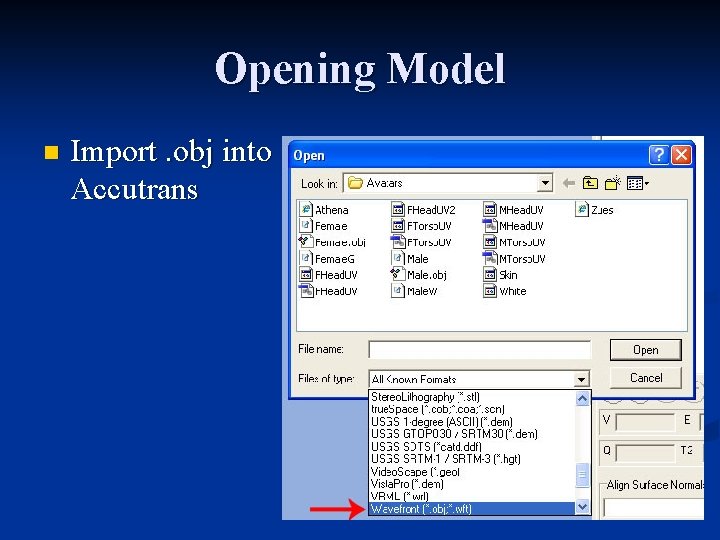
Opening Model n Import. obj into Accutrans
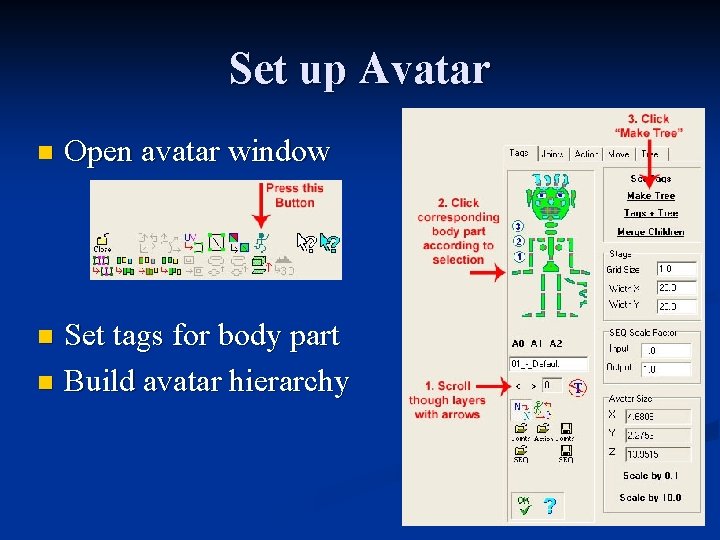
Set up Avatar n Open avatar window Set tags for body part n Build avatar hierarchy n
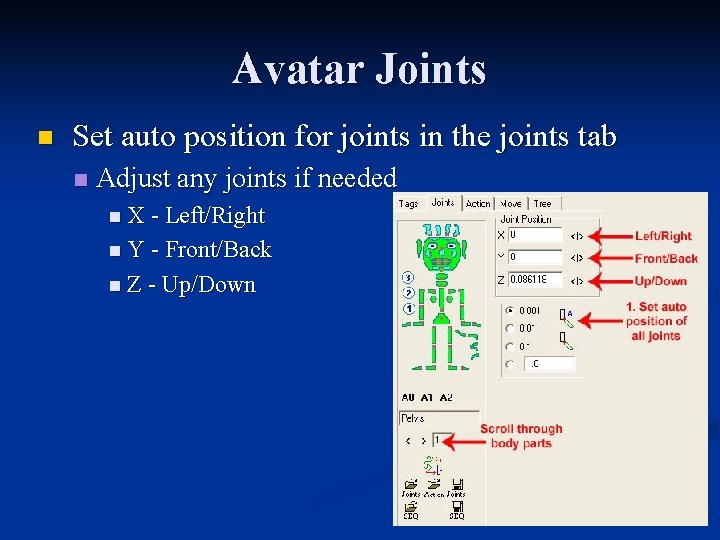
Avatar Joints n Set auto position for joints in the joints tab n Adjust any joints if needed n X - Left/Right n Y - Front/Back n Z - Up/Down
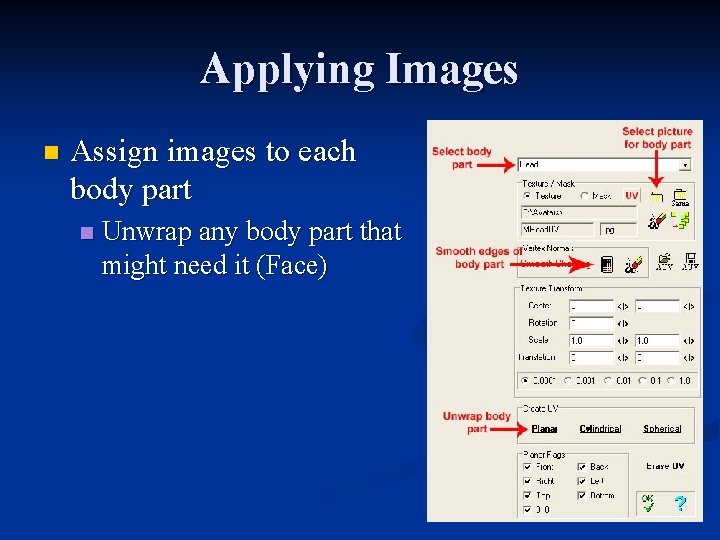
Applying Images n Assign images to each body part n Unwrap any body part that might need it (Face)
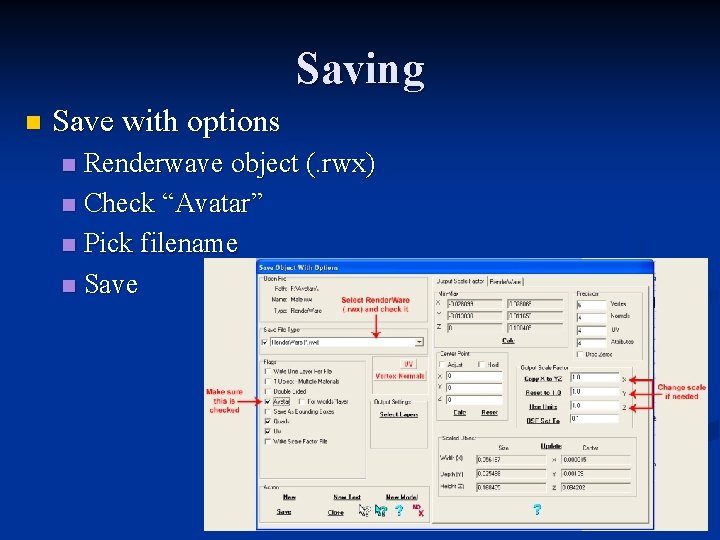
Saving n Save with options Renderwave object (. rwx) n Check “Avatar” n Pick filename n Save n
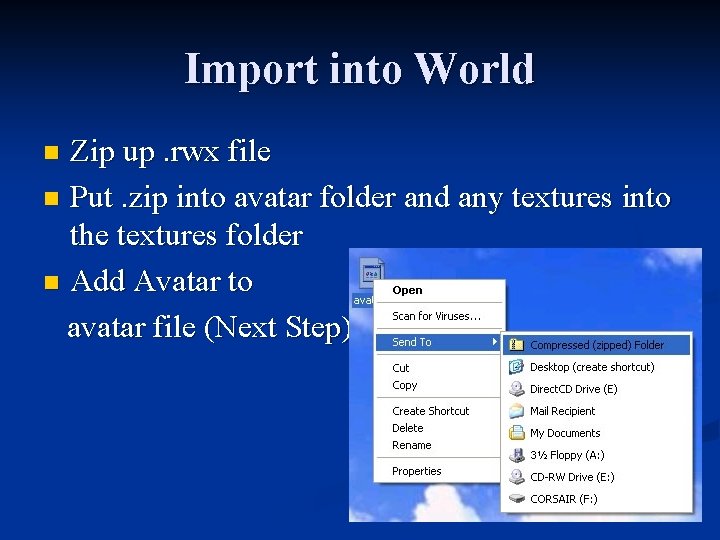
Import into World Zip up. rwx file n Put. zip into avatar folder and any textures into the textures folder n Add Avatar to avatar file (Next Step) n
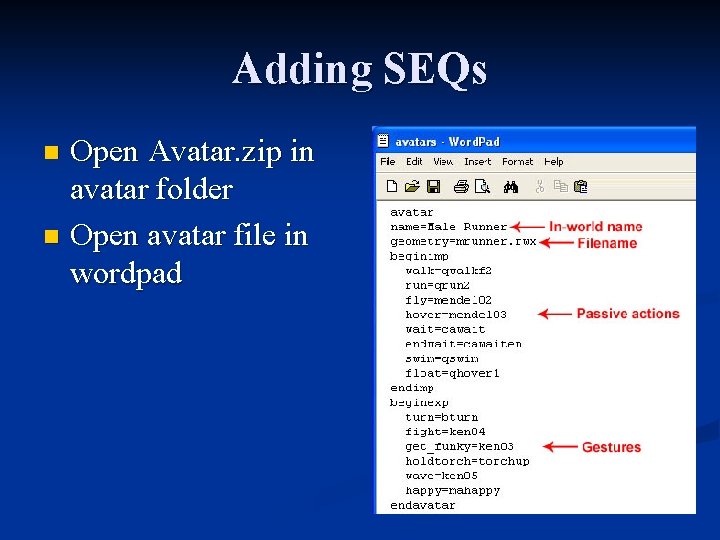
Adding SEQs Open Avatar. zip in avatar folder n Open avatar file in wordpad n
Deciphering Code n beginimp/endimp - general behaviors for avatar (walking, flying, waiting) n beginexp/endexp - special actions for your avatar when you press a button in the Active. Worlds browser
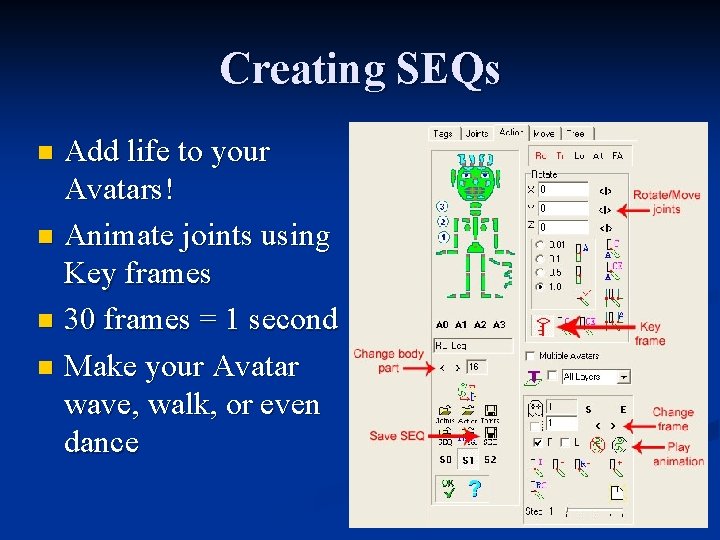
Creating SEQs Add life to your Avatars! n Animate joints using Key frames n 30 frames = 1 second n Make your Avatar wave, walk, or even dance n
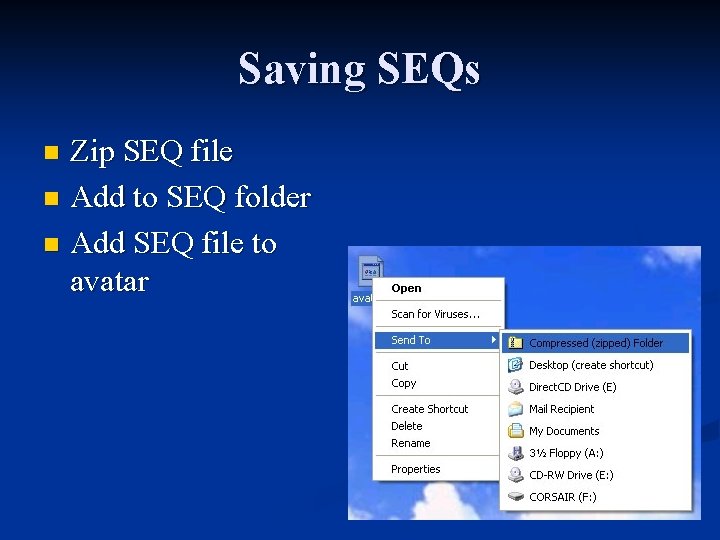
Saving SEQs Zip SEQ file n Add to SEQ folder n Add SEQ file to avatar n
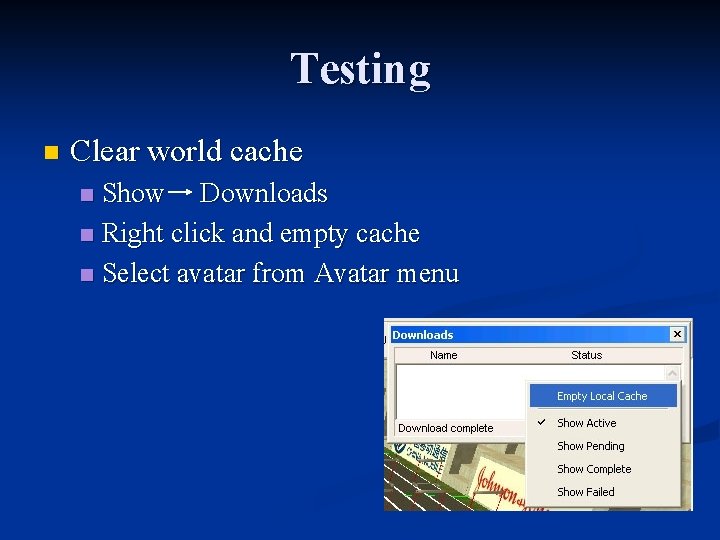
Testing n Clear world cache Show Downloads n Right click and empty cache n Select avatar from Avatar menu n
Troubleshooting n Scale - adjust the scale in the "Save with options" window in Accutrans n Textures - make sure the images are in the right folder and applied to the body parts correctly n Laggy - Model may need to be optimized better to have a smaller filesize