
Creating Assessments in Insight Testing in Insight DAT

- Slides: 15
Creating Assessments in Insight Testing in Insight DAT Team (390 -2678) DAT@duvalschools. org
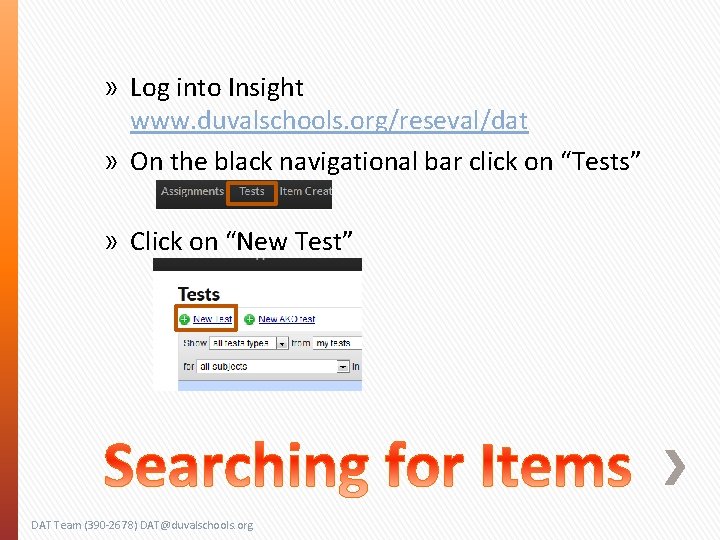
» Log into Insight www. duvalschools. org/reseval/dat » On the black navigational bar click on “Tests” » Click on “New Test” DAT Team (390 -2678) DAT@duvalschools. org
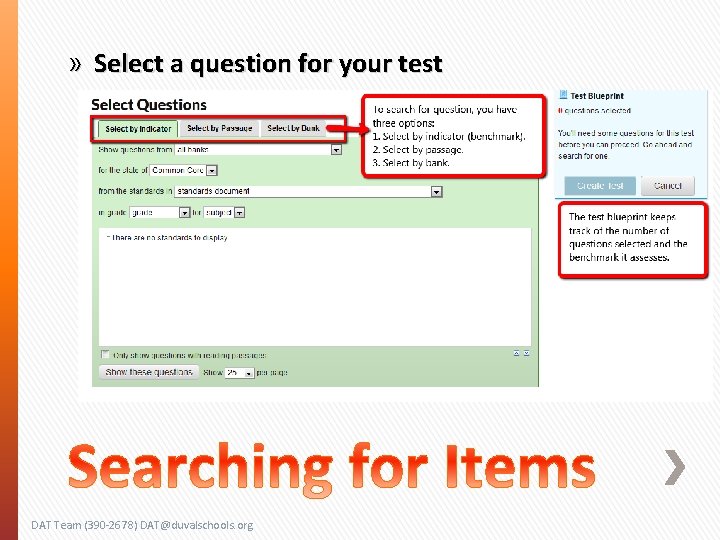
» Select a question for your test DAT Team (390 -2678) DAT@duvalschools. org
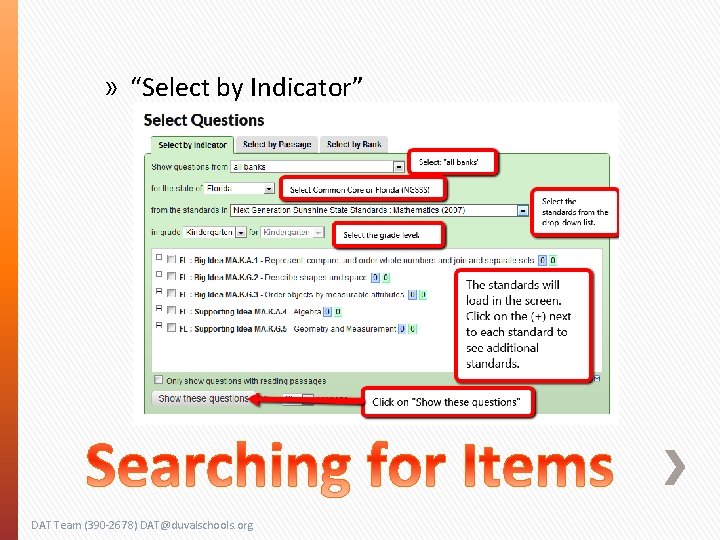
» “Select by Indicator” DAT Team (390 -2678) DAT@duvalschools. org
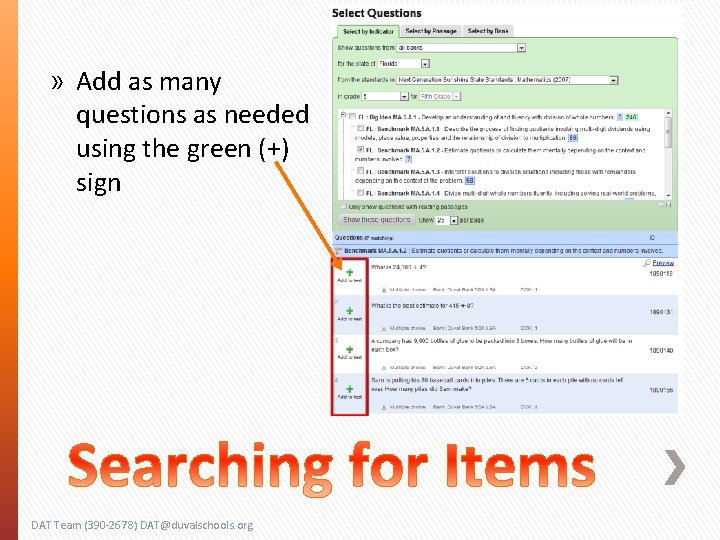
» Add as many questions as needed using the green (+) sign DAT Team (390 -2678) DAT@duvalschools. org
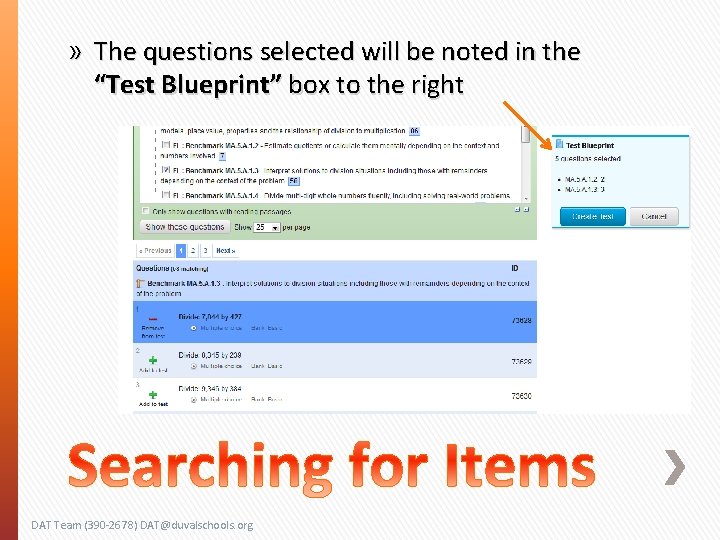
» The questions selected will be noted in the “Test Blueprint” box to the right DAT Team (390 -2678) DAT@duvalschools. org
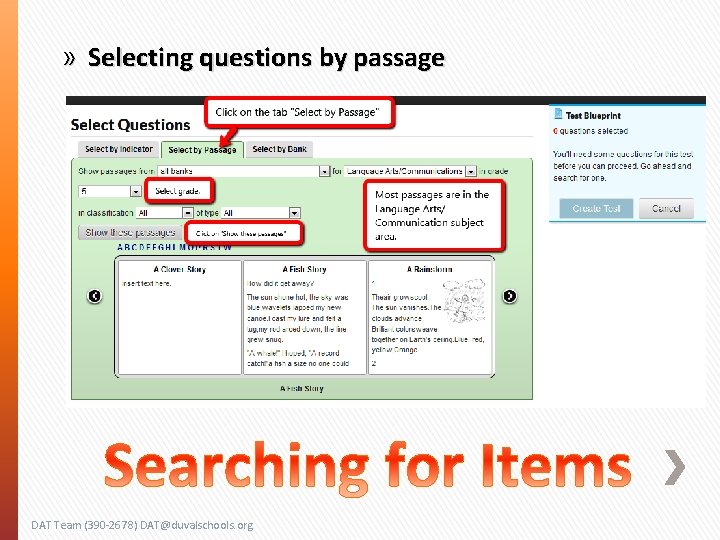
» Selecting questions by passage DAT Team (390 -2678) DAT@duvalschools. org
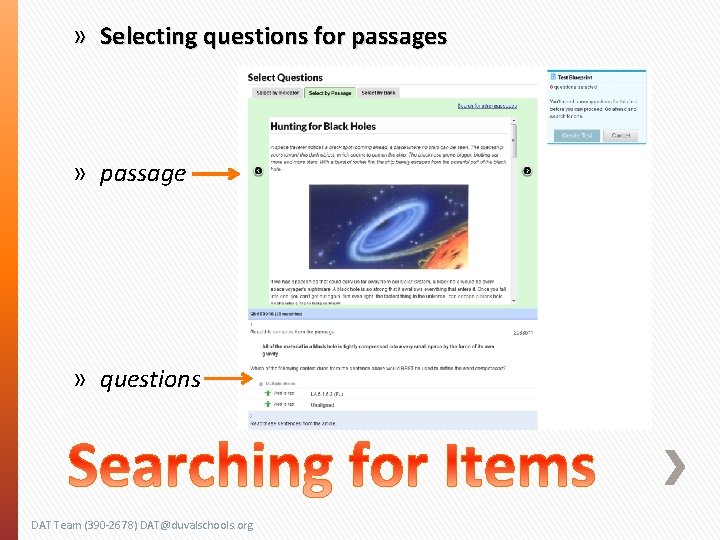
» Selecting questions for passages » passage » questions DAT Team (390 -2678) DAT@duvalschools. org
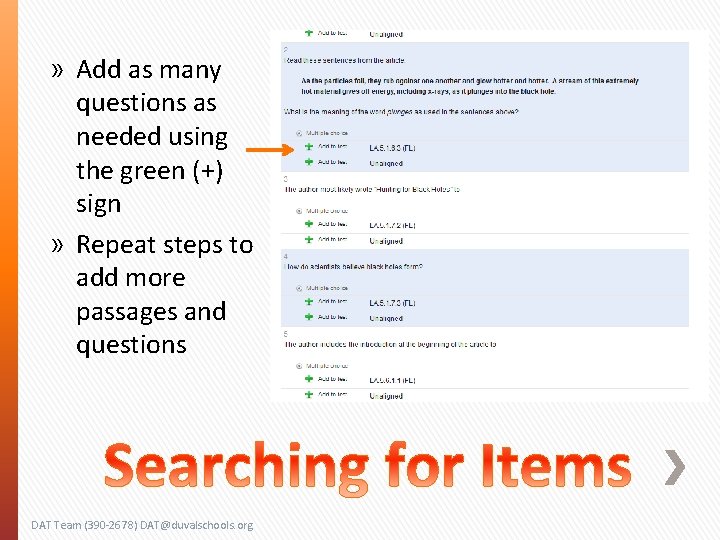
» Add as many questions as needed using the green (+) sign » Repeat steps to add more passages and questions DAT Team (390 -2678) DAT@duvalschools. org
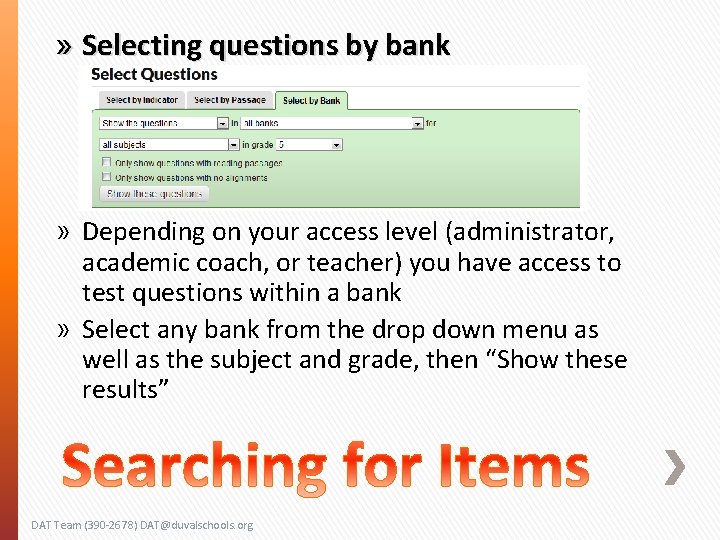
» Selecting questions by bank » Depending on your access level (administrator, academic coach, or teacher) you have access to test questions within a bank » Select any bank from the drop down menu as well as the subject and grade, then “Show these results” DAT Team (390 -2678) DAT@duvalschools. org
» Ability to assign tests depend on access level (administrator, academic coach, teacher) » Assigning a test as an administrator or academic coach » Assigning a test as a teacher DAT Team (390 -2678) DAT@duvalschools. org
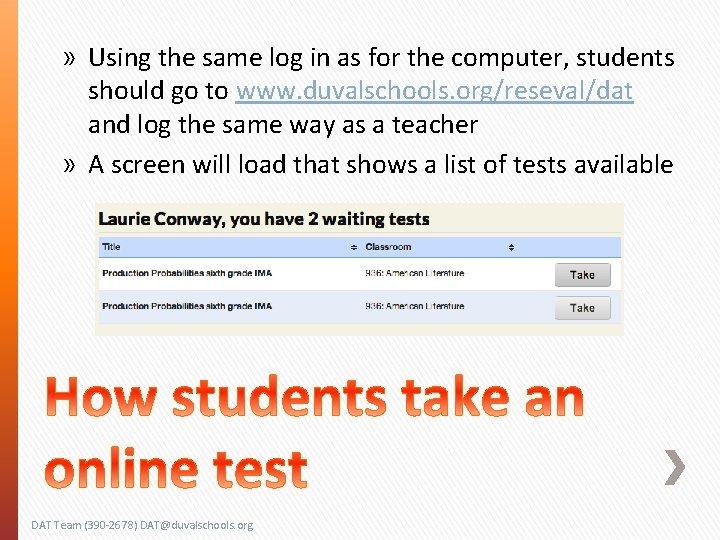
» Using the same log in as for the computer, students should go to www. duvalschools. org/reseval/dat and log the same way as a teacher » A screen will load that shows a list of tests available DAT Team (390 -2678) DAT@duvalschools. org
» The student is presented with a start screen while the test is loaded in the background. » The start button comes on when the test has been populated. » Test can be paused by closing the browser or using the pause testing button. DAT Team (390 -2678) DAT@duvalschools. org
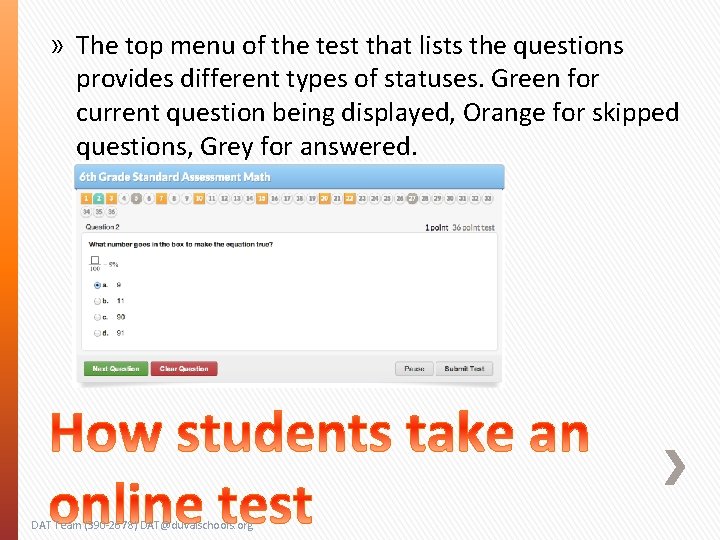
» The top menu of the test that lists the questions provides different types of statuses. Green for current question being displayed, Orange for skipped questions, Grey for answered. DAT Team (390 -2678) DAT@duvalschools. org
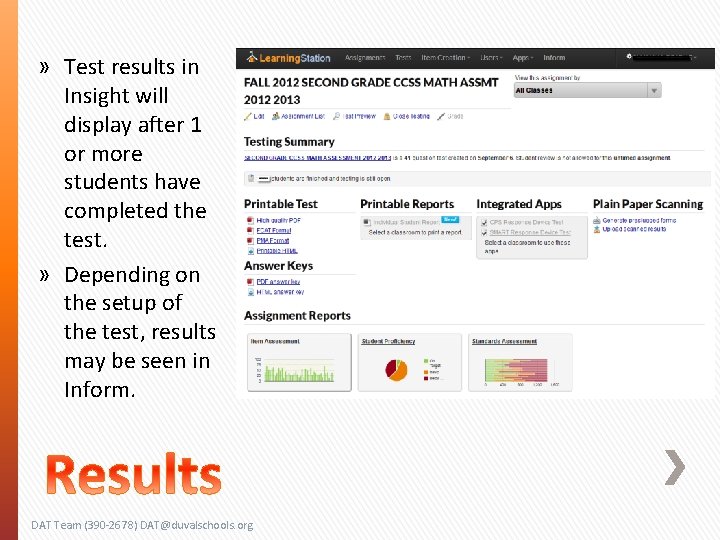
» Test results in Insight will display after 1 or more students have completed the test. » Depending on the setup of the test, results may be seen in Inform. DAT Team (390 -2678) DAT@duvalschools. org