
Creating and running a Java program SOME TIPS
- Slides: 32
Creating and running a Java program SOME TIPS FOR USING ECLIPSE
Eclipse is an Interactive Development Environment (IDE) for Java programmers It provides A project manager to manage all Java projects throughout the semester An code editor that helps write correct Java instructions (no need for Note. Pad++) An execution environment in which one can compile, compile test, test and run Java programs without leaving Eclipse (no more Command Line use)
Eclipse Workspace An Eclipse Workspace is simply a folder where all Java projects for the semester will be stored You must remember where it is once you select it It must be a place where you have write access permissions It must be a place that you can access when you need it �Example: thumb drive, drive Z: drive, portable hard drive, drive or cloud storage such as Drop. Box, Drop. Box One. Drive, One. Drive Box, Box etc. �Make sure there is enough space in the Workspace to hold all projects for the semester
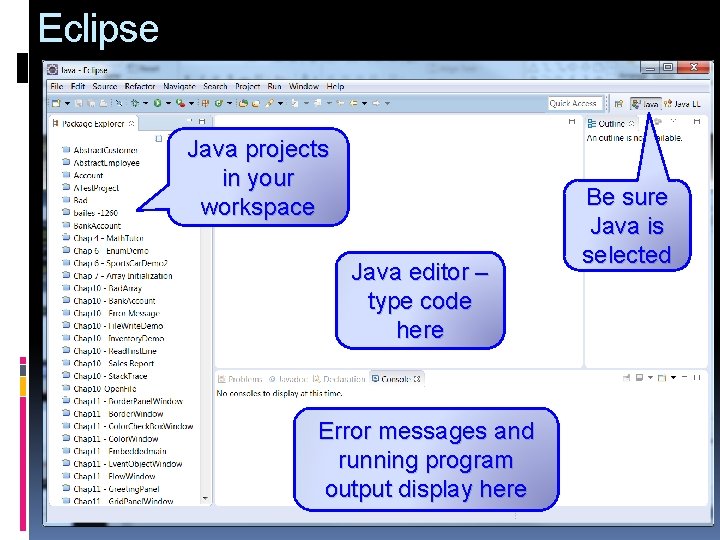
Eclipse Java projects in your workspace Java editor – type code here Error messages and running program output display here Be sure Java is selected
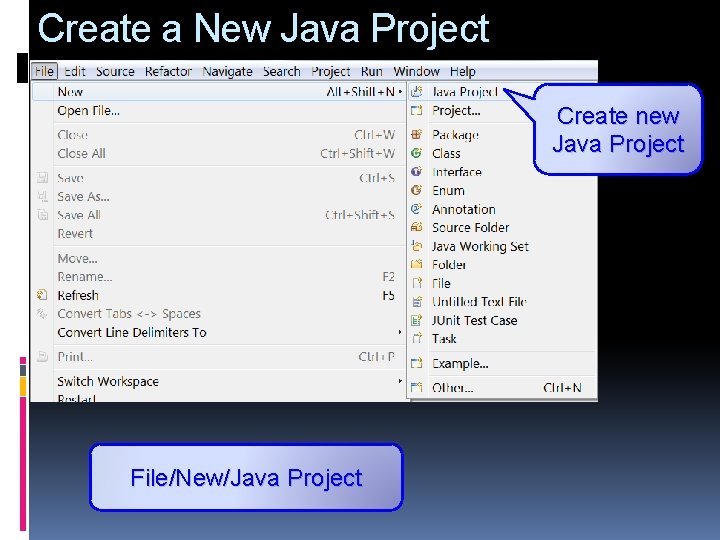
Create a New Java Project Create new Java Project File/New/Java Project
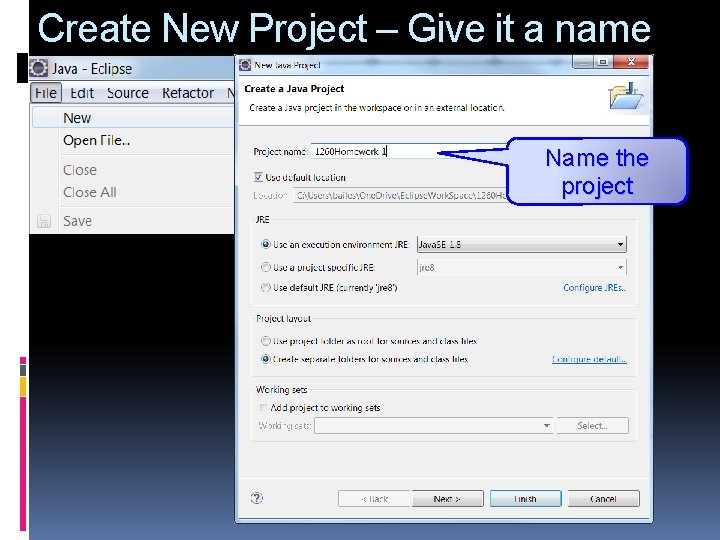
Create New Project – Give it a name Name the project
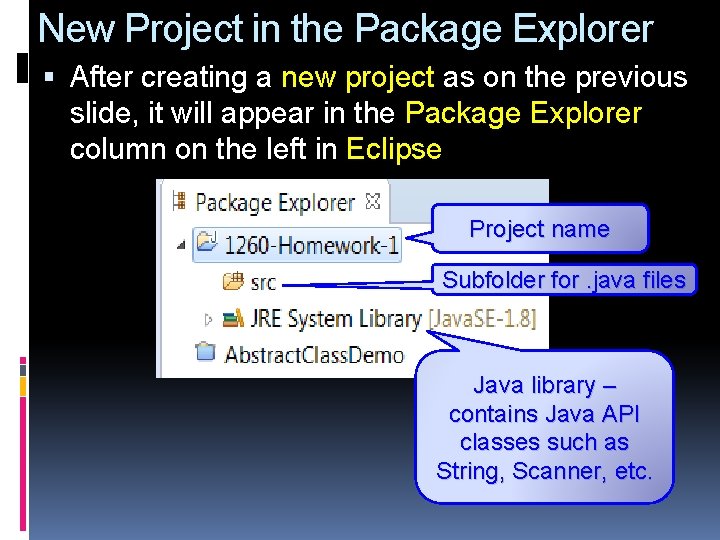
New Project in the Package Explorer After creating a new project as on the previous slide, it will appear in the Package Explorer column on the left in Eclipse Project name Subfolder for. java files Java library – contains Java API classes such as String, Scanner, etc.
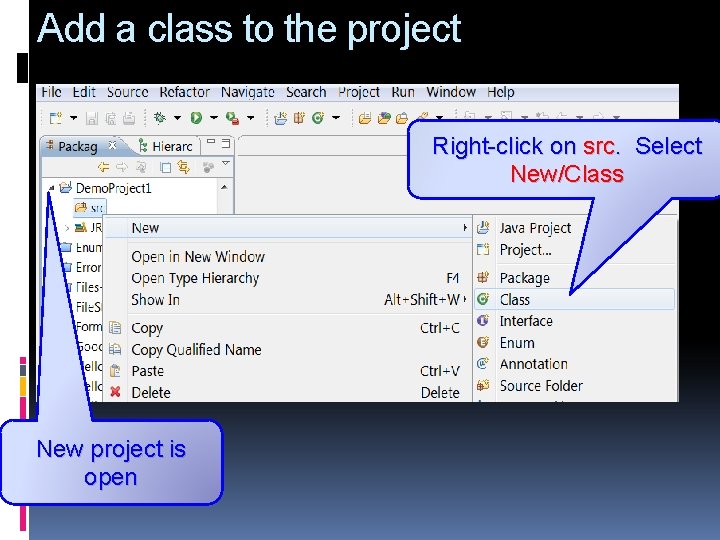
Add a class to the project Right-click on src. Select New/Class New project is open
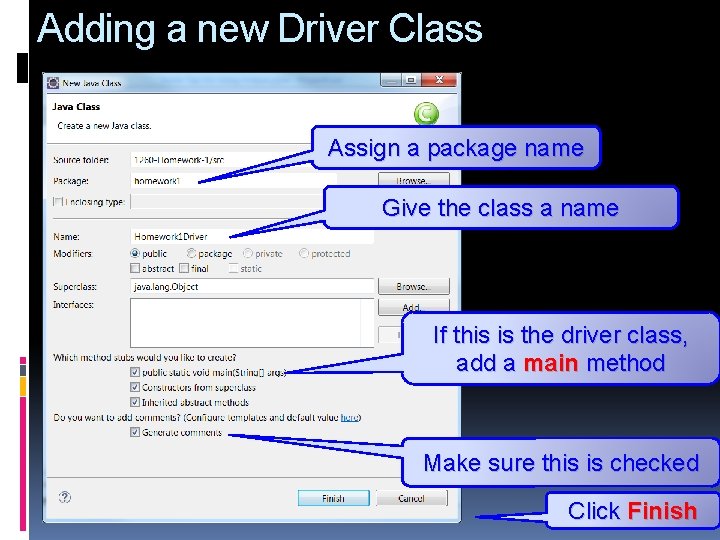
Adding a new Driver Class Assign a package name Give the class a name If this is the driver class, add a main method Make sure this is checked Click Finish
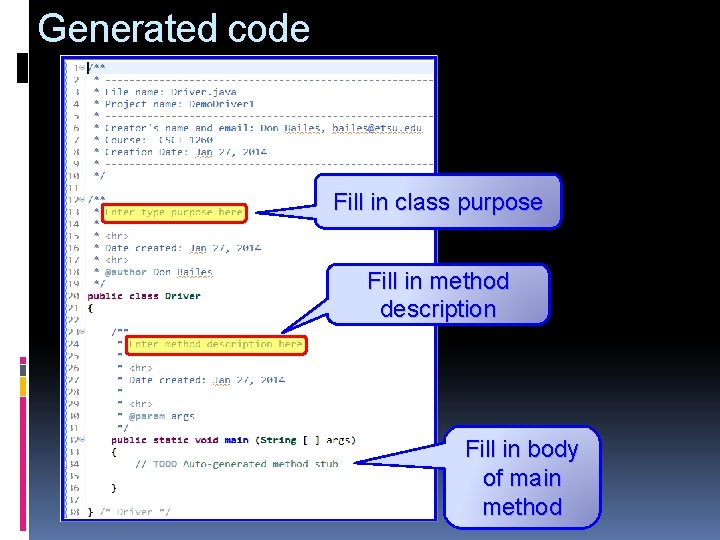
Generated code Fill in class purpose Fill in method description Fill in body of main method
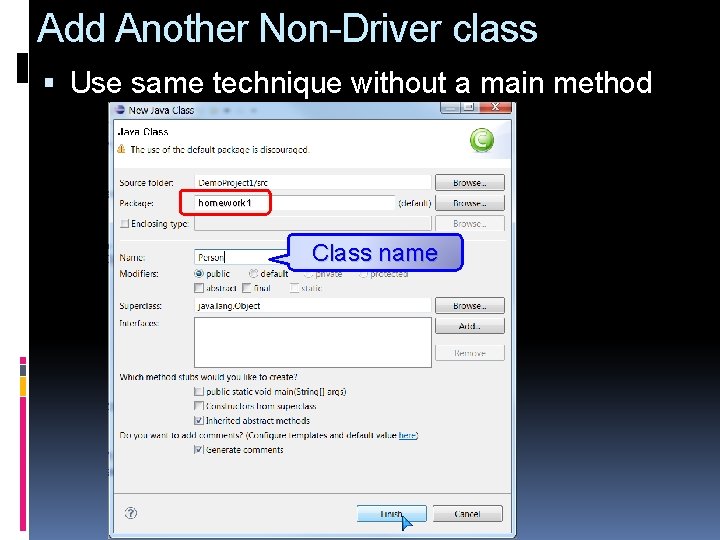
Add Another Non-Driver class Use same technique without a main method homework 1 Class name
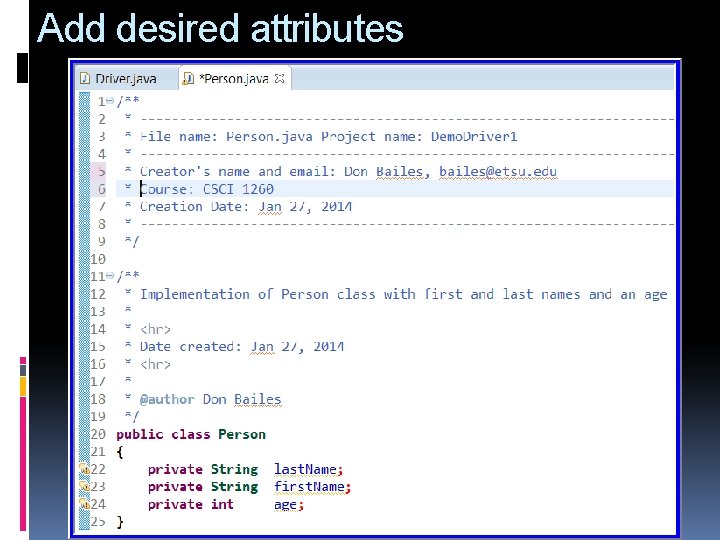
Add desired attributes
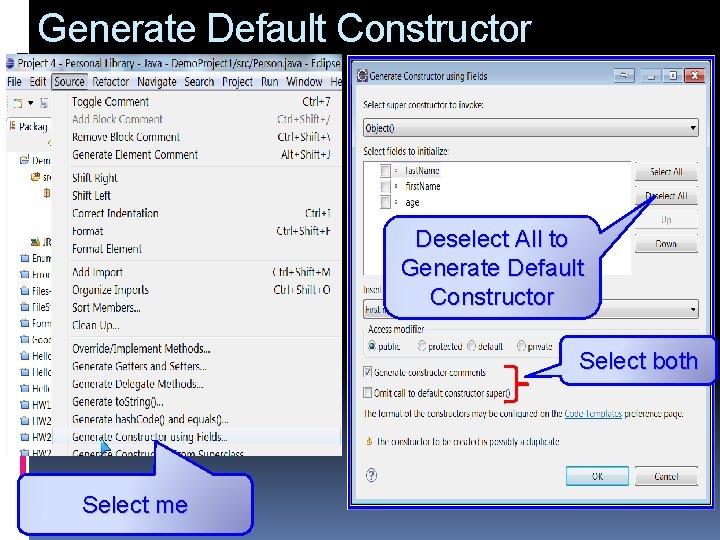
Generate Default Constructor Deselect All to Generate Default Constructor Select both Select me
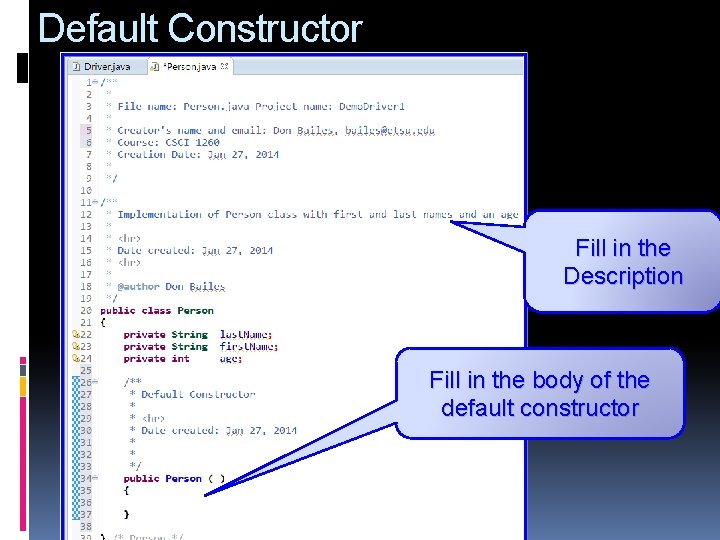
Default Constructor Fill in the Description Fill in the body of the default constructor
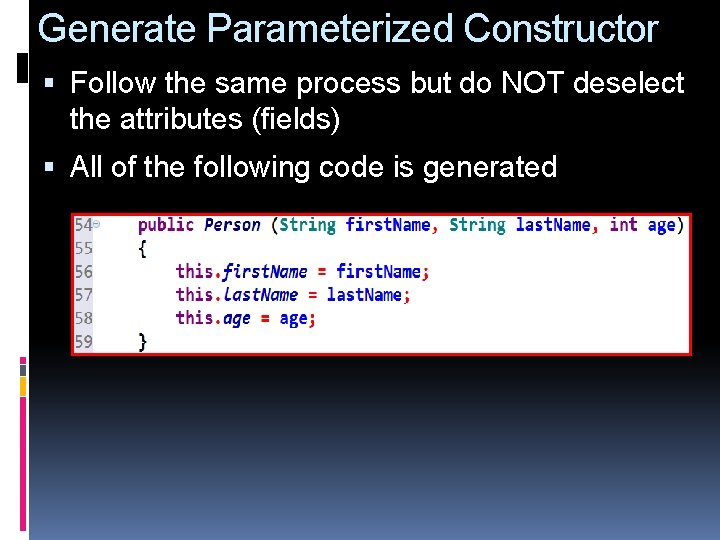
Generate Parameterized Constructor Follow the same process but do NOT deselect the attributes (fields) All of the following code is generated
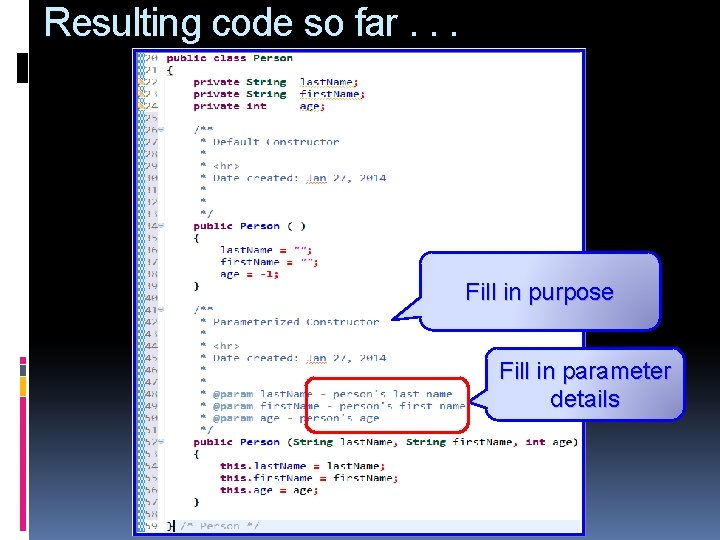
Resulting code so far. . . Fill in purpose Fill in parameter details
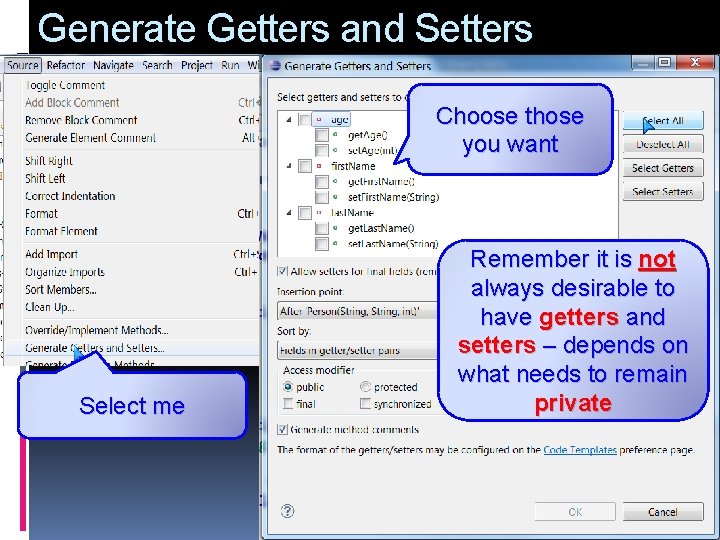
Generate Getters and Setters Choose those you want Select me Remember it is not always desirable to have getters and setters – depends on what needs to remain private
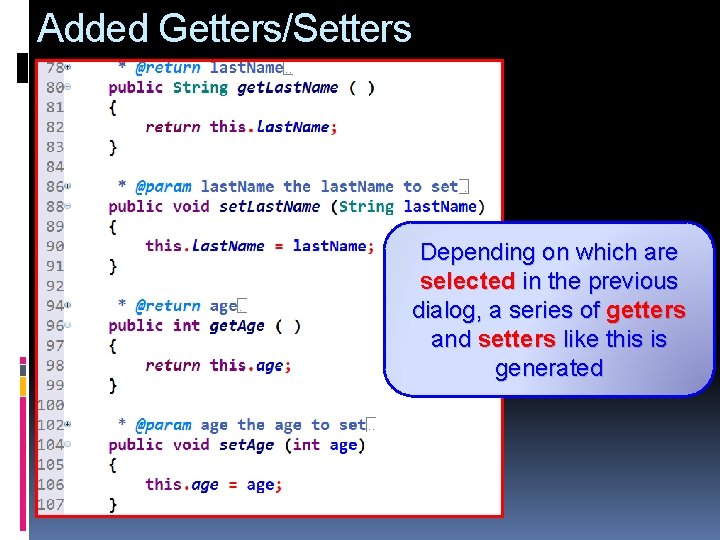
Added Getters/Setters Depending on which are selected in the previous dialog, a series of getters and setters like this is generated
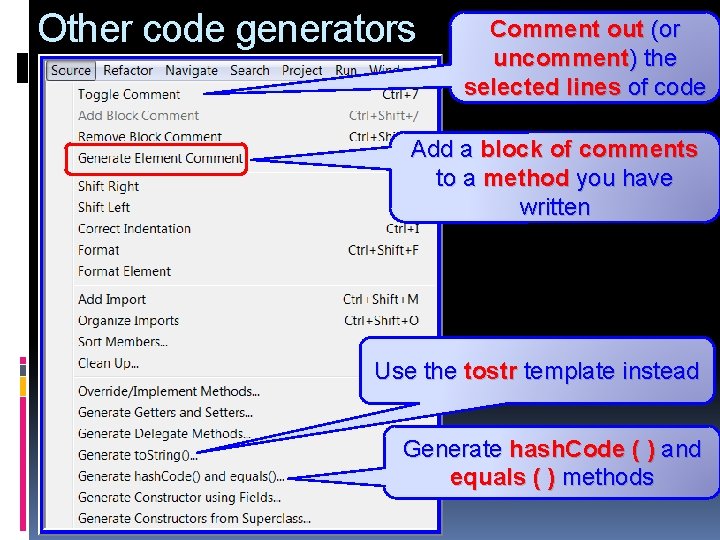
Other code generators Comment out (or uncomment) the selected lines of code Add a block of comments to a method you have written Use the tostr template instead Generate hash. Code ( ) and equals ( ) methods
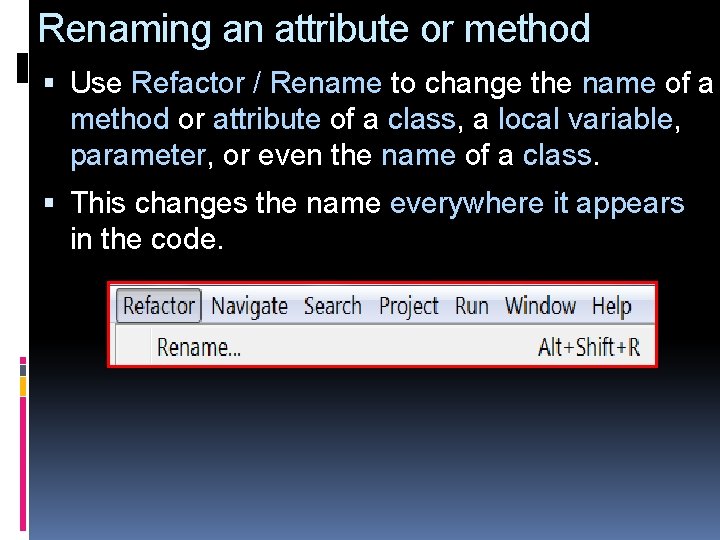
Renaming an attribute or method Use Refactor / Rename to change the name of a method or attribute of a class, a local variable, parameter, or even the name of a class. This changes the name everywhere it appears in the code.
Which import do I need? If you refer to a class that is not in your own project or in any imported class, Eclipse puts a red squiggly line underneath the reference
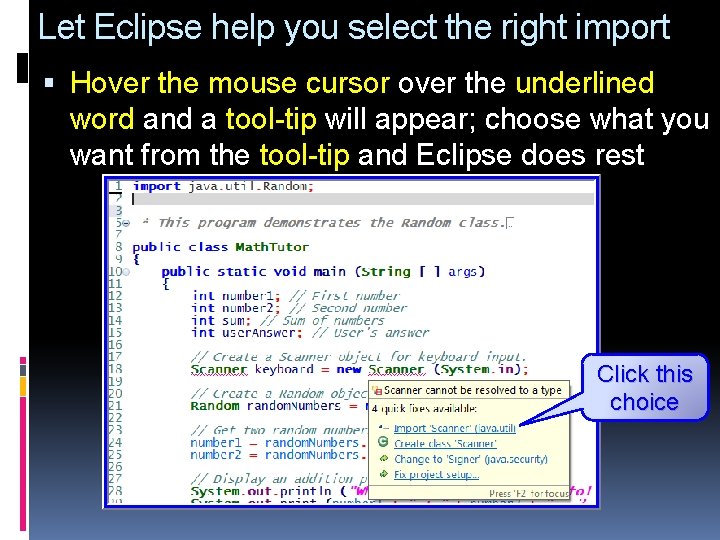
Let Eclipse help you select the right import Hover the mouse cursor over the underlined word and a tool-tip will appear; choose what you want from the tool-tip and Eclipse does rest Click this choice
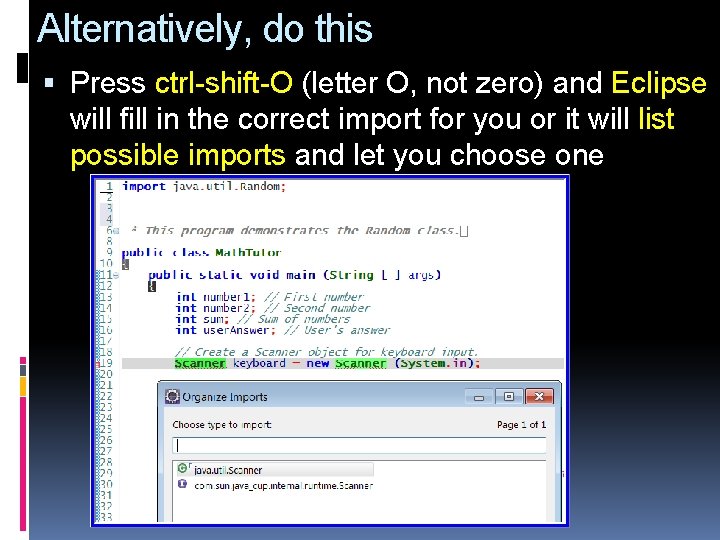
Alternatively, do this Press ctrl-shift-O (letter O, not zero) and Eclipse will fill in the correct import for you or it will list possible imports and let you choose one
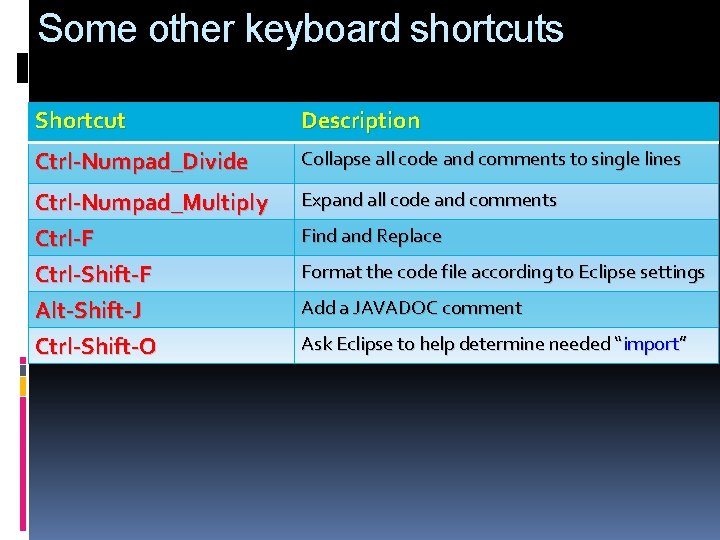
Some other keyboard shortcuts Shortcut Description Ctrl-Numpad_Divide Collapse all code and comments to single lines Ctrl-Numpad_Multiply Ctrl-F Ctrl-Shift-F Alt-Shift-J Ctrl-Shift-O Expand all code and comments Find and Replace Format the code file according to Eclipse settings Add a JAVADOC comment Ask Eclipse to help determine needed “import”
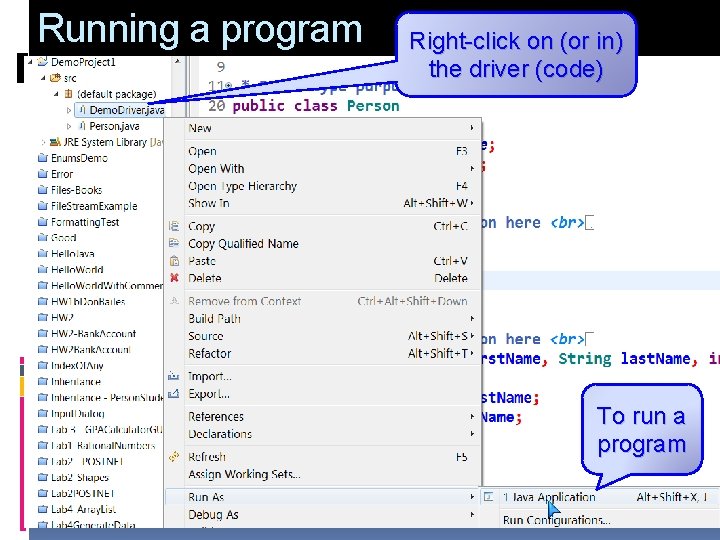
Running a program Right-click on (or in) the driver (code) To run a program
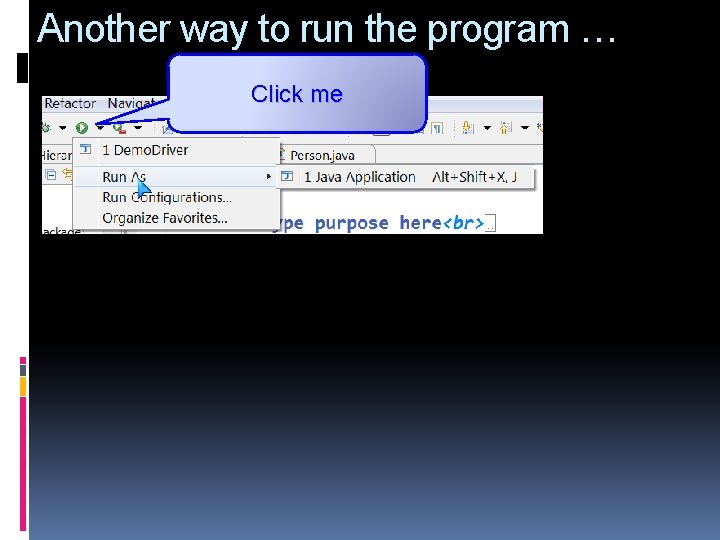
Another way to run the program … Click me
Submitting a project … from your workspace
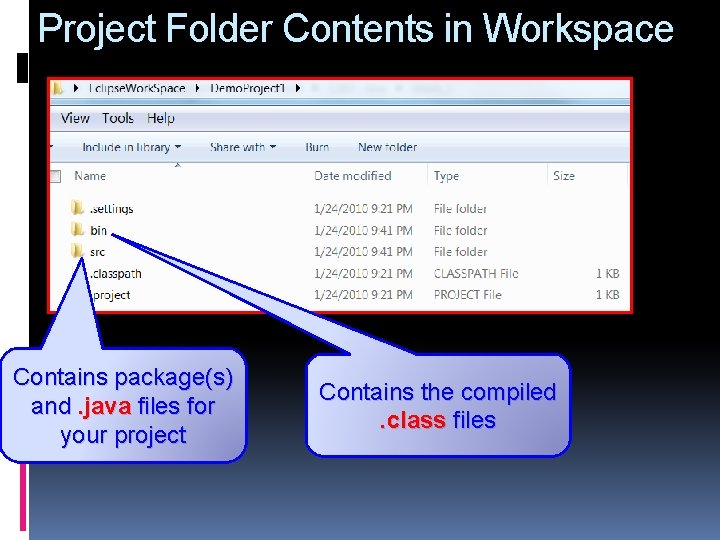
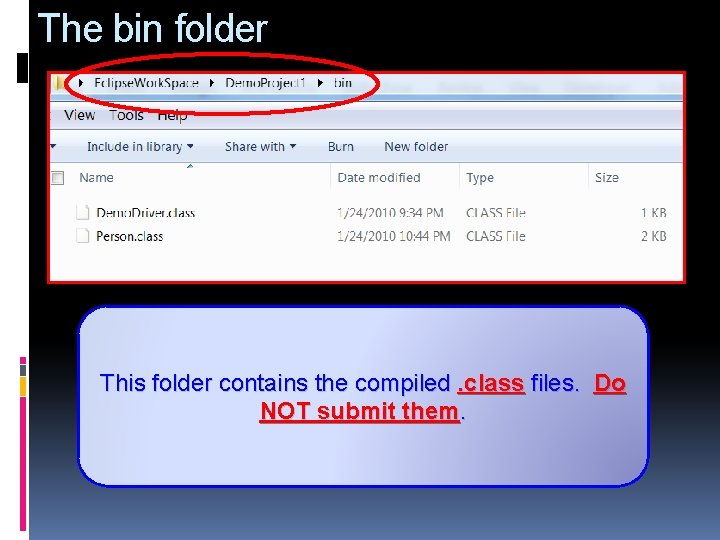
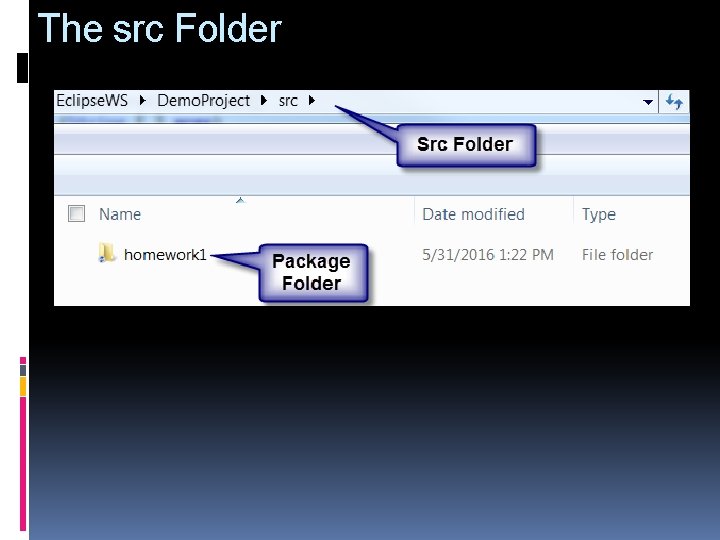
Project Folder Contents in Workspace Contains package(s) and. java files for your project Contains the compiled. class files
The bin folder This folder contains the compiled. class files. Do NOT submit them.
The src Folder
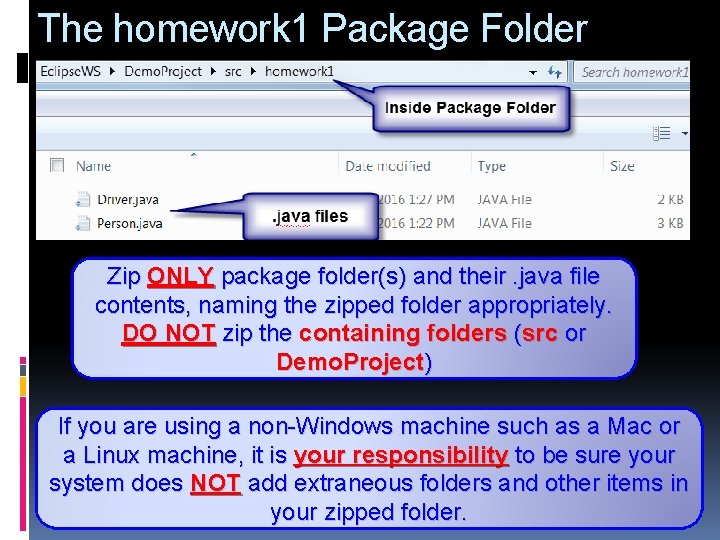
The homework 1 Package Folder Zip ONLY package folder(s) and their. java file contents, naming the zipped folder appropriately. DO NOT zip the containing folders (src or Demo. Project) If you are using a non-Windows machine such as a Mac or a Linux machine, it is your responsibility to be sure your system does NOT add extraneous folders and other items in your zipped folder.
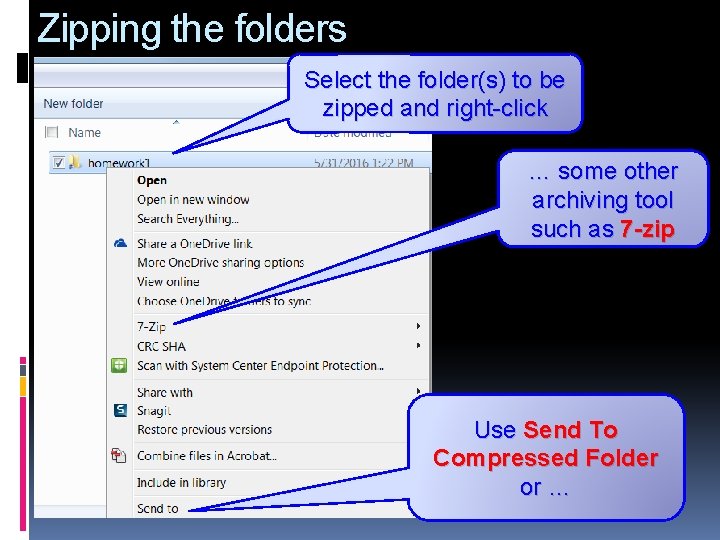
Zipping the folders Select the folder(s) to be zipped and right-click … some other archiving tool such as 7 -zip Use Send To Compressed Folder or …