
Creating an SDC QuestionnaireQuestionnaire Response for Hunger Vital
![Creating an SDC Questionnaire/Questionnaire. Response for Hunger Vital Signs [HVS] Survey using NLM Tools](https://slidetodoc.com/presentation_image_h2/23862db00914d61e331e2018f3bb8c85/image-1.jpg "Creating an SDC Questionnaire/Questionnaire. Response for Hunger Vital Signs [HVS] Survey using NLM Tools")
- Slides: 19
Creating an SDC Questionnaire/Questionnaire. Response for Hunger Vital Signs [HVS] Survey using NLM Tools Joee Garcia, Senior Developer Gevity Consulting Inc.
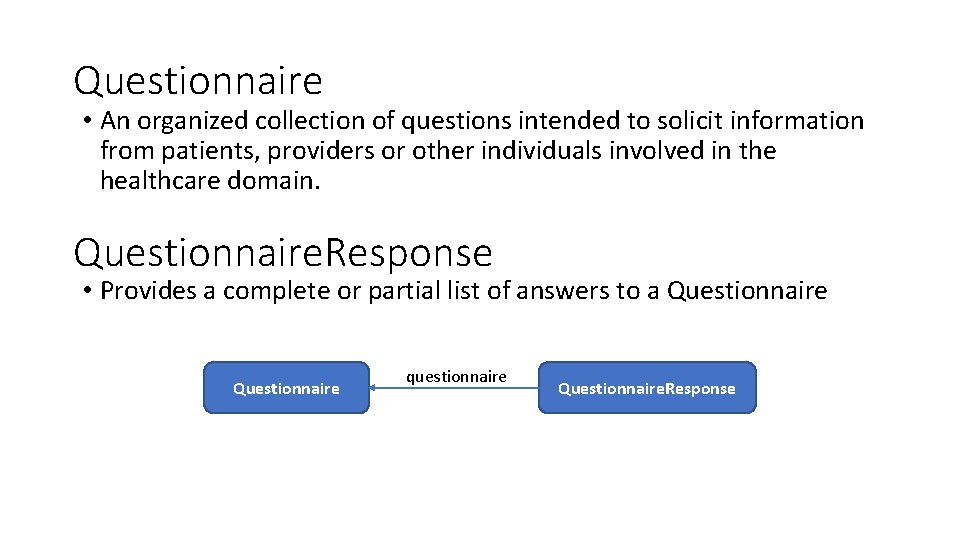
Questionnaire • An organized collection of questions intended to solicit information from patients, providers or other individuals involved in the healthcare domain. Questionnaire. Response • Provides a complete or partial list of answers to a Questionnaire questionnaire Questionnaire. Response
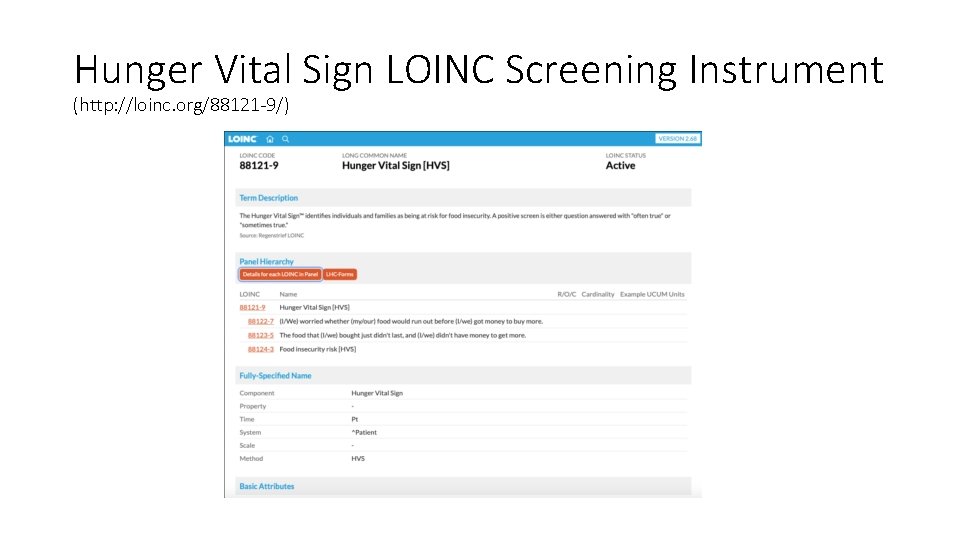
Hunger Vital Sign LOINC Screening Instrument (http: //loinc. org/88121 -9/)
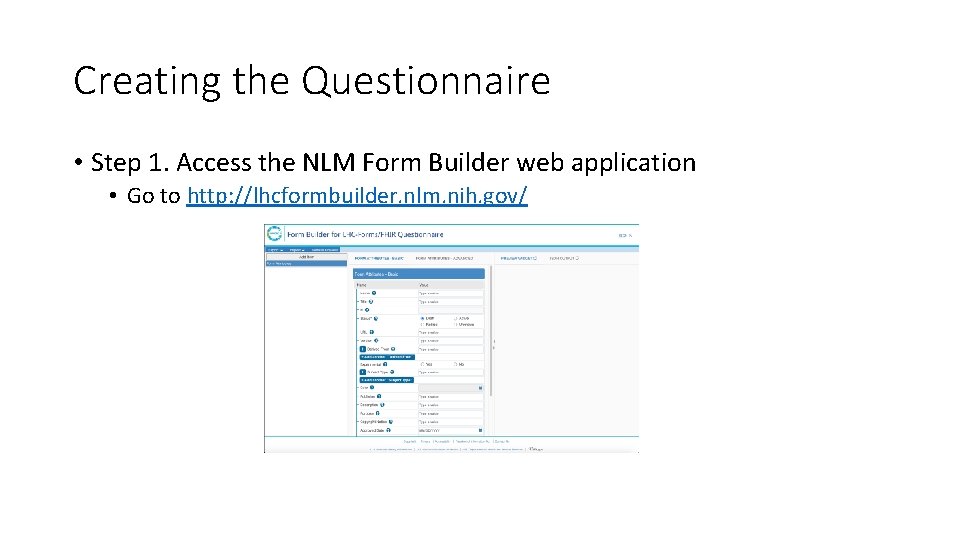
Creating the Questionnaire • Step 1. Access the NLM Form Builder web application • Go to http: //lhcformbuilder. nlm. nih. gov/
Creating the Questionnaire • Step 2. Add more information regarding the Questionnaire. • In the FORM ATTRIBUTES - BASIC tab, enter the following details: Name: SDOHCC_Questionnaire_Hunger. Vital. Sign_1 Title: SDOHCC Questionnaire Hunger. Vital. Sign 1 Subject Type: Patient
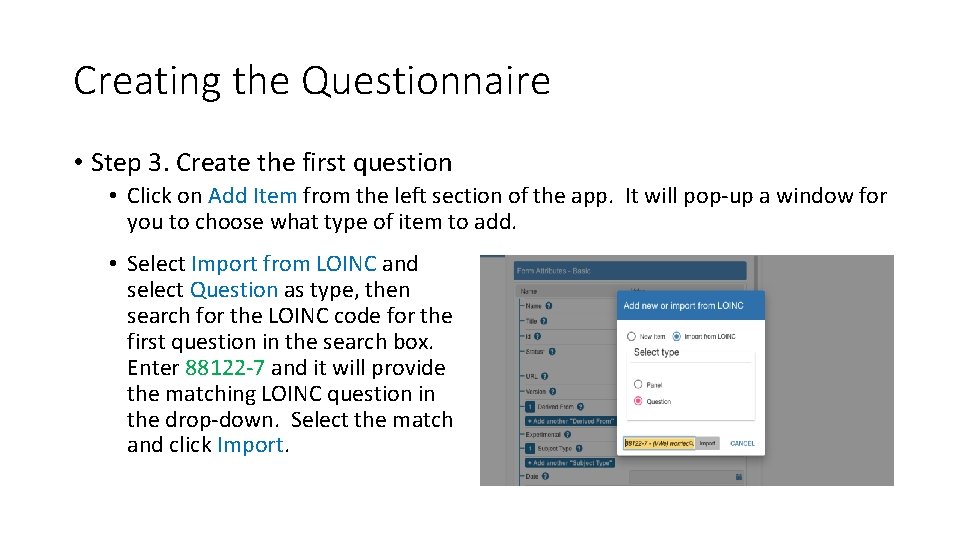
Creating the Questionnaire • Step 3. Create the first question • Click on Add Item from the left section of the app. It will pop-up a window for you to choose what type of item to add. • Select Import from LOINC and select Question as type, then search for the LOINC code for the first question in the search box. Enter 88122 -7 and it will provide the matching LOINC question in the drop-down. Select the match and click Import.
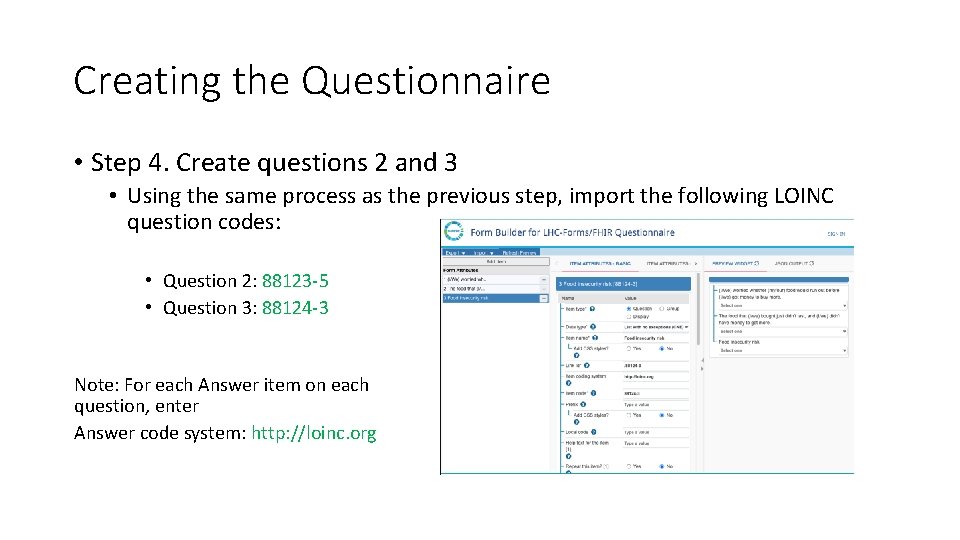
Creating the Questionnaire • Step 4. Create questions 2 and 3 • Using the same process as the previous step, import the following LOINC question codes: • Question 2: 88123 -5 • Question 3: 88124 -3 Note: For each Answer item on each question, enter Answer code system: http: //loinc. org
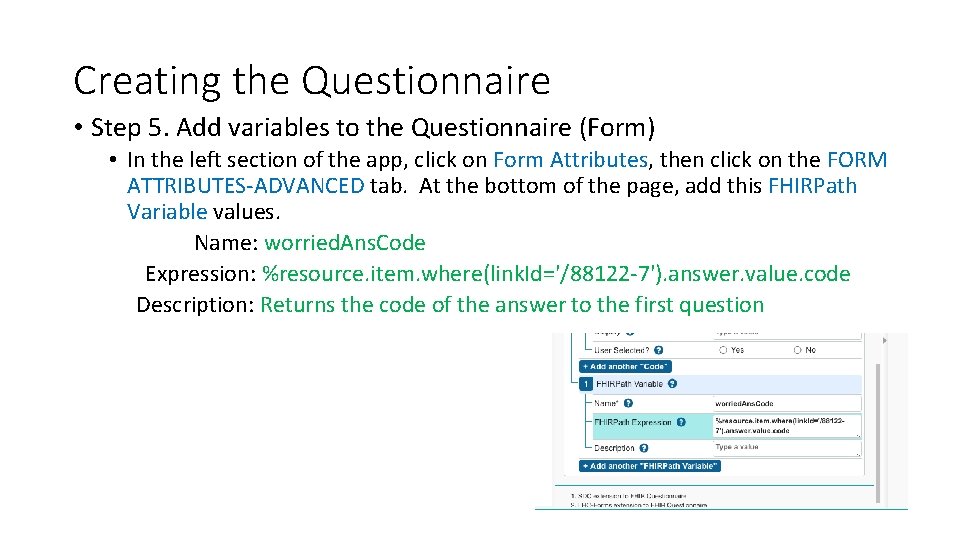
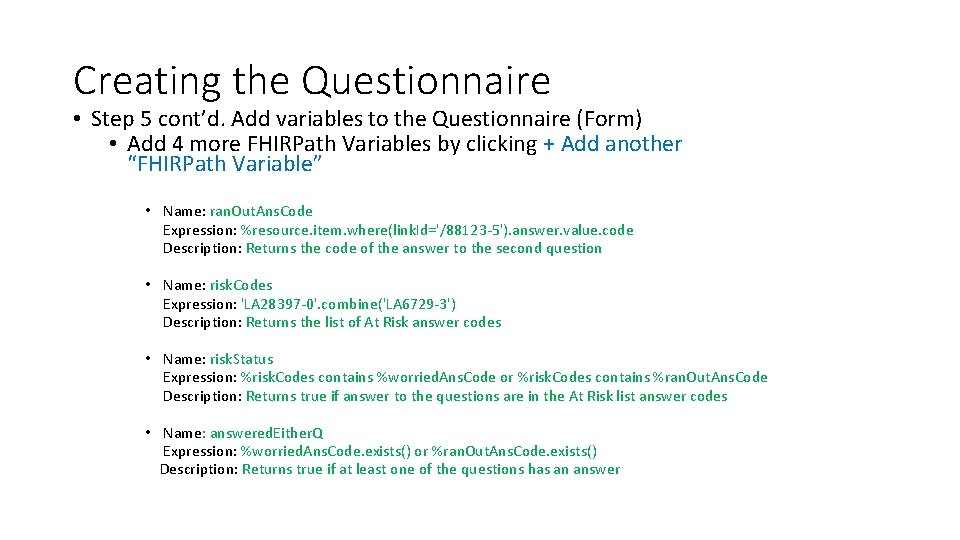
Creating the Questionnaire • Step 5. Add variables to the Questionnaire (Form) • In the left section of the app, click on Form Attributes, then click on the FORM ATTRIBUTES-ADVANCED tab. At the bottom of the page, add this FHIRPath Variable values. Name: worried. Ans. Code Expression: %resource. item. where(link. Id='/88122 -7'). answer. value. code Description: Returns the code of the answer to the first question
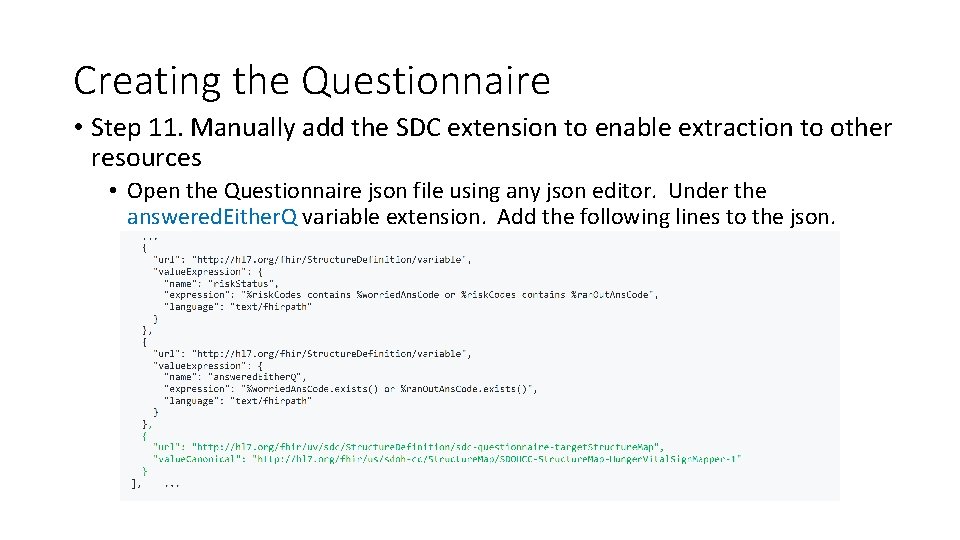
Creating the Questionnaire • Step 5 cont’d. Add variables to the Questionnaire (Form) • Add 4 more FHIRPath Variables by clicking + Add another “FHIRPath Variable” • Name: ran. Out. Ans. Code Expression: %resource. item. where(link. Id='/88123 -5'). answer. value. code Description: Returns the code of the answer to the second question • Name: risk. Codes Expression: 'LA 28397 -0'. combine('LA 6729 -3') Description: Returns the list of At Risk answer codes • Name: risk. Status Expression: %risk. Codes contains %worried. Ans. Code or %risk. Codes contains %ran. Out. Ans. Code Description: Returns true if answer to the questions are in the At Risk list answer codes • Name: answered. Either. Q Expression: %worried. Ans. Code. exists() or %ran. Out. Ans. Code. exists() Description: Returns true if at least one of the questions has an answer
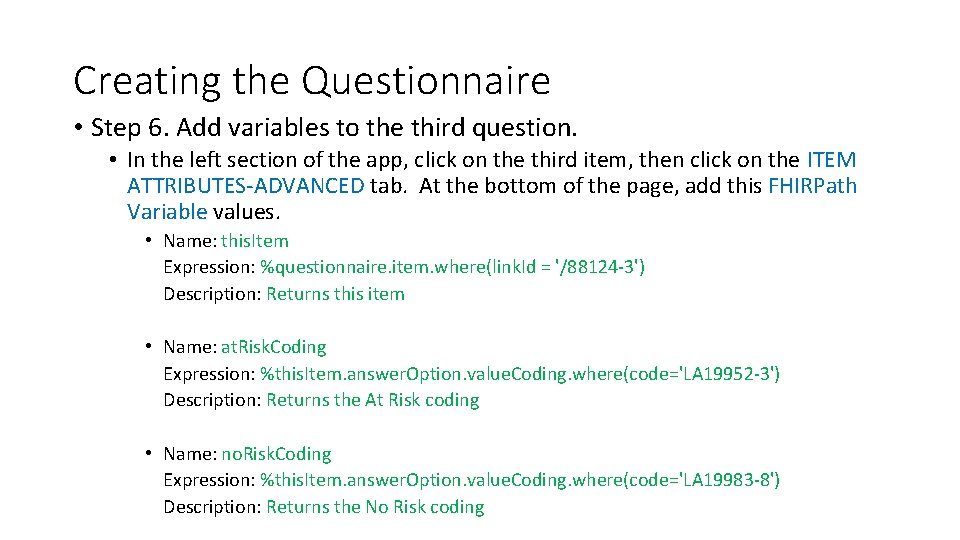
Creating the Questionnaire • Step 6. Add variables to the third question. • In the left section of the app, click on the third item, then click on the ITEM ATTRIBUTES-ADVANCED tab. At the bottom of the page, add this FHIRPath Variable values. • Name: this. Item Expression: %questionnaire. item. where(link. Id = '/88124 -3') Description: Returns this item • Name: at. Risk. Coding Expression: %this. Item. answer. Option. value. Coding. where(code='LA 19952 -3') Description: Returns the At Risk coding • Name: no. Risk. Coding Expression: %this. Item. answer. Option. value. Coding. where(code='LA 19983 -8') Description: Returns the No Risk coding
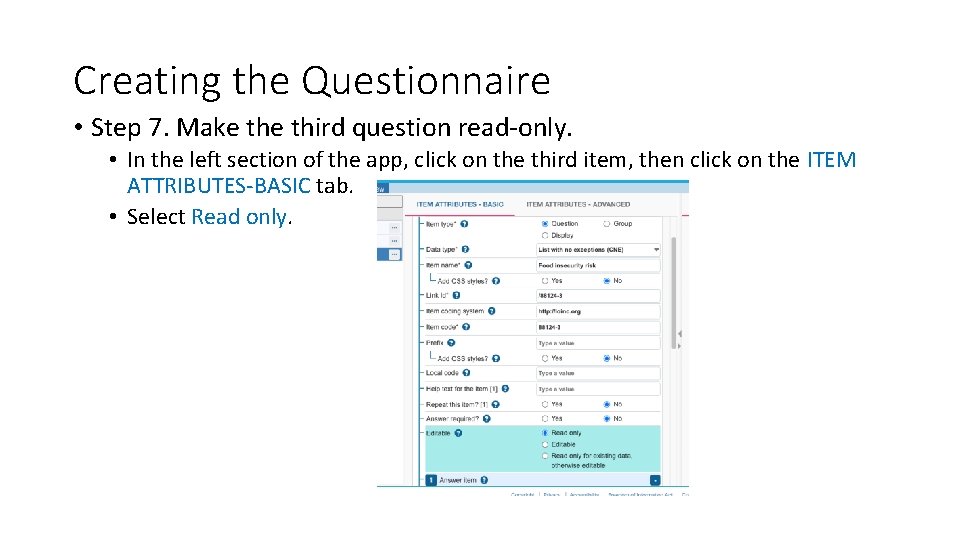
Creating the Questionnaire • Step 7. Make third question read-only. • In the left section of the app, click on the third item, then click on the ITEM ATTRIBUTES-BASIC tab. • Select Read only.
Creating the Questionnaire • Step 9. Export the Questionnaire json to a file. • On the Menu, click on Export, then Export to file… The json will be export to your Downloads folder.
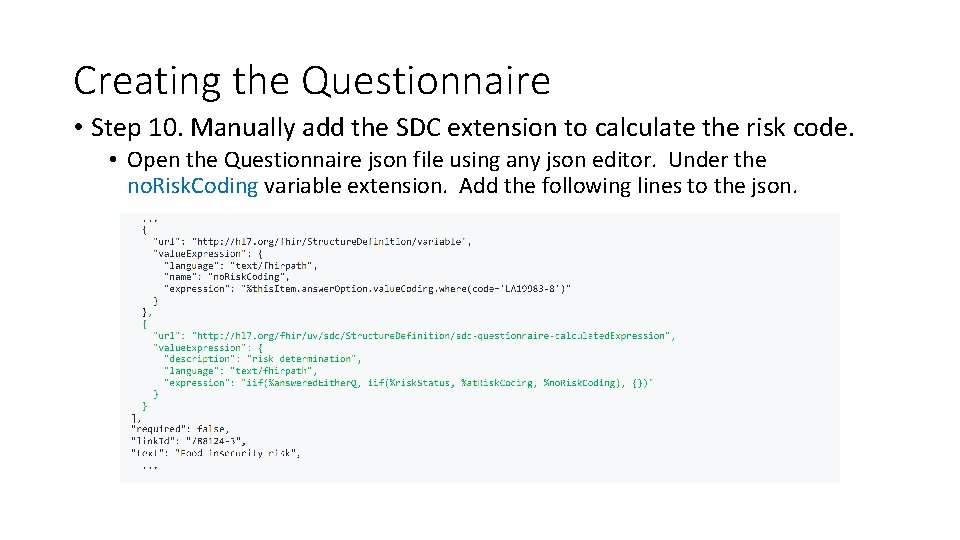
Creating the Questionnaire • Step 10. Manually add the SDC extension to calculate the risk code. • Open the Questionnaire json file using any json editor. Under the no. Risk. Coding variable extension. Add the following lines to the json.
Creating the Questionnaire • Step 11. Manually add the SDC extension to enable extraction to other resources • Open the Questionnaire json file using any json editor. Under the answered. Either. Q variable extension. Add the following lines to the json.
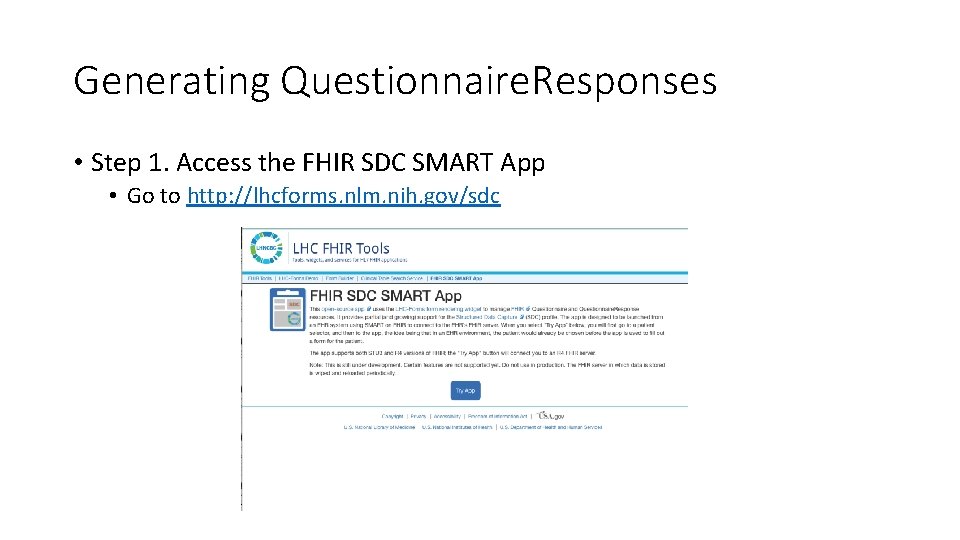
Generating Questionnaire. Responses • Step 1. Access the FHIR SDC SMART App • Go to http: //lhcforms. nlm. nih. gov/sdc
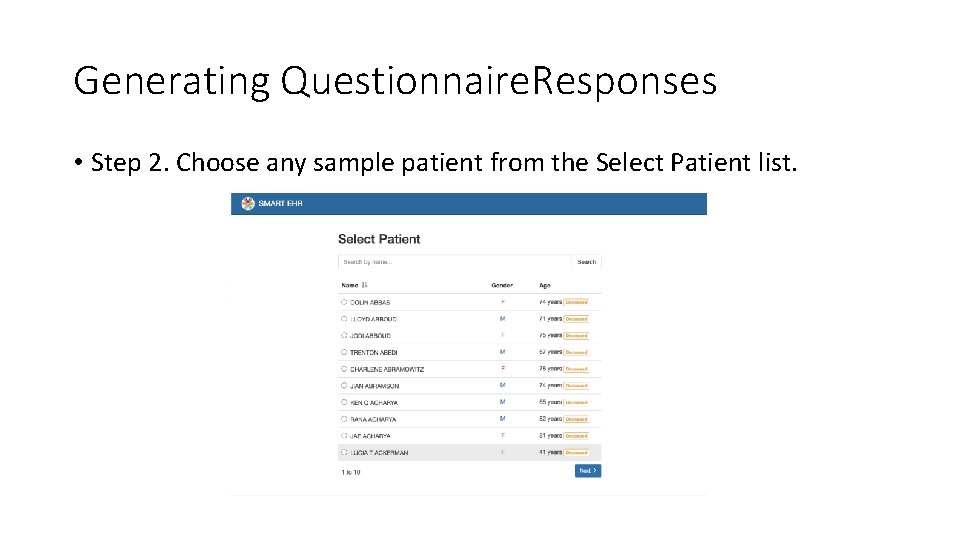
Generating Questionnaire. Responses • Step 2. Choose any sample patient from the Select Patient list.
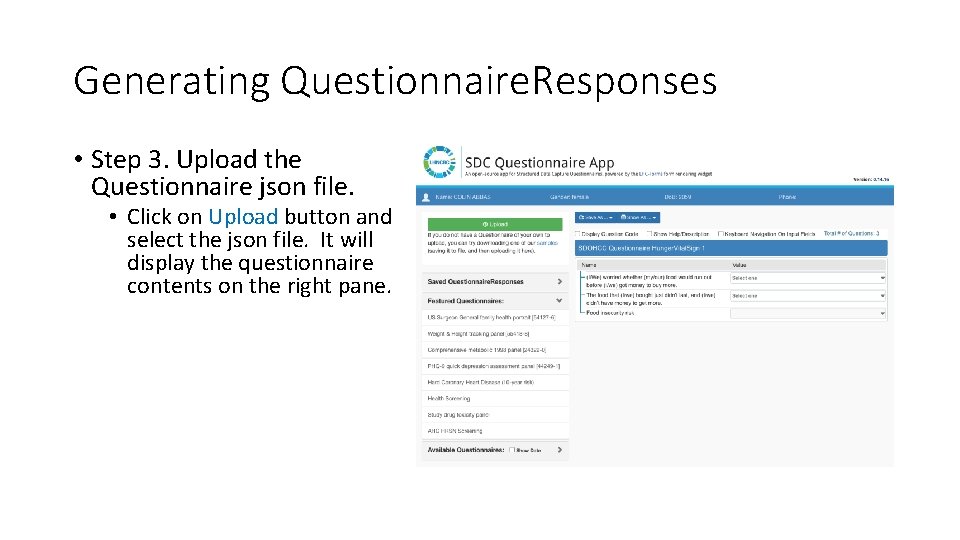
Generating Questionnaire. Responses • Step 3. Upload the Questionnaire json file. • Click on Upload button and select the json file. It will display the questionnaire contents on the right pane.
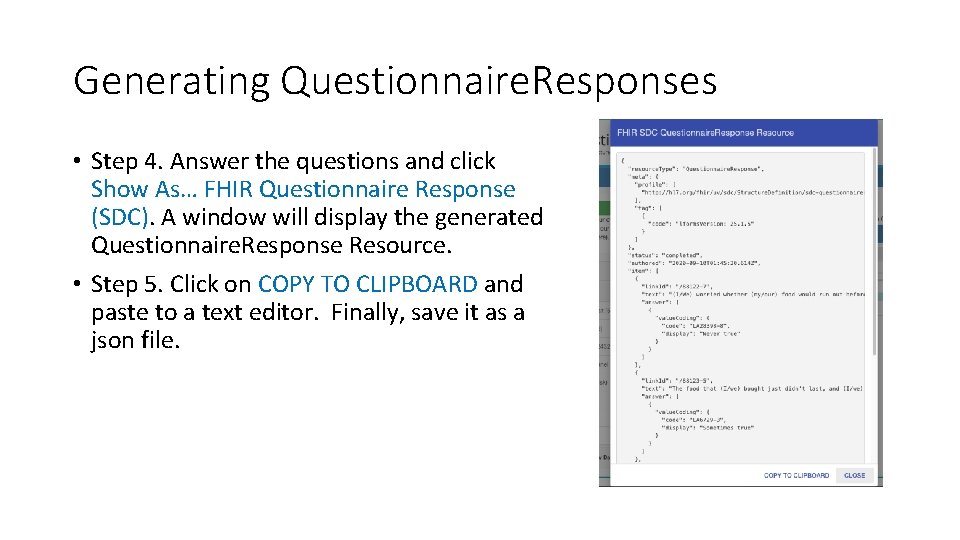
Generating Questionnaire. Responses • Step 4. Answer the questions and click Show As… FHIR Questionnaire Response (SDC). A window will display the generated Questionnaire. Response Resource. • Step 5. Click on COPY TO CLIPBOARD and paste to a text editor. Finally, save it as a json file.