
Creating an Incident in IROC Basic IROC Training
Creating an Incident in IROC Basic IROC Training: Slide Presentation
Course Objectives • • Create an incident directly in IROC Create a preposition incident Change an incident number Add or modify locations, financial codes, and radio frequencies for an incident
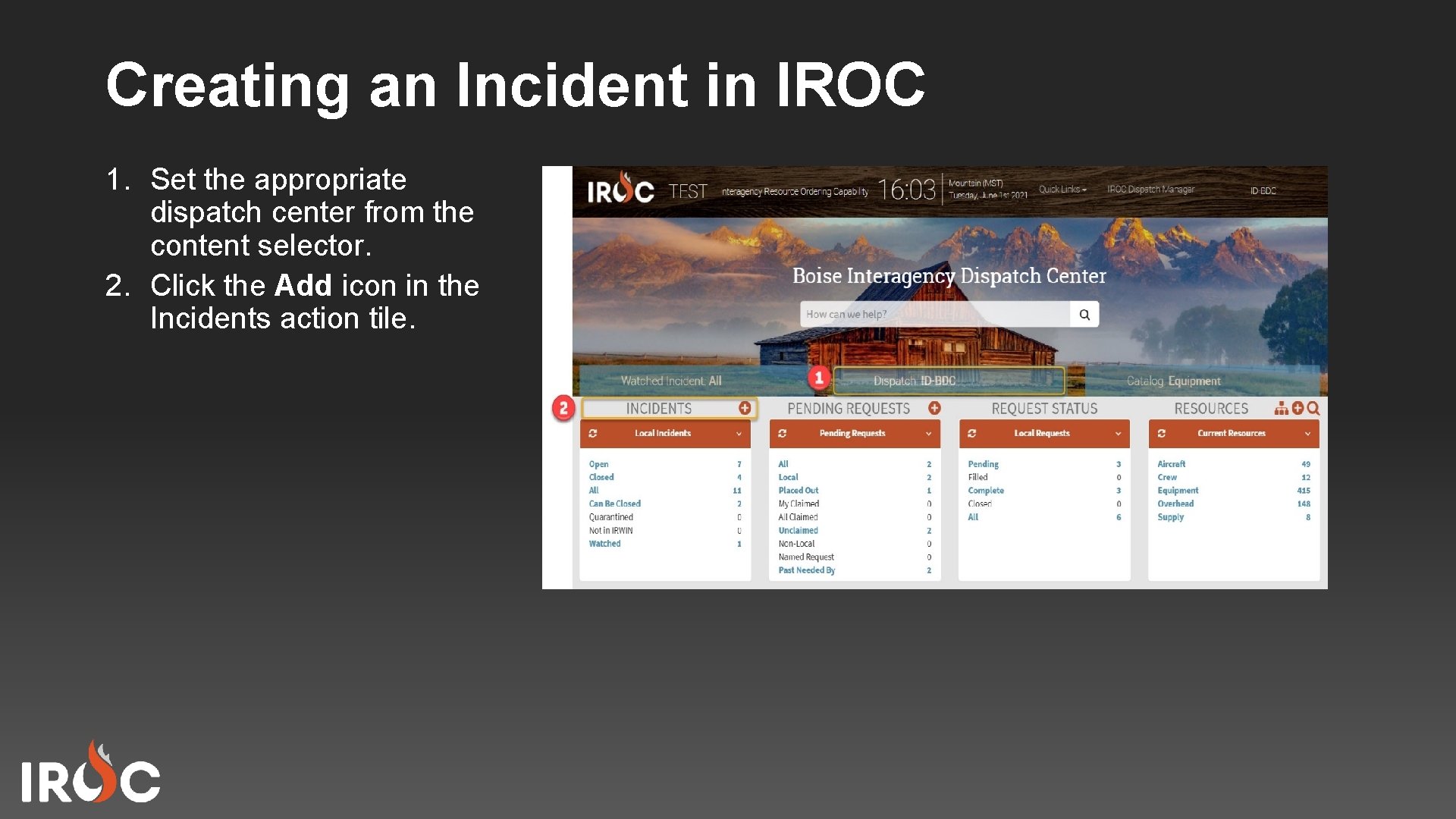
Creating an Incident in IROC 1. Set the appropriate dispatch center from the content selector. 2. Click the Add icon in the Incidents action tile.
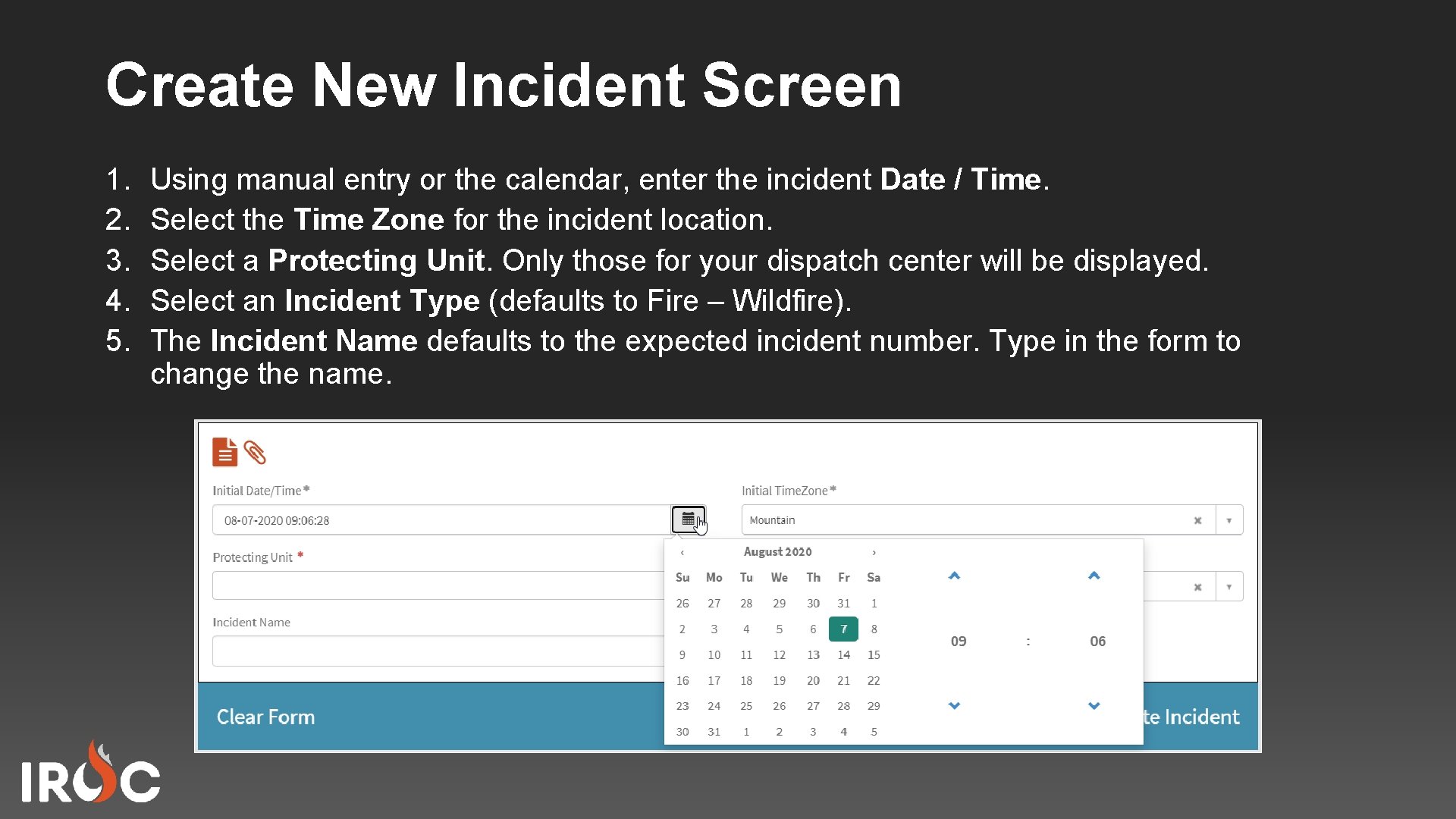
Create New Incident Screen 1. 2. 3. 4. 5. Using manual entry or the calendar, enter the incident Date / Time. Select the Time Zone for the incident location. Select a Protecting Unit. Only those for your dispatch center will be displayed. Select an Incident Type (defaults to Fire – Wildfire). The Incident Name defaults to the expected incident number. Type in the form to change the name.
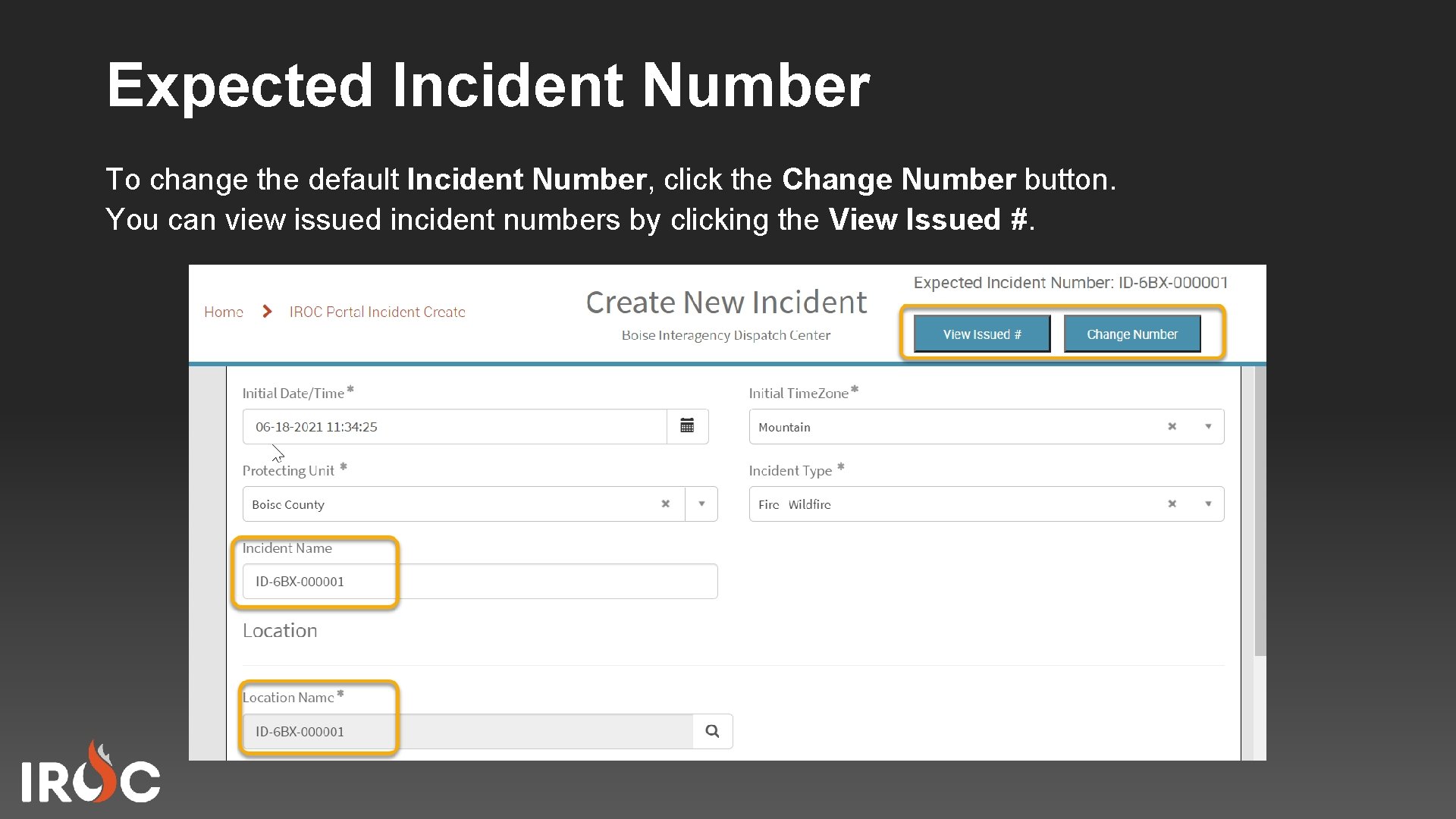
Expected Incident Number To change the default Incident Number, click the Change Number button. You can view issued incident numbers by clicking the View Issued #.
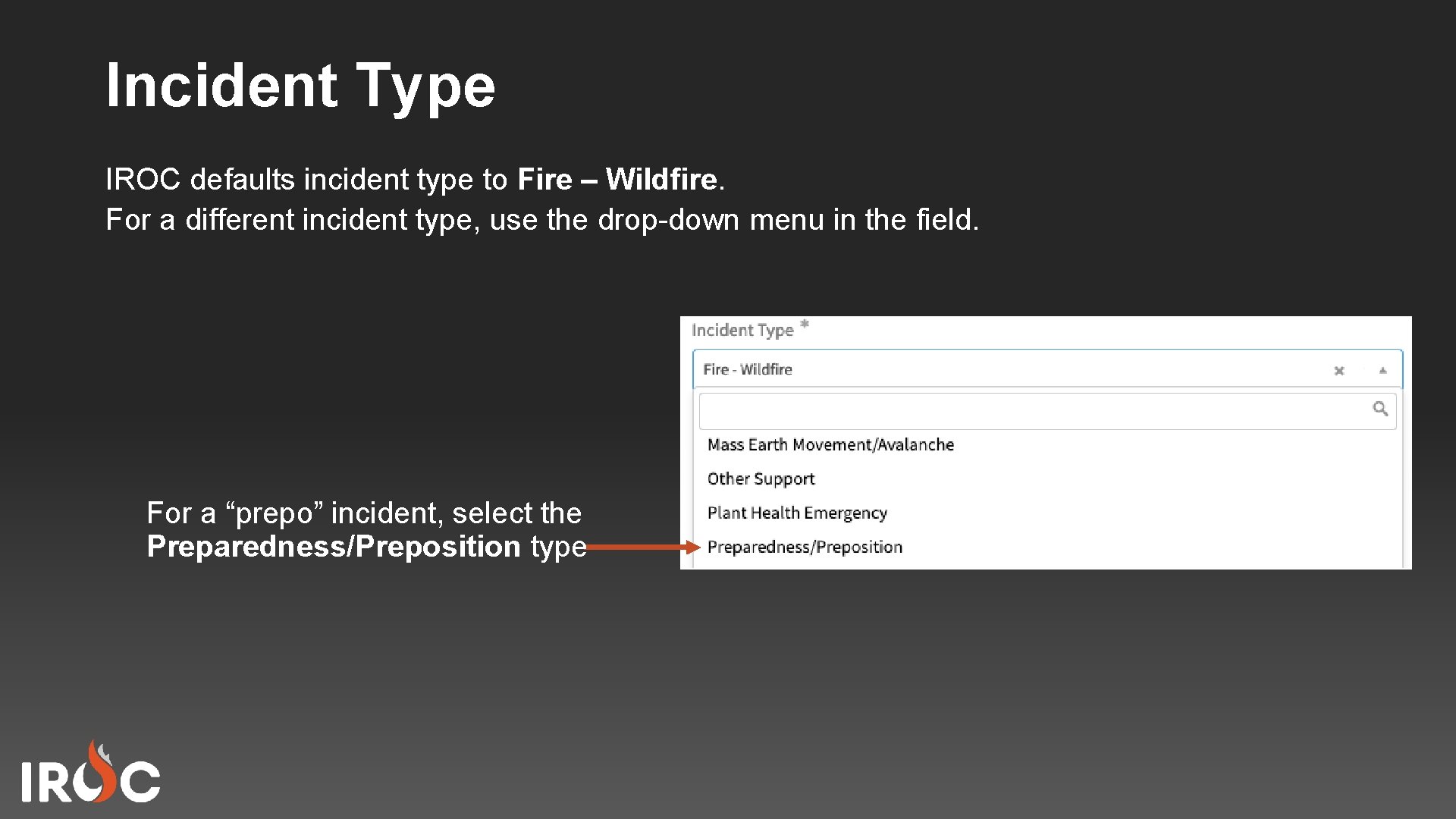
Incident Type IROC defaults incident type to Fire – Wildfire. For a different incident type, use the drop-down menu in the field. For a “prepo” incident, select the Preparedness/Preposition type
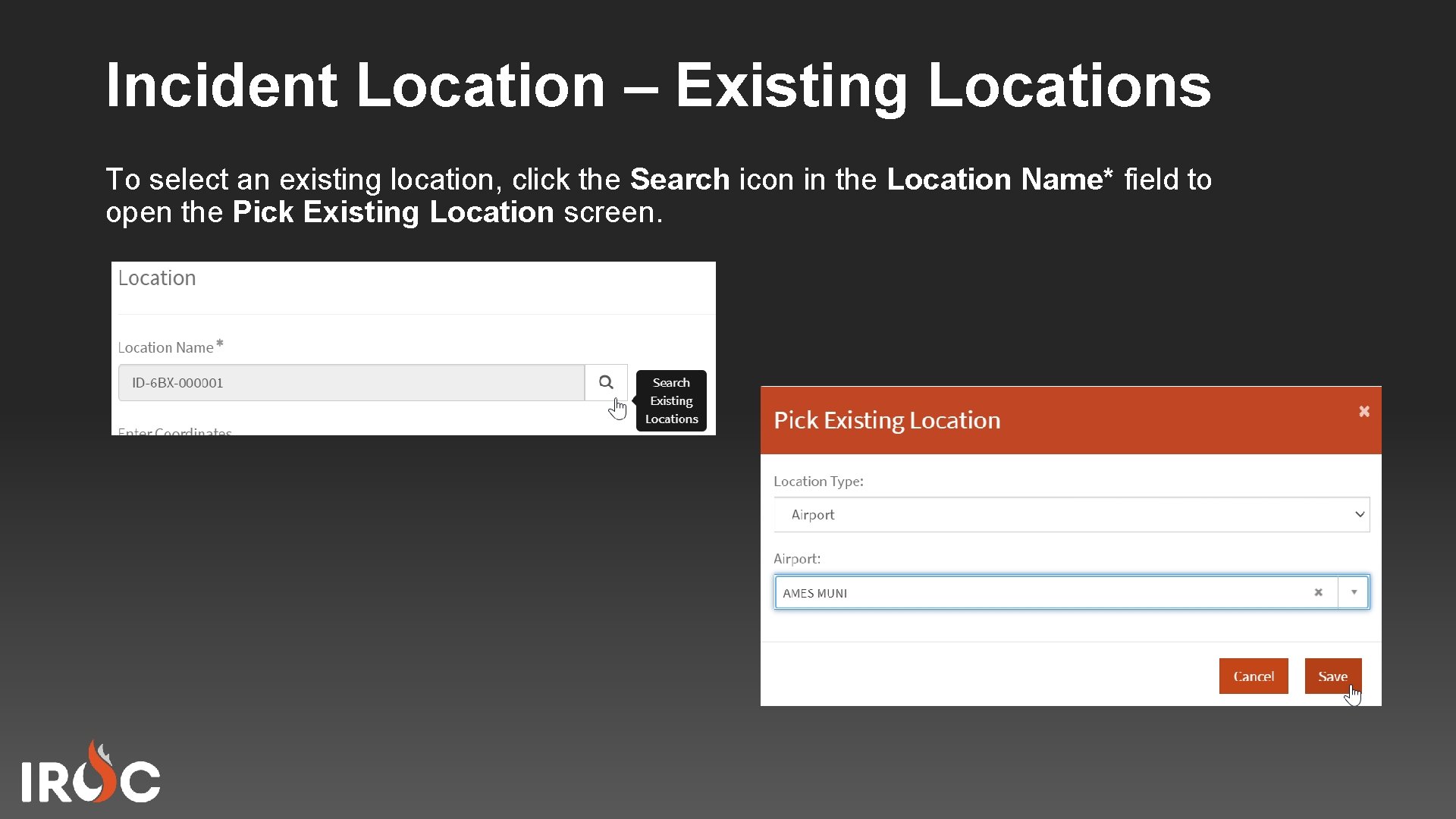
Incident Location – Existing Locations To select an existing location, click the Search icon in the Location Name* field to open the Pick Existing Location screen.
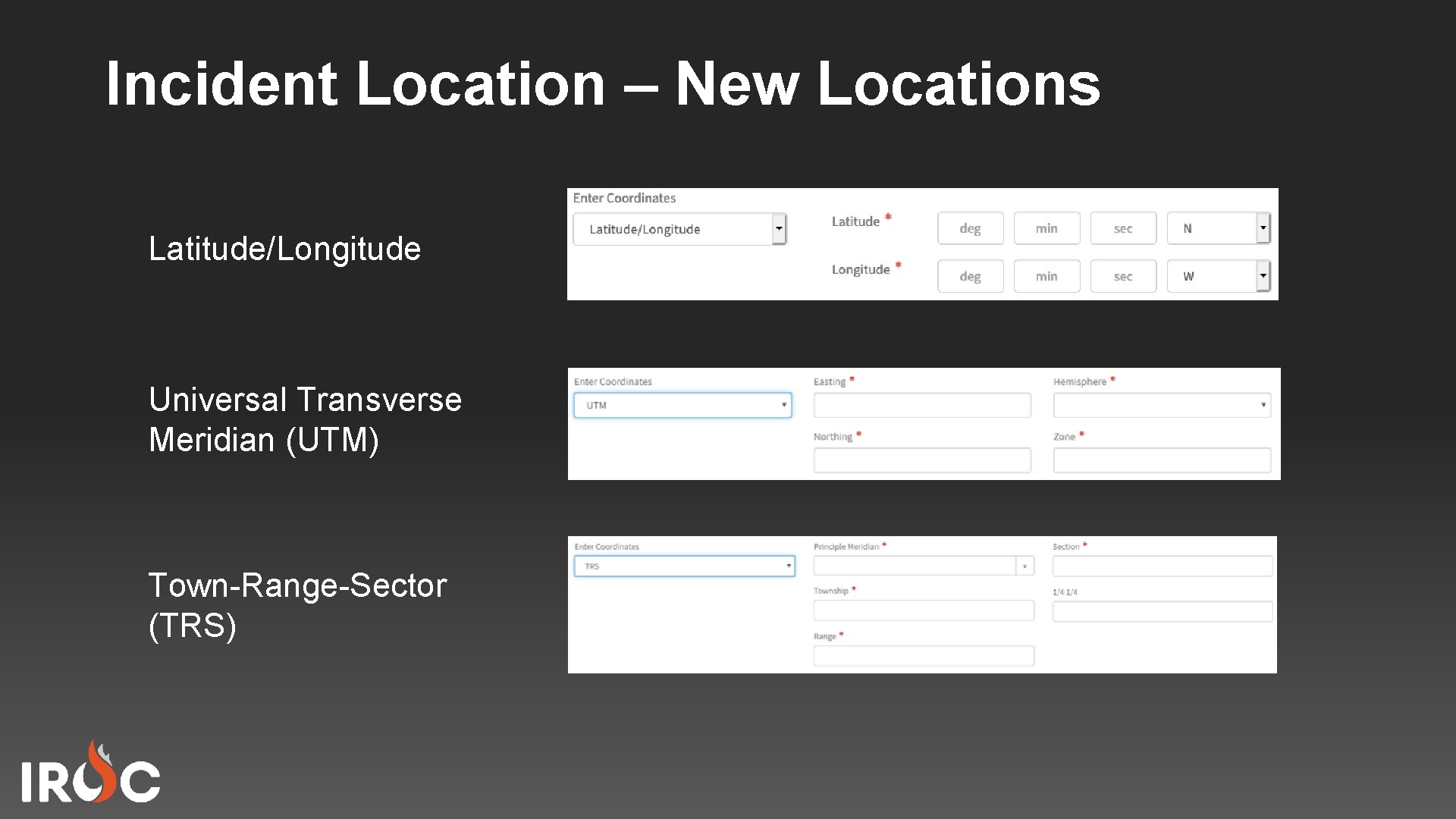
Incident Location – New Locations Latitude/Longitude Universal Transverse Meridian (UTM) Town-Range-Sector (TRS)
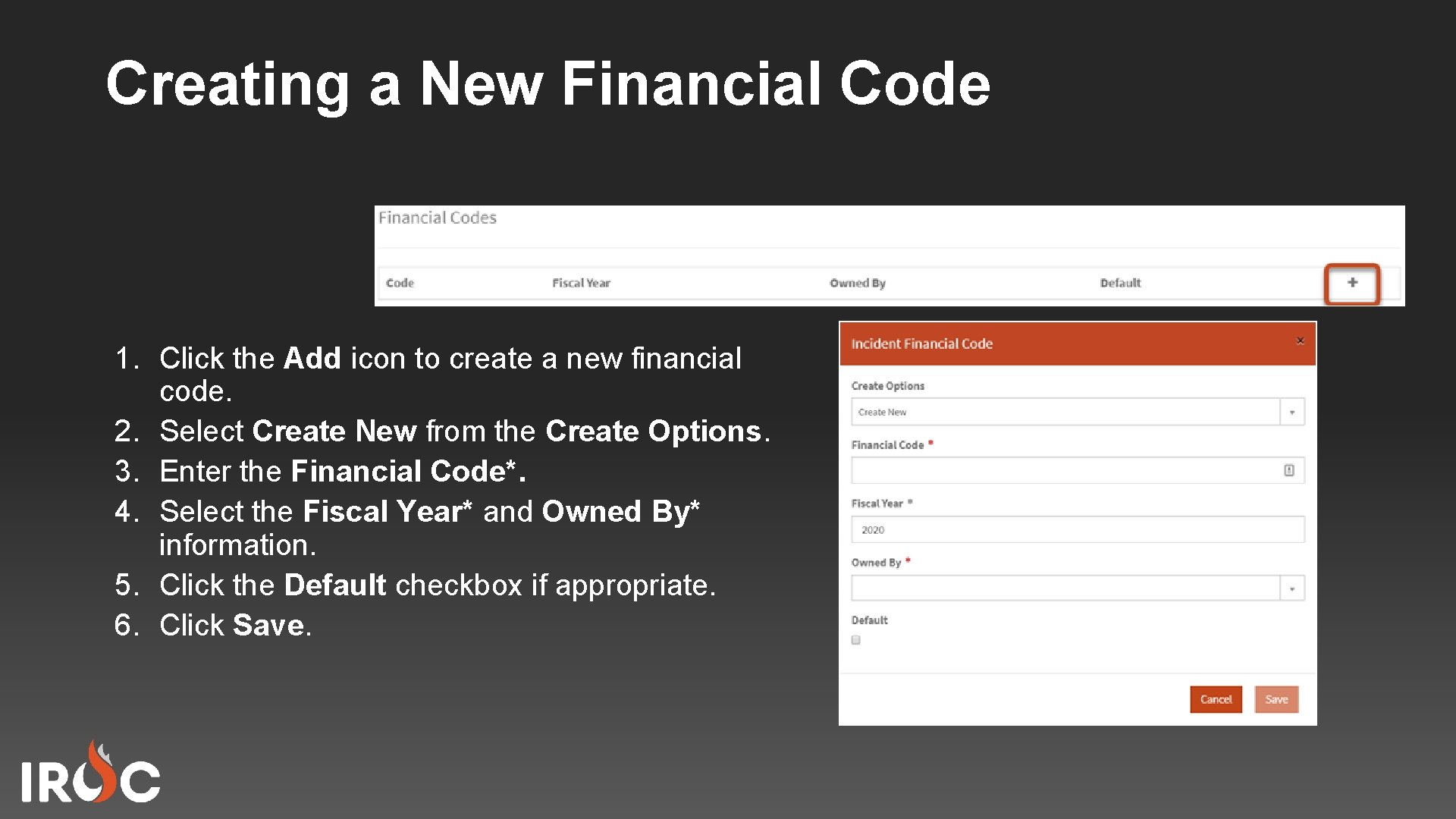
Creating a New Financial Code 1. Click the Add icon to create a new financial code. 2. Select Create New from the Create Options. 3. Enter the Financial Code*. 4. Select the Fiscal Year* and Owned By* information. 5. Click the Default checkbox if appropriate. 6. Click Save.
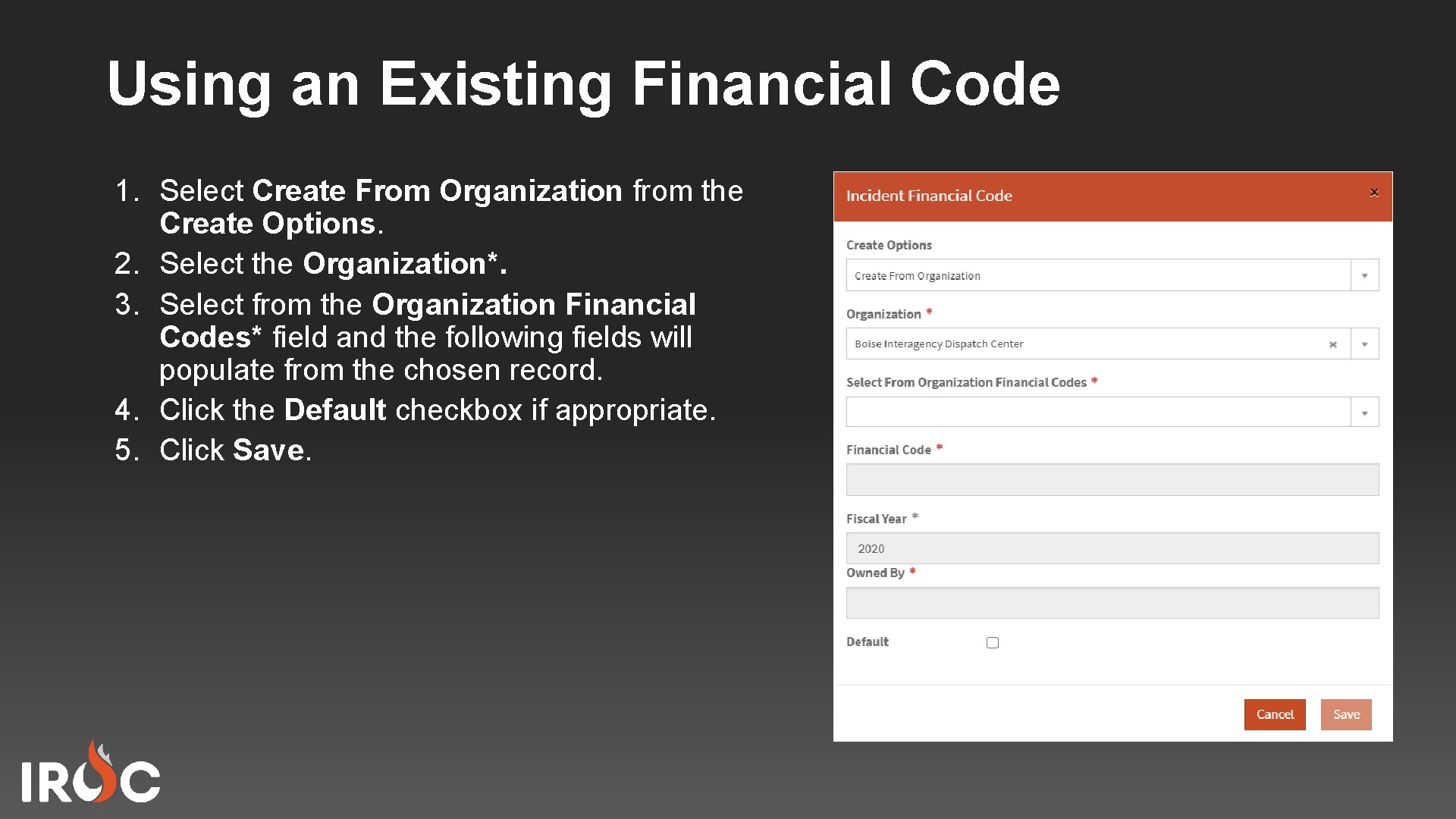
Using an Existing Financial Code 1. Select Create From Organization from the Create Options. 2. Select the Organization*. 3. Select from the Organization Financial Codes* field and the following fields will populate from the chosen record. 4. Click the Default checkbox if appropriate. 5. Click Save.
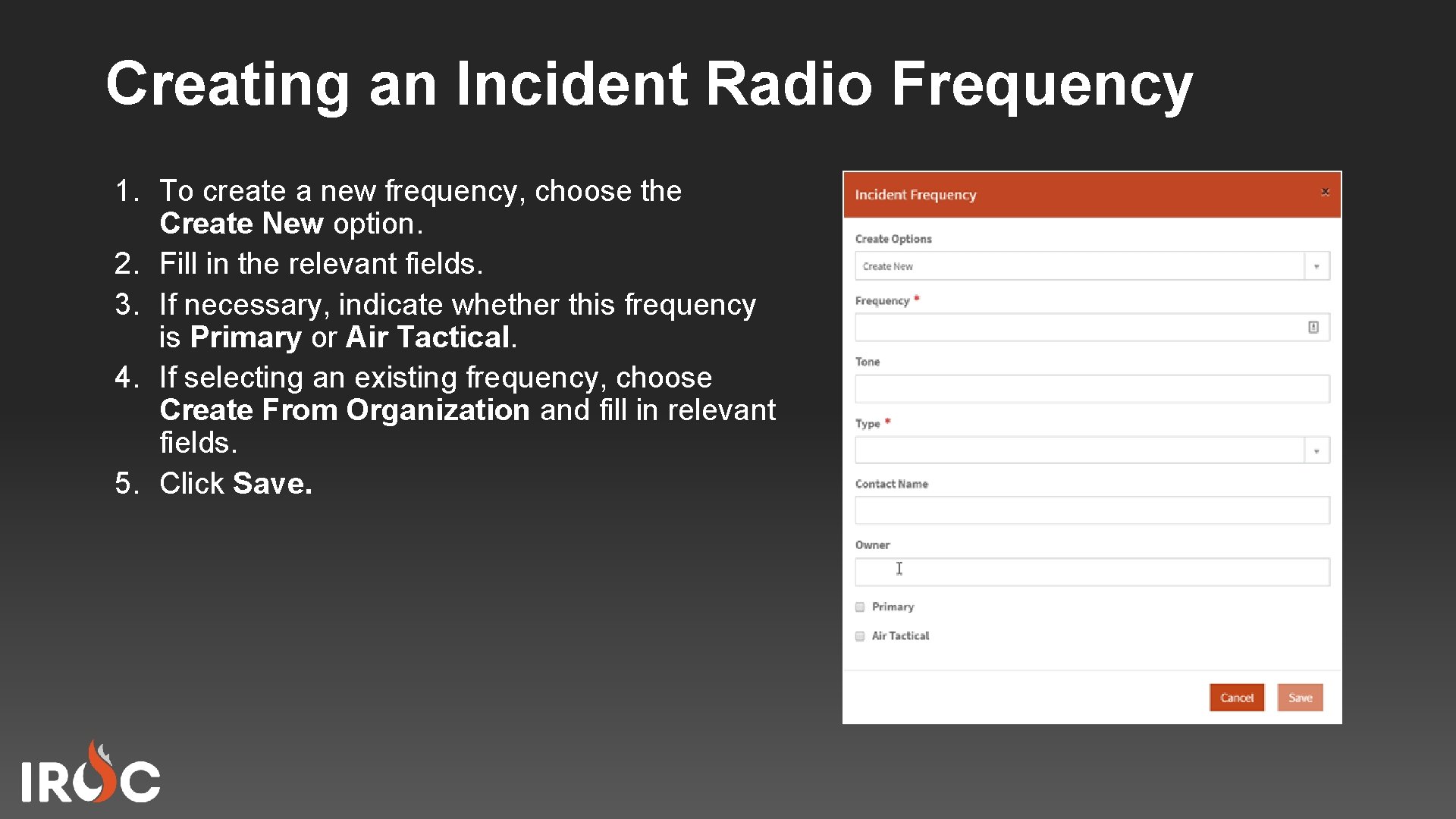
Creating an Incident Radio Frequency 1. To create a new frequency, choose the Create New option. 2. Fill in the relevant fields. 3. If necessary, indicate whether this frequency is Primary or Air Tactical. 4. If selecting an existing frequency, choose Create From Organization and fill in relevant fields. 5. Click Save.
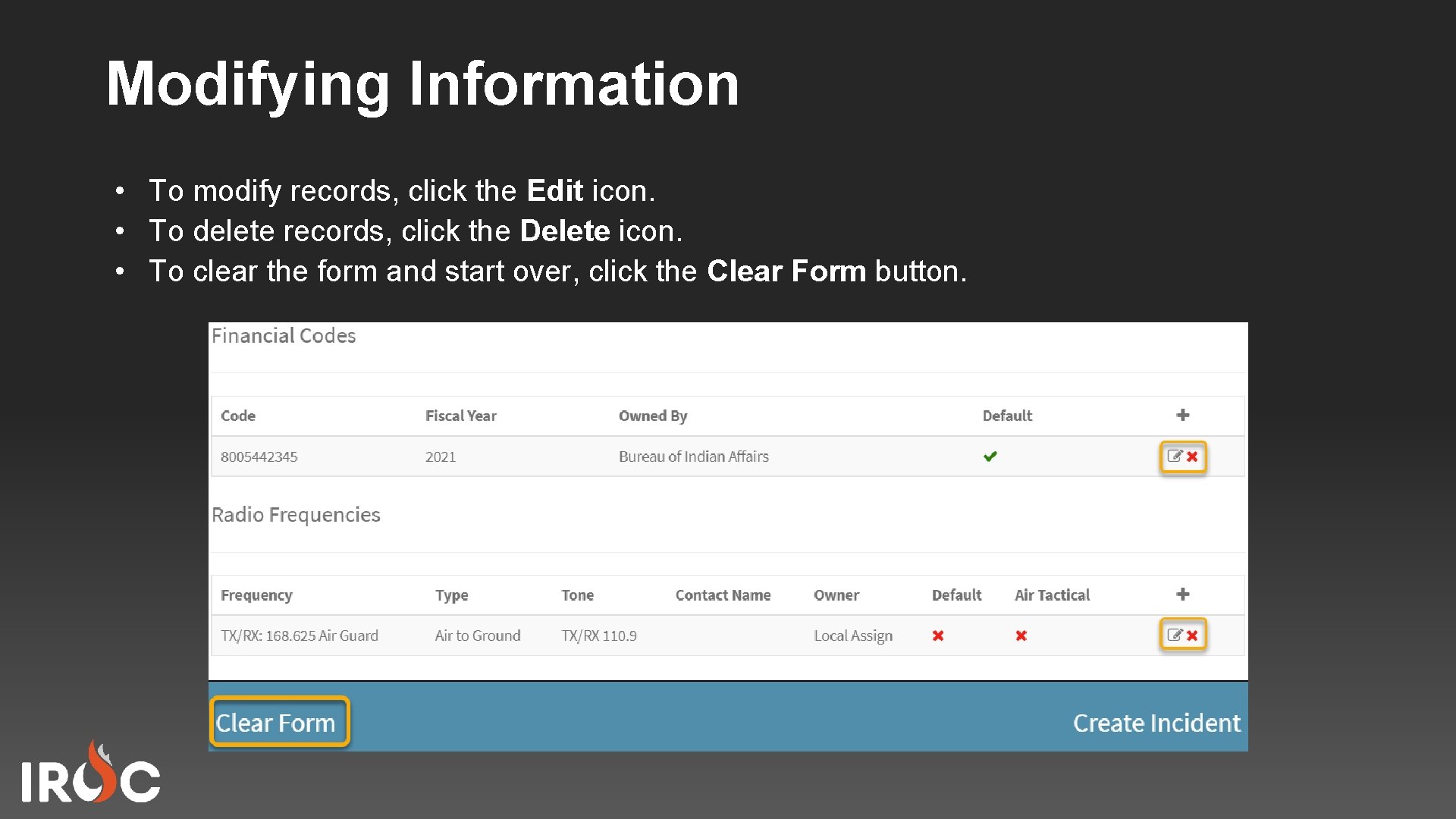
Modifying Information • To modify records, click the Edit icon. • To delete records, click the Delete icon. • To clear the form and start over, click the Clear Form button.
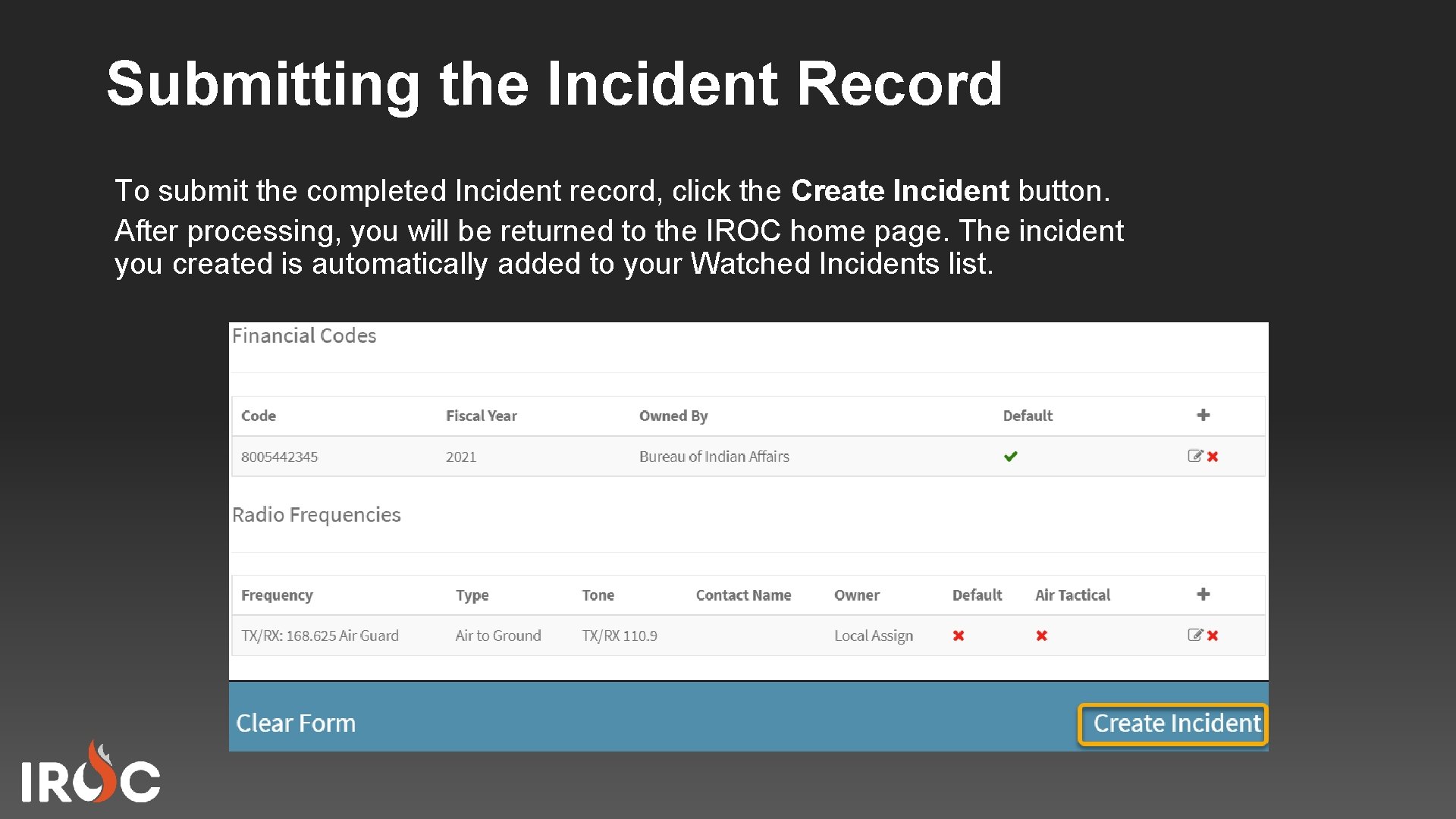
Submitting the Incident Record To submit the completed Incident record, click the Create Incident button. After processing, you will be returned to the IROC home page. The incident you created is automatically added to your Watched Incidents list.

Course Objectives Review • • Create an incident directly in IROC. Create a preposition incident. Change an incident number. Add or modify locations, financial codes, and radio frequencies for an incident.

- Slides: 15