
Creating an Accessible PDF File with Microsoft Word

Creating an Accessible PDF File with Microsoft Word 2013 Darrin Evans Accessibility Technologist e. Learning Support Department 919 -866 -5636 daevans 3@waketech. edu
Today’s Objectives: �Distinguish between the two “types” of PDF files �Describe two methods for interpreting the accessibility of a PDF �Create an accessible Word document containing headings, images, a table, and lists using accessible design concepts �Make an accessible PDF from the Word Document
What’s a PDF File? �Portable Document Format �Designed as a means to share documents across multiple computer systems �Accessible PDFs are “tagged”
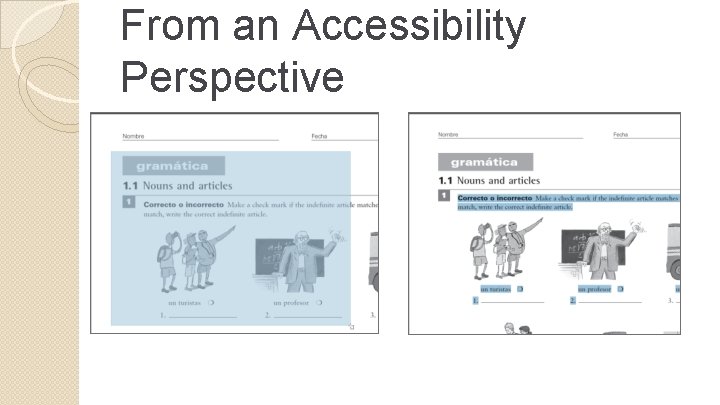
From an Accessibility Perspective
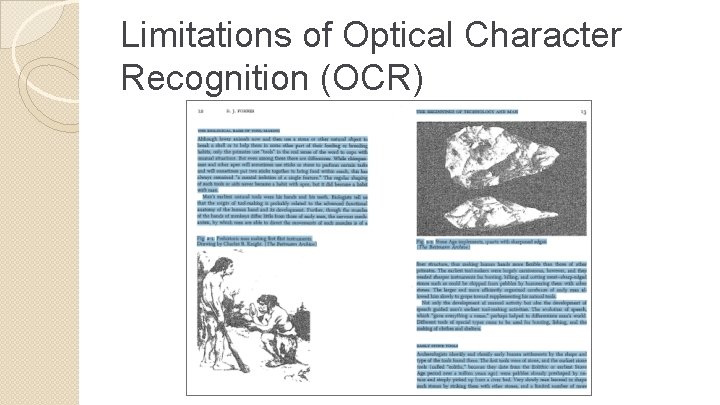
Limitations of Optical Character Recognition (OCR)
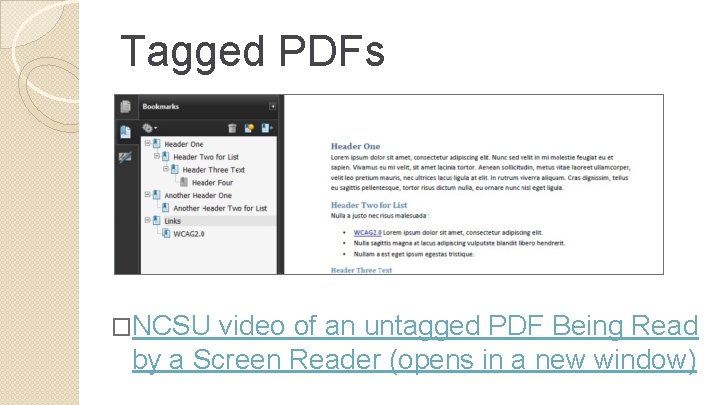
Tagged PDFs �NCSU video of an untagged PDF Being Read by a Screen Reader (opens in a new window)
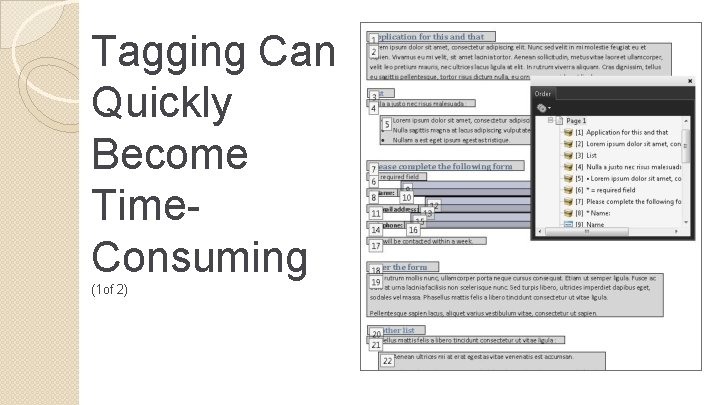
Tagging Can Quickly Become Time. Consuming (1 of 2)
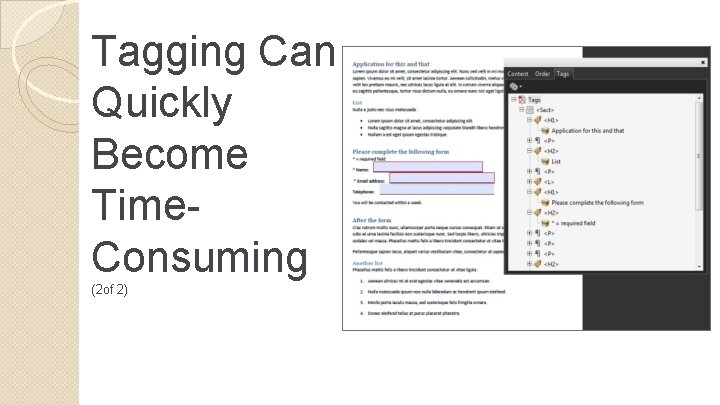
Tagging Can Quickly Become Time. Consuming (2 of 2)
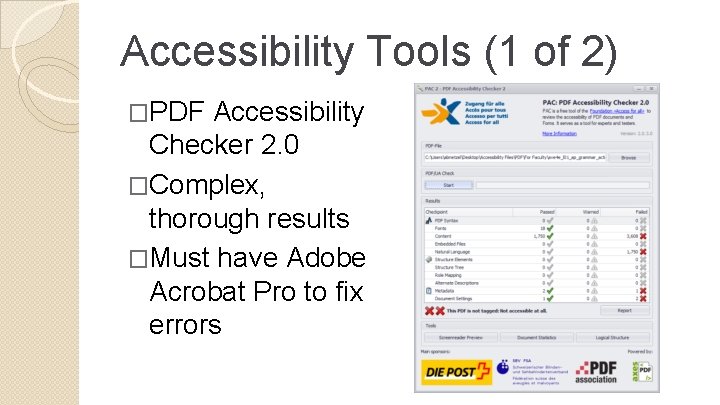
Accessibility Tools (1 of 2) �PDF Accessibility Checker 2. 0 �Complex, thorough results �Must have Adobe Acrobat Pro to fix errors
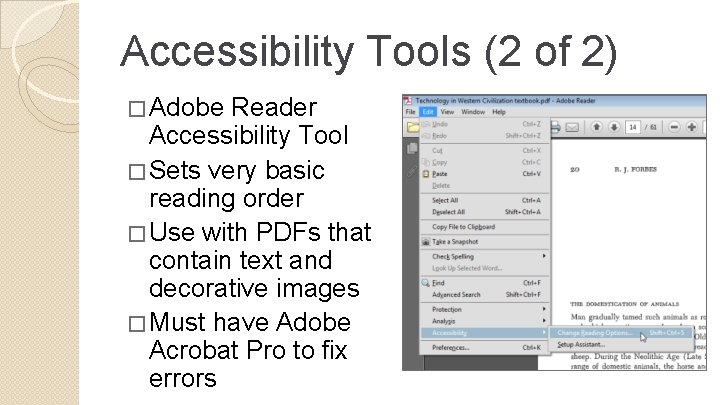
Accessibility Tools (2 of 2) � Adobe Reader Accessibility Tool � Sets very basic reading order � Use with PDFs that contain text and decorative images � Must have Adobe Acrobat Pro to fix errors
Creating an Accessible PDF with Word 2013 �Text content �Heading levels �Lists �Alternative text
Quick Review of Accessible Design Concepts
Your Task (Time limit: 10 minutes) �Create a brief accessible document. Include: ◦ At least two headings – hint: the document’s title is one of them ◦ At least one list (bulleted and/or numbered) ◦ At least one image ◦ A table with at least two columns and three rows
Save as. doc (not. docx) �Prevents all of the images from “appearing” at the beginning of the document for a screen reader ◦ Note: the Accessibility Checker becomes unavailable (can turn it back on by saving as. docx)
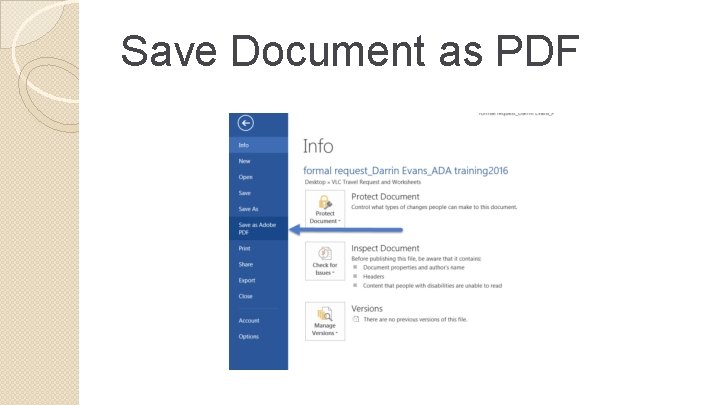
Save Document as PDF
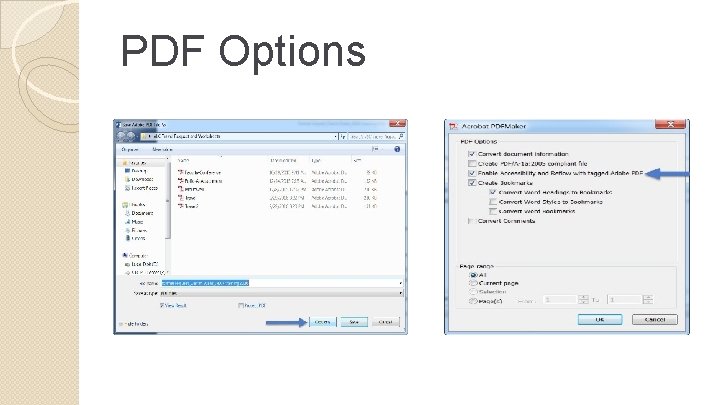
PDF Options
- Slides: 16