
Creating a skin look using VRay Skin Material

- Slides: 18
Creating a skin look using: V-Ray Skin Material
Lesson Introduction - Orientation • This presentation will take you through creating a skin look for a character in V -Ray for Maya • The information centers around the use of the VRay. Skin. Mtl shader • This lesson topic is approximately 40 minutes in length • Presentation covers all 3 Learning Cycles for the Lesson Topic – Lecture, Demonstration, and Activity. • Learning Outcomes: You will be able to manipulate and use the VRay. Skin. Mtl in multiple ways to create different kinds of skin for your characters
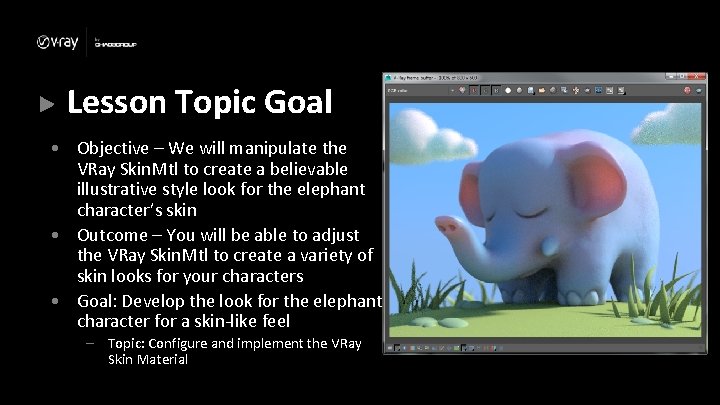
Lesson Topic Goal • Objective – We will manipulate the VRay Skin. Mtl to create a believable illustrative style look for the elephant character’s skin • Outcome – You will be able to adjust the VRay Skin. Mtl to create a variety of skin looks for your characters • Goal: Develop the look for the elephant character for a skin-like feel – Topic: Configure and implement the VRay Skin Material
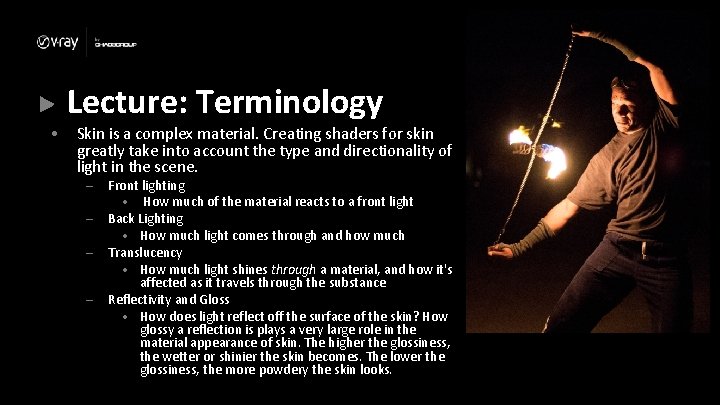
• Lecture: Terminology Skin is a complex material. Creating shaders for skin greatly take into account the type and directionality of light in the scene. – – Front lighting • How much of the material reacts to a front light Back Lighting • How much light comes through and how much Translucency • How much light shines through a material, and how it's affected as it travels through the substance Reflectivity and Gloss • How does light reflect off the surface of the skin? How glossy a reflection is plays a very large role in the material appearance of skin. The higher the glossiness, the wetter or shinier the skin becomes. The lower the glossiness, the more powdery the skin looks.
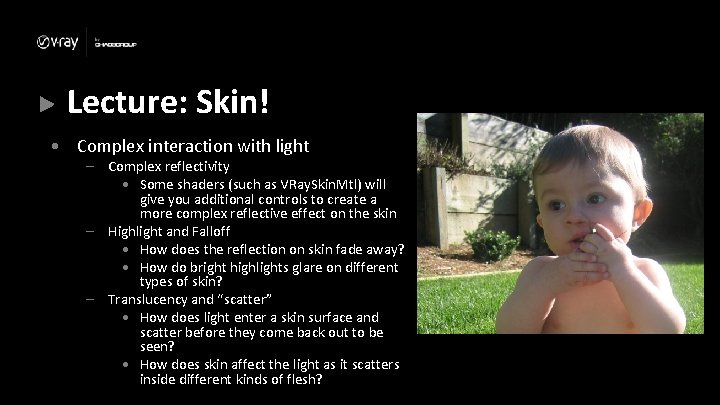
Lecture: Skin! • Complex interaction with light – Complex reflectivity • Some shaders (such as VRay. Skin. Mtl) will give you additional controls to create a more complex reflective effect on the skin – Highlight and Falloff • How does the reflection on skin fade away? • How do bright highlights glare on different types of skin? – Translucency and “scatter” • How does light enter a skin surface and scatter before they come back out to be seen? • How does skin affect the light as it scatters inside different kinds of flesh?
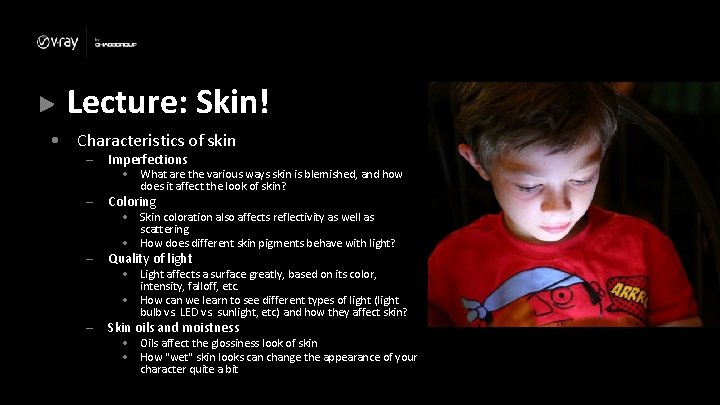
Lecture: Skin! • Characteristics of skin – Imperfections – Coloring – Quality of light – Skin oils and moistness • What are the various ways skin is blemished, and how does it affect the look of skin? • Skin coloration also affects reflectivity as well as scattering • How does different skin pigments behave with light? • Light affects a surface greatly, based on its color, intensity, falloff, etc. • How can we learn to see different types of light (light bulb vs. LED vs. sunlight, etc) and how they affect skin? • Oils affect the glossiness look of skin • How "wet" skin looks can change the appearance of your character quite a bit
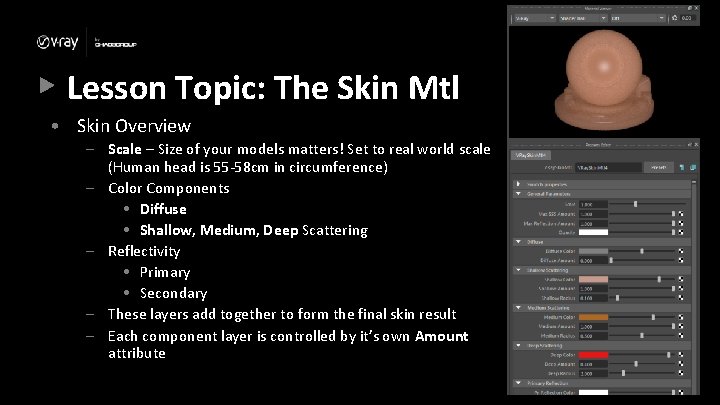
Lesson Topic: The Skin Mtl • Skin Overview – Scale – Size of your models matters! Set to real world scale (Human head is 55 -58 cm in circumference) – Color Components • Diffuse • Shallow, Medium, Deep Scattering – Reflectivity • Primary • Secondary – These layers add together to form the final skin result – Each component layer is controlled by it’s own Amount attribute
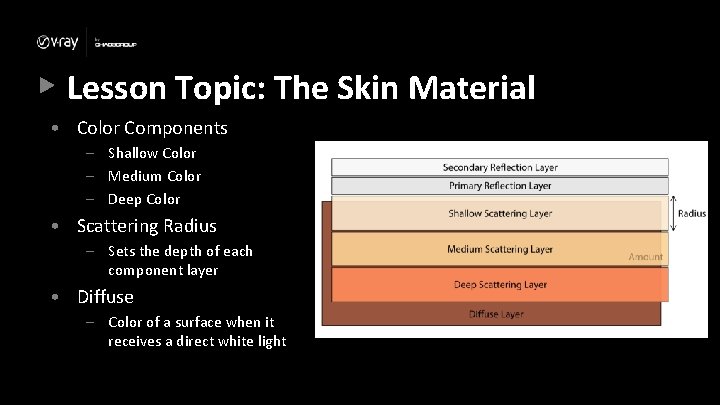
Lesson Topic: The Skin Material • Color Components – Shallow Color – Medium Color – Deep Color • Scattering Radius – Sets the depth of each component layer • Diffuse – Color of a surface when it receives a direct white light
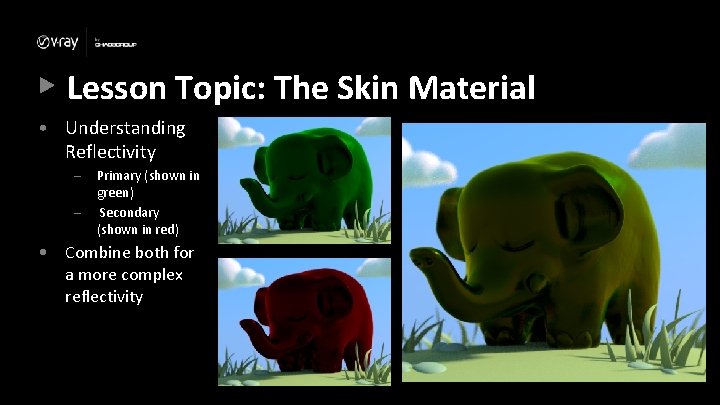
Lesson Topic: The Skin Material • Understanding Reflectivity – – Primary (shown in green) Secondary (shown in red) • Combine both for a more complex reflectivity
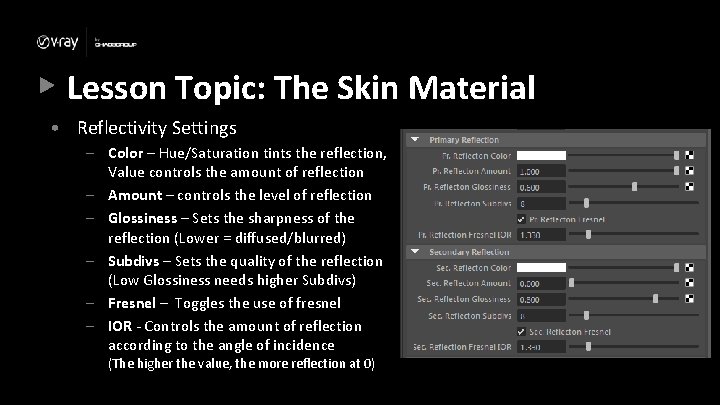
Lesson Topic: The Skin Material • Reflectivity Settings – Color – Hue/Saturation tints the reflection, Value controls the amount of reflection – Amount – controls the level of reflection – Glossiness – Sets the sharpness of the reflection (Lower = diffused/blurred) – Subdivs – Sets the quality of the reflection (Low Glossiness needs higher Subdivs) – Fresnel – Toggles the use of fresnel – IOR - Controls the amount of reflection according to the angle of incidence (The higher the value, the more reflection at 0)
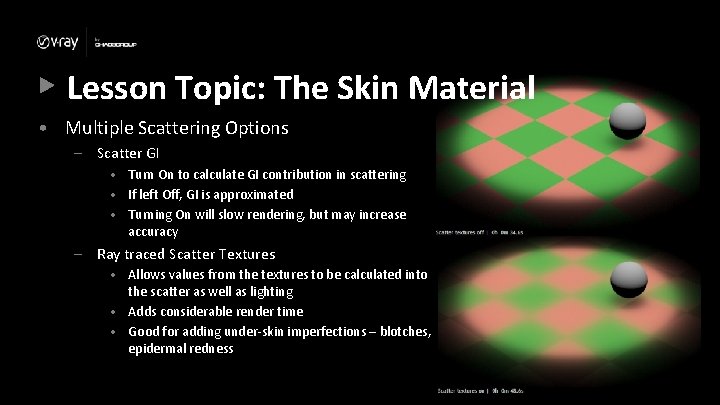
Lesson Topic: The Skin Material • Multiple Scattering Options – Scatter GI • Turn On to calculate GI contribution in scattering • If left Off, GI is approximated • Turning On will slow rendering, but may increase accuracy – Ray traced Scatter Textures • Allows values from the textures to be calculated into the scatter as well as lighting • Adds considerable render time • Good for adding under-skin imperfections – blotches, epidermal redness
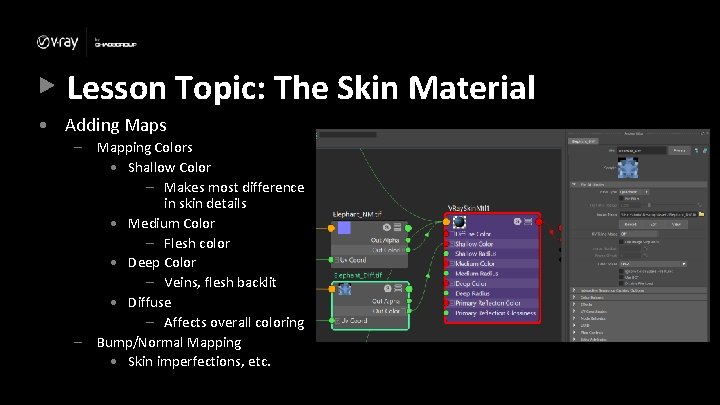
Lesson Topic: The Skin Material • Adding Maps – Mapping Colors • Shallow Color – Makes most difference in skin details • Medium Color – Flesh color • Deep Color – Veins, flesh backlit • Diffuse – Affects overall coloring – Bump/Normal Mapping • Skin imperfections, etc.
Lesson Topic: Lecture Conclusion • Skin Material – complex reactions to light – Front light – Back light • Skin Reflections • Skin Material Options • Creating Maps for Skin Material
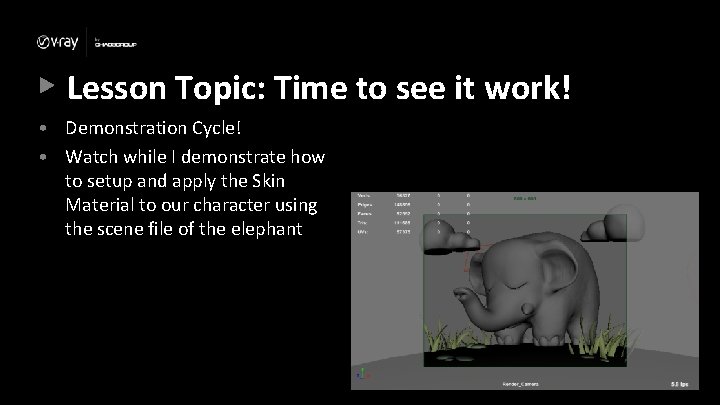
Lesson Topic: Time to see it work! • Demonstration Cycle! • Watch while I demonstrate how to setup and apply the Skin Material to our character using the scene file of the elephant
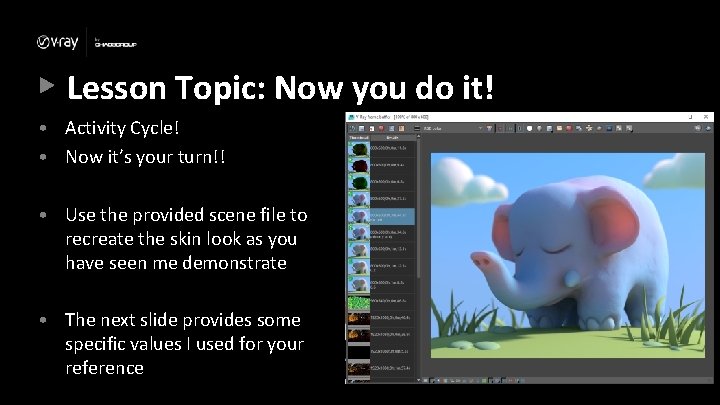
Lesson Topic: Now you do it! • Activity Cycle! • Now it’s your turn!! • Use the provided scene file to recreate the skin look as you have seen me demonstrate • The next slide provides some specific values I used for your reference
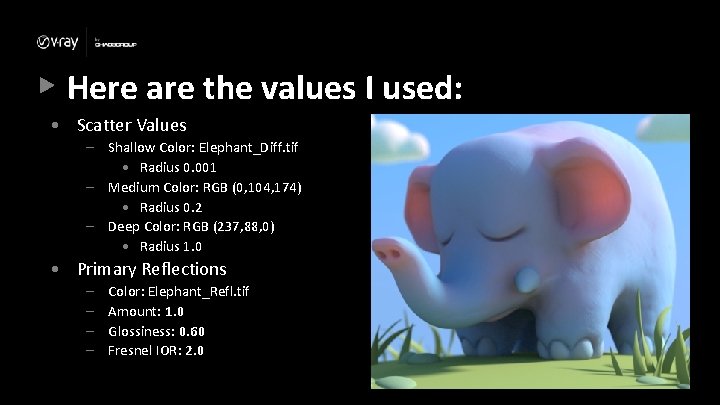
Here are the values I used: • Scatter Values – Shallow Color: Elephant_Diff. tif • Radius 0. 001 – Medium Color: RGB (0, 104, 174) • Radius 0. 2 – Deep Color: RGB (237, 88, 0) • Radius 1. 0 • Primary Reflections – – Color: Elephant_Refl. tif Amount: 1. 0 Glossiness: 0. 60 Fresnel IOR: 2. 0