
Creating a Quick Question Set Creating a Quick

- Slides: 27
Creating a Quick Question Set
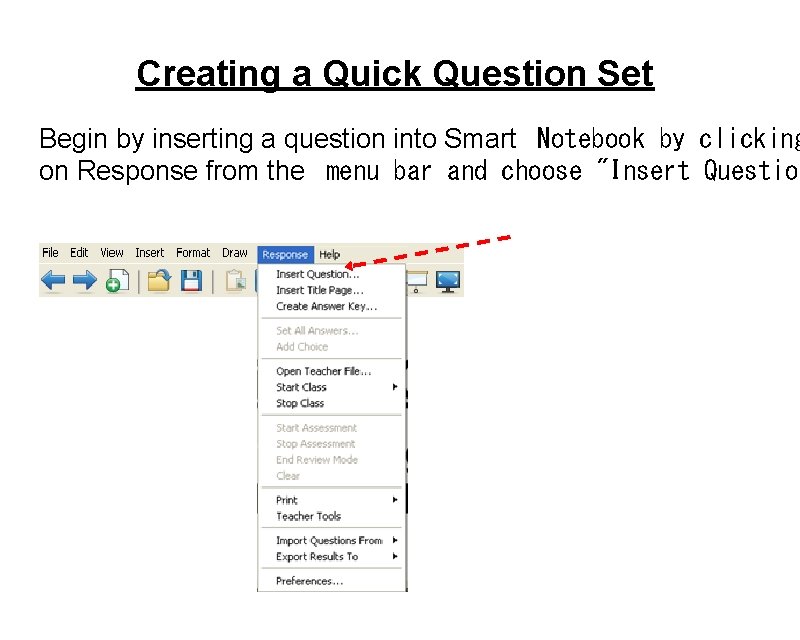
Creating a Quick Question Set Begin by inserting a question into Smart Notebook by clicking on Response from the menu bar and choose "Insert Question
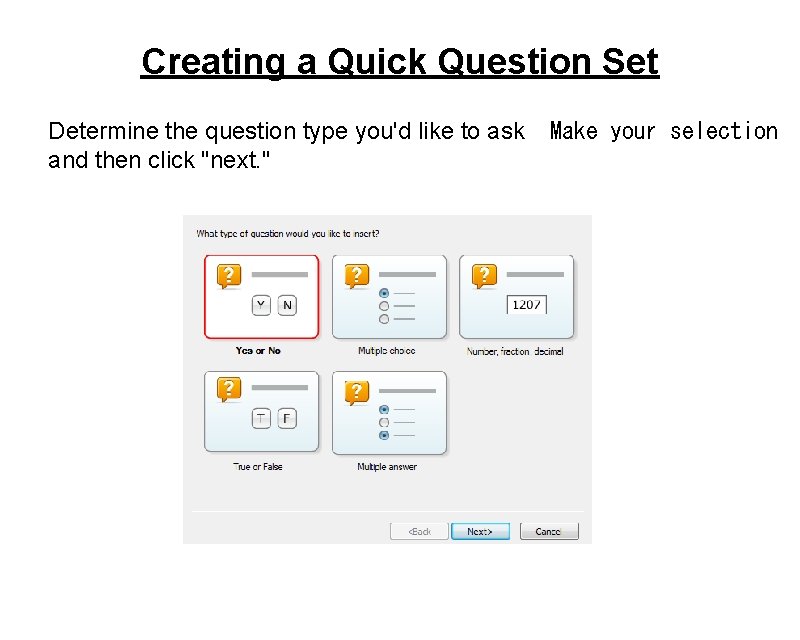
Creating a Quick Question Set Determine the question type you'd like to ask and then click "next. " Make your selection
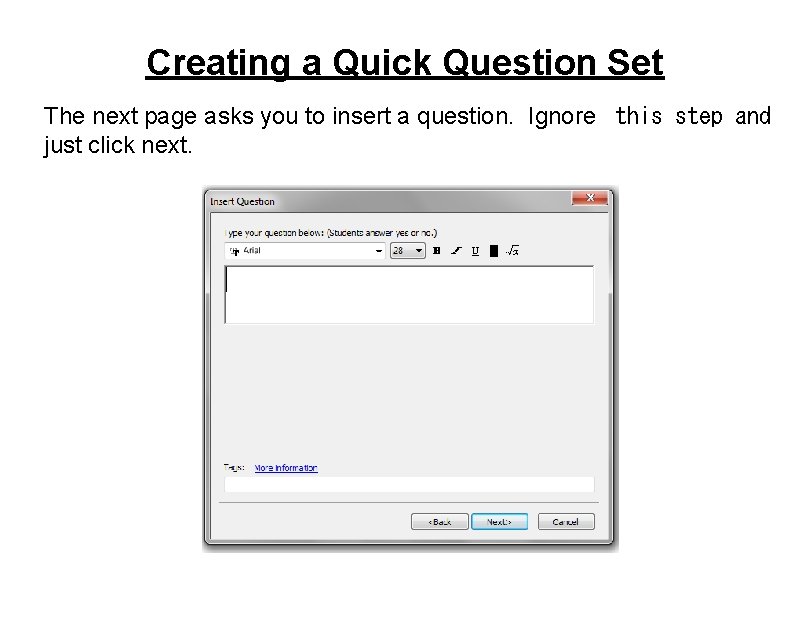
Creating a Quick Question Set The next page asks you to insert a question. Ignore this step and just click next.
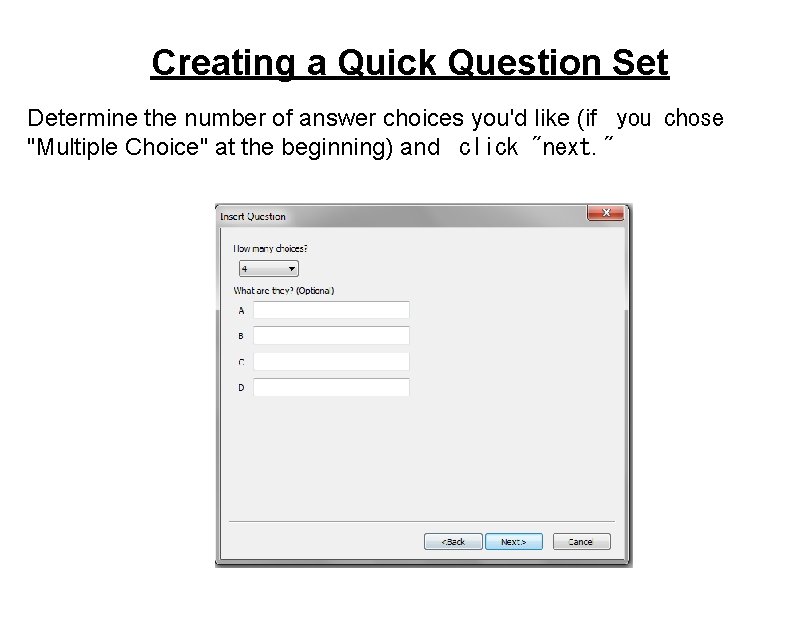
Creating a Quick Question Set Determine the number of answer choices you'd like (if you chose "Multiple Choice" at the beginning) and click "next. "
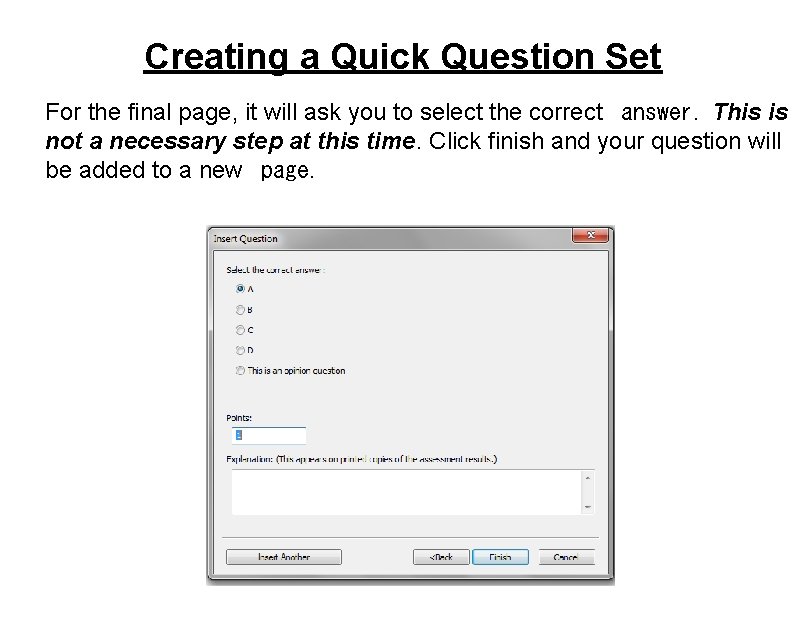
Creating a Quick Question Set For the final page, it will ask you to select the correct answer. This is not a necessary step at this time. Click finish and your question will be added to a new page.
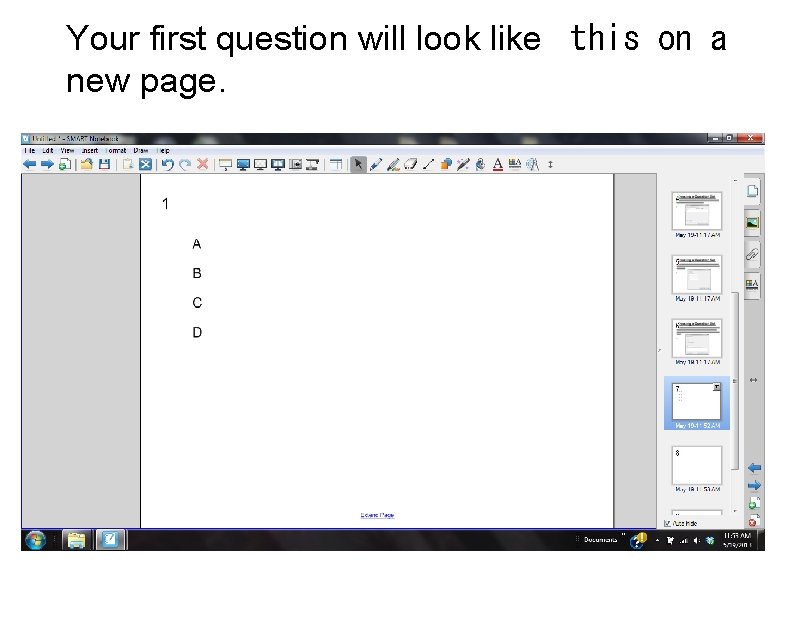
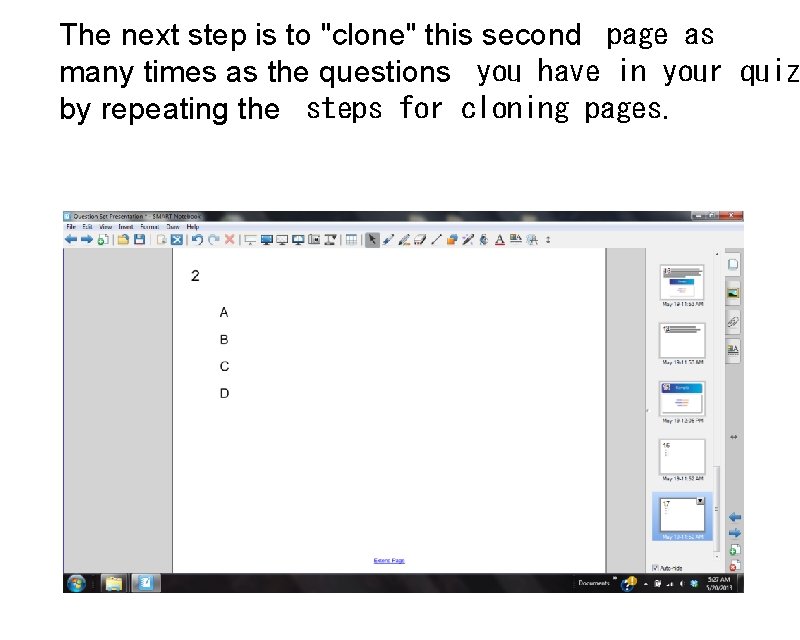
Your first question will look like this on a new page.
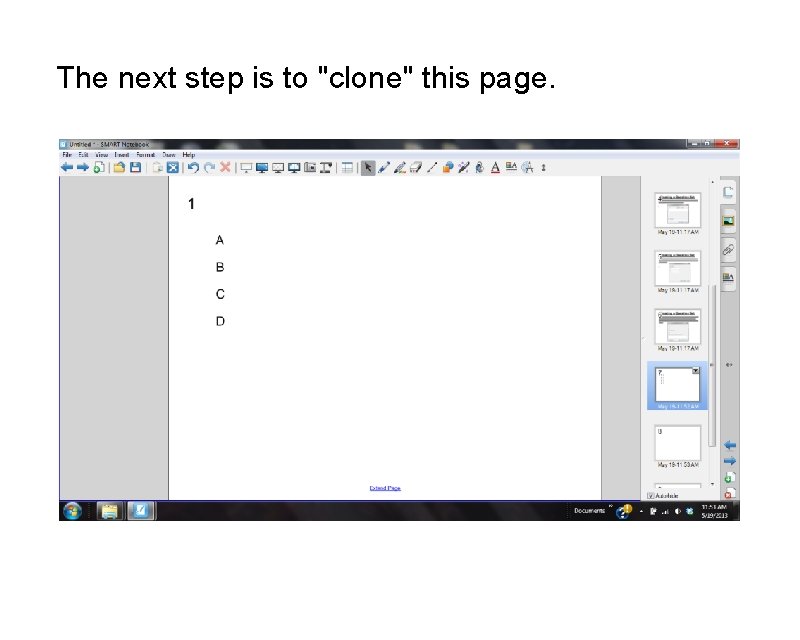
The next step is to "clone" this page.
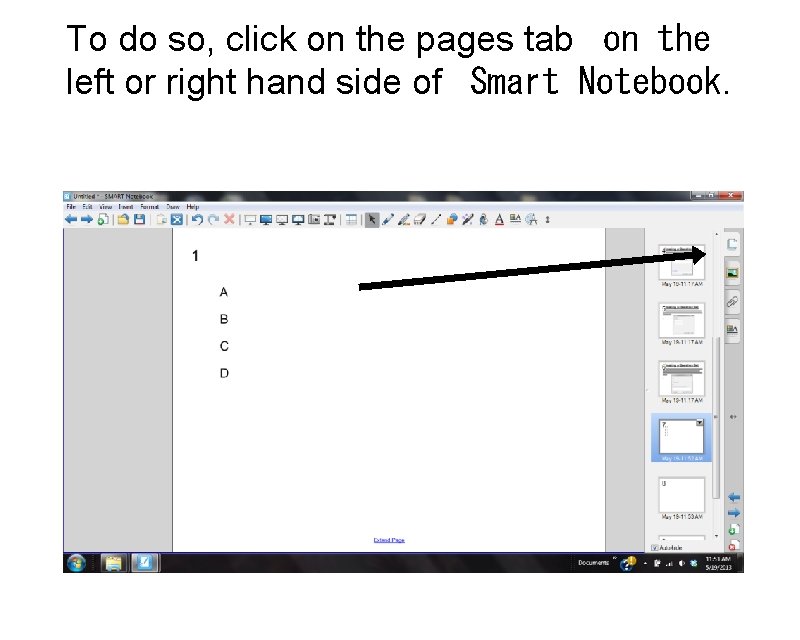
To do so, click on the pages tab on the left or right hand side of Smart Notebook.
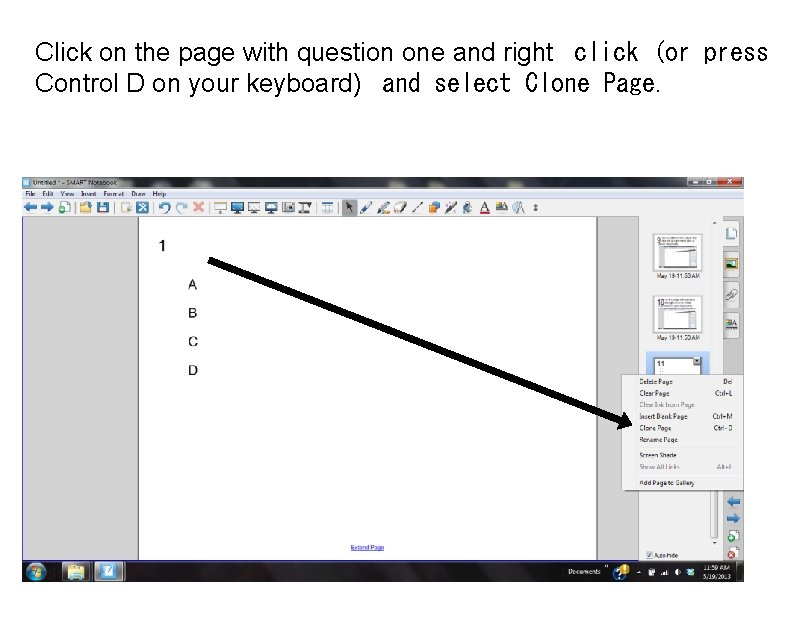
Click on the page with question one and right click (or press Control D on your keyboard) and select Clone Page.
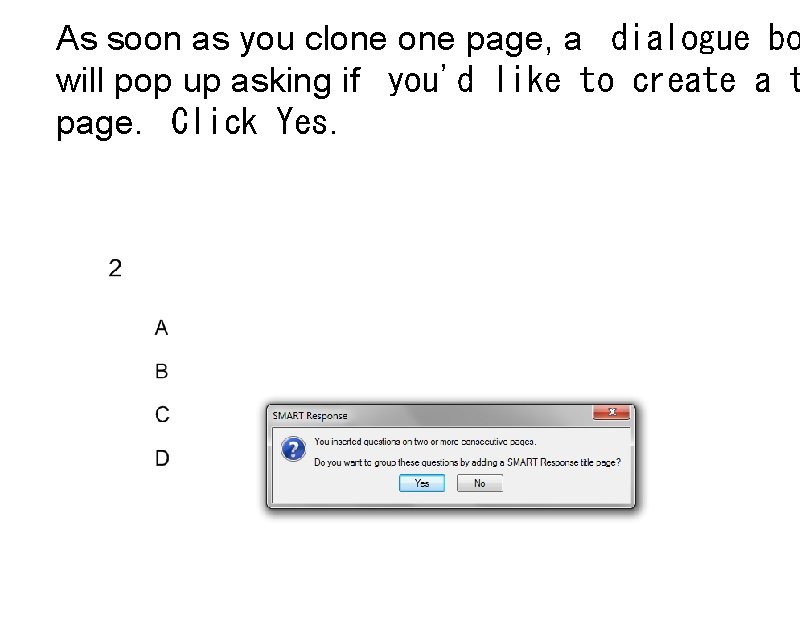
As soon as you clone page, a dialogue bo will pop up asking if you'd like to create a t page. Click Yes.
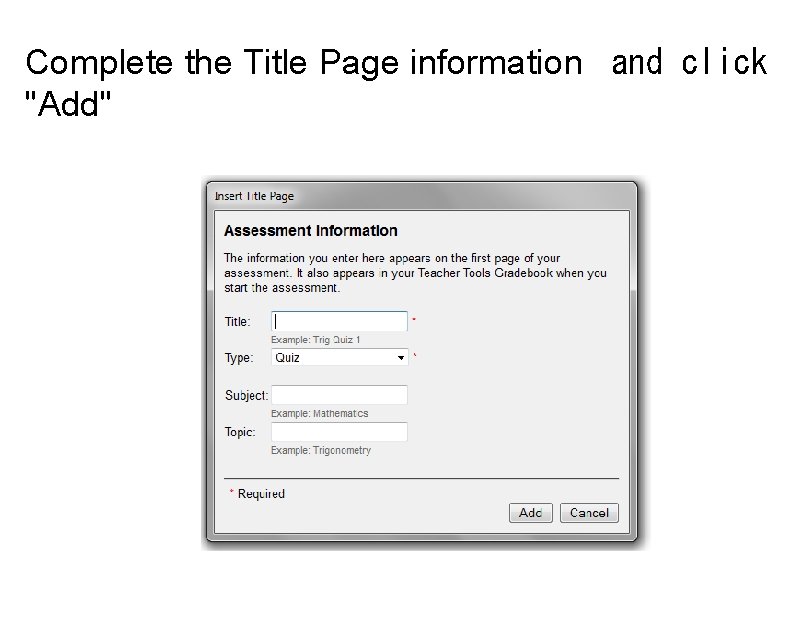
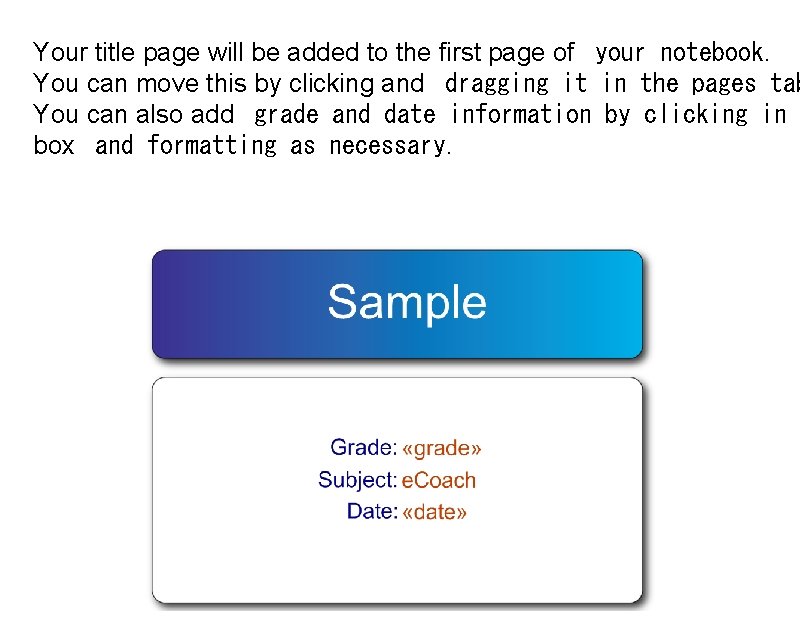
Complete the Title Page information and click "Add"
Your title page will be added to the first page of your notebook. You can move this by clicking and dragging it in the pages tab You can also add grade and date information by clicking in box and formatting as necessary.
The next step is to "clone" this second page as many times as the questions you have in your quiz by repeating the steps for cloning pages.
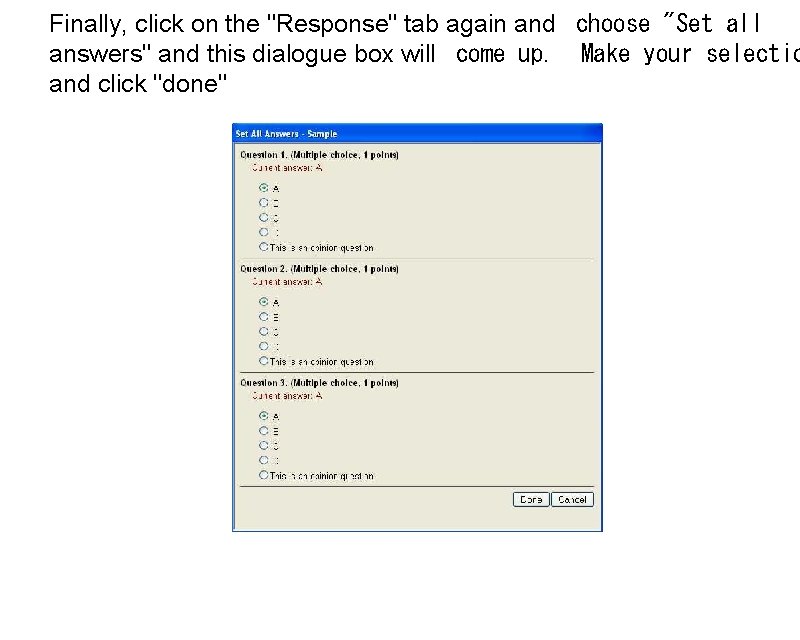
Finally, click on the "Response" tab again and choose "Set all answers" and this dialogue box will come up. Make your selectio and click "done"
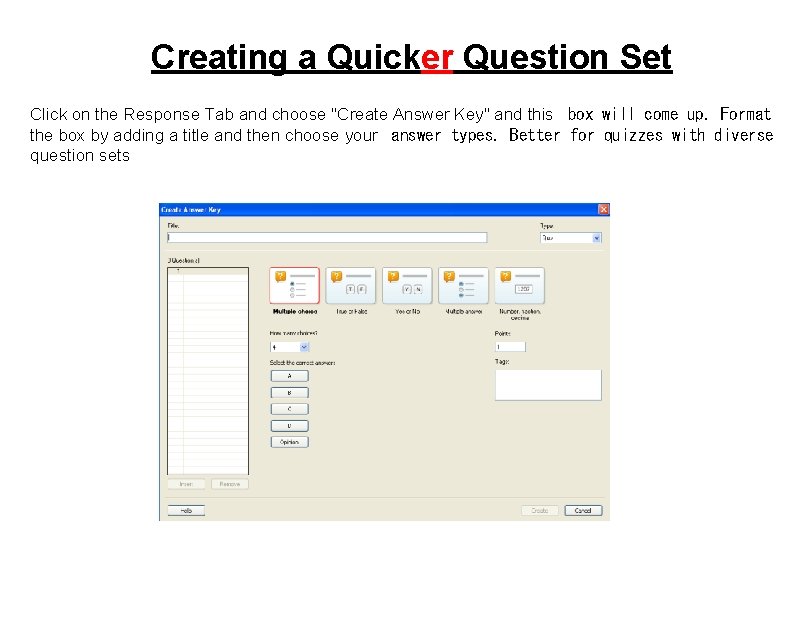
Creating a Quicker Question Set Click on the Response Tab and choose "Create Answer Key" and this box will come up. Format the box by adding a title and then choose your answer types. Better for quizzes with diverse question sets
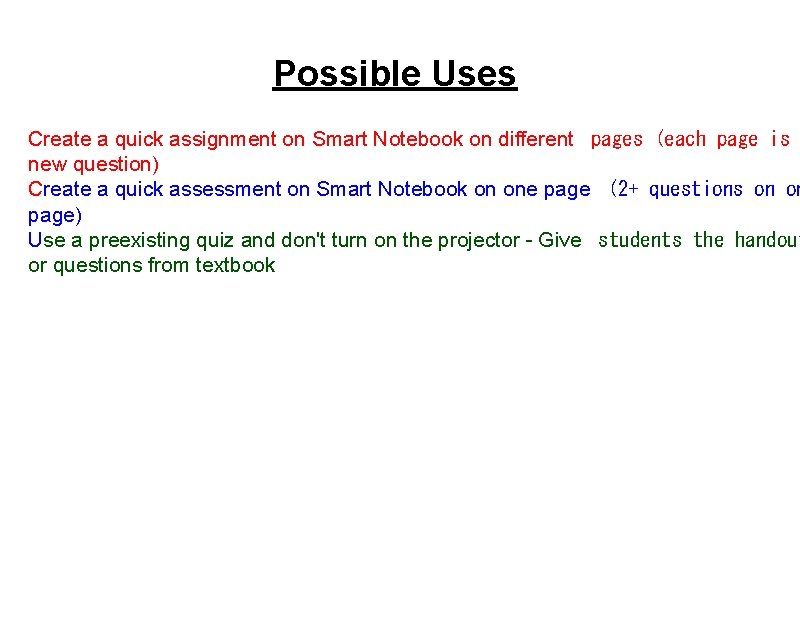
Possible Uses Create a quick assignment on Smart Notebook on different pages (each page is new question) Create a quick assessment on Smart Notebook on one page (2+ questions on on page) Use a preexisting quiz and don't turn on the projector - Give students the handout or questions from textbook
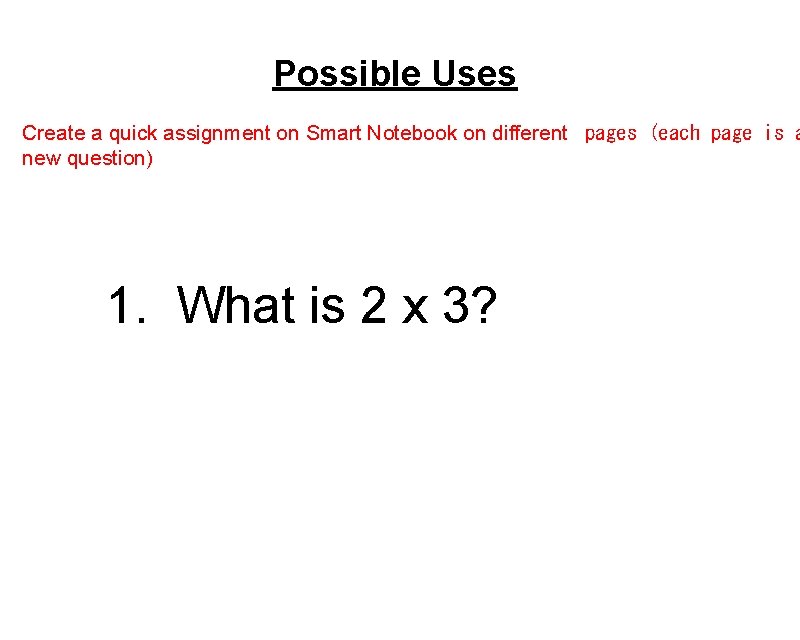
Possible Uses Create a quick assignment on Smart Notebook on different pages (each page is a new question) 1. What is 2 x 3?
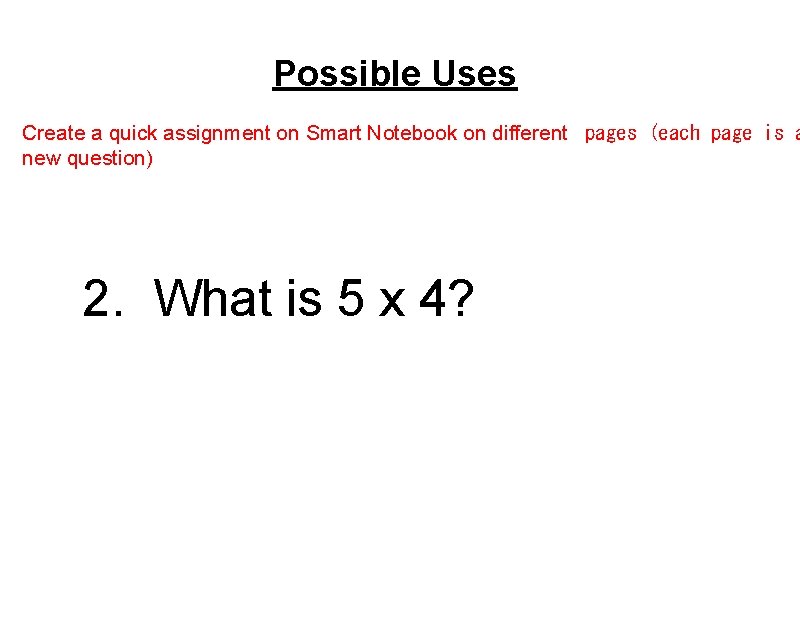
Possible Uses Create a quick assignment on Smart Notebook on different pages (each page is a new question) 2. What is 5 x 4?
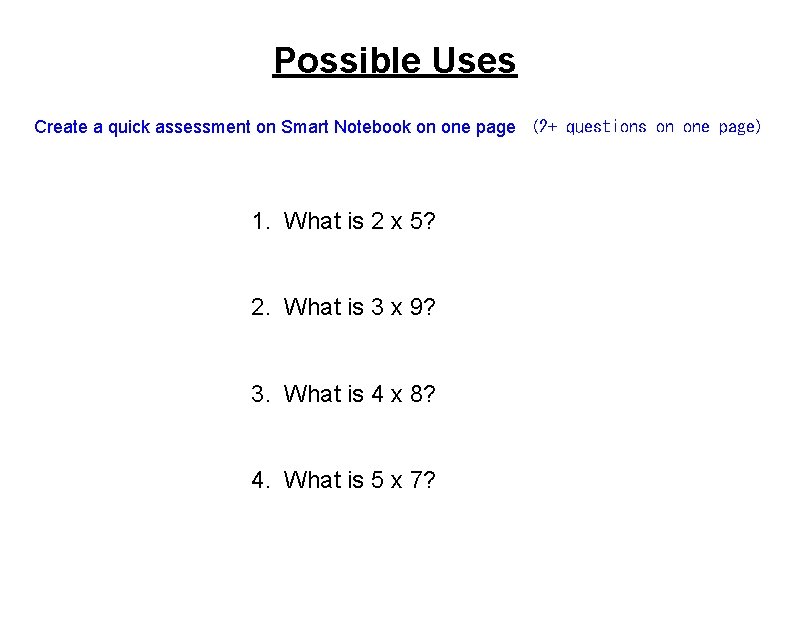
Possible Uses Create a quick assessment on Smart Notebook on one page (2+ questions on one page) 1. What is 2 x 5? 2. What is 3 x 9? 3. What is 4 x 8? 4. What is 5 x 7?
Possible Uses Use a preexisting quiz and don't turn on the projector - Set up the quiz and then g students the handout or questions from textbook
Adding the Questions You can do this a few ways 1. 2. 3. 4. Copy and paste from another document Write the question in Smart Notebook using a Text Box Don't add them at all Import questions from Microsoft Word
Copy and paste from another document
Write the question in Smart Notebook using a text box
Don't add questions! Simply set your answers using a preexisting quiz and give as you traditionally would
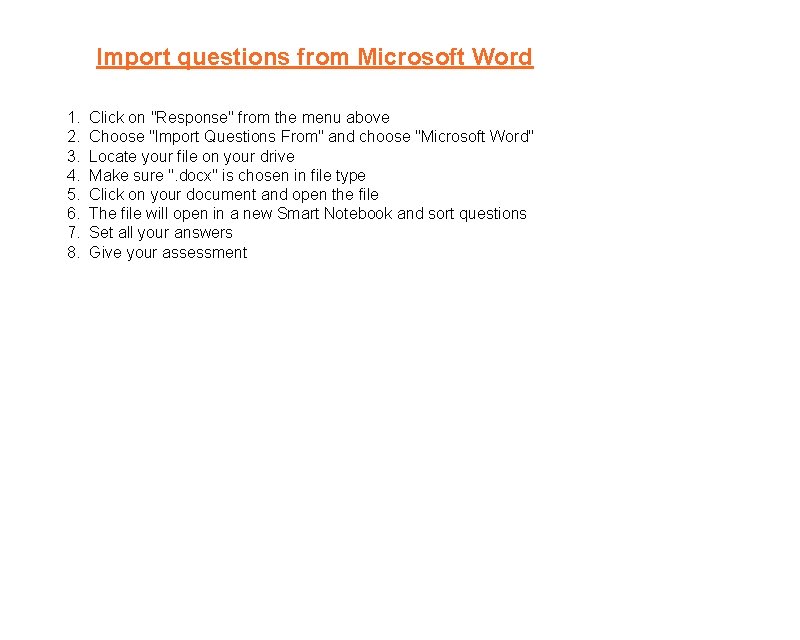
Import questions from Microsoft Word 1. 2. 3. 4. 5. 6. 7. 8. Click on "Response" from the menu above Choose "Import Questions From" and choose "Microsoft Word" Locate your file on your drive Make sure ". docx" is chosen in file type Click on your document and open the file The file will open in a new Smart Notebook and sort questions Set all your answers Give your assessment