
Creating a Purchase Order Voucher Concept Creating a

- Slides: 24
Creating a Purchase Order Voucher Concept
Creating a Purchase Order Voucher
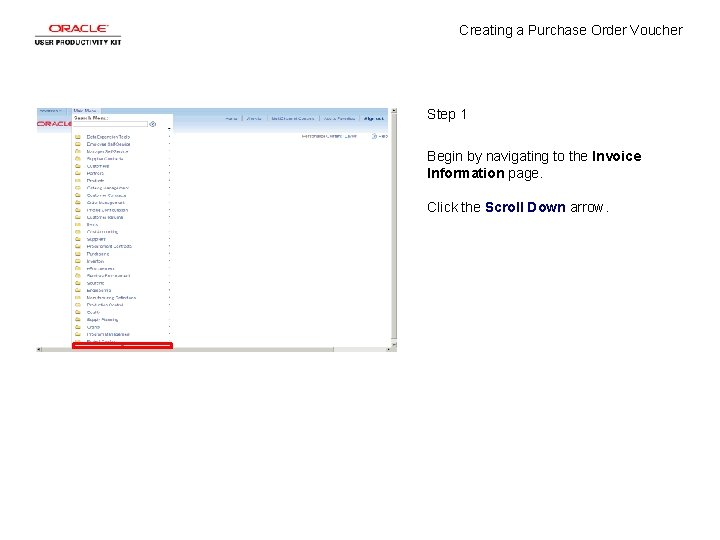
Creating a Purchase Order Voucher Step 1 Begin by navigating to the Invoice Information page. Click the Scroll Down arrow.
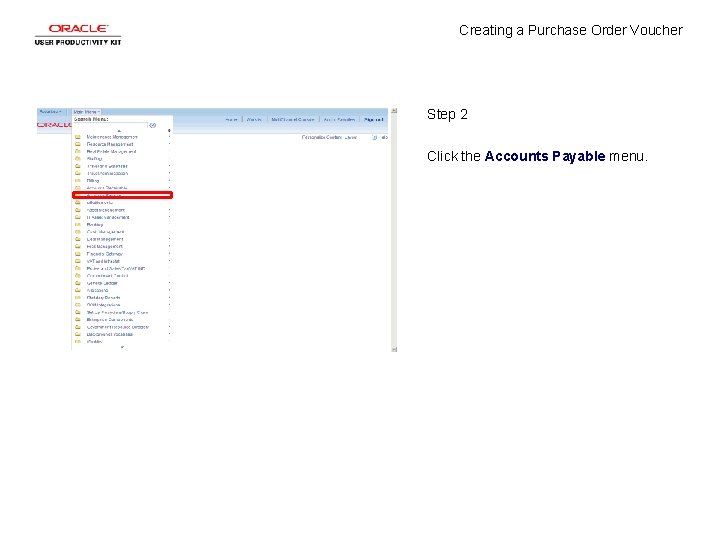
Creating a Purchase Order Voucher Step 2 Click the Accounts Payable menu.
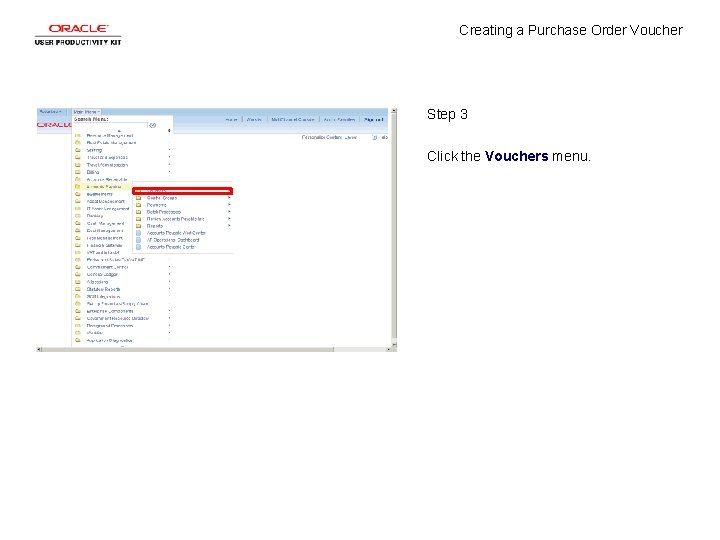
Creating a Purchase Order Voucher Step 3 Click the Vouchers menu.
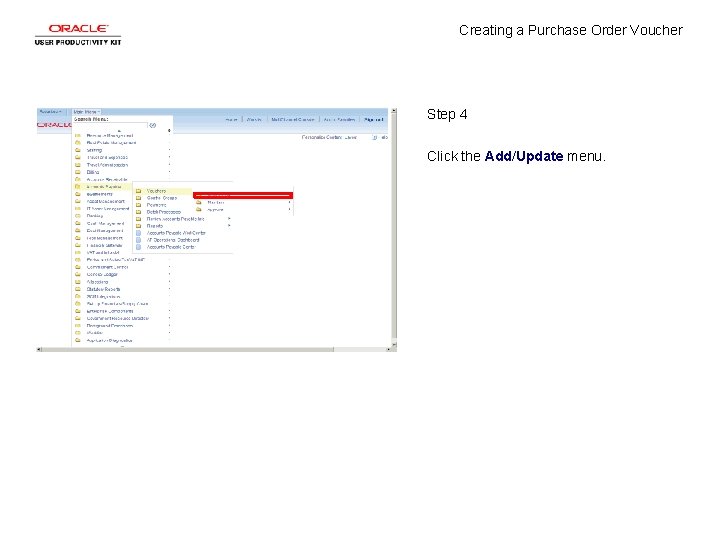
Creating a Purchase Order Voucher Step 4 Click the Add/Update menu.
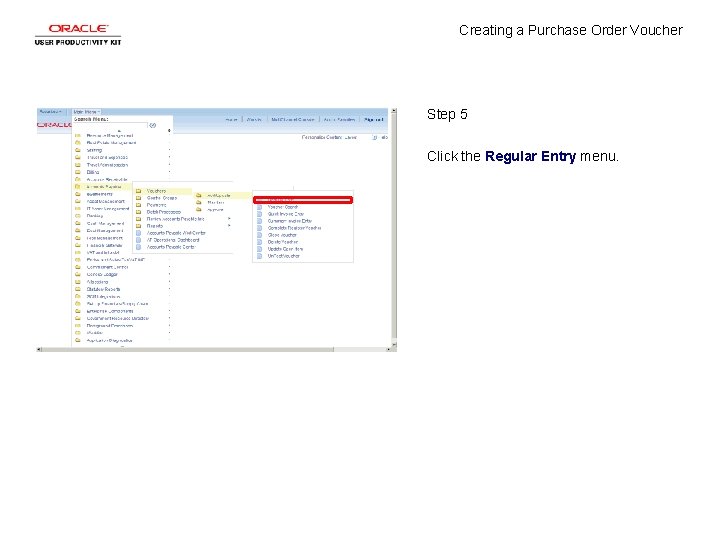
Creating a Purchase Order Voucher Step 5 Click the Regular Entry menu.
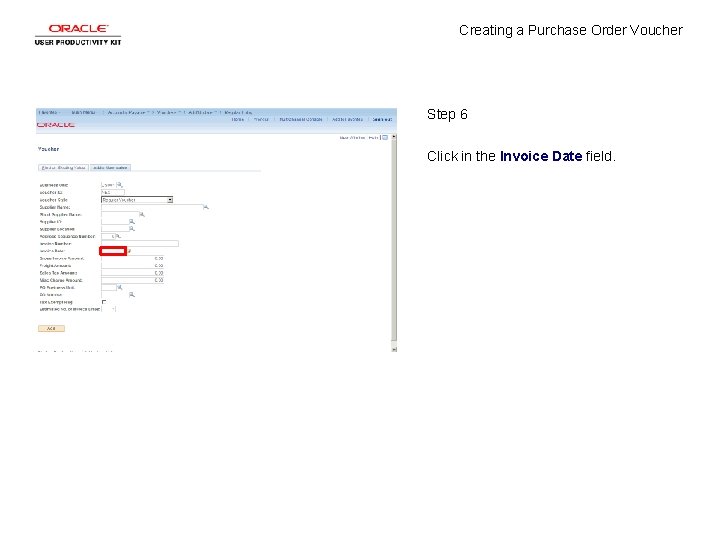
Creating a Purchase Order Voucher Step 6 Click in the Invoice Date field.
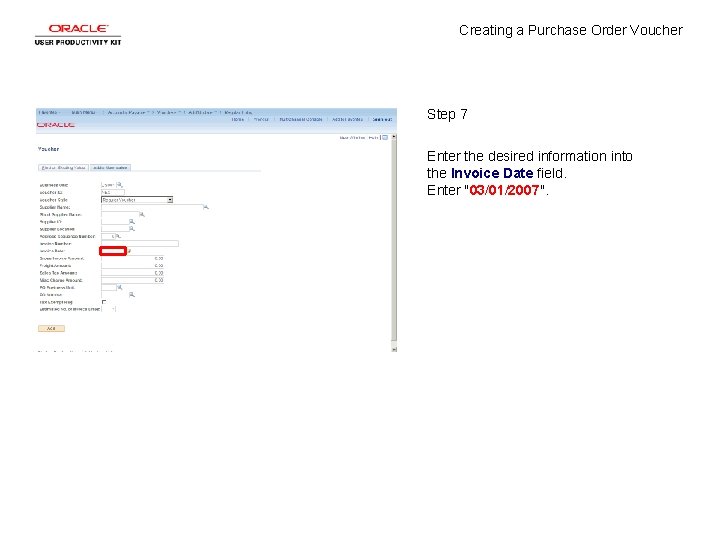
Creating a Purchase Order Voucher Step 7 Enter the desired information into the Invoice Date field. Enter "03/01/2007".
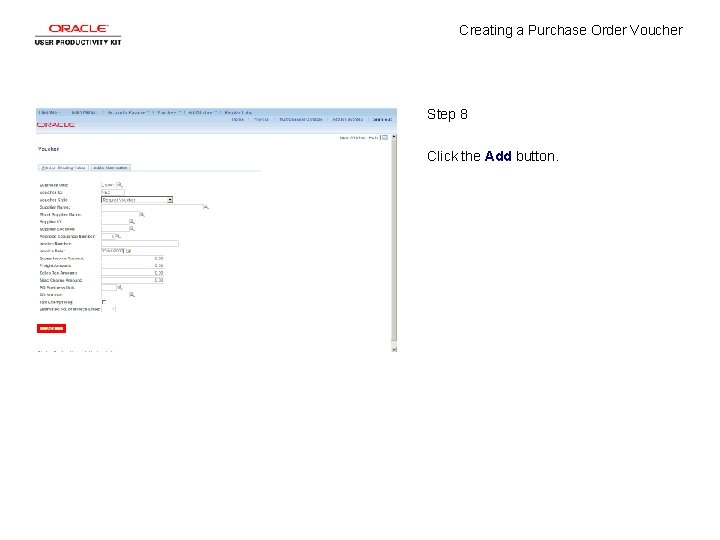
Creating a Purchase Order Voucher Step 8 Click the Add button.
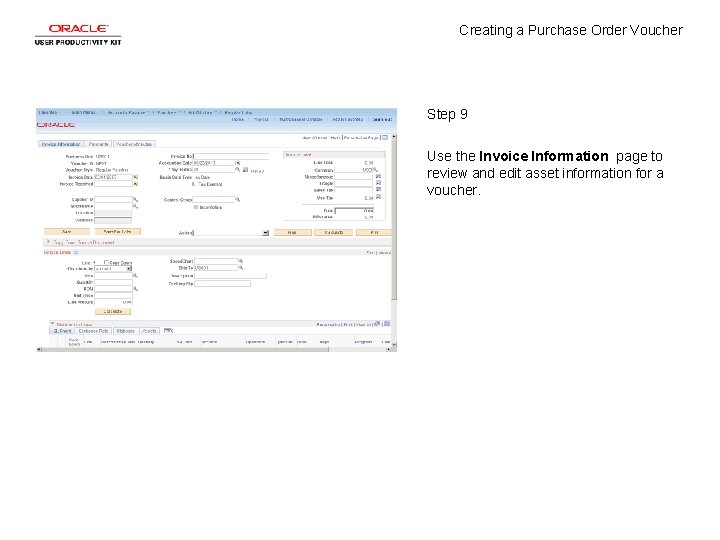
Creating a Purchase Order Voucher Step 9 Use the Invoice Information page to review and edit asset information for a voucher.
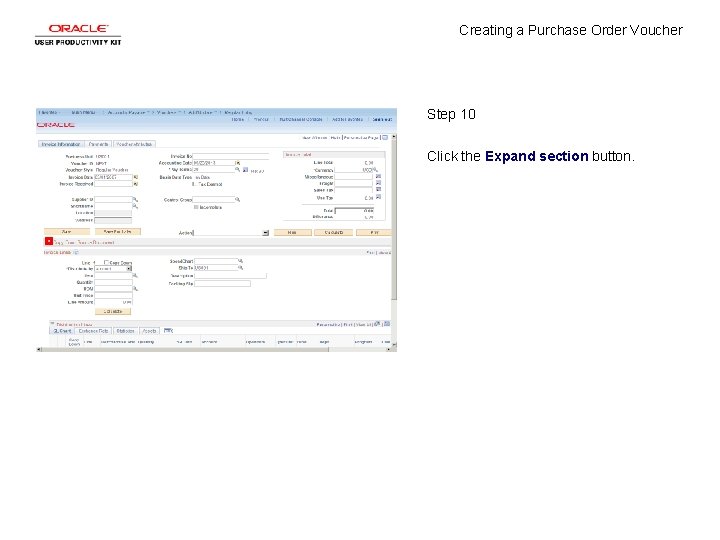
Creating a Purchase Order Voucher Step 10 Click the Expand section button.
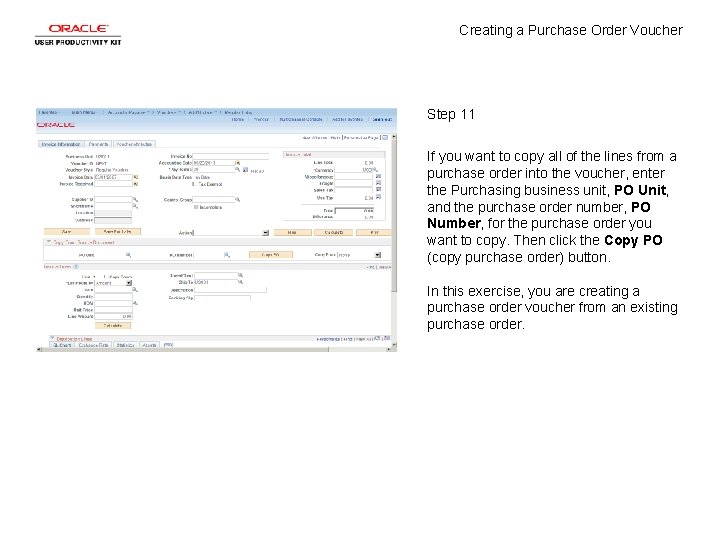
Creating a Purchase Order Voucher Step 11 If you want to copy all of the lines from a purchase order into the voucher, enter the Purchasing business unit, PO Unit, and the purchase order number, PO Number, for the purchase order you want to copy. Then click the Copy PO (copy purchase order) button. In this exercise, you are creating a purchase order voucher from an existing purchase order.
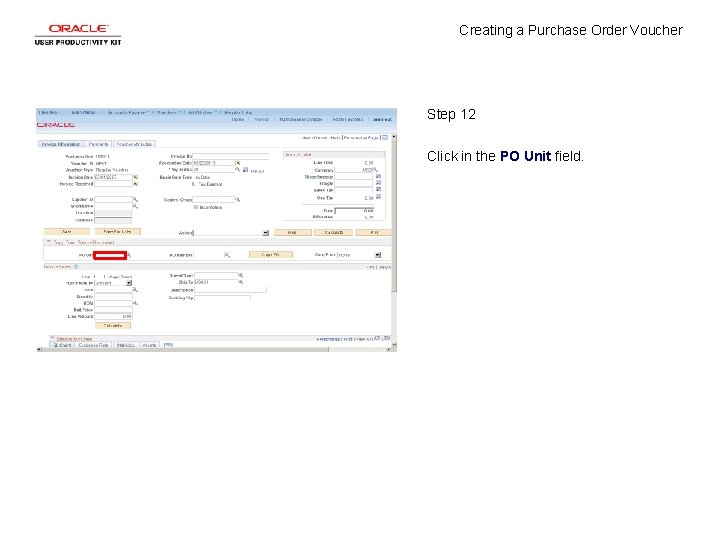
Creating a Purchase Order Voucher Step 12 Click in the PO Unit field.
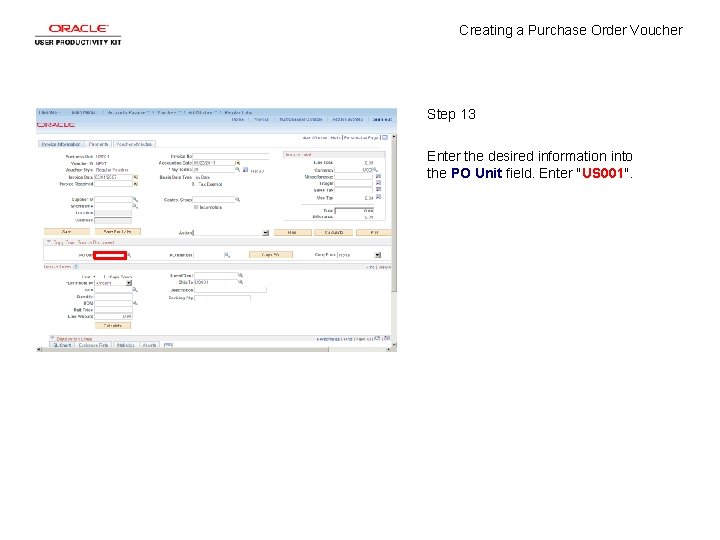
Creating a Purchase Order Voucher Step 13 Enter the desired information into the PO Unit field. Enter "US 001".
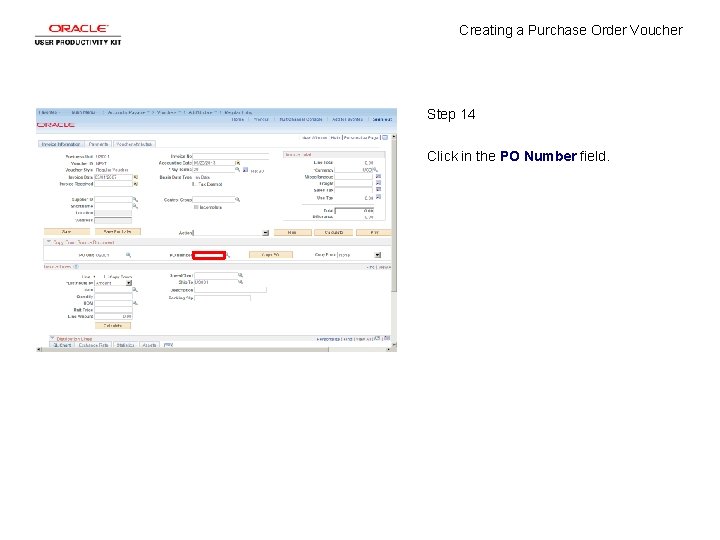
Creating a Purchase Order Voucher Step 14 Click in the PO Number field.
Creating a Purchase Order Voucher Step 15 Enter the desired information into the PO Number field. Enter "0000000128".
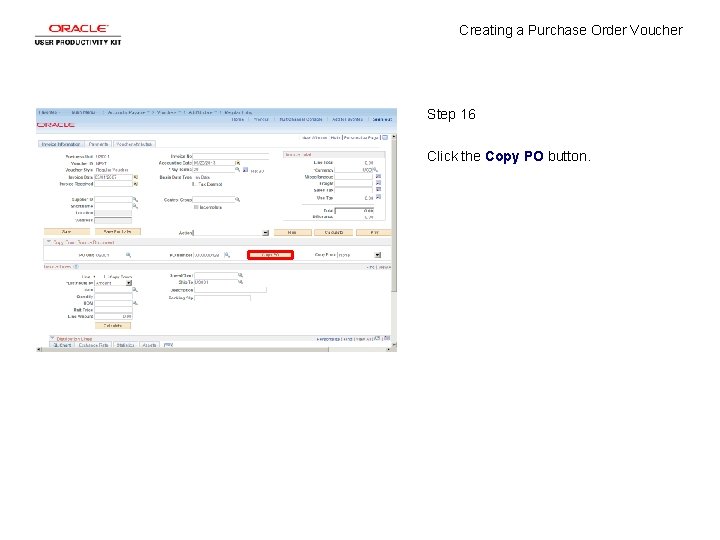
Creating a Purchase Order Voucher Step 16 Click the Copy PO button.
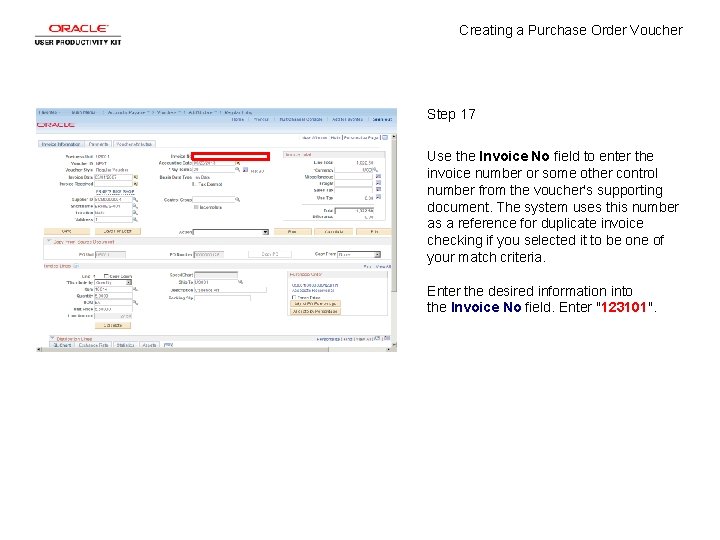
Creating a Purchase Order Voucher Step 17 Use the Invoice No field to enter the invoice number or some other control number from the voucher's supporting document. The system uses this number as a reference for duplicate invoice checking if you selected it to be one of your match criteria. Enter the desired information into the Invoice No field. Enter "123101".
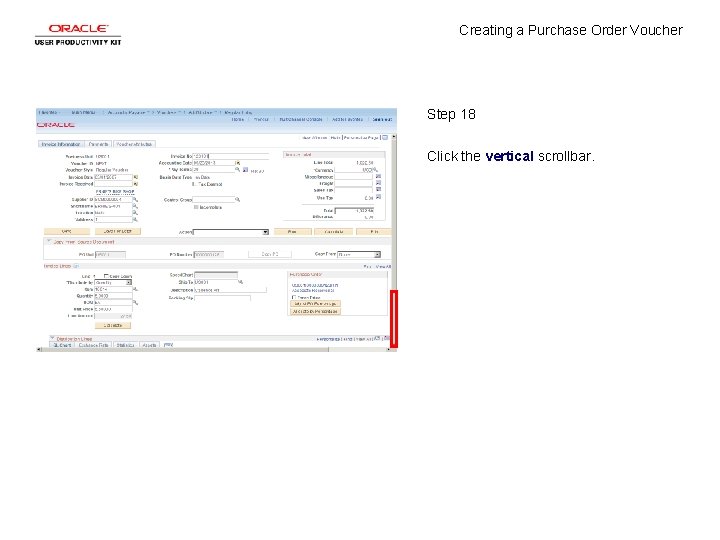
Creating a Purchase Order Voucher Step 18 Click the vertical scrollbar.
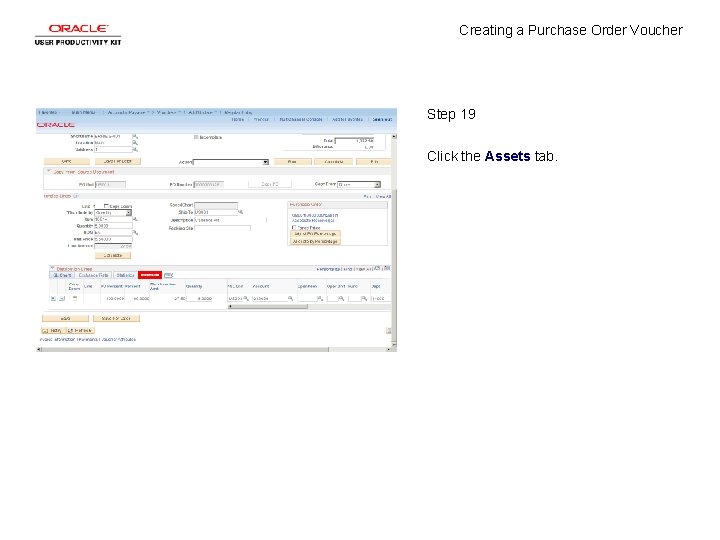
Creating a Purchase Order Voucher Step 19 Click the Assets tab.
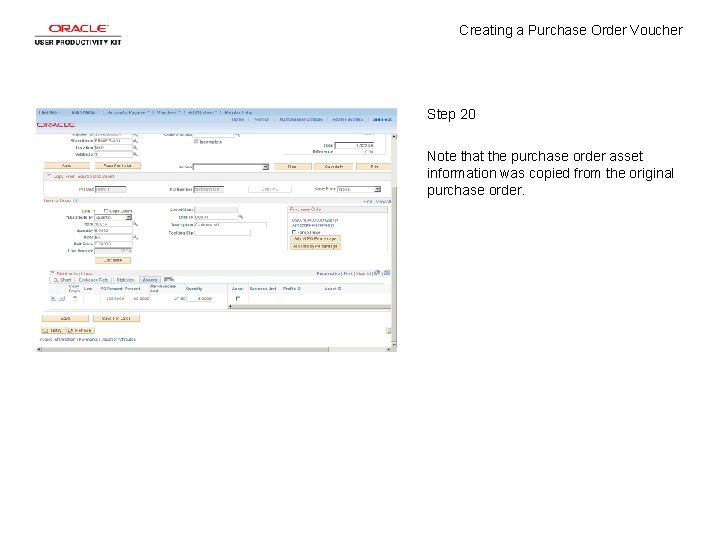
Creating a Purchase Order Voucher Step 20 Note that the purchase order asset information was copied from the original purchase order.
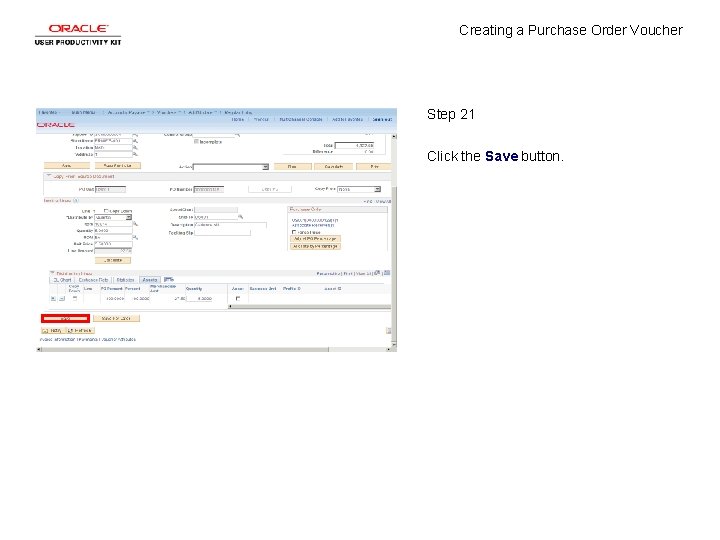
Creating a Purchase Order Voucher Step 21 Click the Save button.
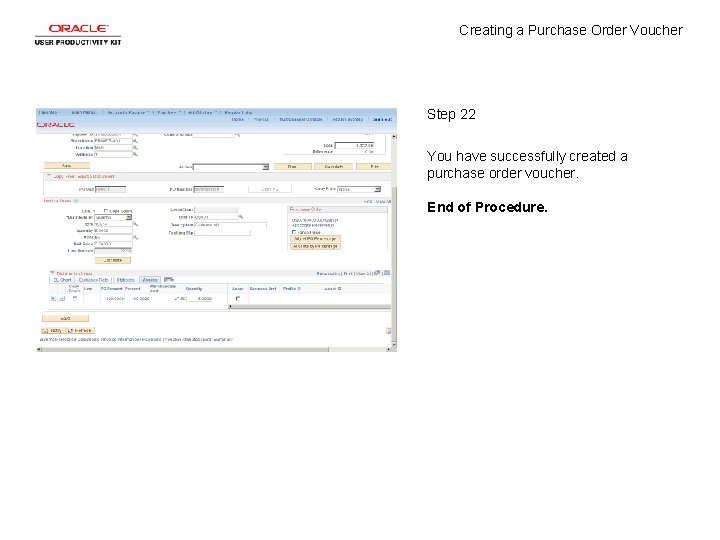
Creating a Purchase Order Voucher Step 22 You have successfully created a purchase order voucher. End of Procedure.