
Creating a Power Point Ms Shaffer Power Point

- Slides: 25
Creating a Power. Point Ms. Shaffer
Power. Point • Power. Point: Presentation software that allows you to create visual demonstrations through the use of slides, handouts, notes, & outlines. – Microsoft Office Product – Created in 19_____ – New Version comes out every 2 or 3 years – Most commonly used by: • • Business People Educators Students Trainers
Power. Point Definitions • Slide Layout: The arrangement of all items that make up your slide, such as title, graphics, or text boxes – Text Slides: Slides that only use text to present information – Content Slides: Slides that use pictures, diagrams, charts, tables, &/or graphics. – Text & Content Slides: Use both graphics & words. – Other Layout Slides • Accessed in the format menu • Every Power. Point must begin with a Title Slide
Power. Point Definitions • Slide Design: How you choose to decorate your presentation – Colors – Patterns • Accessed in the Format Menu Slide Design • Use colors or templates to decorate with – Design Templates online are available – Cannot download 2007 template design
Inserting a New Slide • Insert Menu New Slide (Ctrl + M) • A Title & Text Slide will automatically appear • If you want a different type of slide you must choose a different layout – Format Menu Slide Layout – Allows you to add tables, graphs, pictures, movie clips, diagrams, etc….
Power. Point Definitions • Custom Animation: Visual effects applied to individual items on the slide such as graphics, titles, or bullets • Slide Transitions: Visual movements as one slide changes to another. – Be consistent with slide transitions
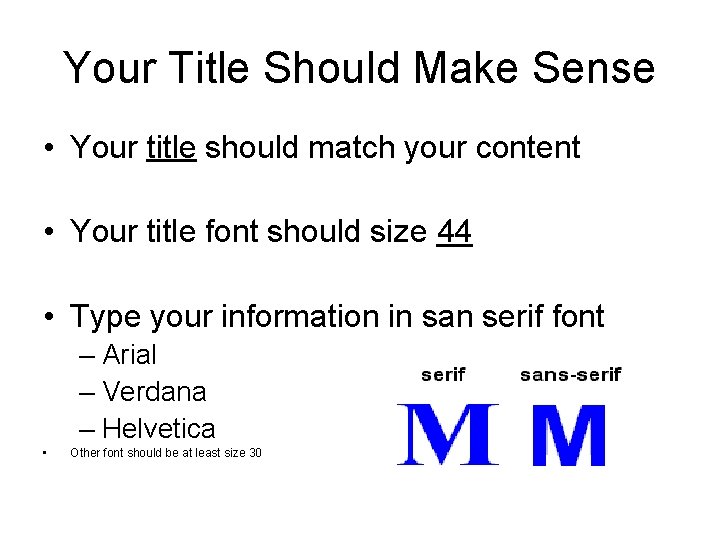
Your Title Should Make Sense • Your title should match your content • Your title font should size 44 • Type your information in san serif font – Arial – Verdana – Helvetica • Other font should be at least size 30
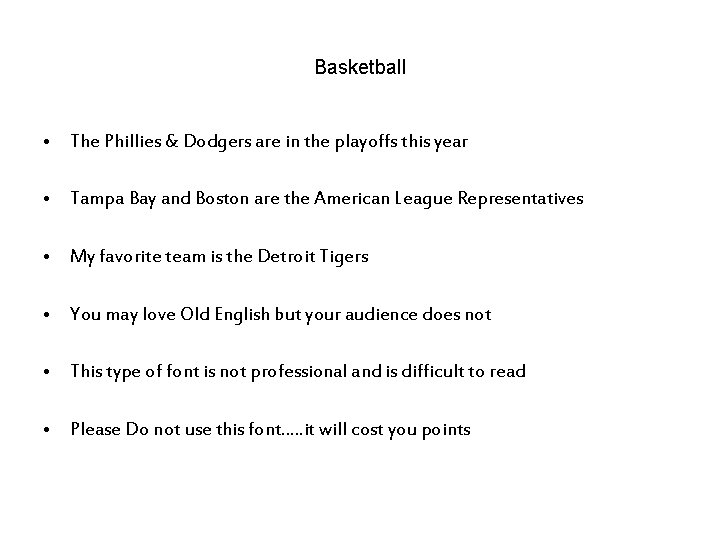
Basketball • The Phillies & Dodgers are in the playoffs this year • Tampa Bay and Boston are the American League Representatives • My favorite team is the Detroit Tigers • You may love Old English but your audience does not • This type of font is not professional and is difficult to read • Please Do not use this font…. . it will cost you points
Power. Point Rules • • Don’t Capitalize Every Word Don’t use italic Don’t use punctuation. !? Don’t use quotations Don’t write in complete sentences Use spoken language Don’t have more than six bullets on a slide Use six or less words per bullet
Power. Point Rules & Examples • • • Life Is Great Don’t You Think. I Cant Wait For School To Start!!! Wow, Typing Is Fun!!!! Why Don’t You Call Me Friend? ? “Why Because You Are Annoying!” Is This Reinforcing The Importance Of Not Capitalizing Each Word. • SEVEN Bullets Is Too Much Information!
Power. Point Rules cont. • Keep your Power. Point simple – Avoid fly-ins – Avoid unnecessary effects • Don’t use a lot of motion • Every transition should be identical throughout • Slide Show Slide Transition Pick One
Power. Point Rules cont. • Information should be stationary/permanent • Music should be instrumental – Movie – TV – Cartoon • Music should not be for one slide – Should be instrumental if played during your presentation – Best used at end
Movies • Power. Point movies use “Flash Animation” – Personal Videos – youtube videos
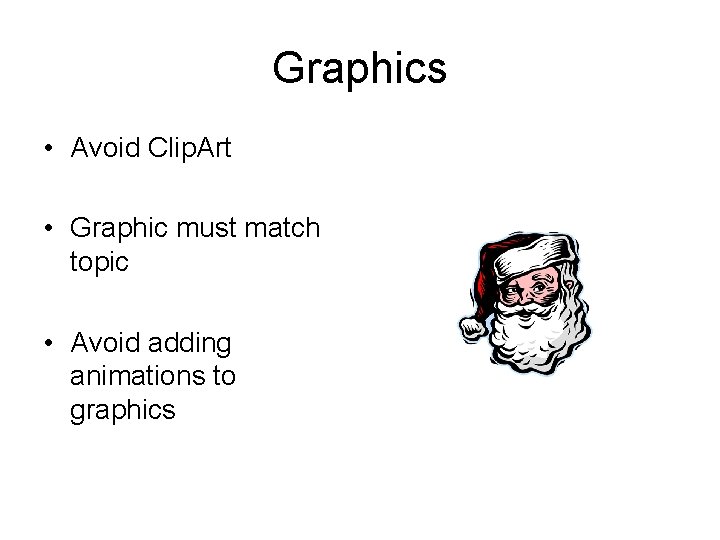
Graphics • Avoid Clip. Art • Graphic must match topic • Avoid adding animations to graphics
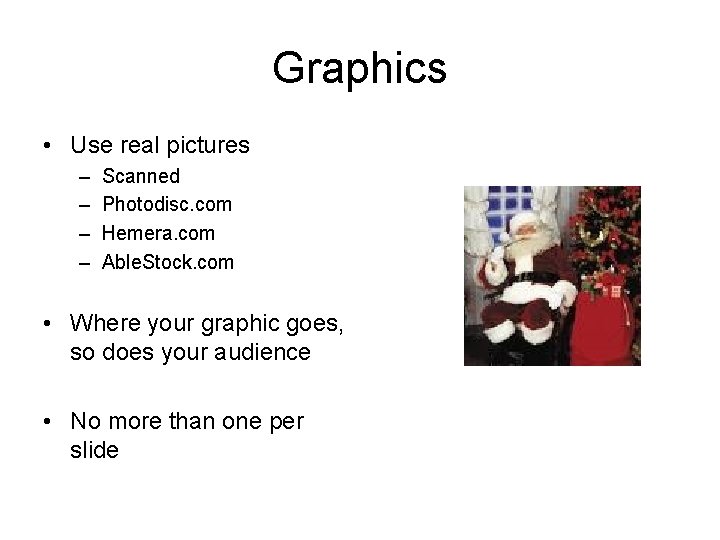
Graphics • Use real pictures – – Scanned Photodisc. com Hemera. com Able. Stock. com • Where your graphic goes, so does your audience • No more than one per slide
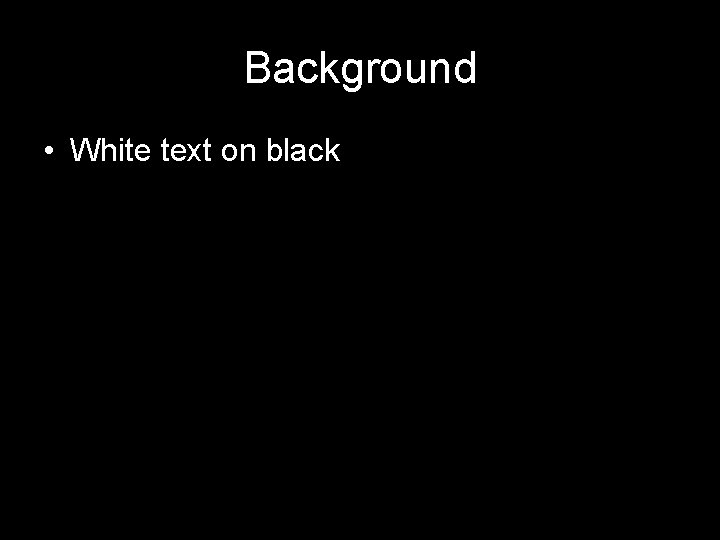
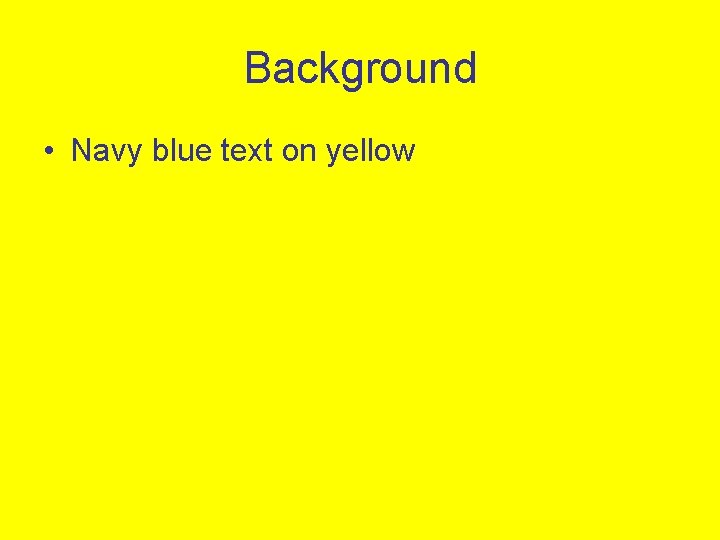
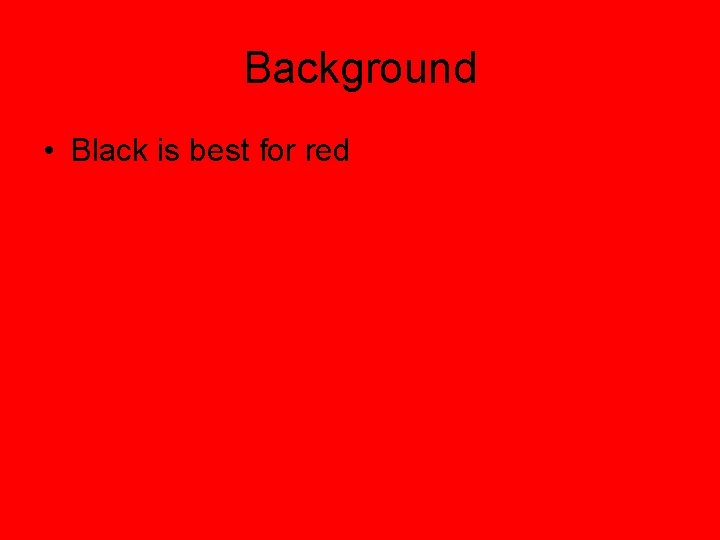
Background • • • White is boring Light text on dark backgrounds Dark text on light backgrounds No more than three colors Format Background Use colors you identify with – Favorites – School Colors
Background • White text on black
Background • Navy blue text on yellow
Background • Black is best for red
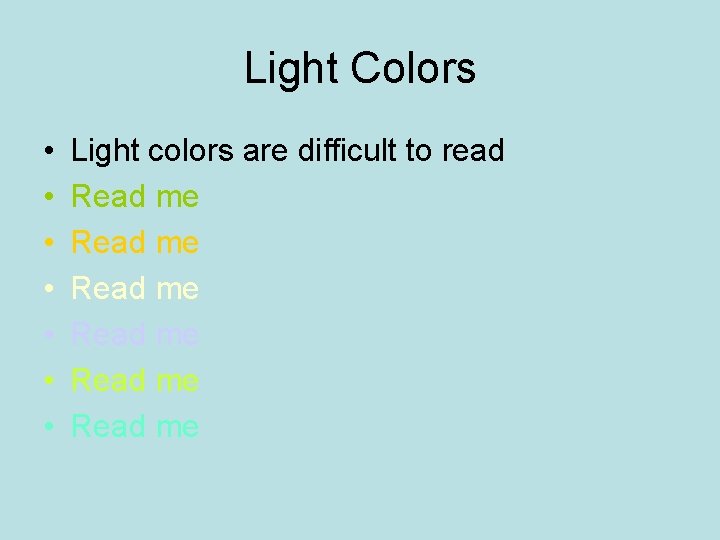
Light Colors • • Light colors are difficult to read Read me Read me
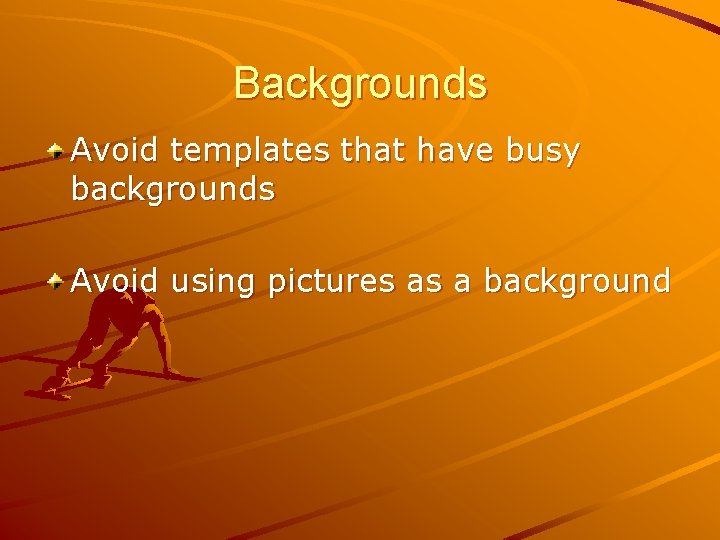
Backgrounds Avoid templates that have busy backgrounds Avoid using pictures as a background
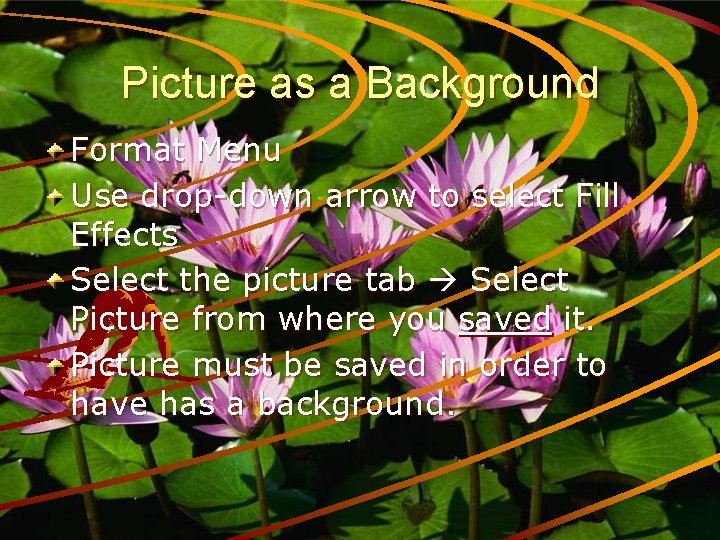
Picture as a Background Format Menu Use drop-down arrow to select Fill Effects Select the picture tab Select Picture from where you saved it. Picture must be saved in order to have has a background.
Ending Your ending should make sense n Your audience should know your done n Go out with a bang n
Assignment n Log into your computers and create a powerpoint with the following: n n A Title Slide with your name & Exploring Business on it A slide with the following information: n n n Your favorite type of music Favorite music artist Favorite Song by that artist Find a picture of that artist and place it on the slide Save the powerpoint on you Student Drive as yourname_practice powerpoint