
Creating a Fedora 24 Virtual Machine What You
- Slides: 19
Creating a Fedora 24 Virtual Machine
What You Need VMware Workstation (in this tutorial, we use 12. 1. 1) An iso of the operating system you want as a virtual machine A computer capable of virtualization If you have trouble with any of these, contact your instructor!
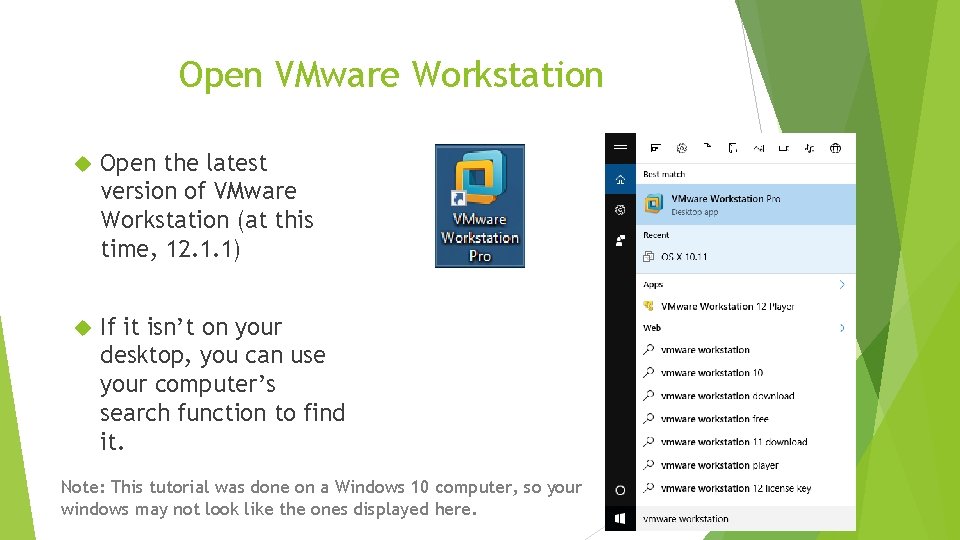
Open VMware Workstation Open the latest version of VMware Workstation (at this time, 12. 1. 1) If it isn’t on your desktop, you can use your computer’s search function to find it. Note: This tutorial was done on a Windows 10 computer, so your windows may not look like the ones displayed here.
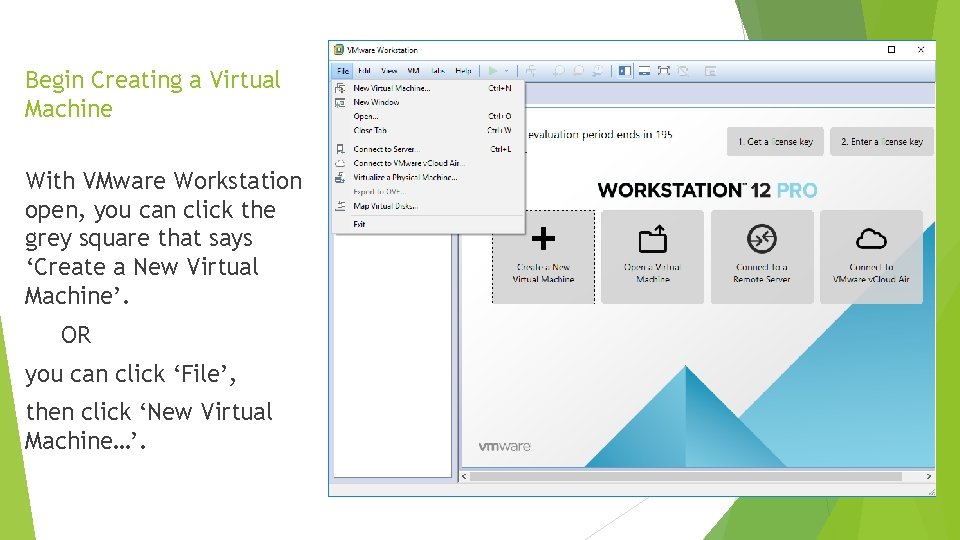
Begin Creating a Virtual Machine With VMware Workstation open, you can click the grey square that says ‘Create a New Virtual Machine’. OR you can click ‘File’, then click ‘New Virtual Machine…’.
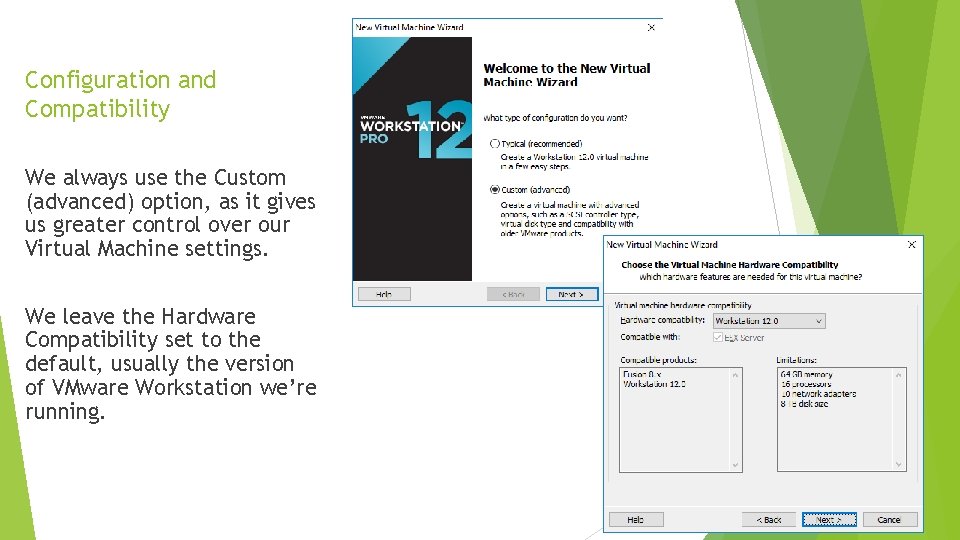
Configuration and Compatibility We always use the Custom (advanced) option, as it gives us greater control over our Virtual Machine settings. We leave the Hardware Compatibility set to the default, usually the version of VMware Workstation we’re running.
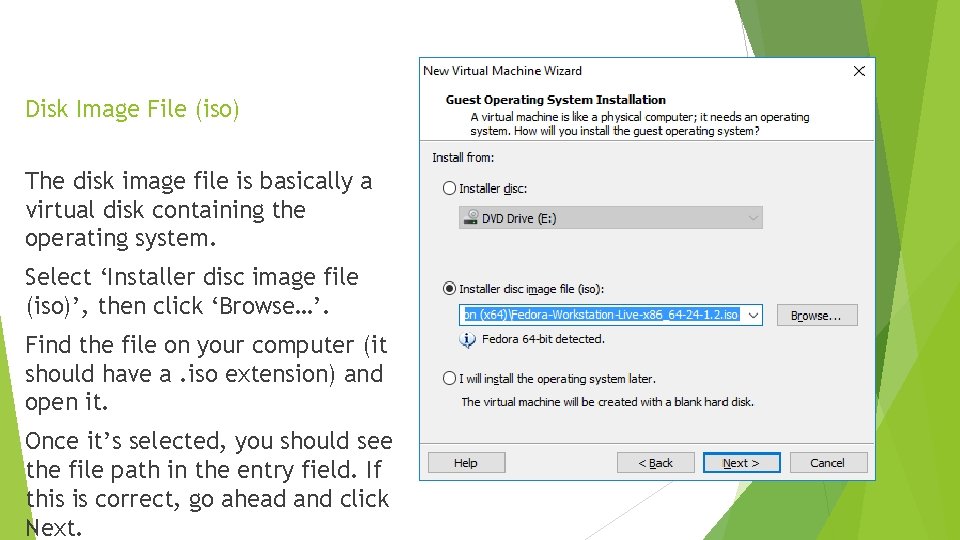
Disk Image File (iso) The disk image file is basically a virtual disk containing the operating system. Select ‘Installer disc image file (iso)’, then click ‘Browse…’. Find the file on your computer (it should have a. iso extension) and open it. Once it’s selected, you should see the file path in the entry field. If this is correct, go ahead and click Next.
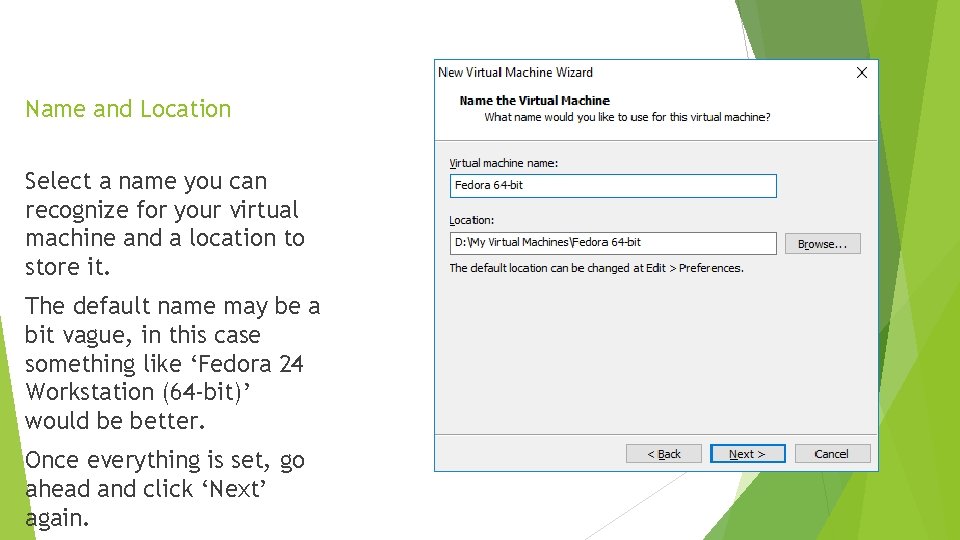
Name and Location Select a name you can recognize for your virtual machine and a location to store it. The default name may be a bit vague, in this case something like ‘Fedora 24 Workstation (64 -bit)’ would be better. Once everything is set, go ahead and click ‘Next’ again.
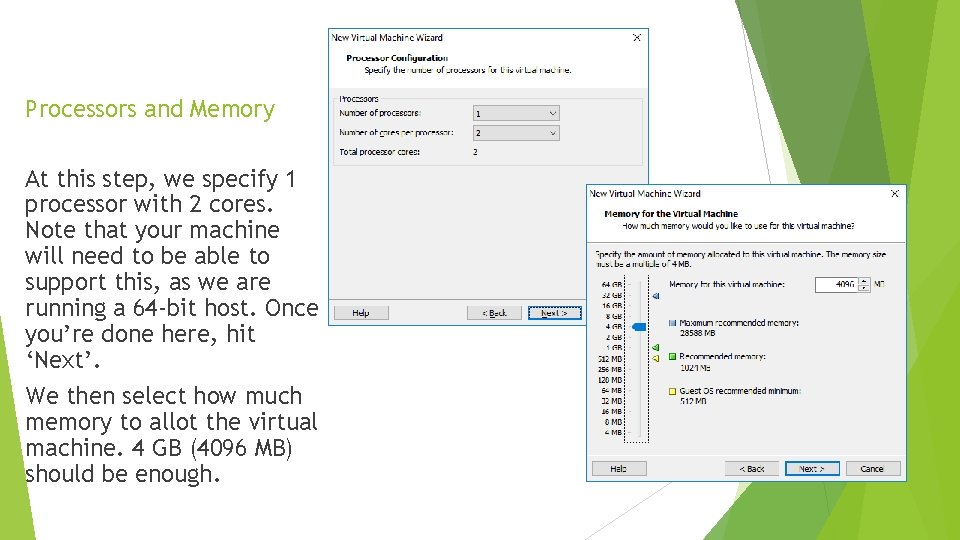
Processors and Memory At this step, we specify 1 processor with 2 cores. Note that your machine will need to be able to support this, as we are running a 64 -bit host. Once you’re done here, hit ‘Next’. We then select how much memory to allot the virtual machine. 4 GB (4096 MB) should be enough.
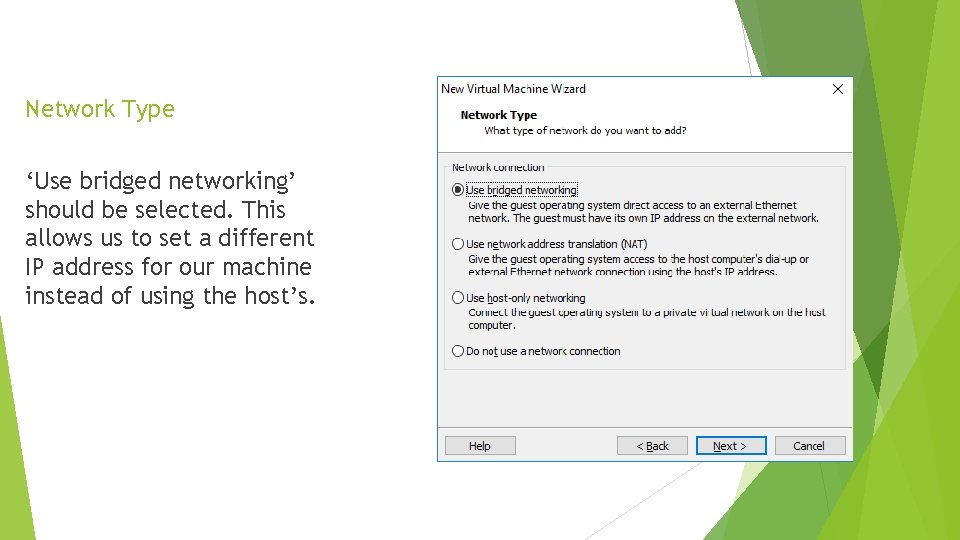
Network Type ‘Use bridged networking’ should be selected. This allows us to set a different IP address for our machine instead of using the host’s.
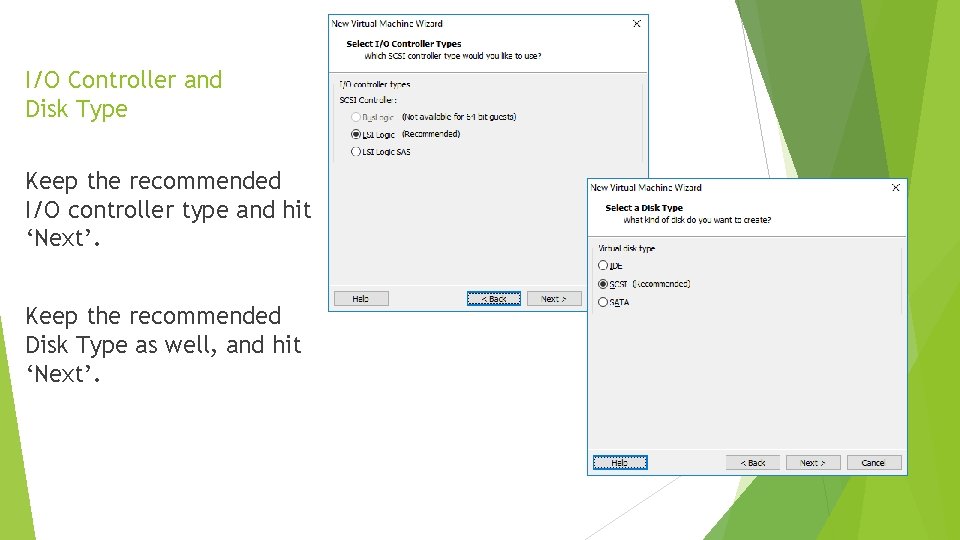
I/O Controller and Disk Type Keep the recommended I/O controller type and hit ‘Next’. Keep the recommended Disk Type as well, and hit ‘Next’.
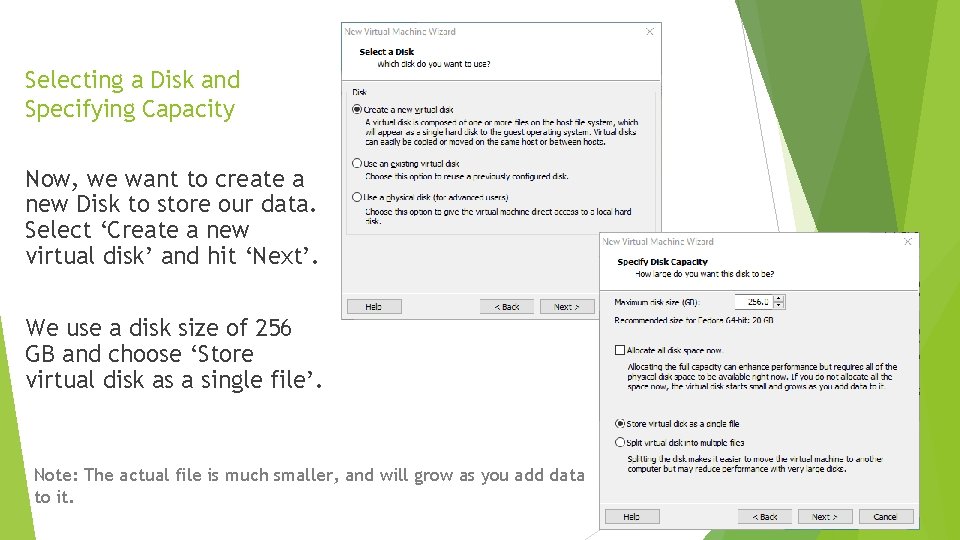
Selecting a Disk and Specifying Capacity Now, we want to create a new Disk to store our data. Select ‘Create a new virtual disk’ and hit ‘Next’. We use a disk size of 256 GB and choose ‘Store virtual disk as a single file’. Note: The actual file is much smaller, and will grow as you add data to it.
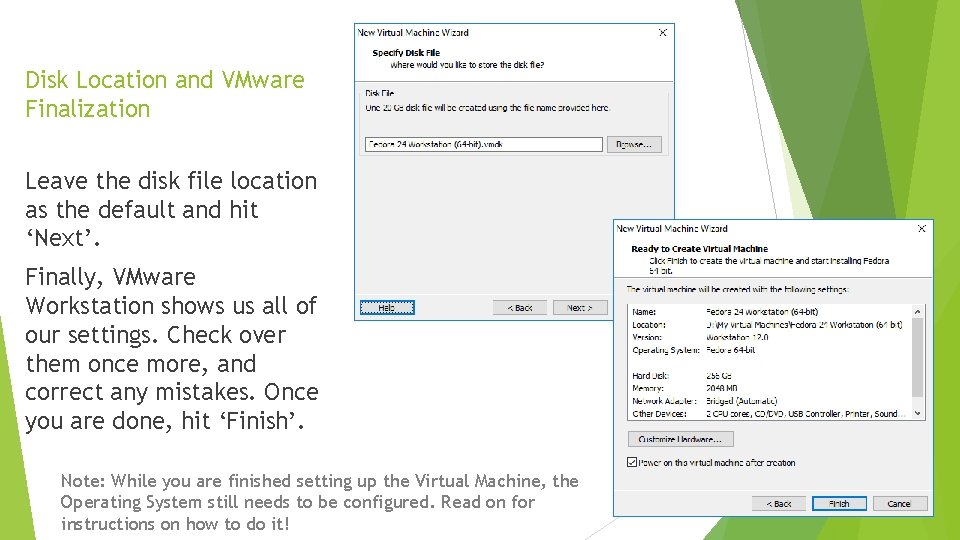
Disk Location and VMware Finalization Leave the disk file location as the default and hit ‘Next’. Finally, VMware Workstation shows us all of our settings. Check over them once more, and correct any mistakes. Once you are done, hit ‘Finish’. Note: While you are finished setting up the Virtual Machine, the Operating System still needs to be configured. Read on for instructions on how to do it!
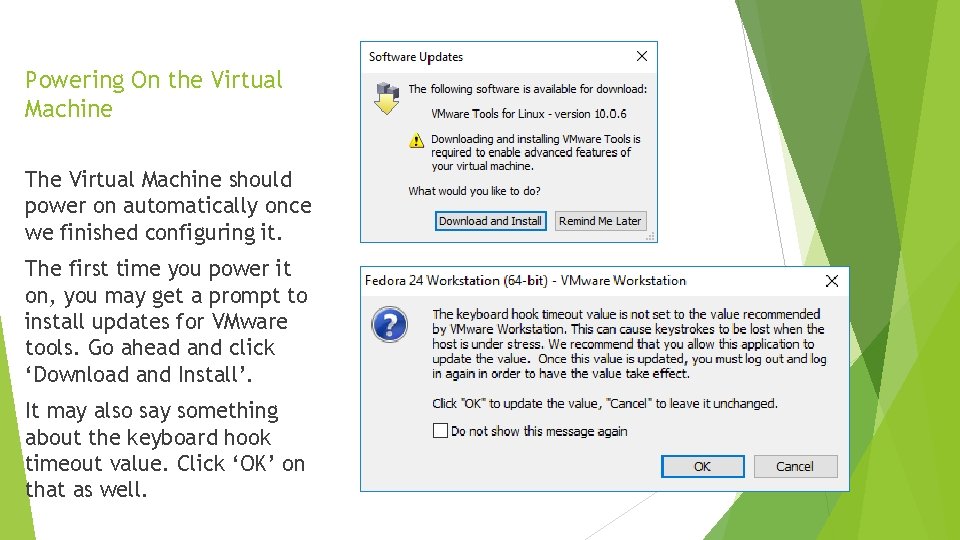
Powering On the Virtual Machine The Virtual Machine should power on automatically once we finished configuring it. The first time you power it on, you may get a prompt to install updates for VMware tools. Go ahead and click ‘Download and Install’. It may also say something about the keyboard hook timeout value. Click ‘OK’ on that as well.
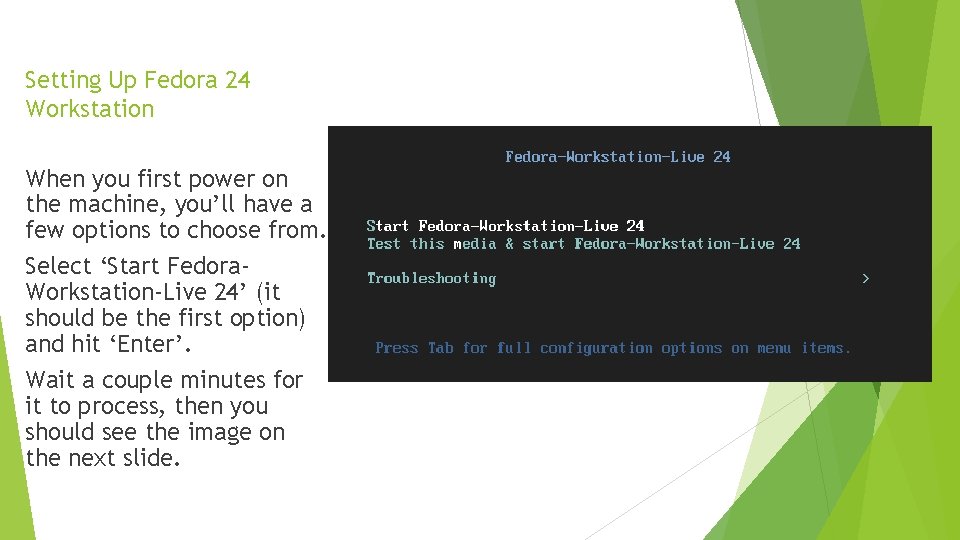
Setting Up Fedora 24 Workstation When you first power on the machine, you’ll have a few options to choose from. Select ‘Start Fedora. Workstation-Live 24’ (it should be the first option) and hit ‘Enter’. Wait a couple minutes for it to process, then you should see the image on the next slide.
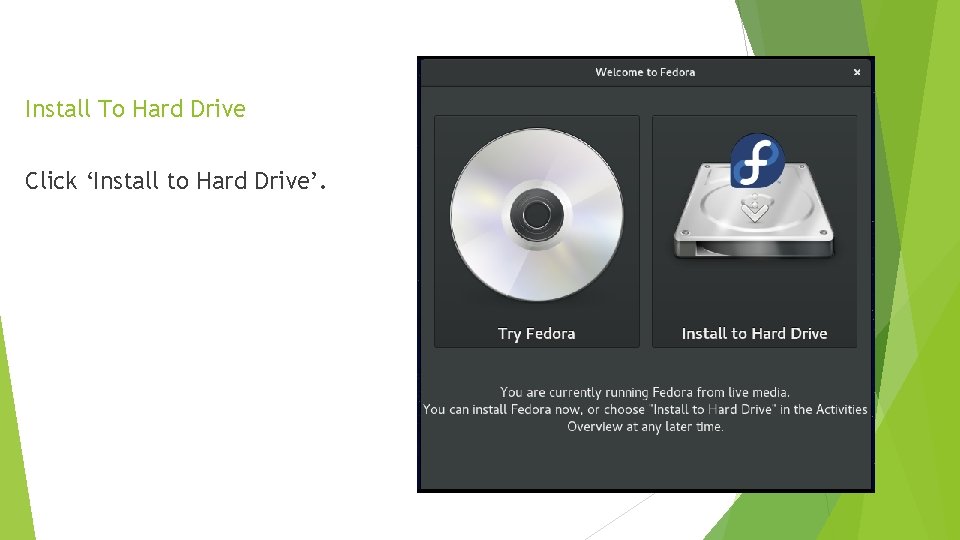
Install To Hard Drive Click ‘Install to Hard Drive’.
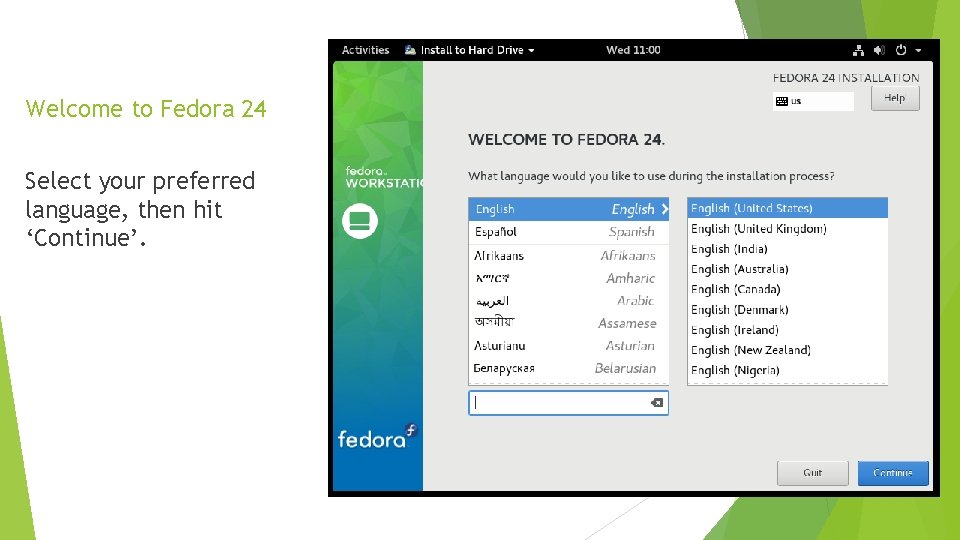
Welcome to Fedora 24 Select your preferred language, then hit ‘Continue’.
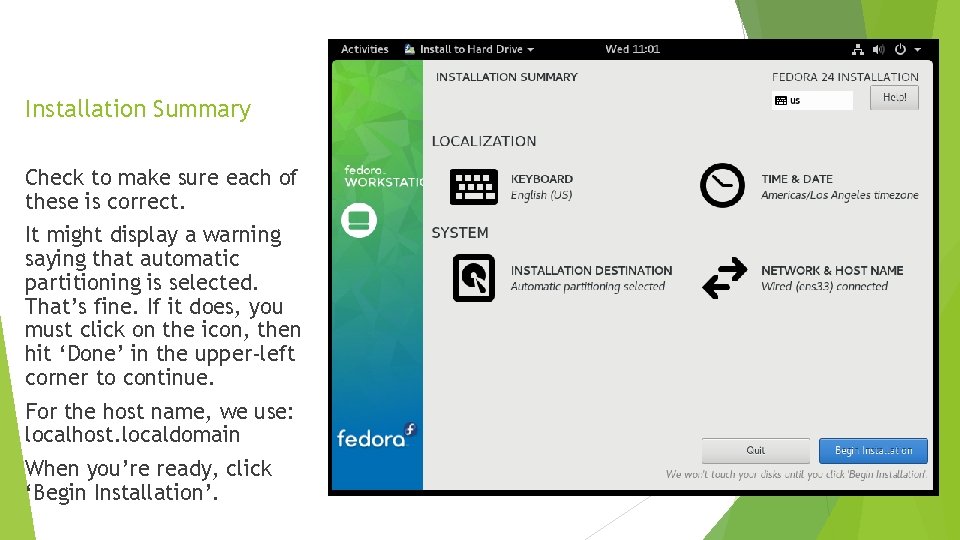
Installation Summary Check to make sure each of these is correct. It might display a warning saying that automatic partitioning is selected. That’s fine. If it does, you must click on the icon, then hit ‘Done’ in the upper-left corner to continue. For the host name, we use: localhost. localdomain When you’re ready, click ‘Begin Installation’.
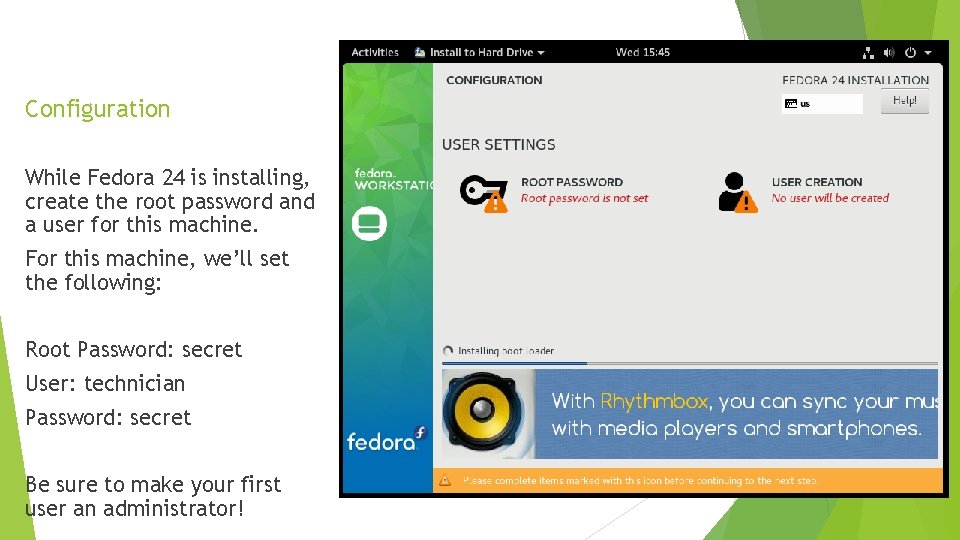
Configuration While Fedora 24 is installing, create the root password and a user for this machine. For this machine, we’ll set the following: Root Password: secret User: technician Password: secret Be sure to make your first user an administrator!
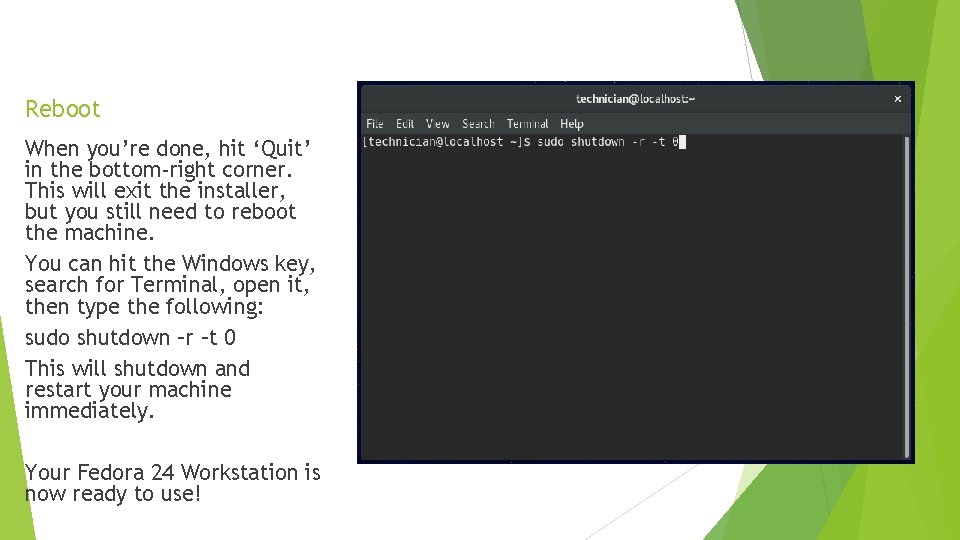
Reboot When you’re done, hit ‘Quit’ in the bottom-right corner. This will exit the installer, but you still need to reboot the machine. You can hit the Windows key, search for Terminal, open it, then type the following: sudo shutdown –r –t 0 This will shutdown and restart your machine immediately. Your Fedora 24 Workstation is now ready to use!