
Creating a Database Estate Agent Task Starter Task
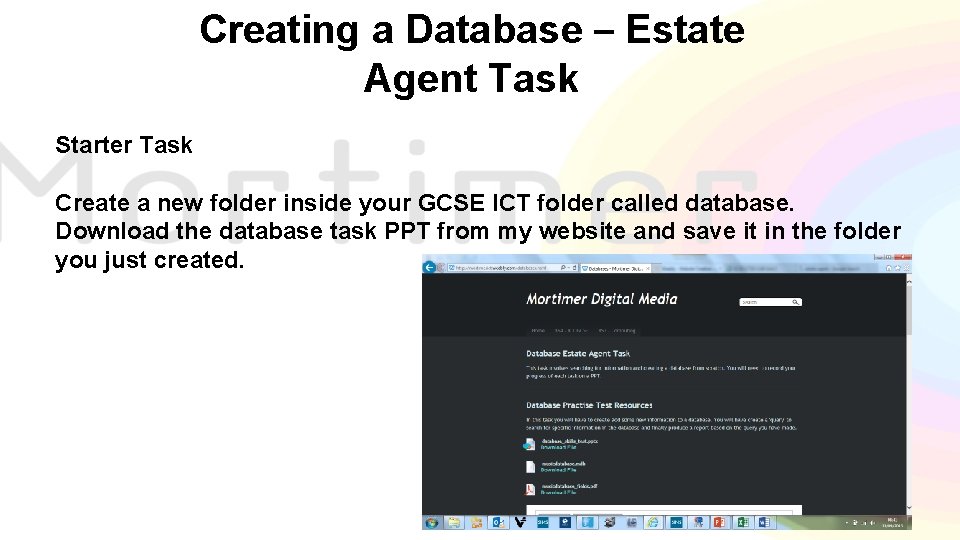
Creating a Database – Estate Agent Task Starter Task Create a new folder inside your GCSE ICT folder called database. Download the database task PPT from my website and save it in the folder you just created.
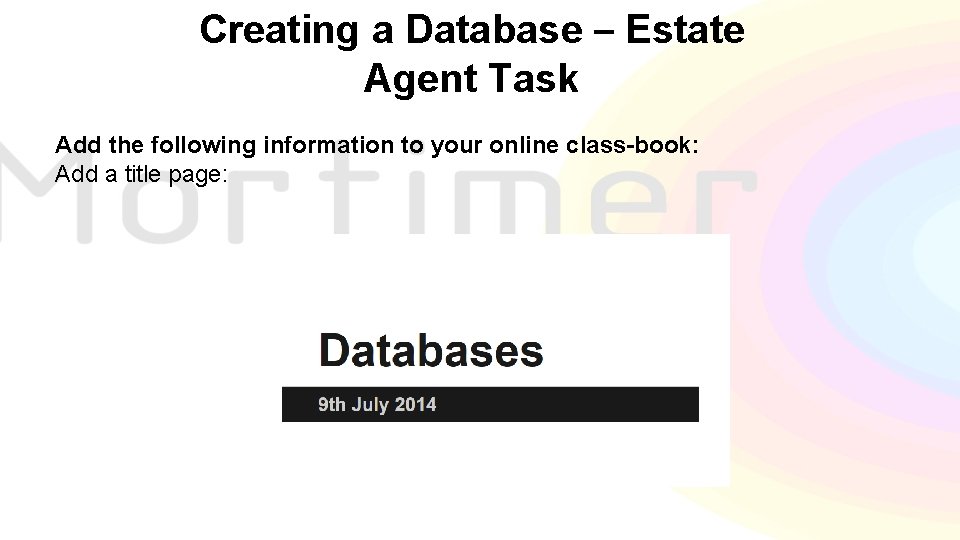
Creating a Database – Estate Agent Task Add the following information to your online class-book: Add a title page:
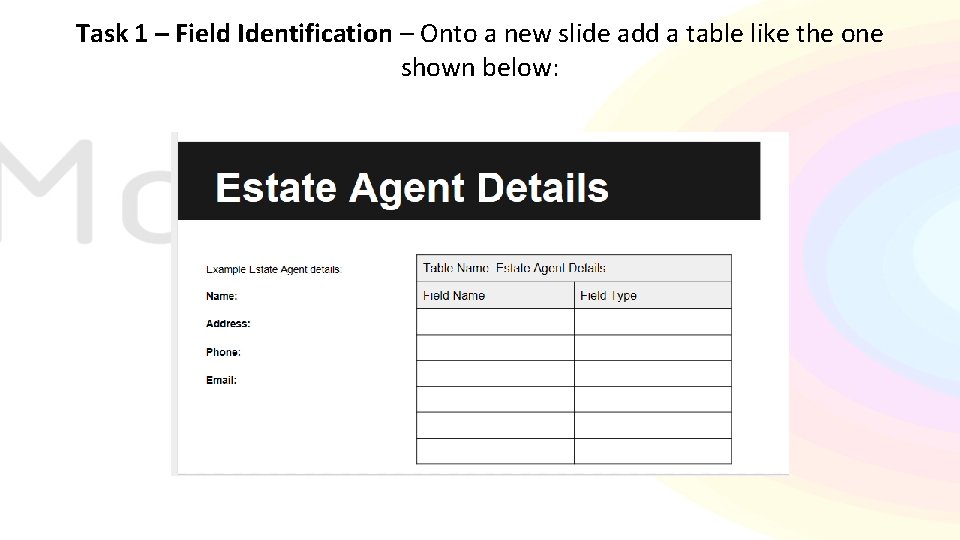
Task 1 – Field Identification – Onto a new slide add a table like the one shown below:
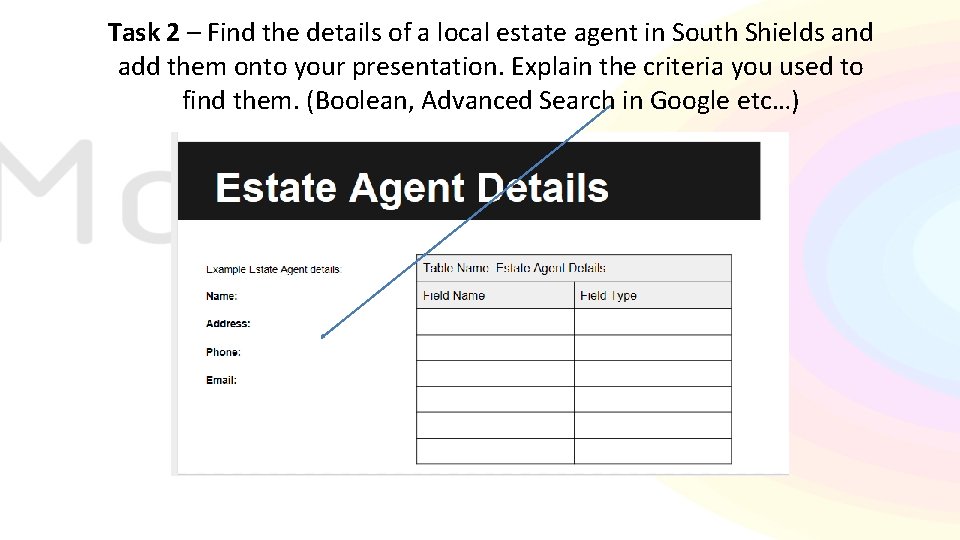
Task 2 – Find the details of a local estate agent in South Shields and add them onto your presentation. Explain the criteria you used to find them. (Boolean, Advanced Search in Google etc…)
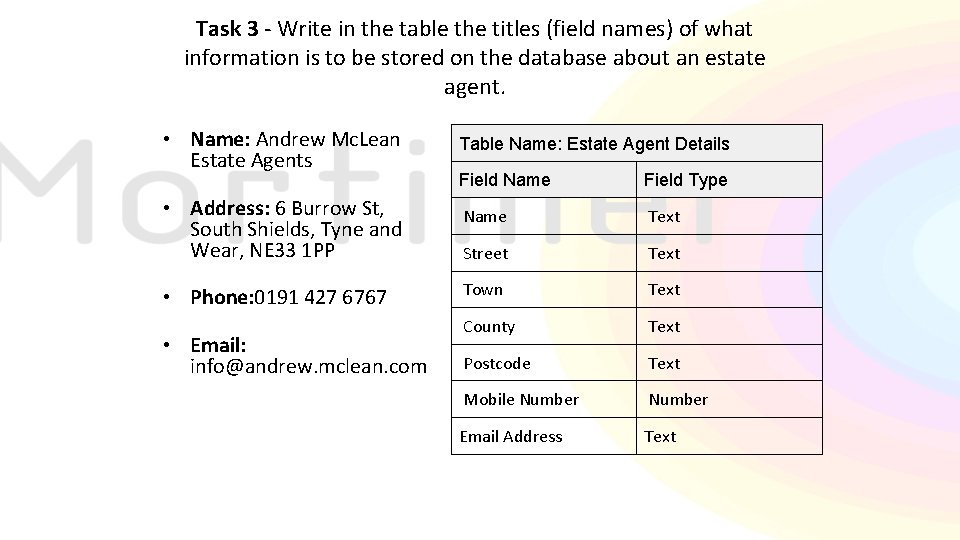
Task 3 - Write in the table the titles (field names) of what information is to be stored on the database about an estate agent. • Name: Andrew Mc. Lean Estate Agents • Address: 6 Burrow St, South Shields, Tyne and Wear, NE 33 1 PP • Phone: 0191 427 6767 • Email: info@andrew. mclean. com Table Name: Estate Agent Details Field Name Field Type Name Text Street Text Town Text County Text Postcode Text Mobile Number Email Address Text
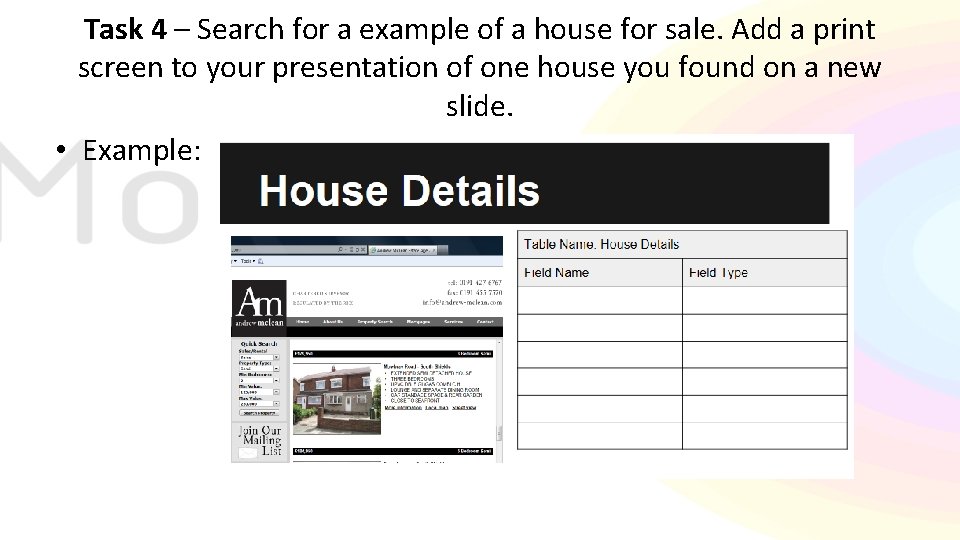
Task 4 – Search for a example of a house for sale. Add a print screen to your presentation of one house you found on a new slide. • Example:
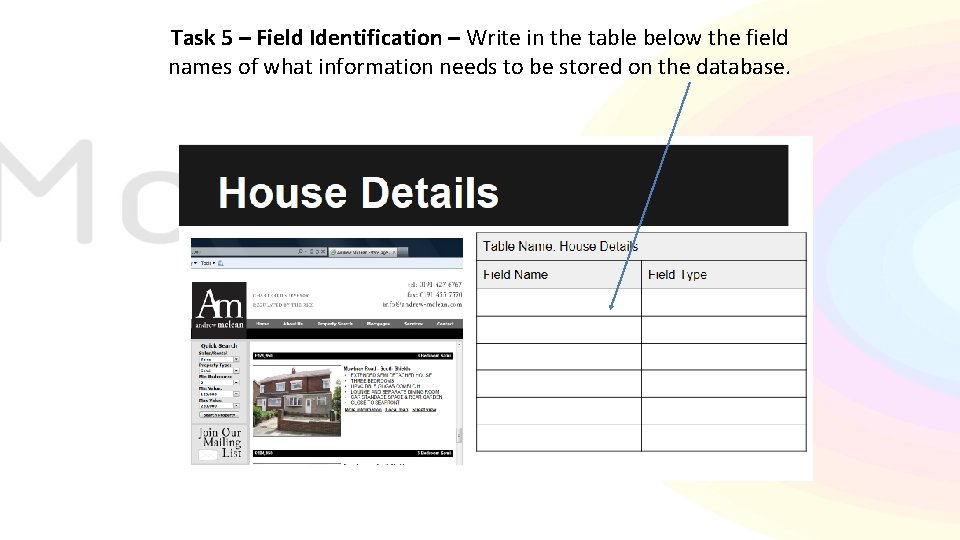
Task 5 – Field Identification – Write in the table below the field names of what information needs to be stored on the database.
Task 6 – Create a new database and make two new tables one to store estate agent details and one to store houses details that are for sale.
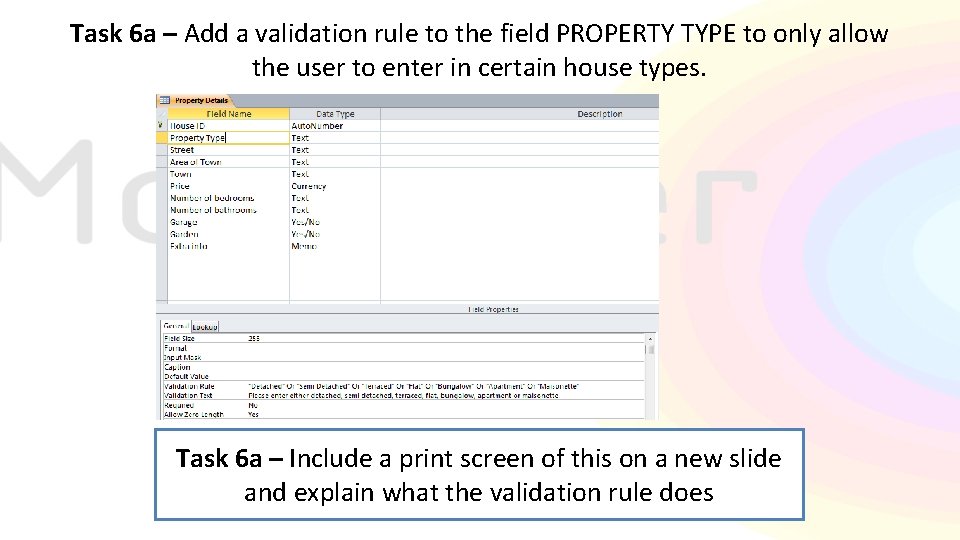
Task 6 a – Add a validation rule to the field PROPERTY TYPE to only allow the user to enter in certain house types. Task 6 a – Include a print screen of this on a new slide and explain what the validation rule does
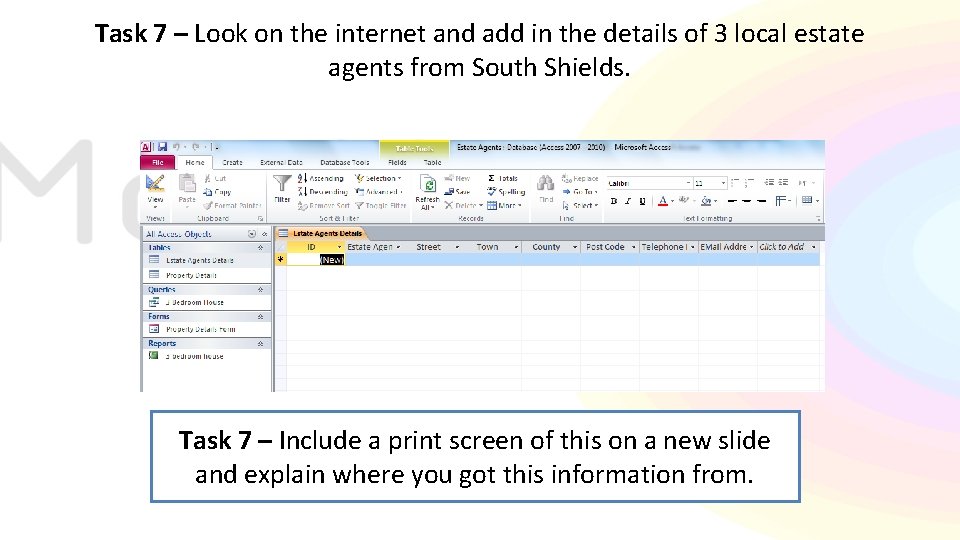
Task 7 – Look on the internet and add in the details of 3 local estate agents from South Shields. Task 7 – Include a print screen of this on a new slide and explain where you got this information from.

Task 8 - Look on the internet and add in the details of 10 houses for sale in South Shields. Task 8 – Include a print screen of this on a new slide and explain where you got this information from.
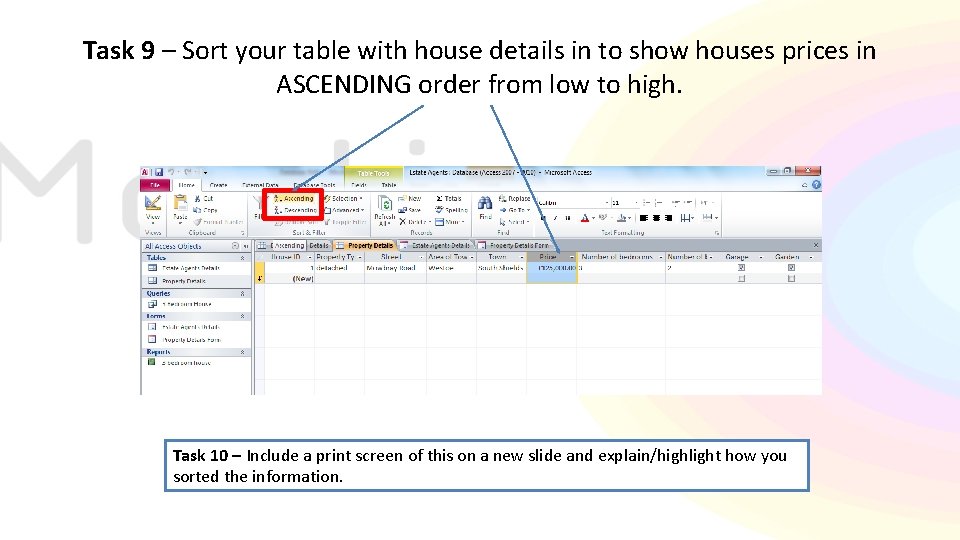
Task 9 – Sort your table with house details in to show houses prices in ASCENDING order from low to high. Task 10 – Include a print screen of this on a new slide and explain/highlight how you sorted the information.
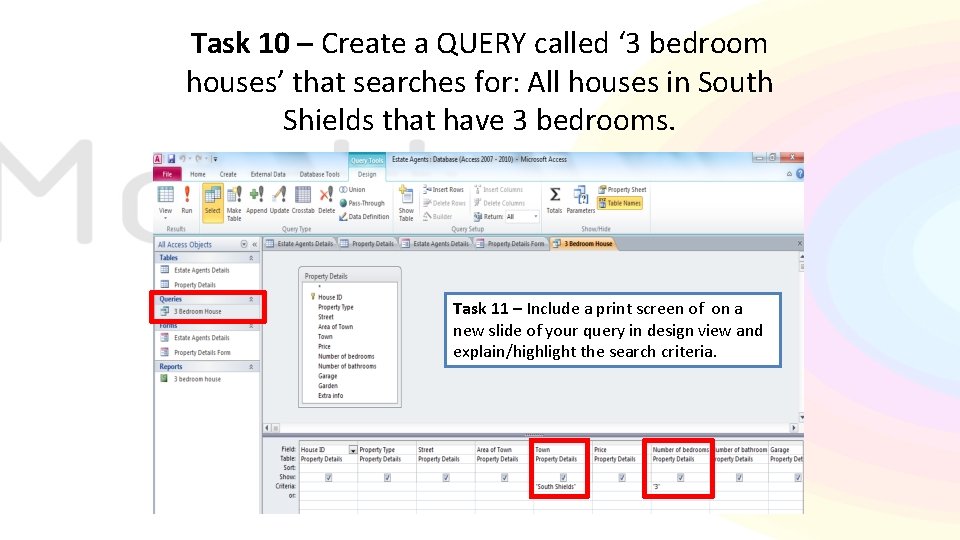
Task 10 – Create a QUERY called ‘ 3 bedroom houses’ that searches for: All houses in South Shields that have 3 bedrooms. Task 11 – Include a print screen of on a new slide of your query in design view and explain/highlight the search criteria.
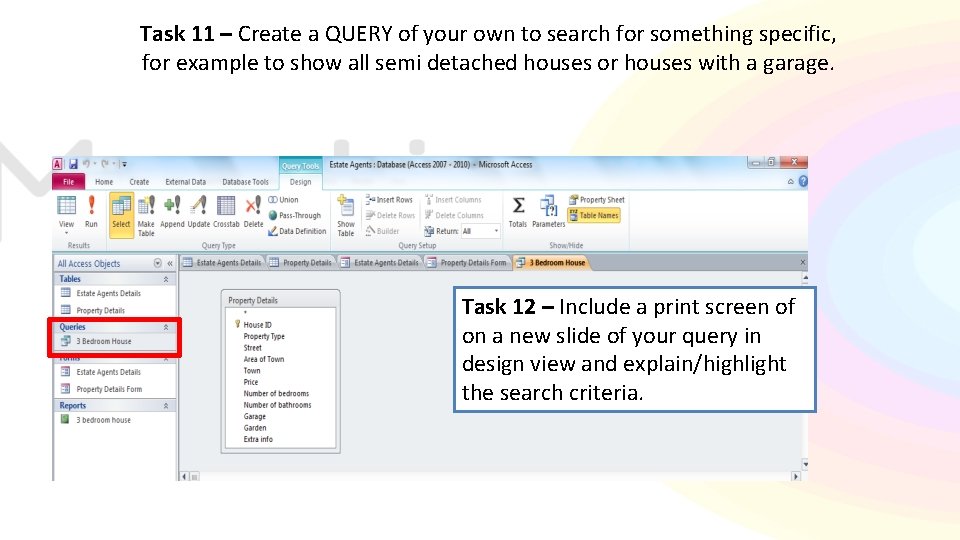
Task 11 – Create a QUERY of your own to search for something specific, for example to show all semi detached houses or houses with a garage. Task 12 – Include a print screen of on a new slide of your query in design view and explain/highlight the search criteria.
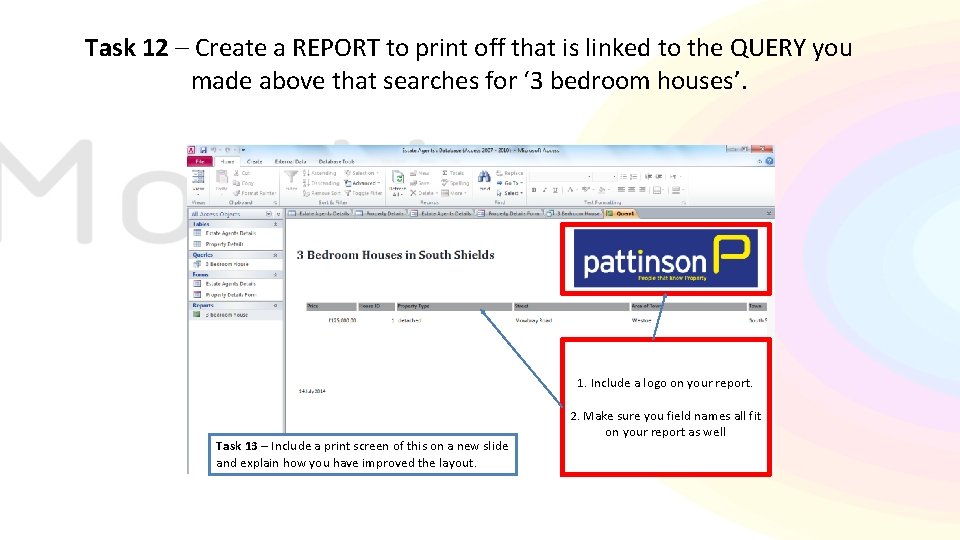
Task 12 – Create a REPORT to print off that is linked to the QUERY you made above that searches for ‘ 3 bedroom houses’. 1. Include a logo on your report. Task 13 – Include a print screen of this on a new slide and explain how you have improved the layout. 2. Make sure you field names all fit on your report as well
- Slides: 15