
Creating a Classroom Profile Tutorial 5 In this
- Slides: 12
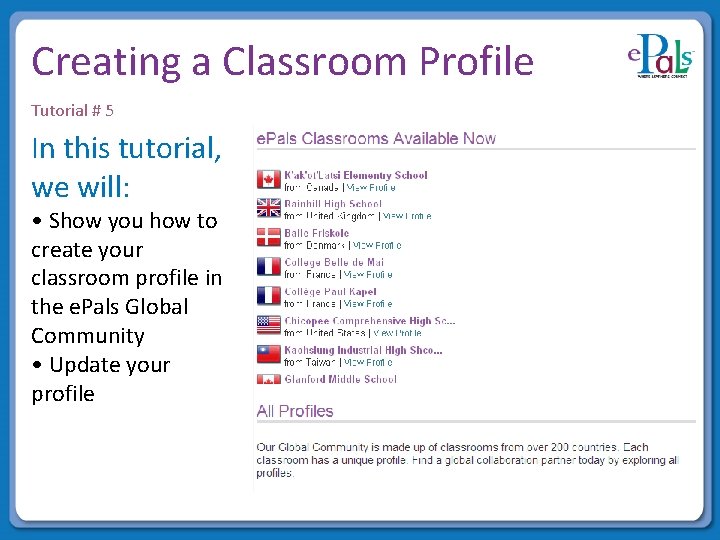
Creating a Classroom Profile Tutorial # 5 In this tutorial, we will: • Show you how to create your classroom profile in the e. Pals Global Community • Update your profile
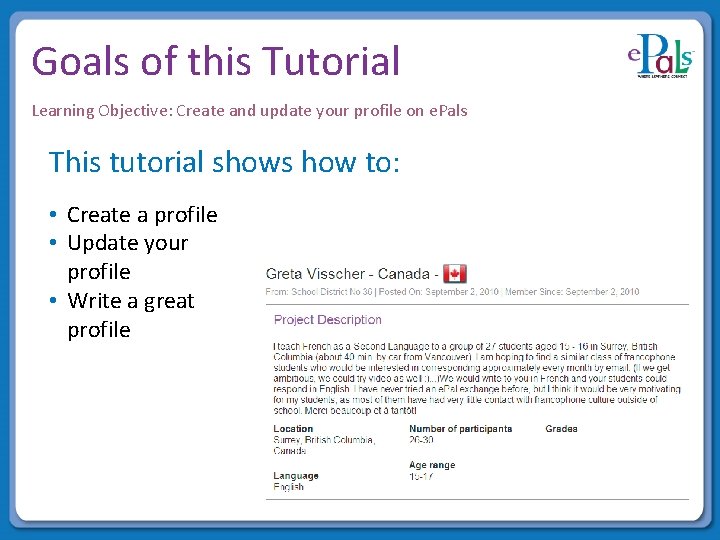
Goals of this Tutorial Learning Objective: Create and update your profile on e. Pals This tutorial shows how to: • Create a profile • Update your profile • Write a great profile
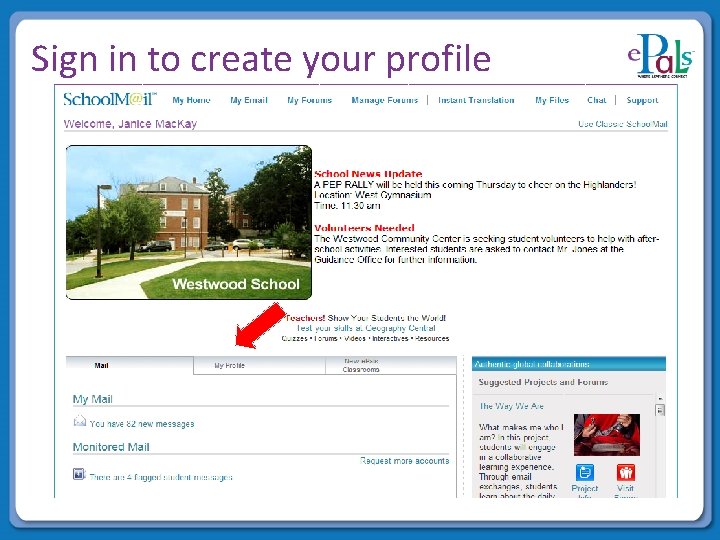
Sign in to create your profile
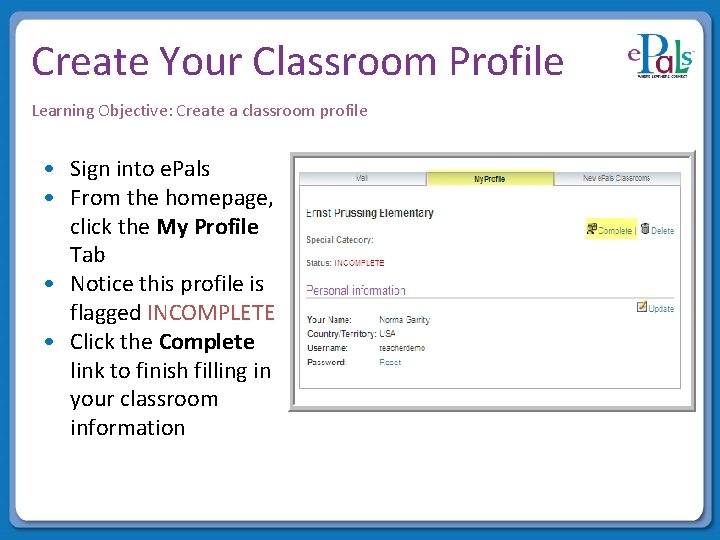
Create Your Classroom Profile Learning Objective: Create a classroom profile • Sign into e. Pals • From the homepage, click the My Profile Tab • Notice this profile is flagged INCOMPLETE • Click the Complete link to finish filling in your classroom information
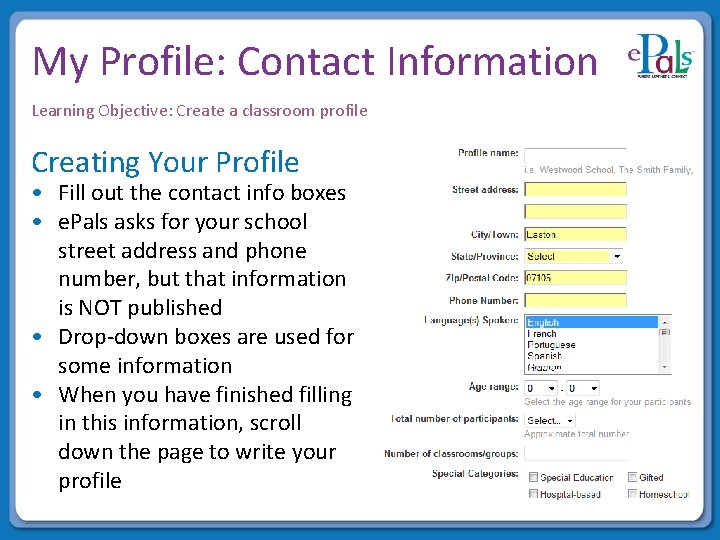
My Profile: Contact Information Learning Objective: Create a classroom profile Creating Your Profile • Fill out the contact info boxes • e. Pals asks for your school street address and phone number, but that information is NOT published • Drop-down boxes are used for some information • When you have finished filling in this information, scroll down the page to write your profile
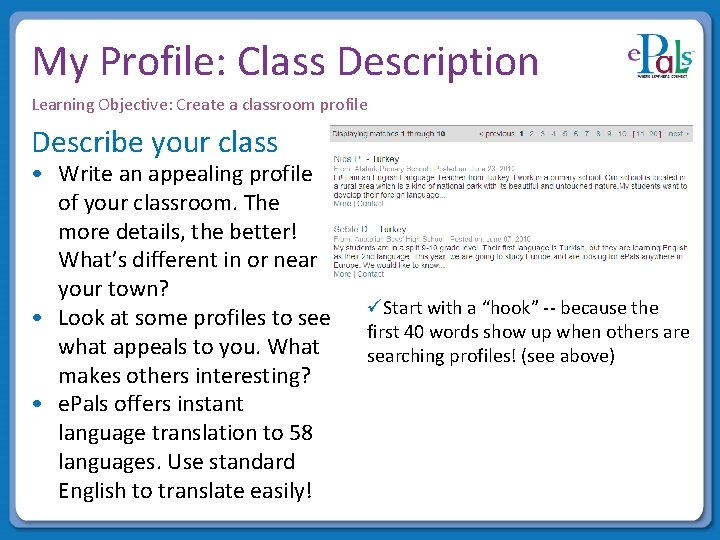
My Profile: Class Description Learning Objective: Create a classroom profile Describe your class • Write an appealing profile of your classroom. The more details, the better! What’s different in or near your town? • Look at some profiles to see what appeals to you. What makes others interesting? • e. Pals offers instant language translation to 58 languages. Use standard English to translate easily! üStart with a “hook” -- because the first 40 words show up when others are searching profiles! (see above)
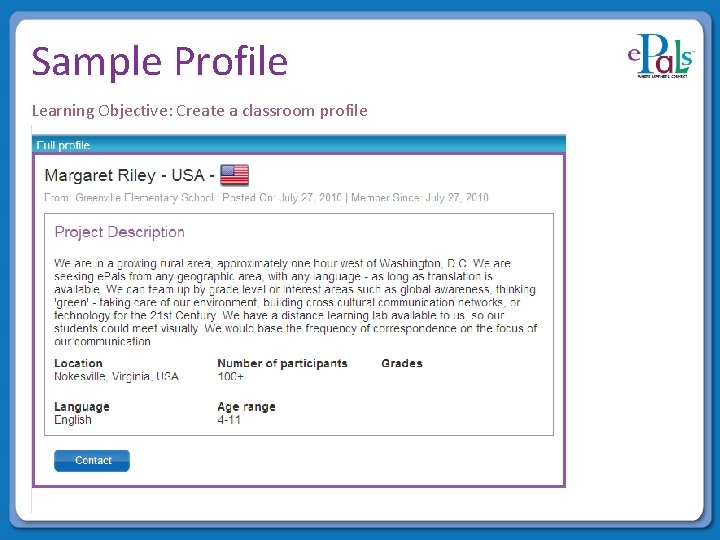
Sample Profile Learning Objective: Create a classroom profile
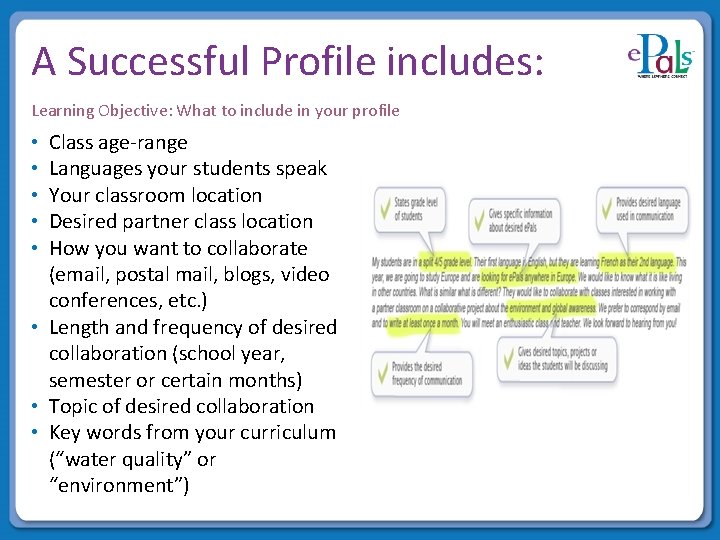
A Successful Profile includes: Learning Objective: What to include in your profile Class age-range Languages your students speak Your classroom location Desired partner class location How you want to collaborate (email, postal mail, blogs, video conferences, etc. ) • Length and frequency of desired collaboration (school year, semester or certain months) • Topic of desired collaboration • Key words from your curriculum (“water quality” or “environment”) • • •
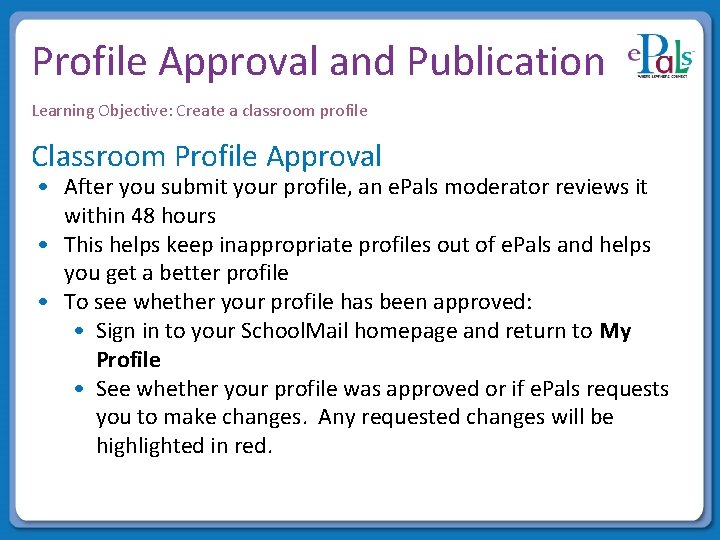
Profile Approval and Publication Learning Objective: Create a classroom profile Classroom Profile Approval • After you submit your profile, an e. Pals moderator reviews it within 48 hours • This helps keep inappropriate profiles out of e. Pals and helps you get a better profile • To see whether your profile has been approved: • Sign in to your School. Mail homepage and return to My Profile • See whether your profile was approved or if e. Pals requests you to make changes. Any requested changes will be highlighted in red.
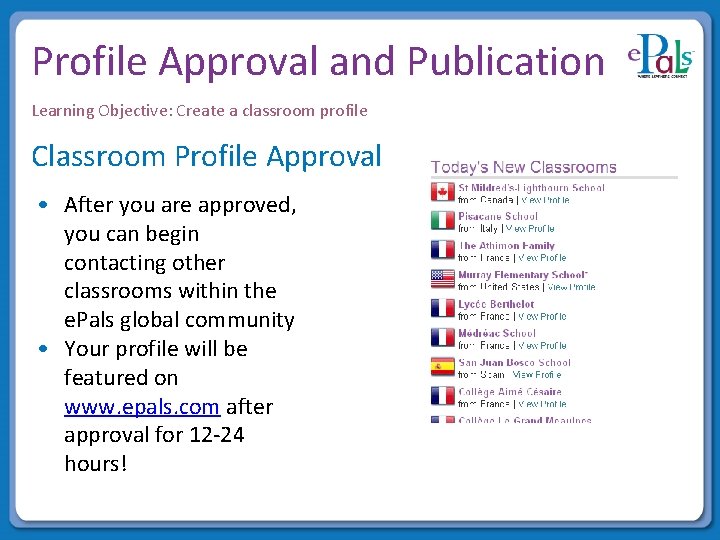
Profile Approval and Publication Learning Objective: Create a classroom profile Classroom Profile Approval • After you are approved, you can begin contacting other classrooms within the e. Pals global community • Your profile will be featured on www. epals. com after approval for 12 -24 hours!
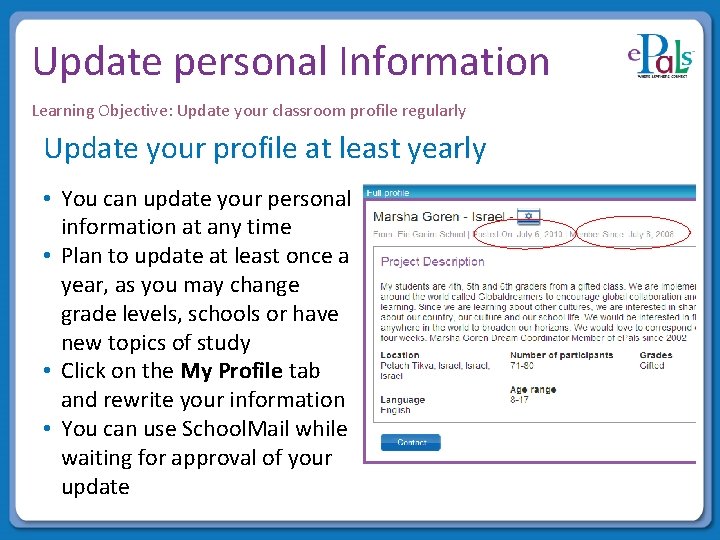
Update personal Information Learning Objective: Update your classroom profile regularly Update your profile at least yearly • You can update your personal information at any time • Plan to update at least once a year, as you may change grade levels, schools or have new topics of study • Click on the My Profile tab and rewrite your information • You can use School. Mail while waiting for approval of your update
Review Learning Objective: Create a classroom profile This tutorial suggested ways for you to: • Create a profile • Update personal information Recommended Next Step: • How to access your webmail and tools within it