
Creating a 4 D Programme in Asta BIM
Creating a 4 D Programme in Asta BIM Assignment 6509 BESG LJMU 2017
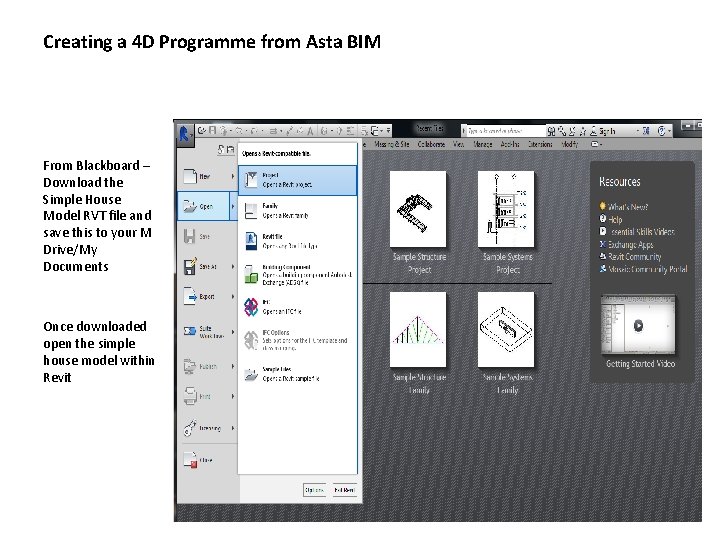
Creating a 4 D Programme from Asta BIM From Blackboard – Download the Simple House Model RVT file and save this to your M Drive/My Documents Once downloaded open the simple house model within Revit
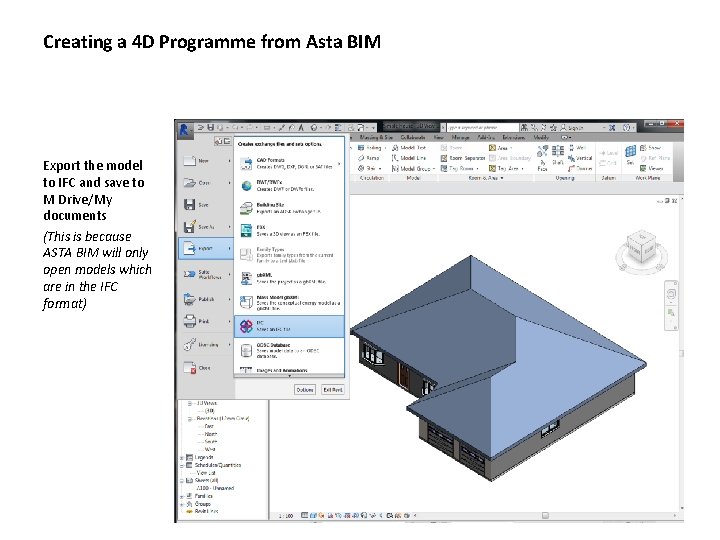
Creating a 4 D Programme from Asta BIM Export the model to IFC and save to M Drive/My documents (This is because ASTA BIM will only open models which are in the IFC format)
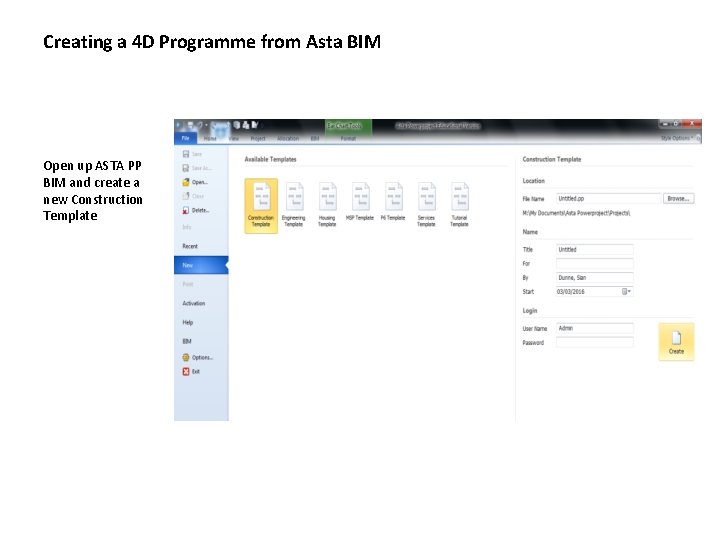
Creating a 4 D Programme from Asta BIM Open up ASTA PP BIM and create a new Construction Template
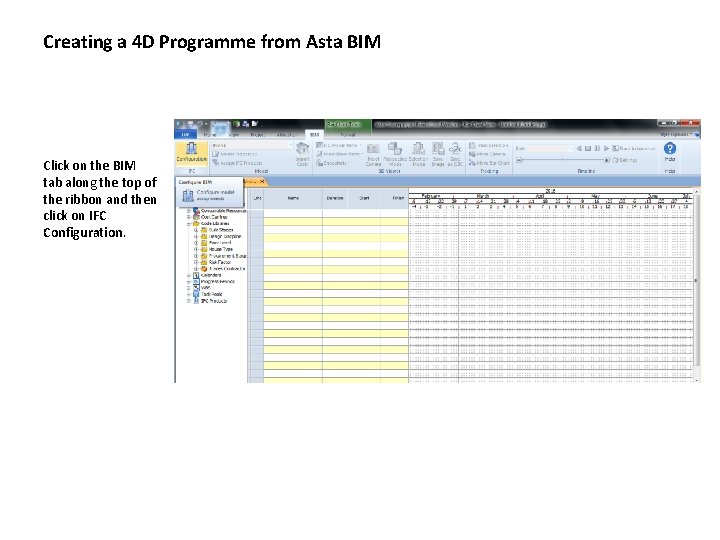
Creating a 4 D Programme from Asta BIM Click on the BIM tab along the top of the ribbon and then click on IFC Configuration.
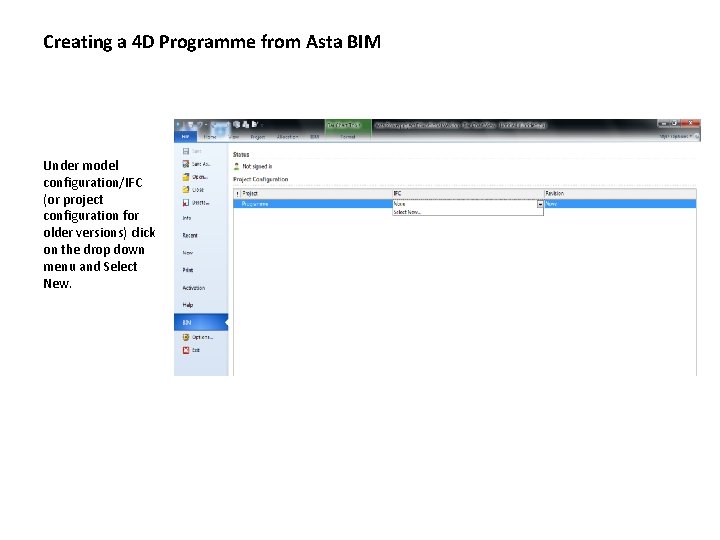
Creating a 4 D Programme from Asta BIM Under model configuration/IFC (or project configuration for older versions) click on the drop down menu and Select New.
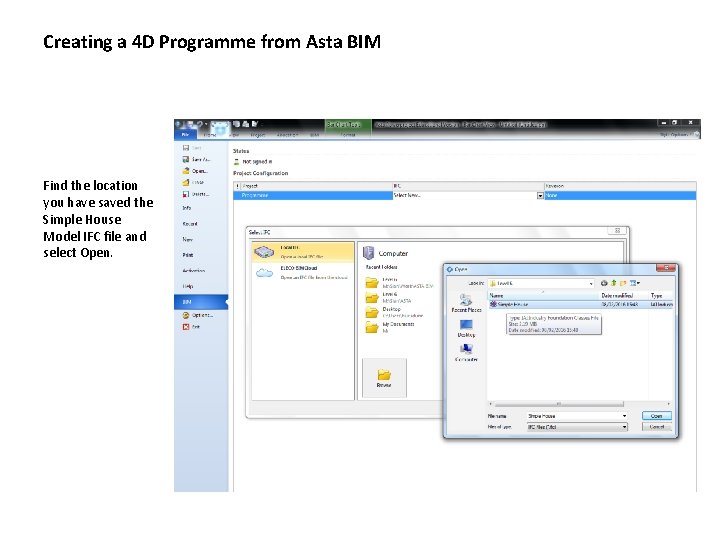
Creating a 4 D Programme from Asta BIM Find the location you have saved the Simple House Model IFC file and select Open.

Creating a 4 D Programme from Asta BIM Go back to the BIM tab and in the second pane on the ribbon click on the drop down menu (None) and select the Simple House Model. This will then fetch the model into the programming workspace.
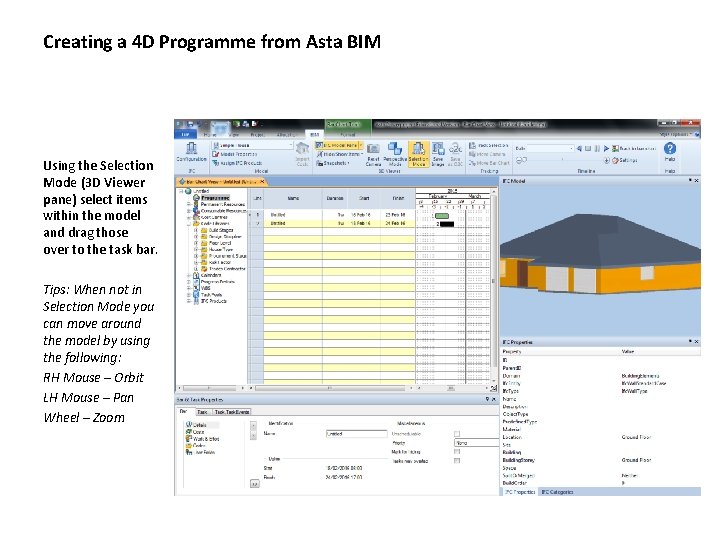
Creating a 4 D Programme from Asta BIM Using the Selection Mode (3 D Viewer pane) select items within the model and drag those over to the task bar. Tips: When not in Selection Mode you can move around the model by using the following: RH Mouse – Orbit LH Mouse – Pan Wheel – Zoom
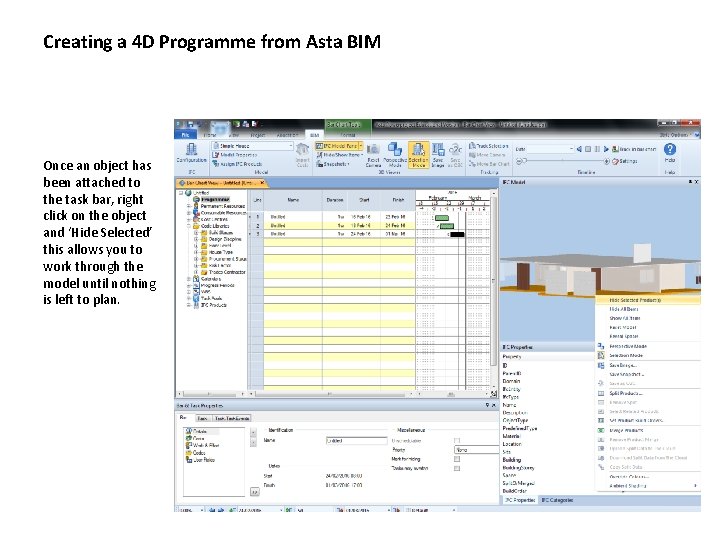
Creating a 4 D Programme from Asta BIM Once an object has been attached to the task bar, right click on the object and ‘Hide Selected’ this allows you to work through the model until nothing is left to plan.
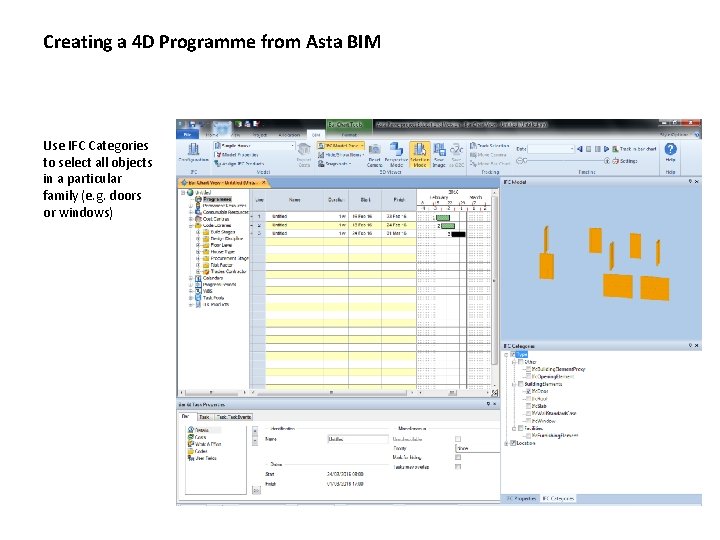
Creating a 4 D Programme from Asta BIM Use IFC Categories to select all objects in a particular family (e. g. doors or windows)
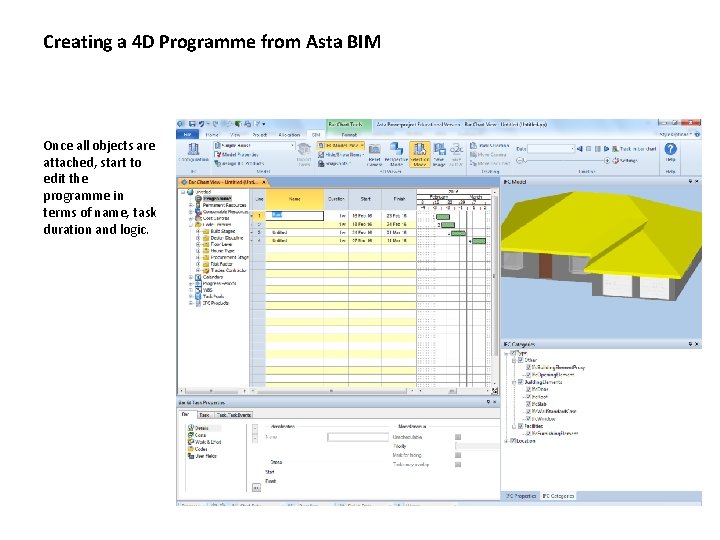
Creating a 4 D Programme from Asta BIM Once all objects are attached, start to edit the programme in terms of name, task duration and logic.
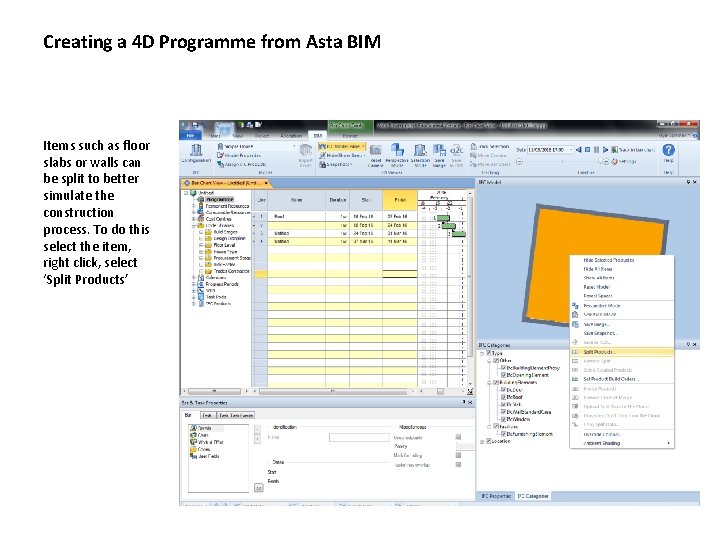
Creating a 4 D Programme from Asta BIM Items such as floor slabs or walls can be split to better simulate the construction process. To do this select the item, right click, select ‘Split Products’
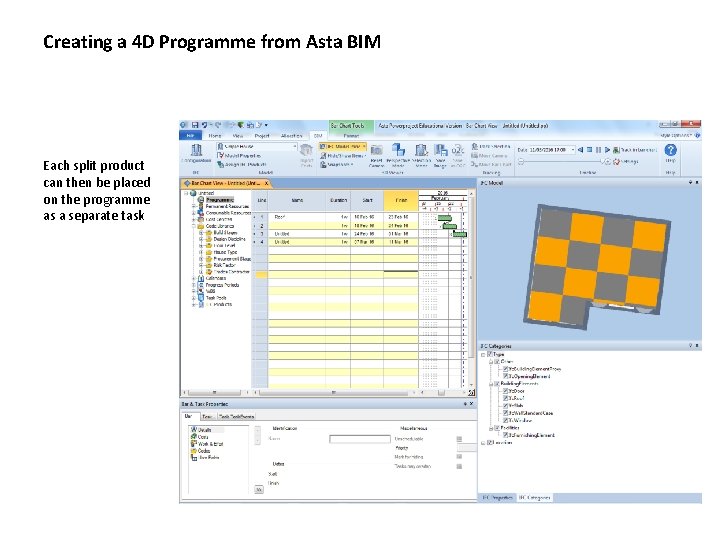
Creating a 4 D Programme from Asta BIM Each split product can then be placed on the programme as a separate task
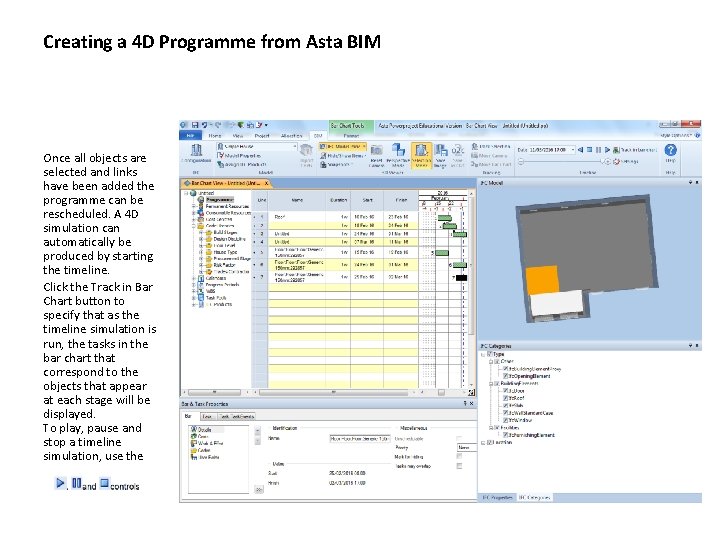
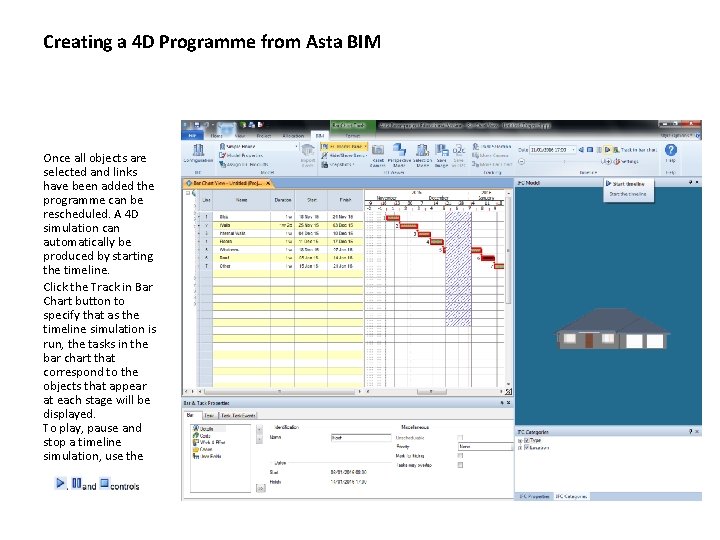
Creating a 4 D Programme from Asta BIM Once all objects are selected and links have been added the programme can be rescheduled. A 4 D simulation can automatically be produced by starting the timeline. Click the Track in Bar Chart button to specify that as the timeline simulation is run, the tasks in the bar chart that correspond to the objects that appear at each stage will be displayed. To play, pause and stop a timeline simulation, use the
Creating a 4 D Programme from Asta BIM Once all objects are selected and links have been added the programme can be rescheduled. A 4 D simulation can automatically be produced by starting the timeline. Click the Track in Bar Chart button to specify that as the timeline simulation is run, the tasks in the bar chart that correspond to the objects that appear at each stage will be displayed. To play, pause and stop a timeline simulation, use the
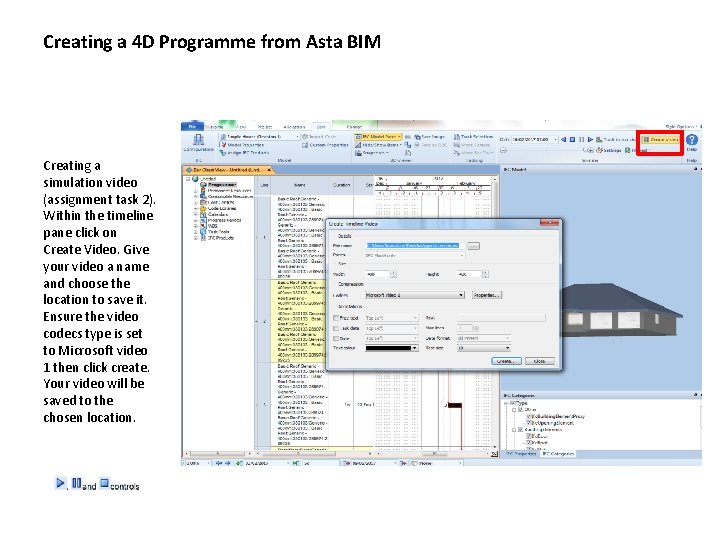
Creating a 4 D Programme from Asta BIM Creating a simulation video (assignment task 2). Within the timeline pane click on Create Video. Give your video a name and choose the location to save it. Ensure the video codecs type is set to Microsoft video 1 then click create. Your video will be saved to the chosen location.
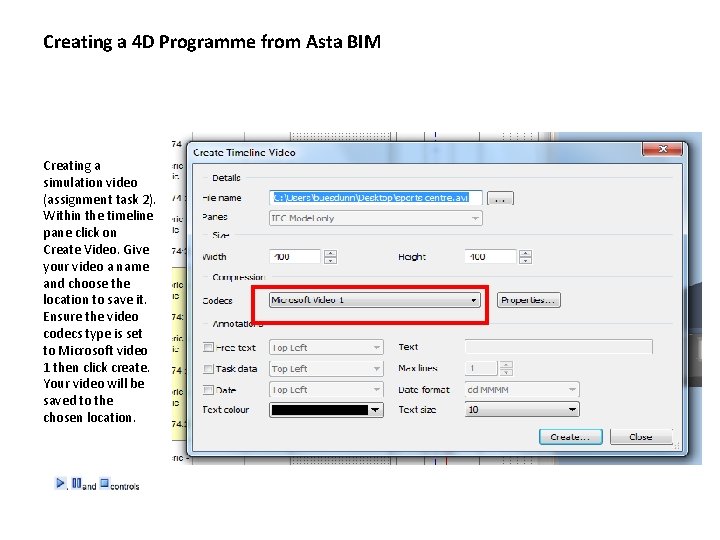
Creating a 4 D Programme from Asta BIM Creating a simulation video (assignment task 2). Within the timeline pane click on Create Video. Give your video a name and choose the location to save it. Ensure the video codecs type is set to Microsoft video 1 then click create. Your video will be saved to the chosen location.
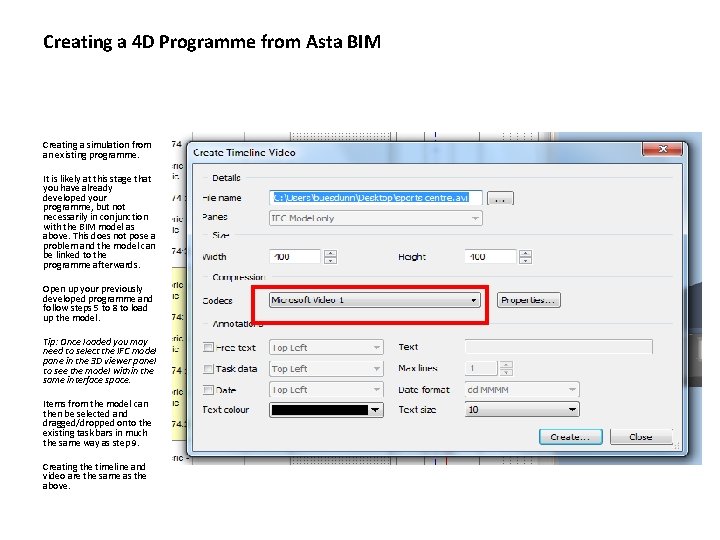
Creating a 4 D Programme from Asta BIM Creating a simulation from an existing programme. It is likely at this stage that you have already developed your programme, but not necessarily in conjunction with the BIM model as above. This does not pose a problem and the model can be linked to the programme afterwards. Open up your previously developed programme and follow steps 5 to 8 to load up the model. Tip: Once loaded you may need to select the IFC model pane in the 3 D viewer panel to see the model within the same interface space. Items from the model can then be selected and dragged/dropped onto the existing task bars in much the same way as step 9. Creating the timeline and video are the same as the above.
- Slides: 19