
CreateProcess Requisitions and Receipts in People Soft Instructions
- Slides: 54
Create/Process Requisitions and Receipts in People. Soft Instructions for Requesters Office of Contracts & Procurement Fiscal Year 2020 1
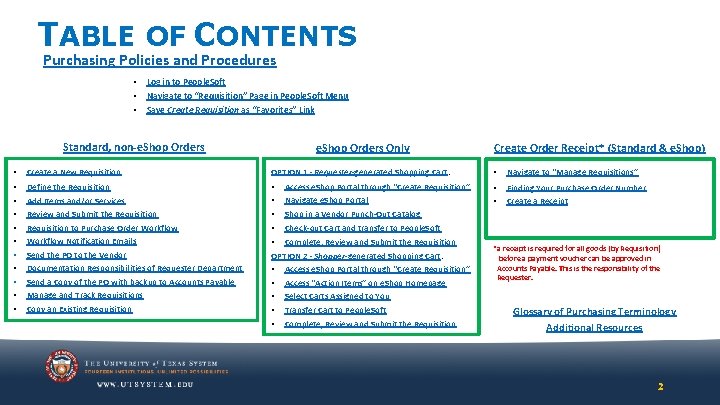
TABLE OF CONTENTS Purchasing Policies and Procedures • • • Log in to People. Soft Navigate to “Requisition” Page in People. Soft Menu Save Create Requisition as “Favorites” Link Standard, non-e. Shop Orders Only Create Order Receipt* (Standard & e. Shop) • Create a New Requisition OPTION 1 - Requester-generated Shopping Cart: • Navigate to “Manage Requisitions” • • • Define the Requisition Access e. Shop Portal through “Create Requisition” • • Finding Your Purchase Order Number Requisition to Purchase Order Workflow • • Workflow Notification Emails • Complete, Review and Submit the Requisition Send the PO to the Vendor OPTION 2 - Shopper-generated Shopping Cart: Documentation Responsibilities of Requester Department • • • Add Items and/or Services Review and Submit the Requisition Send a Copy of the PO with backup to Accounts Payable Manage and Track Requisitions Copy an Existing Requisition Navigate e. Shop Portal Create a Receipt Shop in a Vendor Punch-Out Catalog Check-out Cart and transfer to People. Soft Access e. Shop Portal through “Create Requisition” Access “Action Items” on e. Shop Homepage *a receipt is required for all goods (by Requisition) before a payment voucher can be approved in Accounts Payable. This is the responsibility of the Requester. Select Carts Assigned to You Transfer Cart to People. Soft Complete, Review and Submit the Requisition Glossary of Purchasing Terminology Additional Resources 2
Back to ‘Table of Contents’ Purchasing Policies and Procedures The Requester is responsible for initiating the Purchase Order cycle. This means that you, the Requester, must have a basic knowledge of the Purchasing “rules” that regulate how UT System Administration procures commodities or services. Therefore, it is very important that you familiarize yourself with these “rules” and procedures BEFORE you proceed with creating and forwarding a Requisition for approval. Your “best friend” in this endeavor is the Basic Procurement Training guide, found on Contracts and Procurement’s Training Webpage. Still, your very BEST friend remains your Buyer, so please never hesitate to contact me! My contact information is on the Additional Resources page of this guide. I expect, however, that you will have “done your homework” and studied the Basic Procurement Training guide, as well as this guide. 3
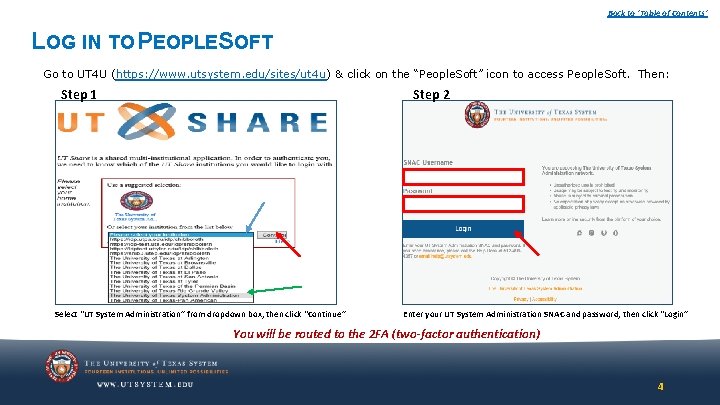
Back to ‘Table of Contents’ LOG IN TO PEOPLESOFT Go to UT 4 U (https: //www. utsystem. edu/sites/ut 4 u) & click on the “People. Soft” icon to access People. Soft. Then: Step 1 Step 2 Select “UT System Administration” from dropdown box, then click “Continue” Enter your UT System Administration SNAC and password, then click “Login” You will be routed to the 2 FA (two-factor authentication) 4
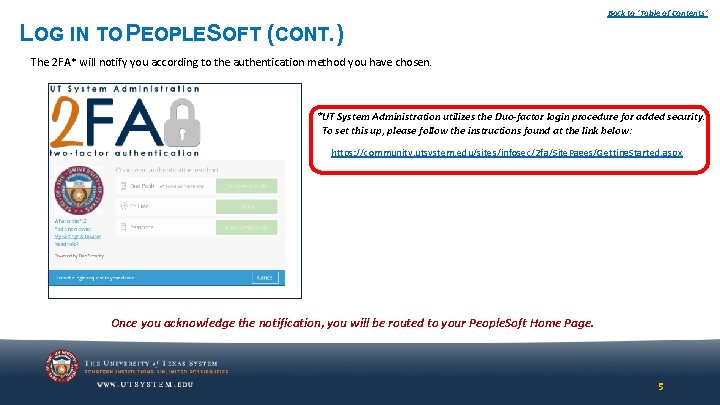
Back to ‘Table of Contents’ LOG IN TO PEOPLESOFT (CONT. ) The 2 FA* will notify you according to the authentication method you have chosen. *UT System Administration utilizes the Duo-factor login procedure for added security. To set this up, please follow the instructions found at the link below: https: //community. utsystem. edu/sites/infosec/2 fa/Site. Pages/Getting. Started. aspx Once you acknowledge the notification, you will be routed to your People. Soft Home Page. 5
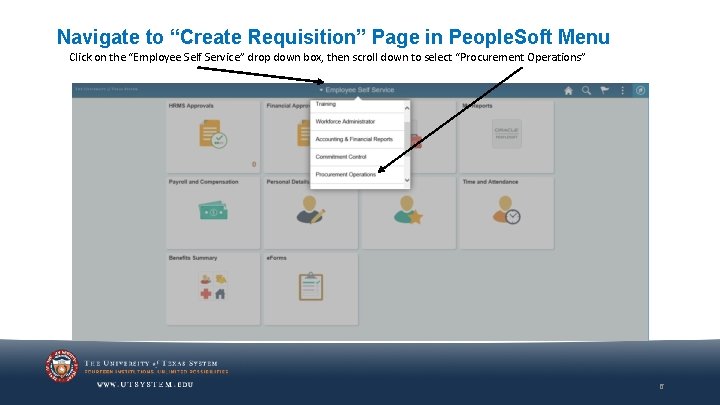
Navigate to “Create Requisition” Page in People. Soft Menu Click on the “Employee Self Service” drop down box, then scroll down to select “Procurement Operations” 6
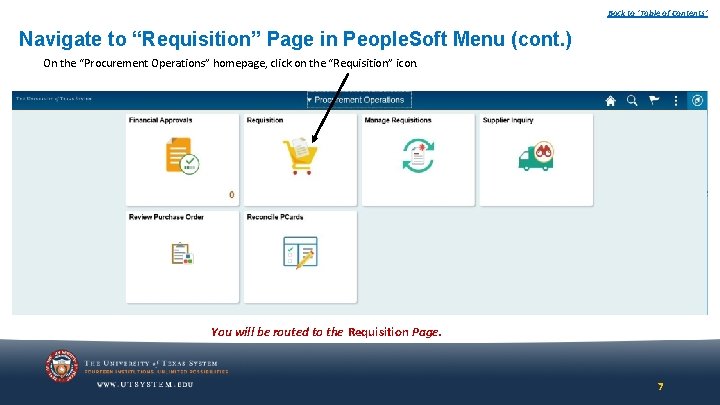
Back to ‘Table of Contents’ Navigate to “Requisition” Page in People. Soft Menu (cont. ) On the “Procurement Operations” homepage, click on the “Requisition” icon. You will be routed to the Requisition Page. 7
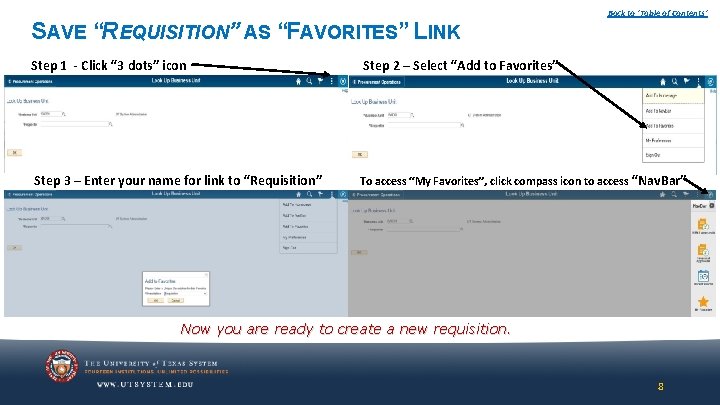
Back to ‘Table of Contents’ SAVE “REQUISITION” AS “FAVORITES” LINK Step 1 - Click “ 3 dots” icon Step 3 – Enter your name for link to “Requisition” Step 2 – Select “Add to Favorites” To access “My Favorites”, click compass icon to access “Nav. Bar” For all future Requisitions, you can simply click here instead of navigating through the Main Menu tree. Now you are ready to create a new requisition. 8
Back to ‘Table of Contents’ Create Requisition (Standard, non e. Shop Orders) 9
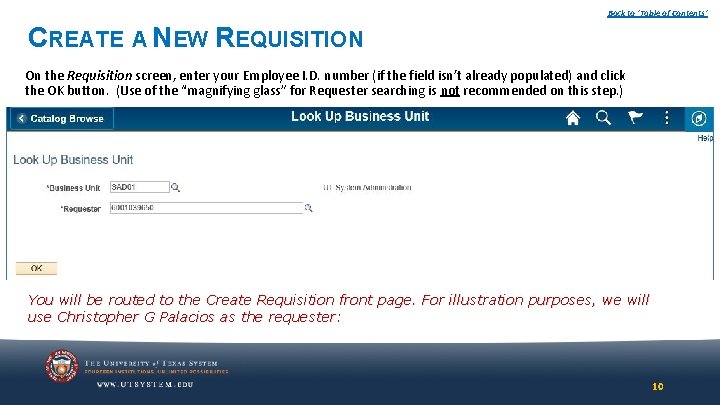
Back to ‘Table of Contents’ CREATE A NEW REQUISITION On the Requisition screen, enter your Employee I. D. number (if the field isn’t already populated) and click the OK button. (Use of the “magnifying glass” for Requester searching is not recommended on this step. ) You will be routed to the Create Requisition front page. For illustration purposes, we will use Christopher G Palacios as the requester: 10
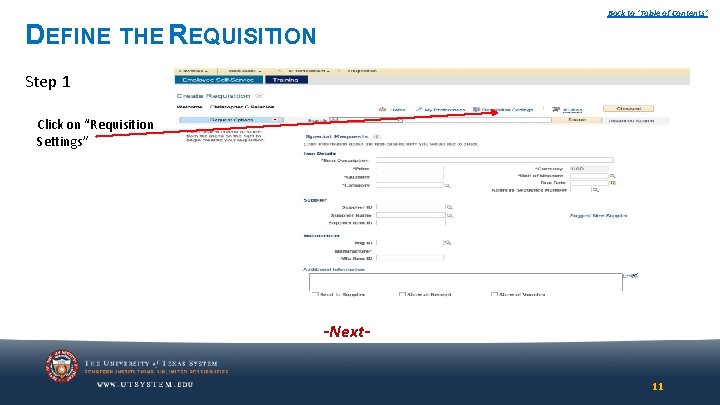
Back to ‘Table of Contents’ DEFINE THE REQUISITION Step 1 Click on “Requisition Settings” -Next 11
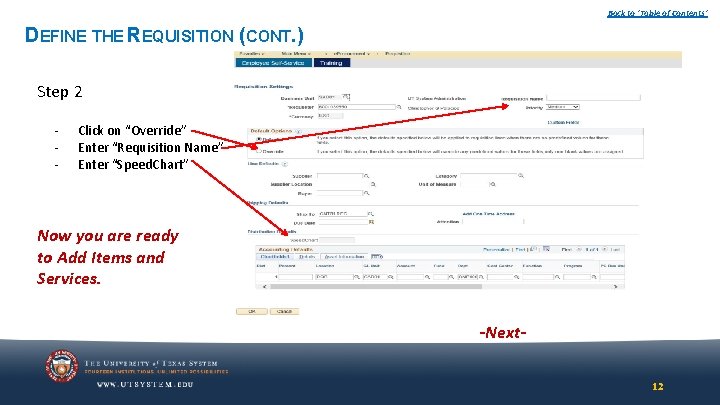
Back to ‘Table of Contents’ DEFINE THE REQUISITION (CONT. ) Step 2 - Click on “Override” Enter “Requisition Name” Enter “Speed. Chart” Now you are ready to Add Items and Services. -Next 12
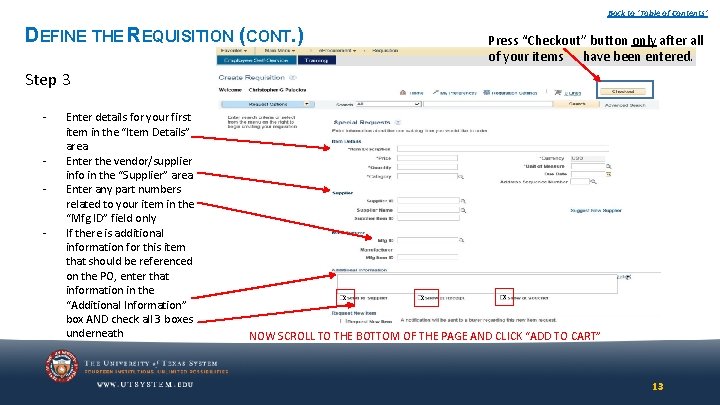
Back to ‘Table of Contents’ DEFINE THE REQUISITION (CONT. ) Press “Checkout” button only after all of your items have been entered. Step 3 - Enter details for your first item in the “Item Details” area Enter the vendor/supplier info in the “Supplier” area Enter any part numbers related to your item in the “Mfg ID” field only If there is additional information for this item that should be referenced on the PO, enter that information in the “Additional Information” box AND check all 3 boxes underneath x x x NOW SCROLL TO THE BOTTOM OF THE PAGE AND CLICK “ADD TO CART” 13
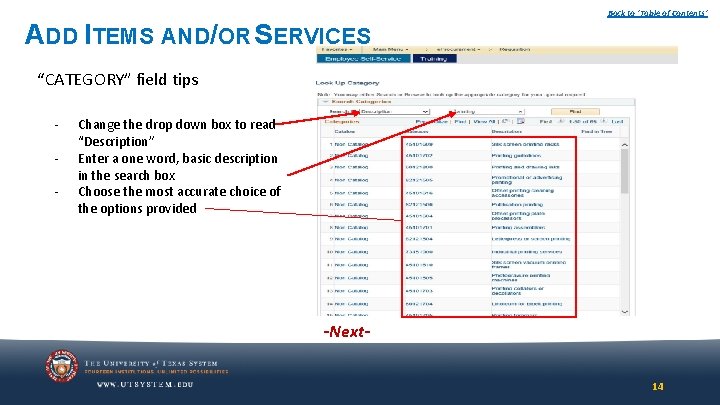
Back to ‘Table of Contents’ ADD ITEMS AND/OR SERVICES “CATEGORY” field tips - Change the drop down box to read “Description” Enter a one word, basic description in the search box Choose the most accurate choice of the options provided -Next 14
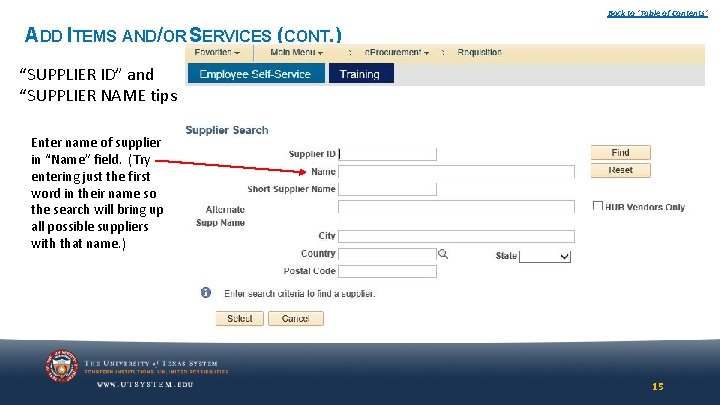
Back to ‘Table of Contents’ ADD ITEMS AND/OR SERVICES (CONT. ) “SUPPLIER ID” and “SUPPLIER NAME tips Enter name of supplier in “Name” field. (Try entering just the first word in their name so the search will bring up all possible suppliers with that name. ) -Next 15
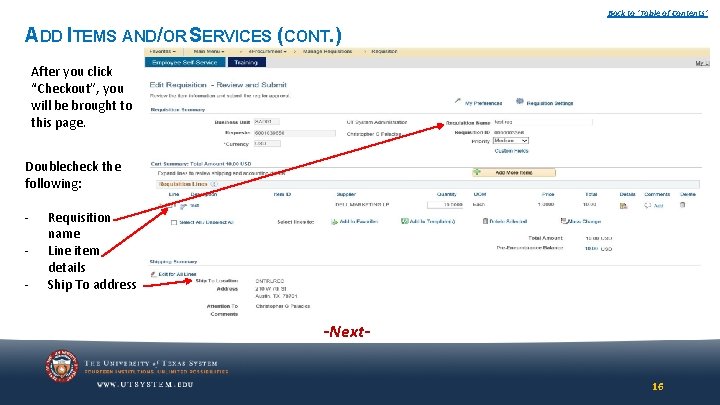
Back to ‘Table of Contents’ ADD ITEMS AND/OR SERVICES (CONT. ) After you click “Checkout”, you will be brought to this page. Doublecheck the following: - Requisition name Line item details Ship To address -Next 16
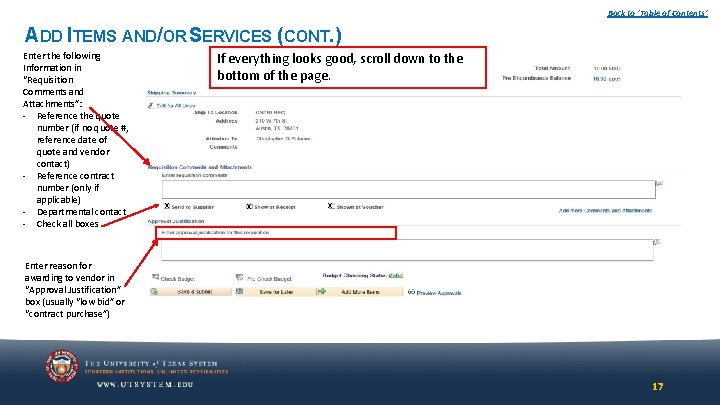
Back to ‘Table of Contents’ ADD ITEMS AND/OR SERVICES (CONT. ) Enter the following Information in “Requisition Comments and Attachments”: - Reference the quote number (if no quote #, reference date of quote and vendor contact) - Reference contract number (only if applicable) - Departmental contact - Check all boxes If everything looks good, scroll down to the bottom of the page. x x x Enter reason for awarding to vendor in “Approval Justification” box (usually “low bid” or “contract purchase”) 17
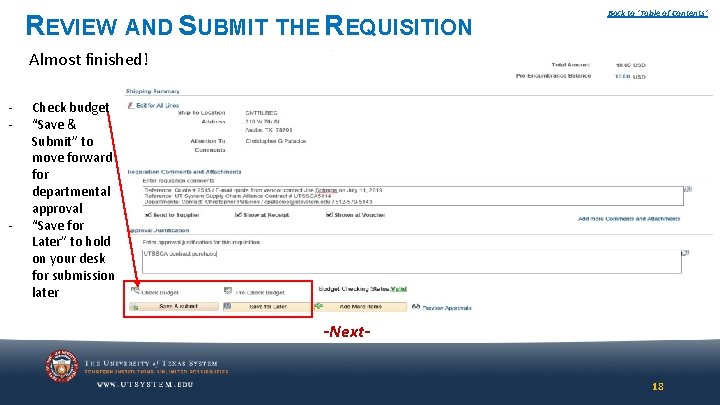
REVIEW AND SUBMIT THE REQUISITION Back to ‘Table of Contents’ Almost finished! - - Check budget “Save & Submit” to move forward for departmental approval “Save for Later” to hold on your desk for submission later -Next 18
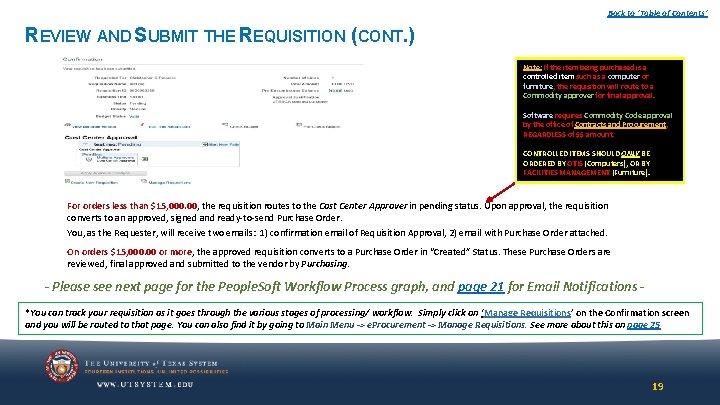
Back to ‘Table of Contents’ REVIEW AND SUBMIT THE REQUISITION (CONT. ) Note: If the item being purchased is a controlled item such as a computer or furniture, the requisition will route to a Commodity approver for final approval. Software requires Commodity Code approval by the office of Contracts and Procurement, REGARDLESS of $$ amount. CONTROLLED ITEMS SHOULD ONLY BE ORDERED BY OTIS (Computers), OR BY FACILITIES MANAGEMENT (Furniture). For orders less than $15, 000. 00, the requisition routes to the Cost Center Approver in pending status. Upon approval, the requisition converts to an approved, signed and ready-to-send Purchase Order. You, as the Requester, will receive two emails: 1) confirmation email of Requisition Approval, 2) email with Purchase Order attached. On orders $15, 000. 00 or more, the approved requisition converts to a Purchase Order in “Created” Status. These Purchase Orders are reviewed, final approved and submitted to the vendor by Purchasing. - Please see next page for the People. Soft Workflow Process graph, and page 21 for Email Notifications *You can track your requisition as it goes through the various stages of processing/ workflow. Simply click on ‘Manage Requisitions’ on the Confirmation screen and you will be routed to that page. You can also find it by going to Main Menu -> e. Procurement -> Manage Requisitions. See more about this on page 25 19
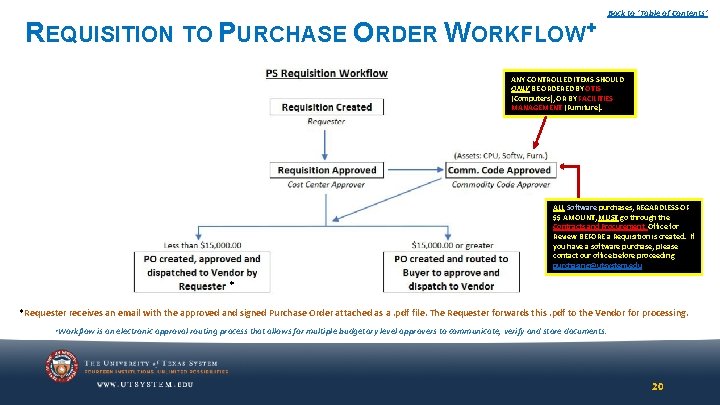
REQUISITION TO PURCHASE ORDER WORKFLOW+ Back to ‘Table of Contents’ ANY CONTROLLED ITEMS SHOULD ONLY BE ORDERED BY OTIS (Computers), OR BY FACILITIES MANAGEMENT (Furniture). ALL Software purchases, REGARDLESS OF $$ AMOUNT, MUST go through the Contracts and Procurement Office for Review BEFORE a Requisition is created. If you have a software purchase, please contact our office before proceeding purchasing@utsystem. edu * *Requester receives an email with the approved and signed Purchase Order attached as a. pdf file. The Requester forwards this. pdf to the Vendor for processing. +Workflow is an electronic approval routing process that allows for multiple budgetary level approvers to communicate, verify and store documents. 20
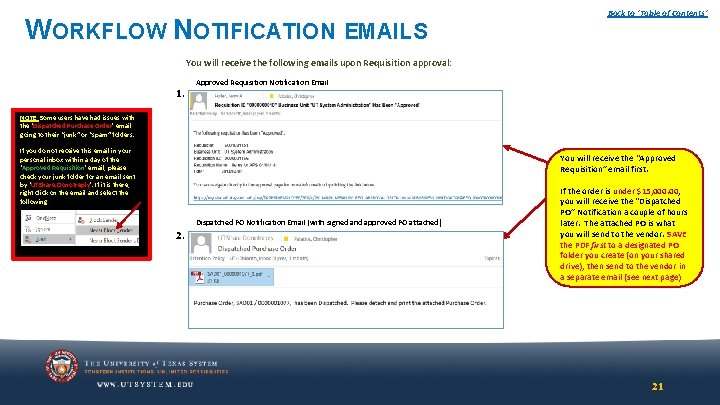
WORKFLOW NOTIFICATION EMAILS Back to ‘Table of Contents’ You will receive the following emails upon Requisition approval: 1. Approved Requisition Notification Email NOTE: Some users have had issues with the ‘Dispatched Purchase Order’ email going to their “junk” or “spam” folders. If you do not receive this email in your personal inbox within a day of the ‘Approved Requisition’ email, please check your junk folder for an email sent by ‘UTShare. Donotreply’. If it is there, right click on the email and select the following: You will receive the “Approved Requisition” email first. Dispatched PO Notification Email (with signed and approved PO attached) 2. If the order is under $15, 000. 00, you will receive the “Dispatched PO” Notification a couple of hours later. The attached PO is what you will send to the vendor. SAVE the PDF first to a designated PO folder you create (on your shared drive), then send to the vendor in a separate email (see next page) 21
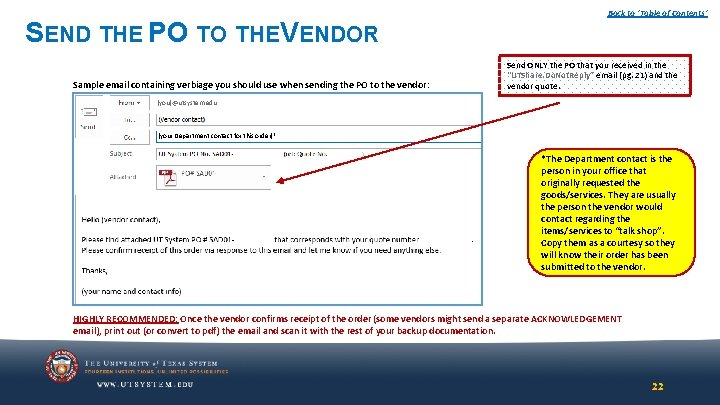
SEND THE PO TO THEVENDOR Sample email containing verbiage you should use when sending the PO to the vendor: Back to ‘Table of Contents’ Send ONLY the PO that you received in the “UTShare. Do. Not. Reply” email (pg. 21) and the vendor quote. (you)@utsystem. edu (your Department contact for this order)* - ___________________ *The Department contact is the person in your office that originally requested the goods/services. They are usually the person the vendor would contact regarding the items/services to “talk shop”. Copy them as a courtesy so they will know their order has been submitted to the vendor. HIGHLY RECOMMENDED: Once the vendor confirms receipt of the order (some vendors might send a separate ACKNOWLEDGEMENT email), print out (or convert to pdf) the email and scan it with the rest of your backup documentation. 22
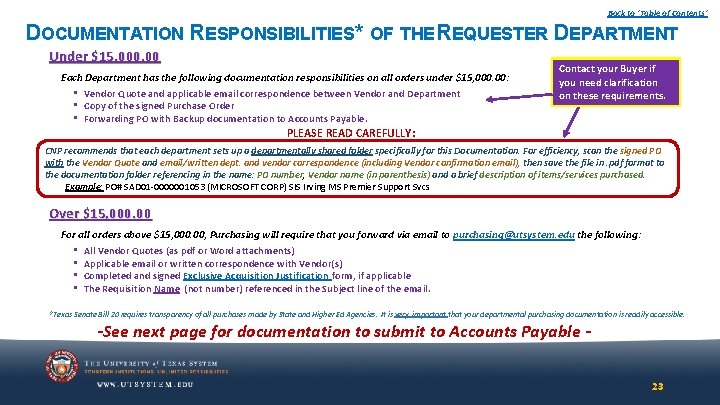
Back to ‘Table of Contents’ DOCUMENTATION RESPONSIBILITIES* OF THE REQUESTER DEPARTMENT Under $15, 000. 00 Each Department has the following documentation responsibilities on all orders under $15, 000. 00: • Vendor Quote and applicable email correspondence between Vendor and Department • Copy of the signed Purchase Order • Forwarding PO with Backup documentation to Accounts Payable. Contact your Buyer if you need clarification on these requirements. PLEASE READ CAREFULLY: CNP recommends that each department sets up a departmentally shared folder specifically for this Documentation. For efficiency, scan the signed PO with the Vendor Quote and email/written dept. and vendor correspondence (including Vendor confirmation email), then save the file in. pdf format to the documentation folder referencing in the name: PO number, Vendor name (in parenthesis) and a brief description of items/services purchased. Example: PO# SAD 01 -0000001053 (MICROSOFT CORP) SIS Irving MS Premier Support Svcs Over $15, 000. 00 For all orders above $15, 000. 00, Purchasing will require that you forward via email to purchasing@utsystem. edu the following: • All Vendor Quotes (as pdf or Word attachments) • Applicable email or written correspondence with Vendor(s) • Completed and signed Exclusive Acquisition Justification form, if applicable • The Requisition Name (not number) referenced in the Subject line of the email. *Texas Senate Bill 20 requires transparency of all purchases made by State and Higher Ed Agencies. It is very important that your departmental purchasing documentation is readily accessible. -See next page for documentation to submit to Accounts Payable 23
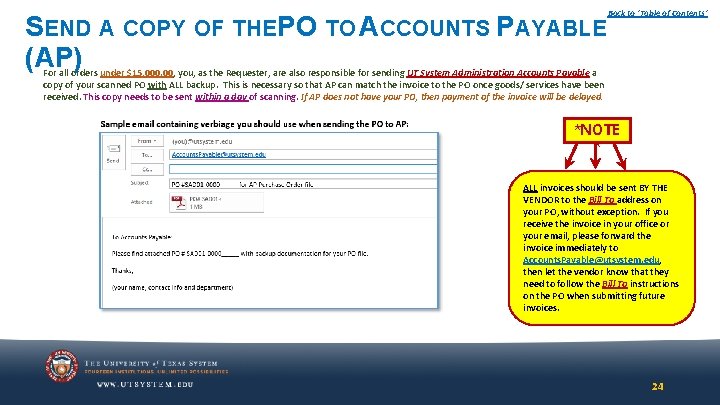
SEND A COPY OF THEPO TO ACCOUNTS PAYABLE (AP) Back to ‘Table of Contents’ For all orders under $15, 000. 00, you, as the Requester, are also responsible for sending UT System Administration Accounts Payable a copy of your scanned PO with ALL backup. This is necessary so that AP can match the invoice to the PO once goods/ services have been received. This copy needs to be sent within a day of scanning. If AP does not have your PO, then payment of the invoice will be delayed. *NOTE * ALL invoices should be sent BY THE VENDOR to the Bill To address on your PO, without exception. If you receive the invoice in your office or your email, please forward the invoice immediately to Accounts. Payable@utsystem. edu, then let the vendor know that they need to follow the Bill To instructions on the PO when submitting future invoices. 24
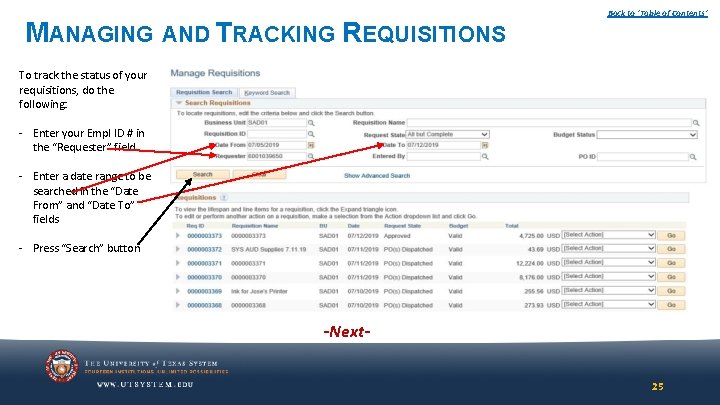
MANAGING AND TRACKING REQUISITIONS Back to ‘Table of Contents’ To track the status of your requisitions, do the following: - Enter your Empl ID # in the “Requester” field - Enter a date range to be searched in the “Date From” and “Date To” fields - Press “Search” button -Next 25
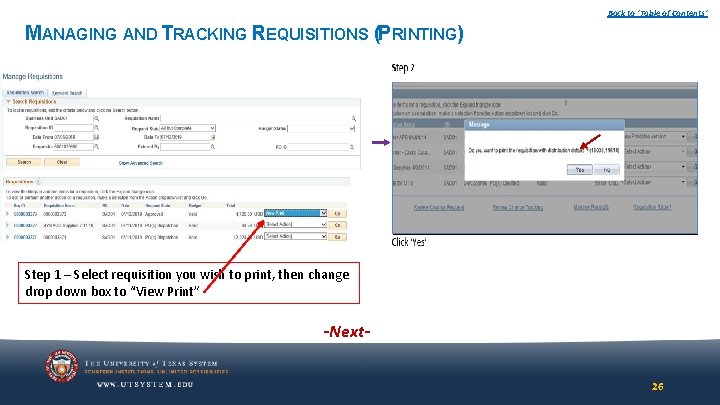
Back to ‘Table of Contents’ MANAGING AND TRACKING REQUISITIONS (PRINTING) Step 1 – Select requisition you wish to print, then change drop down box to “View Print” -Next 26
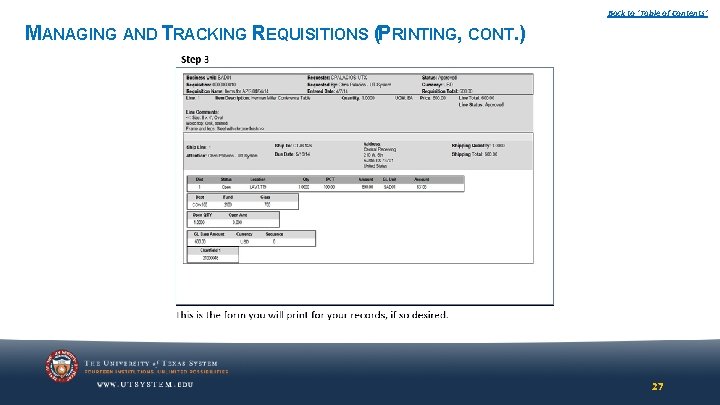
Back to ‘Table of Contents’ MANAGING AND TRACKING REQUISITIONS (PRINTING, CONT. ) 27
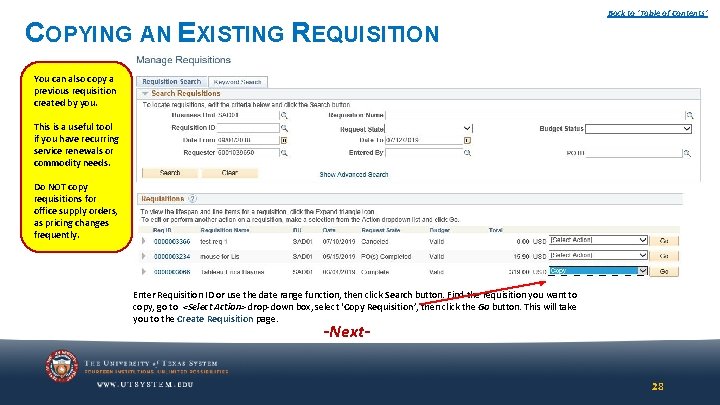
COPYING AN EXISTING REQUISITION Back to ‘Table of Contents’ You can also copy a previous requisition created by you. This is a useful tool if you have recurring service renewals or commodity needs. Do NOT copy requisitions for office supply orders, as pricing changes frequently. Enter Requisition ID or use the date range function, then click Search button. Find the requisition you want to copy, go to <Select Action> drop-down box, select ‘Copy Requisition’, then click the Go button. This will take you to the Create Requisition page. -Next- 28
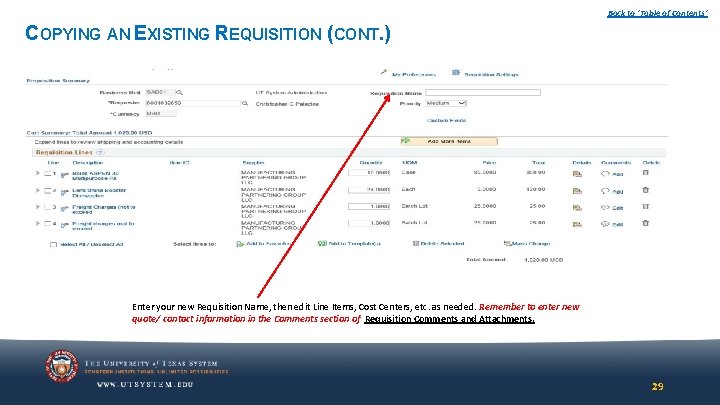
Back to ‘Table of Contents’ COPYING AN EXISTING REQUISITION (CONT. ) Enter your new Requisition Name, then edit Line Items, Cost Centers, etc. as needed. Remember to enter new quote/ contact information in the Comments section of Requisition Comments and Attachments. 29
Back to ‘Table of Contents’ Create Requisition (e. Shop Orders only) 30
Back to ‘Table of Contents’ OPTION 1* Create a Requisition from a Requester-generated Shopping Cart *Use this option if you, as Requester for your department, are directly ordering supplies. In this case, you are also the “shopper” The following instructions show you how to transfer your cart into People. Soft for processing. 31
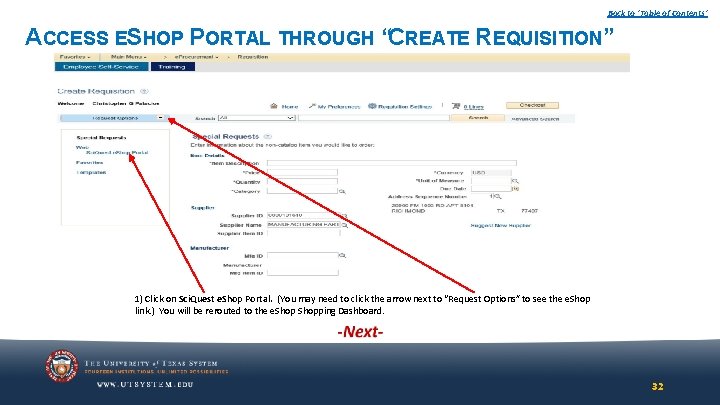
Back to ‘Table of Contents’ ACCESS ESHOP PORTAL THROUGH “CREATE REQUISITION” 1) Click on Sci. Quest e. Shop Portal. (You may need to click the arrow next to “Request Options” to see the e. Shop link. ) You will be rerouted to the e. Shopping Dashboard. 32
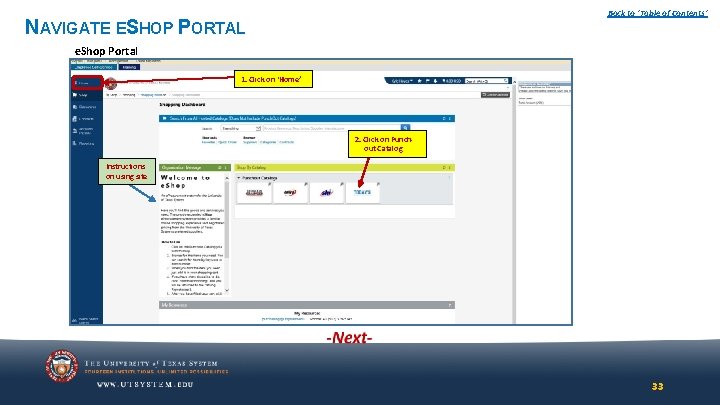
Back to ‘Table of Contents’ NAVIGATE ESHOP PORTAL e. Shop Portal 1. Click on ‘Home’ 2. Click on Punchout Catalog Instructions on using site 33
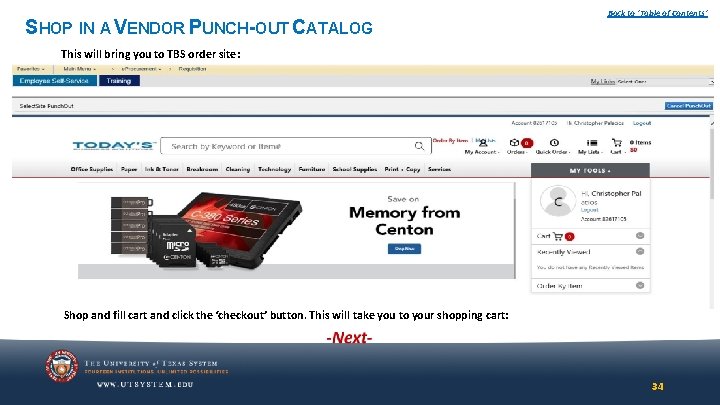
SHOP IN A VENDOR PUNCH-OUT CATALOG Back to ‘Table of Contents’ This will bring you to TBS order site: Shop and fill cart and click the ‘checkout’ button. This will take you to your shopping cart: 34
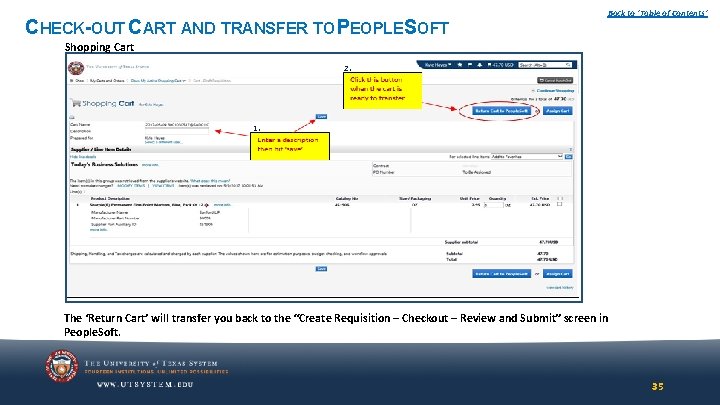
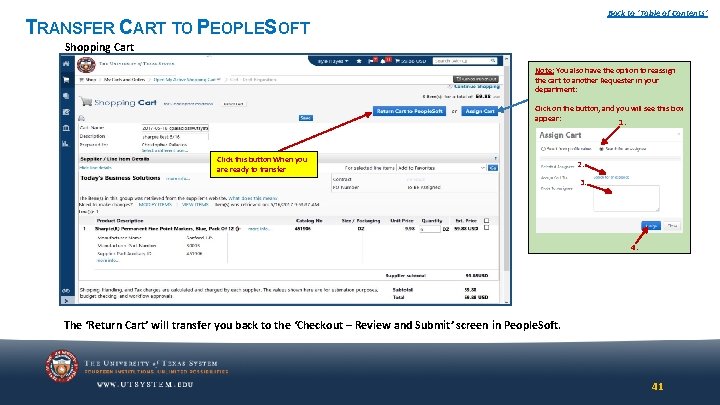
CHECK-OUT CART AND TRANSFER TO PEOPLESOFT Back to ‘Table of Contents’ Shopping Cart 2. 1. The ‘Return Cart’ will transfer you back to the “Create Requisition – Checkout – Review and Submit” screen in People. Soft. 35
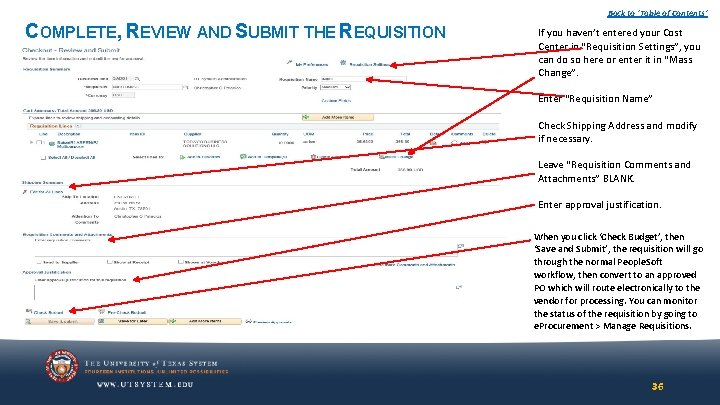
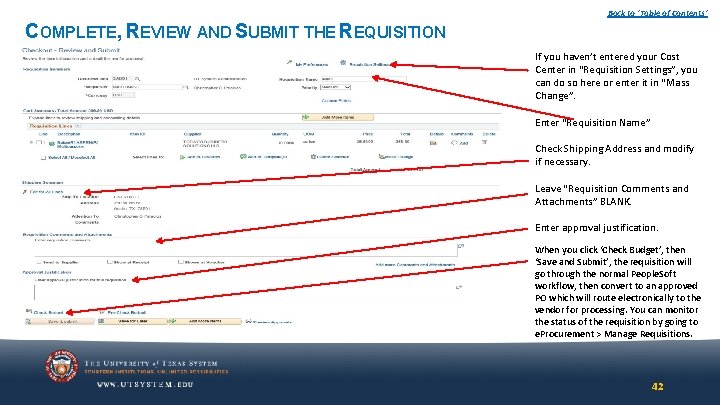
Back to ‘Table of Contents’ COMPLETE, REVIEW AND SUBMIT THE REQUISITION If you haven’t entered your Cost Center in “Requisition Settings”, you can do so here or enter it in “Mass Change”. Enter “Requisition Name” Check Shipping Address and modify if necessary. Leave “Requisition Comments and Attachments” BLANK. Enter approval justification. When you click ‘Check Budget’, then ‘Save and Submit’, the requisition will go through the normal People. Soft workflow, then convert to an approved PO which will route electronically to the vendor for processing. You can monitor the status of the requisition by going to e. Procurement > Manage Requisitions. 36
Back to ‘Table of Contents’ OPTION 2* Create a Requisition from a Shopper-generated Shopping Cart *These are carts generated by users within your department and assigned to you for processing. The following instructions show you how to retrieve a cart and process it through People. Soft. 37
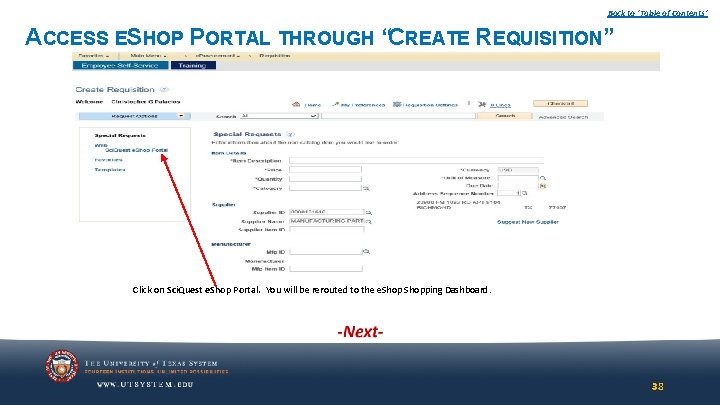
Back to ‘Table of Contents’ ACCESS ESHOP PORTAL THROUGH “CREATE REQUISITION” Click on Sci. Quest e. Shop Portal. You will be rerouted to the e. Shopping Dashboard. 38
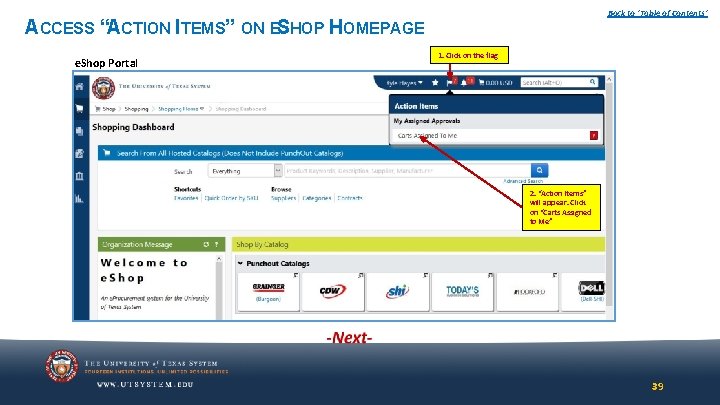
Back to ‘Table of Contents’ ACCESS “ACTION ITEMS” ON ESHOP HOMEPAGE e. Shop Portal 1. Click on the flag 2. “Action Items” will appear. Click on “Carts Assigned to Me” 39
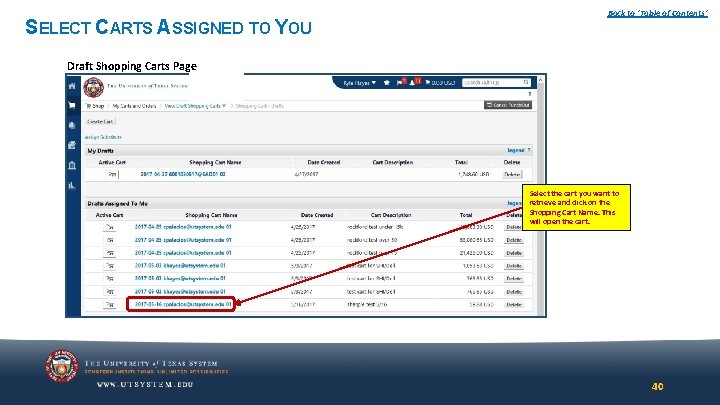
SELECT CARTS ASSIGNED TO YOU Back to ‘Table of Contents’ Draft Shopping Carts Page 1. Select the cart you want to retrieve and click on the Shopping Cart Name. This will open the cart. 40
Back to ‘Table of Contents’ TRANSFER CART TO PEOPLESOFT Shopping Cart 2. 1. Note: You also have the option to reassign the cart to another Requester in your department: Click on the button, and you will see this box appear: 1. Click this button When you are ready to transfer 2. 3. 4. The ‘Return Cart’ will transfer you back to the ‘Checkout – Review and Submit’ screen in People. Soft. 41
Back to ‘Table of Contents’ COMPLETE, REVIEW AND SUBMIT THE REQUISITION If you haven’t entered your Cost Center in “Requisition Settings”, you can do so here or enter it in “Mass Change”. Enter “Requisition Name” Check Shipping Address and modify if necessary. Leave “Requisition Comments and Attachments” BLANK. Enter approval justification. When you click ‘Check Budget’, then ‘Save and Submit’, the requisition will go through the normal People. Soft workflow, then convert to an approved PO which will route electronically to the vendor for processing. You can monitor the status of the requisition by going to e. Procurement > Manage Requisitions. 42
Back to ‘Table of Contents’ Create Order Receipt (Standard and e. Shop Orders) 43
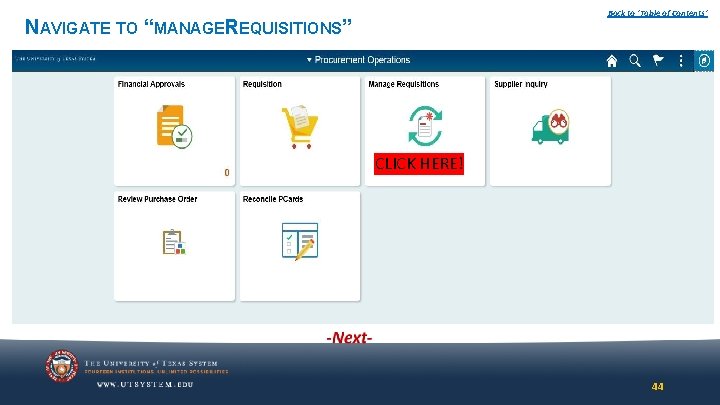
Back to ‘Table of Contents’ NAVIGATE TO “MANAGEREQUISITIONS” CLICK HERE! 44
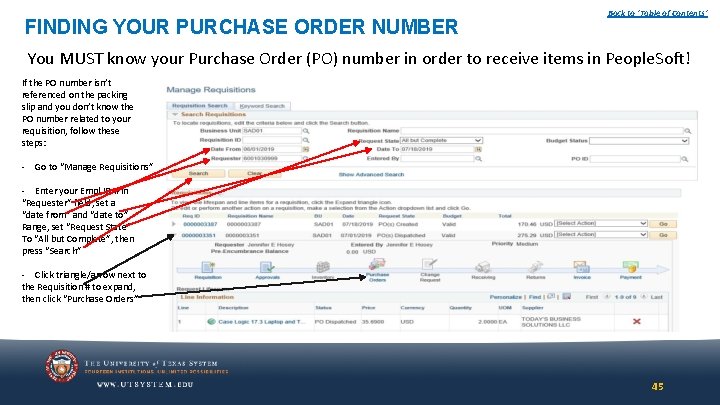
FINDING YOUR PURCHASE ORDER NUMBER Back to ‘Table of Contents’ You MUST know your Purchase Order (PO) number in order to receive items in People. Soft! If the PO number isn’t referenced on the packing slip and you don’t know the PO number related to your requisition, follow these steps: - Go to “Manage Requisitions” - Enter your Empl ID # in “Requester” field, set a “date from” and “date to” Range, set “Request State” To “All but Complete”, then press “Search” - Click triangle/arrow next to the Requisition # to expand, then click “Purchase Orders” 45
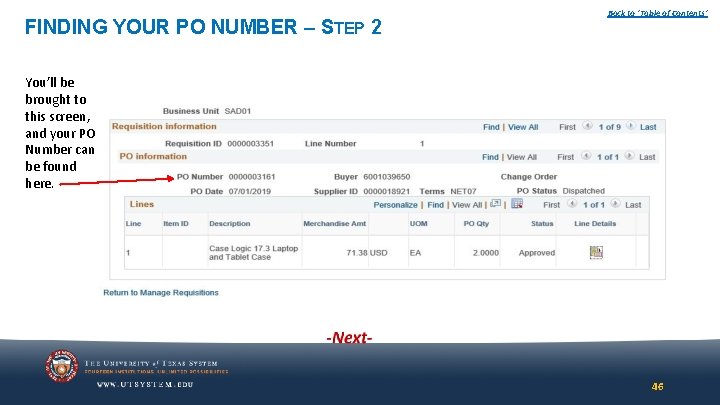
FINDING YOUR PO NUMBER – STEP 2 Back to ‘Table of Contents’ You’ll be brought to this screen, and your PO Number can be found here. 46
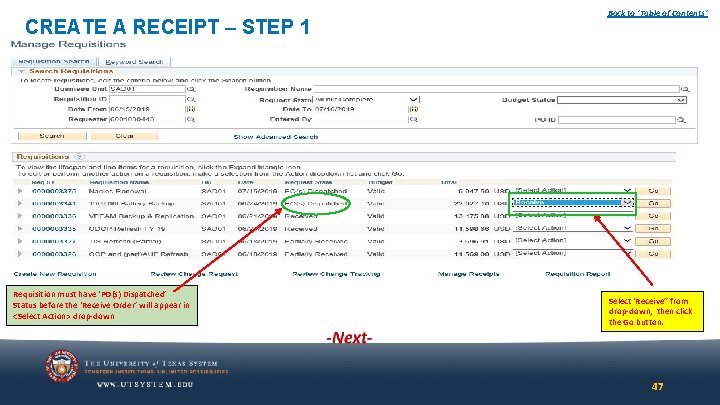
CREATE A RECEIPT – STEP 1 Requisition must have ‘PO(s) Dispatched’ Status before the ‘Receive Order’ will appear in <Select Action> drop-down Back to ‘Table of Contents’ Select ‘Receive” from drop-down, then click the Go button. 47
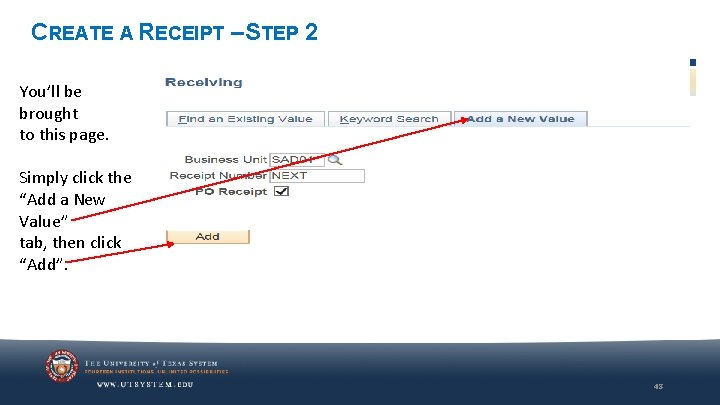
CREATE A RECEIPT – STEP 2 You’ll be brought to this page. Simply click the “Add a New Value” tab, then click “Add”. 48
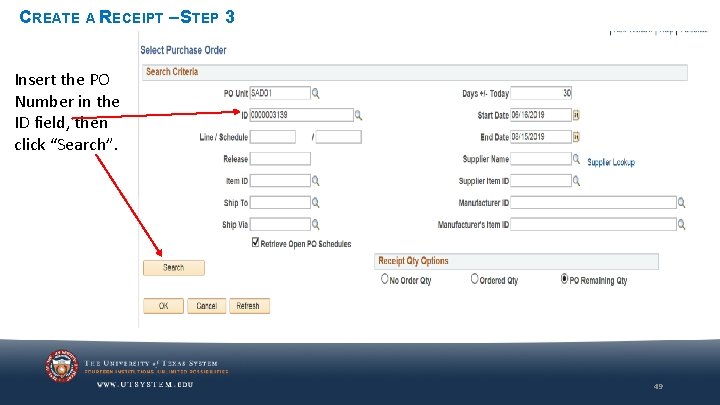
CREATE A RECEIPT – STEP 3 Insert the PO Number in the ID field, then click “Search”. 49
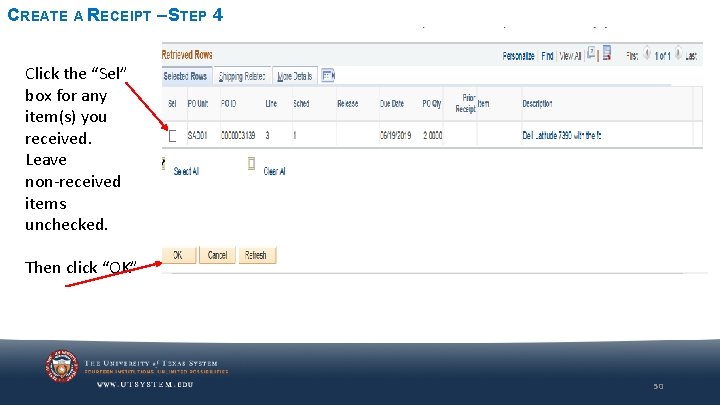
CREATE A RECEIPT – STEP 4 Click the “Sel” box for any item(s) you received. Leave non-received items unchecked. Then click “OK” 50
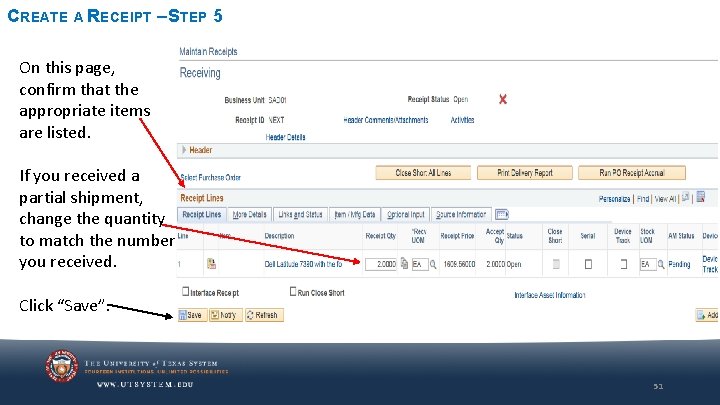
CREATE A RECEIPT – STEP 5 On this page, confirm that the appropriate items are listed. If you received a partial shipment, change the quantity to match the number you received. Click “Save”. 51
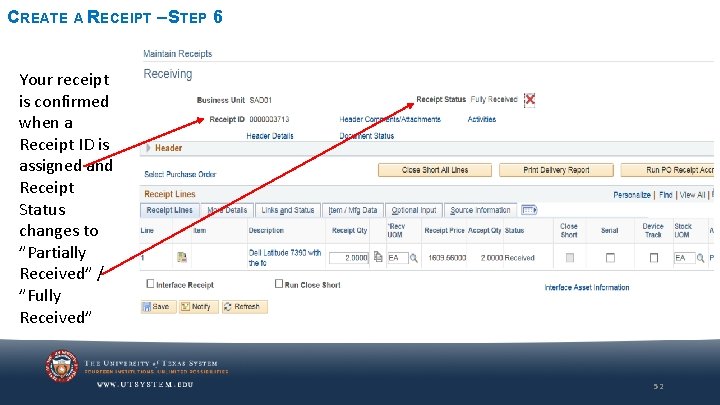
CREATE A RECEIPT – STEP 6 Your receipt is confirmed when a Receipt ID is assigned and Receipt Status changes to ”Partially Received” / ”Fully Received” 52
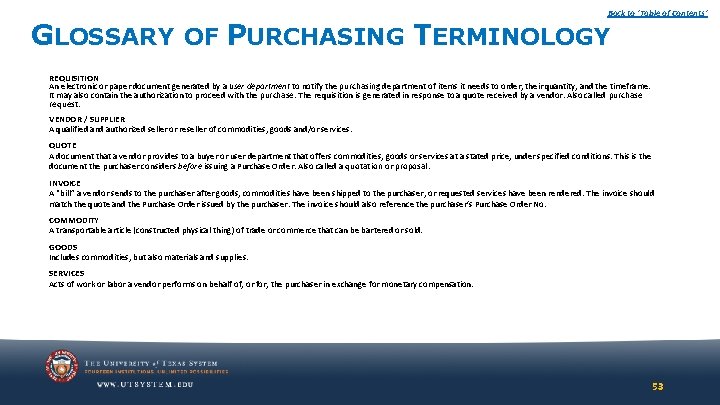
Back to ‘Table of Contents’ GLOSSARY OF PURCHASING TERMINOLOGY REQUISITION An electronic or paper document generated by a user department to notify the purchasing department of items it needs to order, their quantity, and the timeframe. It may also contain the authorization to proceed with the purchase. The requisition is generated in response to a quote received by a vendor. Also called purchase request. VENDOR / SUPPLIER A qualified and authorized seller or reseller of commodities, goods and/or services. QUOTE A document that a vendor provides to a buyer or user department that offers commodities, goods or services at a stated price, under specified conditions. This is the document the purchaser considers before issuing a Purchase Order. Also called a quotation or proposal. INVOICE A “bill” a vendor sends to the purchaser after goods, commodities have been shipped to the purchaser, or requested services have been rendered. The invoice should match the quote and the Purchase Order issued by the purchaser. The invoice should also reference the purchaser’s Purchase Order No. COMMODITY A transportable article (constructed physical thing) of trade or commerce that can be bartered or sold. GOODS Includes commodities, but also materials and supplies. SERVICES Acts of work or labor a vendor performs on behalf of, or for, the purchaser in exchange for monetary compensation. 53
Back to ‘Table of Contents’ ADDITIONAL RESOURCES Purchasing Contact: Christopher Palacios (512) 579 -5143 Visit the Contracts and Procurement website for further information: • • • Staff directory Procedures Forms Guides Important Links Supplier Resources https: //www. utsystem. edu/offices/contracts-and-procurement 54